Tasks and calendar
For agents · 3 min
Add a task, give it a day, and see it on your calendar, then connect Google Calendar so everything lives in one place.
Watch
Or read it step by step
-
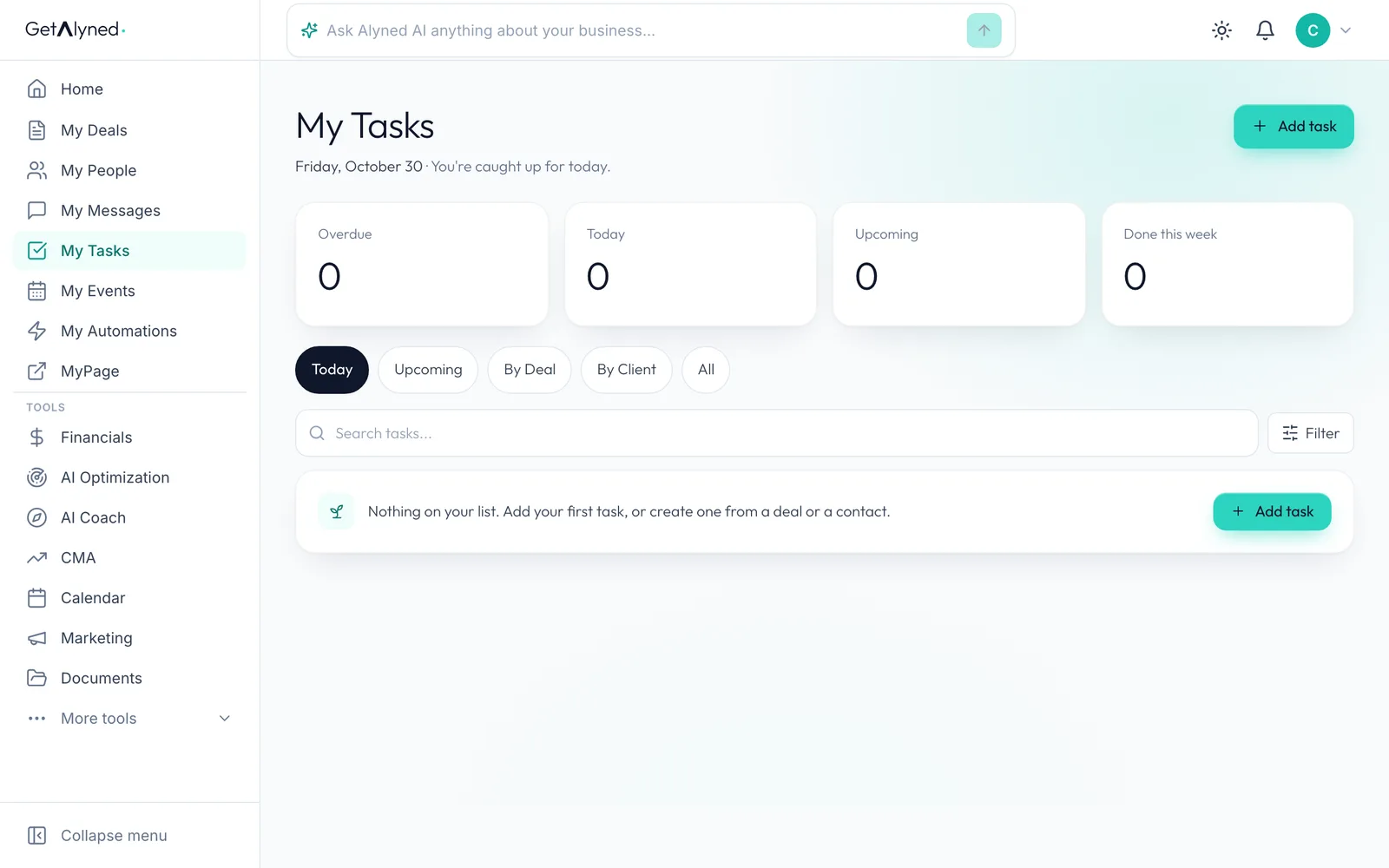
Click Add task
Open My Tasks. It holds everything you need to do, from deals, contacts and your own list. Click Add task.
-
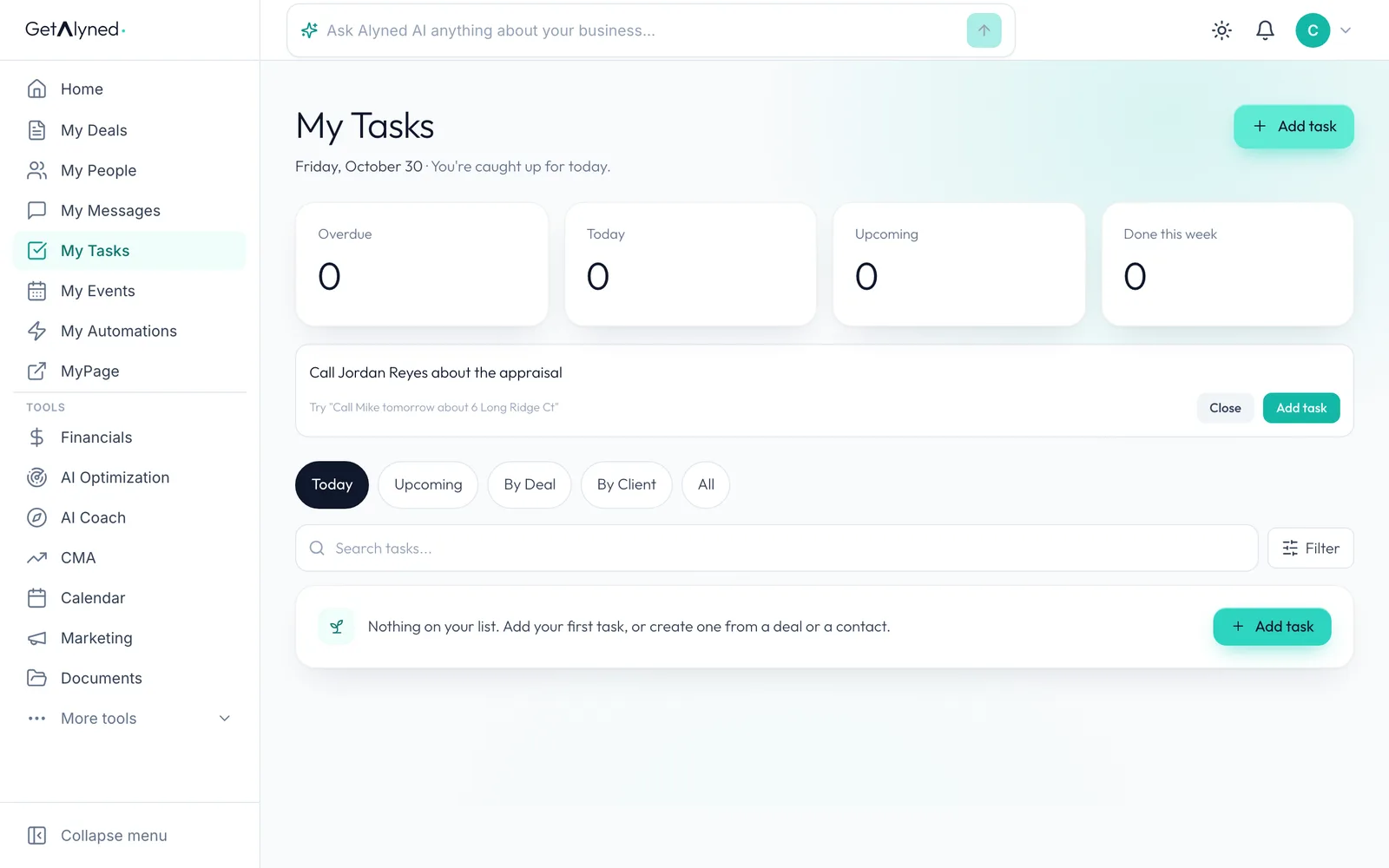
Type the task
Type what needs to get done. Include a day, like tomorrow, and it's scheduled for you.
-
Add it
Click Add task.
-
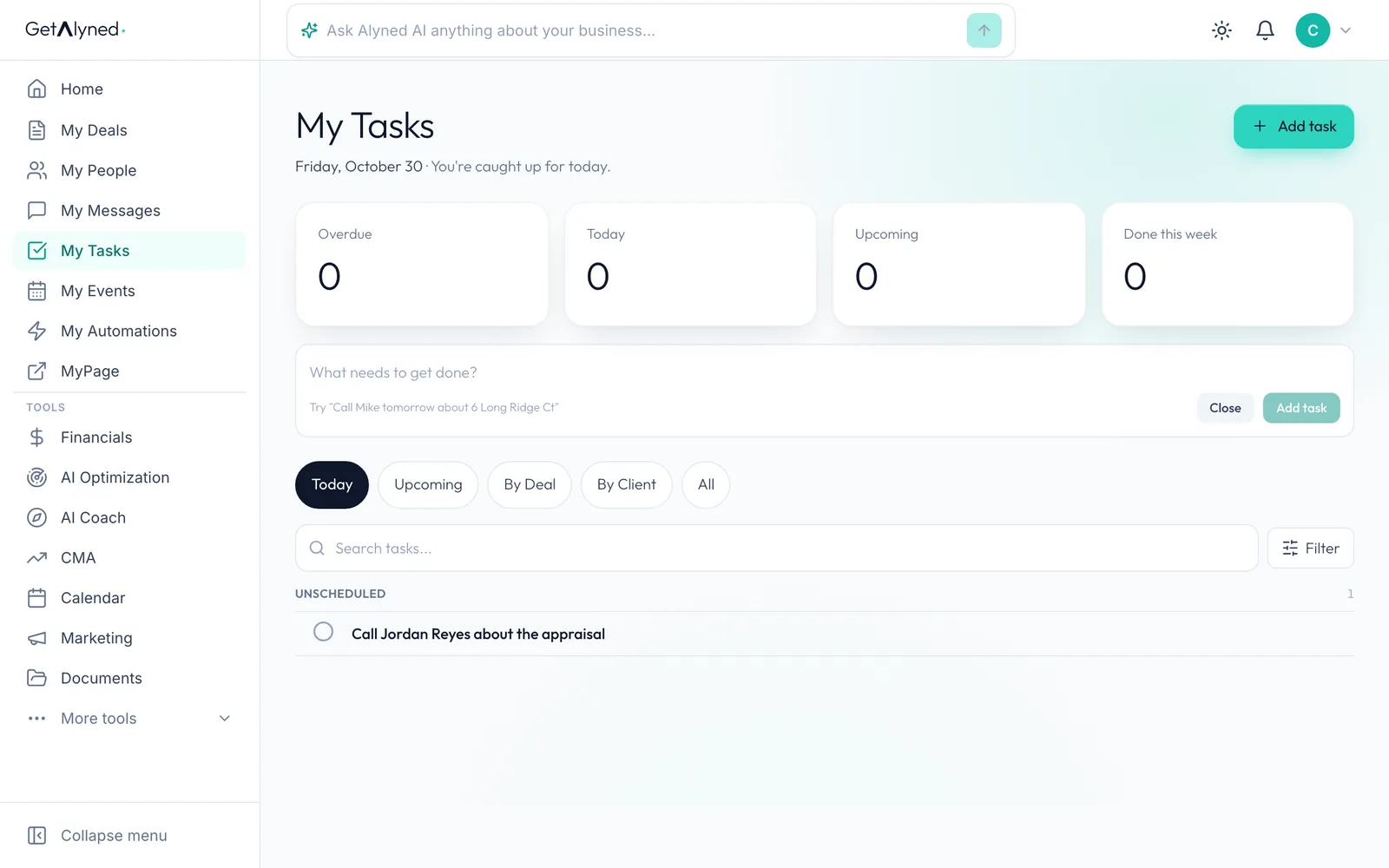
Open the task
Click the task to change it.
-
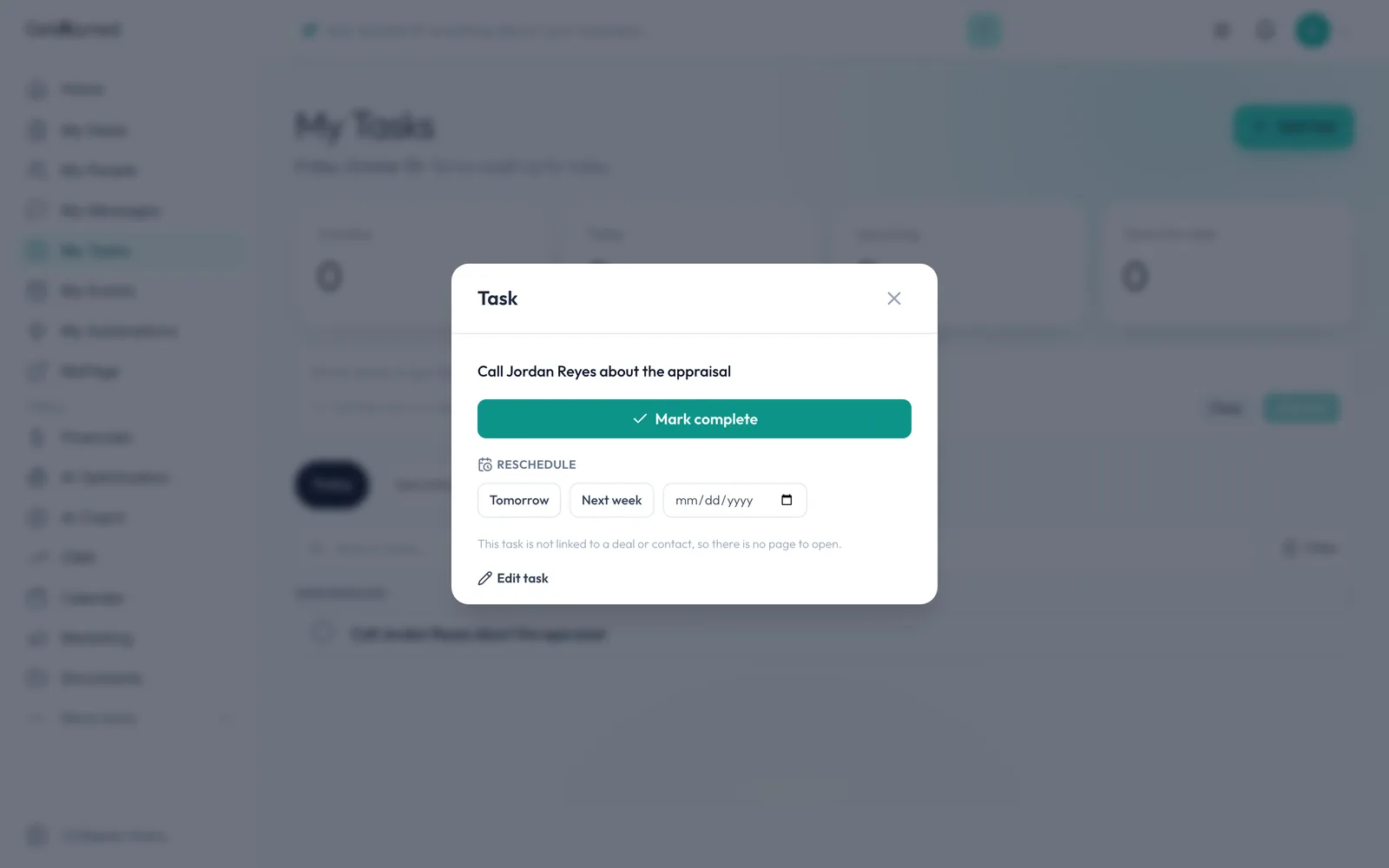
Pick a day
Pick Tomorrow, Next week or a date. Mark it complete when it's done.
-
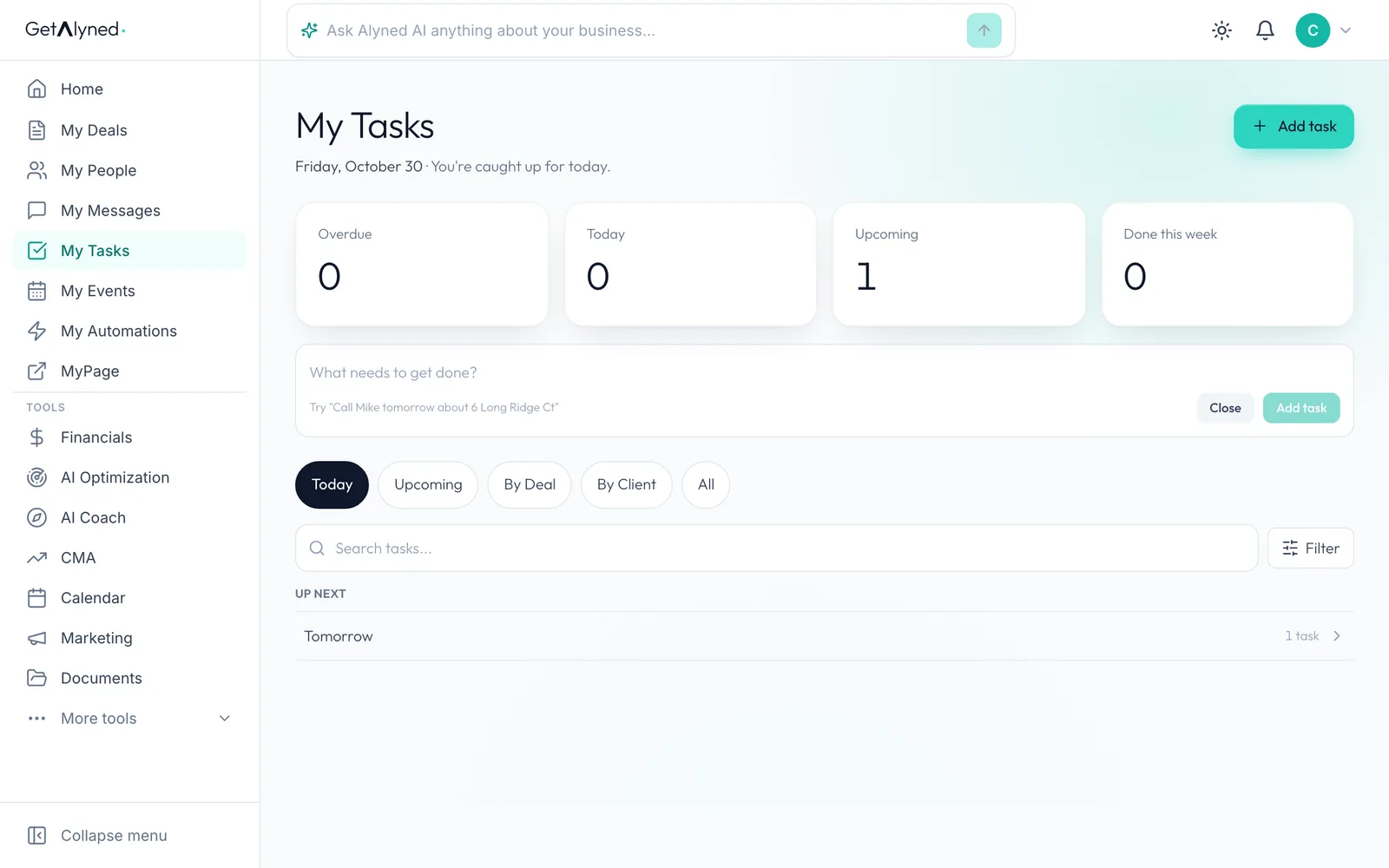
It's upcoming
The task now counts under Upcoming.
-
Open Upcoming
Click Upcoming.
-
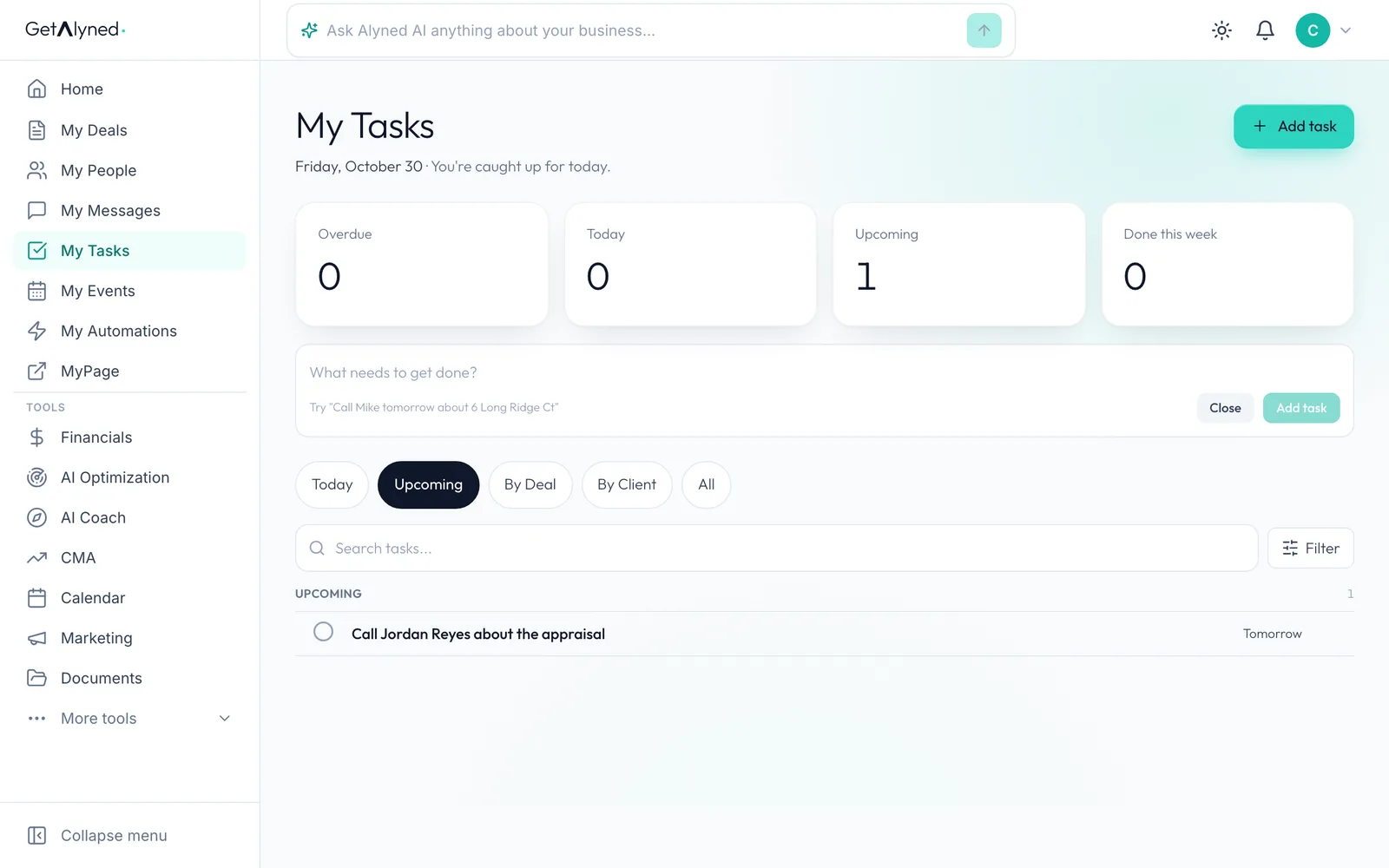
Tasks by day
Upcoming lists your tasks by day. By Deal and By Client group them other ways.
-
Go to Calendar
Your tasks show on the calendar too. Click Calendar.
-
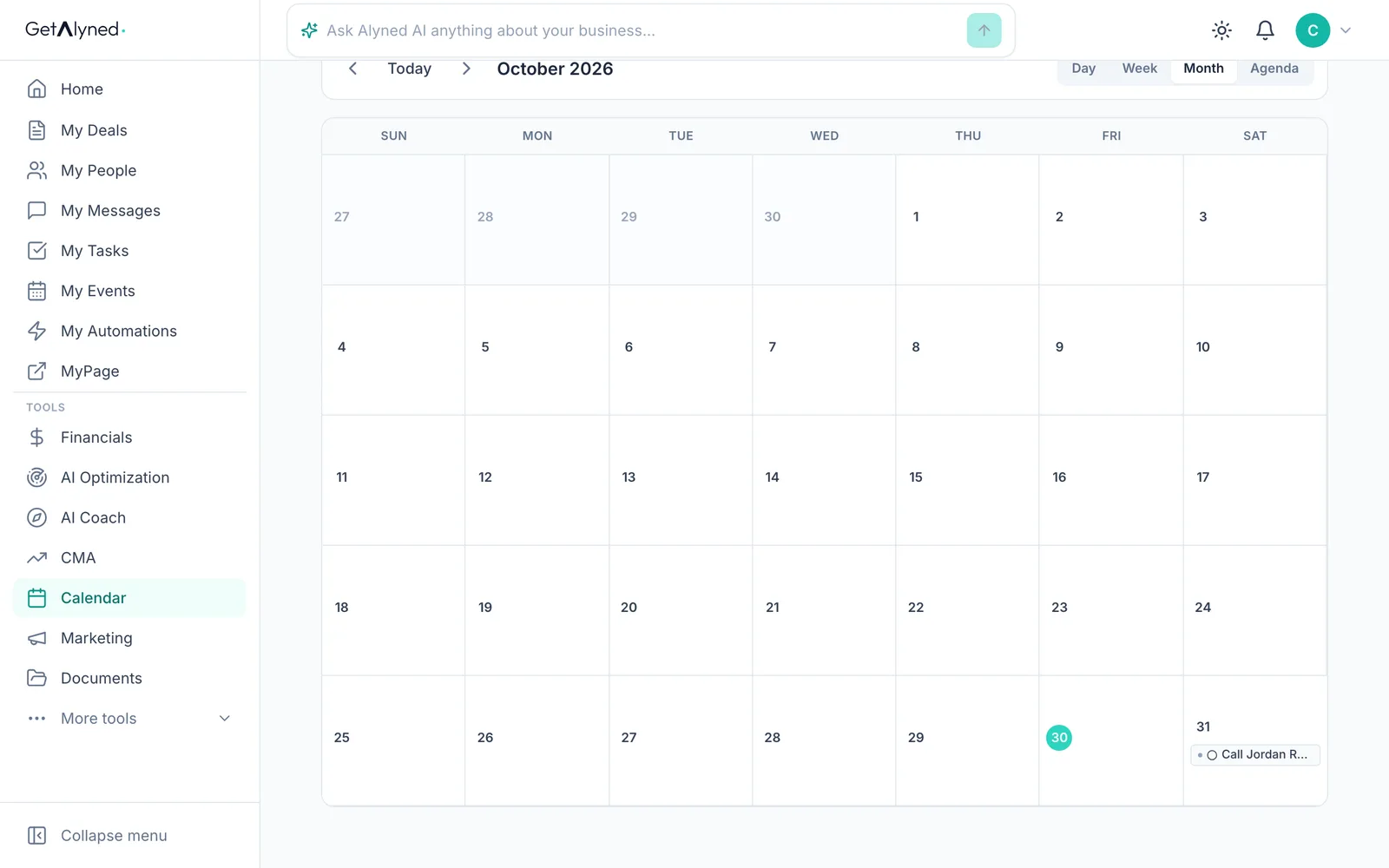
Your task is on its day
The task sits on its day. Day, Week, Month and Agenda change the view, and New event adds an appointment.
-
Switch to Week
Click Week.
-
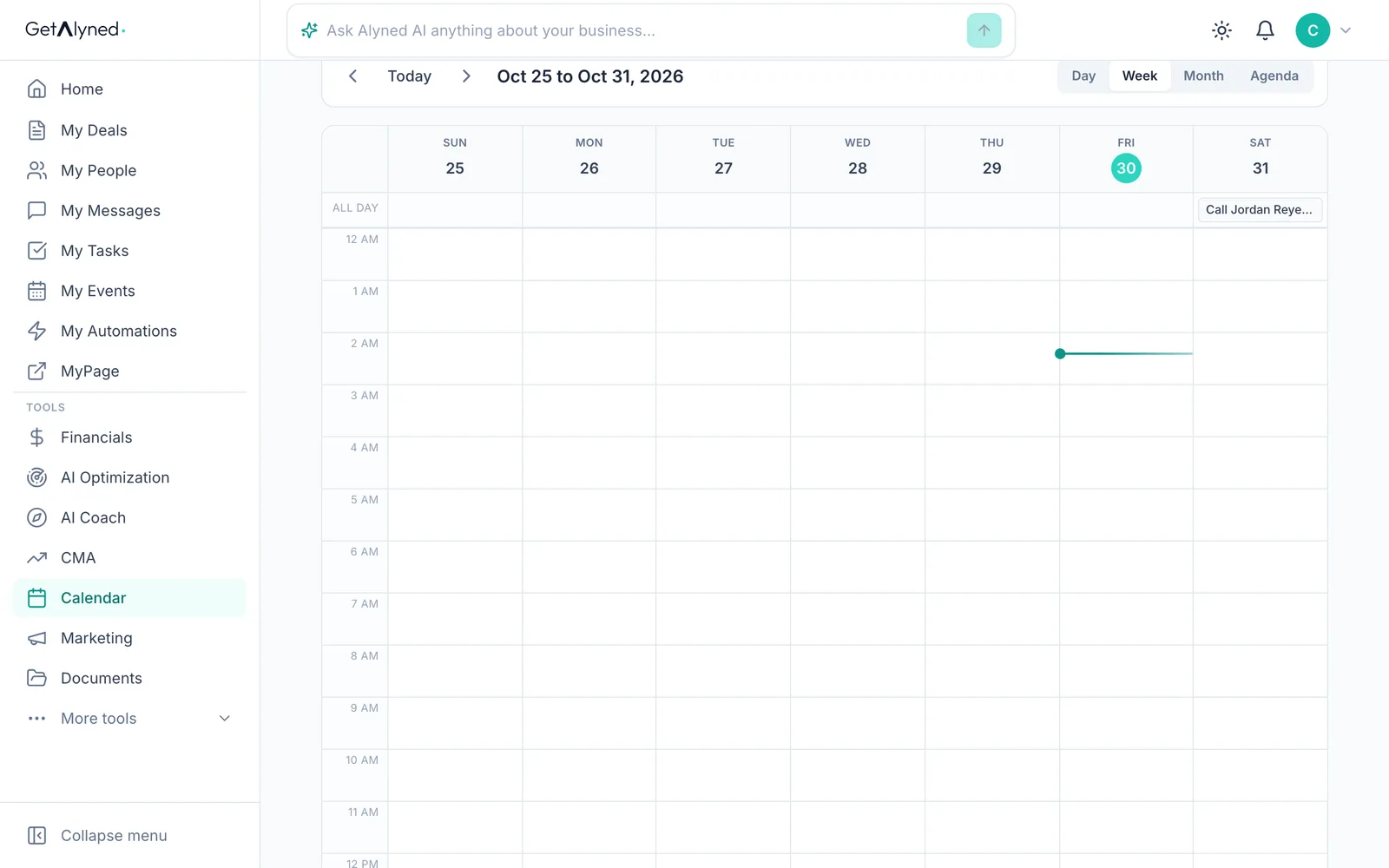
Your week at a glance
Week view shows your whole week.
-
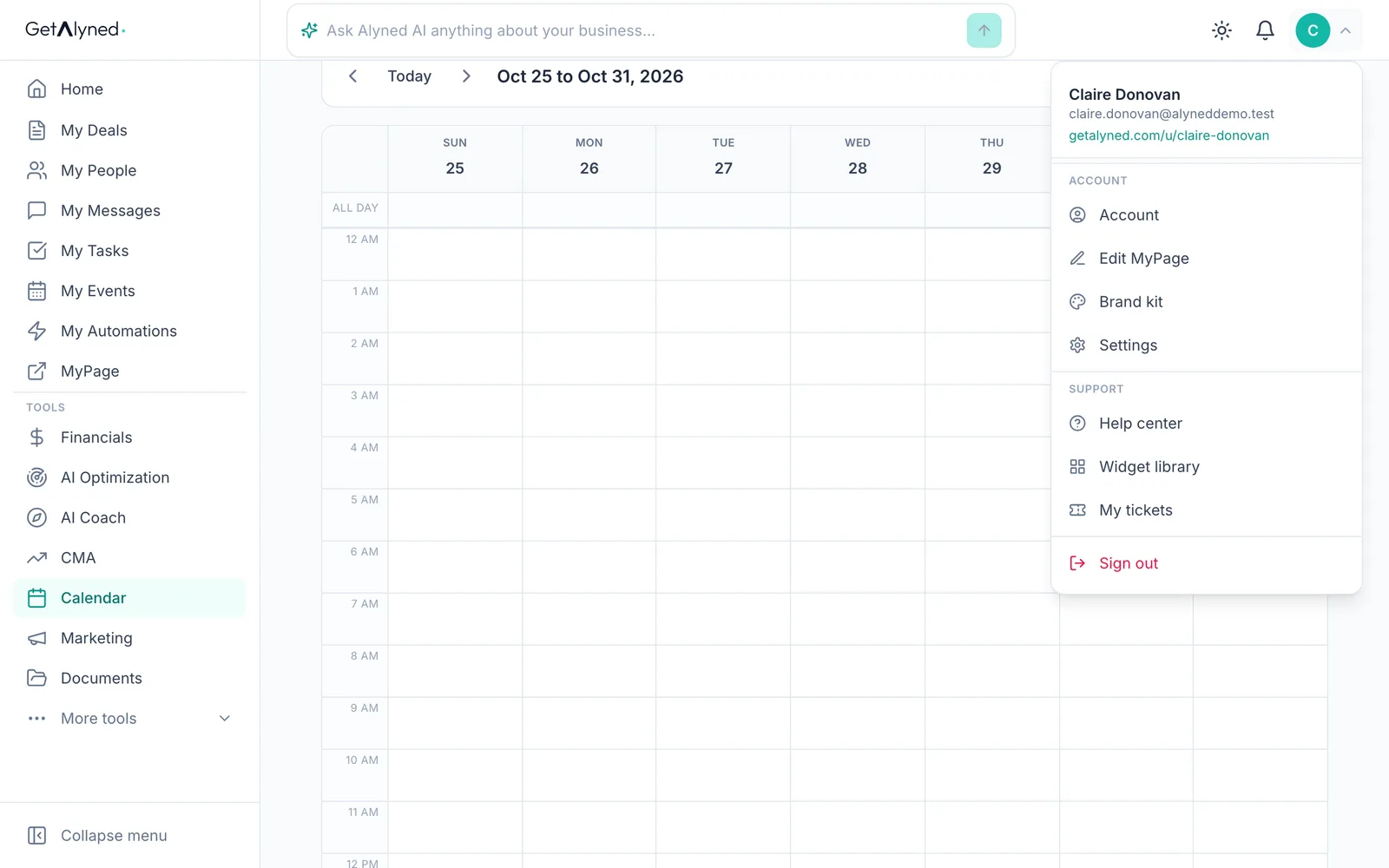
Open your account menu
To see your Google Calendar here too, connect it in Settings. Open the account menu, top right.
-
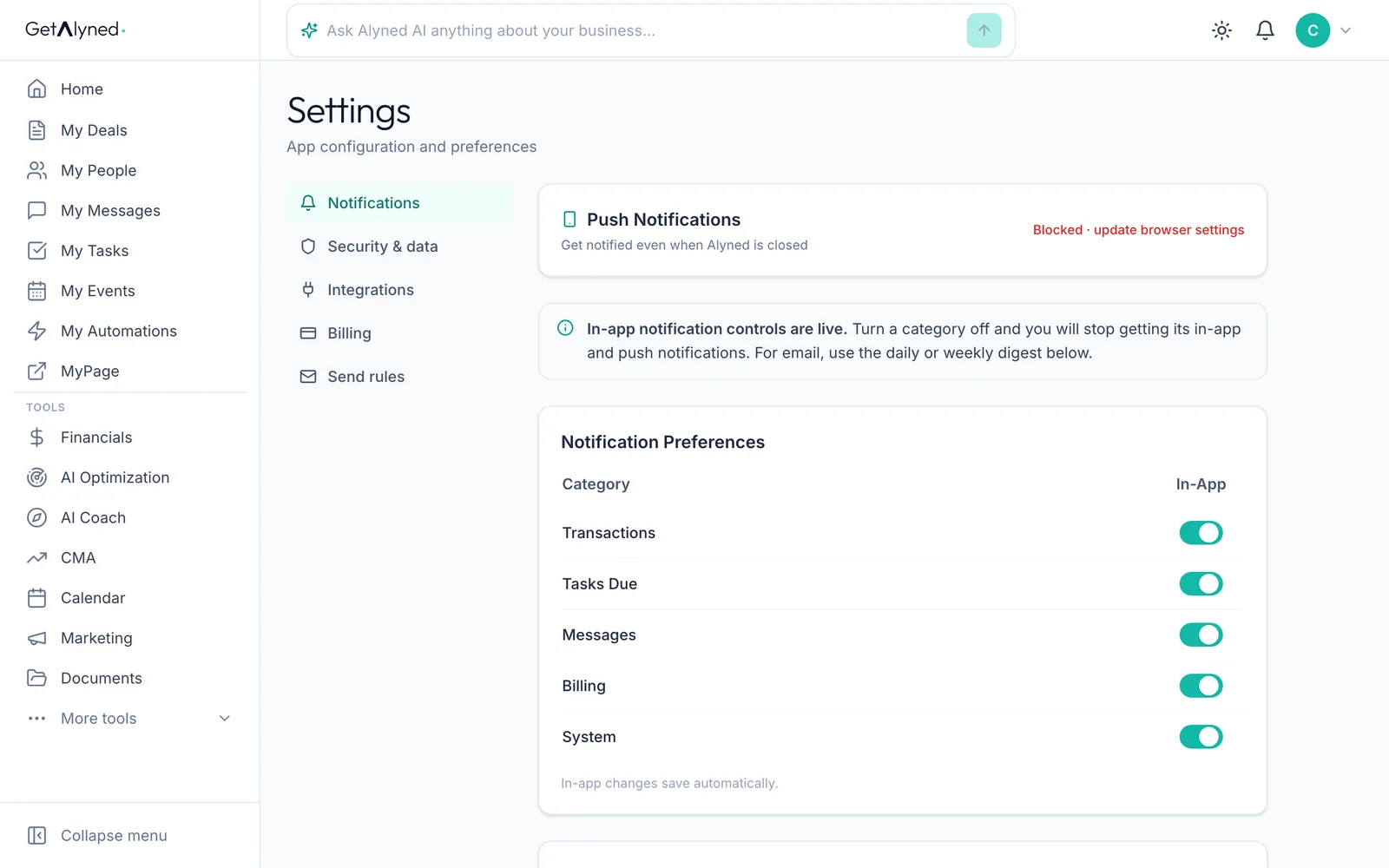
Click Settings
Click Settings.
-
Click Integrations
Click Integrations.
-
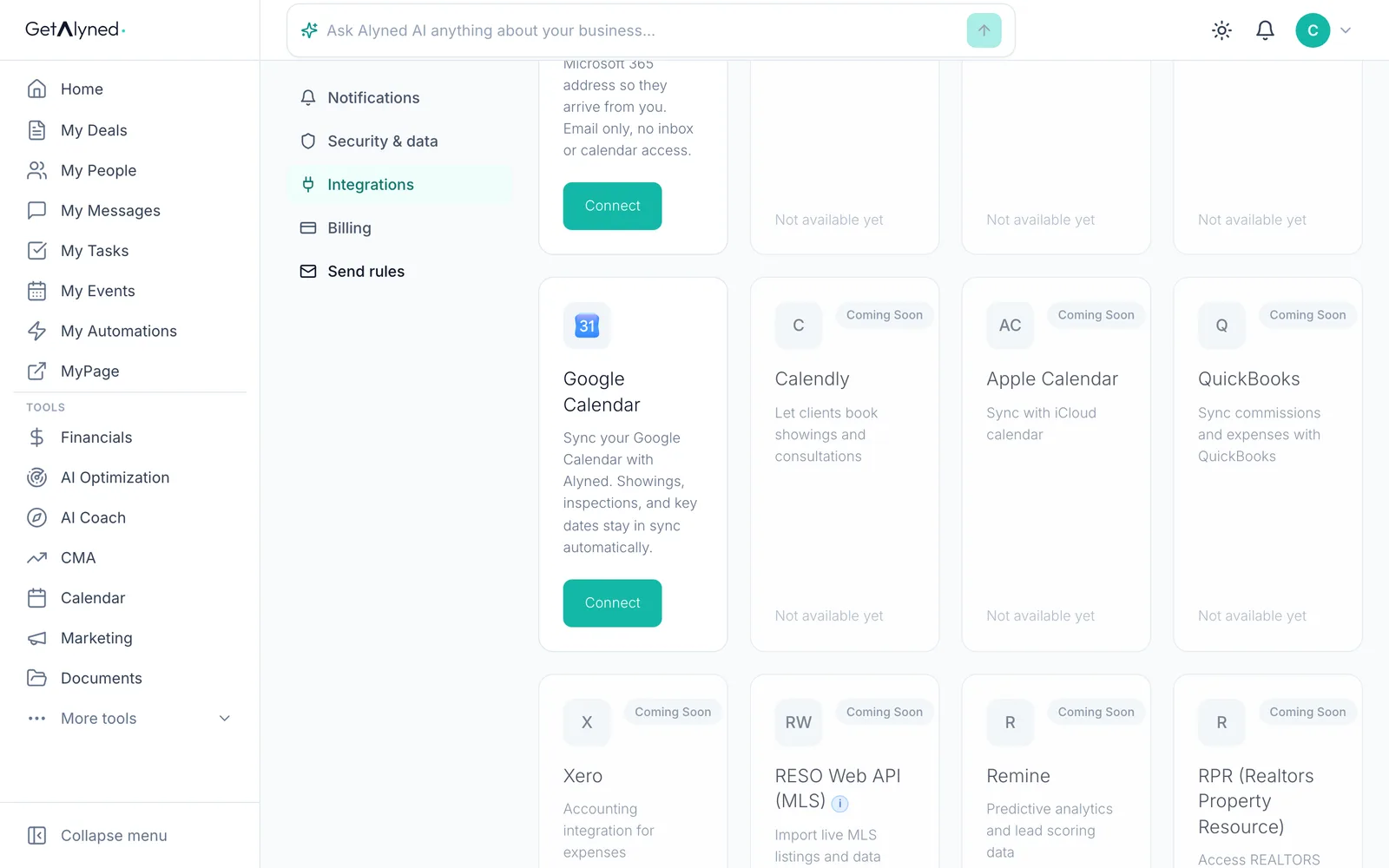
Connect Google Calendar
Connect Google Calendar to keep showings, inspections and key dates in sync.
Related guides
- Everything you can set up on a contact · Add someone to My People, then take a tour of their record: tags, details, notes, tasks, automatic follow-ups and referrals to your loan officer.