Everything you can set up on a contact
For agents · 3 min
Add someone to My People, then take a tour of their record: tags, details, notes, tasks, automatic follow-ups and referrals to your loan officer.
Watch
Or read it step by step
-
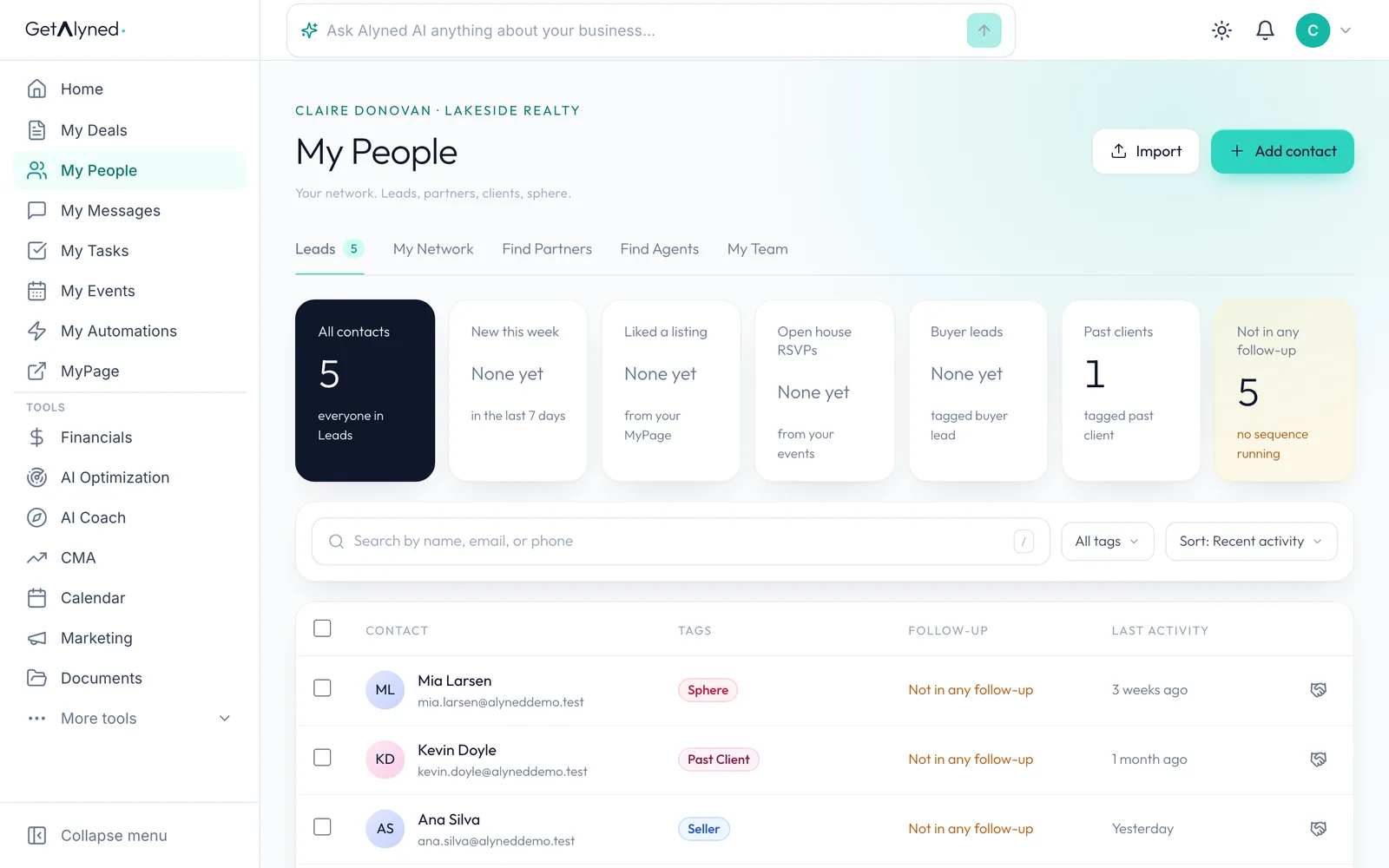
Click Add contact
Open My People and click Add contact.
-
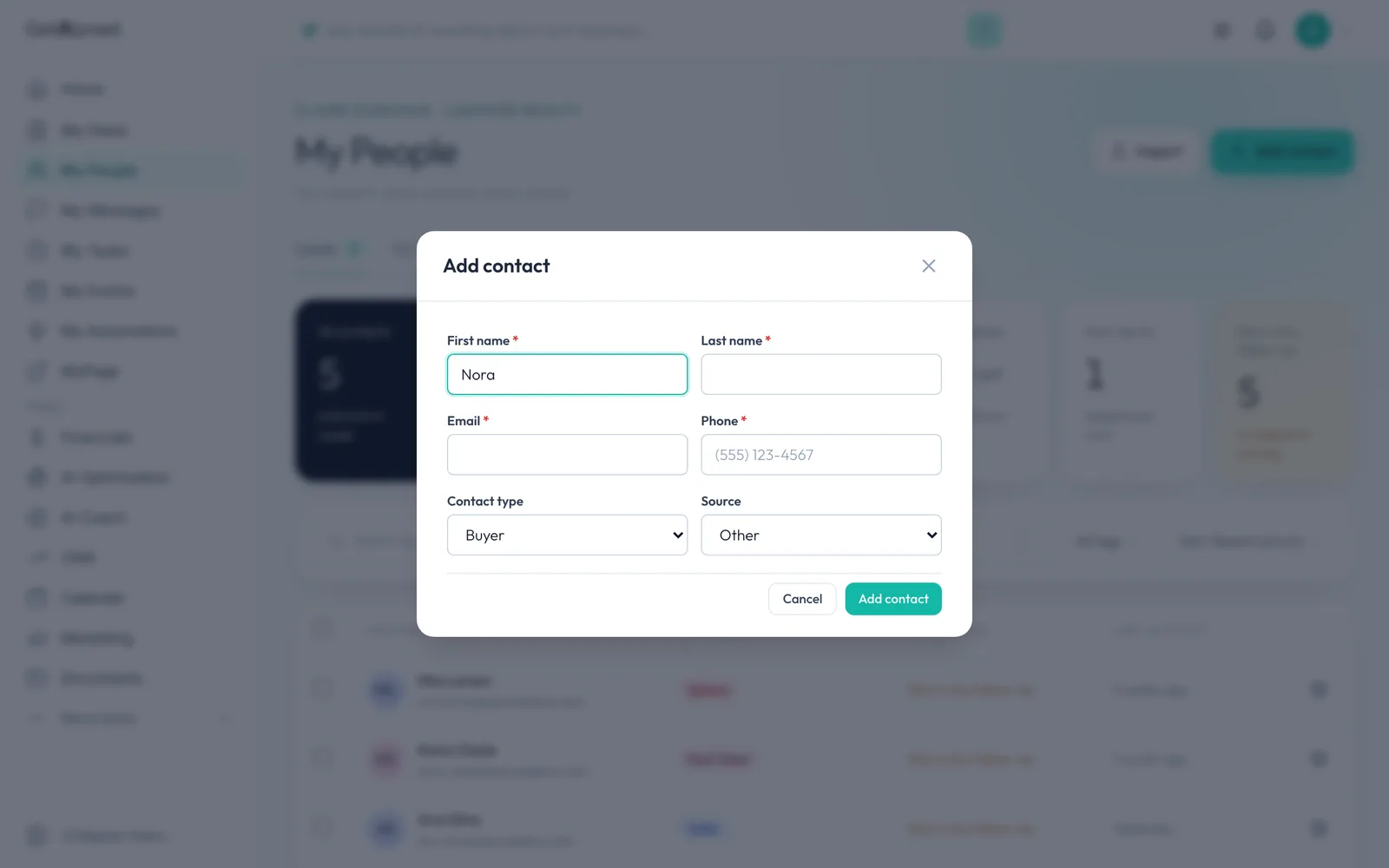
Fill in the basics
Add their first and last name, email and phone. All four are required.
-
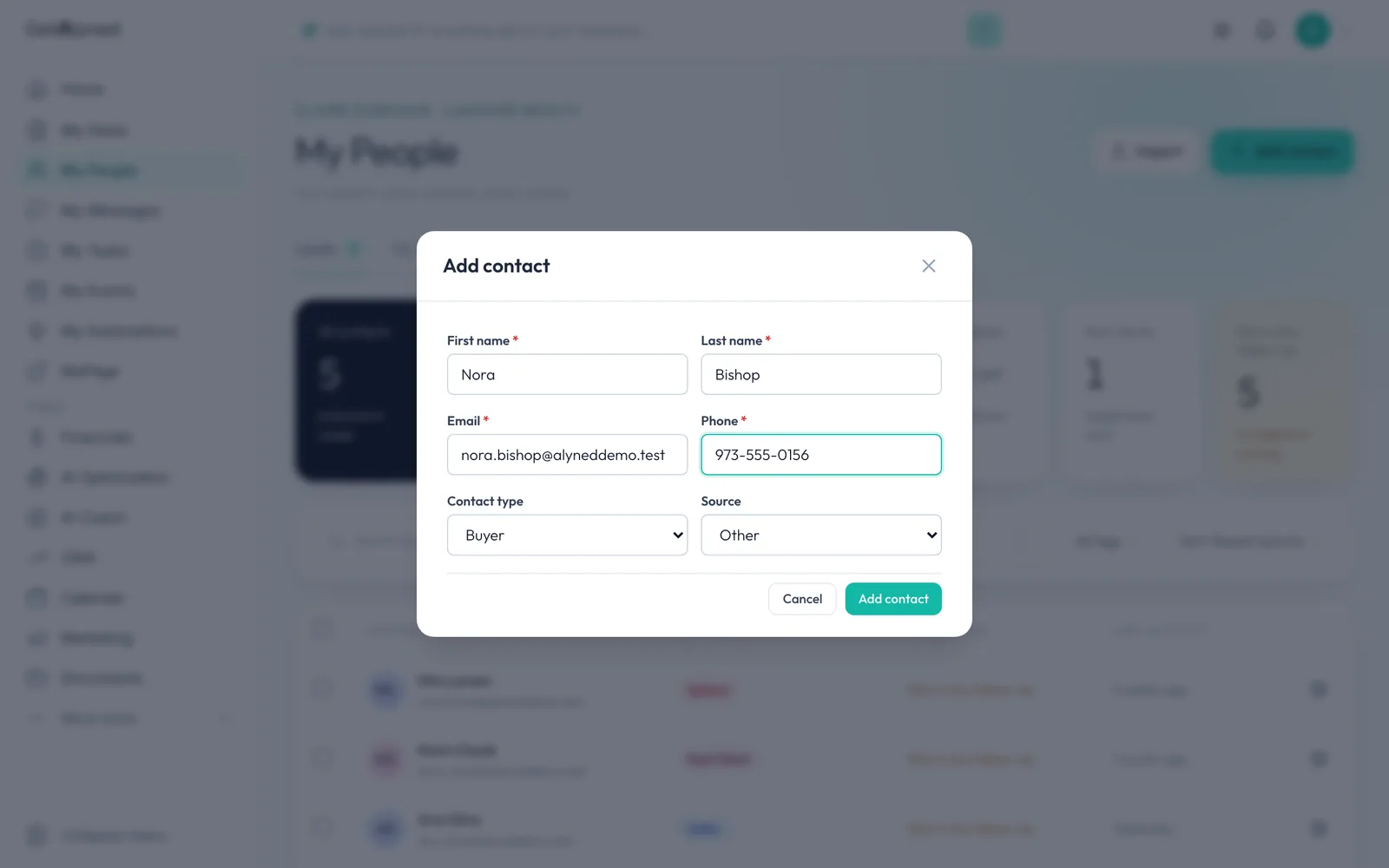
Choose the contact type
Pick a Contact type, like Buyer or Seller.
-
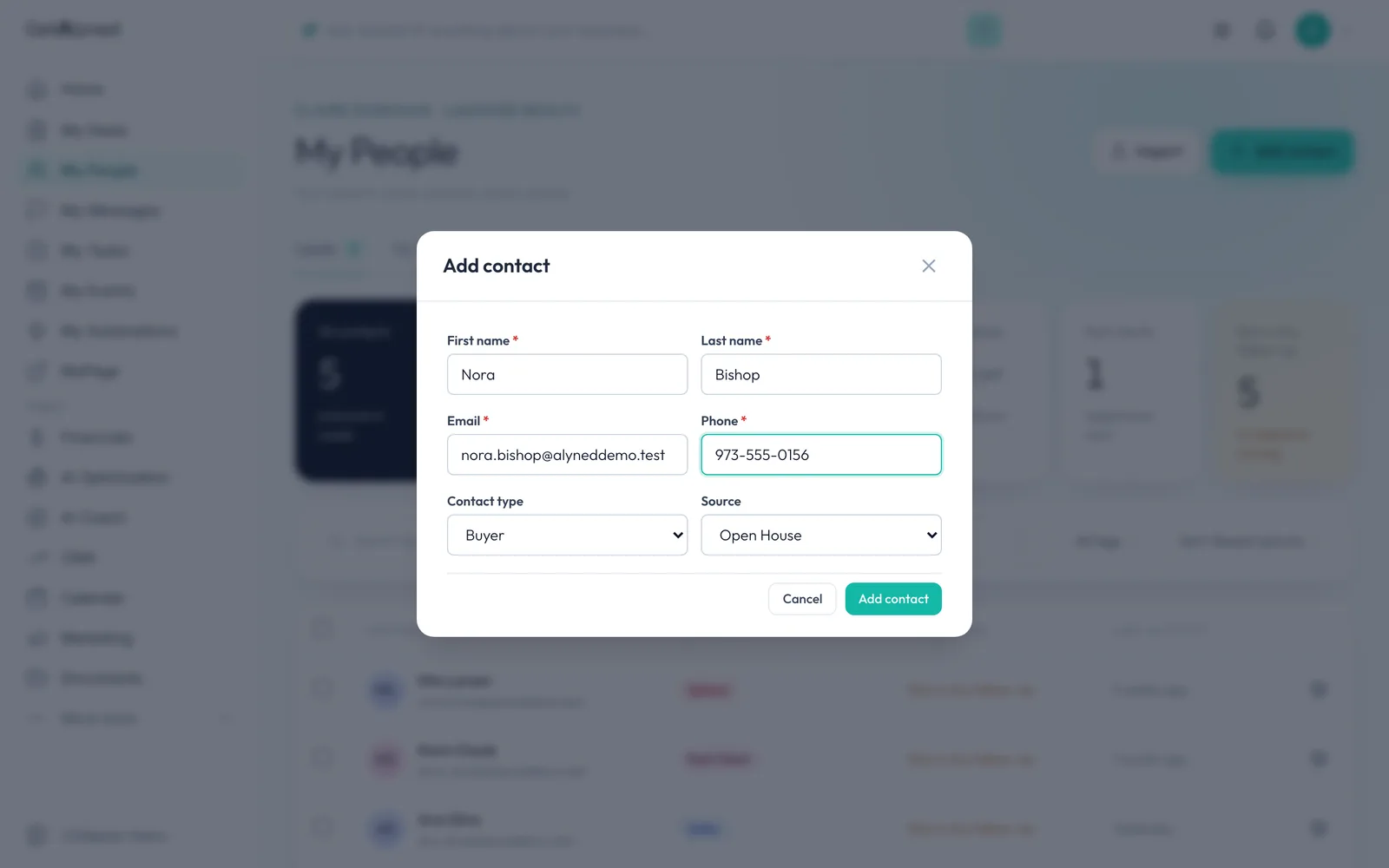
Set the source
Pick where they came from under Source. Your reports use it to show which sources bring you business.
-
Save the contact
Click Add contact. New contacts are private to you.
-
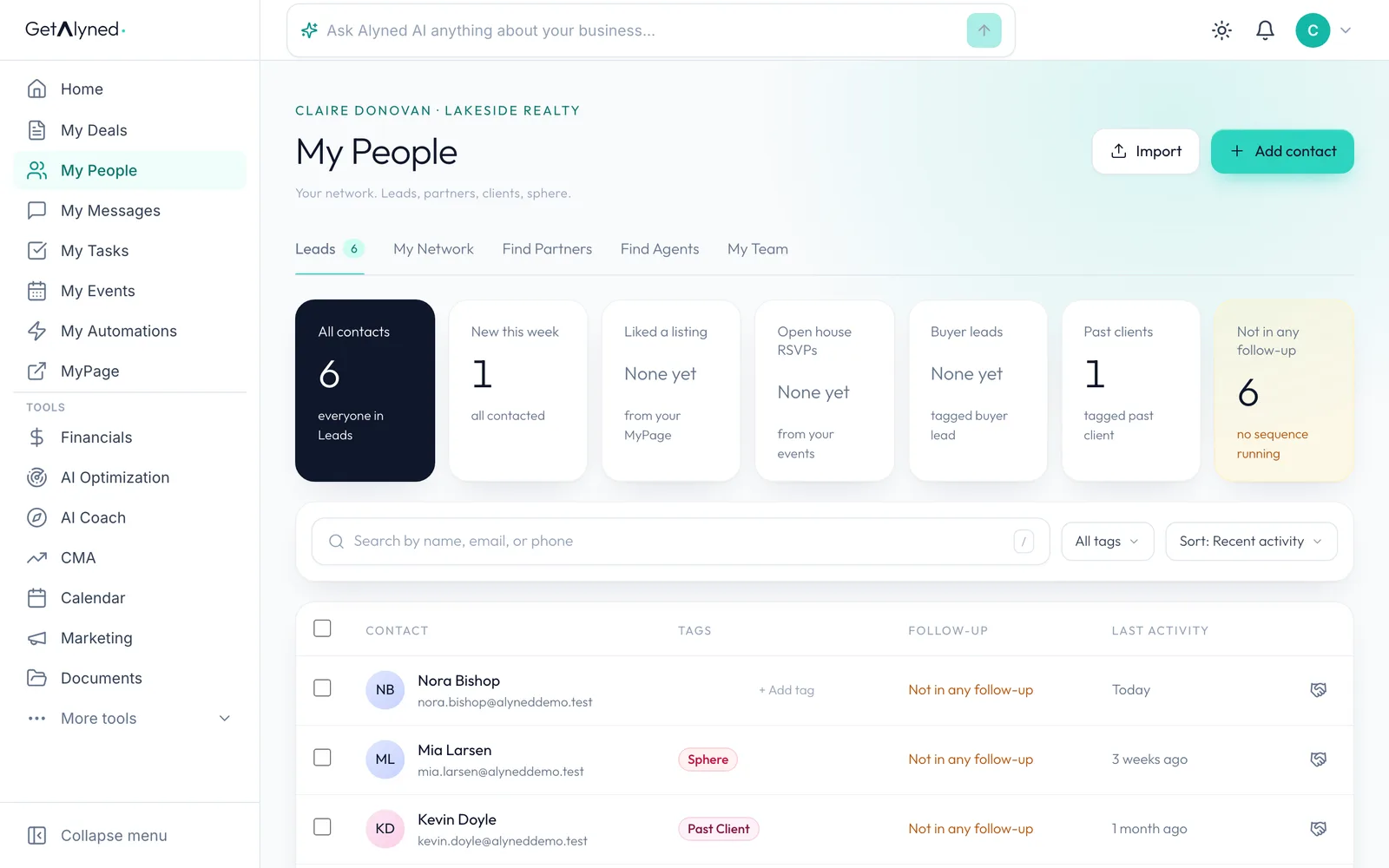
Open their record
Click their name in the list to open their record.
-
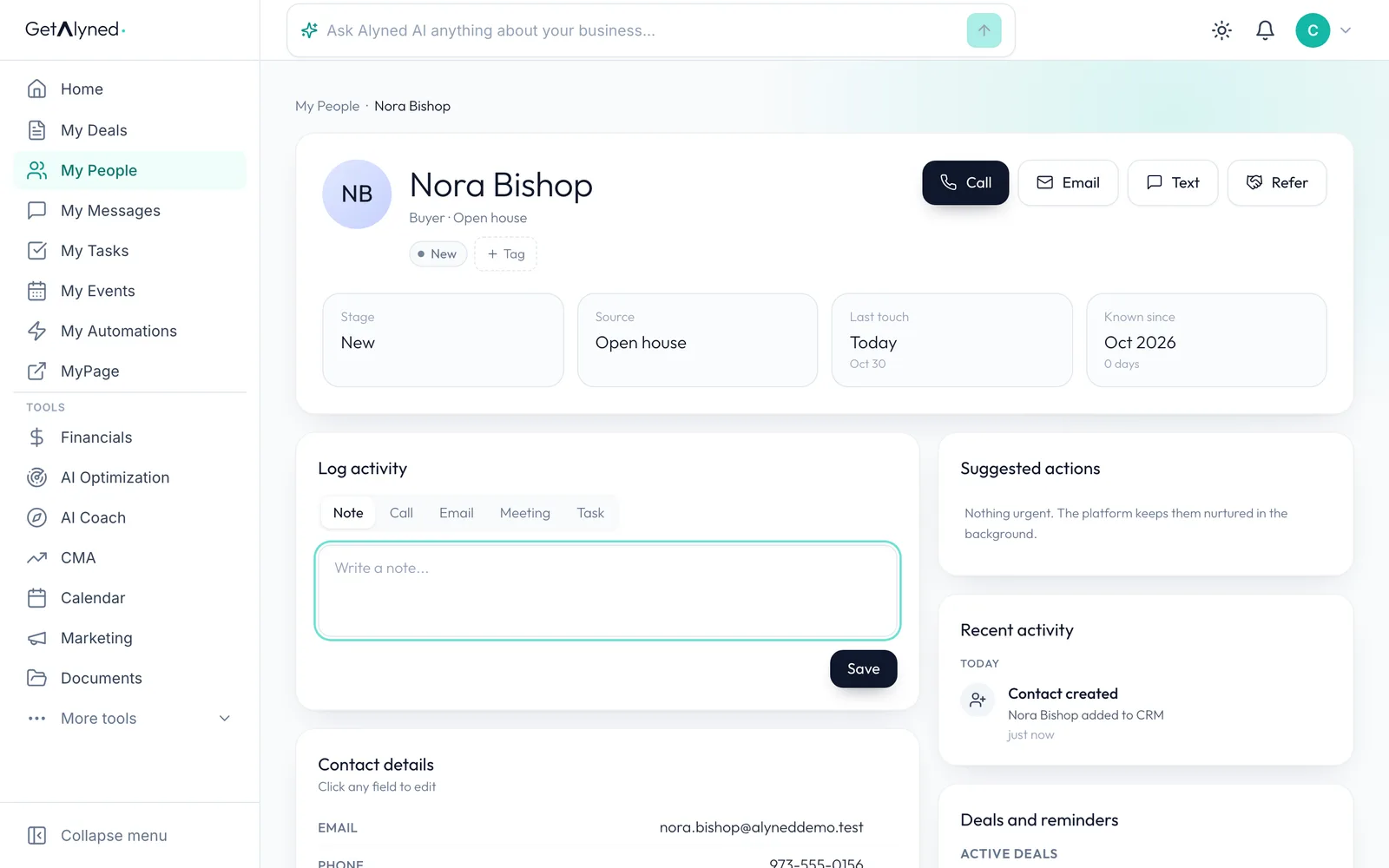
Add a tag
Click the tag button next to their name. Tags group your contacts, and some tags start an automatic follow-up.
-
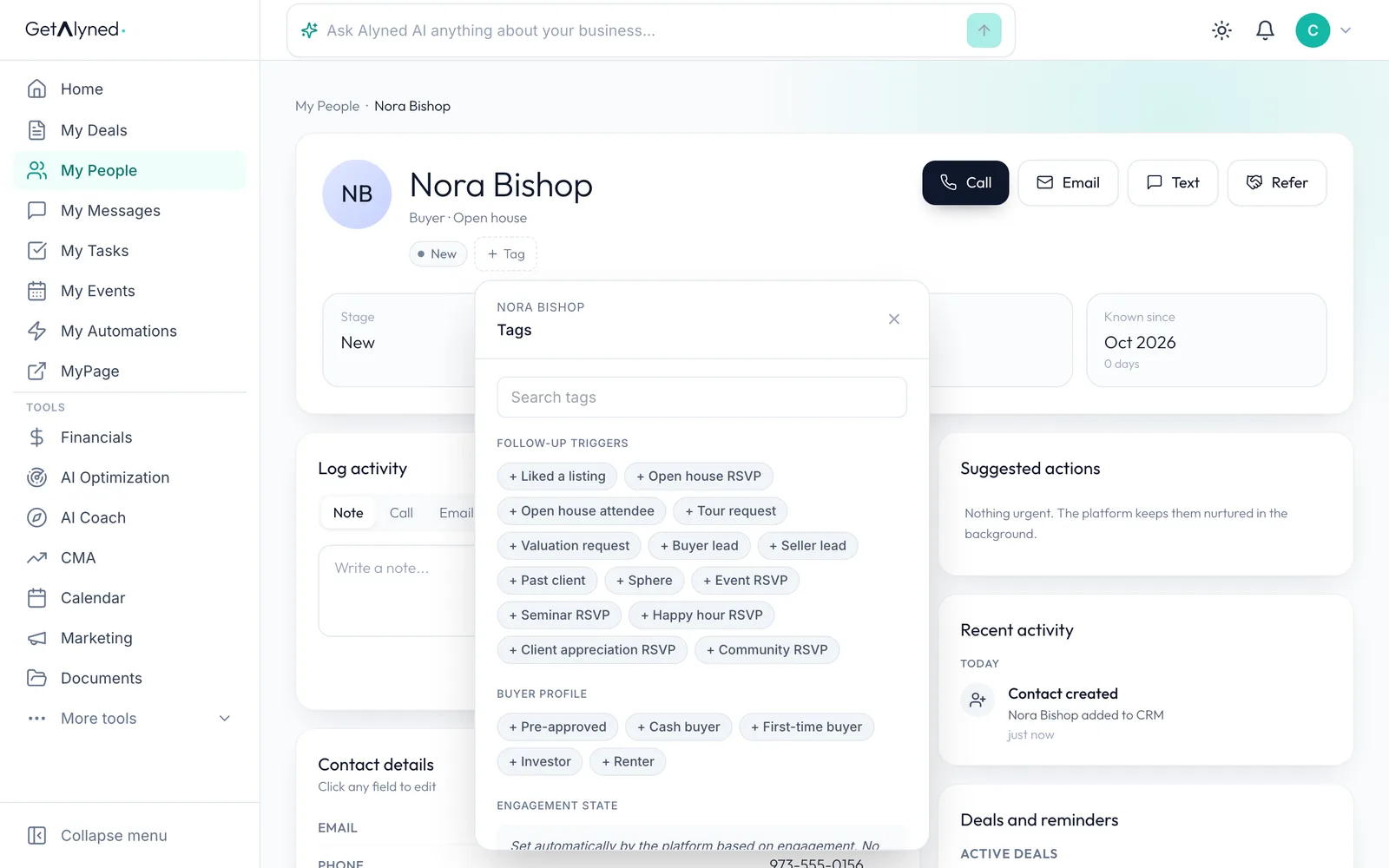
Pick a tag
Pick one from the list, or create your own at the bottom.
-
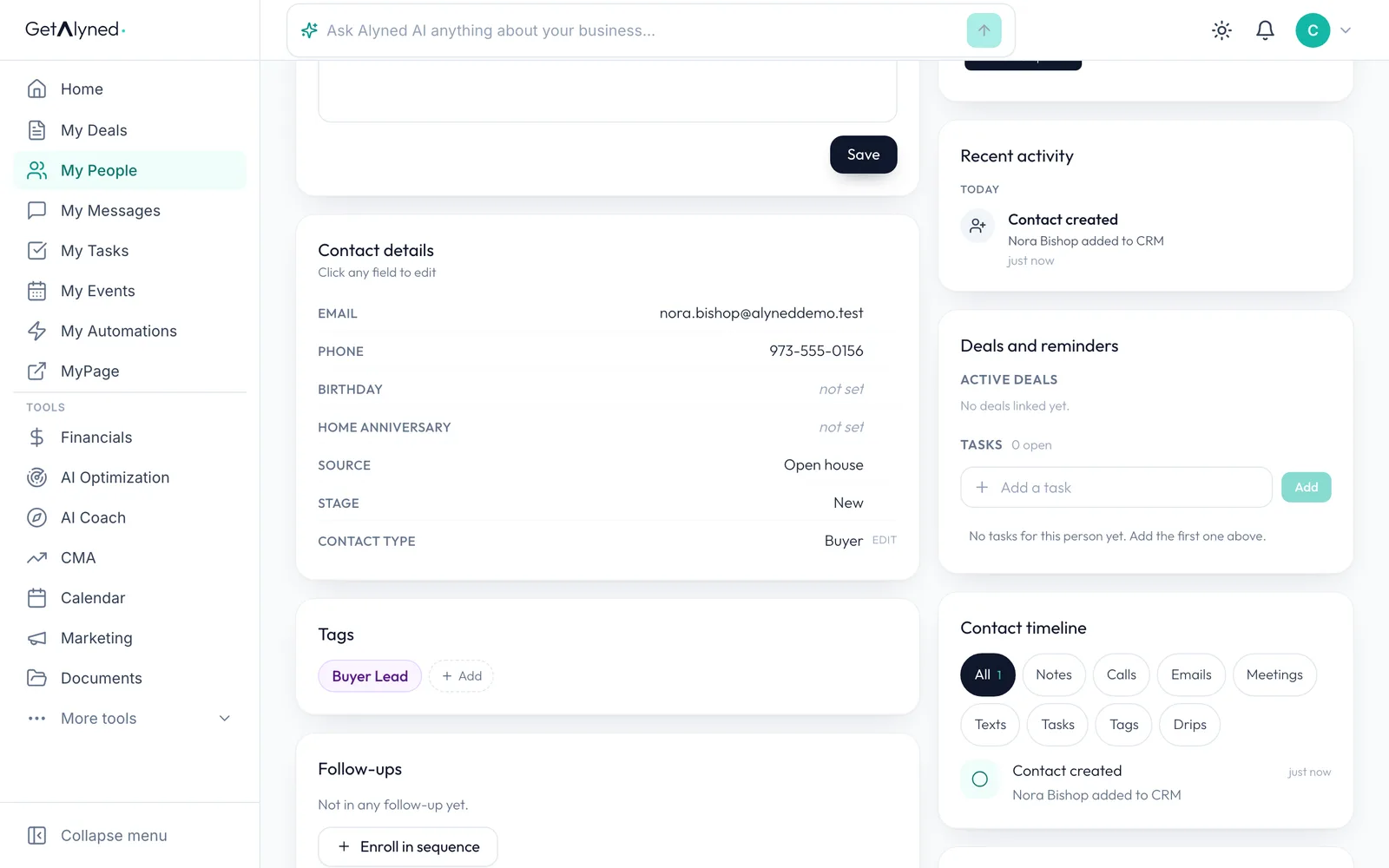
Contact details
Source, stage and the rest are under Contact details. Click any field to edit it.
-
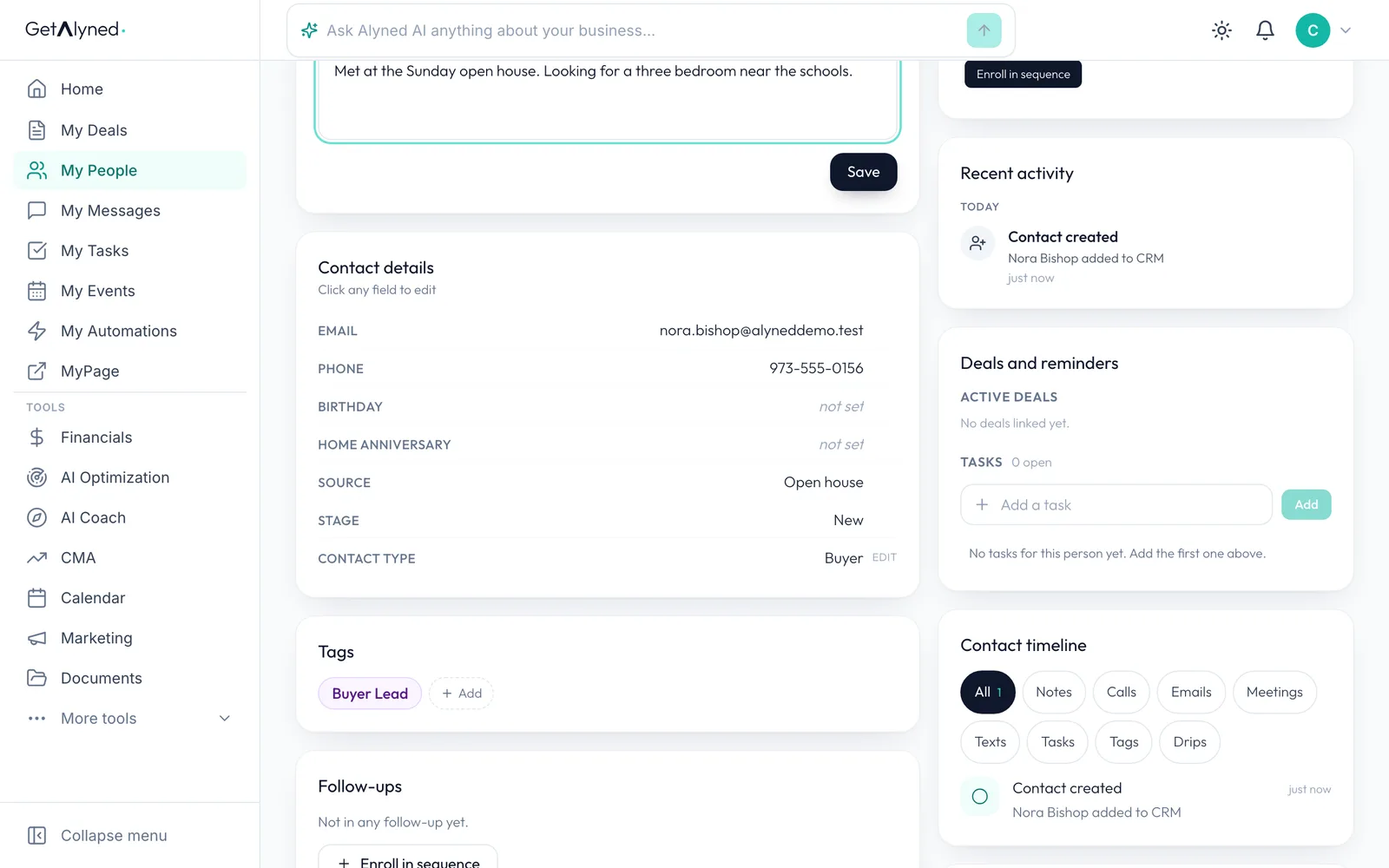
Write a note
Under Log activity, write a note. You can also log calls, emails, meetings and tasks.
-
Save the note
Click Save. It goes on their timeline.
-
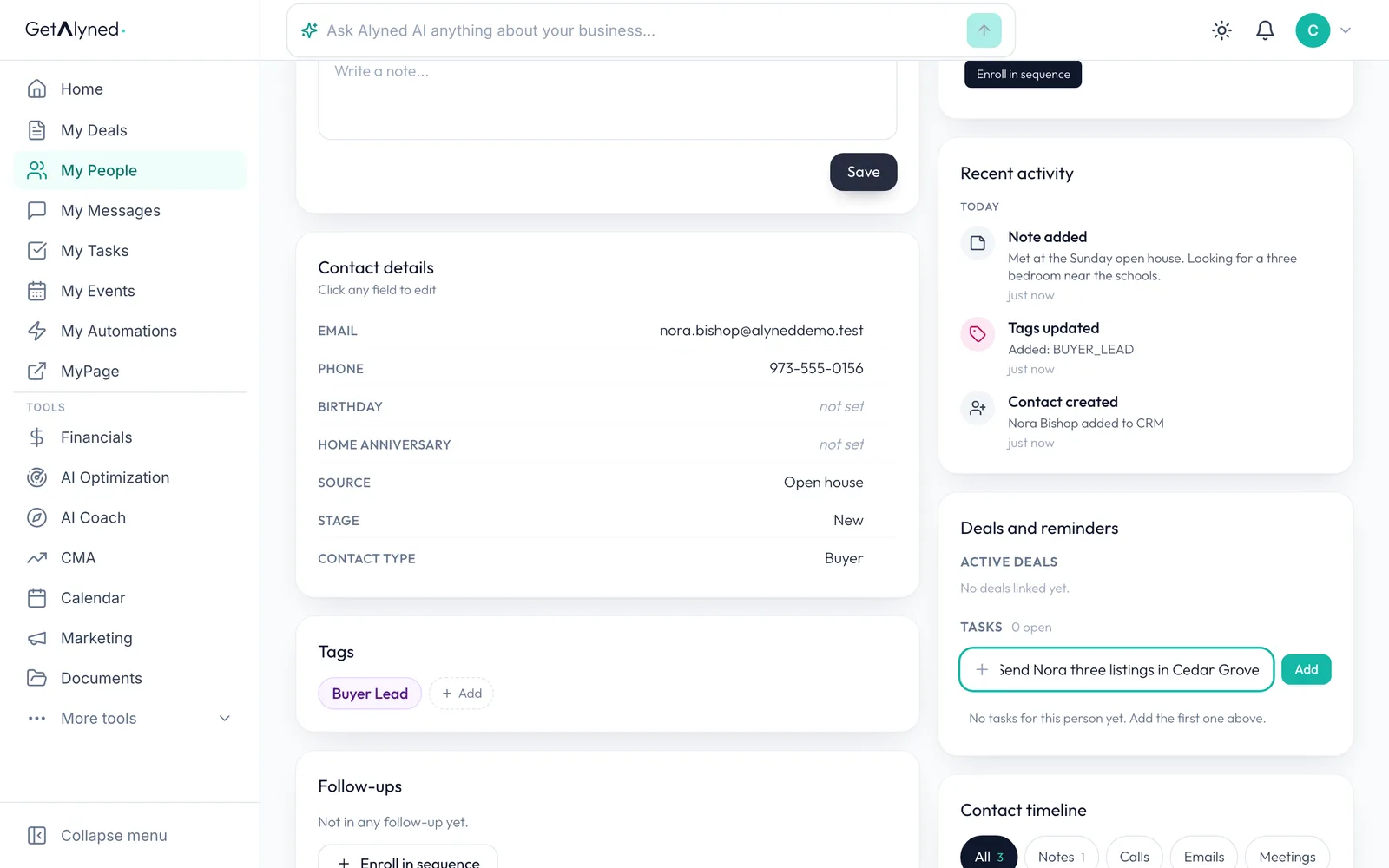
Add a task
Under Deals and reminders, type a task. It also shows up in My Tasks.
-
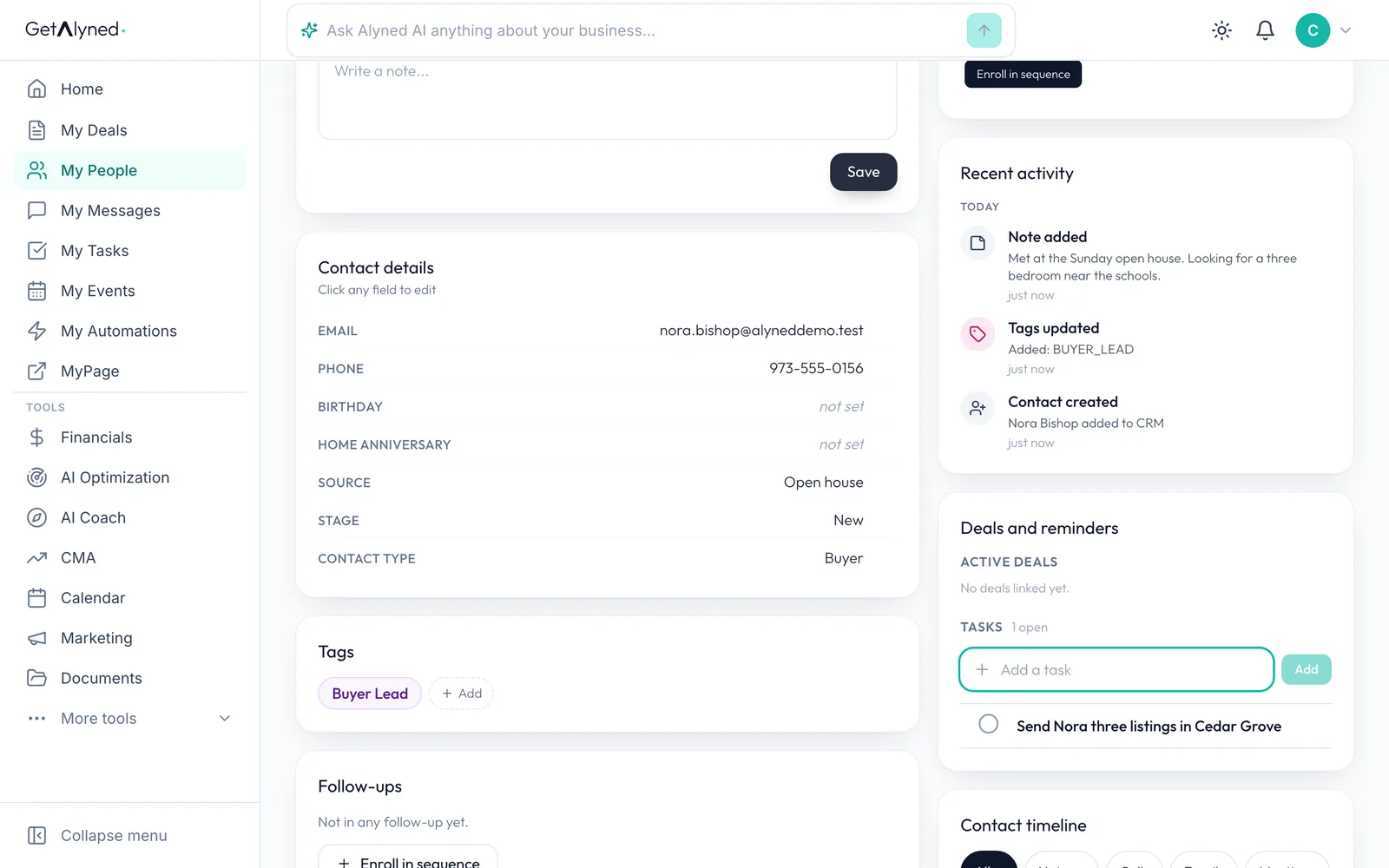
Your task is saved
The task is saved on the contact.
-
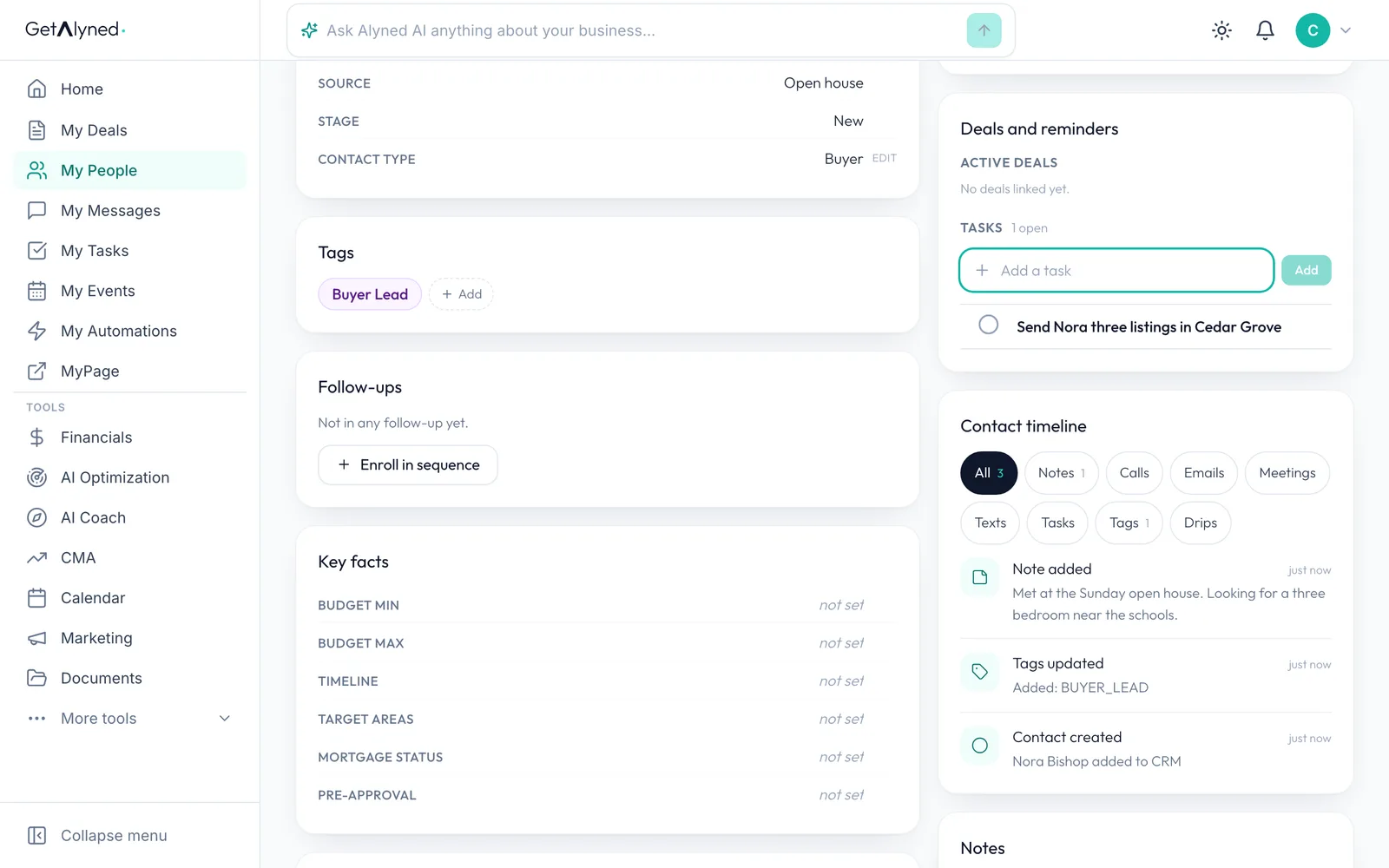
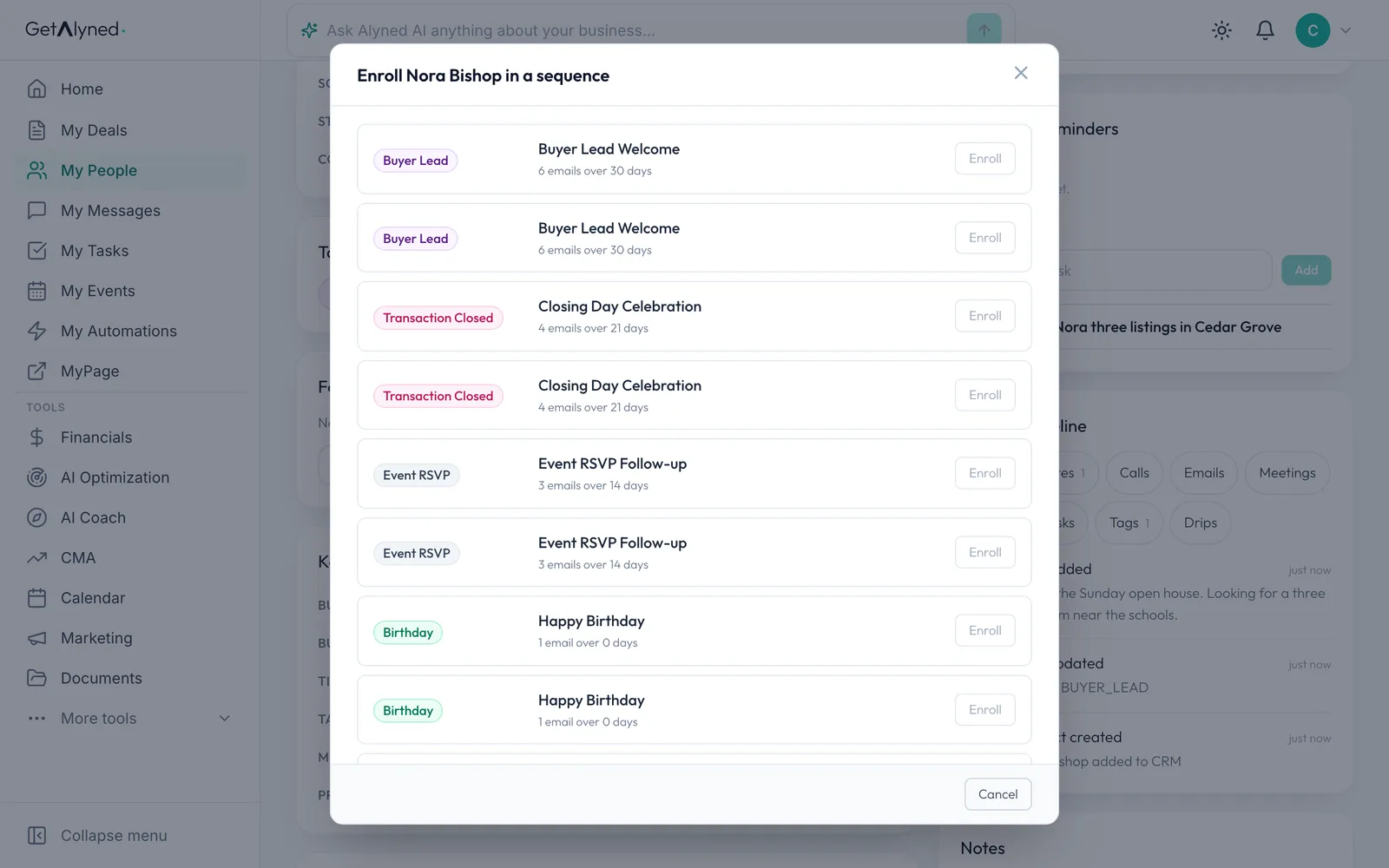
Start a follow-up sequence
Under Follow-ups, click Enroll in sequence to put them on an automatic email series.
-
Pick a sequence
Each sequence shows its tag and how many emails it sends over how many days. A new account's sequences start paused: turn one on in My Automations, then click Enroll.
-
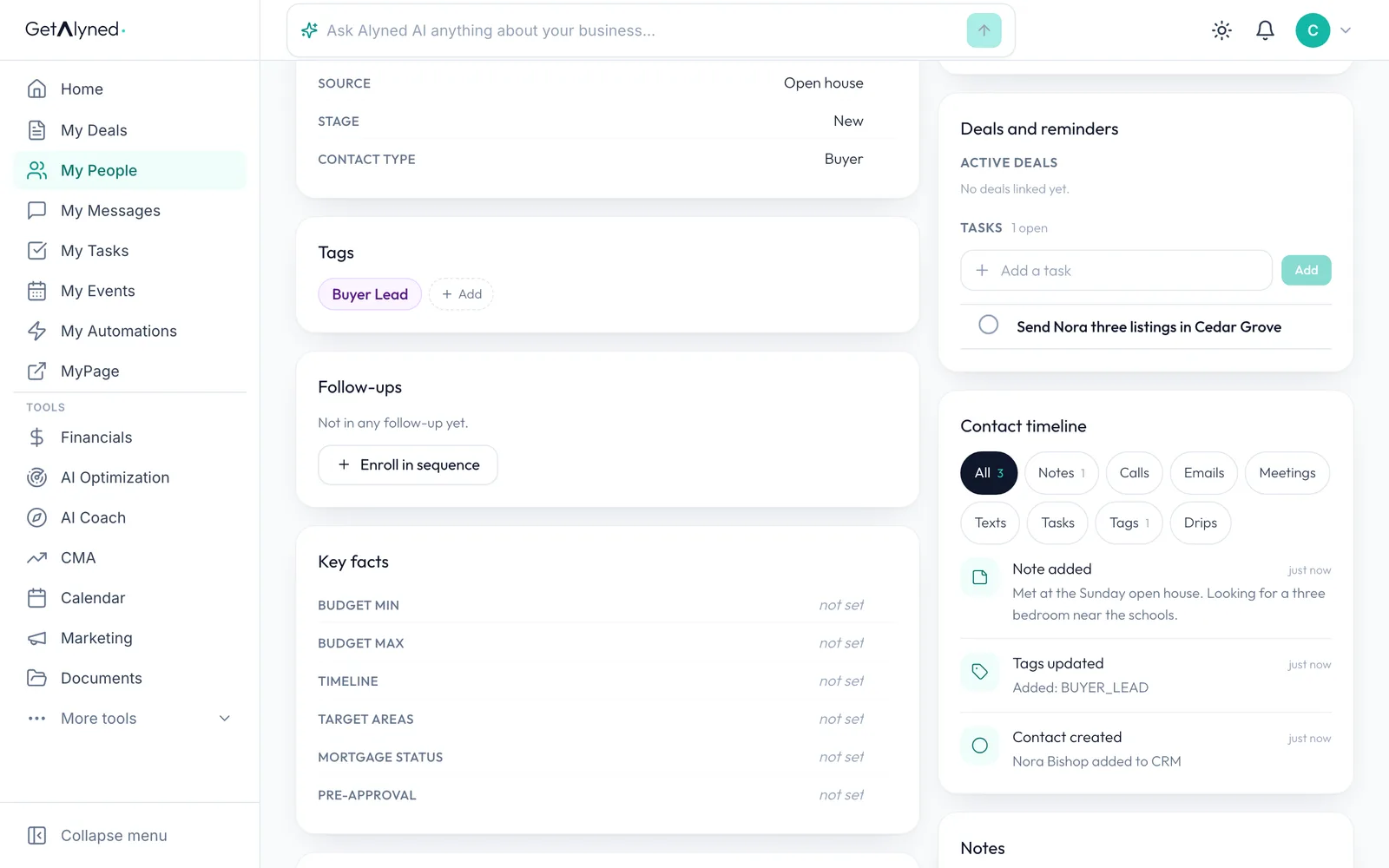
Deals and tasks in one place
Any deals this person is on show under Deals and reminders, with their tasks.
-
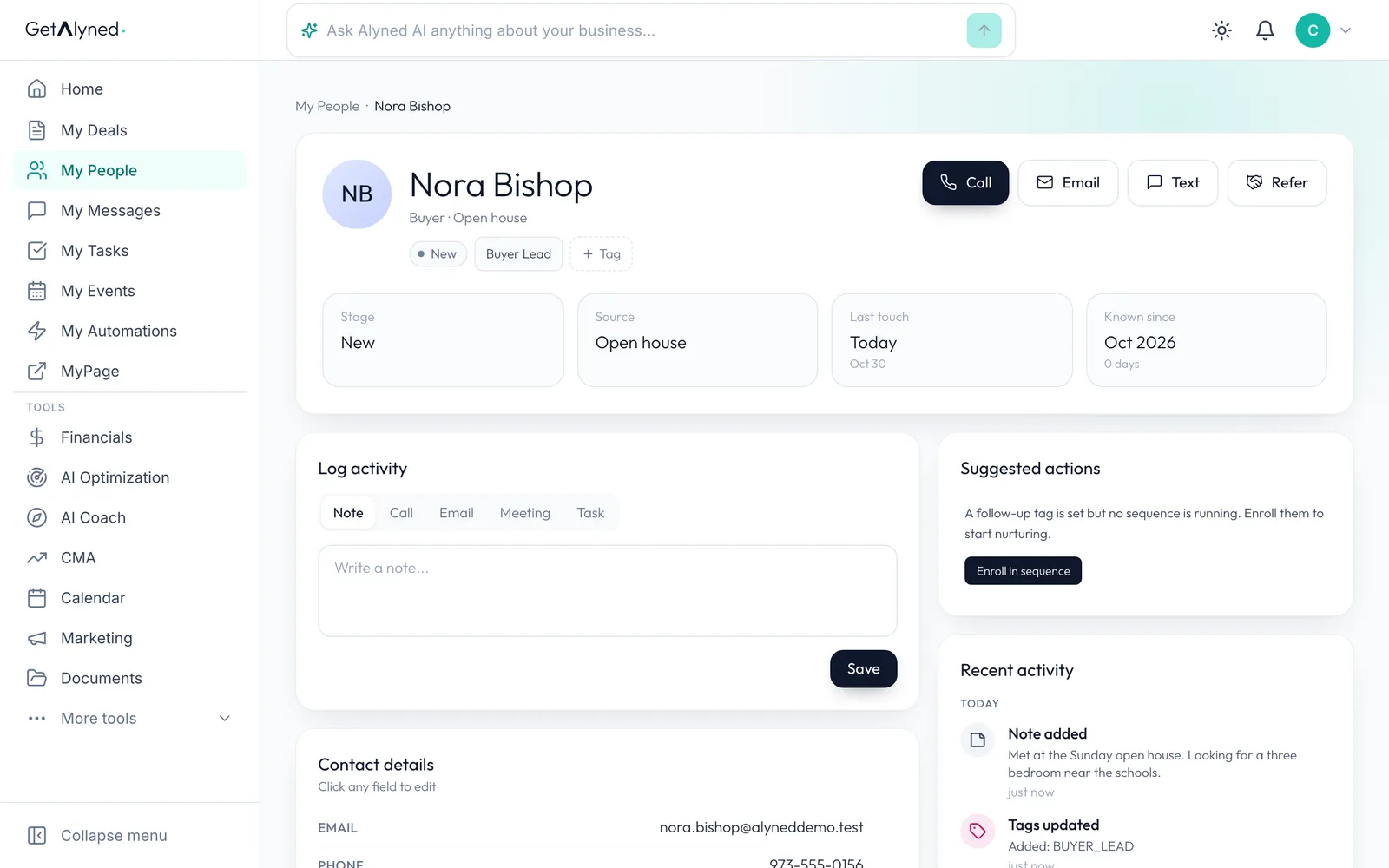
Refer them to your loan officer
Click Refer at the top to send this person to a loan officer you work with.
-
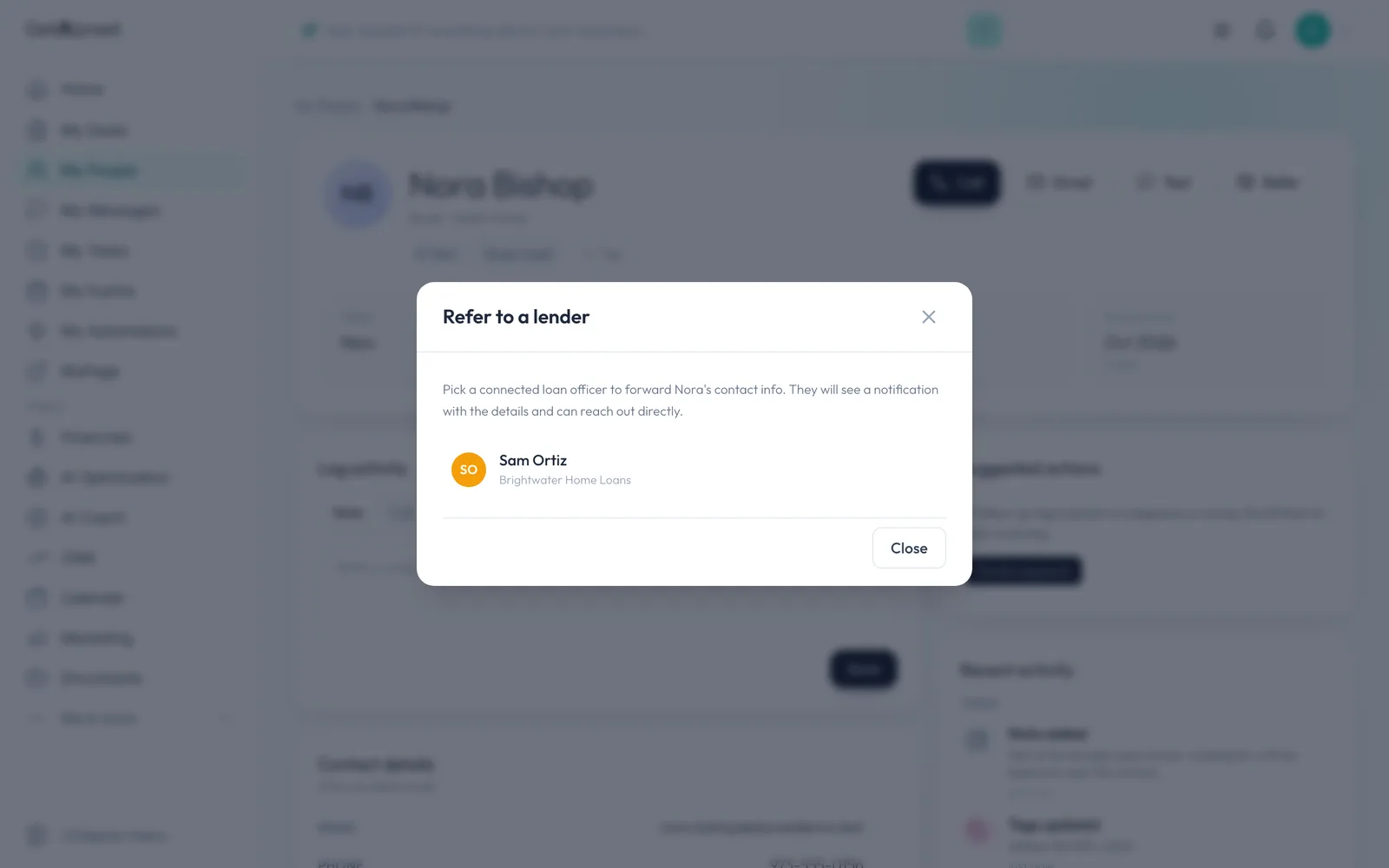
Pick the loan officer
Pick a connected loan officer. They get a notification with the contact's details and can reach out directly.
Related guides
- Import contacts from a spreadsheet · Bring your contacts in from a spreadsheet or another CRM in a few minutes, without typing them one by one.
- Tag a contact and start a follow-up sequence · Turn on an automatic email sequence, then tag a contact so it starts following up for you.
- Refer a contact to your loan officer · Send a client's details to a loan officer you work with, with a note, in a few clicks.
- Tasks and calendar · Add a task, give it a day, and see it on your calendar, then connect Google Calendar so everything lives in one place.
- Add a contact · Add someone to My People in under a minute, and see everything you can do from their record.