Import contacts from a spreadsheet
For agents · 3 min
Bring your contacts in from a spreadsheet or another CRM in a few minutes, without typing them one by one.
Watch
Or read it step by step
-
Click Import
Import is at the top of My People.

-
Choose your file
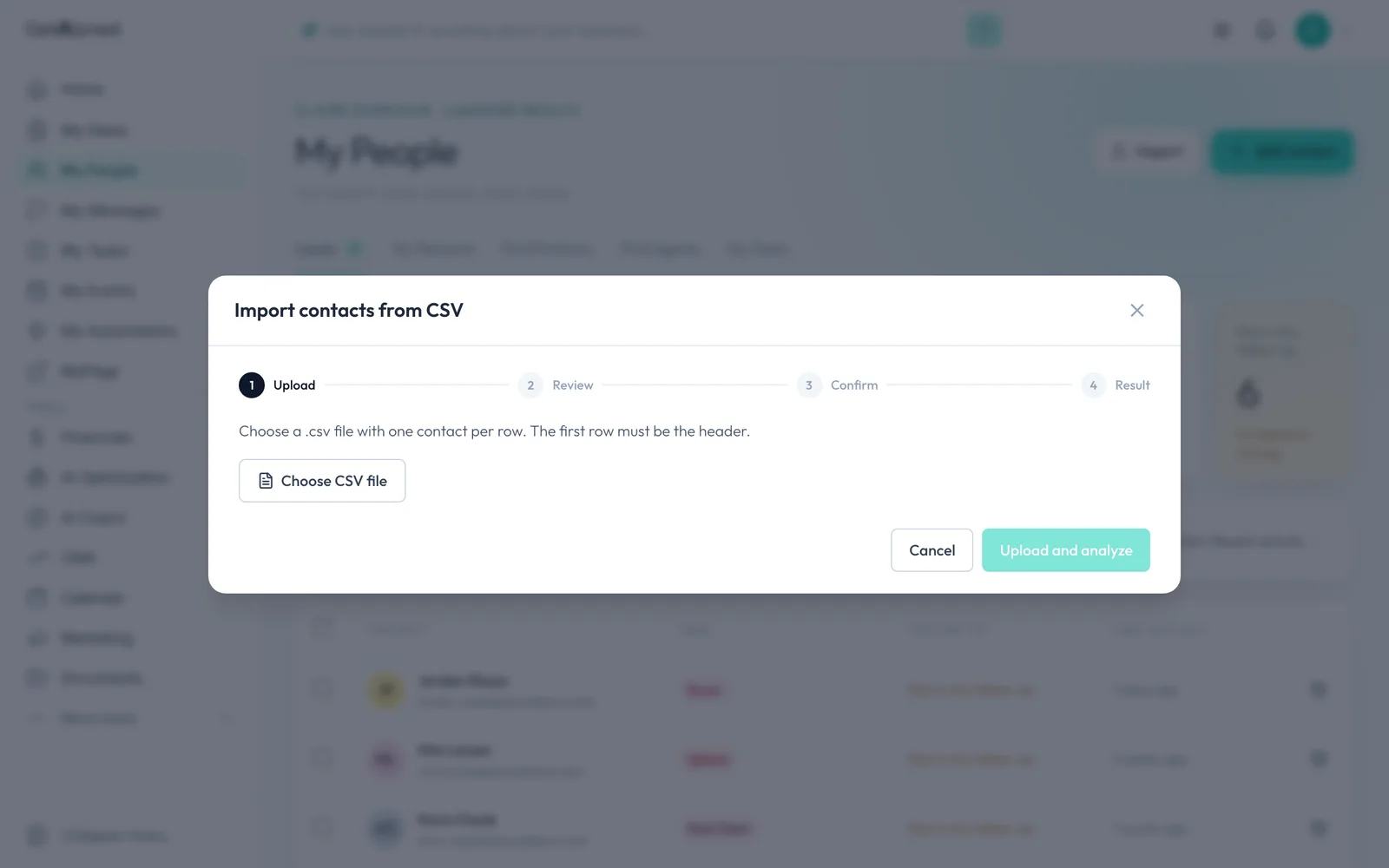
Click Choose CSV file and pick a .csv with a header row and one contact per row. Most spreadsheets and CRMs can save one.
-
Upload and analyze
Click Upload and analyze.

-
Match your columns
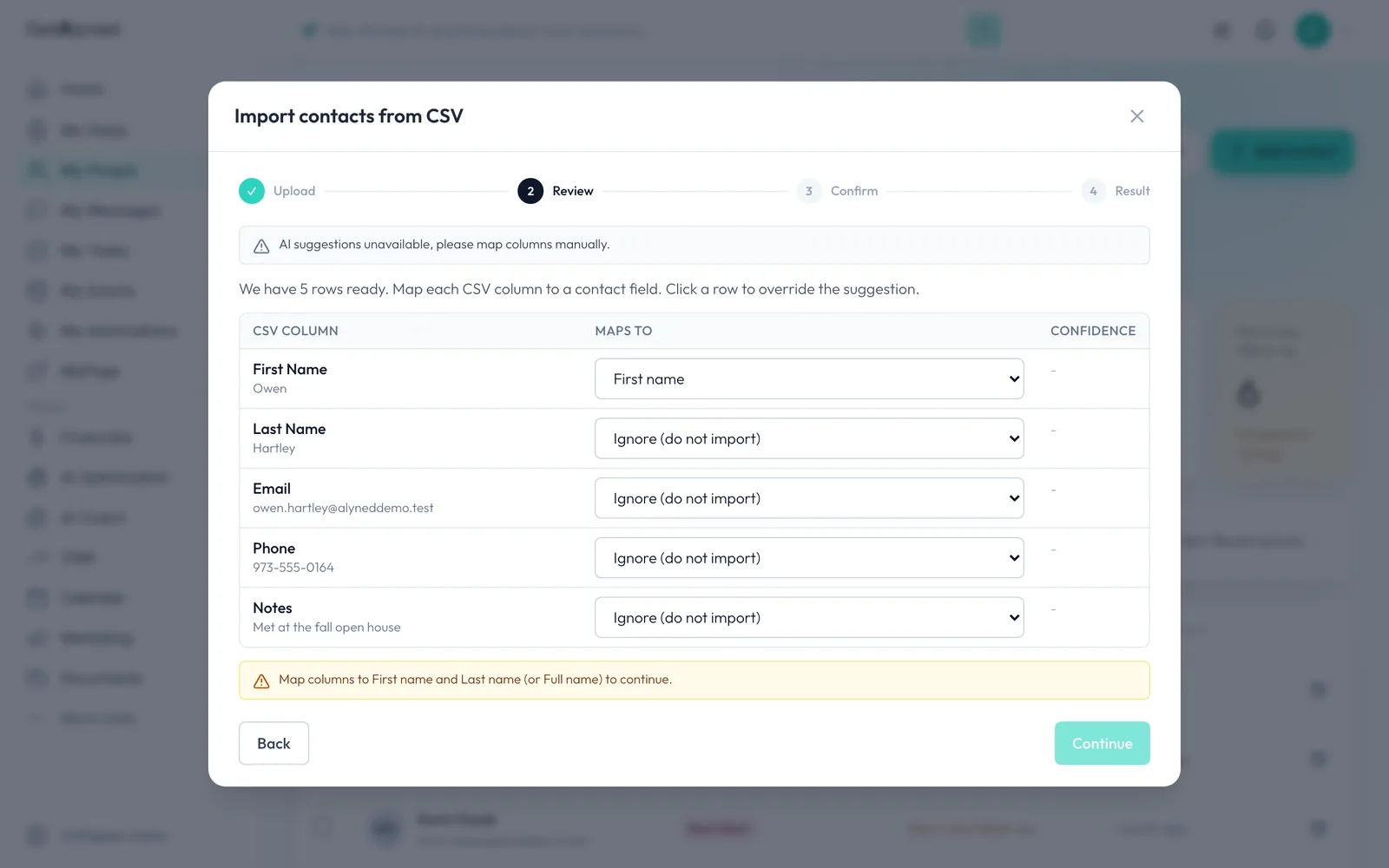
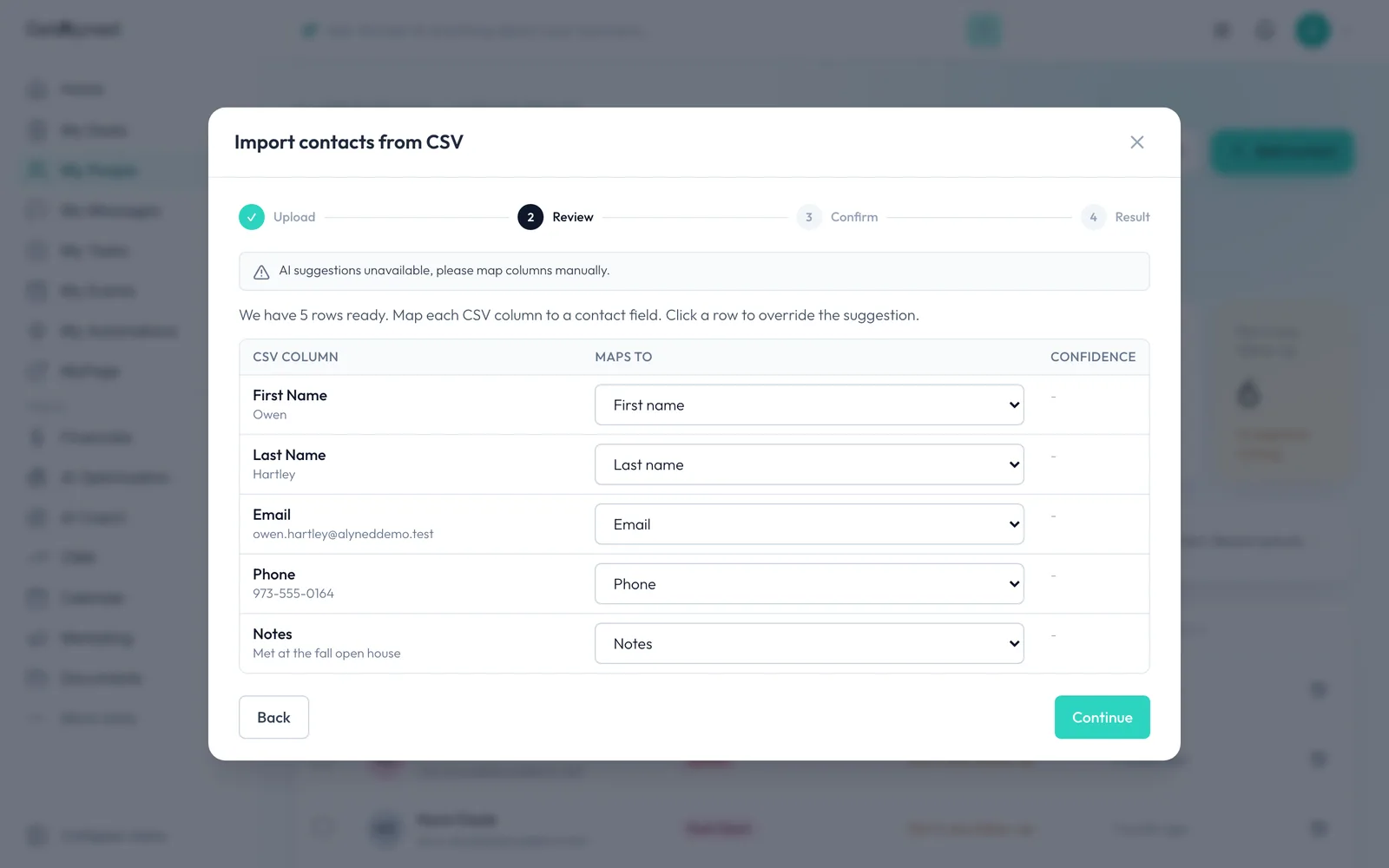
Match each column in your file to a contact field. Alyned suggests matches; check each one and change any that are wrong.
-
Continue
First and last name, or a full name, are needed. Columns set to Ignore are left out. Click Continue.
-
Handle duplicates
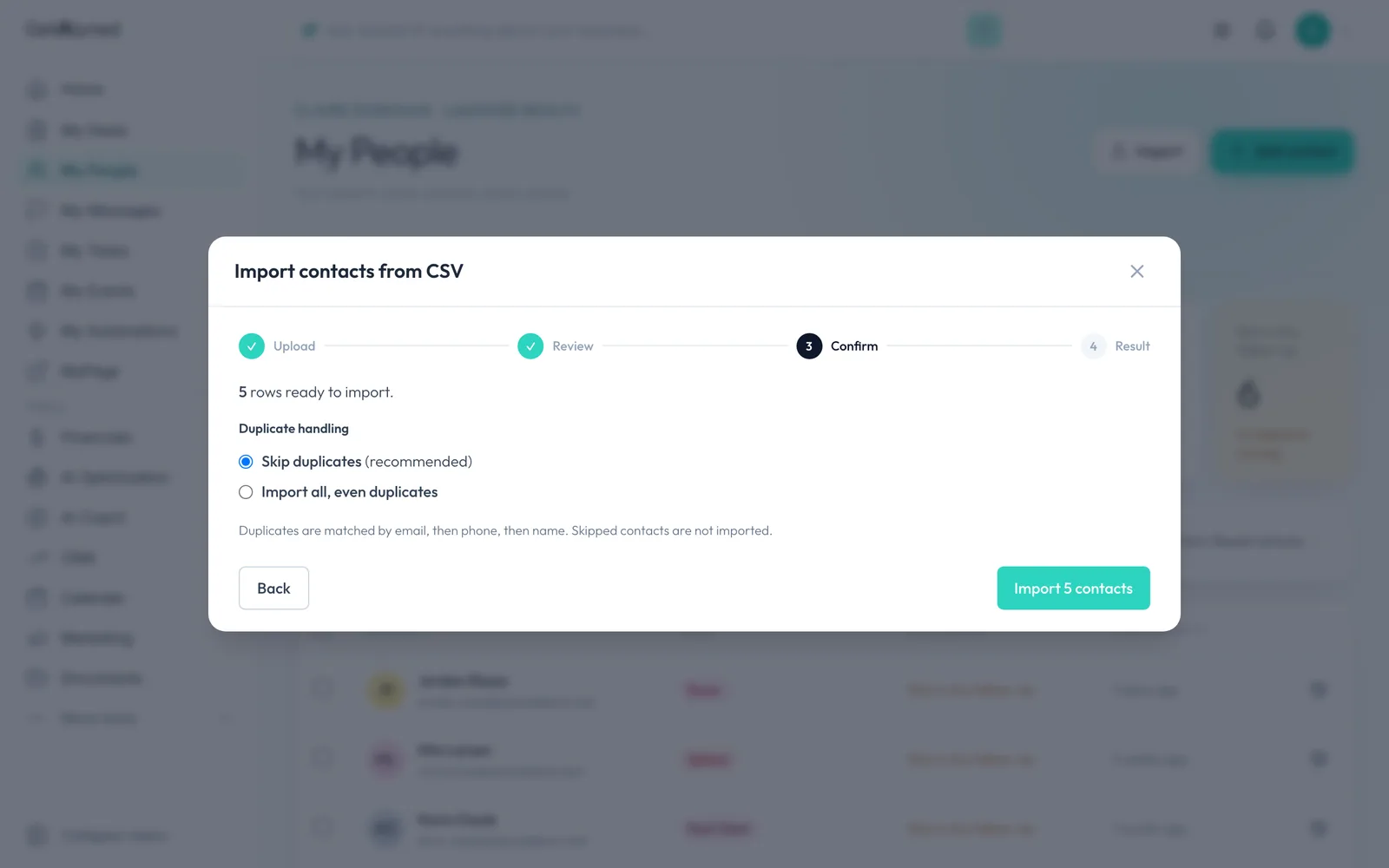
Choose what happens to people already in your contacts. Skip duplicates is the safe choice.
-
Import
Click Import.
-
Import complete
The result shows how many contacts came in, and any that were skipped.

-
Click Done
Click Done.
-
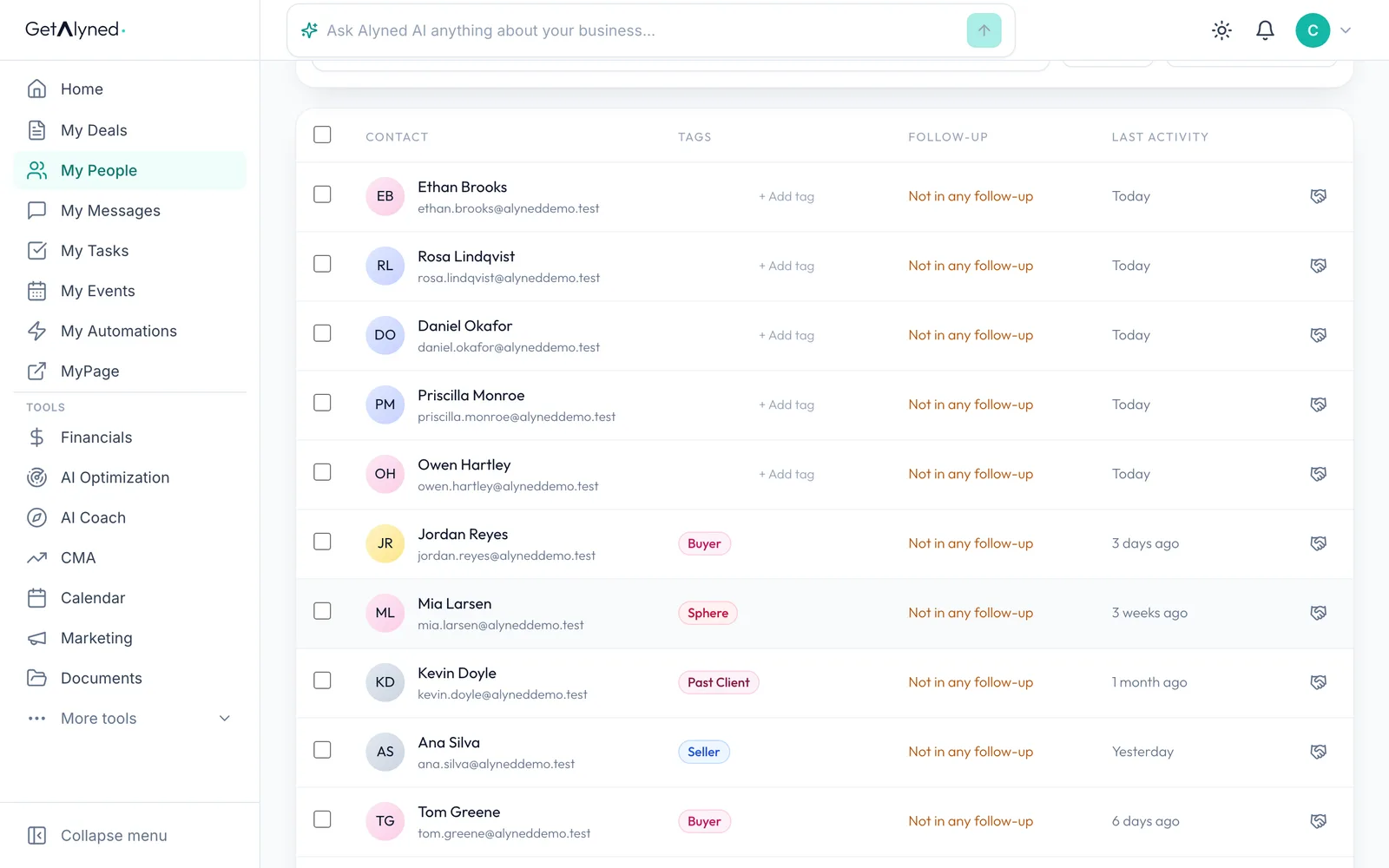
Your contacts are in My People
Your imported contacts are in My People, with CSV import as their source.
Related guides
- Everything you can set up on a contact · Add someone to My People, then take a tour of their record: tags, details, notes, tasks, automatic follow-ups and referrals to your loan officer.
- Tag a contact and start a follow-up sequence · Turn on an automatic email sequence, then tag a contact so it starts following up for you.
- Send a bulk email · Write one email, pick who gets it, check the list and send it, with every person getting their own copy.
- Build an automatic follow-up sequence · Create your own tag and a series of emails that go out on their own whenever you add that tag to a contact.
- Add a contact · Add someone to My People in under a minute, and see everything you can do from their record.