Send a bulk email
For agents · 4 min
Write one email, pick who gets it, check the list and send it, with every person getting their own copy.
Watch
Or read it step by step
-
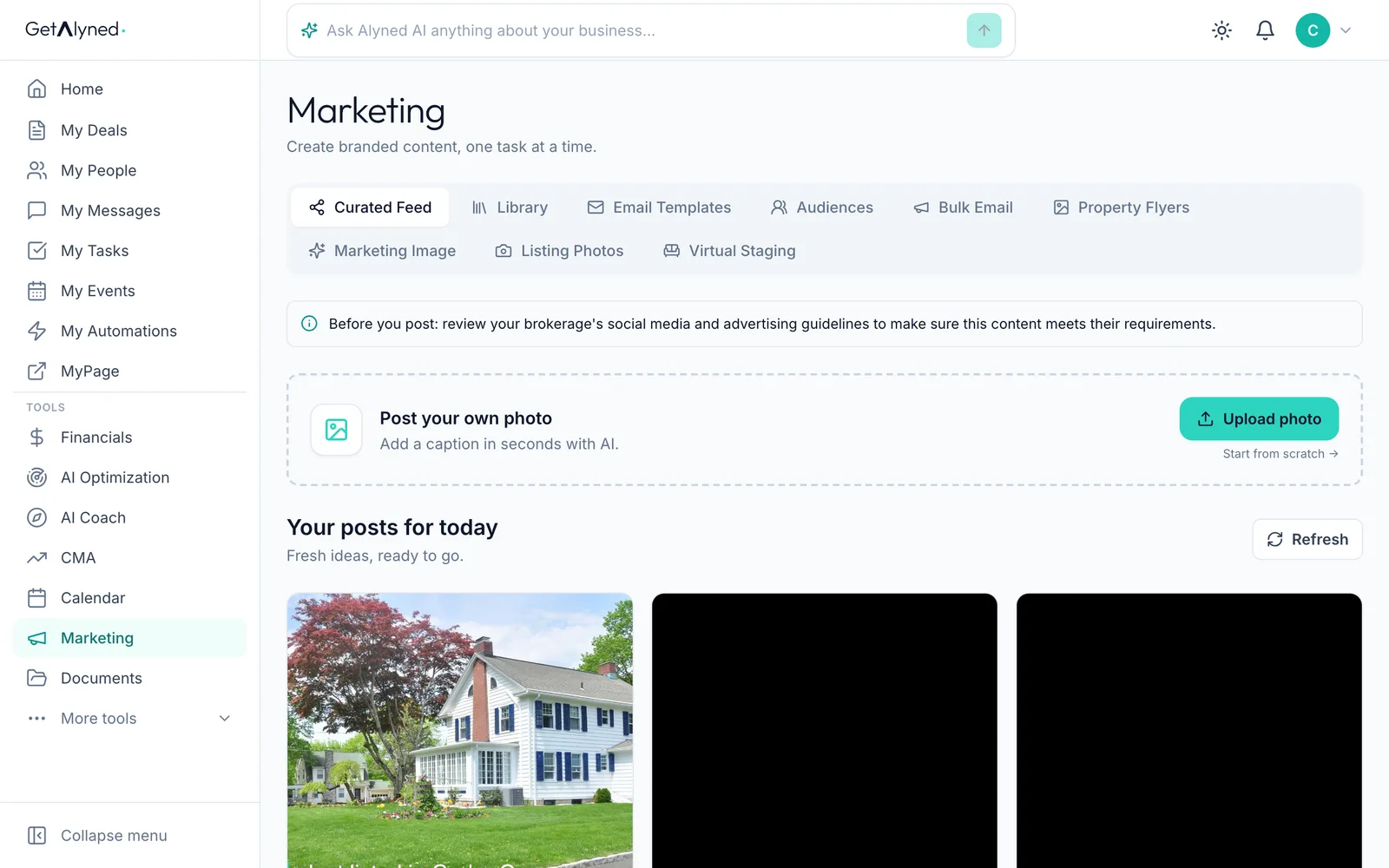
Open Email Templates
In Marketing, click Email Templates. It has ready-made designs for listings, open houses, nurture and more.
-
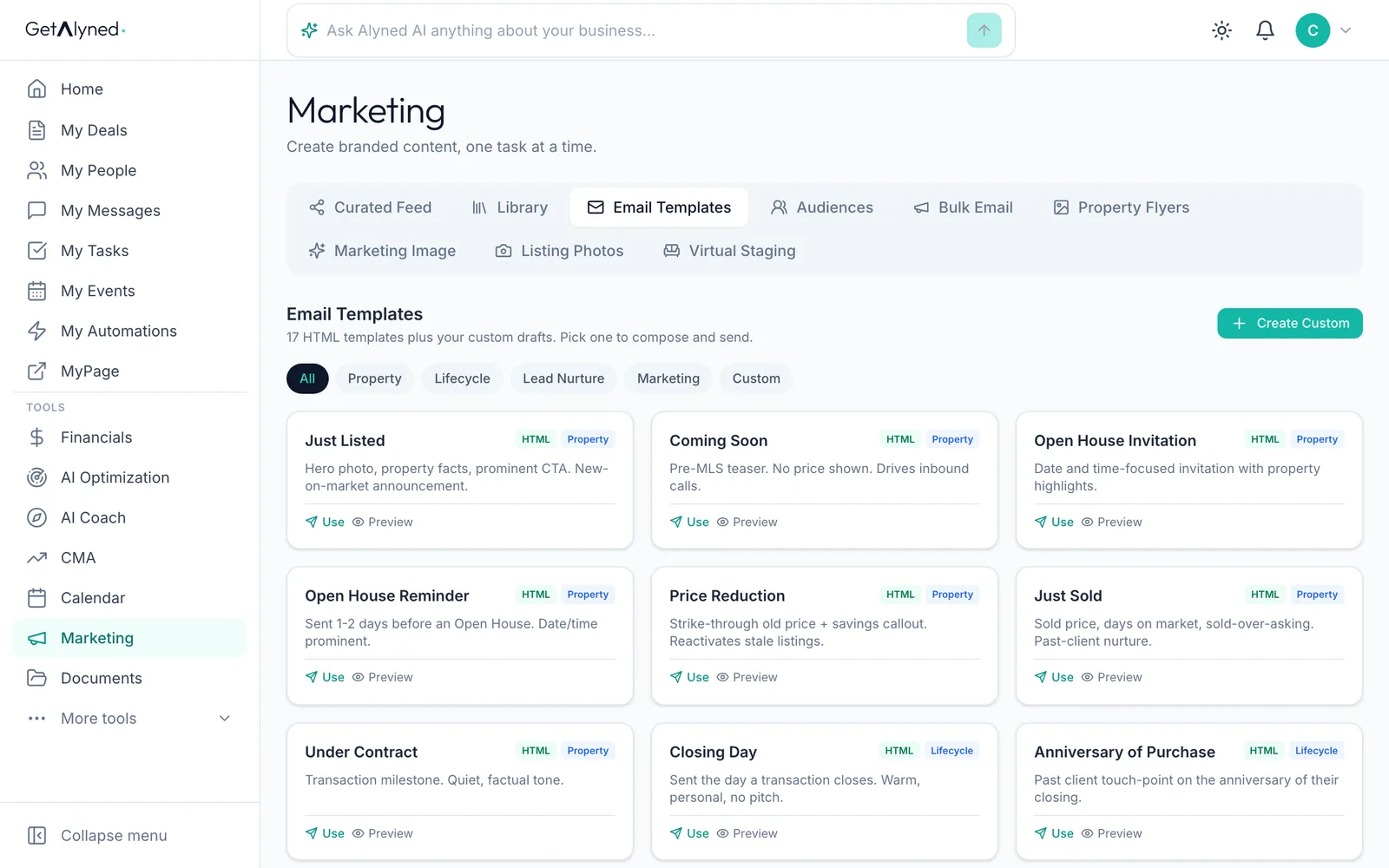
Browse the designs
Preview a template to see it, or Use it to start an email. Create Custom builds your own.
-
Open Audiences
Click Audiences. This is who you send to.
-
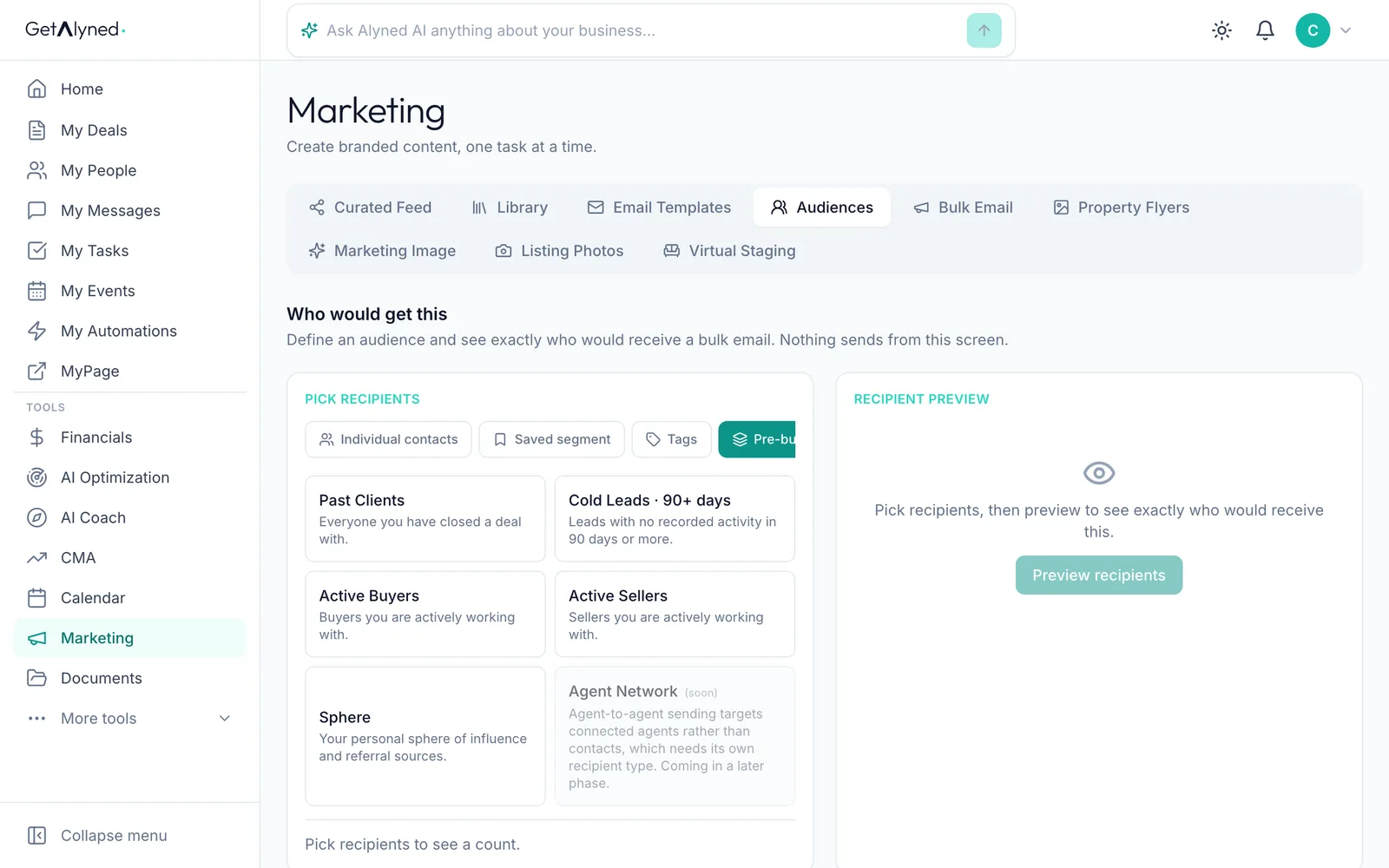
Build an audience
Pick individual contacts, tags, a saved segment or a ready-made one. Then preview who it reaches and save it.
-
Open Bulk Email
Click Bulk Email.
-
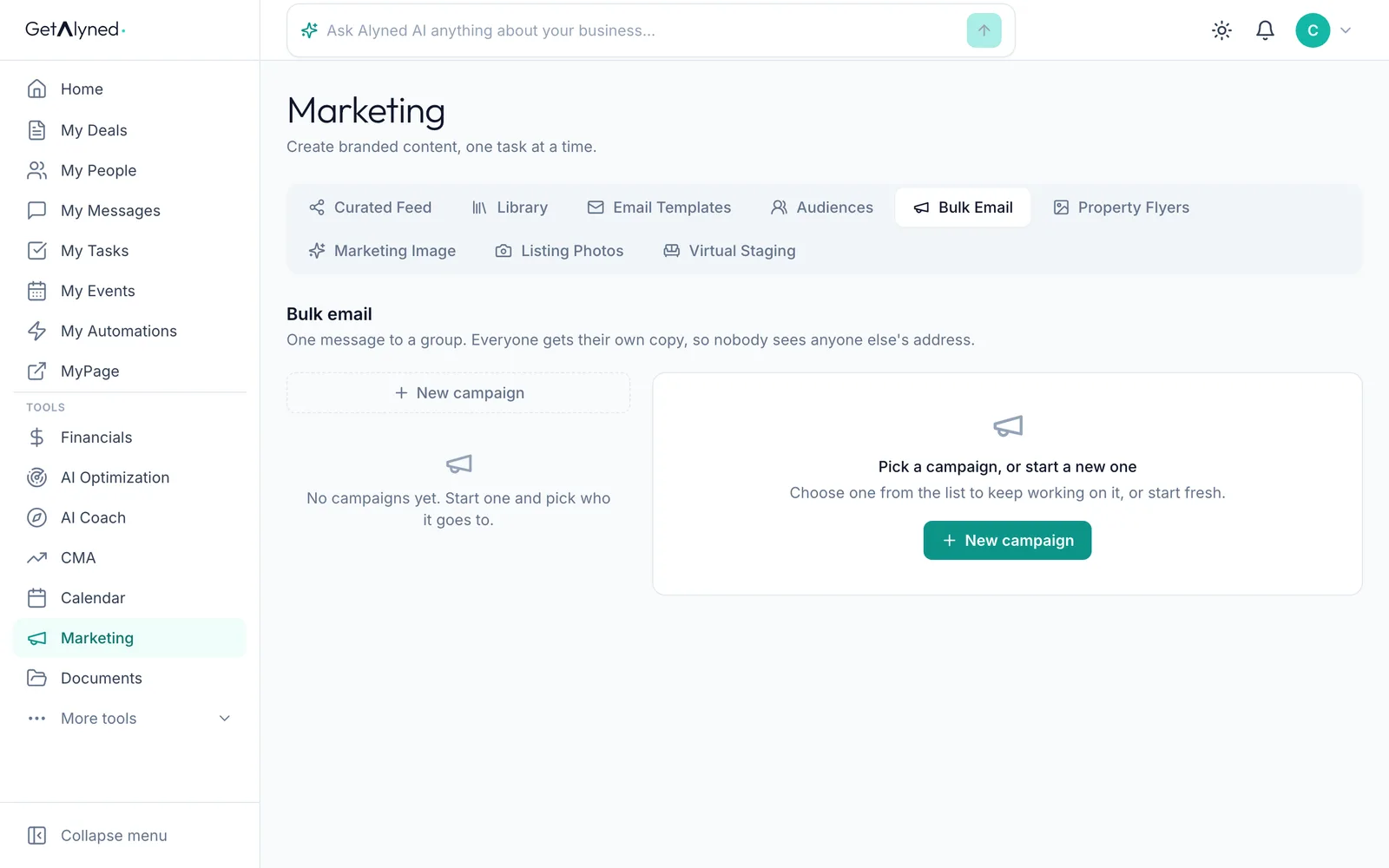
Start a campaign
Click New campaign. A bulk email is one message to a group, and everyone gets their own copy.
-
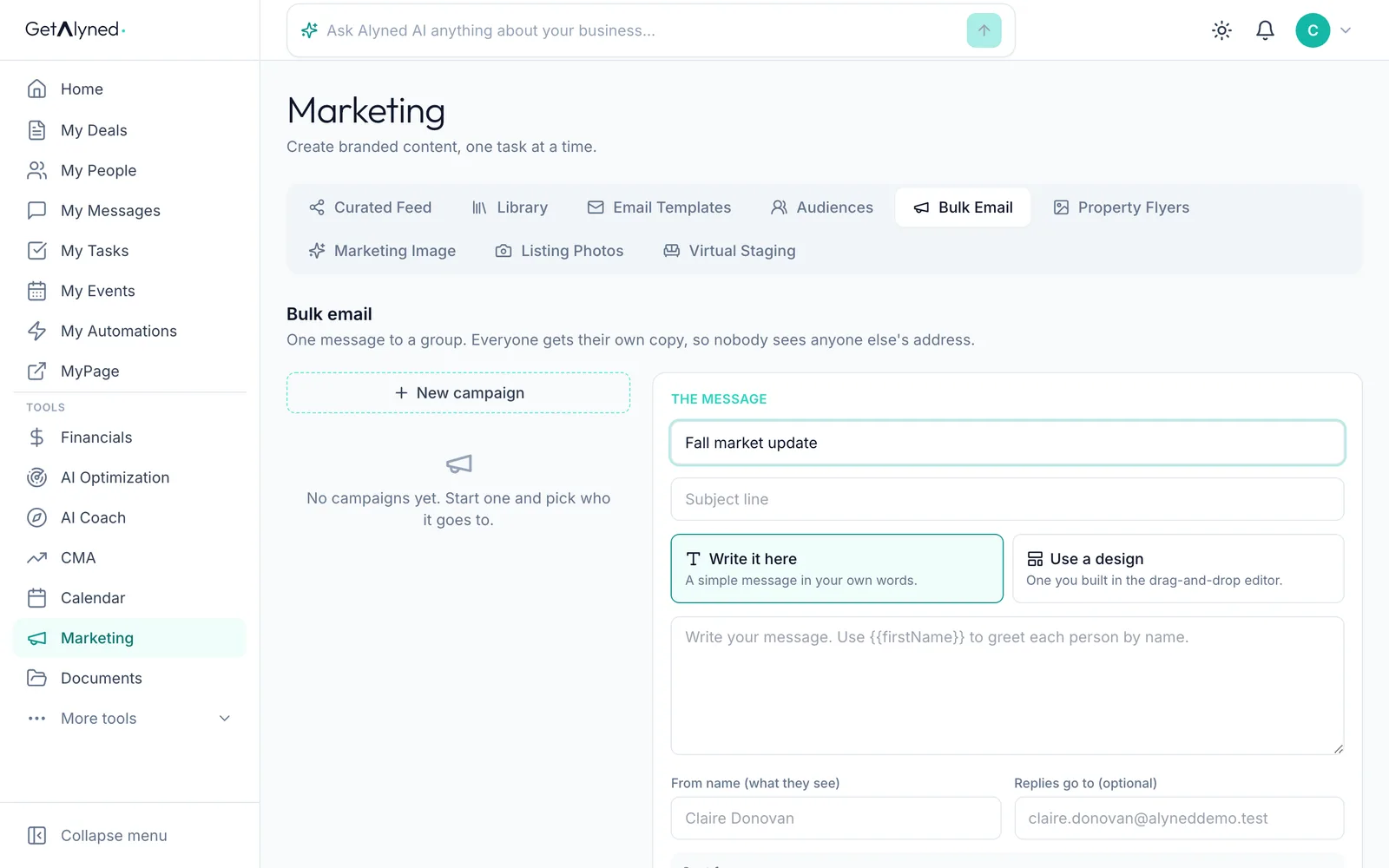
Name it
Give the campaign a name. Only you see it.
-
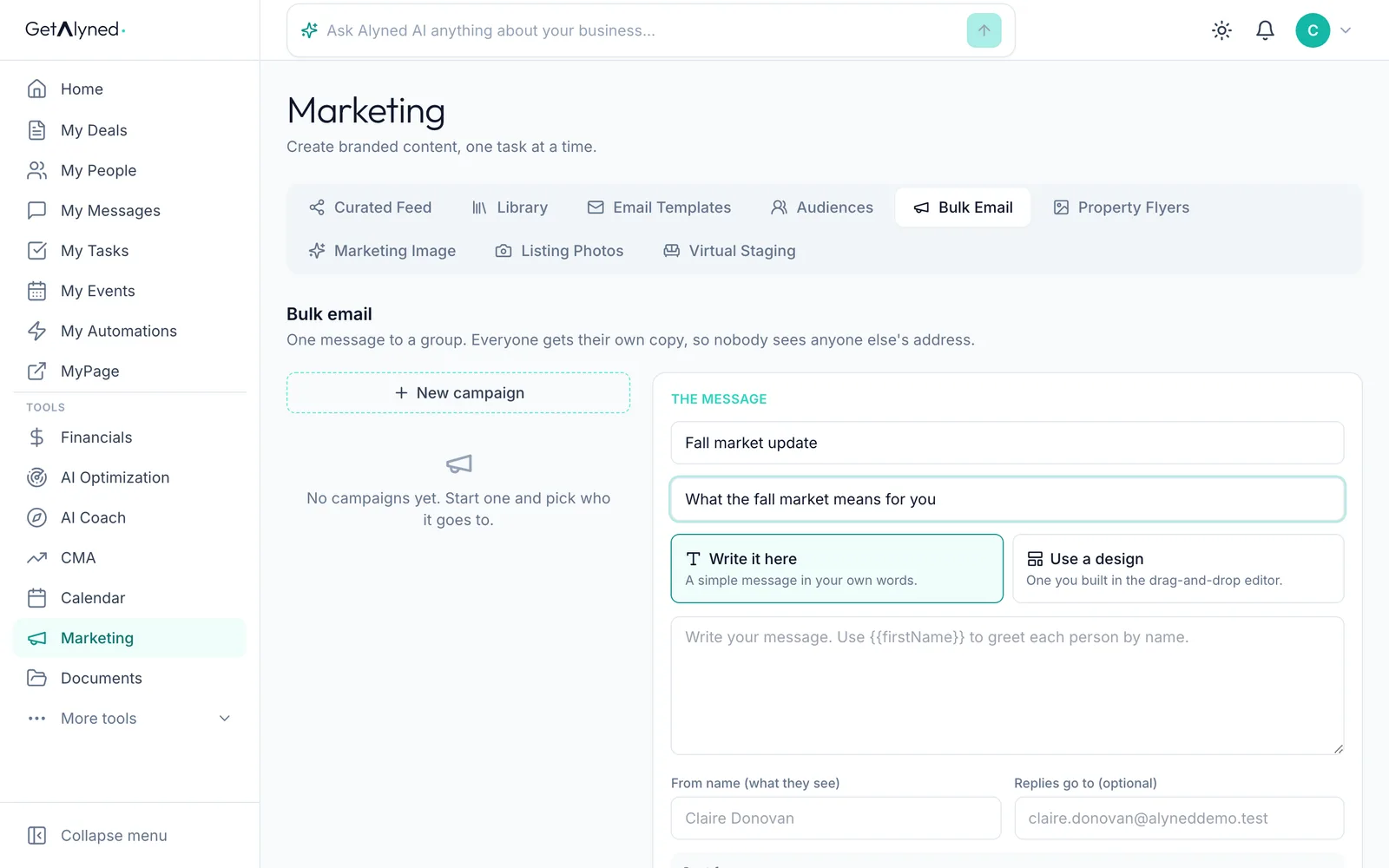
Write the subject
Type the subject line people will see.
-
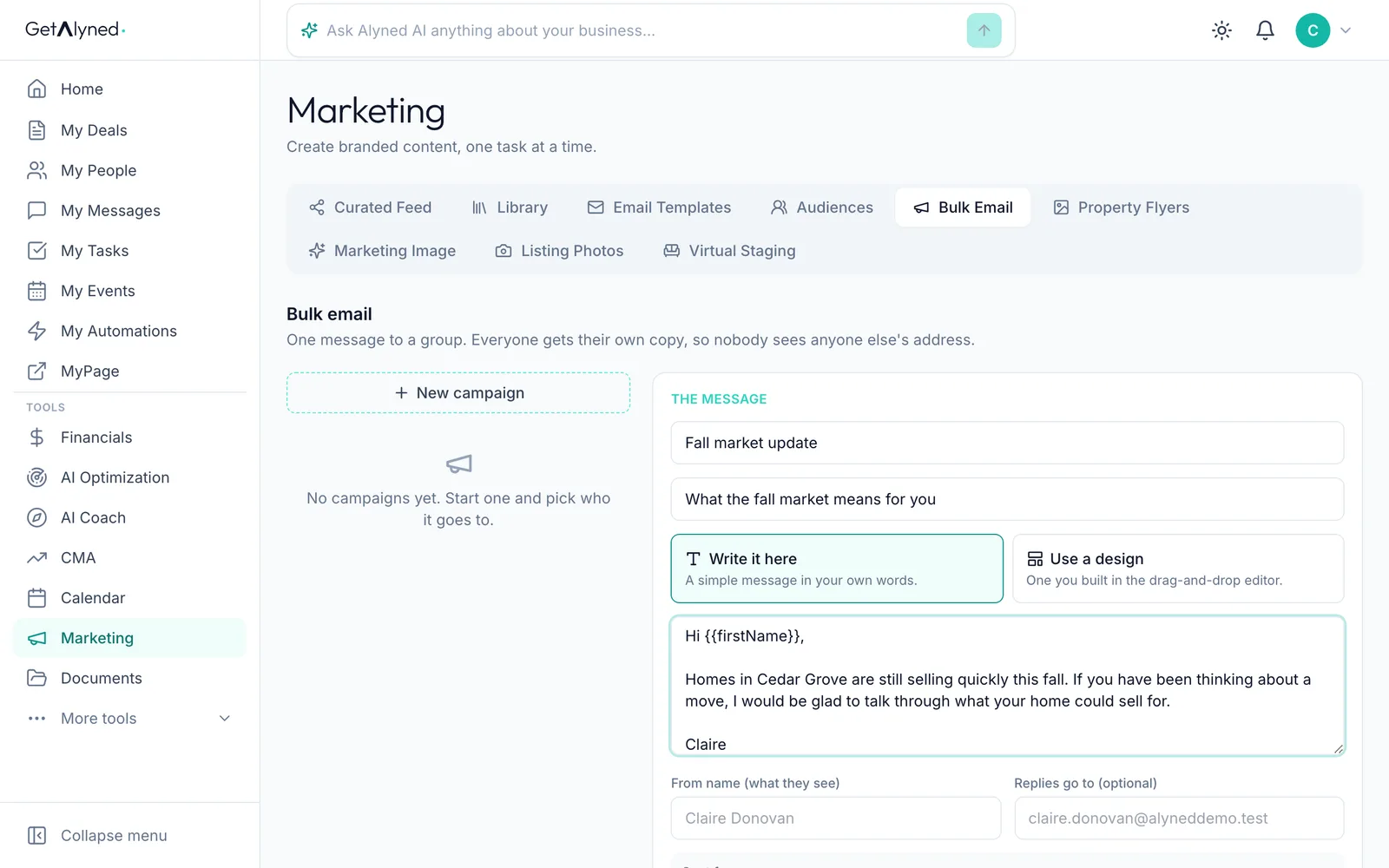
Write the message
Write it in your own words, or use a design from your templates. {{firstName}} greets each person by name.
-
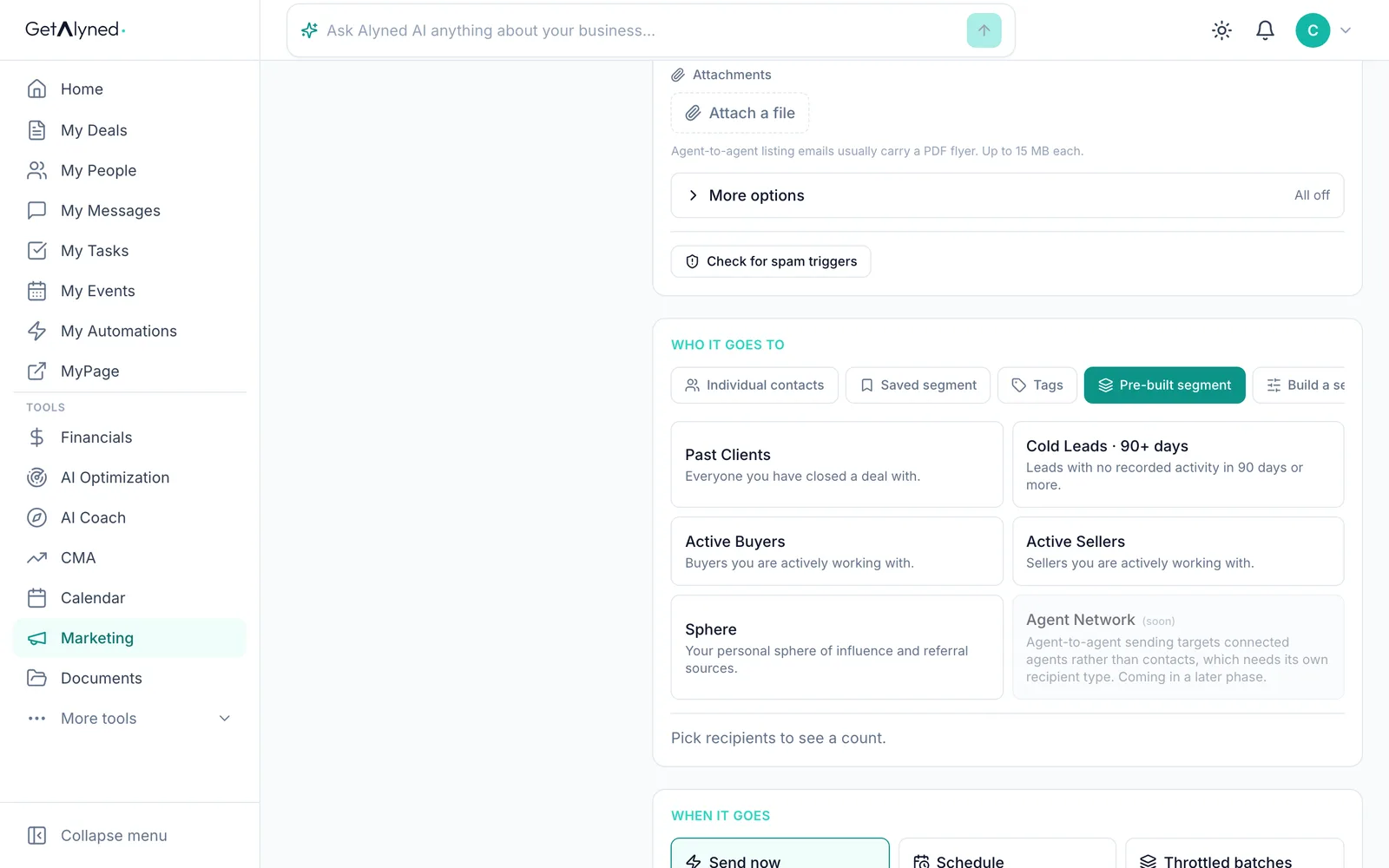
Choose who gets it
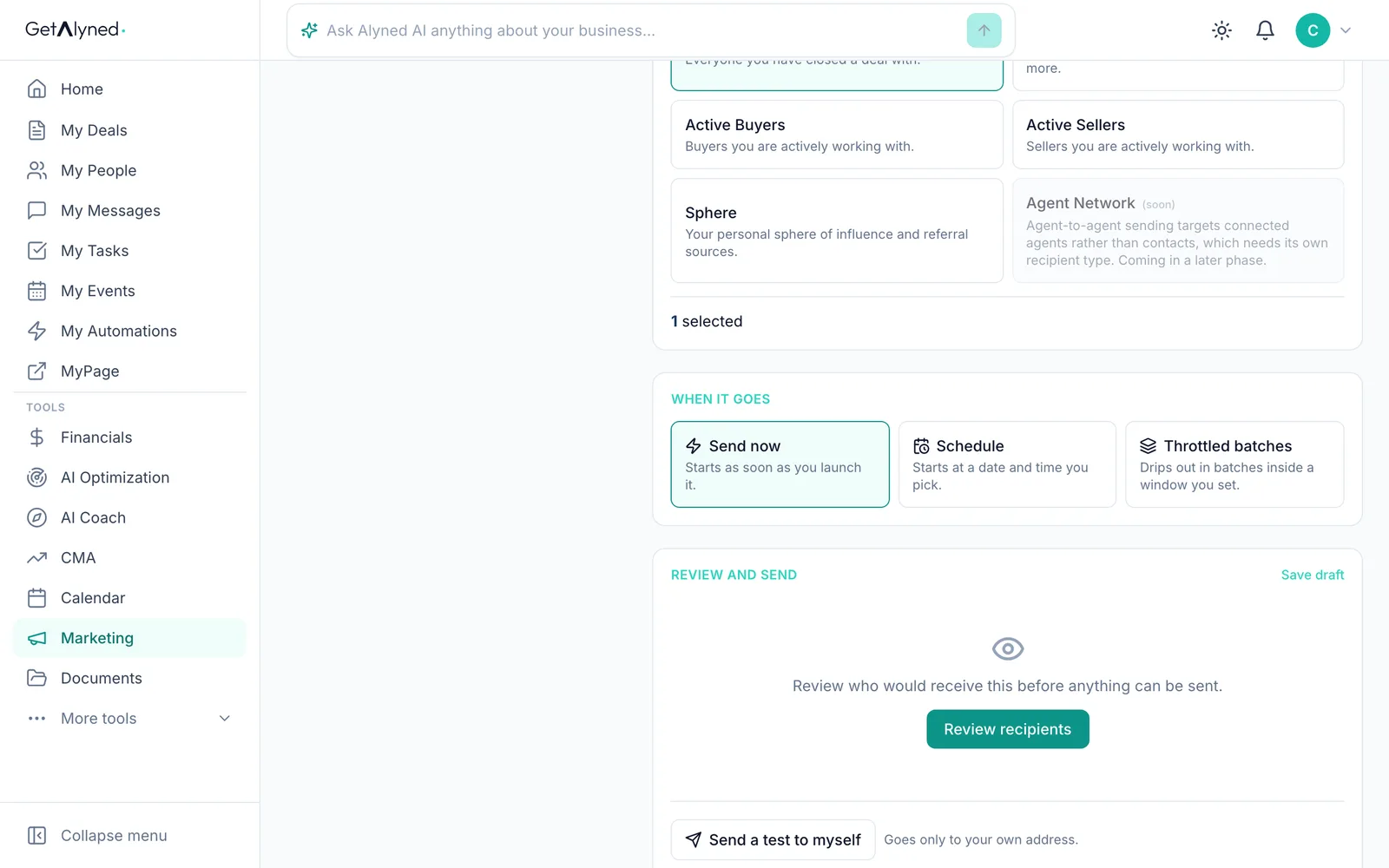
Pick the audience. Here, Past Clients is everyone you've closed a deal with.
-
Choose when it sends
Send now, schedule it, or drip it out in batches.
-
Review recipients
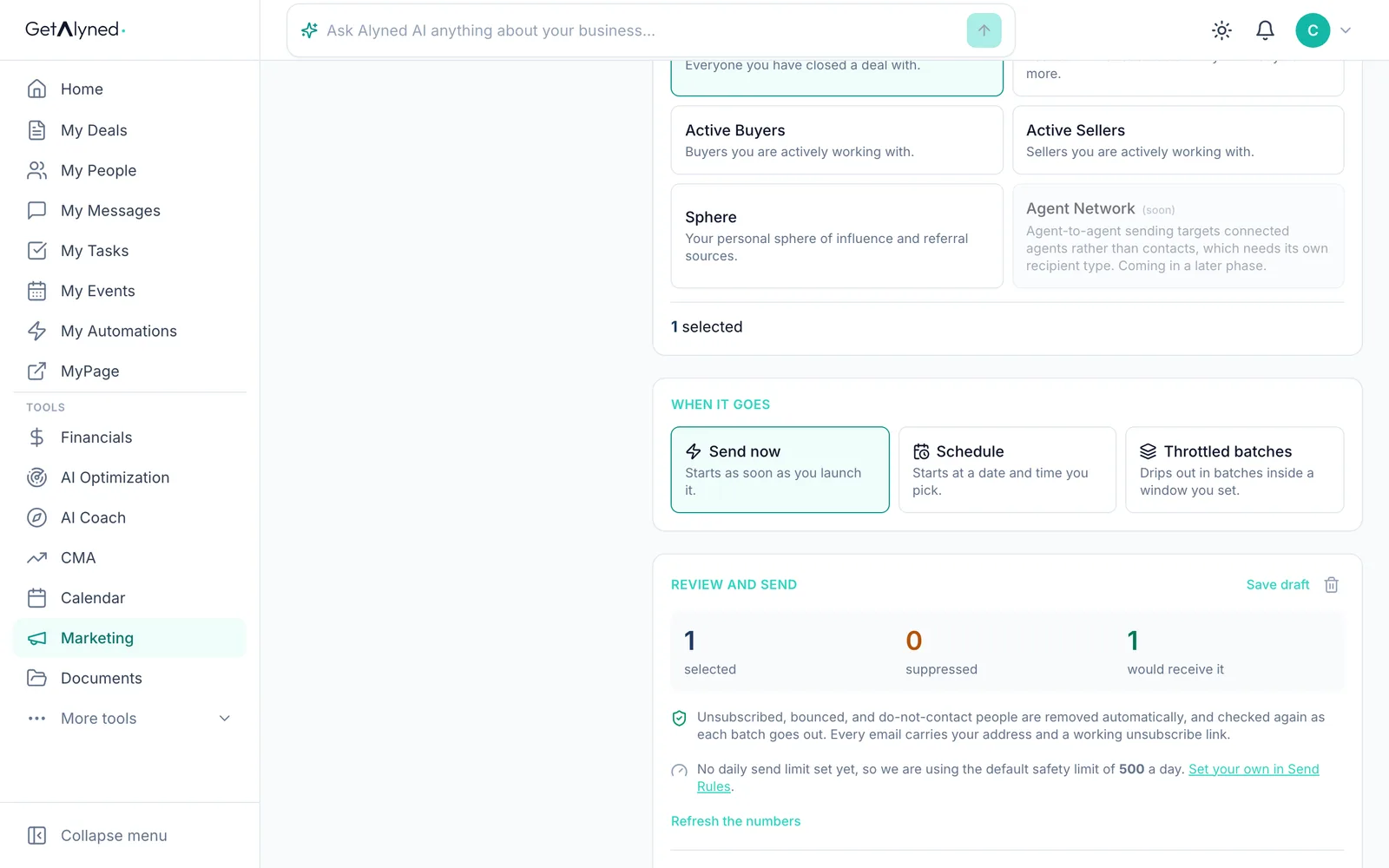
Click Review recipients to check who would get it before anything can be sent.
-
The list is cleaned for you
Unsubscribed, bounced and do-not-contact people are removed automatically.
-
Send yourself a test
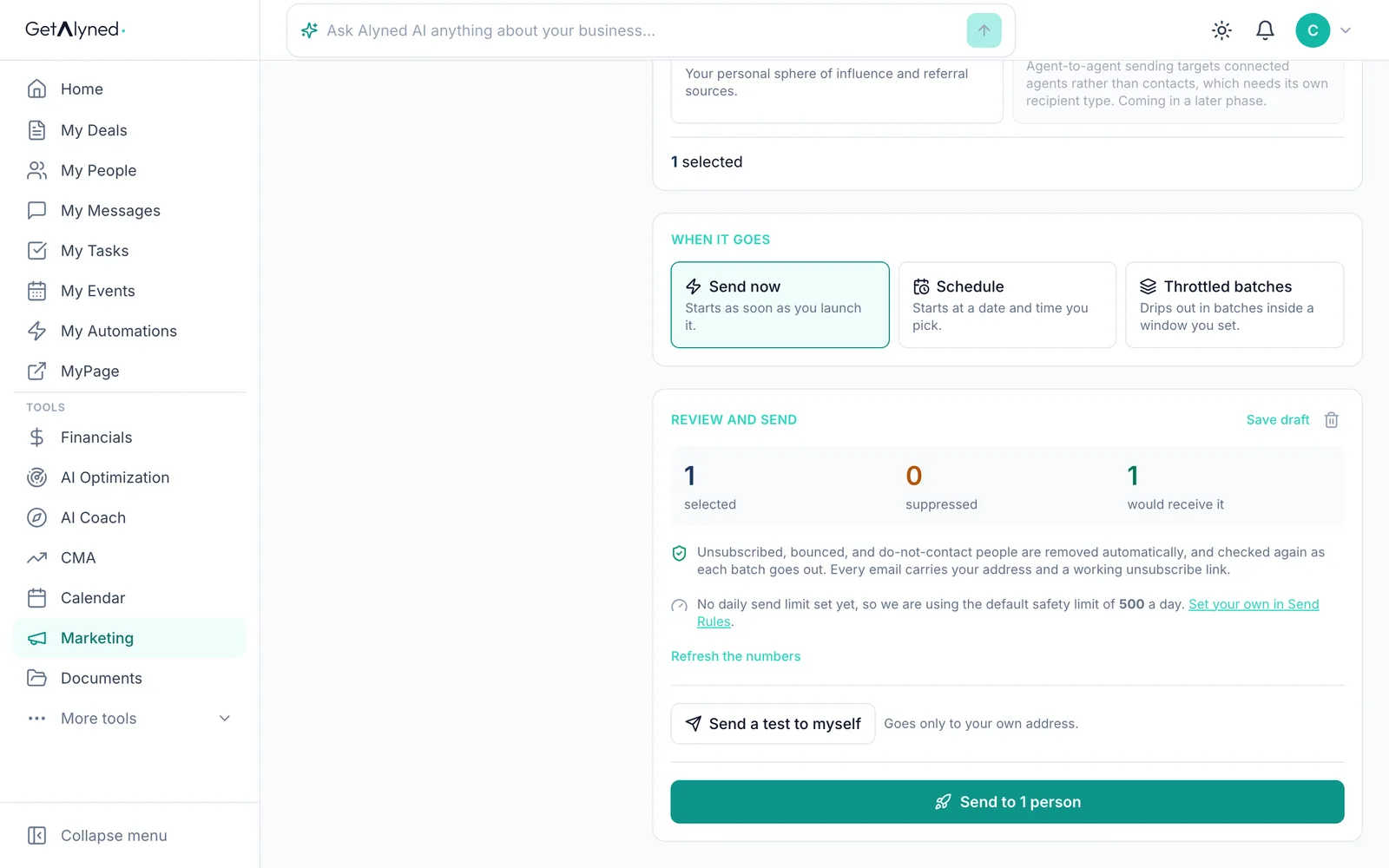
Click Send a test to myself to see how it looks first.
-
Send it
When it's ready, click the send button. Every email carries your address and an unsubscribe link.
Related guides
- Build an automatic follow-up sequence · Create your own tag and a series of emails that go out on their own whenever you add that tag to a contact.
- Import contacts from a spreadsheet · Bring your contacts in from a spreadsheet or another CRM in a few minutes, without typing them one by one.
- Everything you can set up on a contact · Add someone to My People, then take a tour of their record: tags, details, notes, tasks, automatic follow-ups and referrals to your loan officer.
- Invite contacts and track RSVPs · Email your contacts an invitation to your event, then watch the RSVPs, guest list and waitlist fill in.