Your fix-it list after inspection
For clients · 2 min
For buyers: see what the seller is fixing, the credits you're getting at closing, what's on you after closing, and find a pro for anything you handle.
Watch
Or read it step by step
-
Your fix-it list
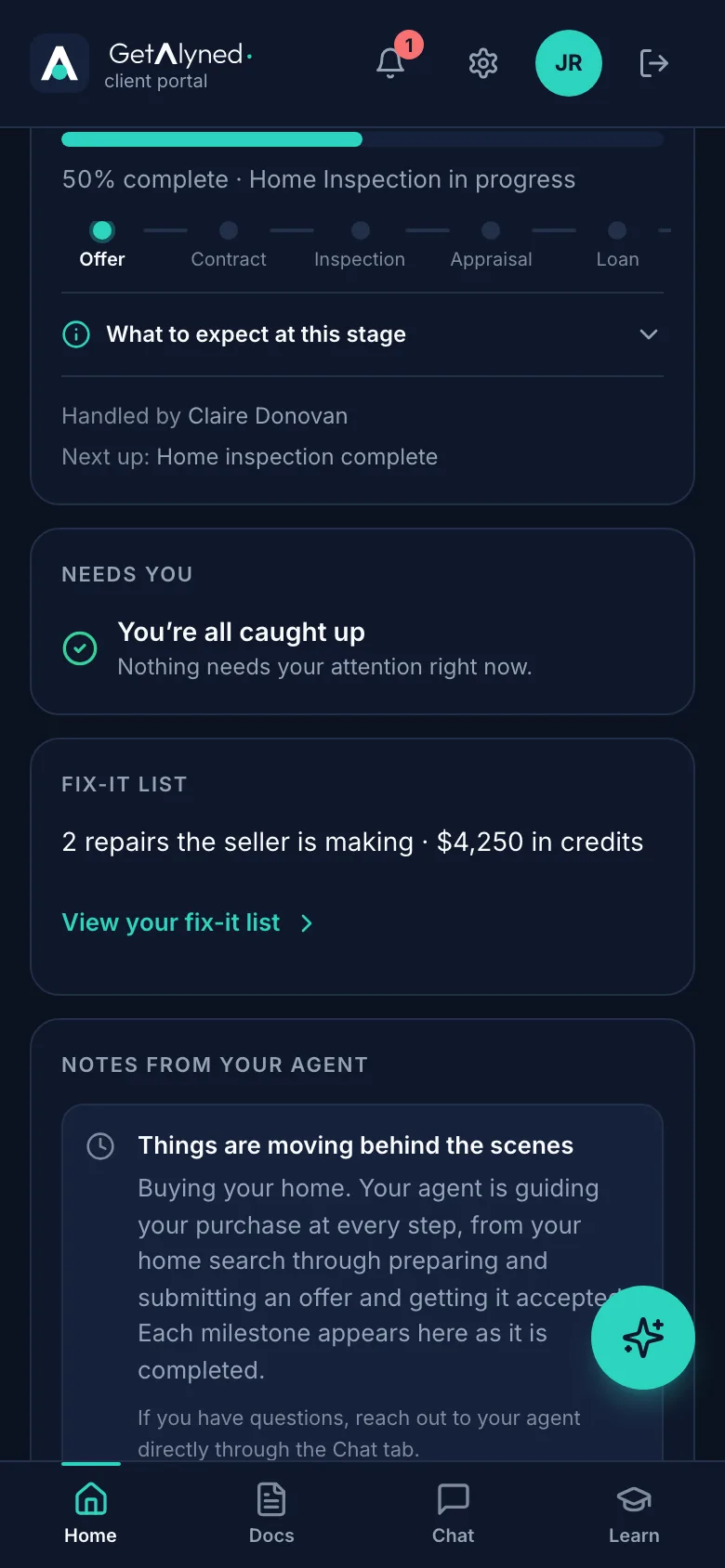
Once your agent locks the list, a Fix-it list card shows on your portal home.
-
Open it
It shows how many repairs the seller is making and your credits. Tap View your fix-it list.
-
For your new home
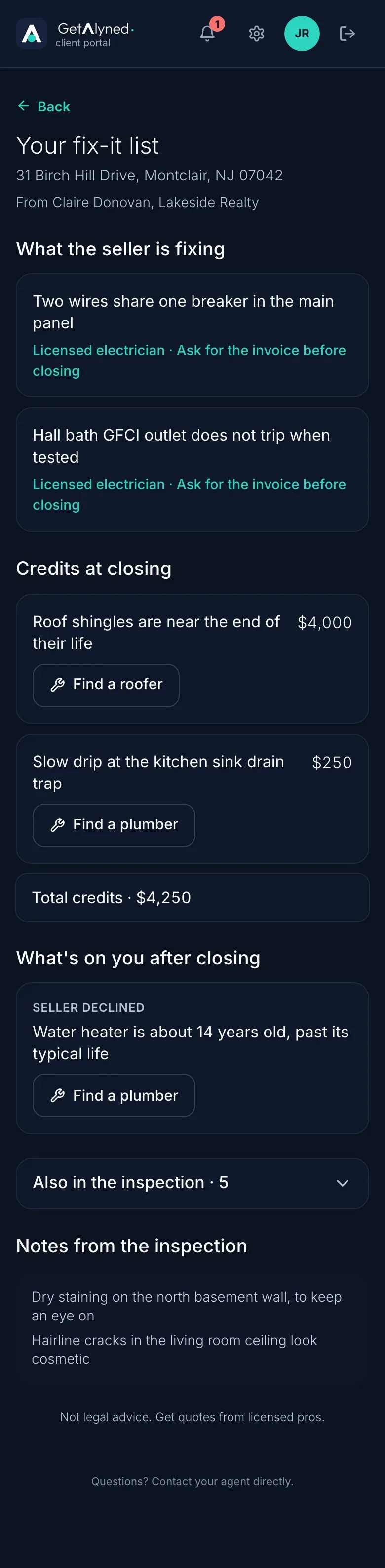
Your fix-it list for your new home, from your agent.
-
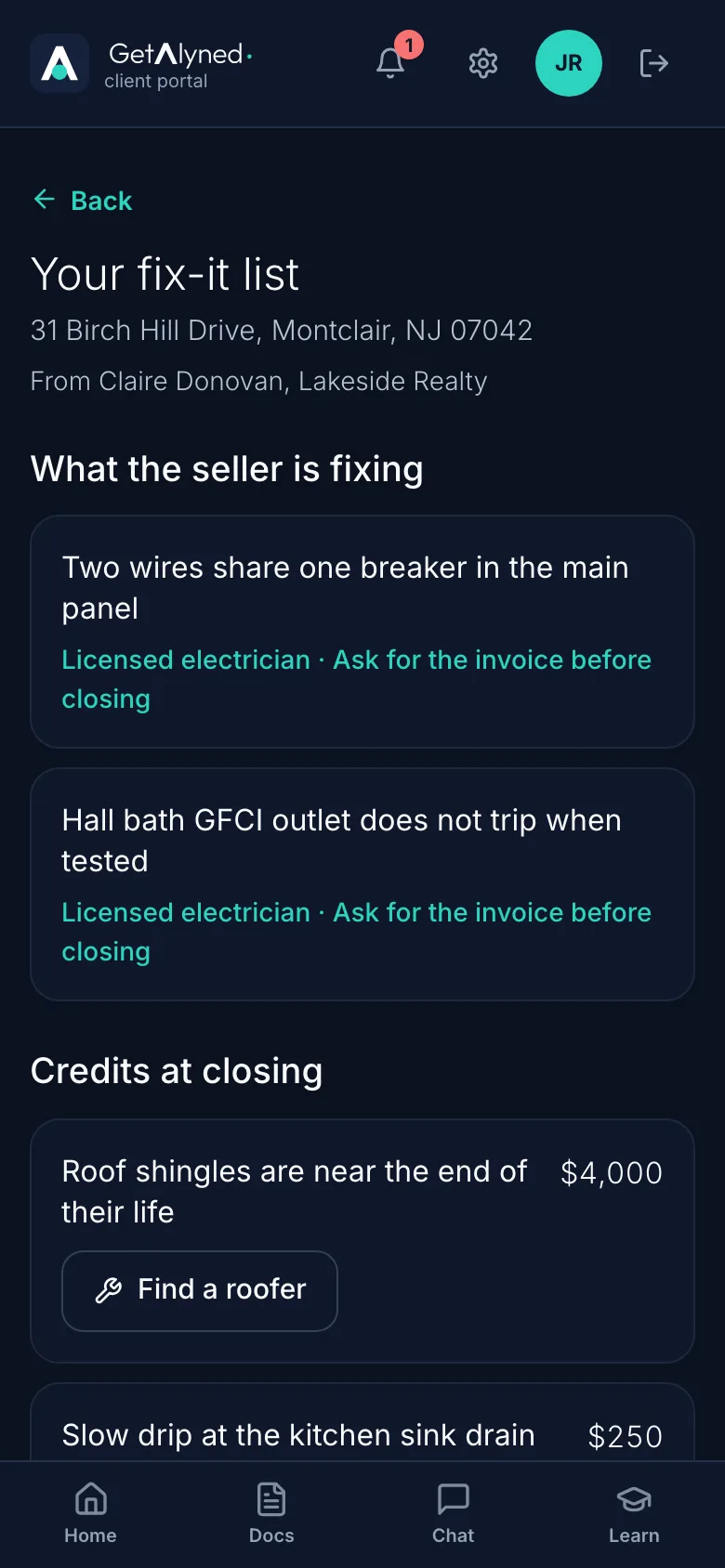
What the seller is fixing
The repairs the seller is making, each by a licensed pro. The seller arranges these. Ask for the invoice before closing.
-
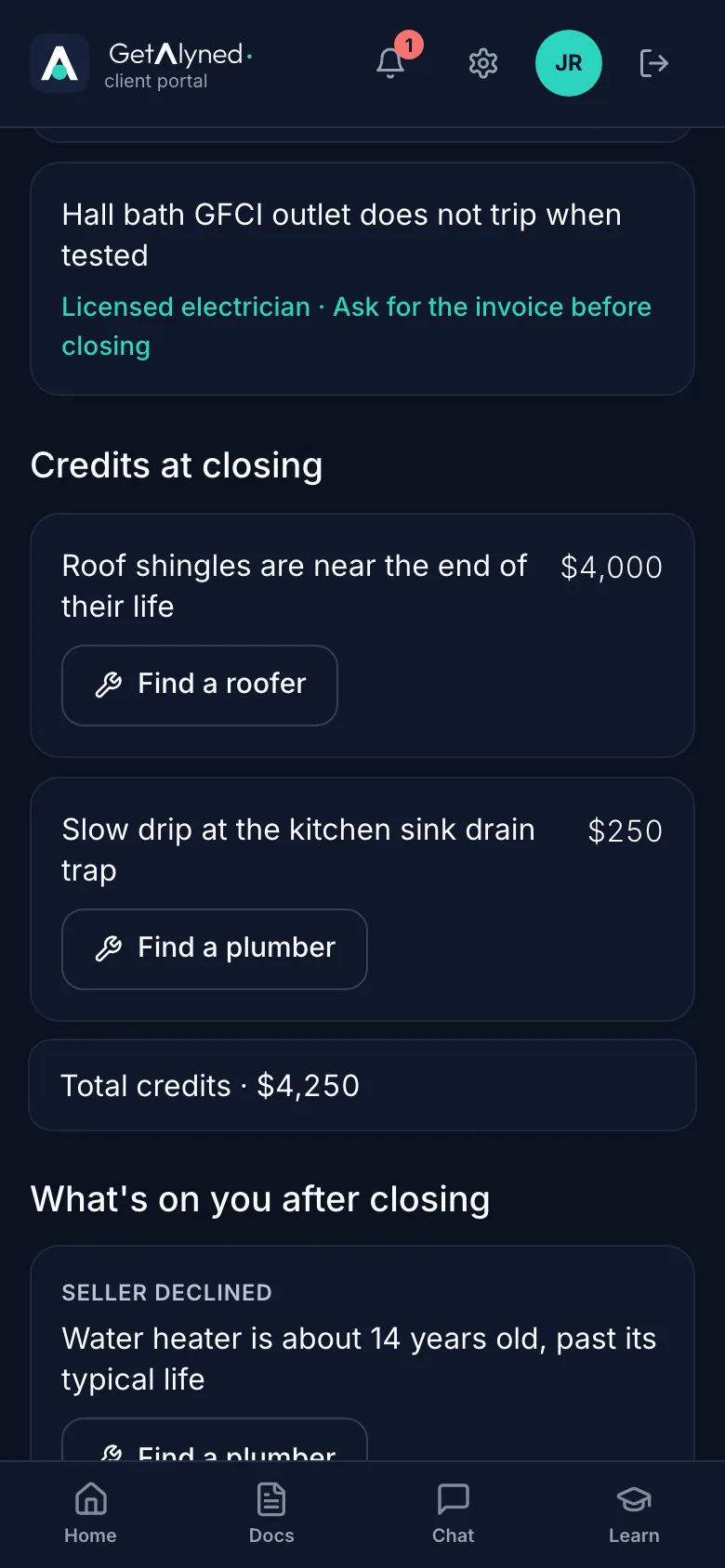
Your credits
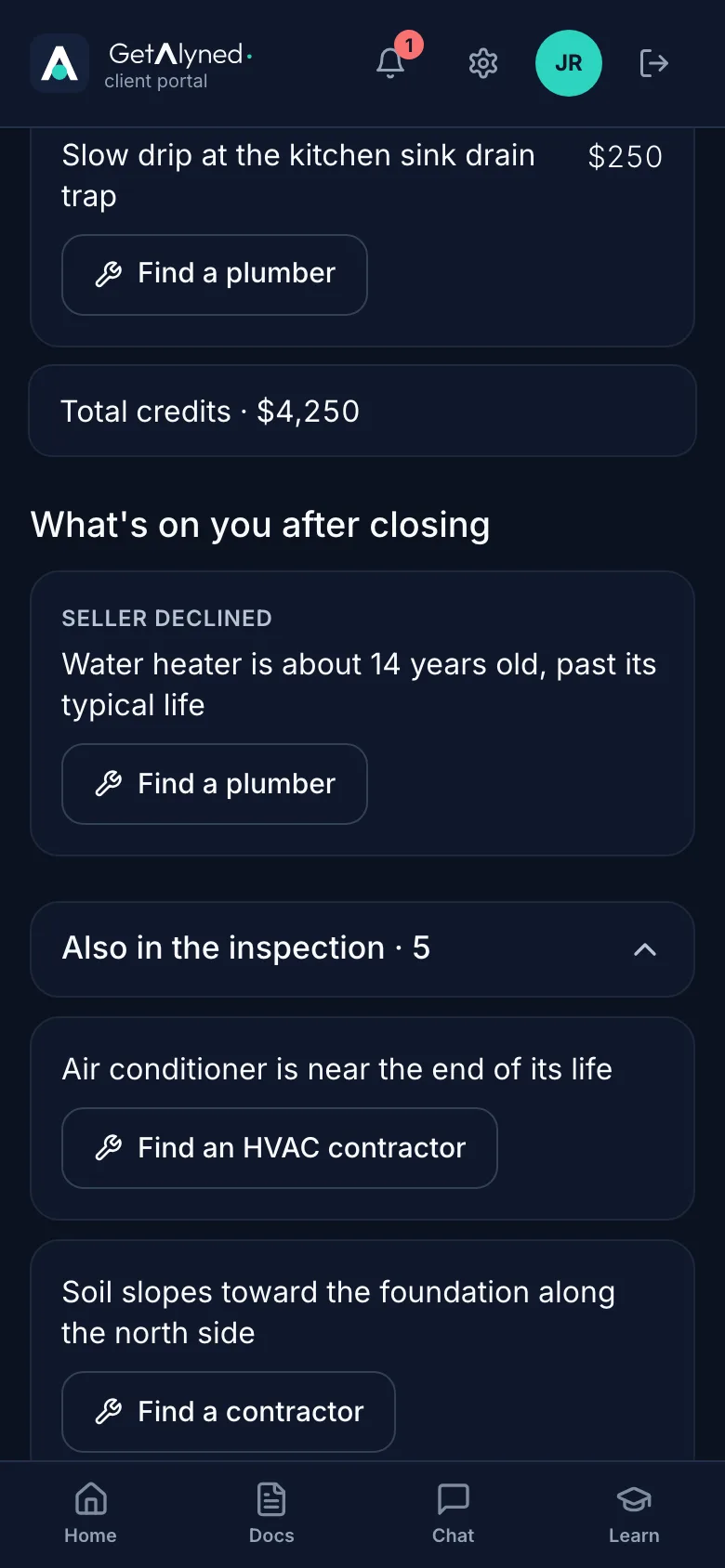
Credits at closing: the money you're getting instead of a fix. You arrange that work, and each one has a button to find a pro.
-
What's on you
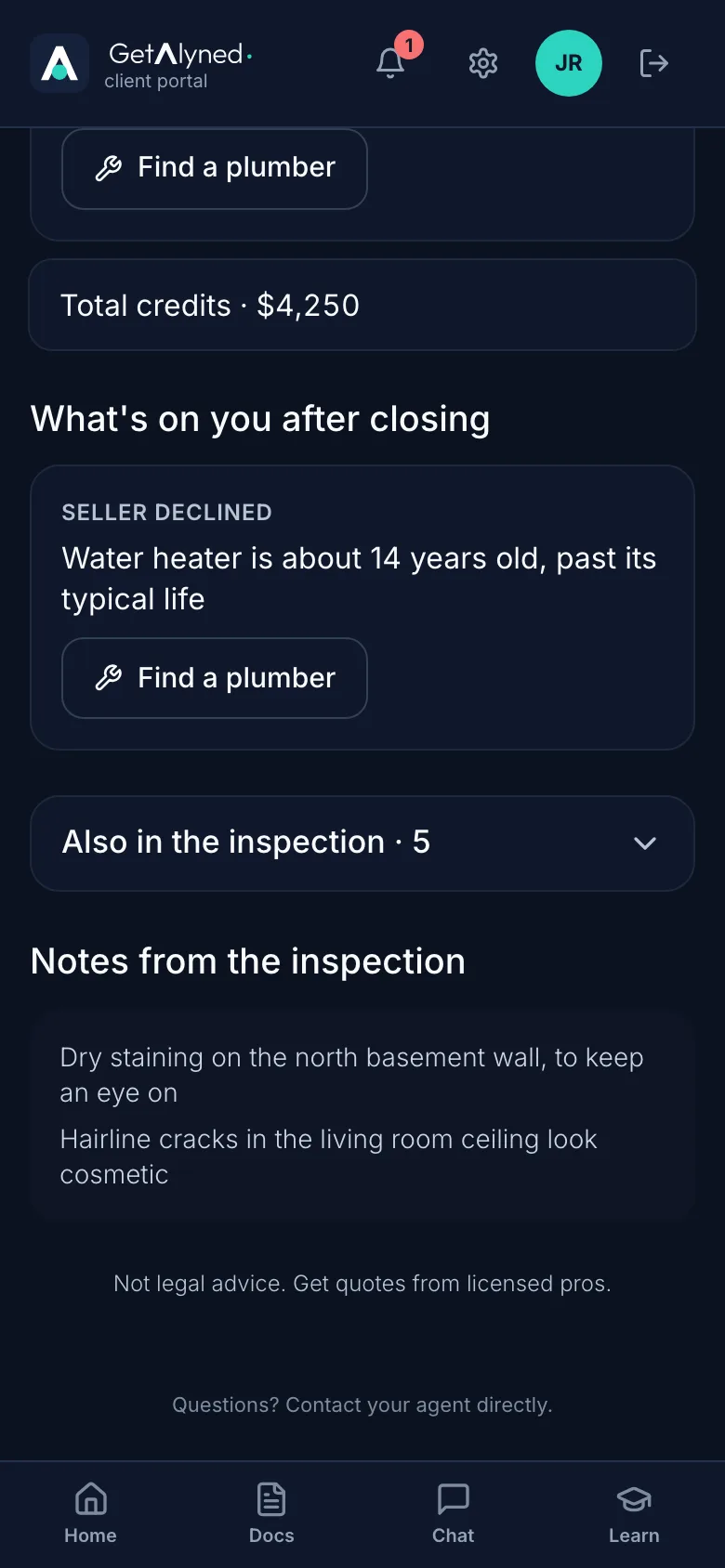
What's on you after closing, like the water heater the seller declined. No cost ranges here, and nothing to buy.
-
The rest of the inspection
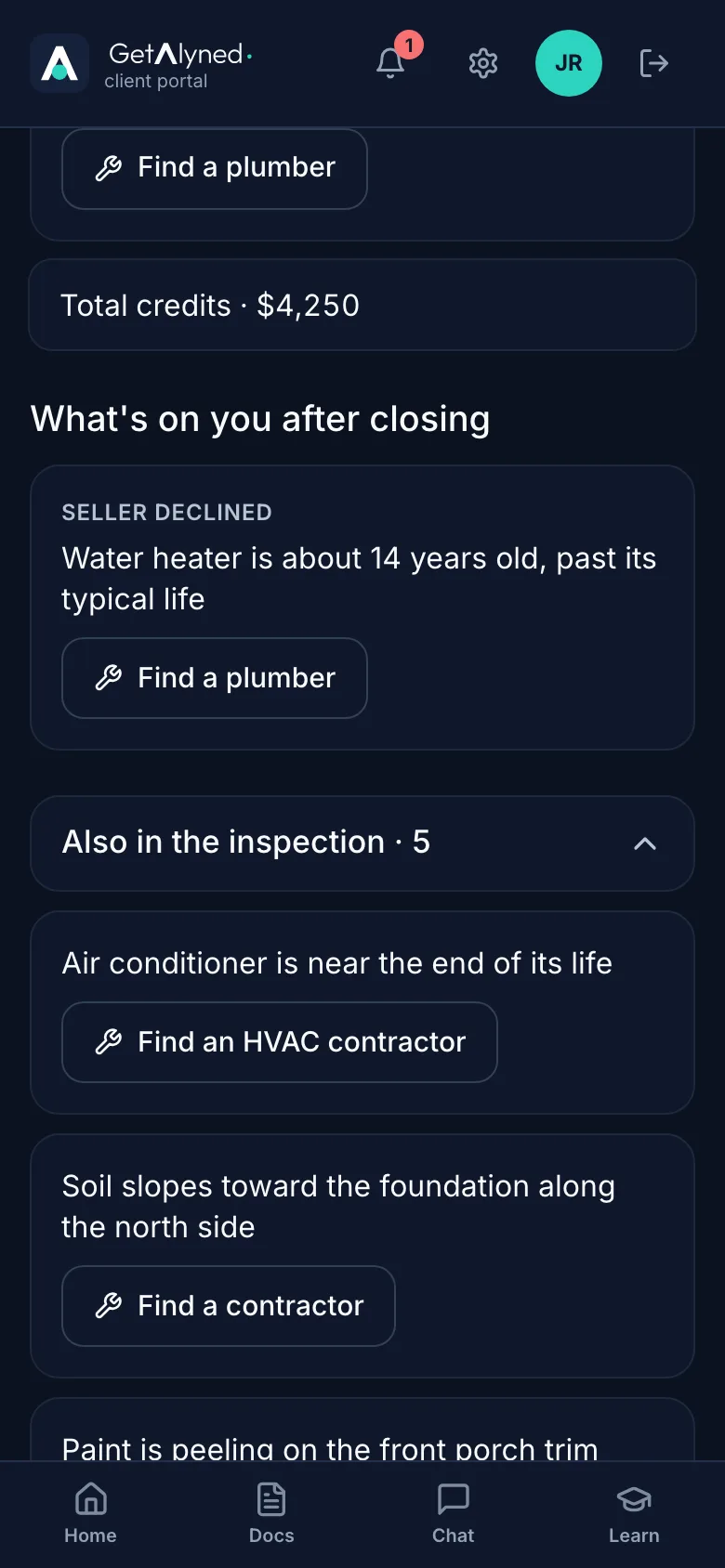
Also in the inspection lists items that weren't in the request.
-
Left out of the request
Like the air conditioner, which wasn't part of the request.
-
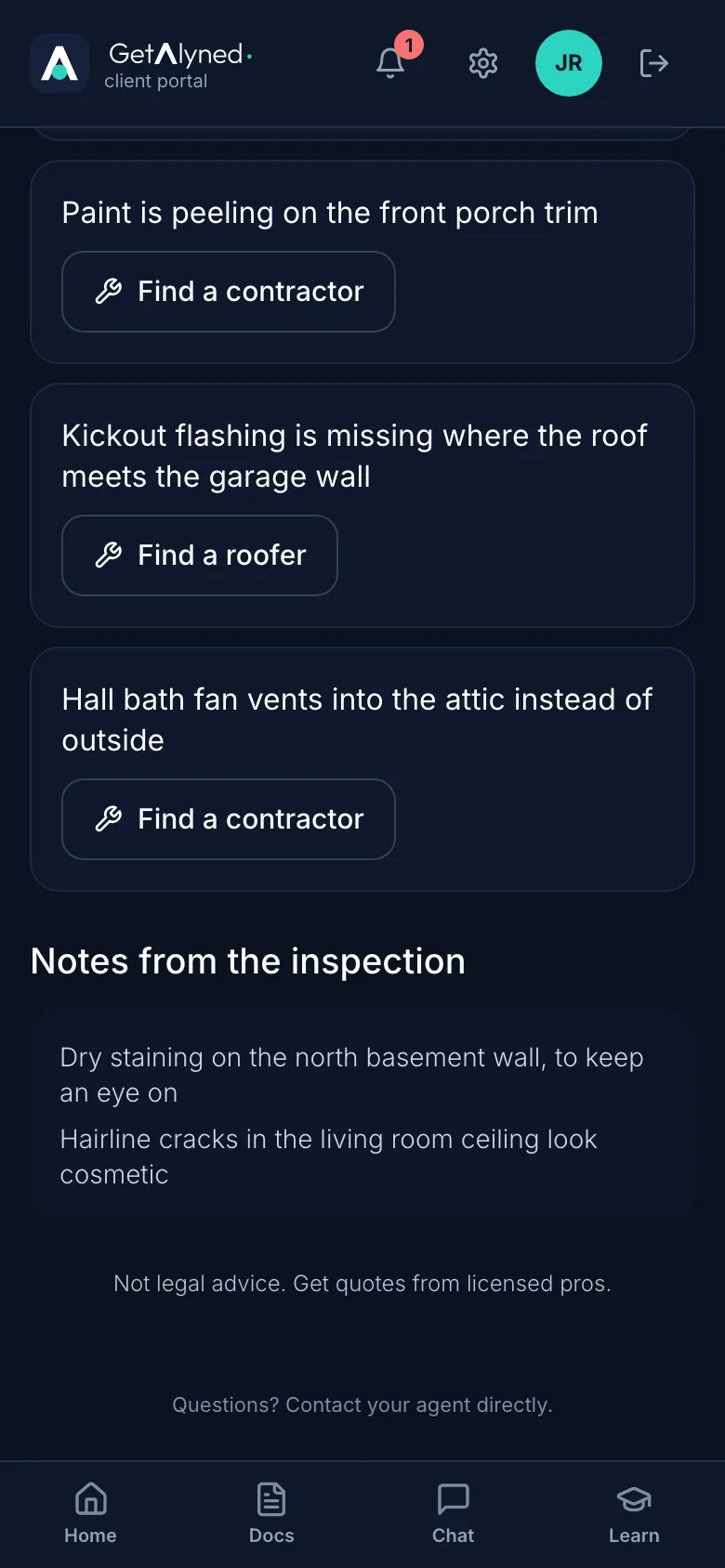
Things to watch
Notes from the inspection are things to keep an eye on. Nothing to fix now.
-
Find a pro
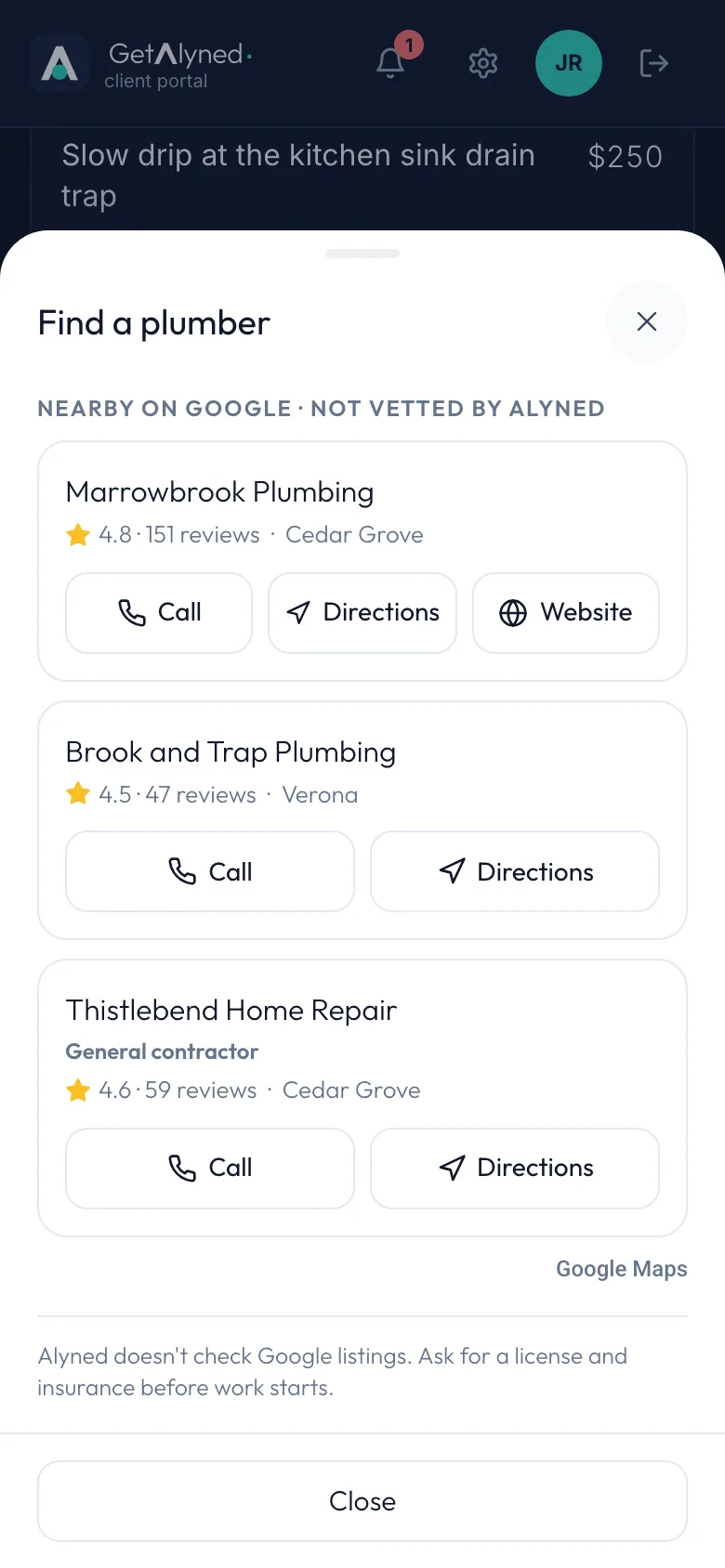
For anything you handle, a button finds a nearby pro. Here, Find a plumber.
-
Nearby pros
Nearby pros, with ratings and distance. They come from Google and aren't vetted by Alyned, so ask for a license and insurance before work starts.
-
Call them
Call rings them from your phone. Directions and Website are next to it.
-
Questions?
Questions about the list go to your agent. It stays in your portal through closing.
Related guides
- Agree on repairs and lock the list · See how the seller's side answered, settle any counters, lock the final list, and send it to your buyer.
- Invite your client to their portal · Send your client a private portal for their deal, then see what they see when they open the invitation and sign in.