Invite your client to their portal
For agents · 2 min
Send your client a private portal for their deal, then see what they see when they open the invitation and sign in.
Watch
Or read it step by step
-
Open the deal
In My Deals, click the deal.
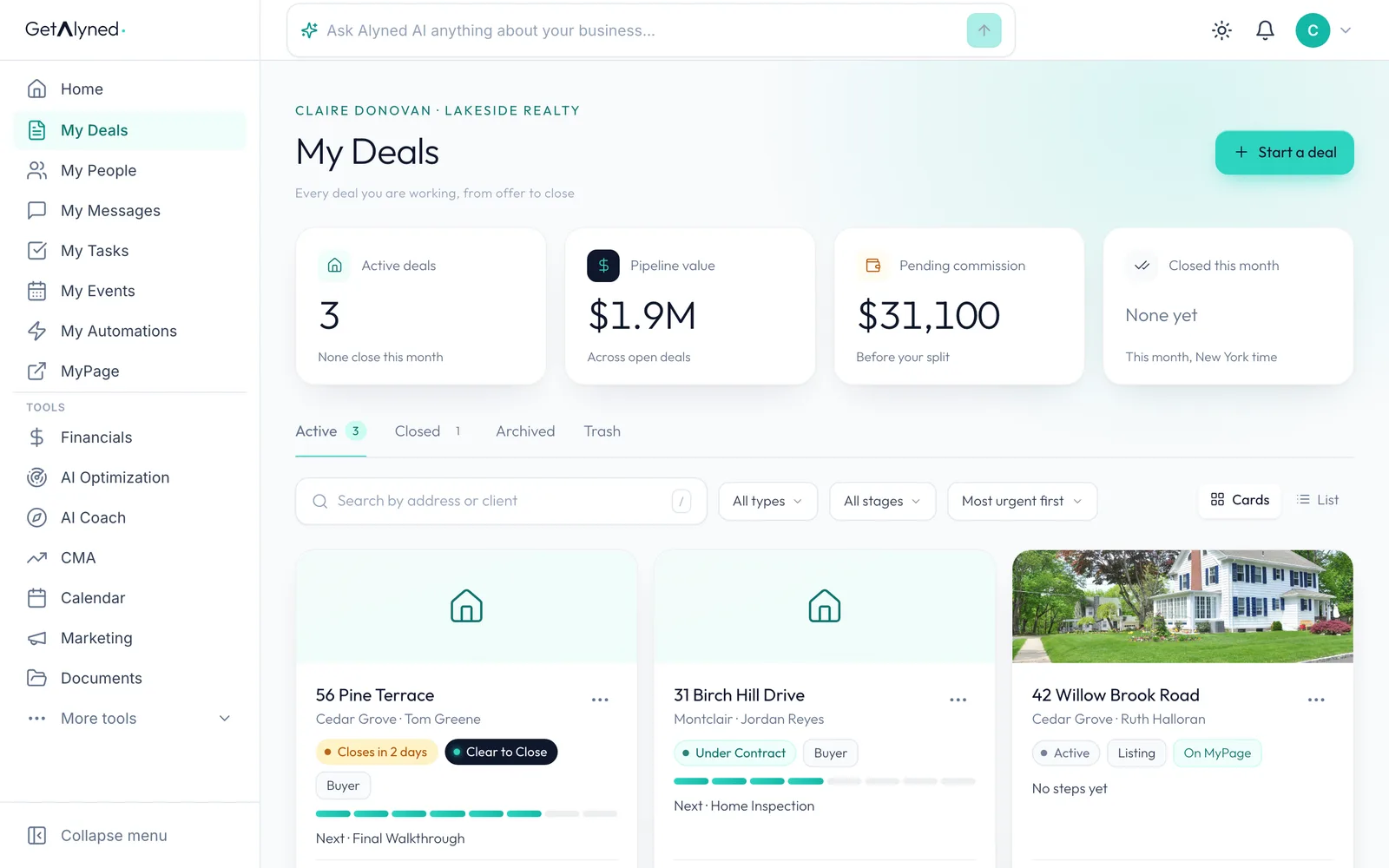
-
Check Your clients
Your clients lists everyone on the deal. Not invited means they can't see the portal yet.
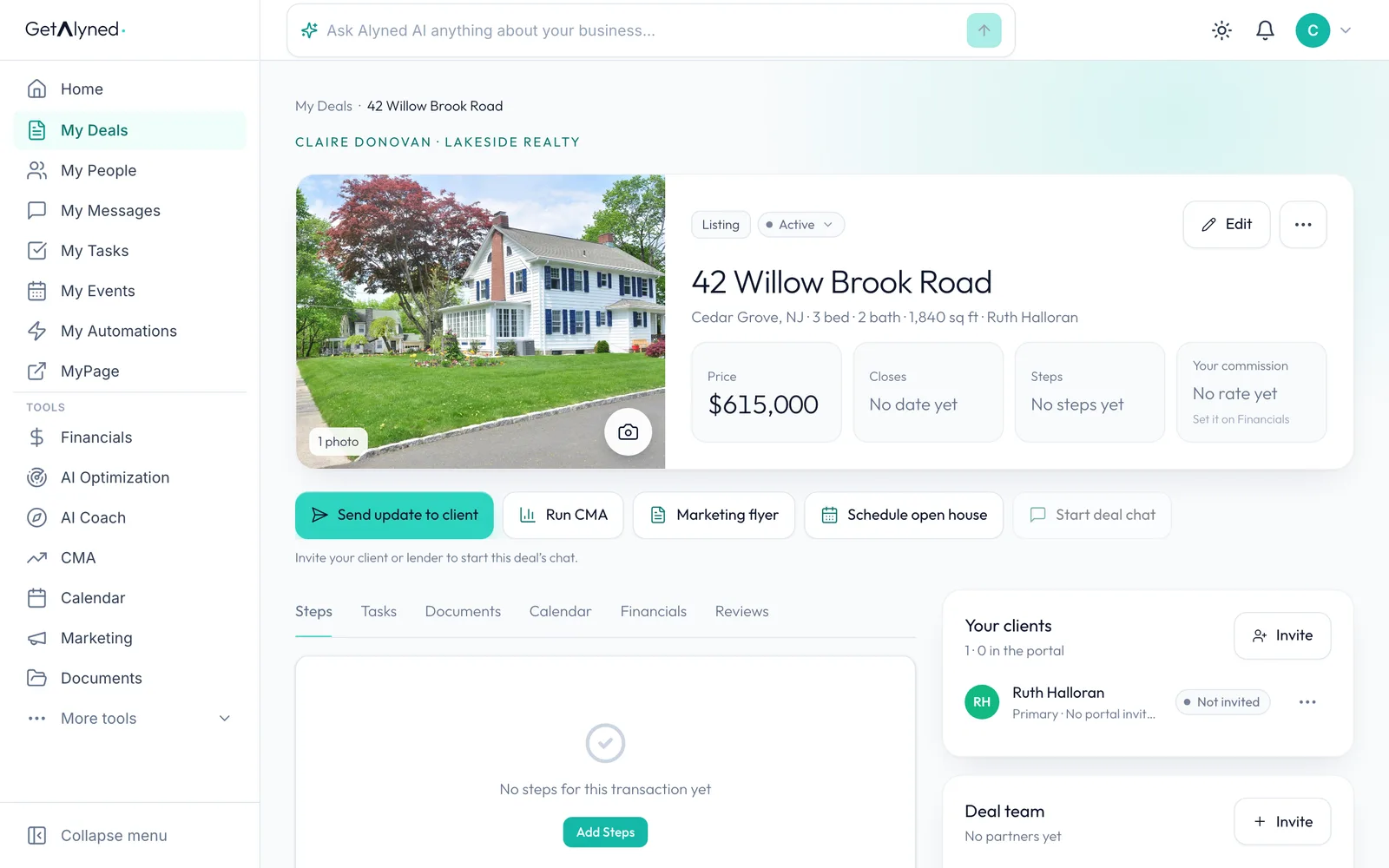
-
Click Invite
Click Invite on the Your clients card.
-
Choose Invite a client
Click Invite a client. You can invite more than one person to the same portal, like a couple buying together.
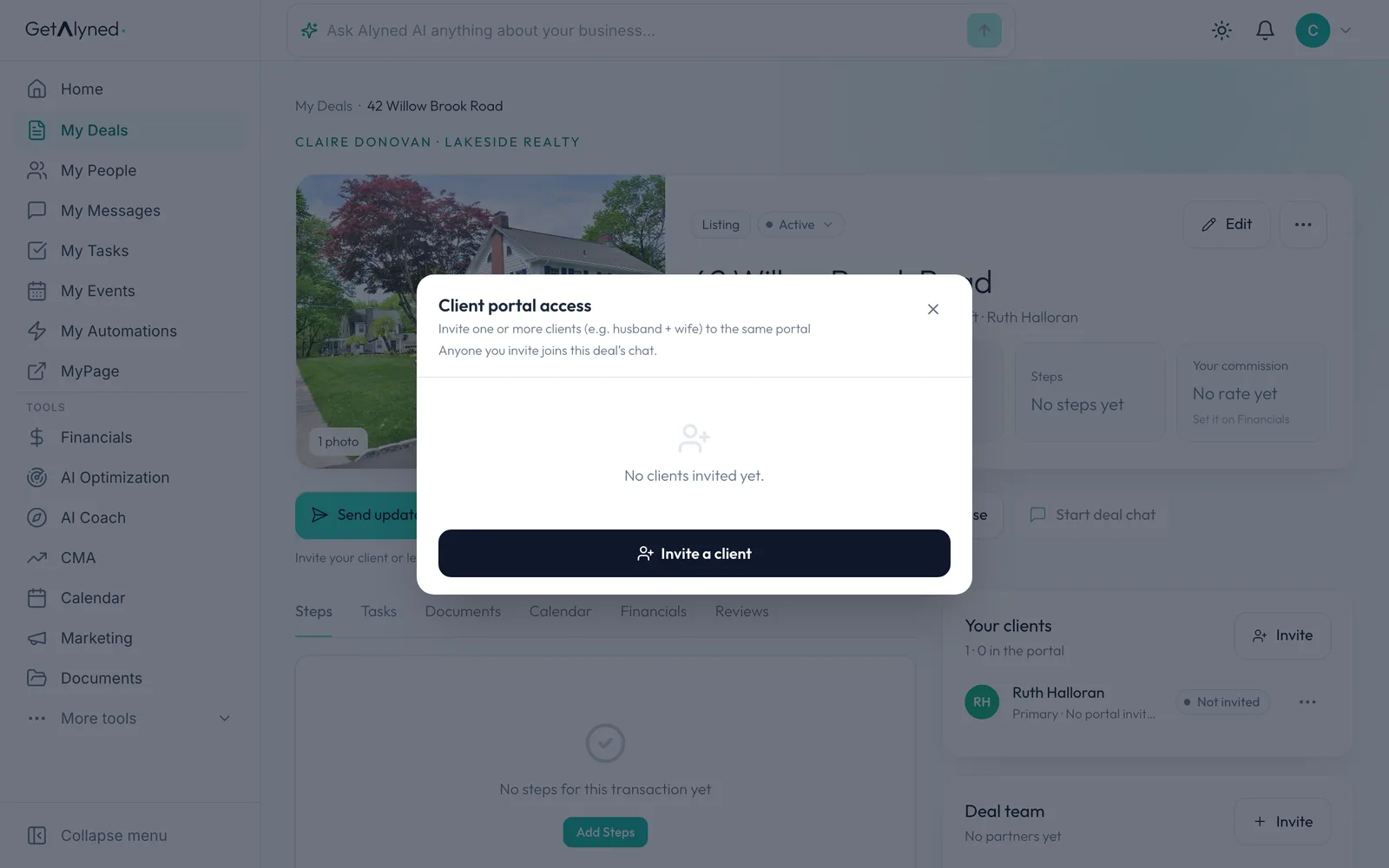
-
Add their first name
Type your client's first name.
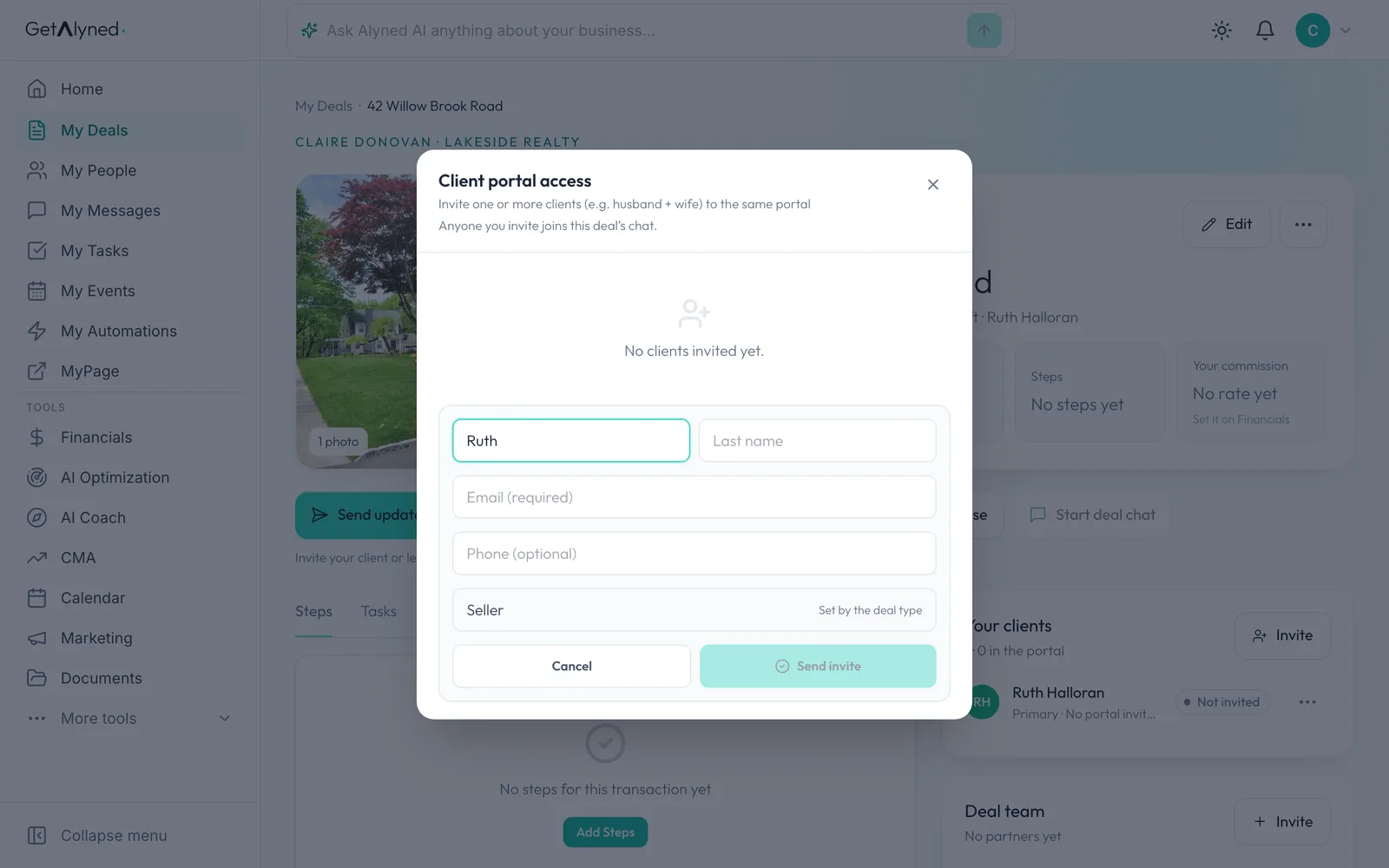
-
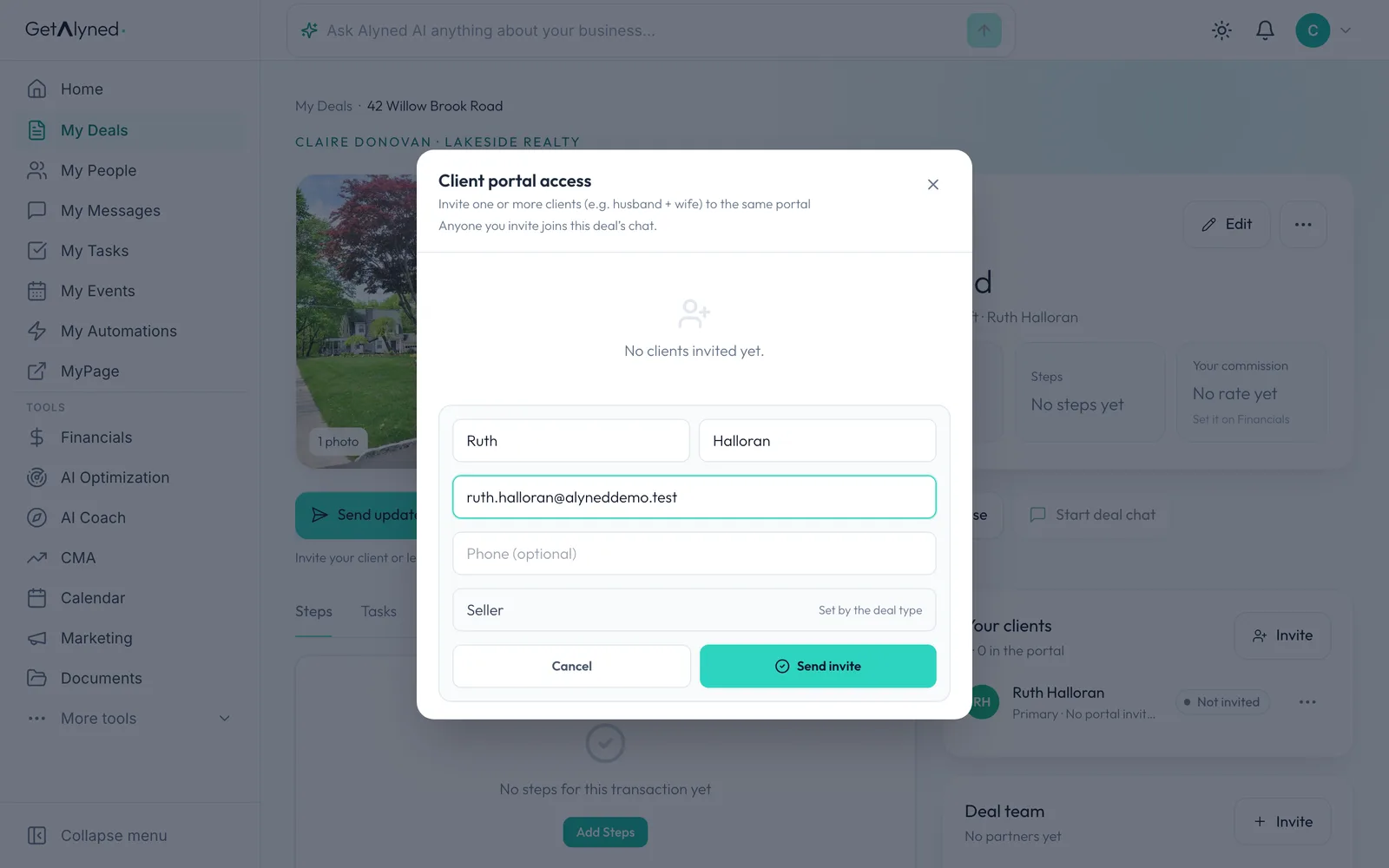
Add their email
Type their email. The invitation goes there. A phone number is optional.
-
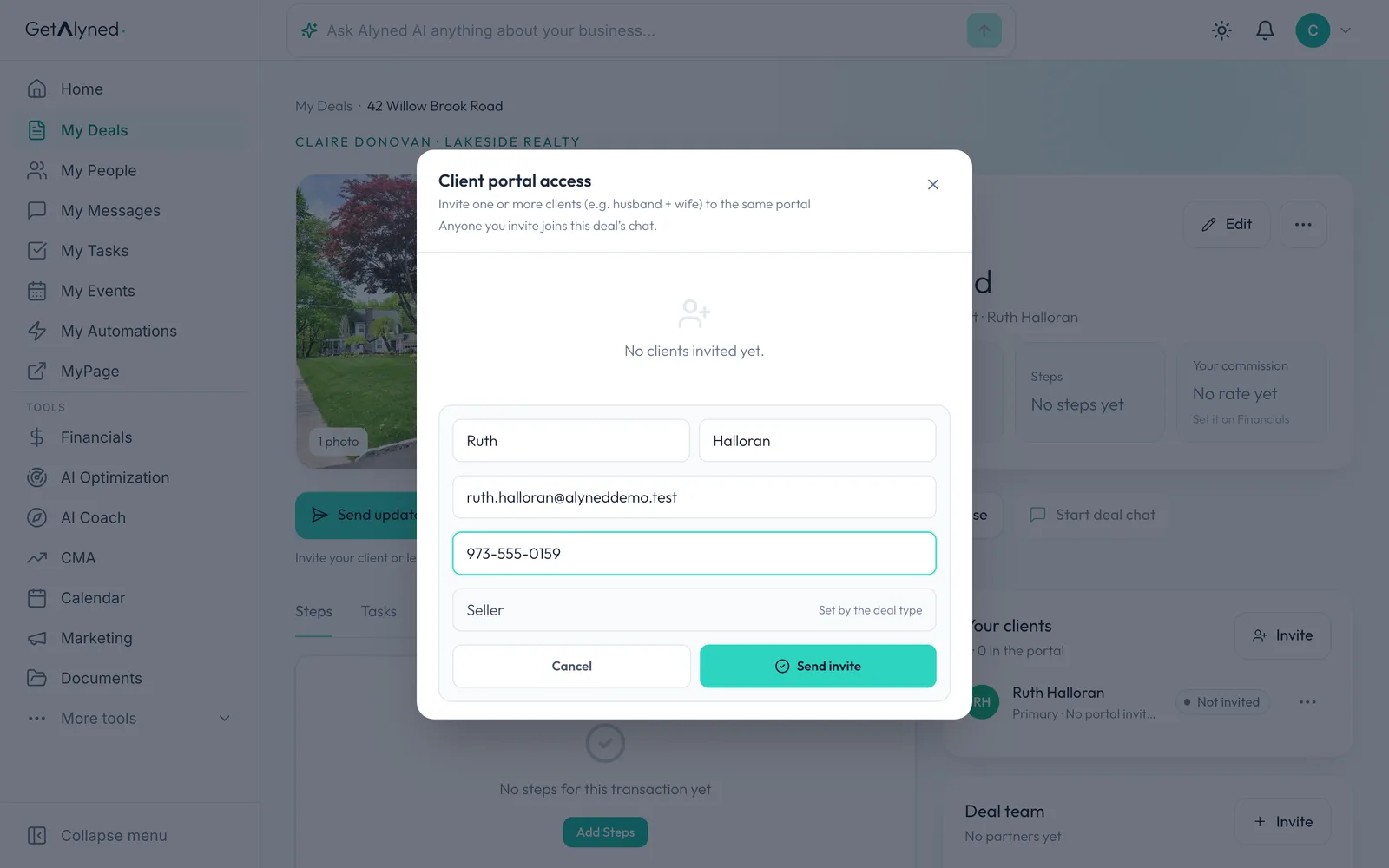
Send the invite
Click Send invite. Their role comes from the deal: Seller on a listing, Buyer on a purchase.
-
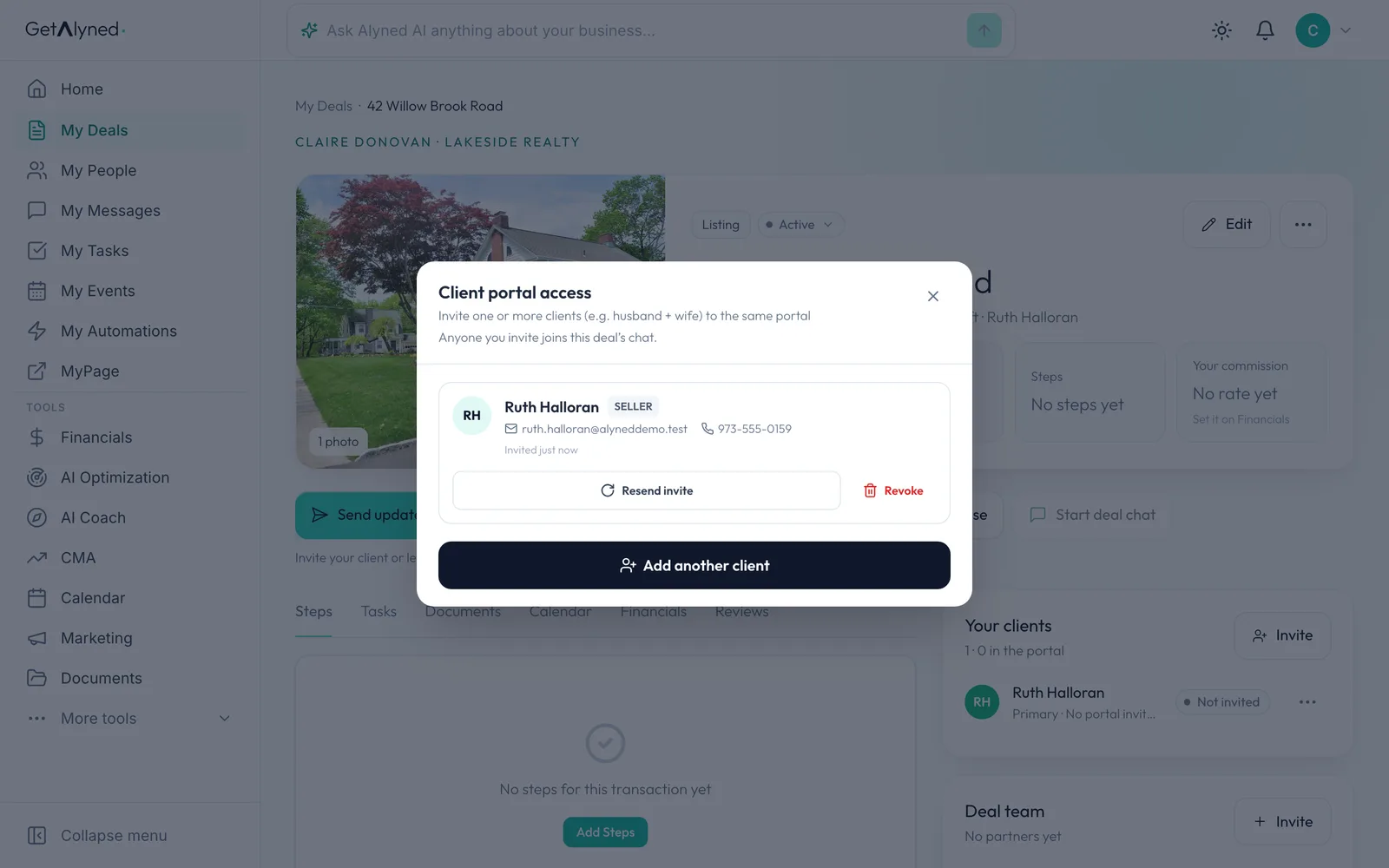
The invitation is on its way
Resend invite sends it again if it gets lost. Revoke takes their access away.
-
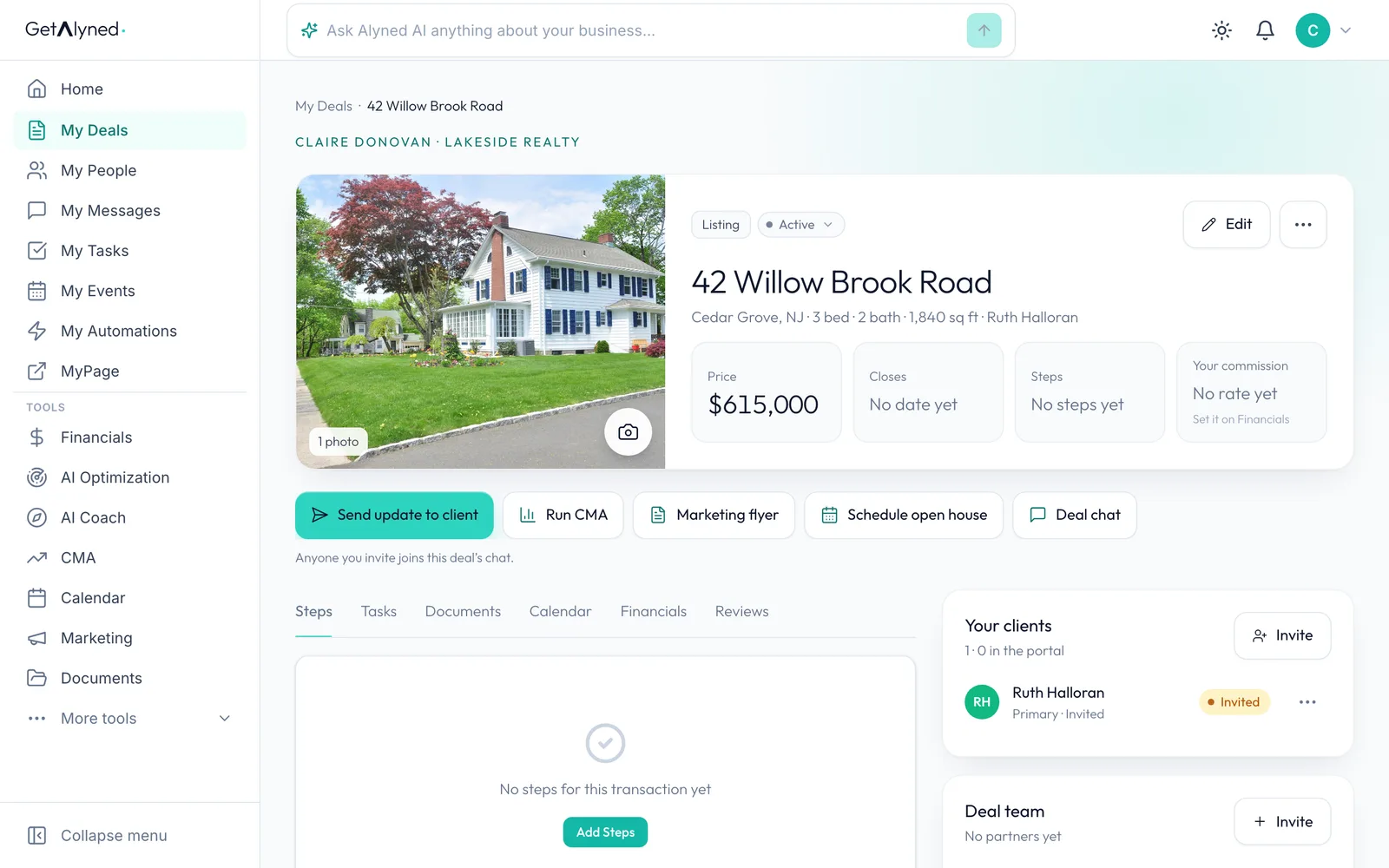
Your client shows as Invited
Your client shows as Invited until they sign in.
-
Your client opens the link
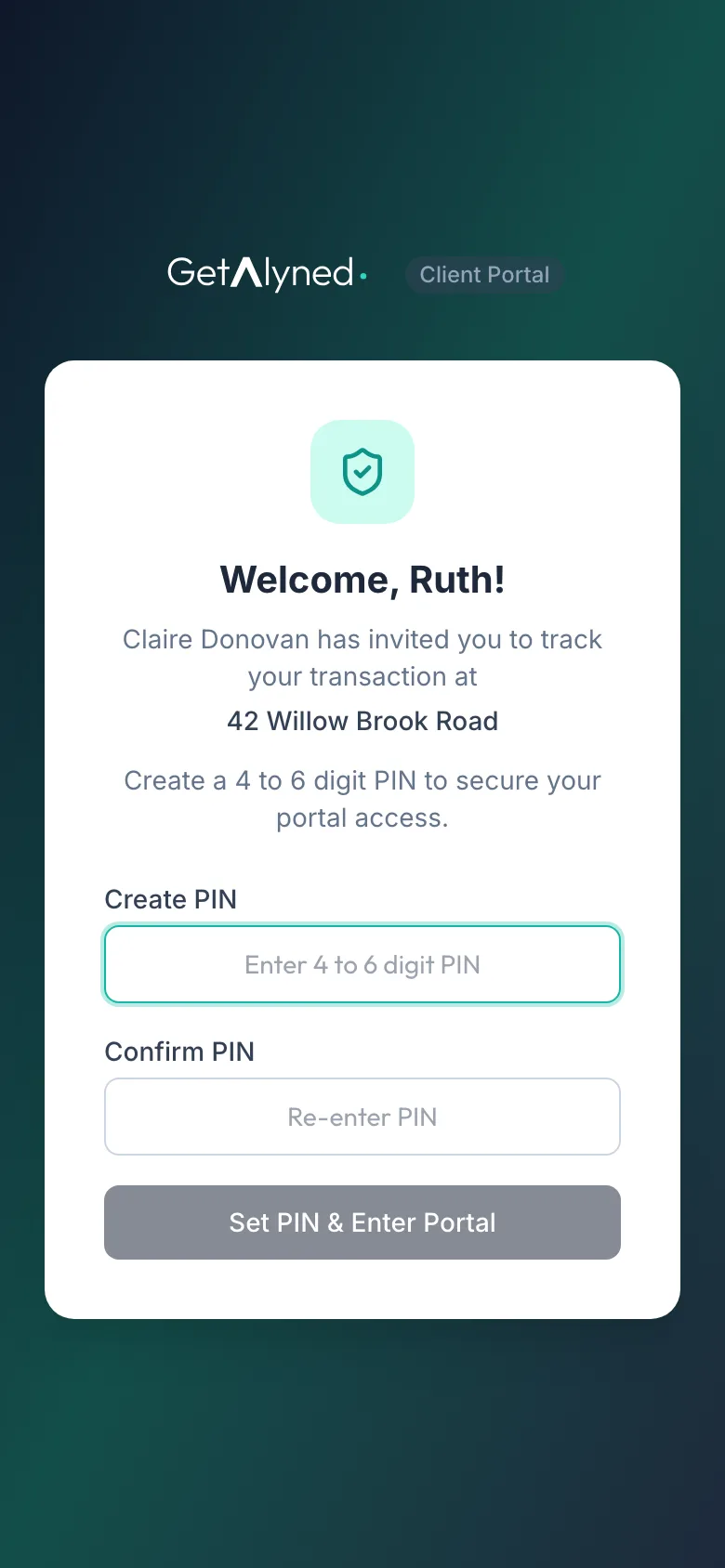
Your client opens the link in the email on their phone. The page welcomes them by name and shows you and the property.
-
They create a PIN
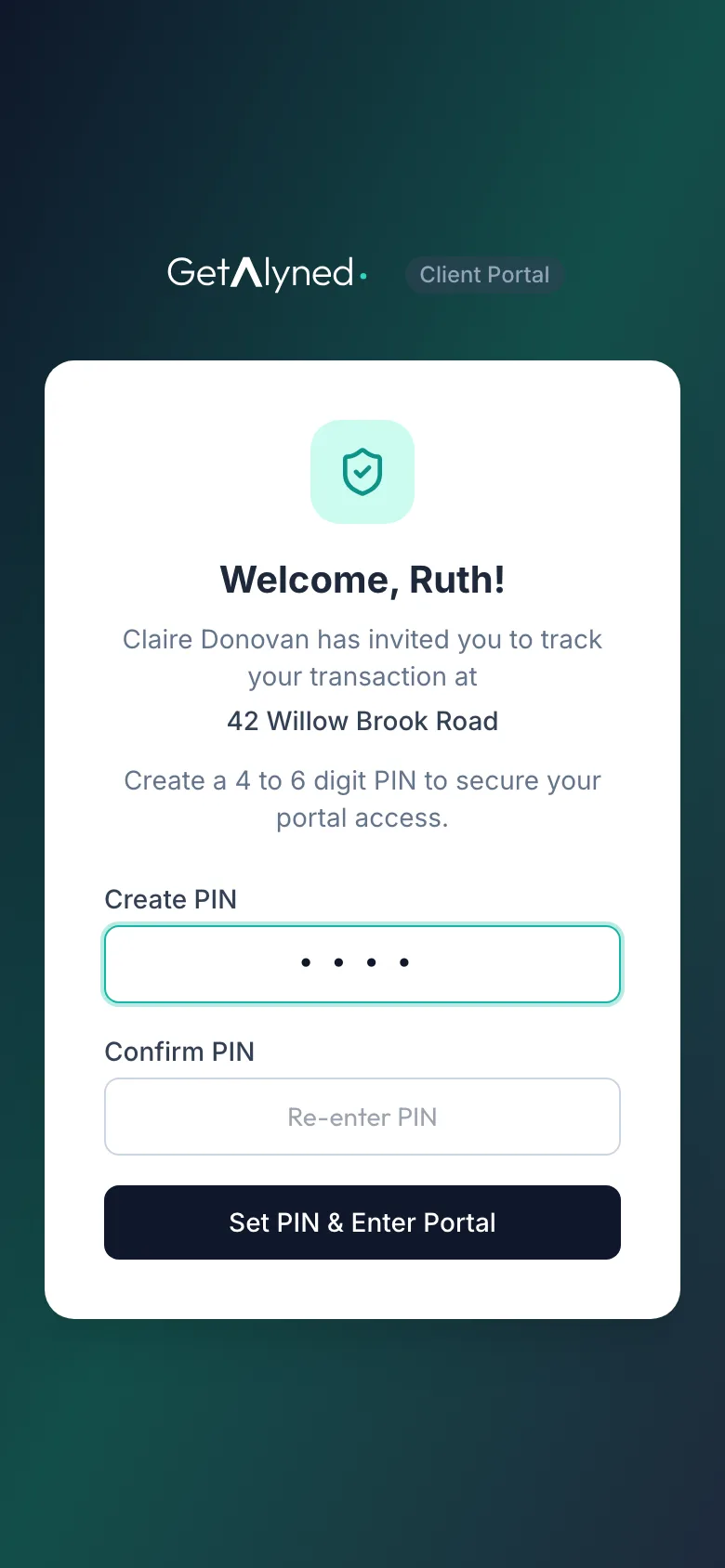
They create a 4 to 6 digit PIN. That's how they sign in from then on. No password, no app to download.
-
They enter the portal
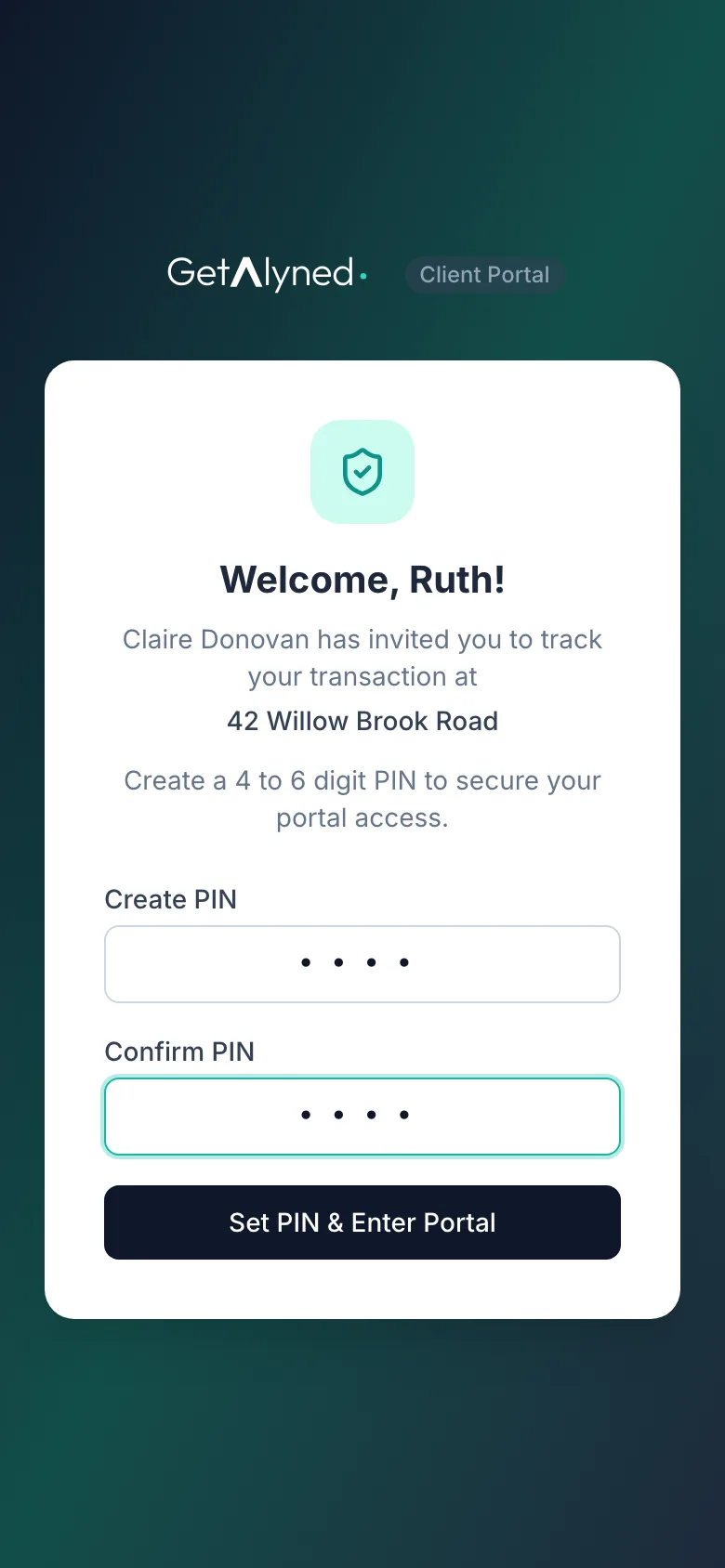
They tap Set PIN & Enter Portal.
-
A welcome from you
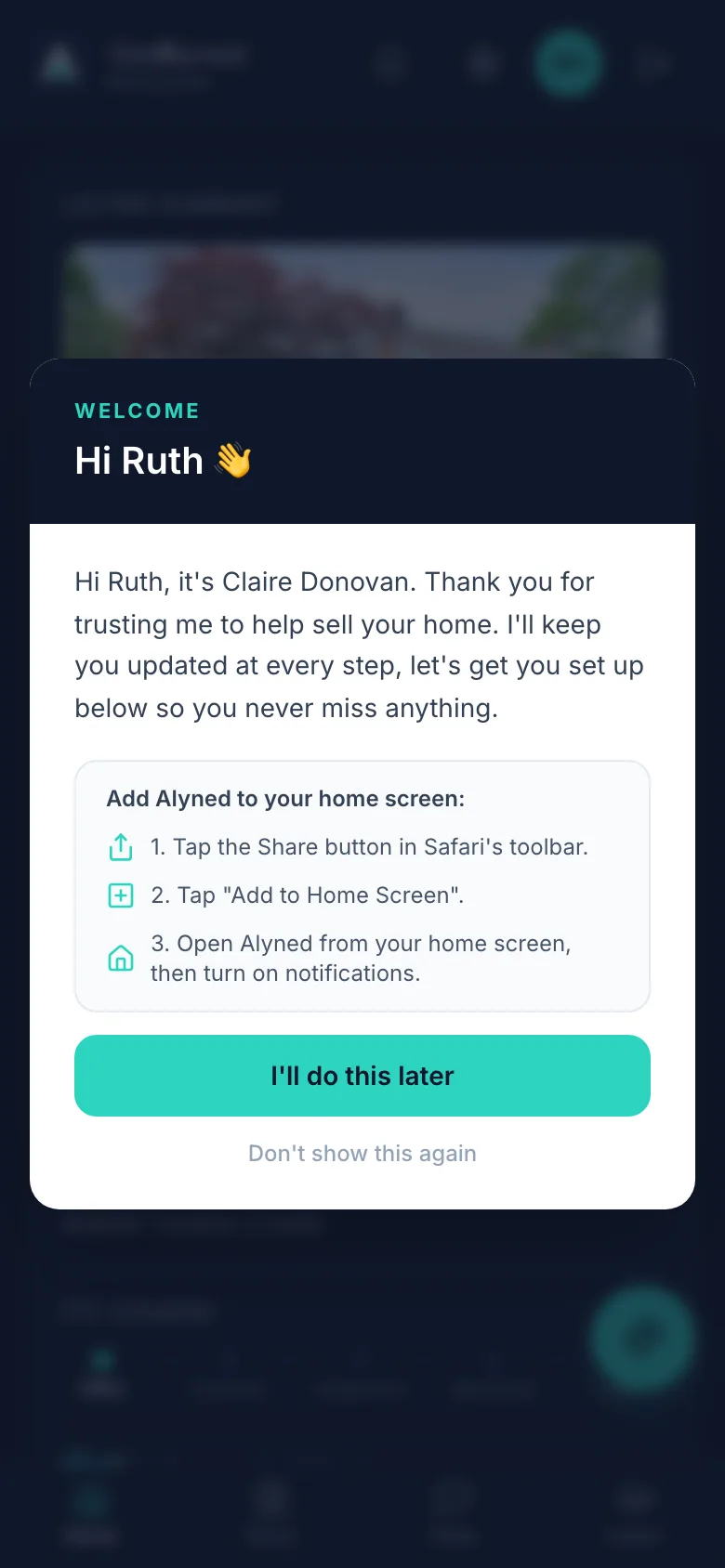
The first time in, your client sees a welcome from you and how to add the portal to their home screen.
-
Skip for now
They can tap I'll do this later to go straight in.
-
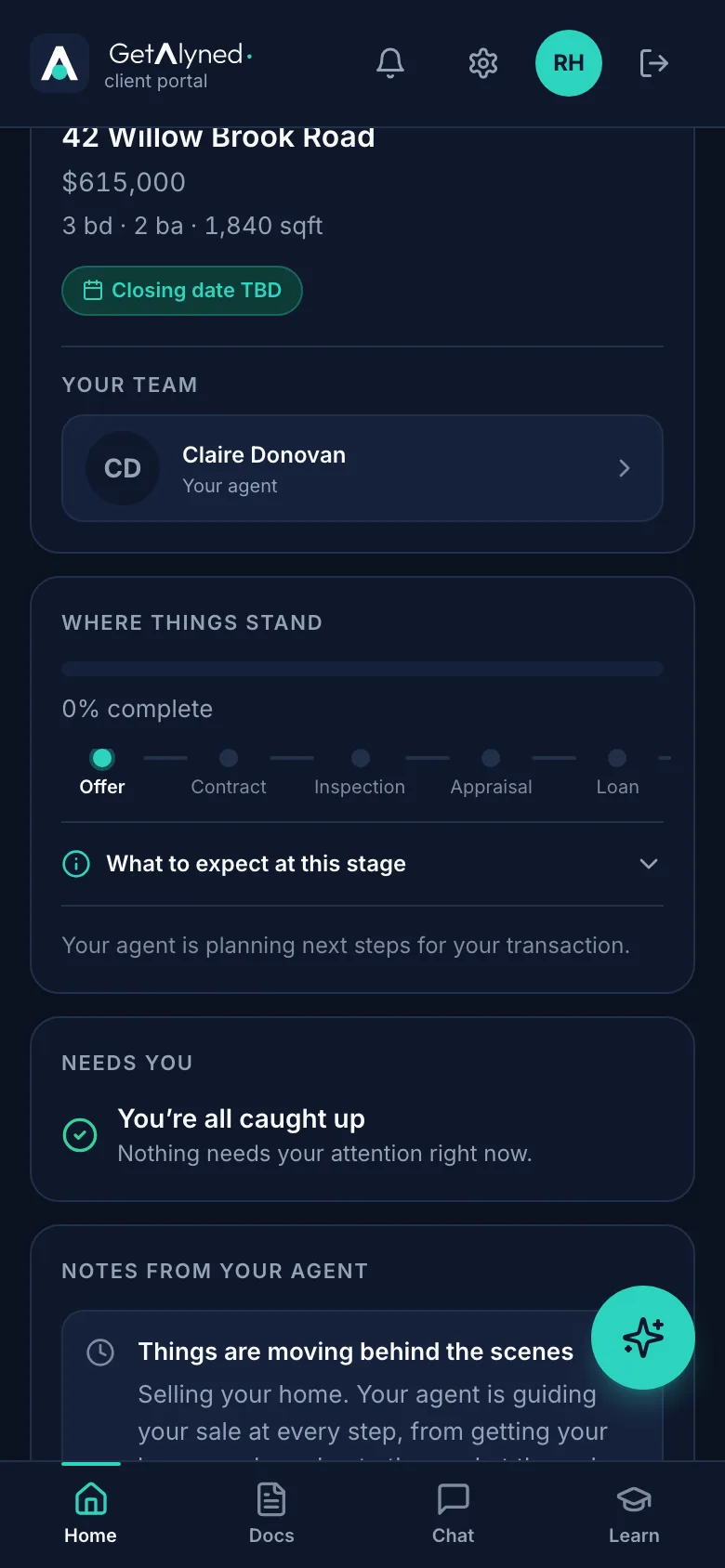
Their portal
The portal shows where the deal stands, who's on their team, their documents and the deal chat.
Related guides
- Start a buyer deal and use the deal chat · Set up a new purchase in a couple of minutes, bring in your client and your loan officer, and post your first update where everyone on the deal can see it.
- Start a listing deal and publish it to MyPage · Set up a new listing, add the facts, a description and a cover photo, and publish it to your MyPage so buyers can see it right away.
- Add and share documents on a deal · Upload a document to a deal, keep it private or share it with your client, and see them mark it reviewed from their phone.
- Move a deal forward · Change a deal's stage, check off steps as they're done, and see how your client is told right away in their portal.