Start a buyer deal and use the deal chat
For agents · 3 min
Set up a new purchase in a couple of minutes, bring in your client and your loan officer, and post your first update where everyone on the deal can see it.
Watch
Or read it step by step
-
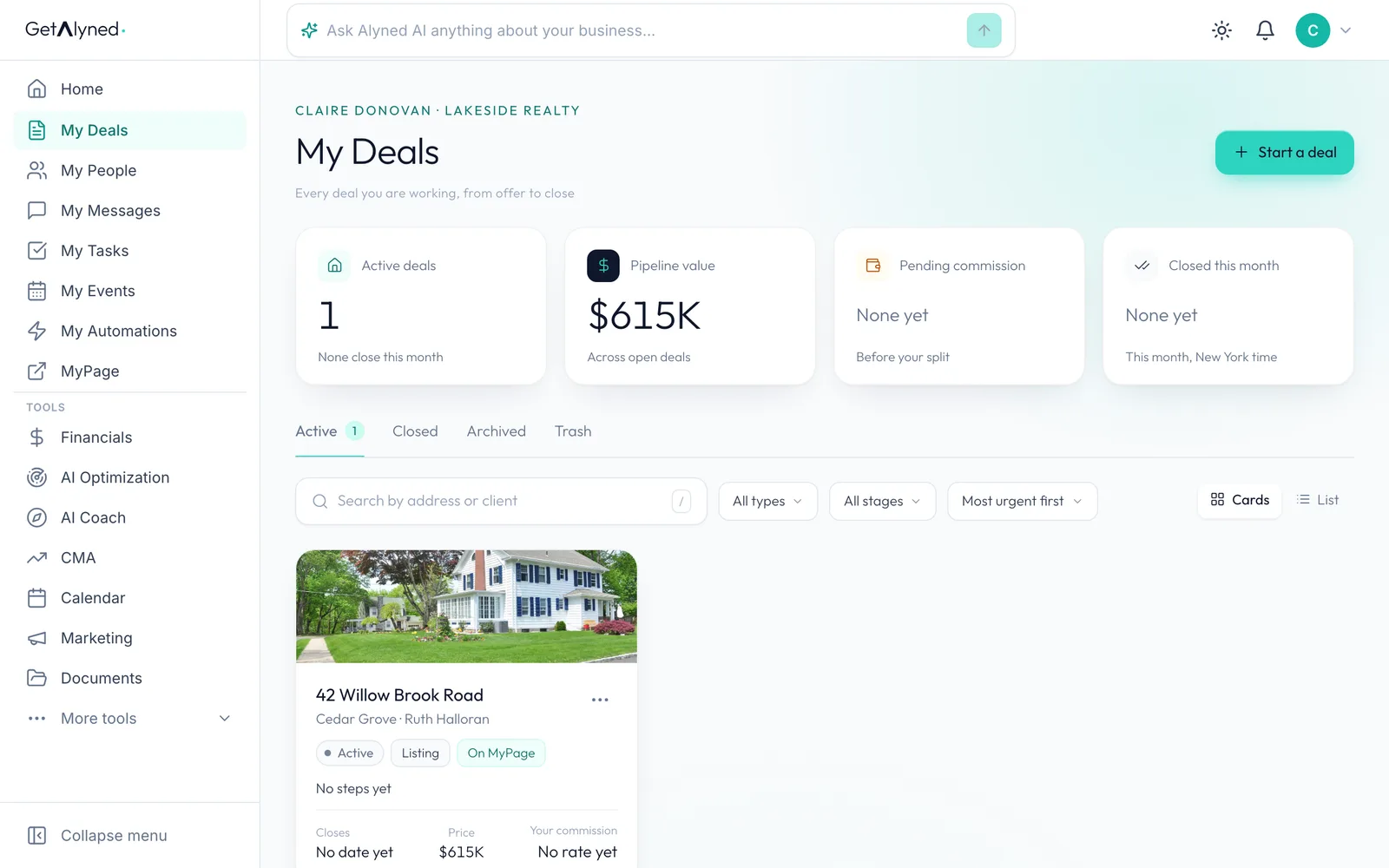
Click Start a deal
Open My Deals from the menu and click Start a deal at the top right.
-
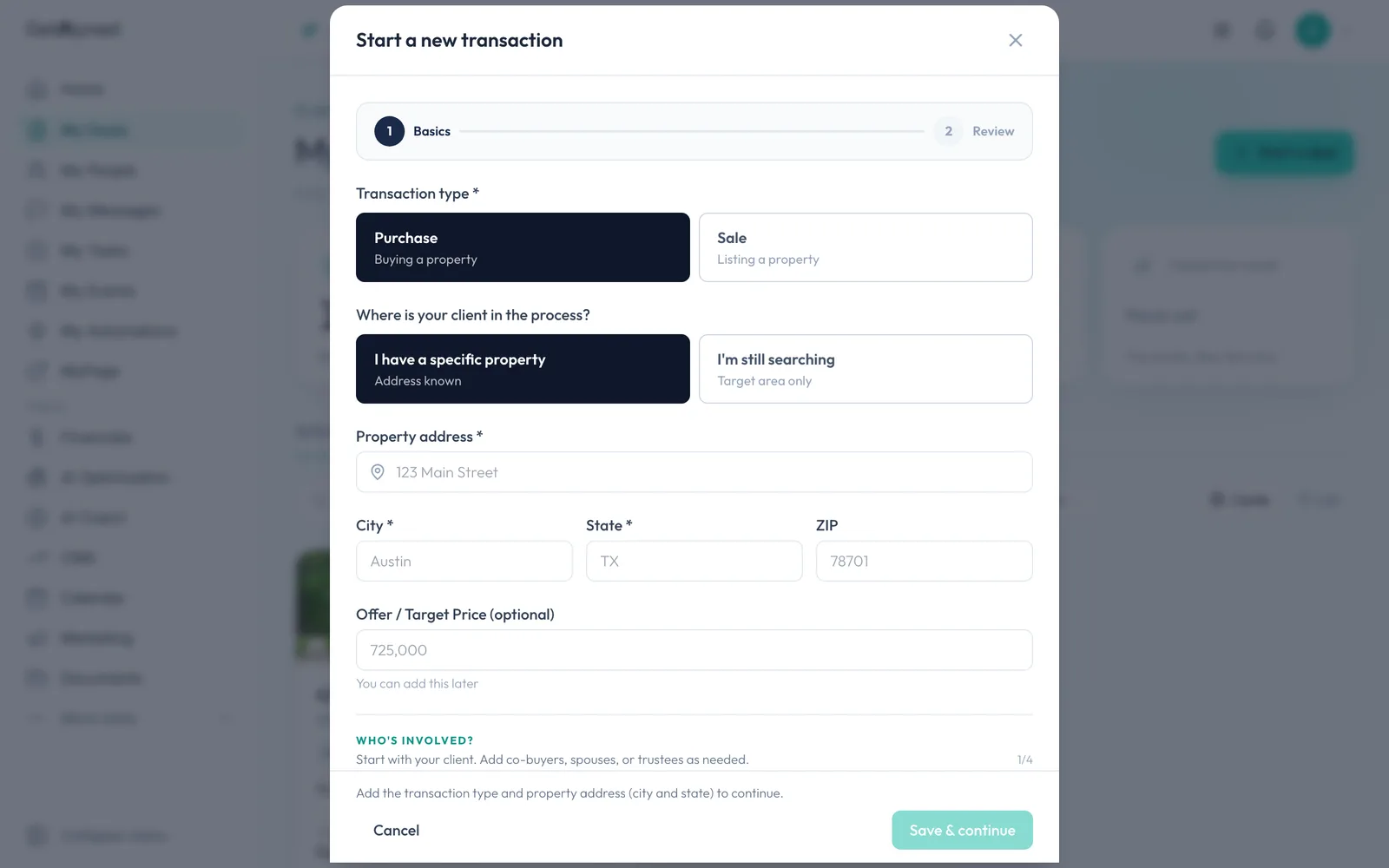
Choose Purchase
Pick Purchase for a buyer client. Pick Sale when you're listing a home.
-
Say whether you have a property
Choose I have a specific property if you know the address. If your client is still searching, pick the other option and add the address later.
-
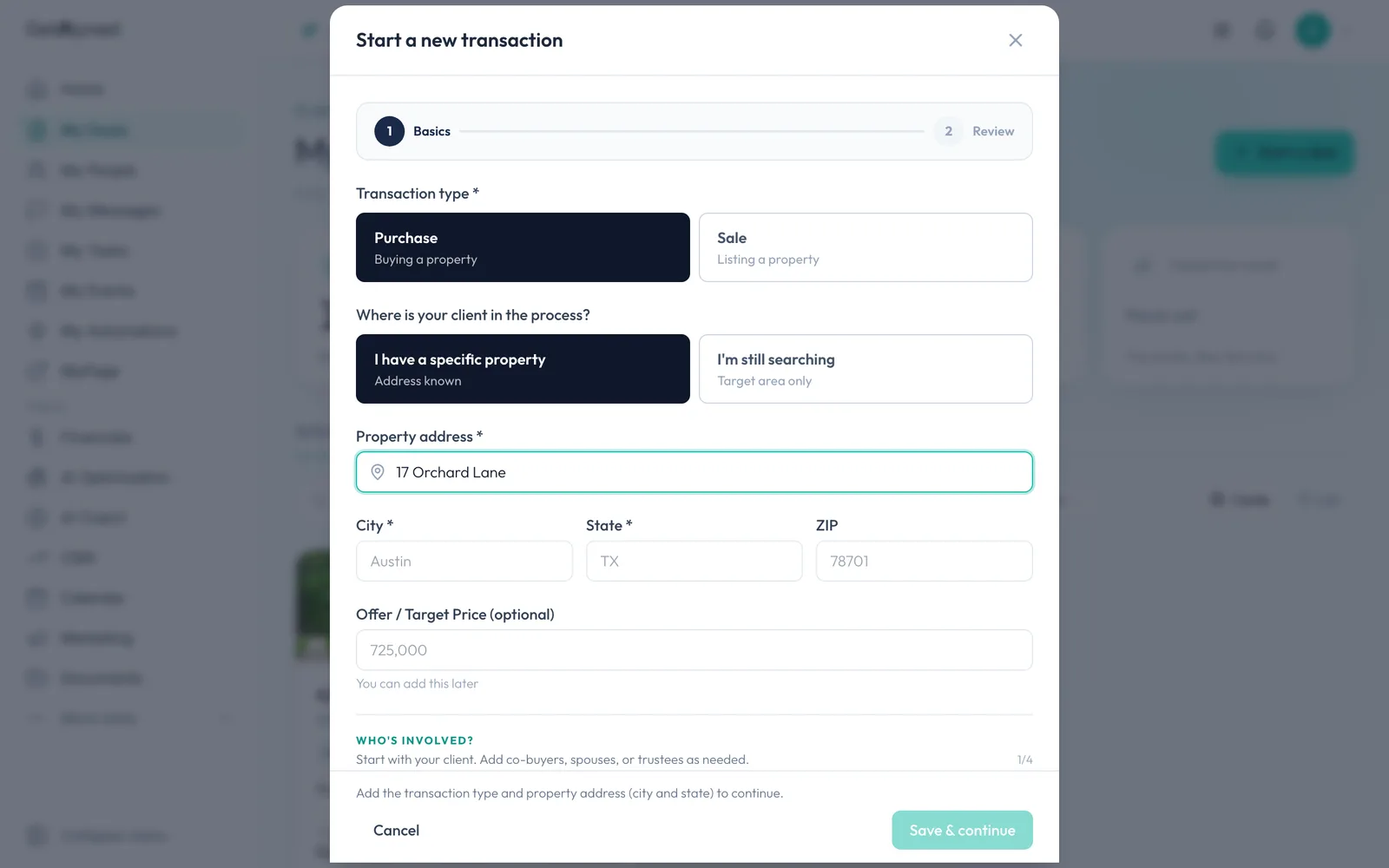
Type the address
Start typing the address. Alyned suggests it as you type, and picking a suggestion fills in the city, state and ZIP for you.
-
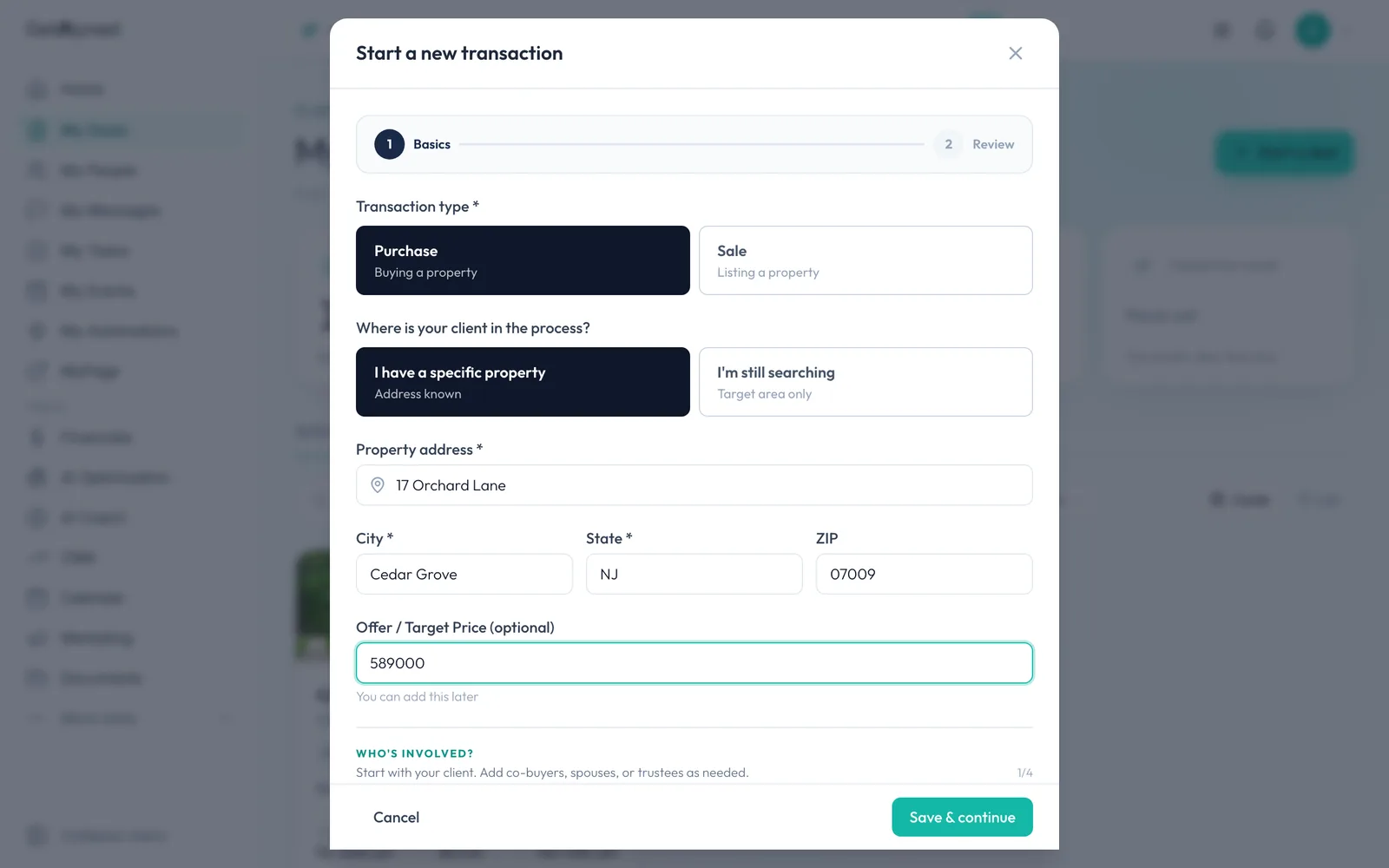
Add the price
Add the offer or target price. It's optional, so you can leave it blank and add it later.
-
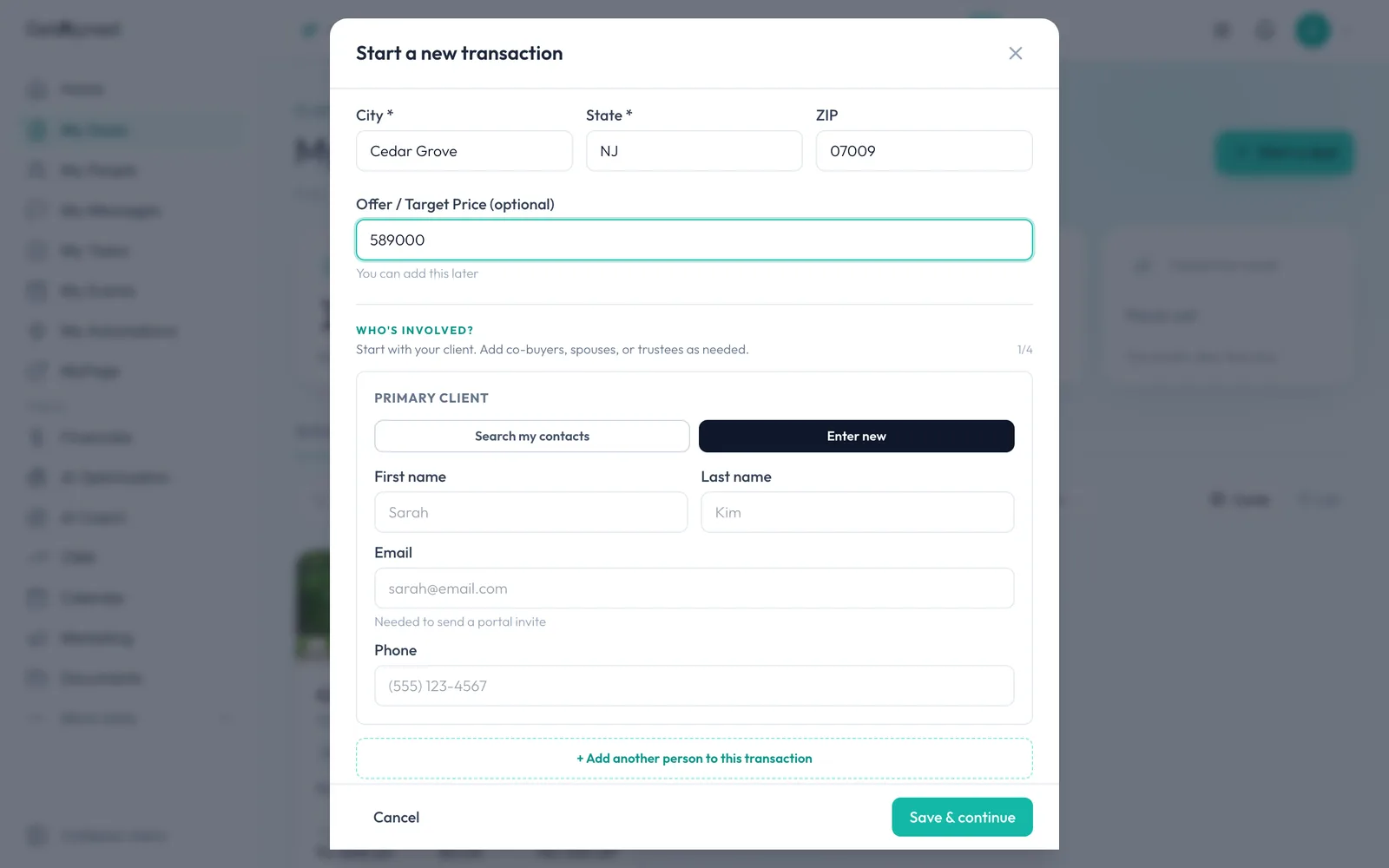
Find your client
Under Primary client, click Search my contacts. If your client isn't in My People yet, choose Enter new.
-
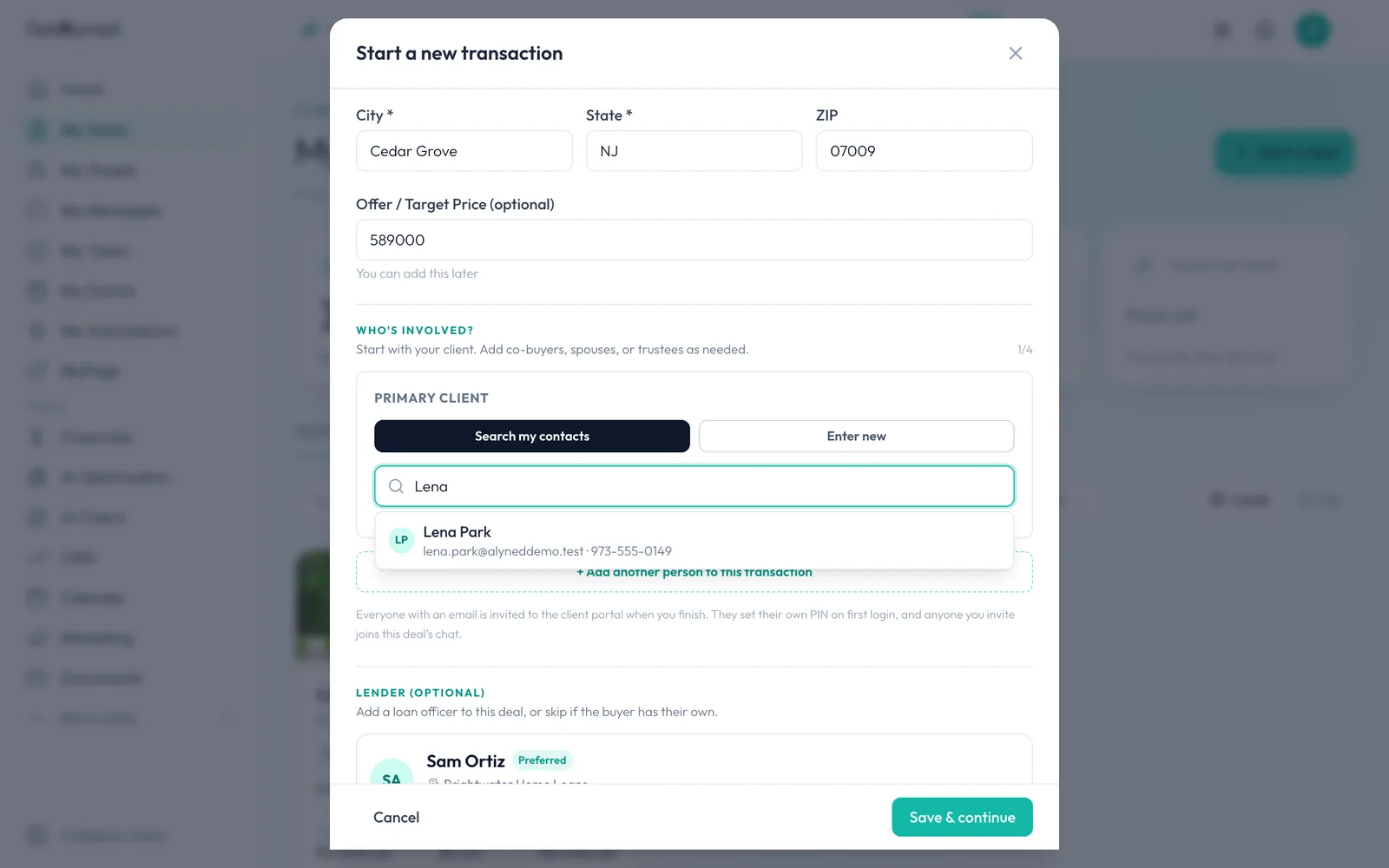
Search by name
Type your client's name or email.
-
Pick your client
Click your client in the list. Their email and phone come with them.
-
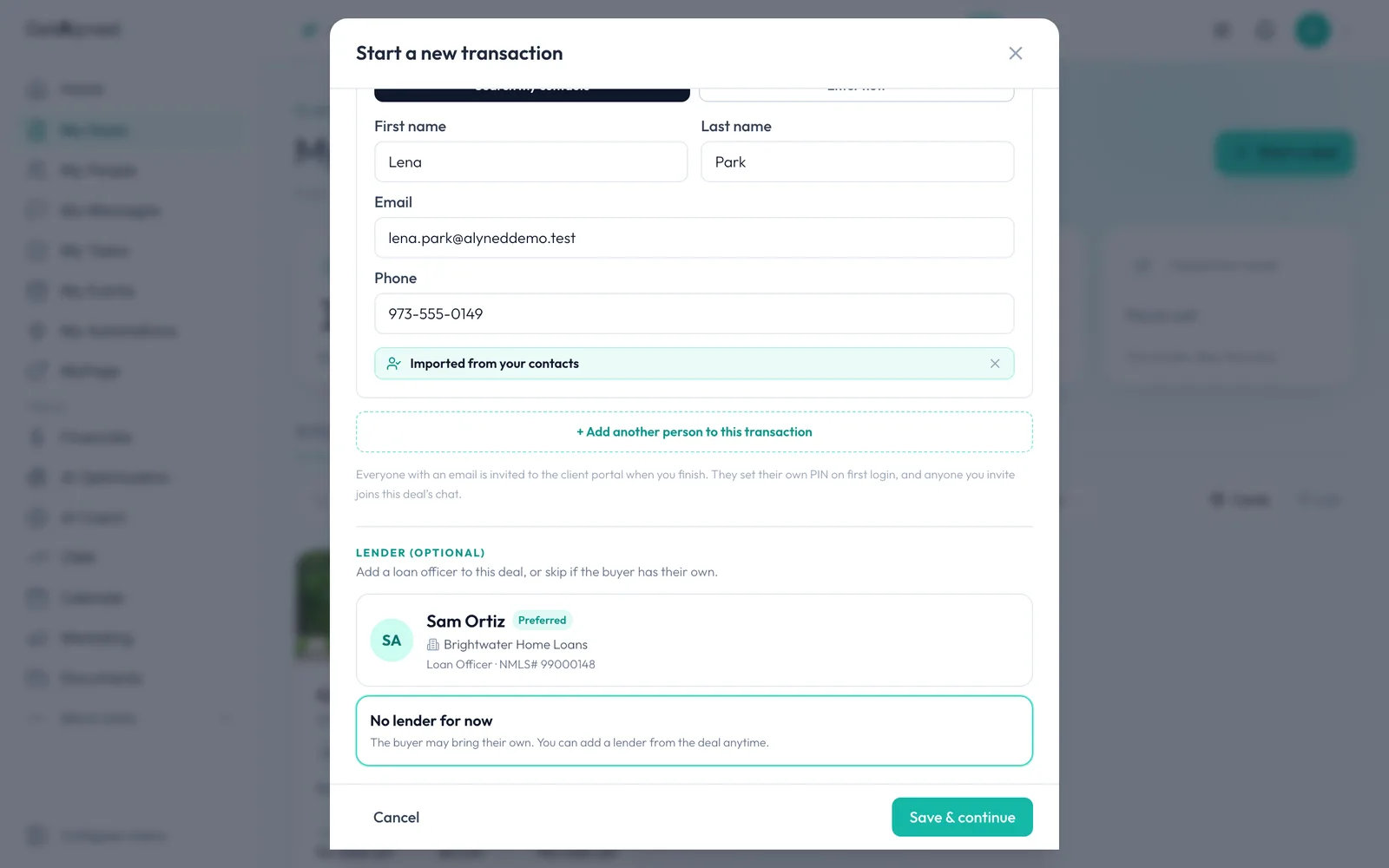
Pick your loan officer
Loan officers you already work with are listed under Lender. Click yours, or choose No lender for now.
-
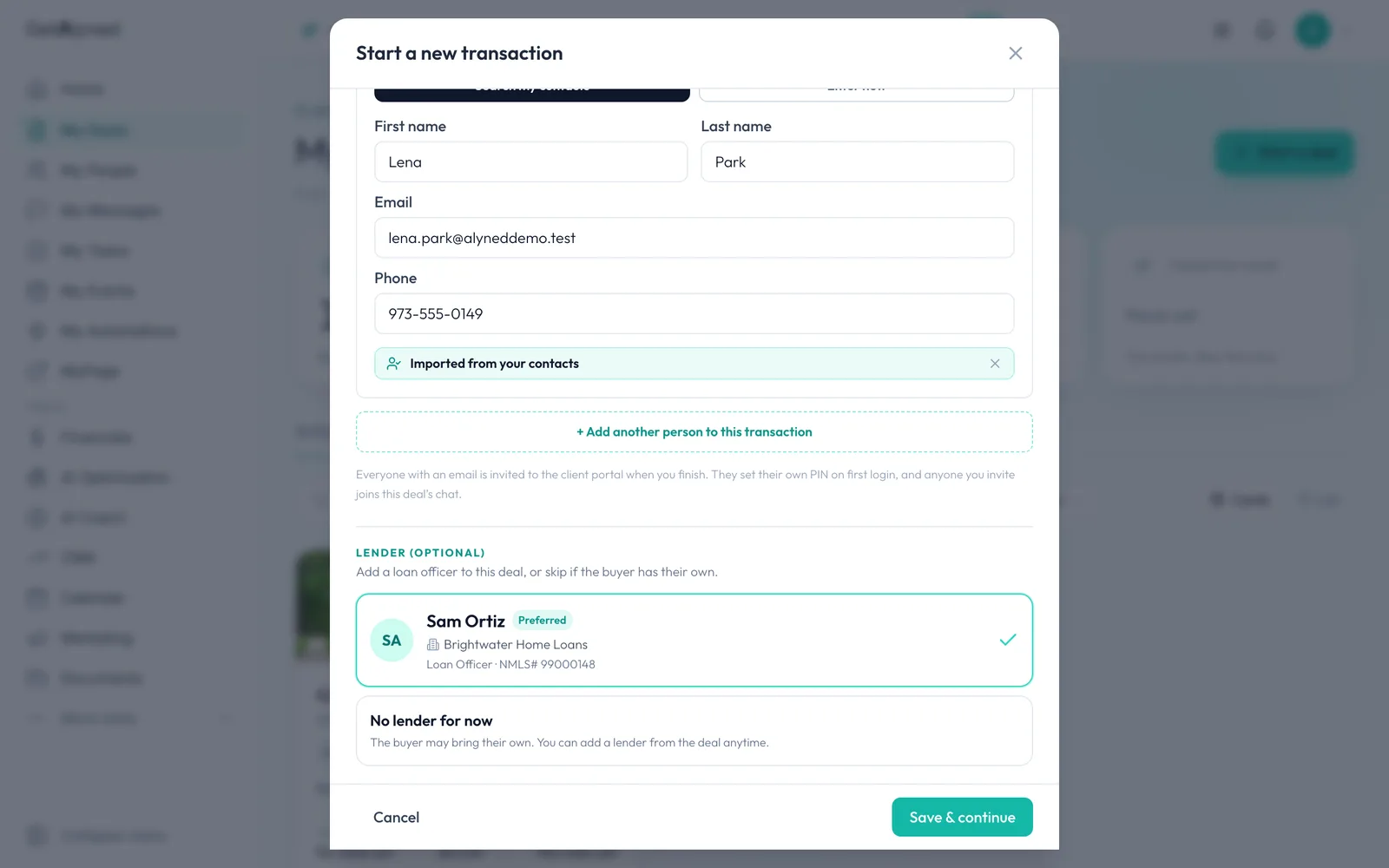
Save and continue
Click Save & continue to see a summary.
-
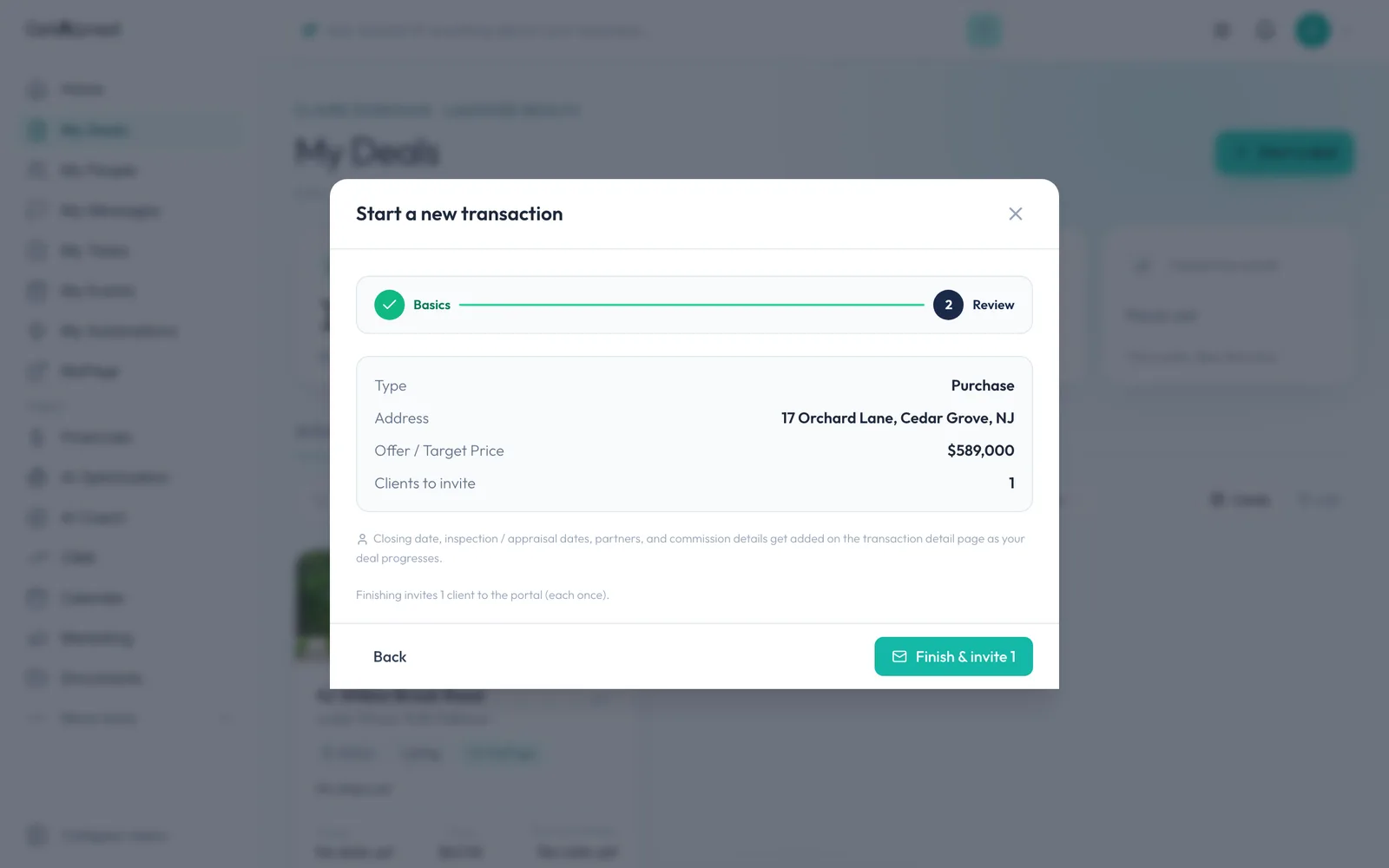
Finish and invite your client
Check the summary, then click Finish & invite. The deal is saved and your client gets an email invitation to their own portal.
-
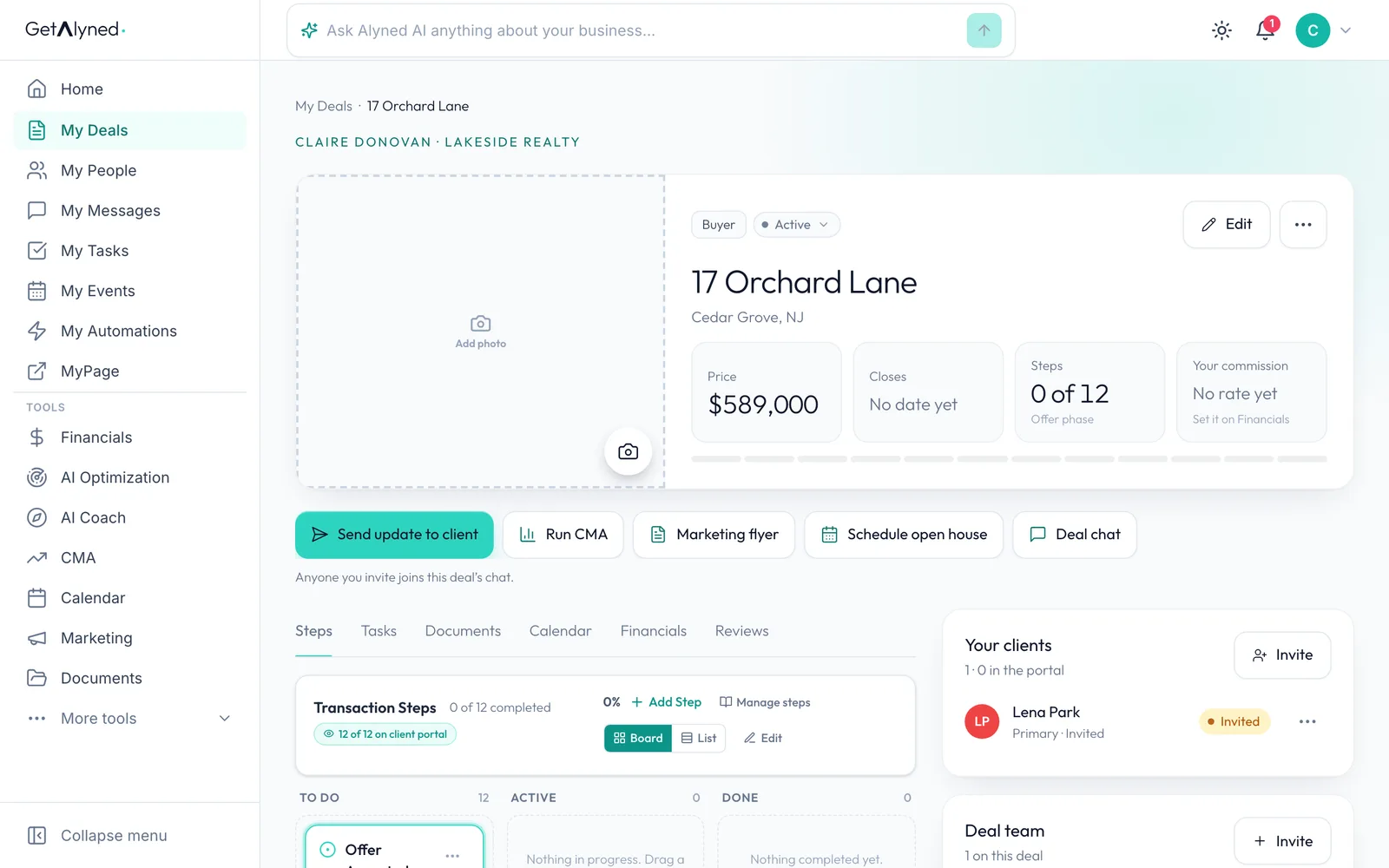
Open the deal chat
Your new deal opens. Click Deal chat in the row of buttons under the address.
-
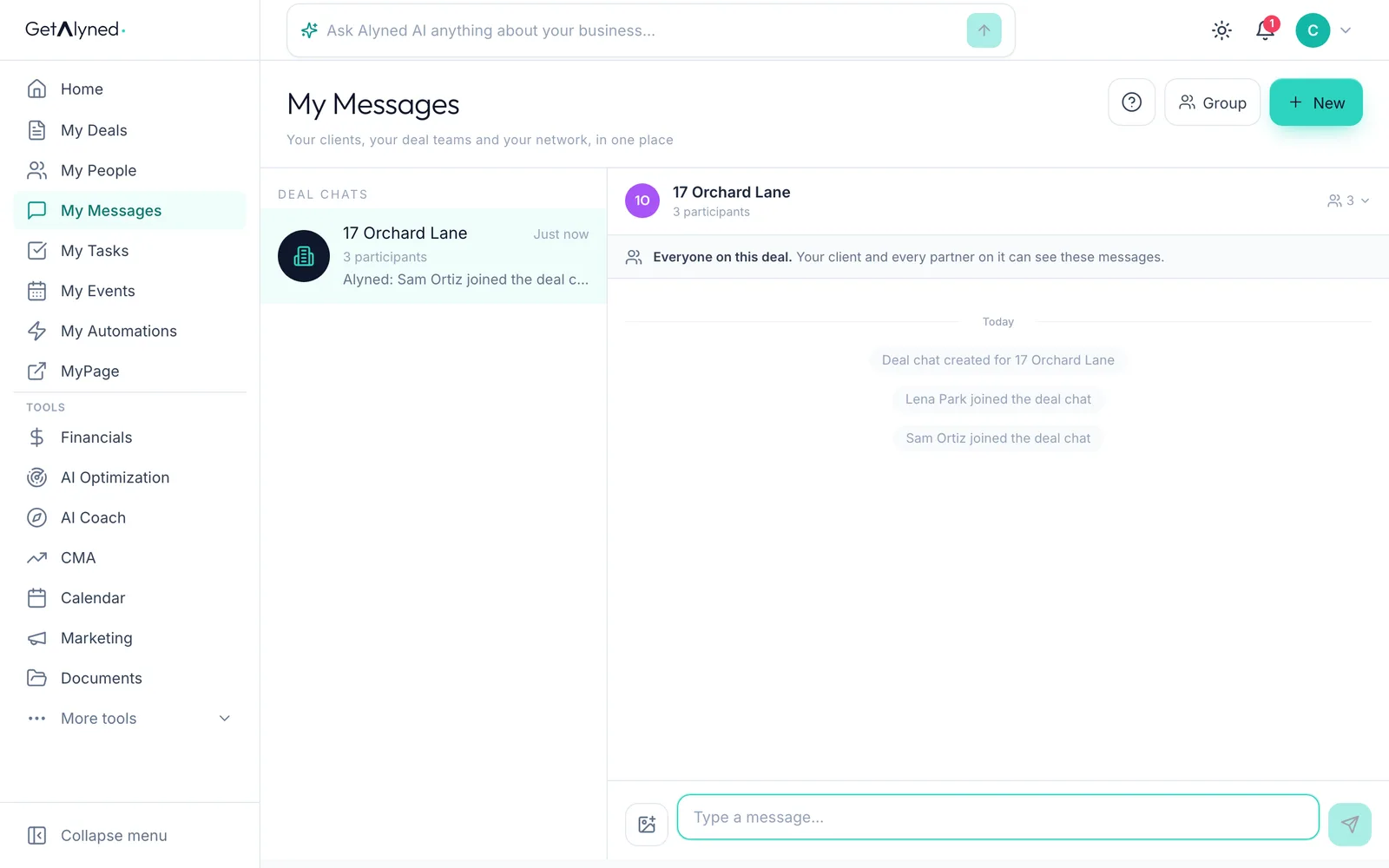
One chat for everyone on the deal
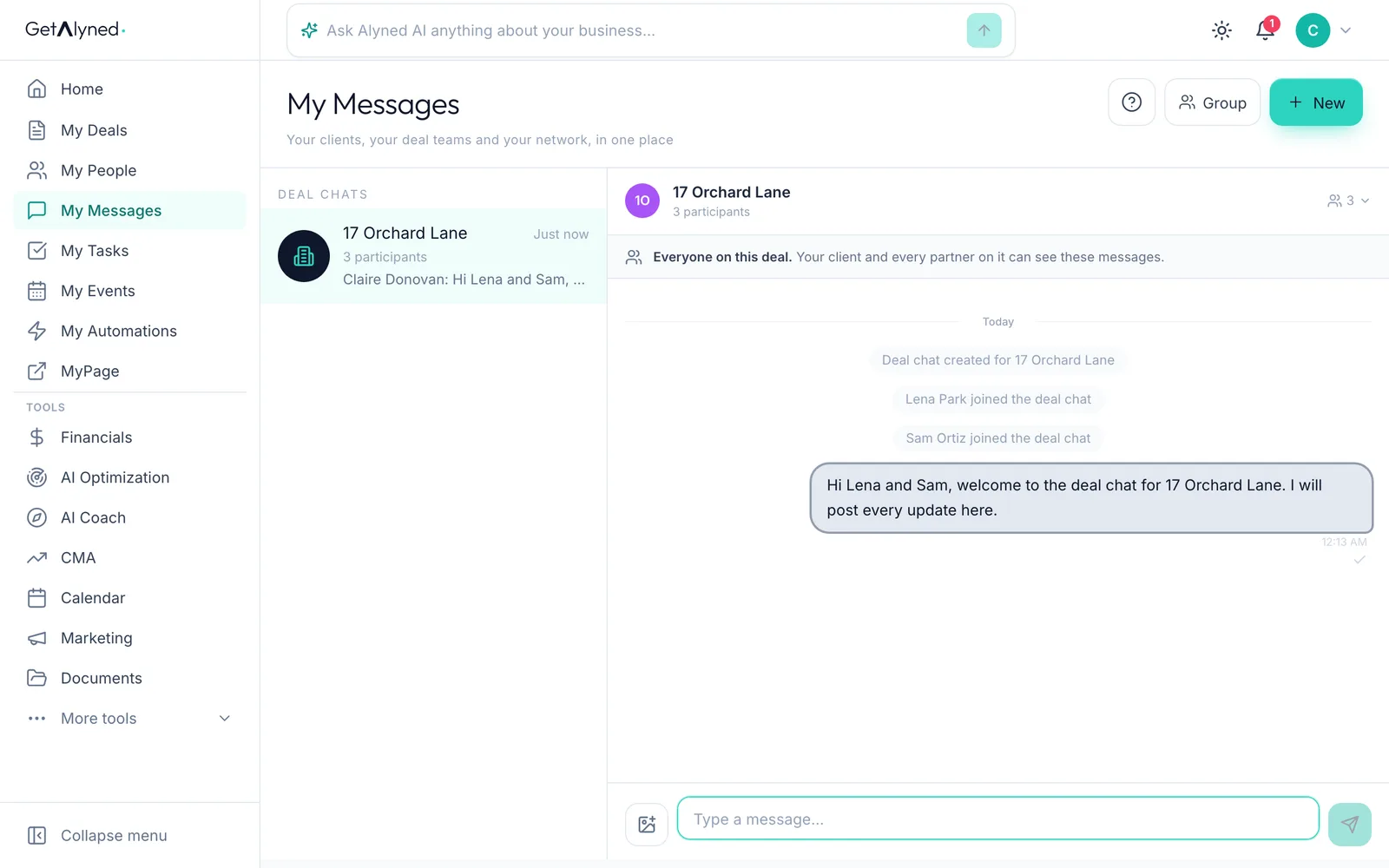
The deal chat opens in My Messages. Your client and every partner on the deal see what's posted here.
-
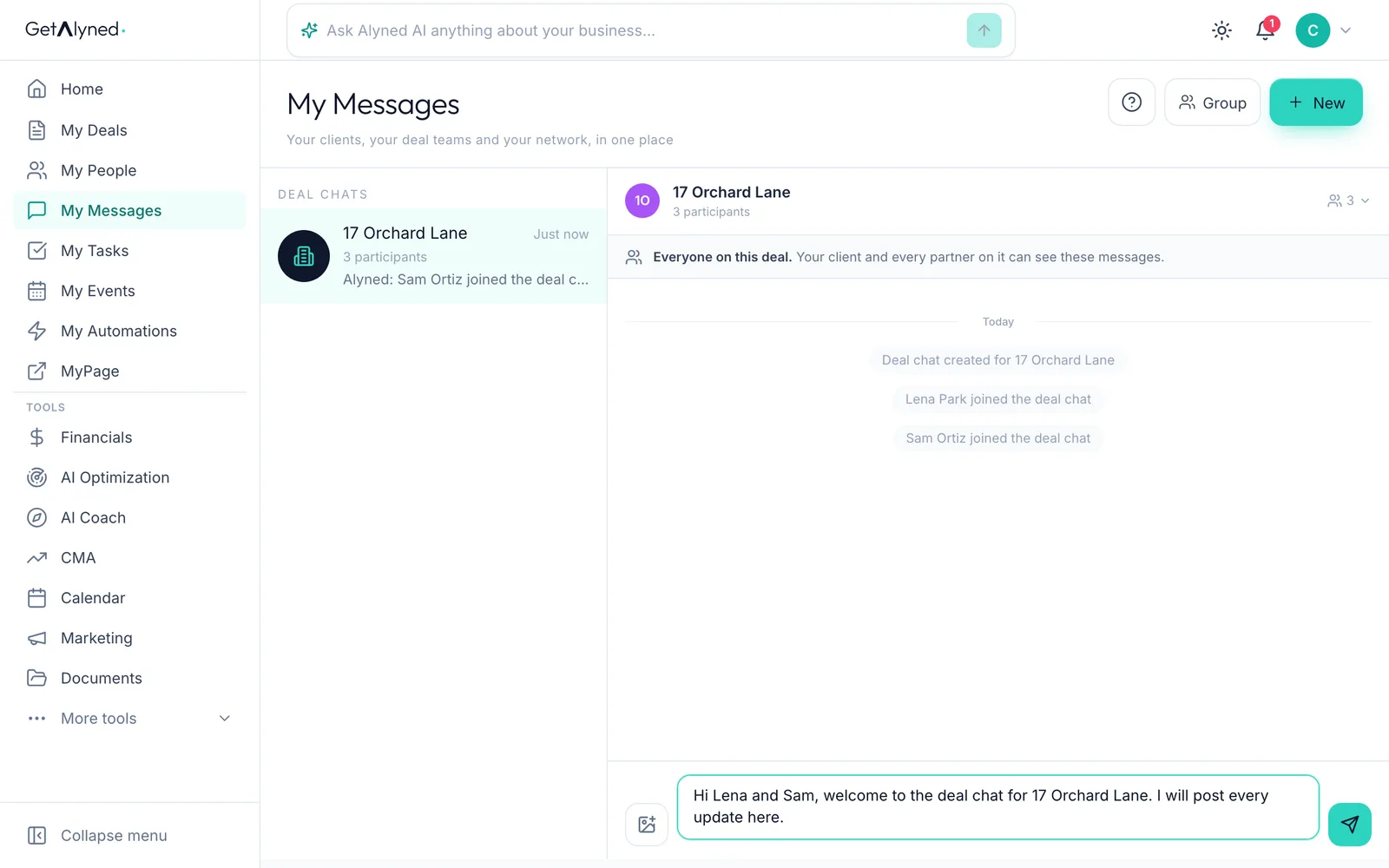
Write your first message
Type a welcome or an update in the message box.
-
Send it
Click the send arrow.
-
Your message is posted
Your message is posted to everyone on the deal at once. No group texts, no reply-all.
-
What your client sees
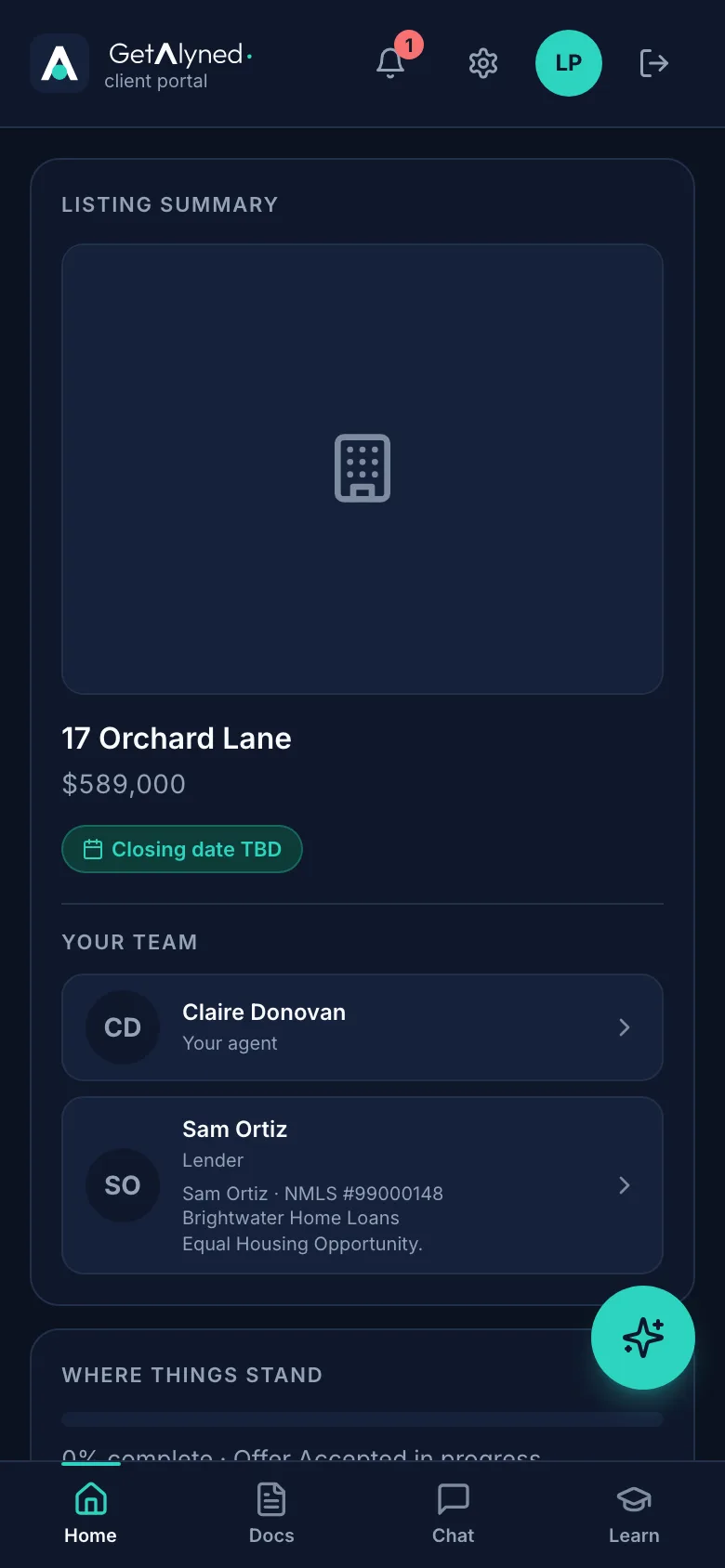
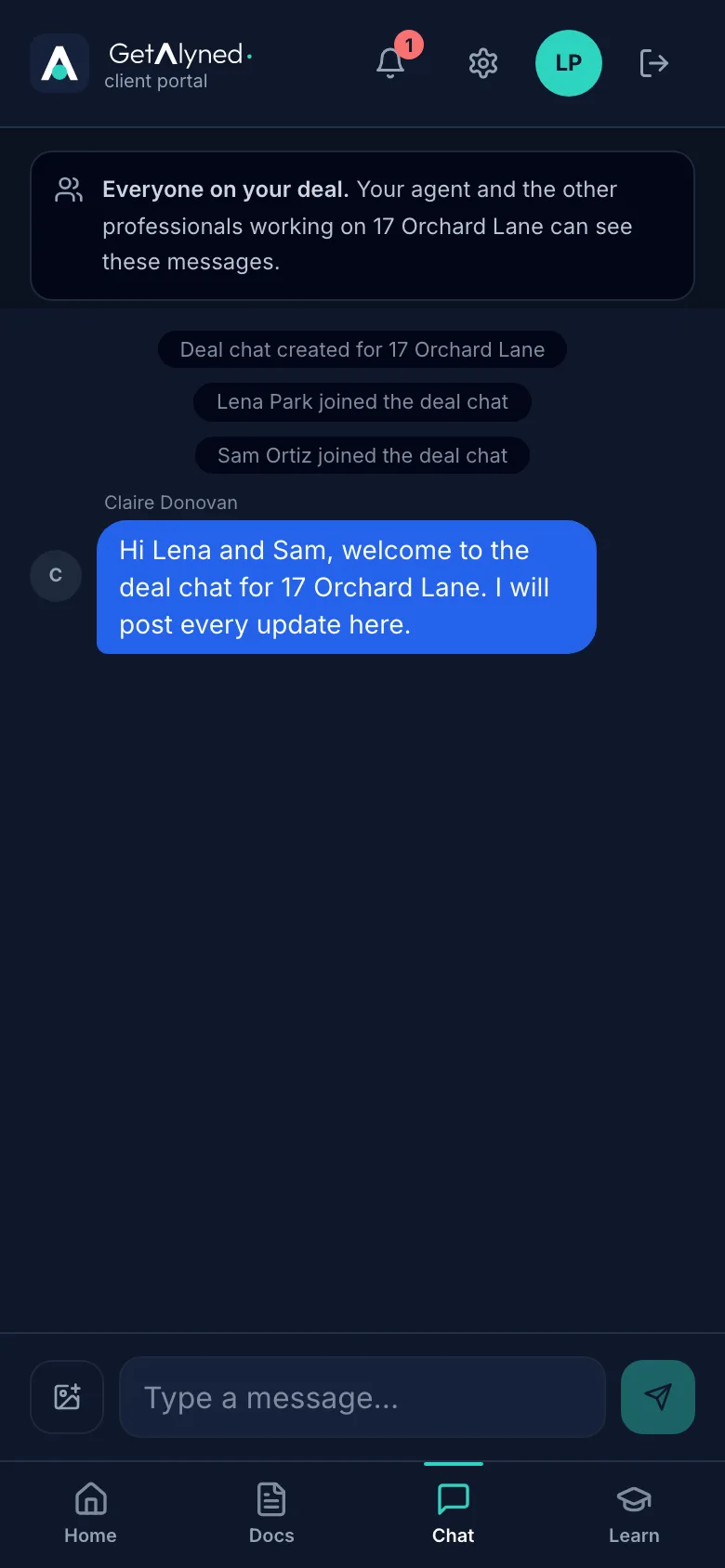
Your client sees the same chat in their portal. On a phone, Chat is in the bar at the bottom.
-
Same thread, both sides
Your client sees your message in the same thread and can reply to everyone on the deal.
Related guides
- Invite your client to their portal · Send your client a private portal for their deal, then see what they see when they open the invitation and sign in.
- Add your loan officer to a deal · Bring your loan officer onto a deal so their financing steps show up on your timeline and your client's, and they join the deal chat.
- Move a deal forward · Change a deal's stage, check off steps as they're done, and see how your client is told right away in their portal.
- Start a listing deal and publish it to MyPage · Set up a new listing, add the facts, a description and a cover photo, and publish it to your MyPage so buyers can see it right away.