Start a listing deal and publish it to MyPage
For agents · 4 min
Set up a new listing, add the facts, a description and a cover photo, and publish it to your MyPage so buyers can see it right away.
Watch
Or read it step by step
-
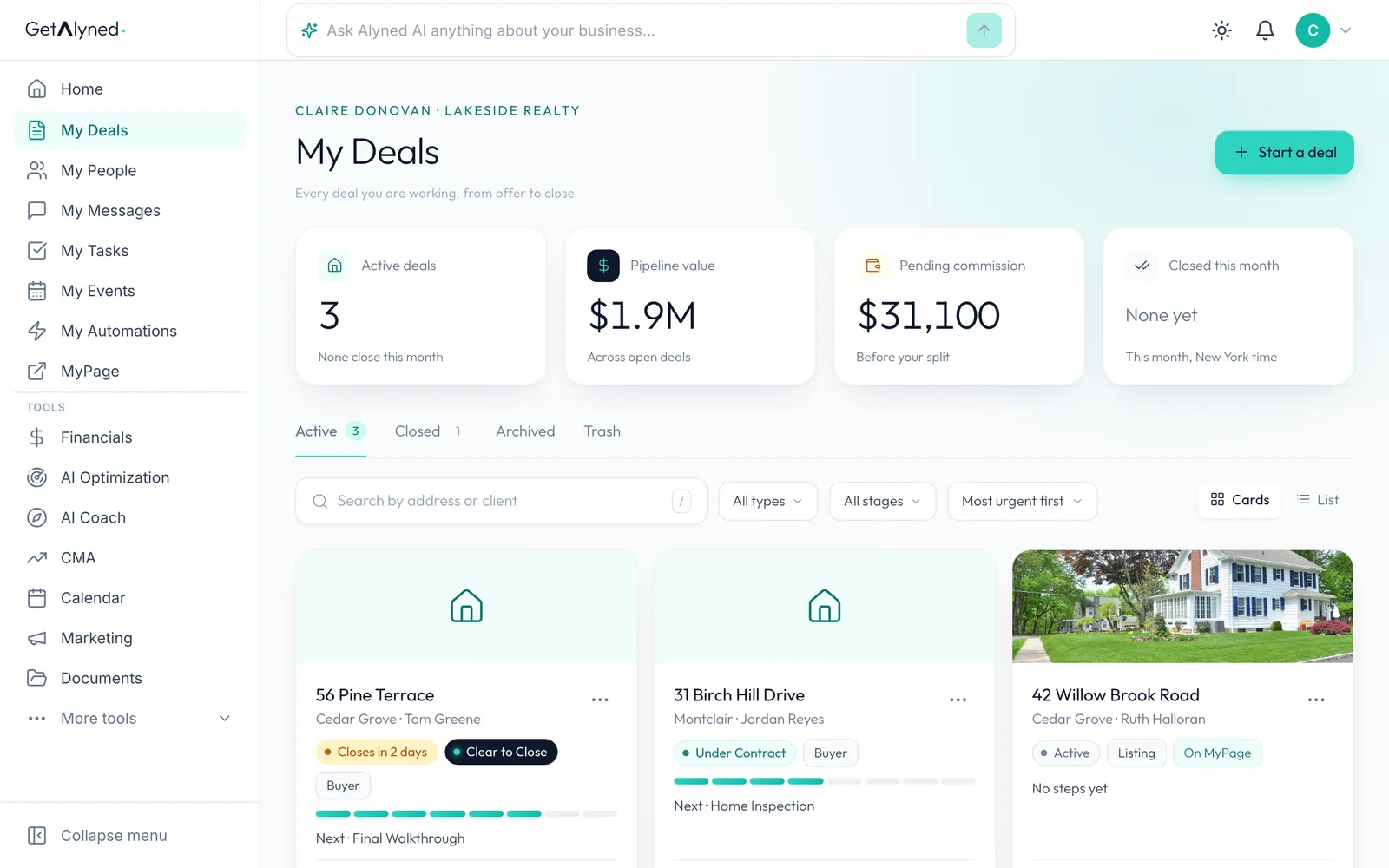
Click Start a deal
Open My Deals and click Start a deal at the top right.
-
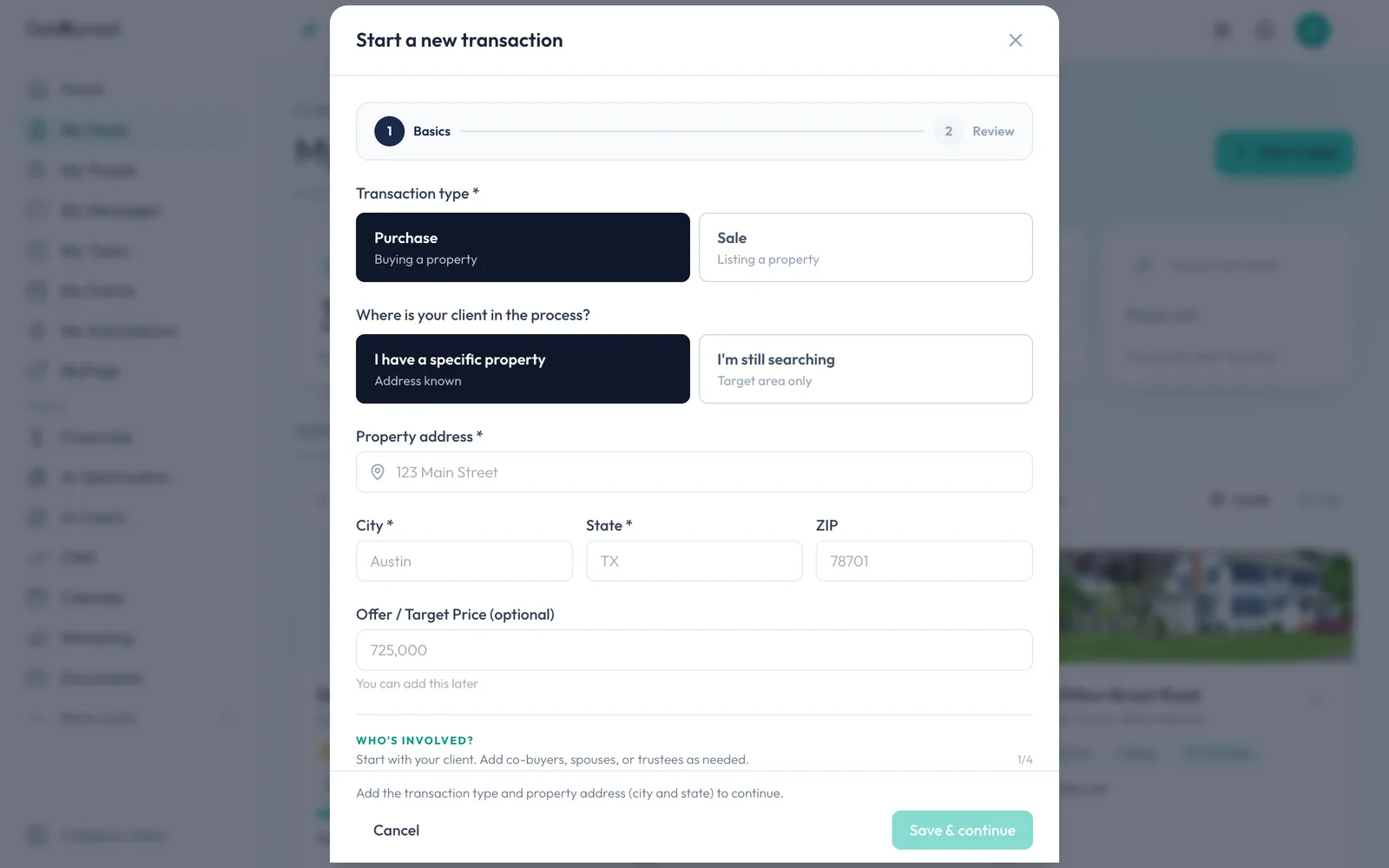
Choose Sale
Pick Sale for a listing. Purchase is for a buyer client.
-
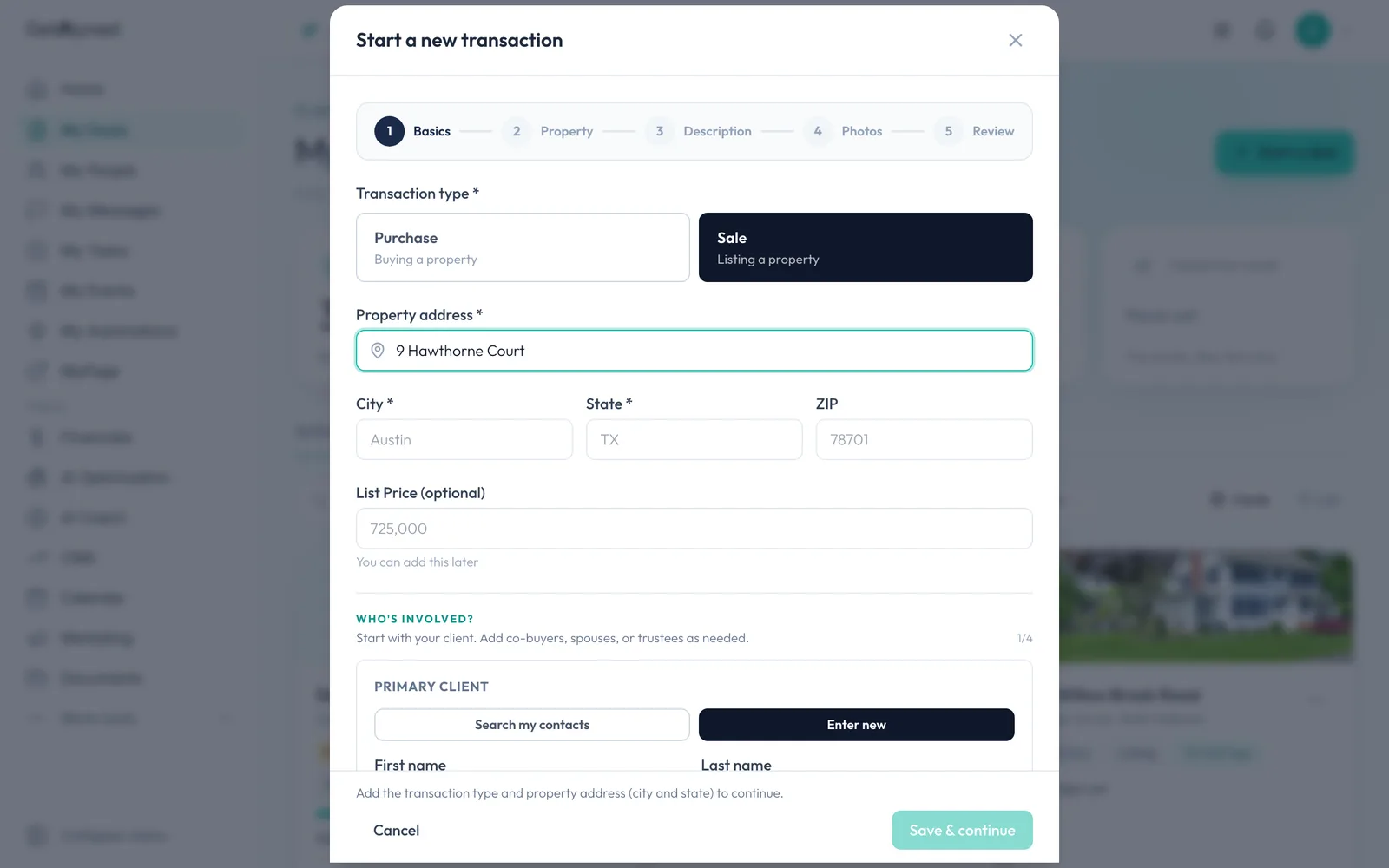
Type the address
Type the property address. Alyned suggests it as you type, and picking a suggestion fills in the city, state and ZIP.
-
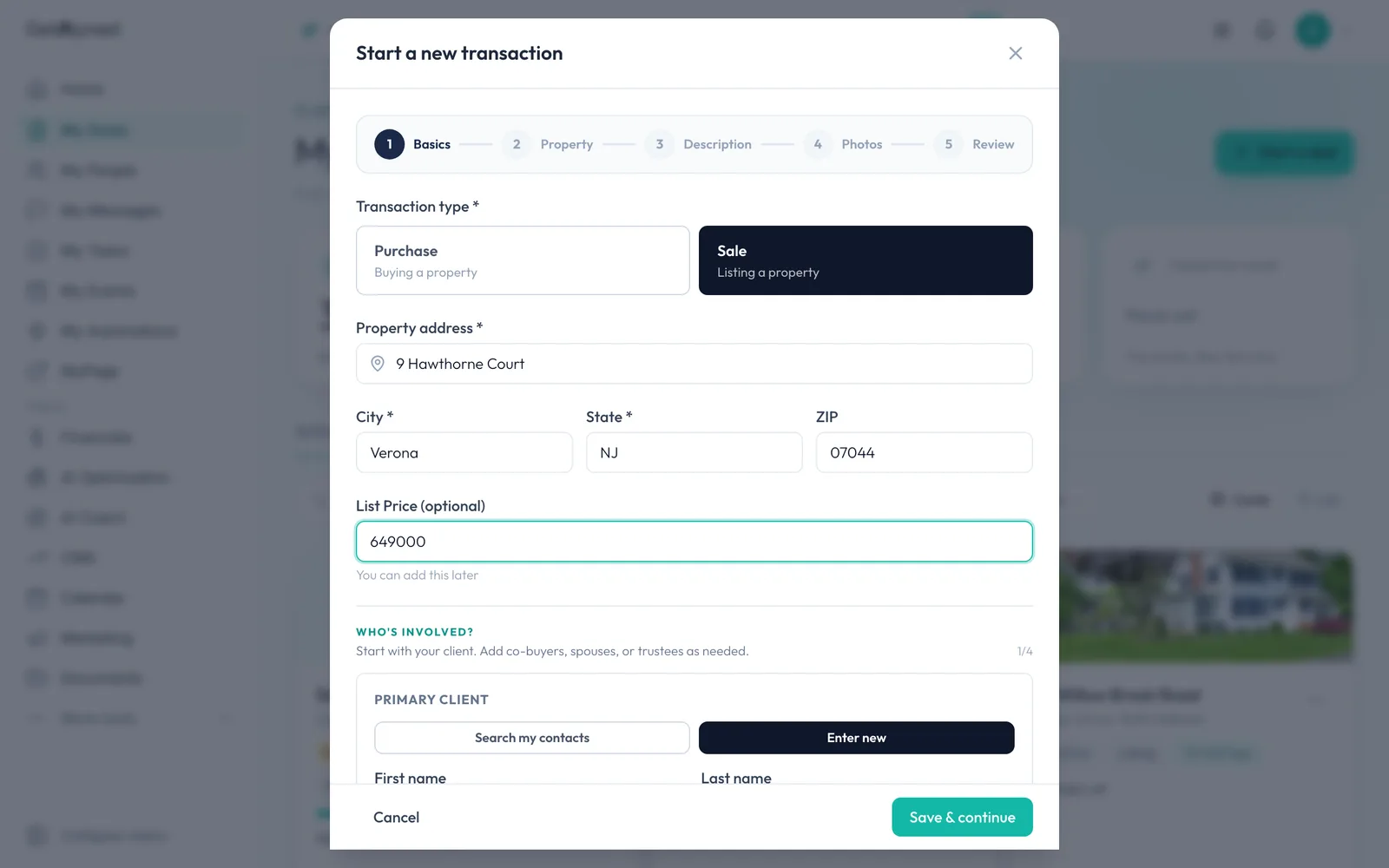
Add the list price
Add the List Price. It's optional and you can change it later.
-
Find your seller
Under the client section, click Search my contacts. If your seller isn't in My People yet, choose Enter new.
-
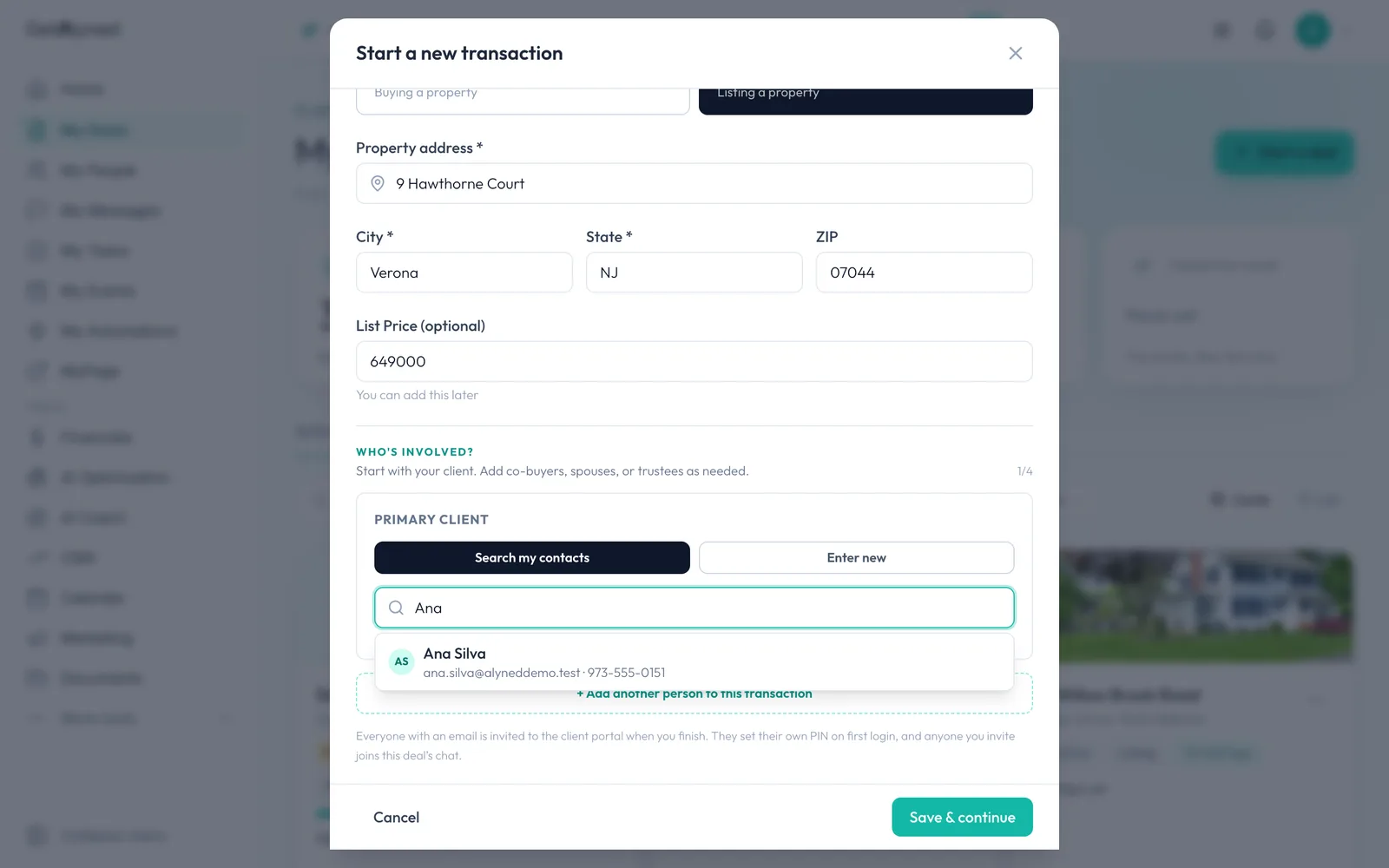
Search by name
Type your seller's name or email.
-
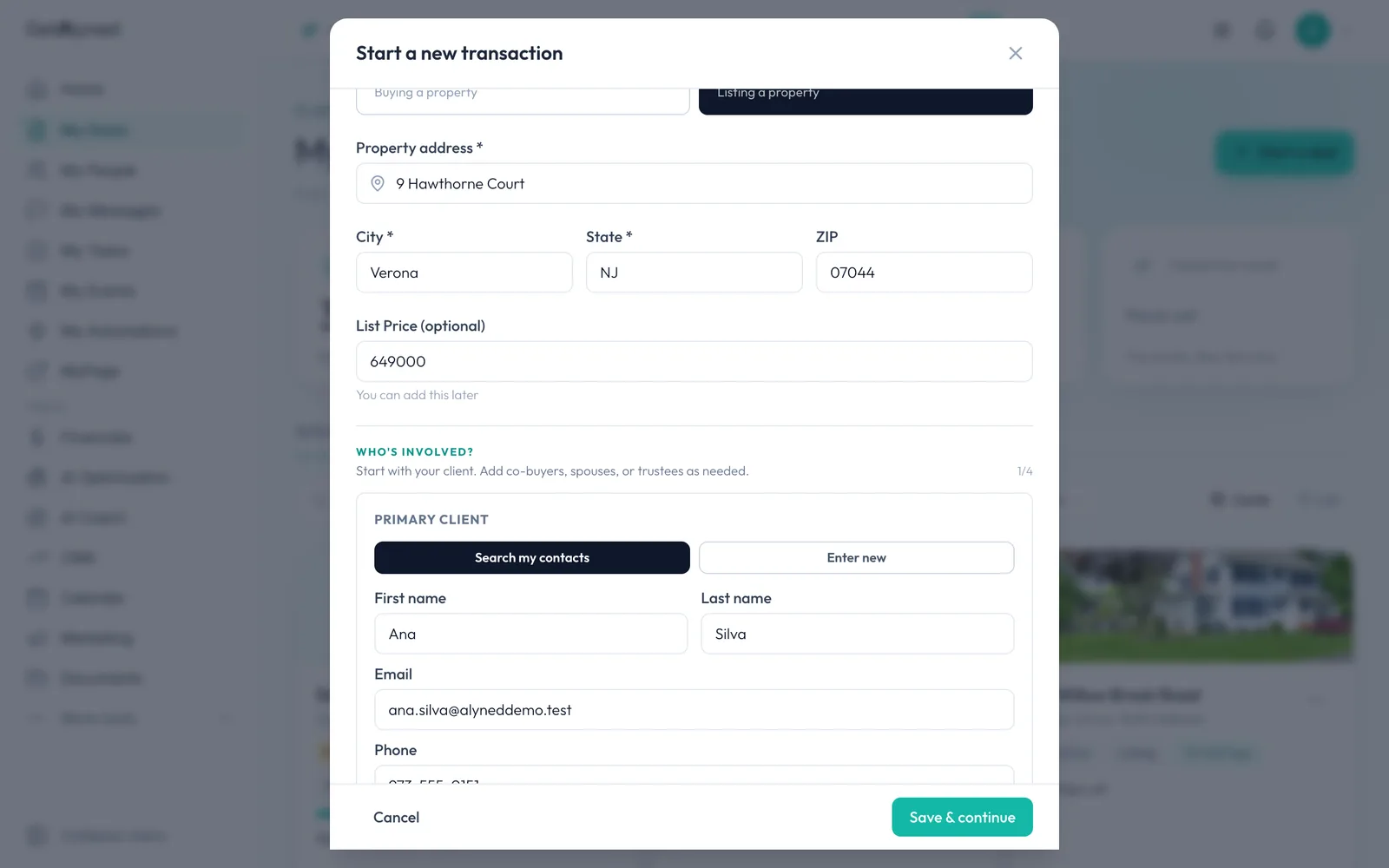
Pick your seller
Click your seller in the list.
-
Save and continue
Click Save & continue. This creates the deal, and the next steps fill in the listing.
-
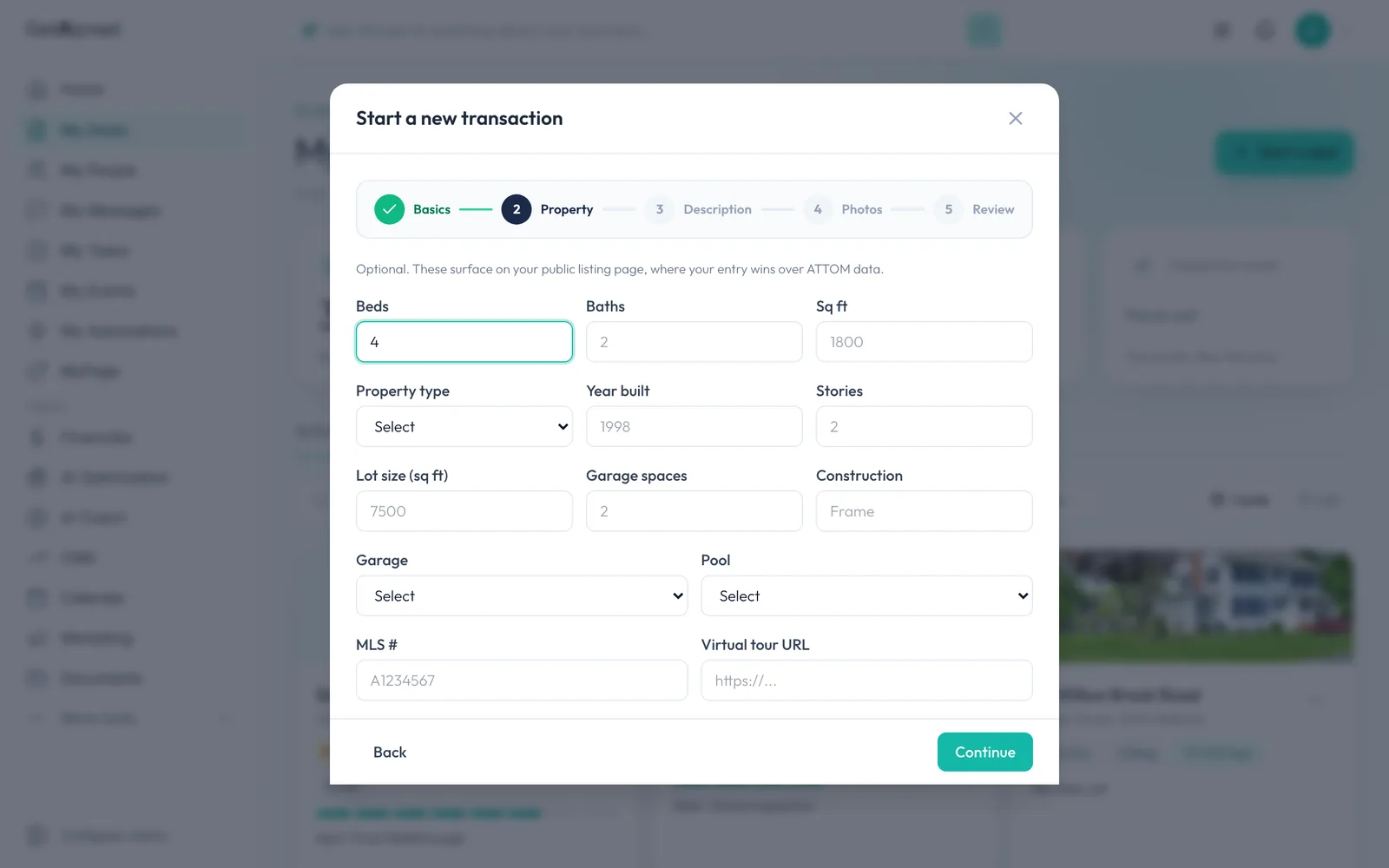
Add the property facts
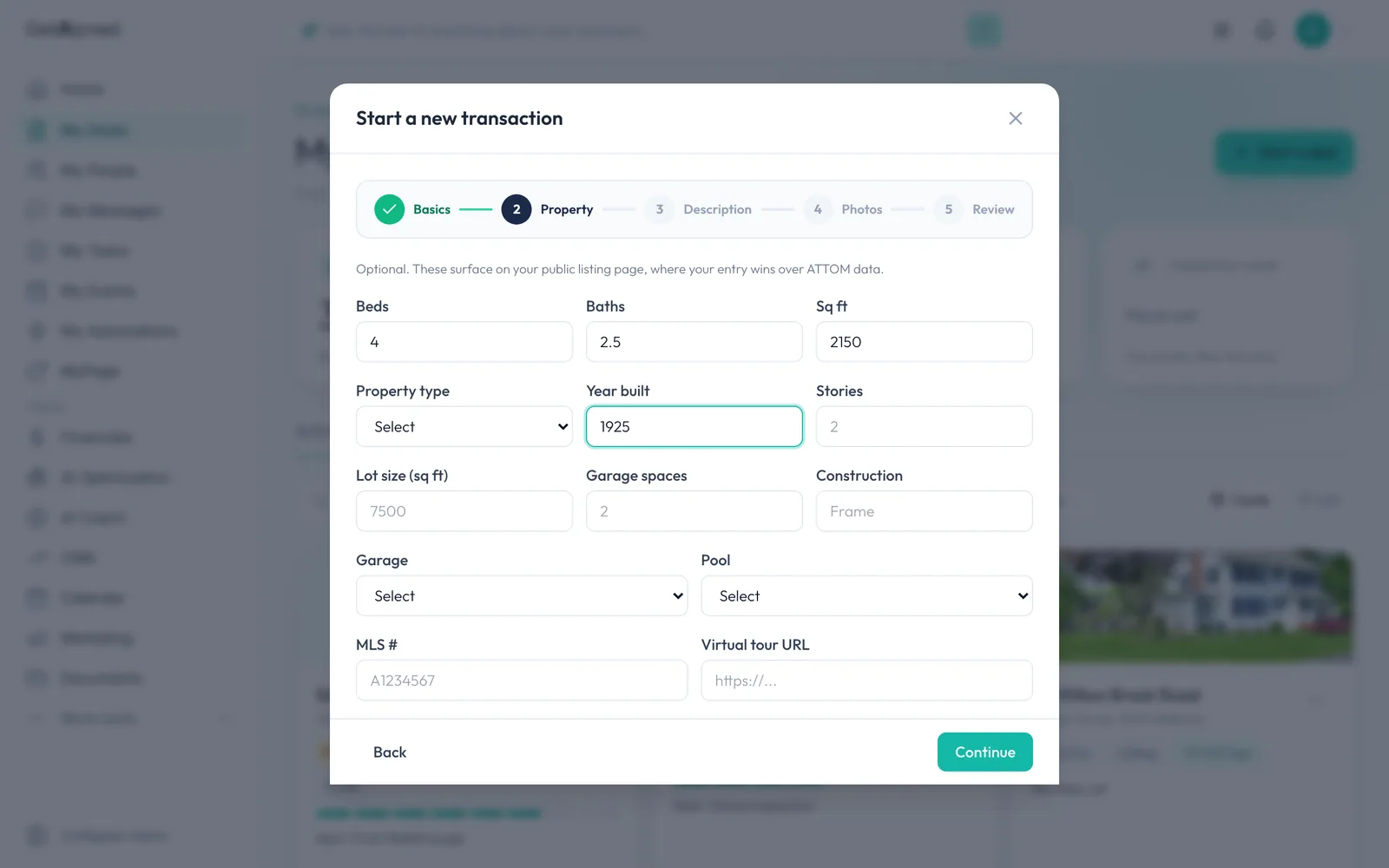
Fill in facts like Beds, baths and size. They're optional, and they show on your public listing page.
-
Click Continue
Click Continue.
-
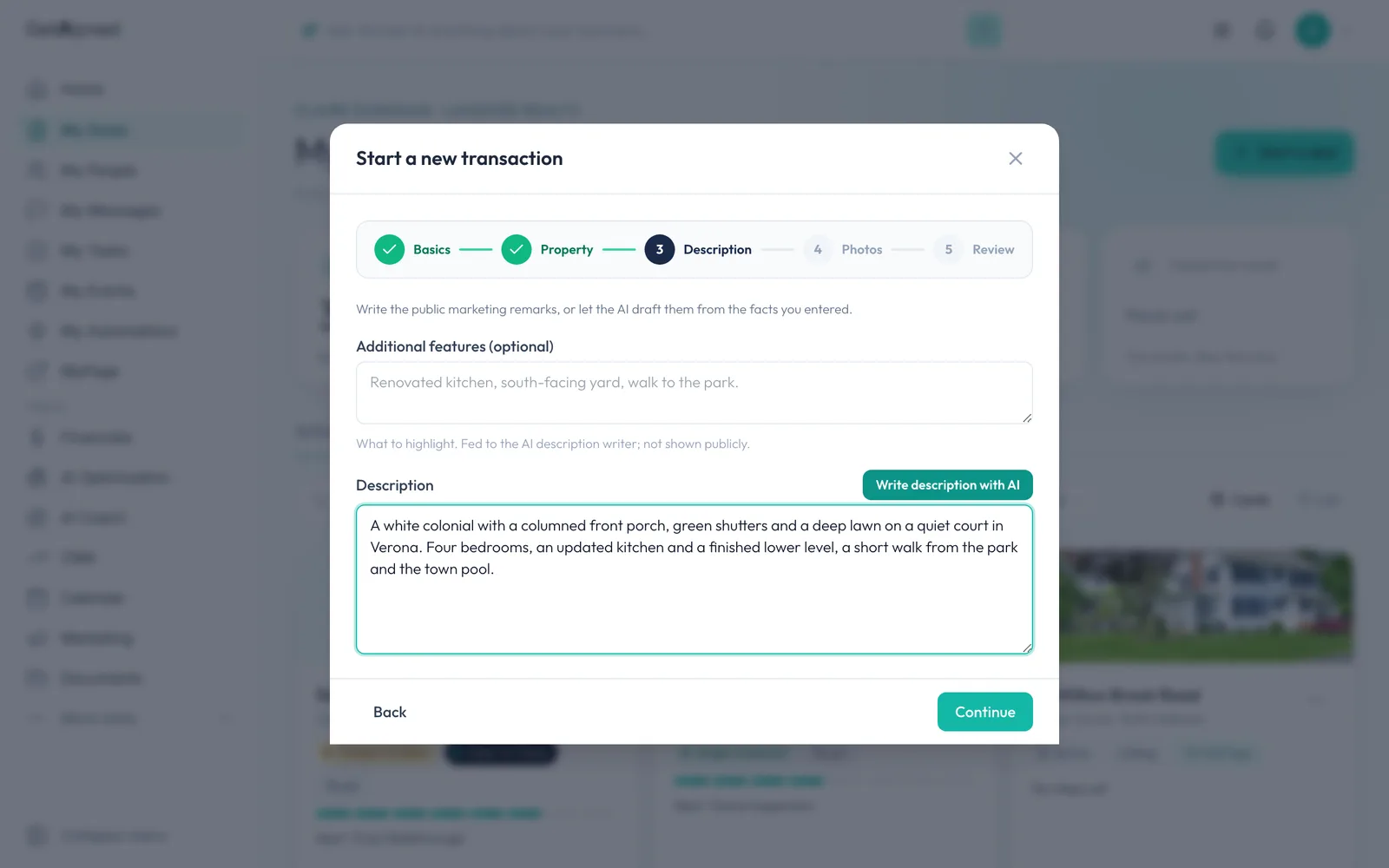
Write a description
Write the Description buyers will read on your listing page. Write description with AI can draft one from the facts if you like.
-
Click Continue
Click Continue.
-
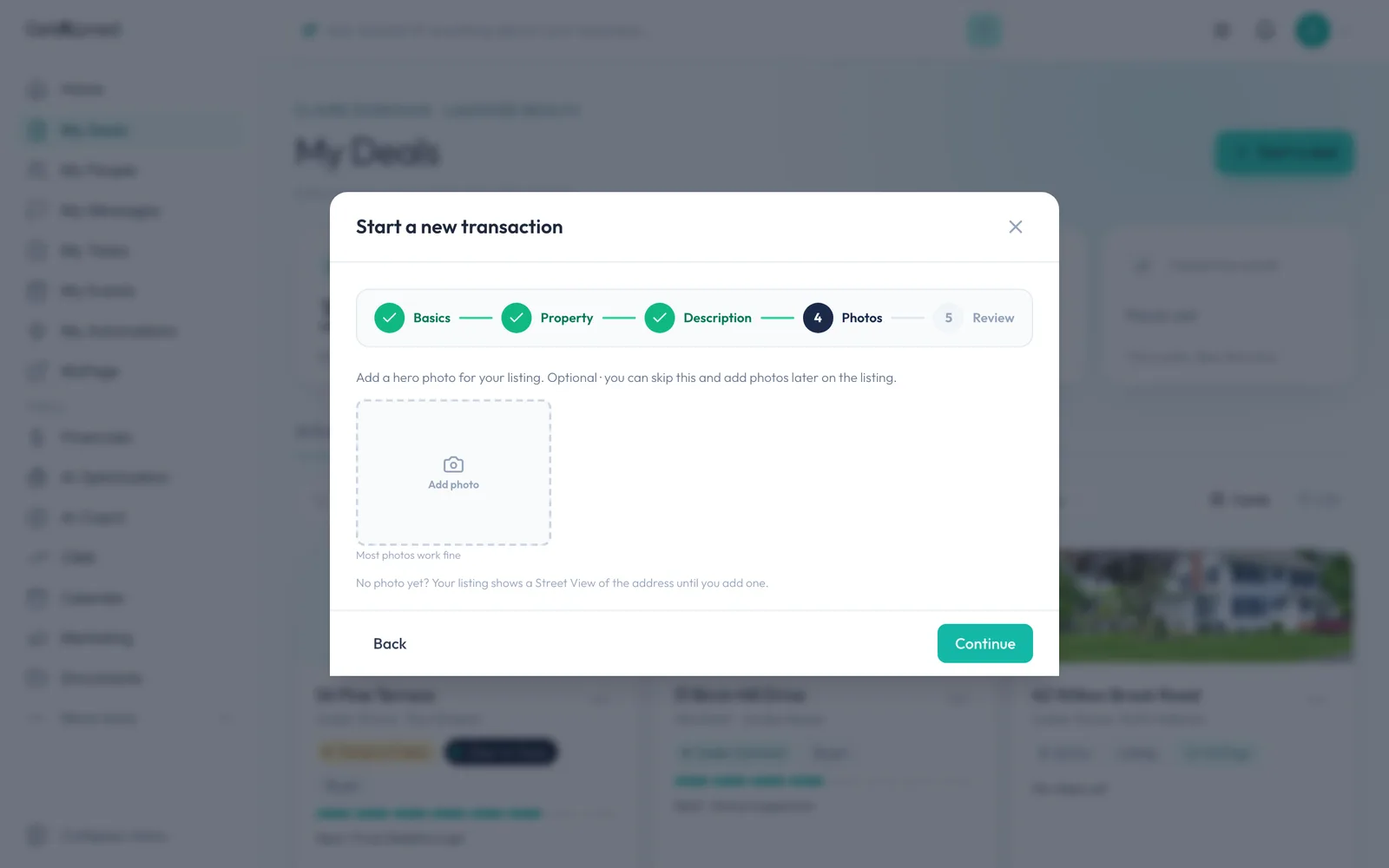
Add a cover photo
Click Add photo and pick a photo of the home. Until you add one, the listing shows a Street View of the address.
-
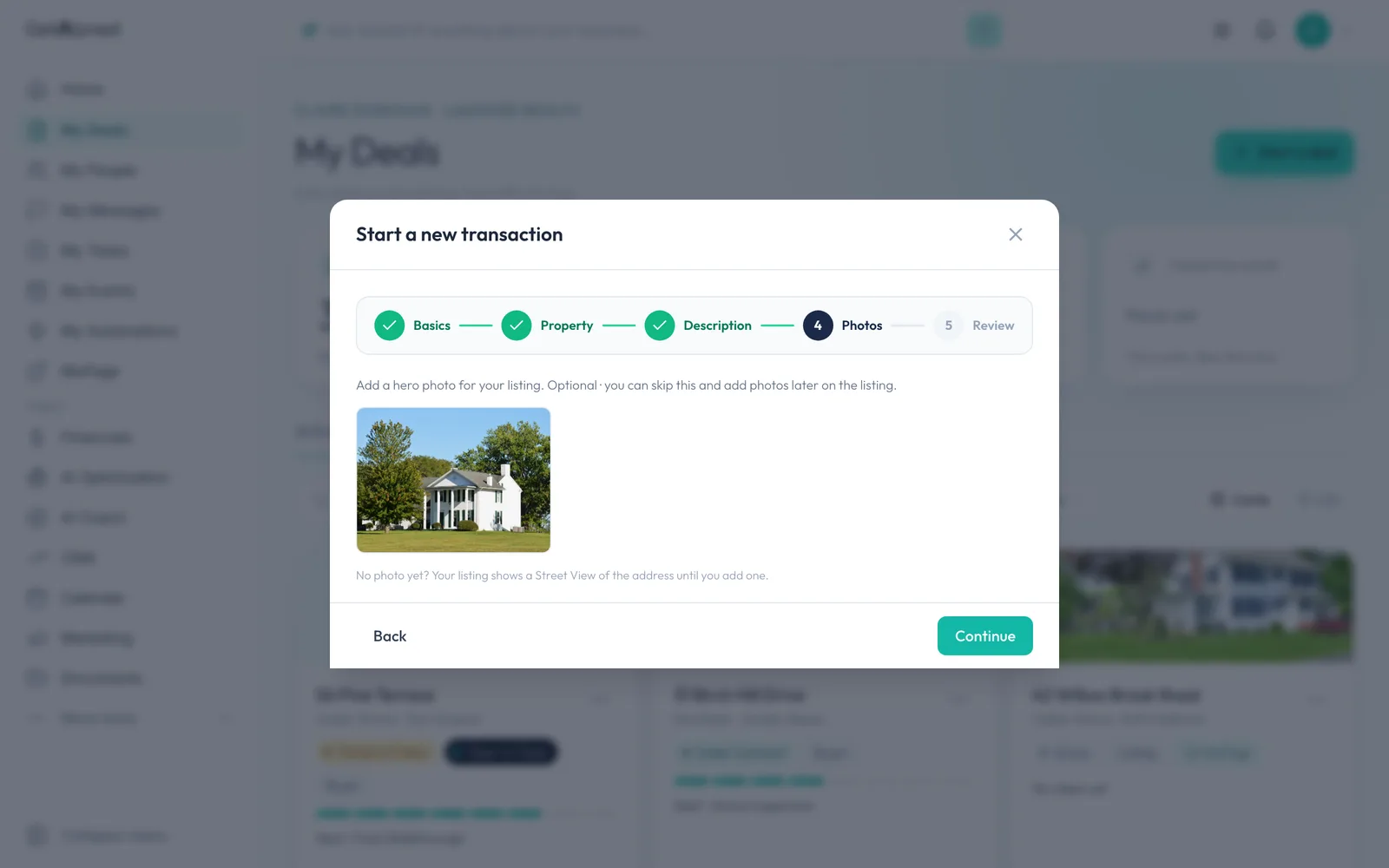
Your cover photo
This photo becomes the listing's cover. You can add more photos later on the deal page.
-
Click Continue
Click Continue to review.
-
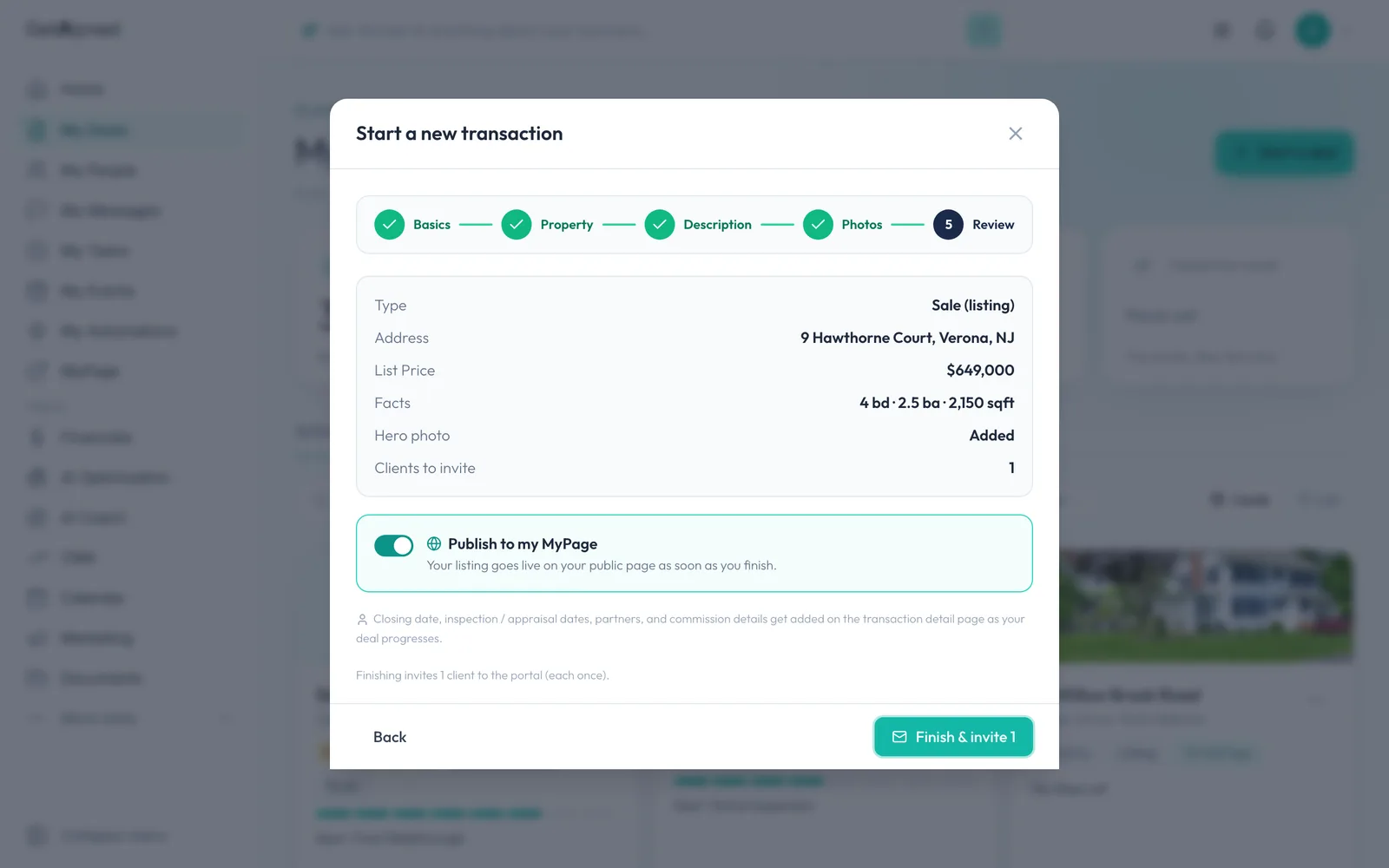
Publish to MyPage is on
Publish to my MyPage is on, so the listing goes live on your public page as soon as you finish.
-
Finish and invite your seller
Click Finish & invite. The listing is saved and your seller gets an email invitation to their own portal.
-
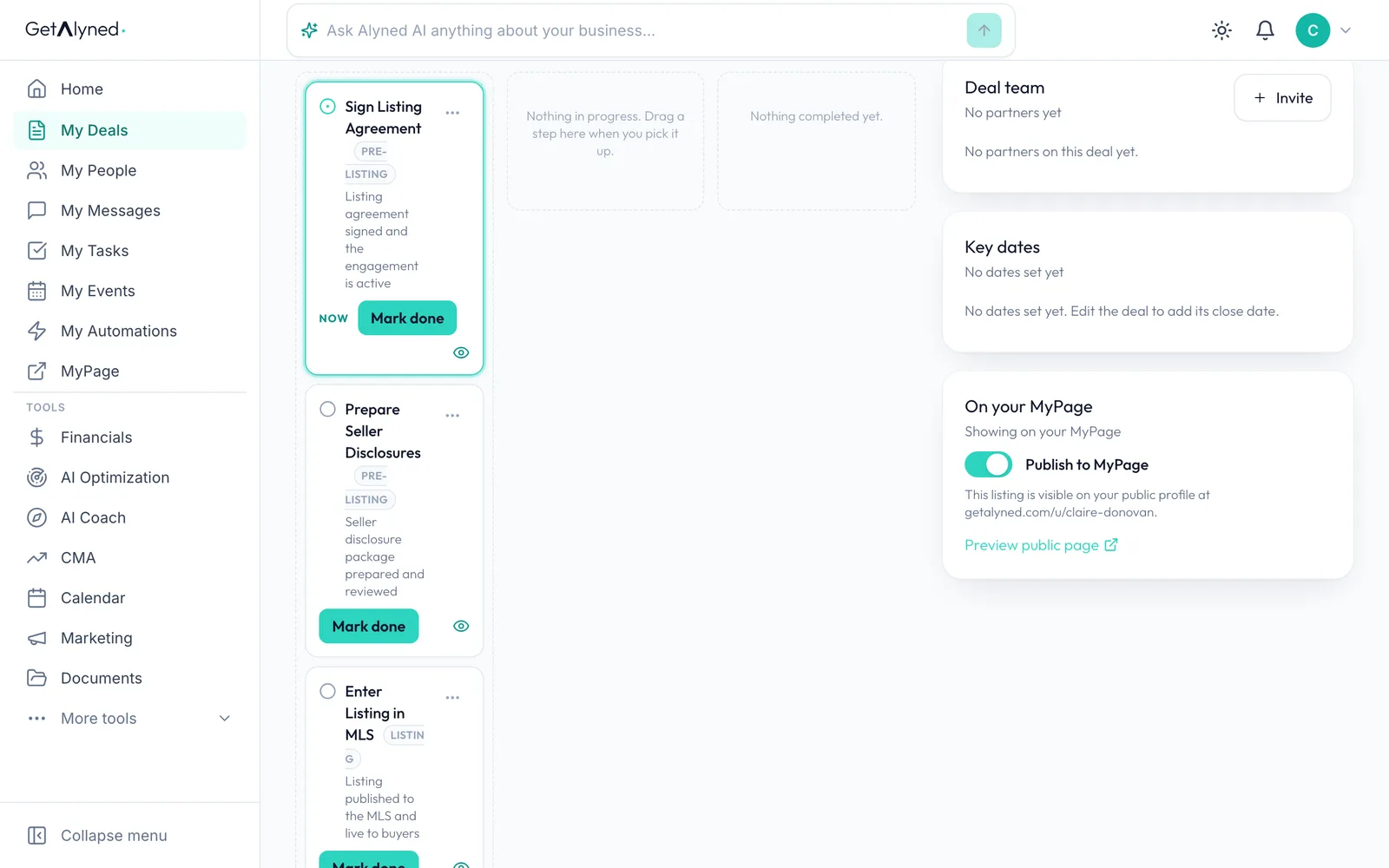
It's on your MyPage
The deal page opens. The On your MyPage switch shows the listing is published. Turn it off any time to hide it.
-
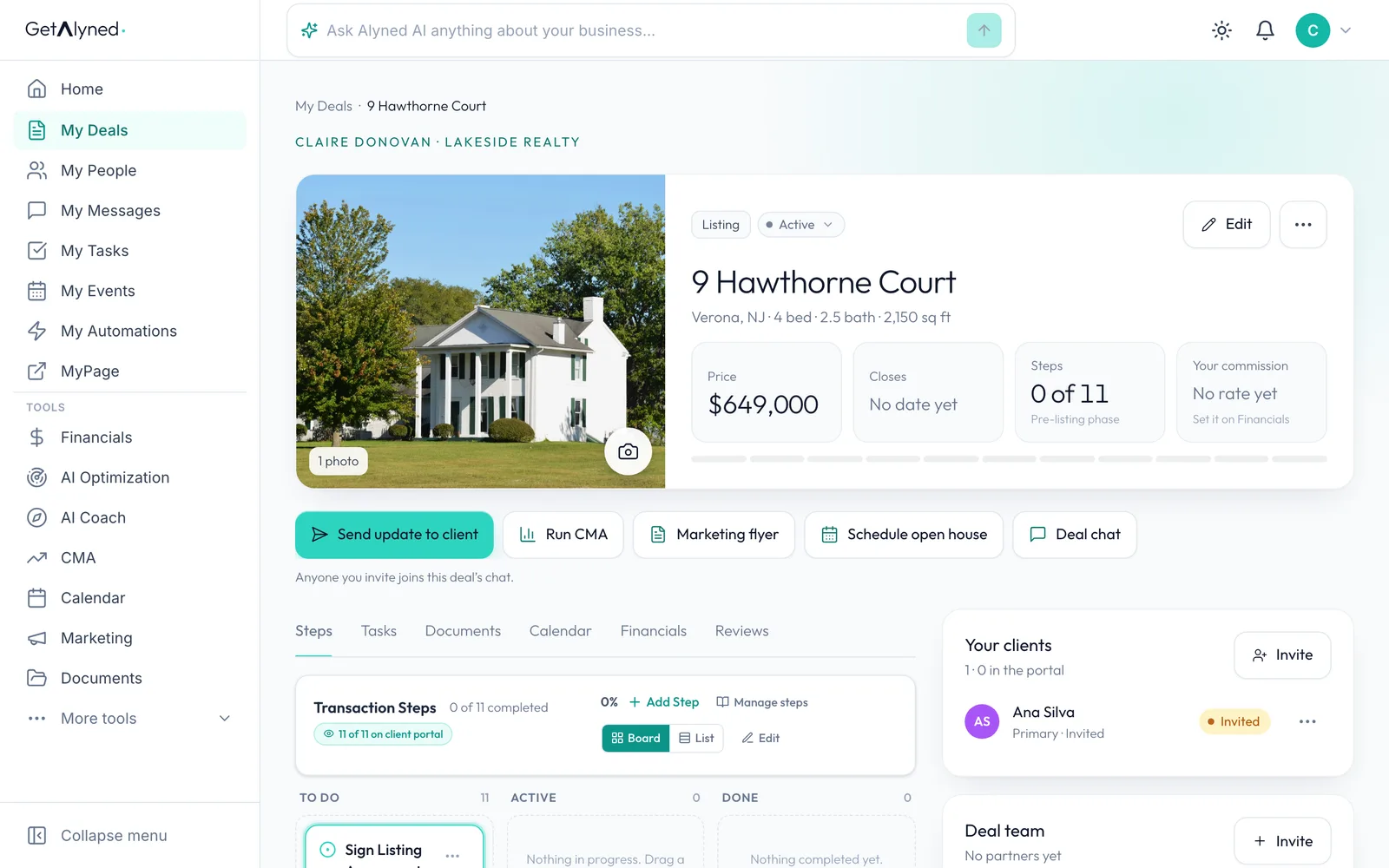
Back to My Deals
Click My Deals in the menu.
-
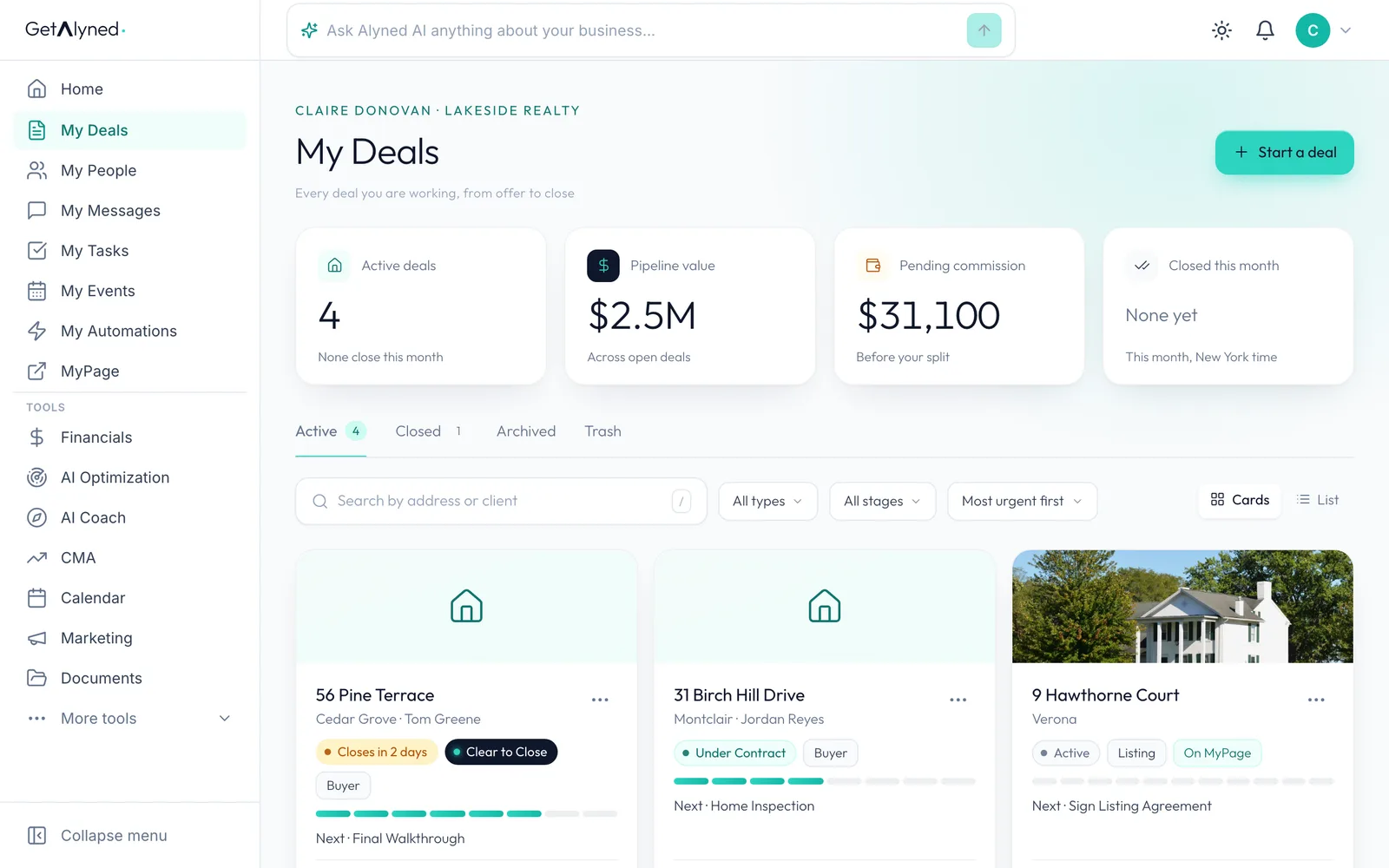
Marked On MyPage
Your new listing's card is marked On MyPage.
-
Open your MyPage
Click MyPage in the menu. Your public page opens in a new tab.
-
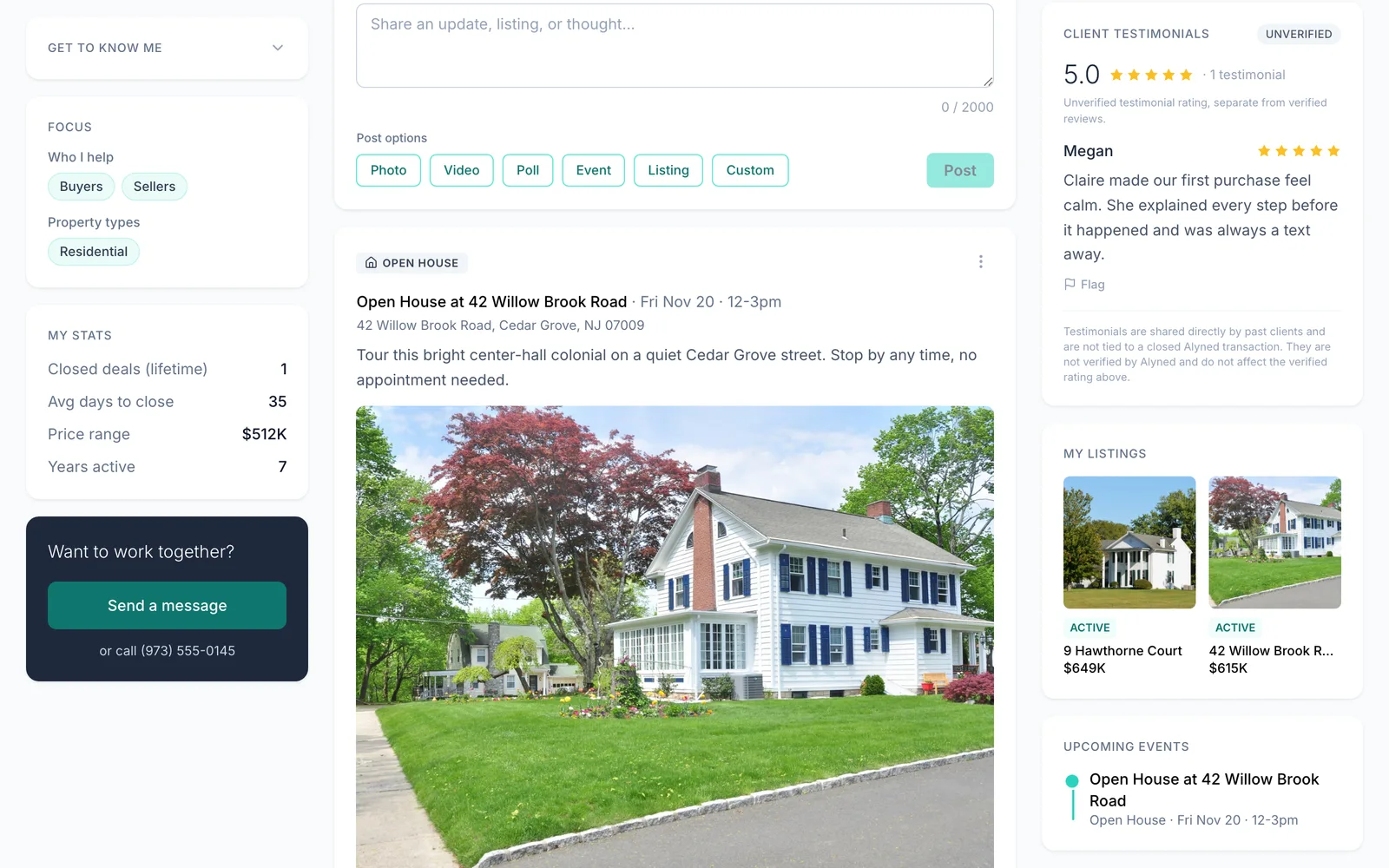
Open the listing
Your new listing is under My Listings. Click it to see the page visitors see.
-
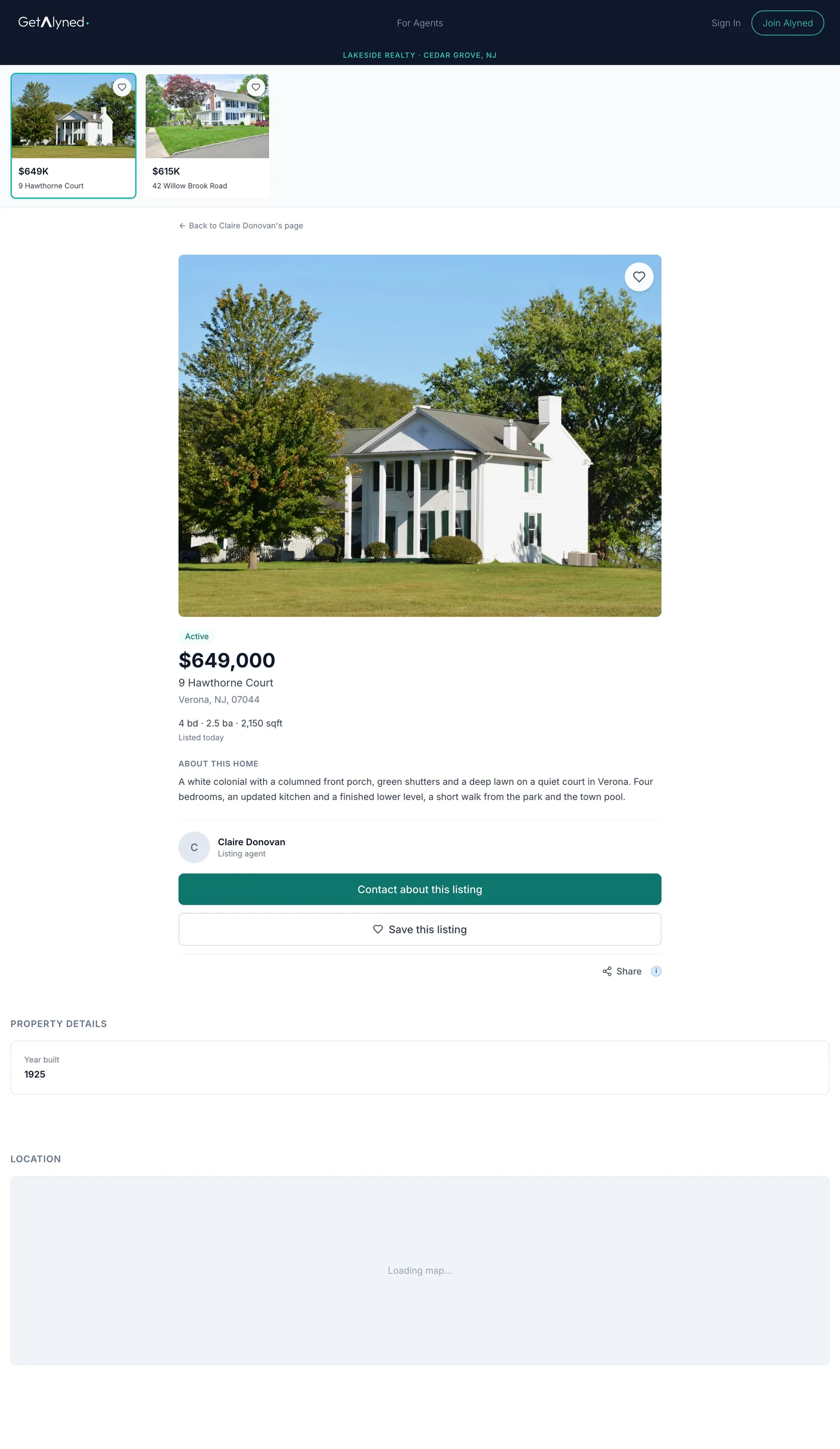
Your public listing page
Visitors see the photo, price, facts and your description, with an easy way to contact you about the home.
Related guides
- Invite your client to their portal · Send your client a private portal for their deal, then see what they see when they open the invitation and sign in.
- Make a property flyer and social images · Turn an address and a photo into a print-ready flyer, plus matching images sized for Instagram, Facebook and LinkedIn.
- Move a deal forward · Change a deal's stage, check off steps as they're done, and see how your client is told right away in their portal.
- Share your MyPage · Send your page out by link or QR code, and see what visitors can do when they open it on their phone.