Share your MyPage
For agents · 3 min
Send your page out by link or QR code, and see what visitors can do when they open it on their phone.
Watch
Or read it step by step
-
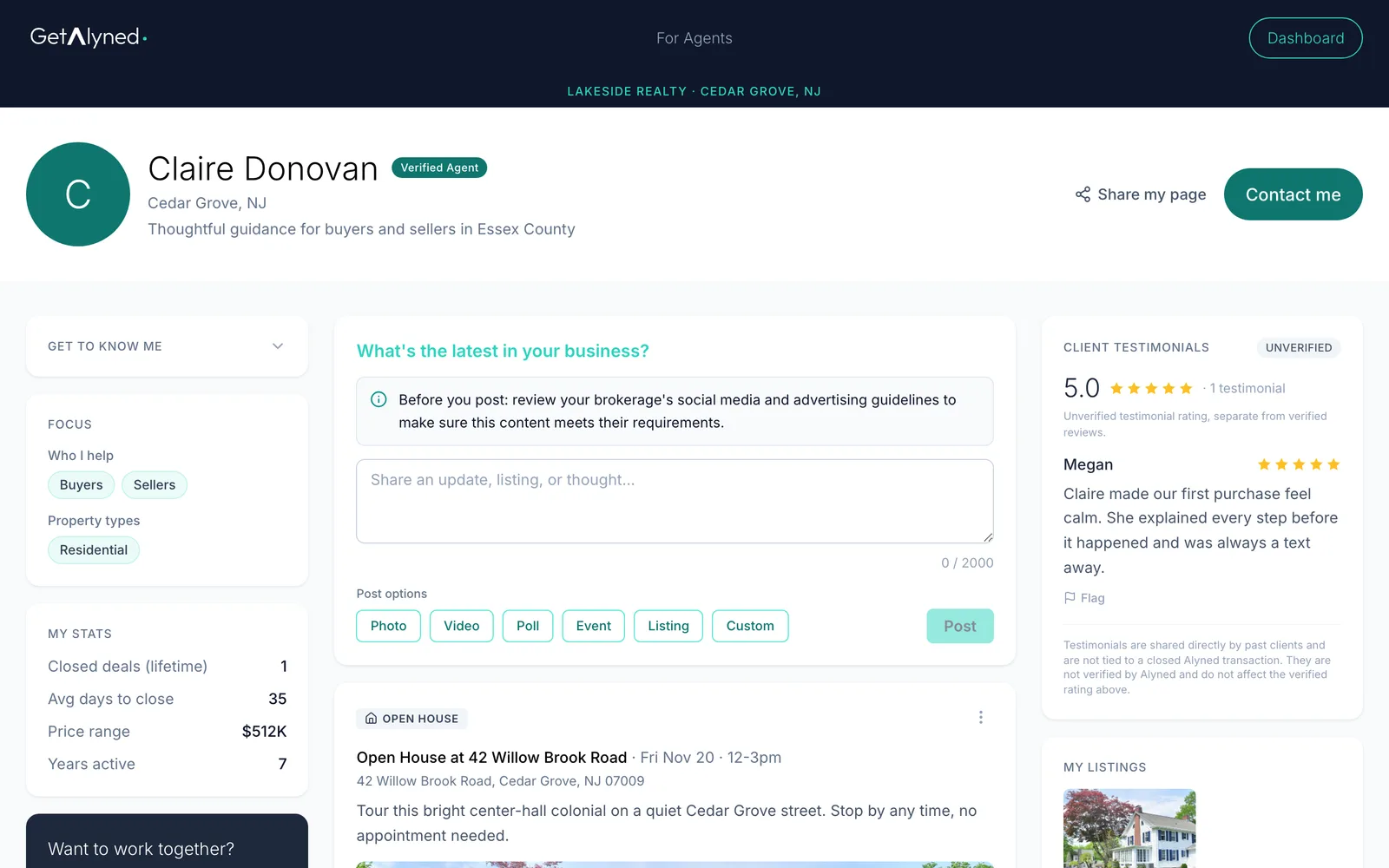
Click Share my page
Open your MyPage. Share my page is next to your name.
-
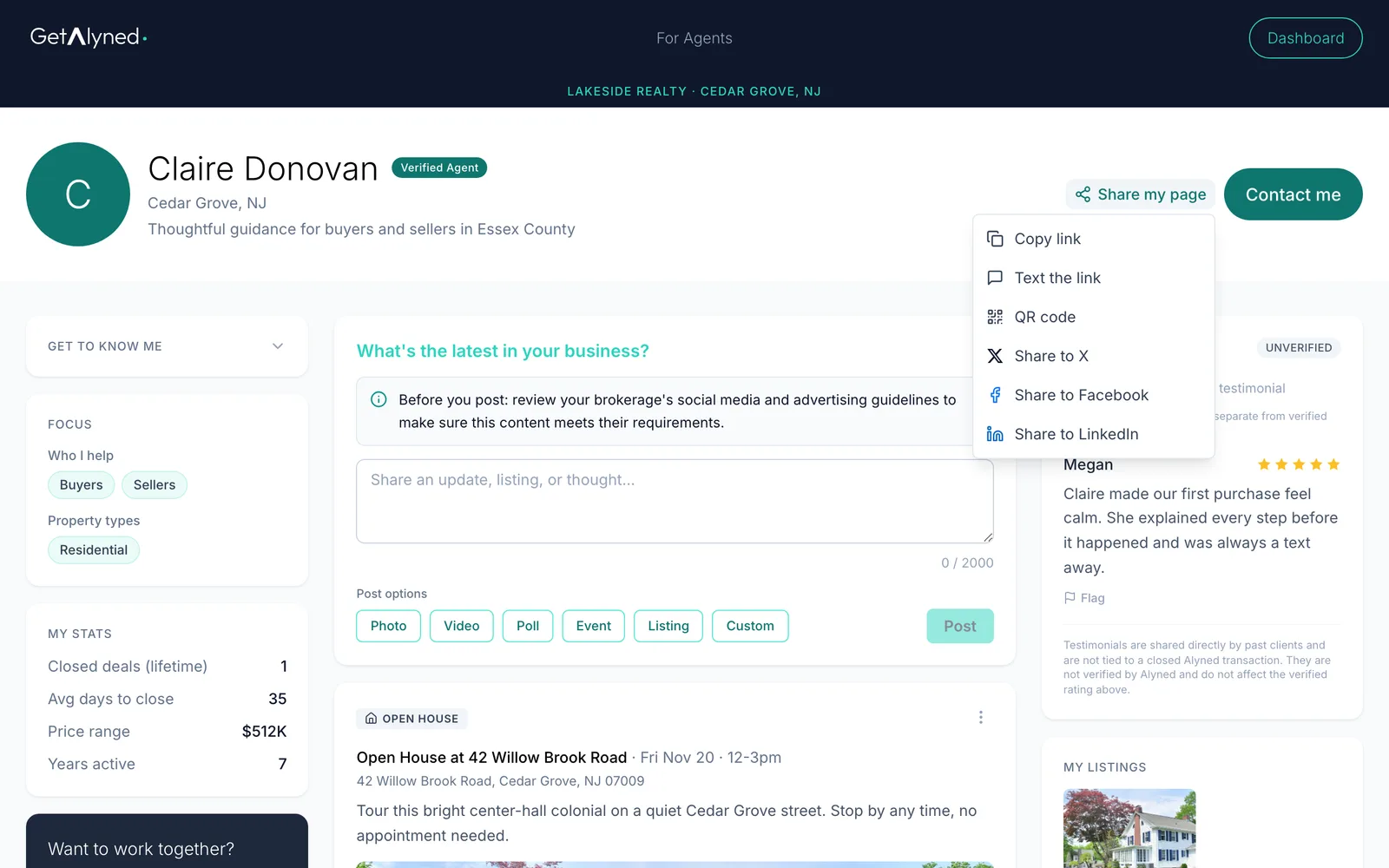
Pick how to share
Copy the link, text it, show a QR code, or share to X, Facebook or LinkedIn.
-
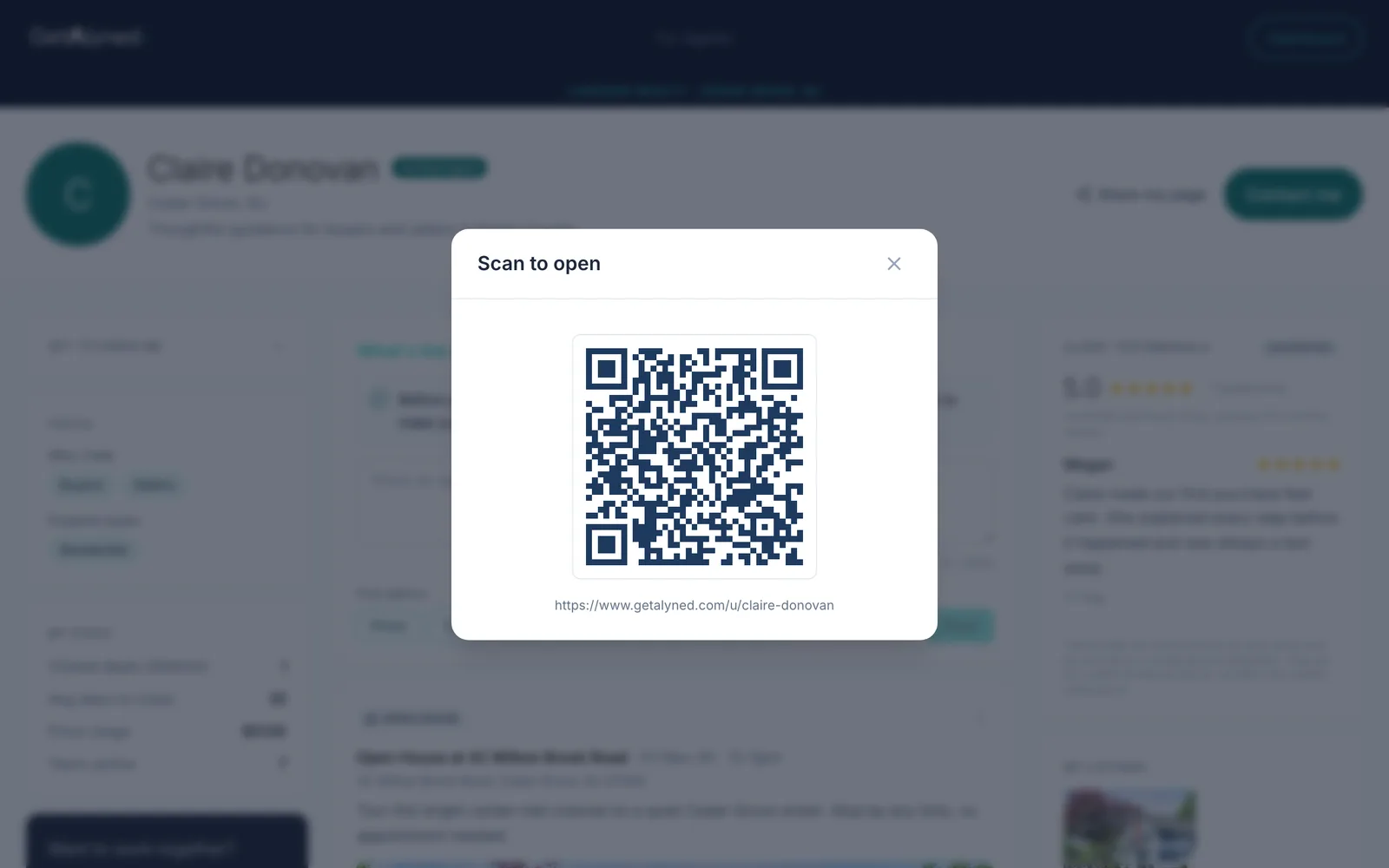
Show a QR code
Click QR code.
-
Scan to open
Anyone can scan the code to open your page. Put it on a sign, a flyer or your business card.
-
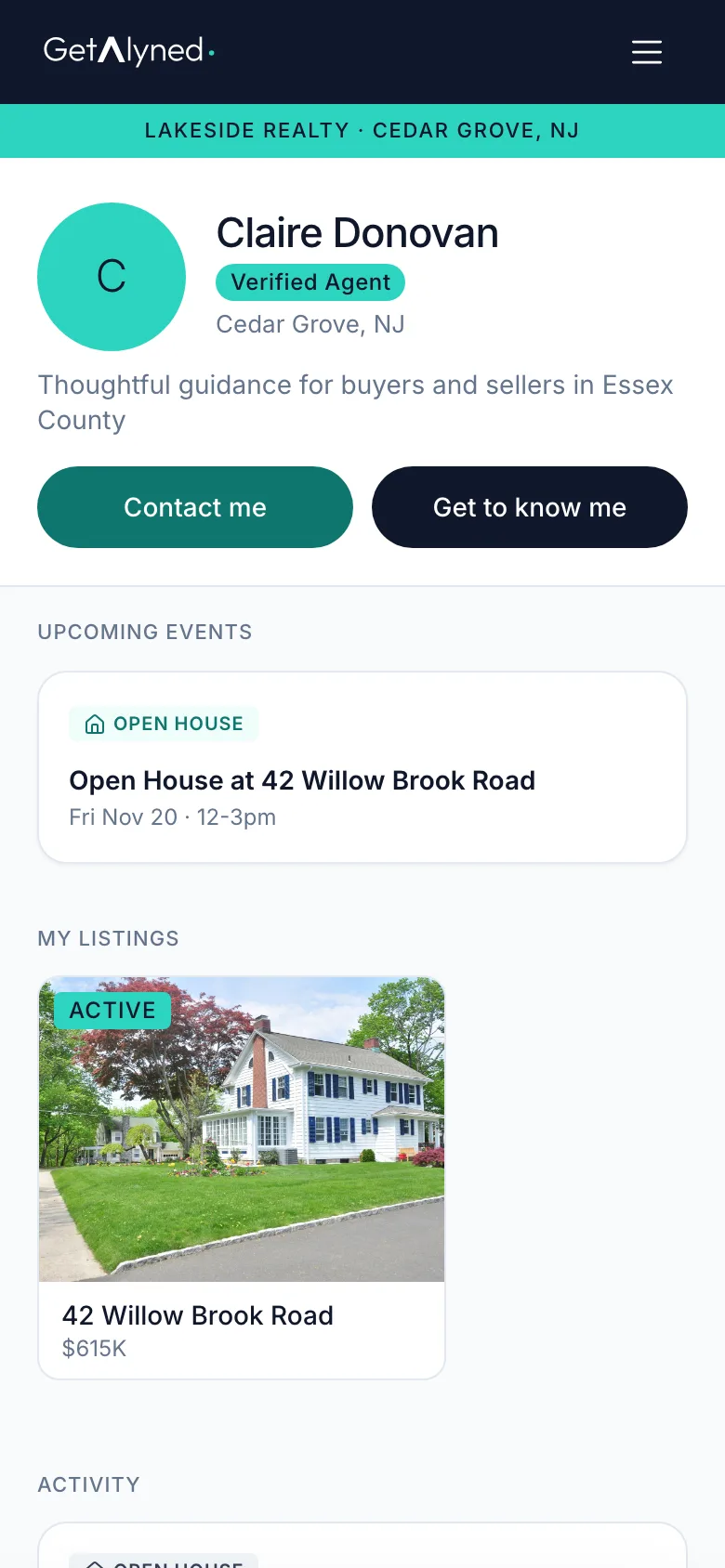
What visitors see on a phone
Most visitors open your page on a phone, from a text or the QR code. They see your details, listings, events and posts.

-
Contact me
Visitors can reach you four ways. Contact me sends you a message.
-
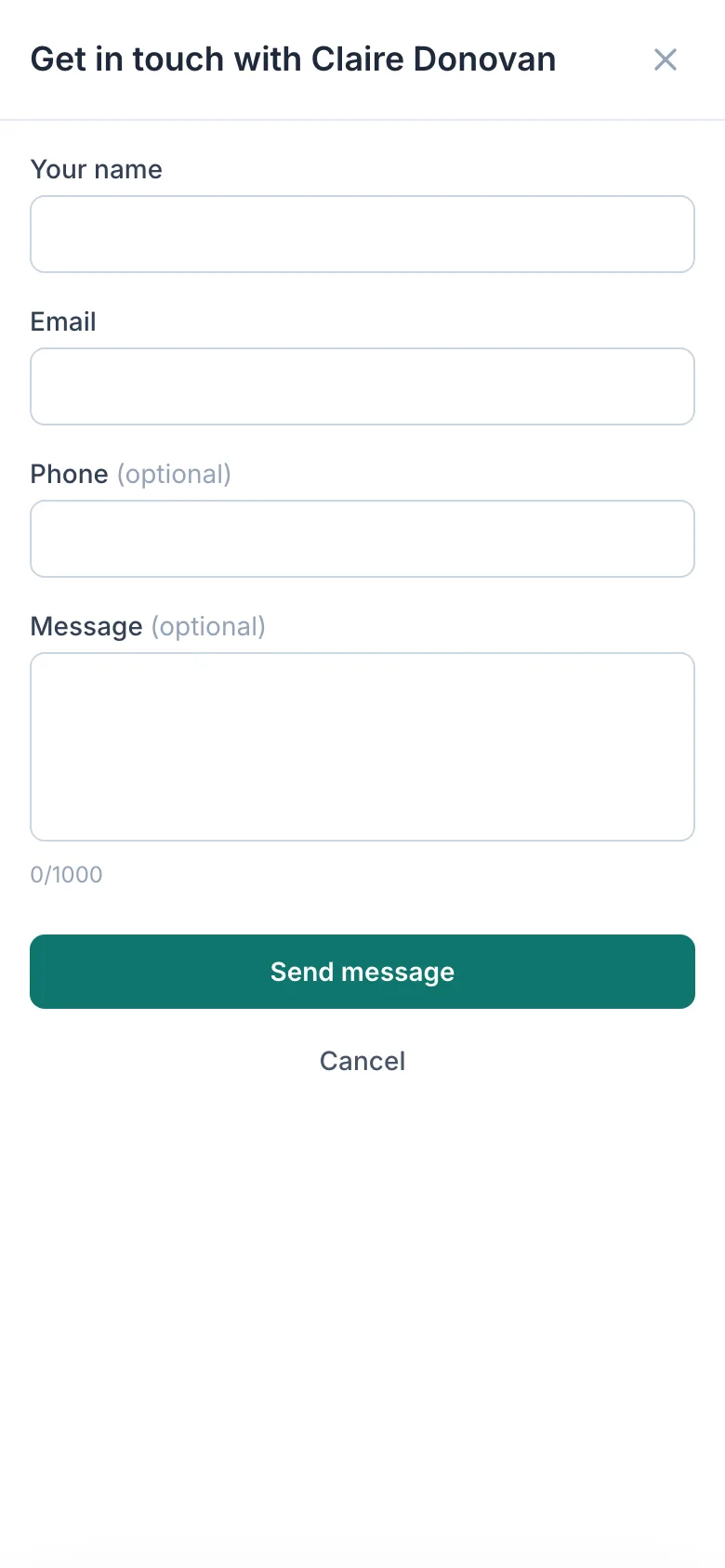
The contact form
They leave their name and email, and a message if they like. It arrives as a new lead in My People.
-
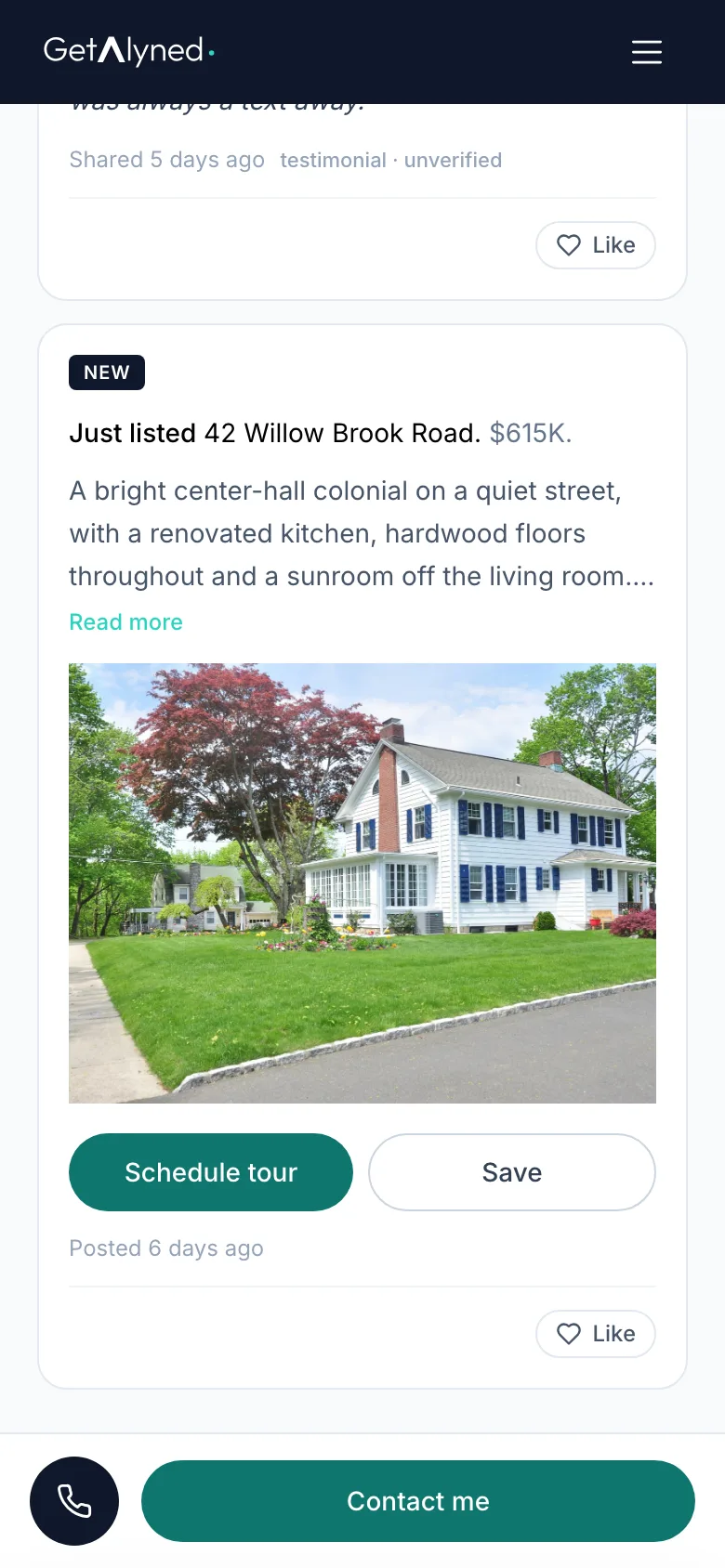
Schedule tour
Schedule tour on a listing asks you for a showing.
-
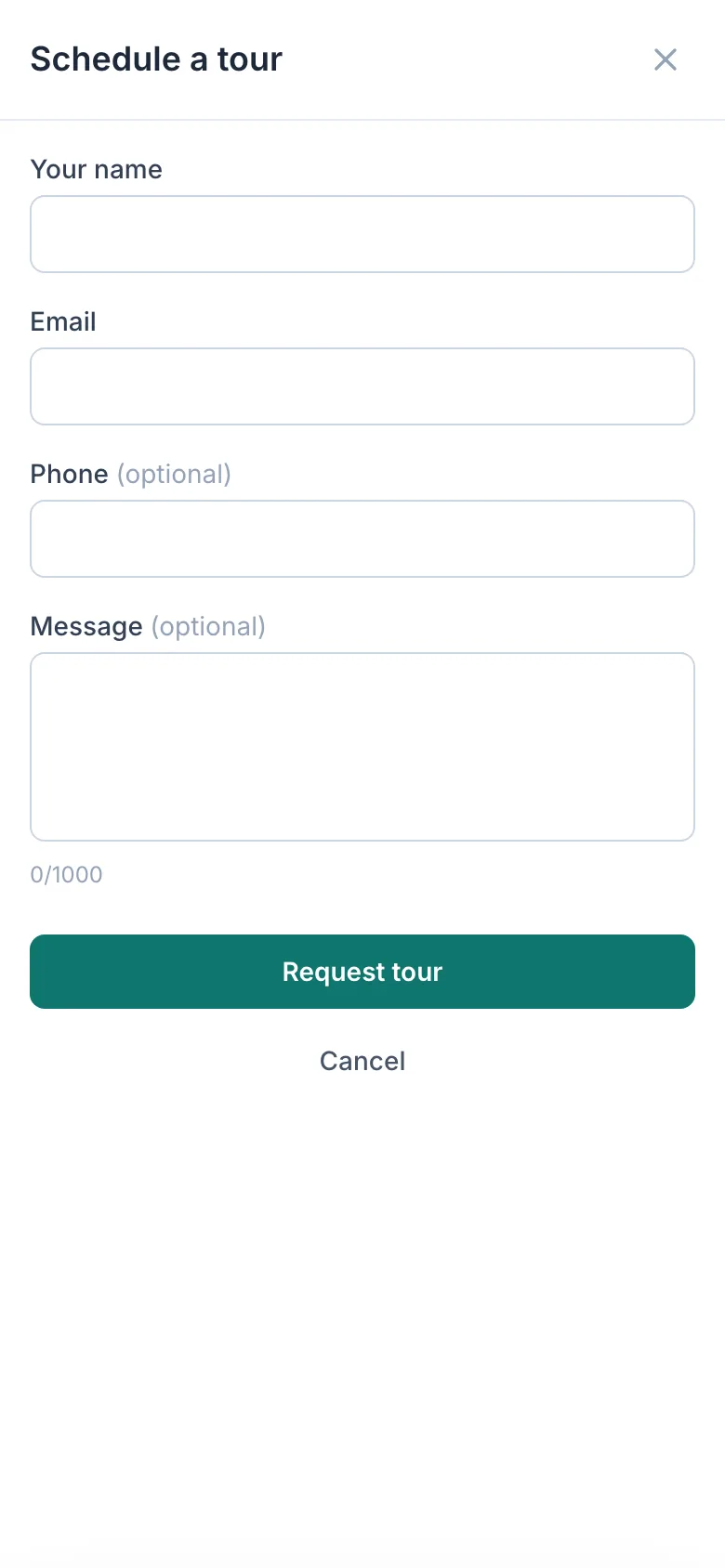
The tour request
They add their details and send the request to you.
-
Save a listing
Save keeps a listing for them, and tells you they like it.
-
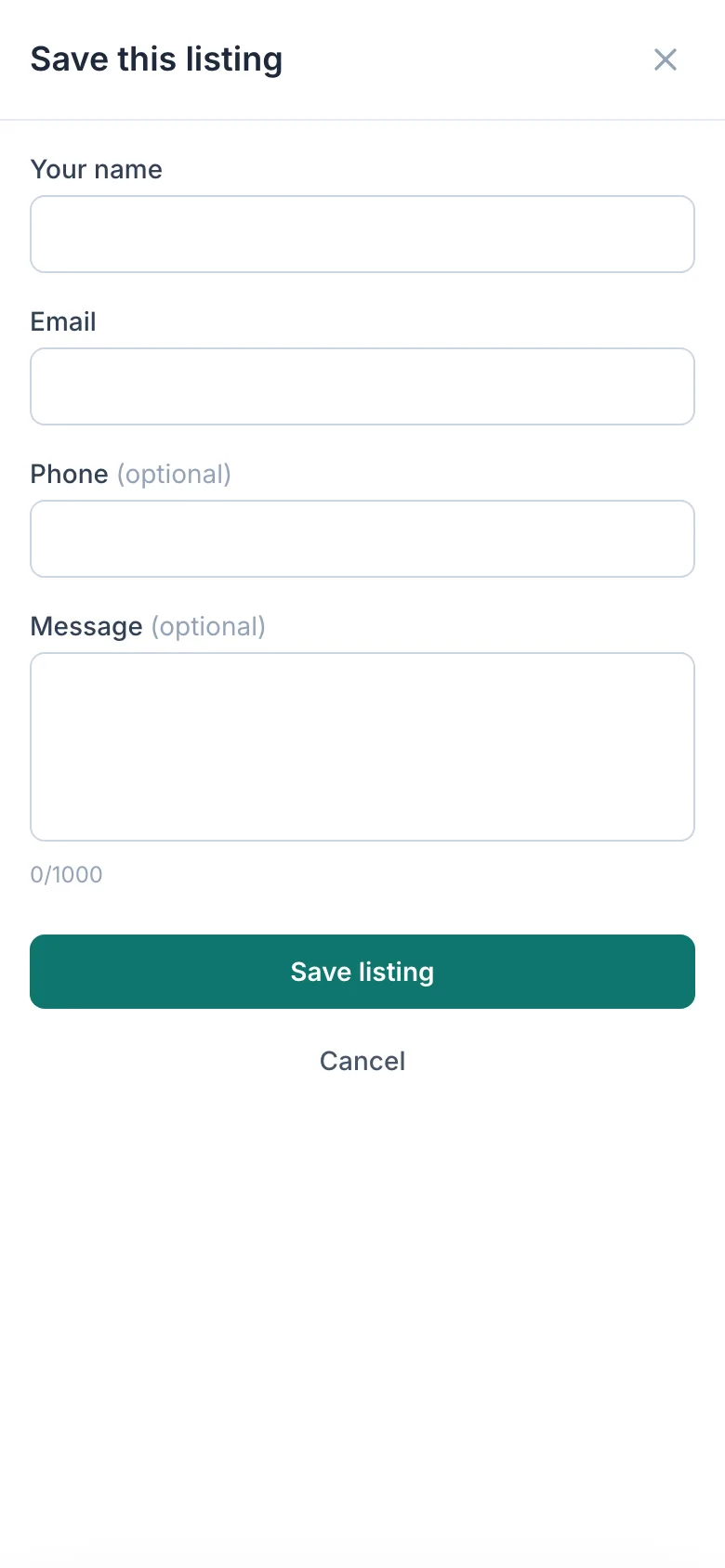
Save this listing
They add their details to save it.
-
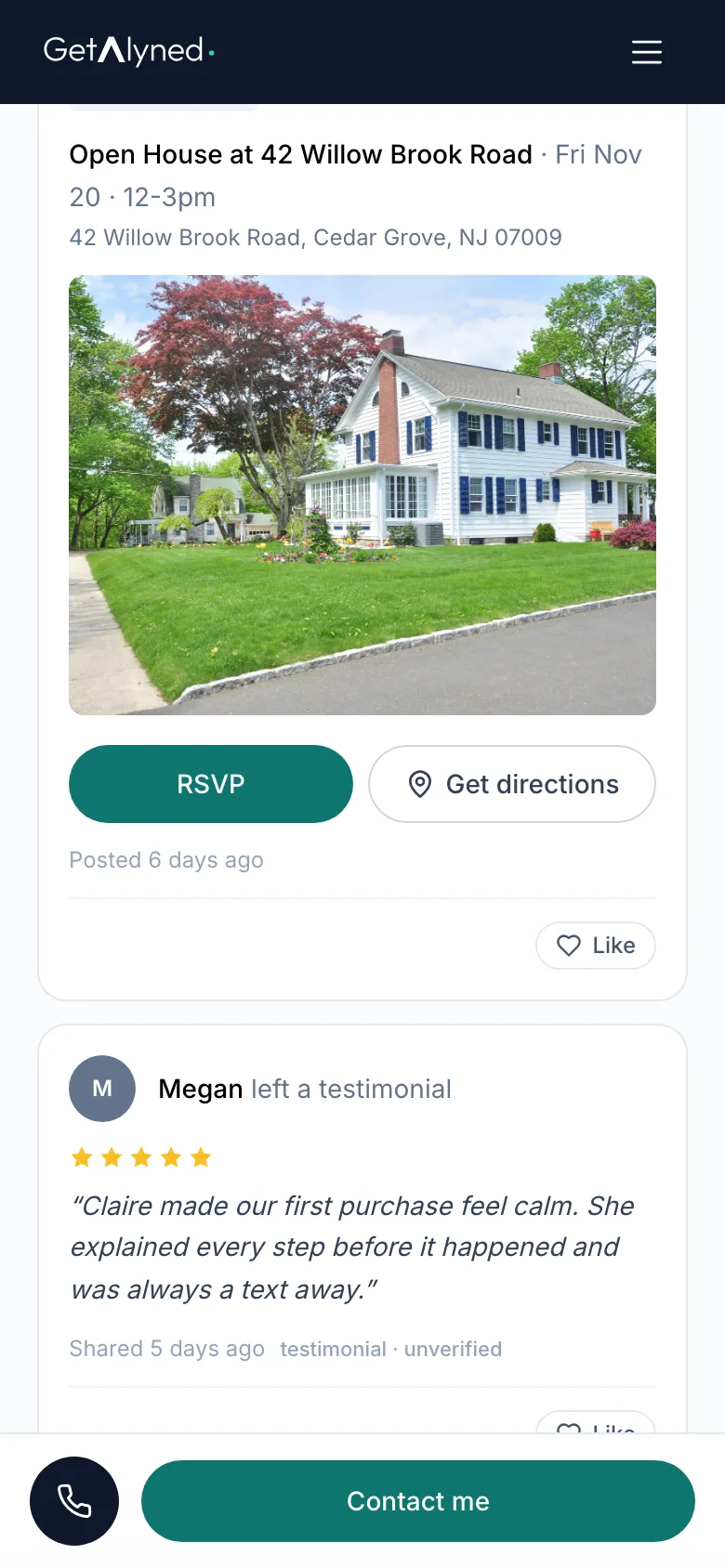
RSVP to your event
RSVP signs them up for your event.
-
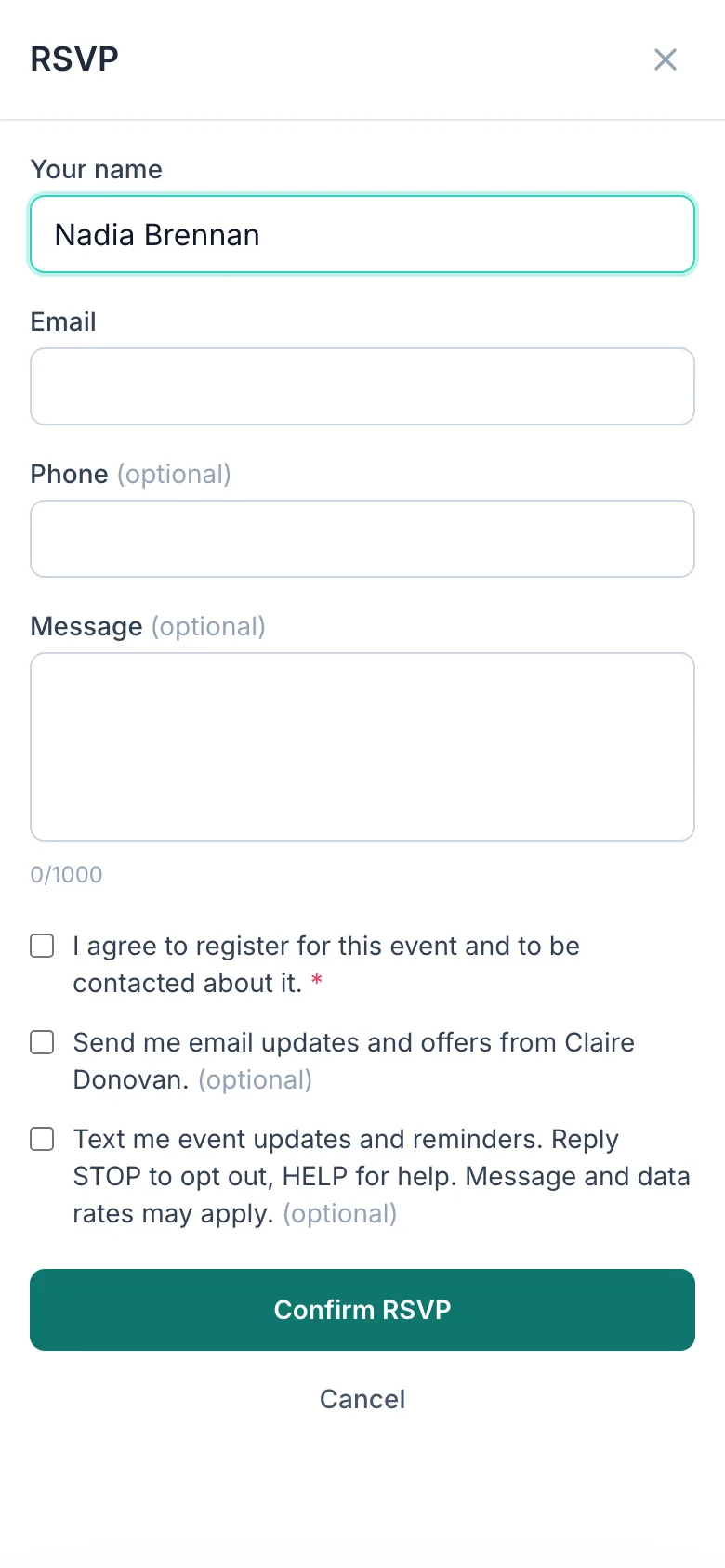
They enter their name
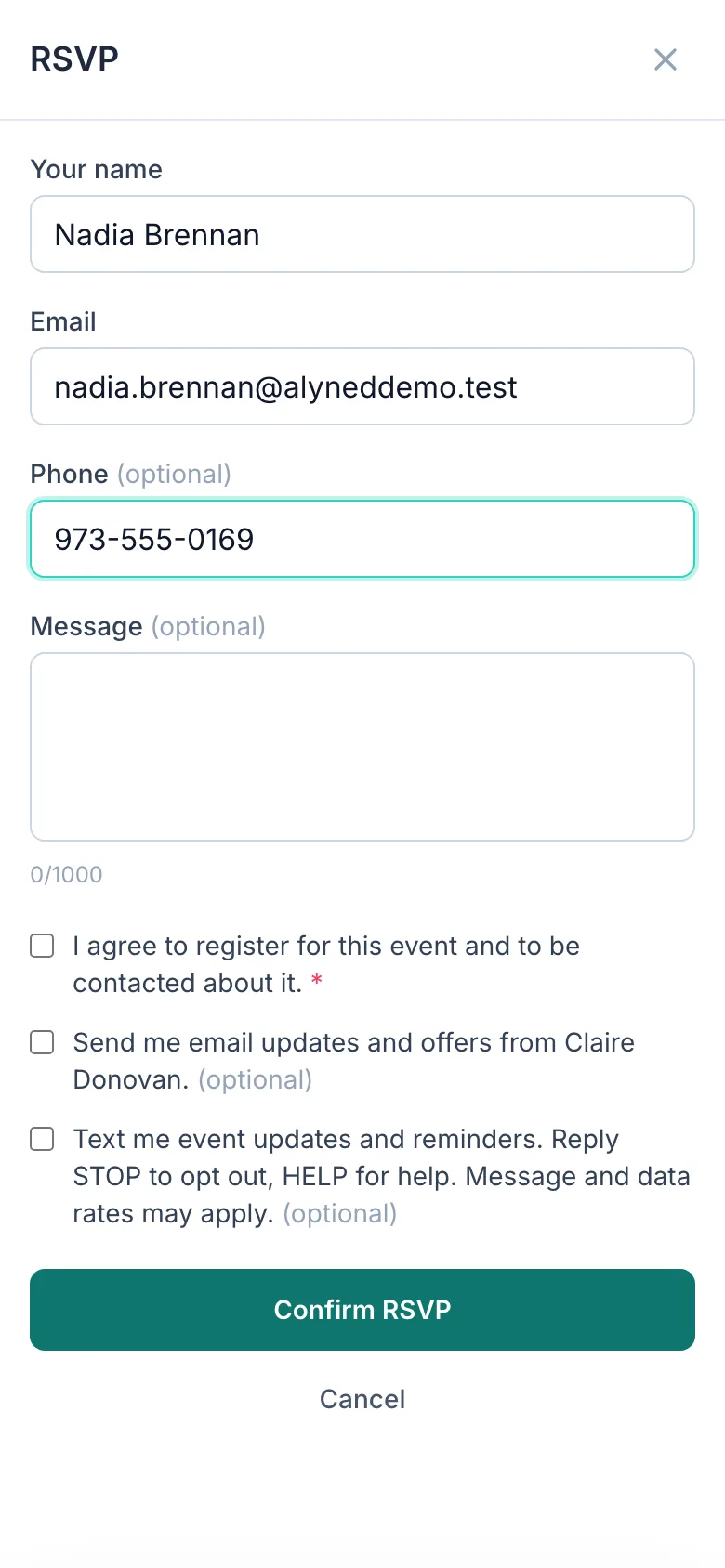
They type their name and email. Phone is optional.
-
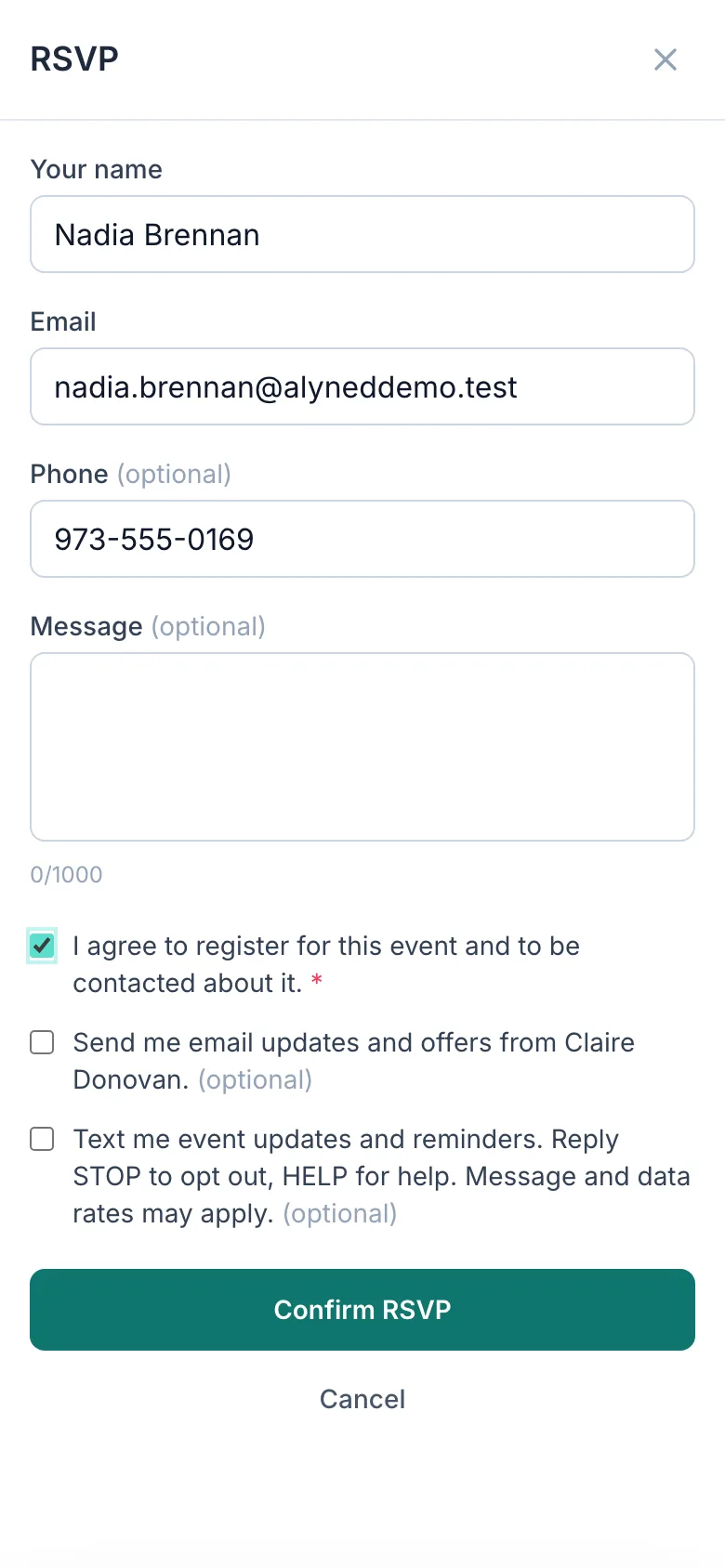
They agree to be contacted
They tick the box to agree to be contacted about the event.
-
Confirm RSVP
They click Confirm RSVP.
-
The RSVP reaches you
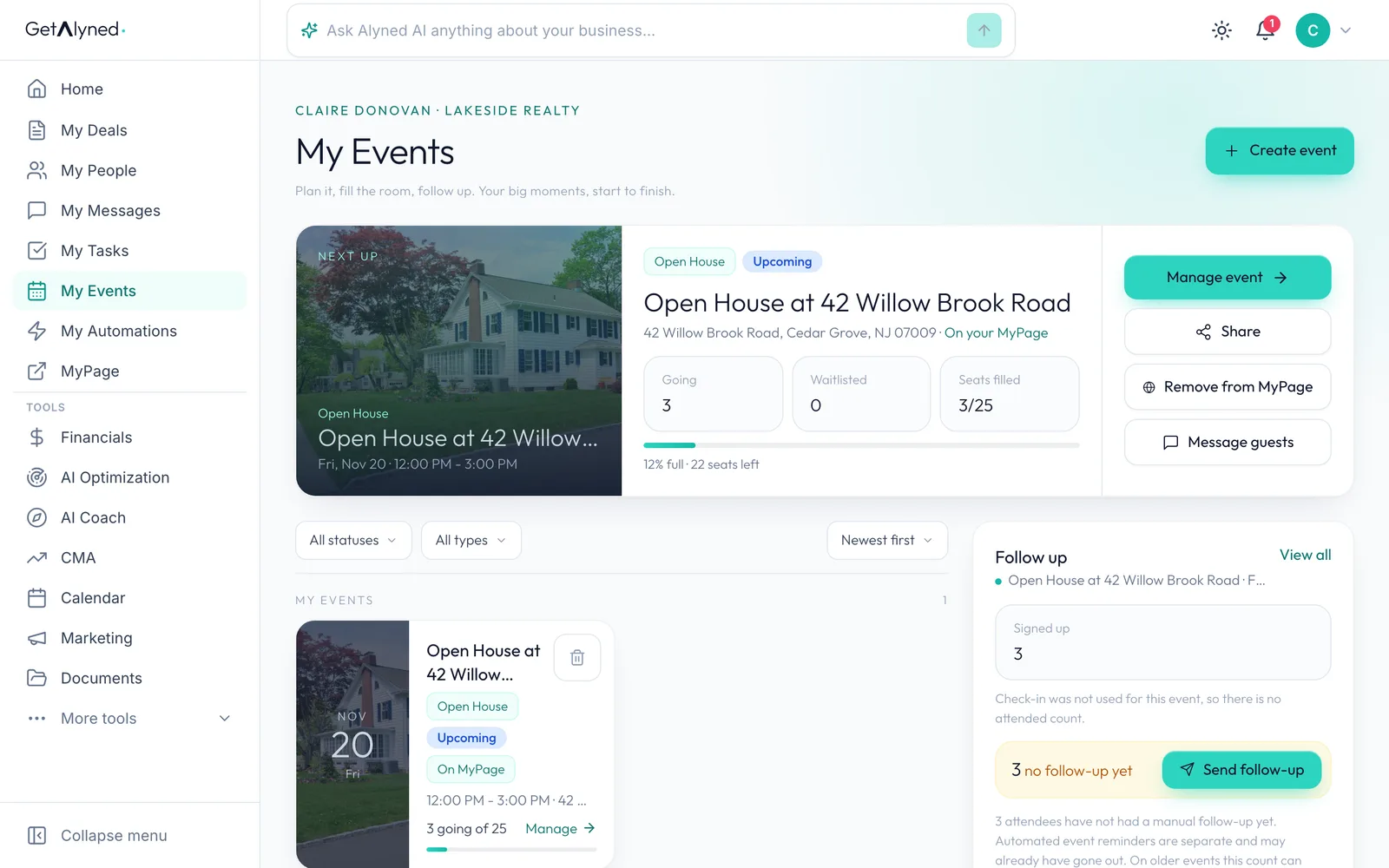
The RSVP reaches you right away. On My Events, your event now has one more guest.
Related guides
- Set up your MyPage · Fill in the parts of your public page that make it yours: your handle, photo, bio and the areas you cover. Then see it the way visitors do.
- Start a listing deal and publish it to MyPage · Set up a new listing, add the facts, a description and a cover photo, and publish it to your MyPage so buyers can see it right away.
- Create an event, make its flyer, and get it on your MyPage · Plan an open house, turn your photo into a branded flyer with a QR code, and publish it to your MyPage so people can RSVP, all in one flow.
- Collect reviews and testimonials · Ask past clients for a review, share a testimonial link with anyone else you've helped, and see both show up on your MyPage on their own.