Create an event, make its flyer, and get it on your MyPage
For agents · 4 min
Plan an open house, turn your photo into a branded flyer with a QR code, and publish it to your MyPage so people can RSVP, all in one flow.
Watch
Or read it step by step
-
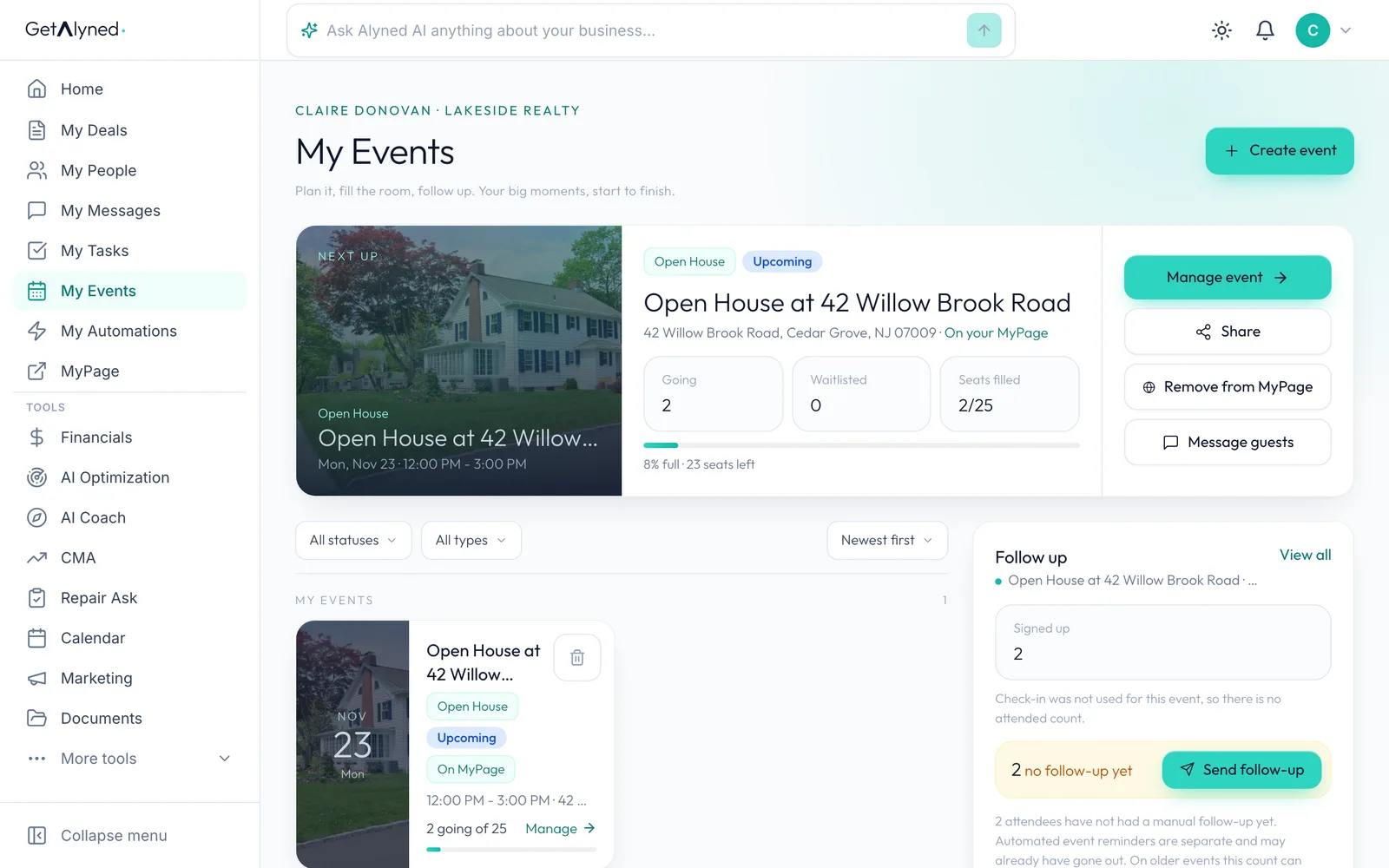
Click Create event
Open My Events and click Create event.
-
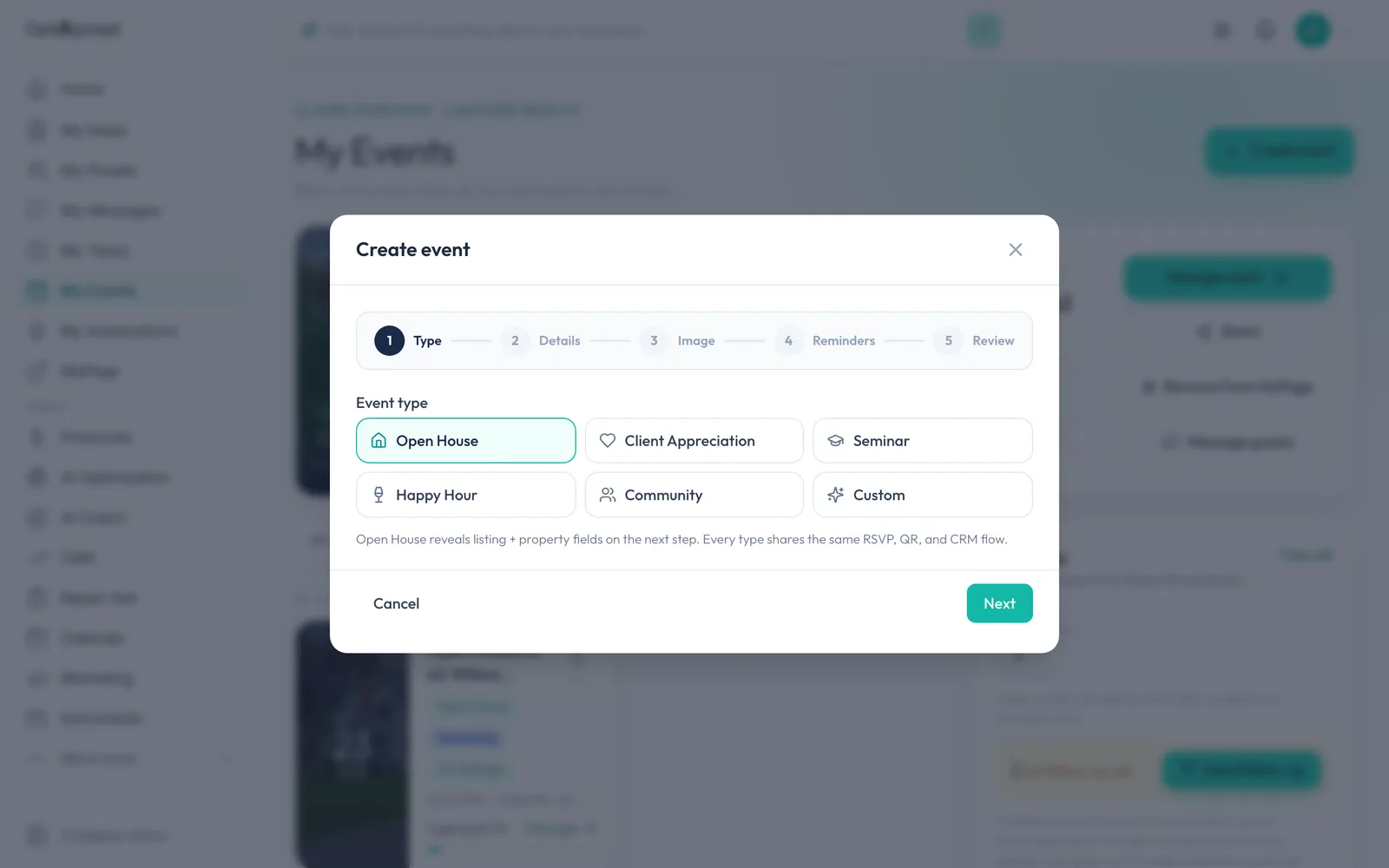
Pick the kind of event
Choose Open House. An open house links to one of your listings. Other types cover client appreciation events, seminars and more.
-
Click Next
Click Next.
-
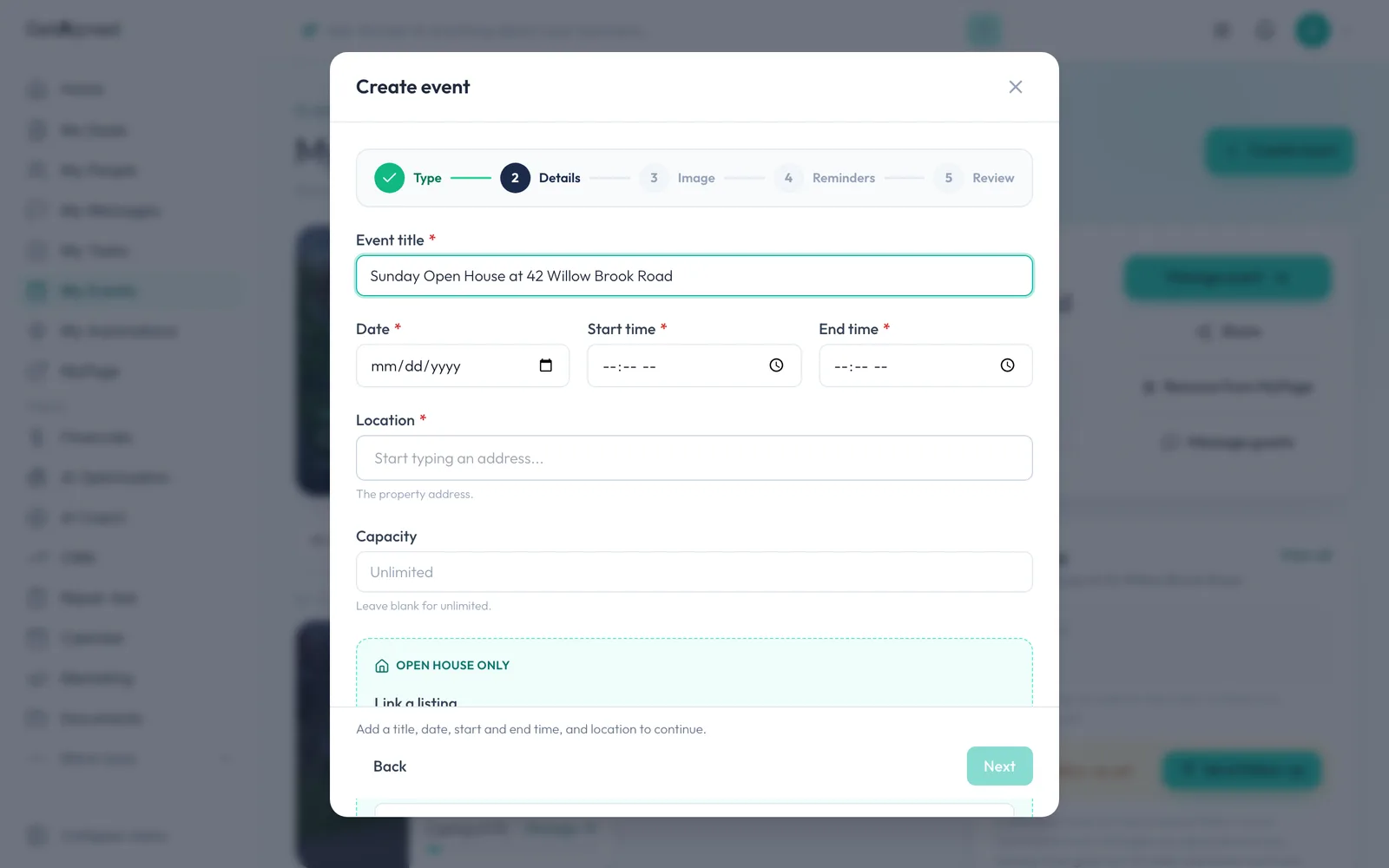
Name the event
Give the event a title. Something like the day and the address works well.
-
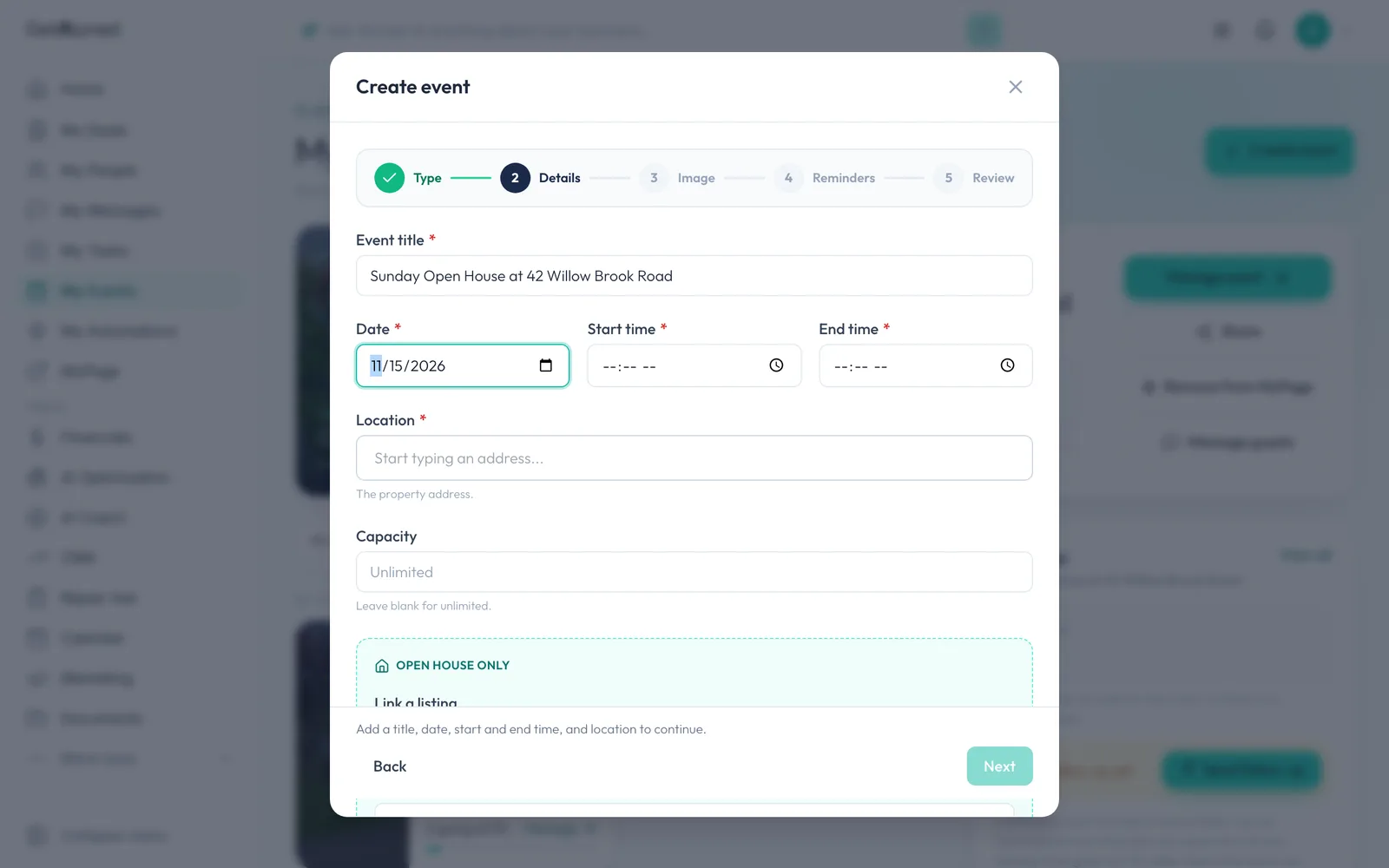
Set the date and time
Set the date, then the start and end times.
-
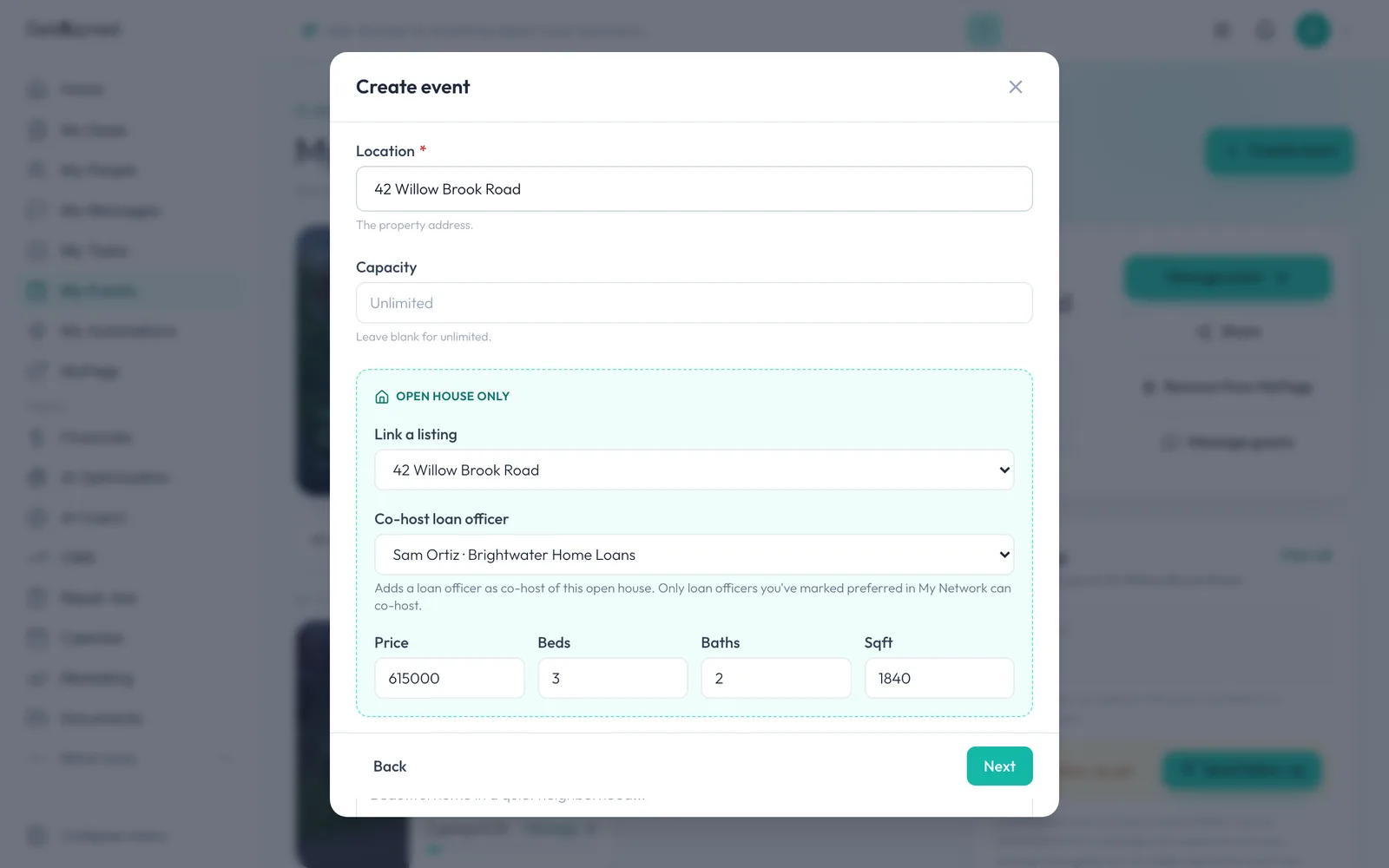
Link your listing
Under Link a listing, pick the home. Alyned fills in the location, price, beds, baths and size for you.
-
Check your co-host
If you have a preferred loan officer, they're set as co-host and their details go on the flyer. Choose No co-host to host on your own.
-
Click Next
Click Next to make the flyer.
-
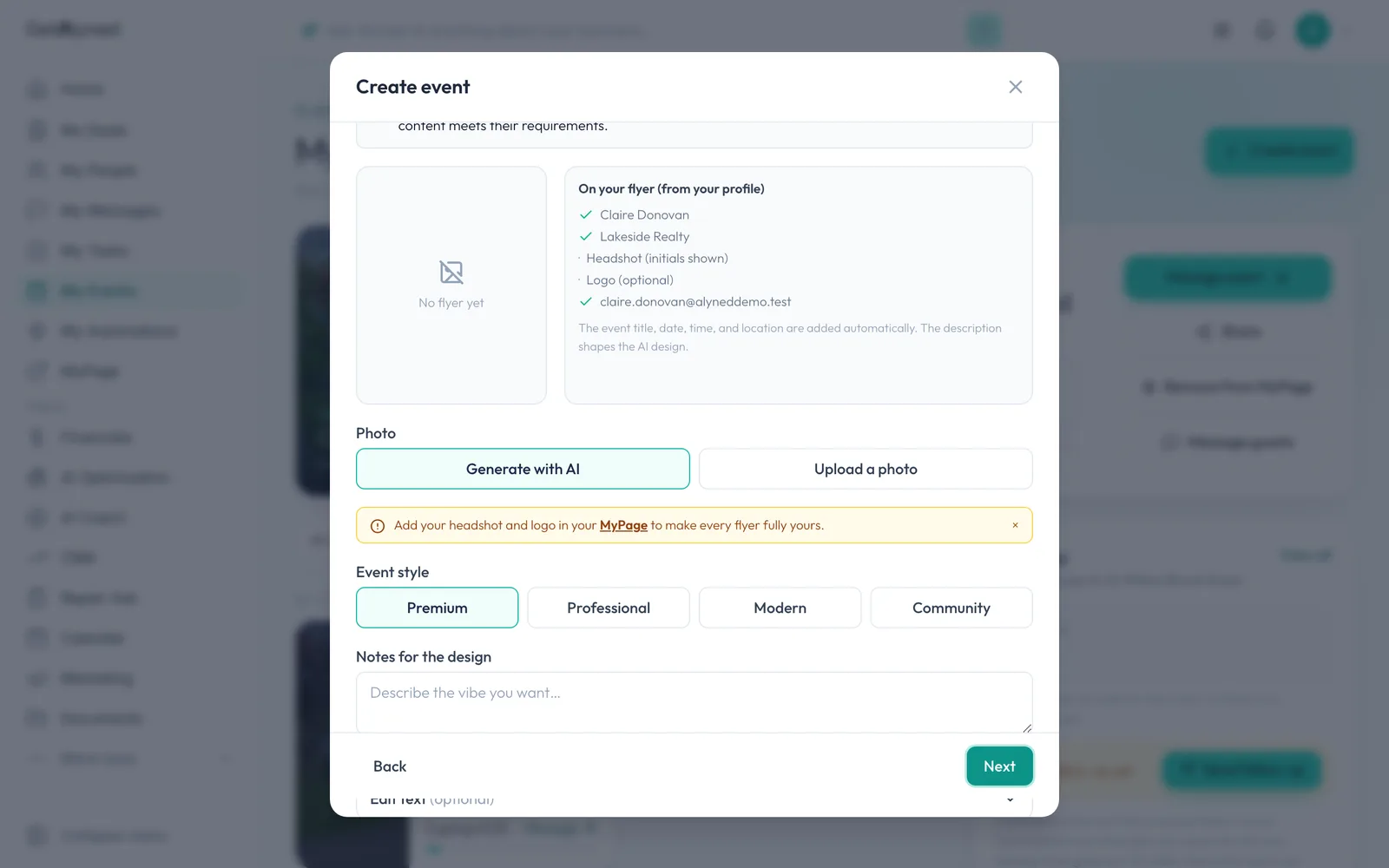
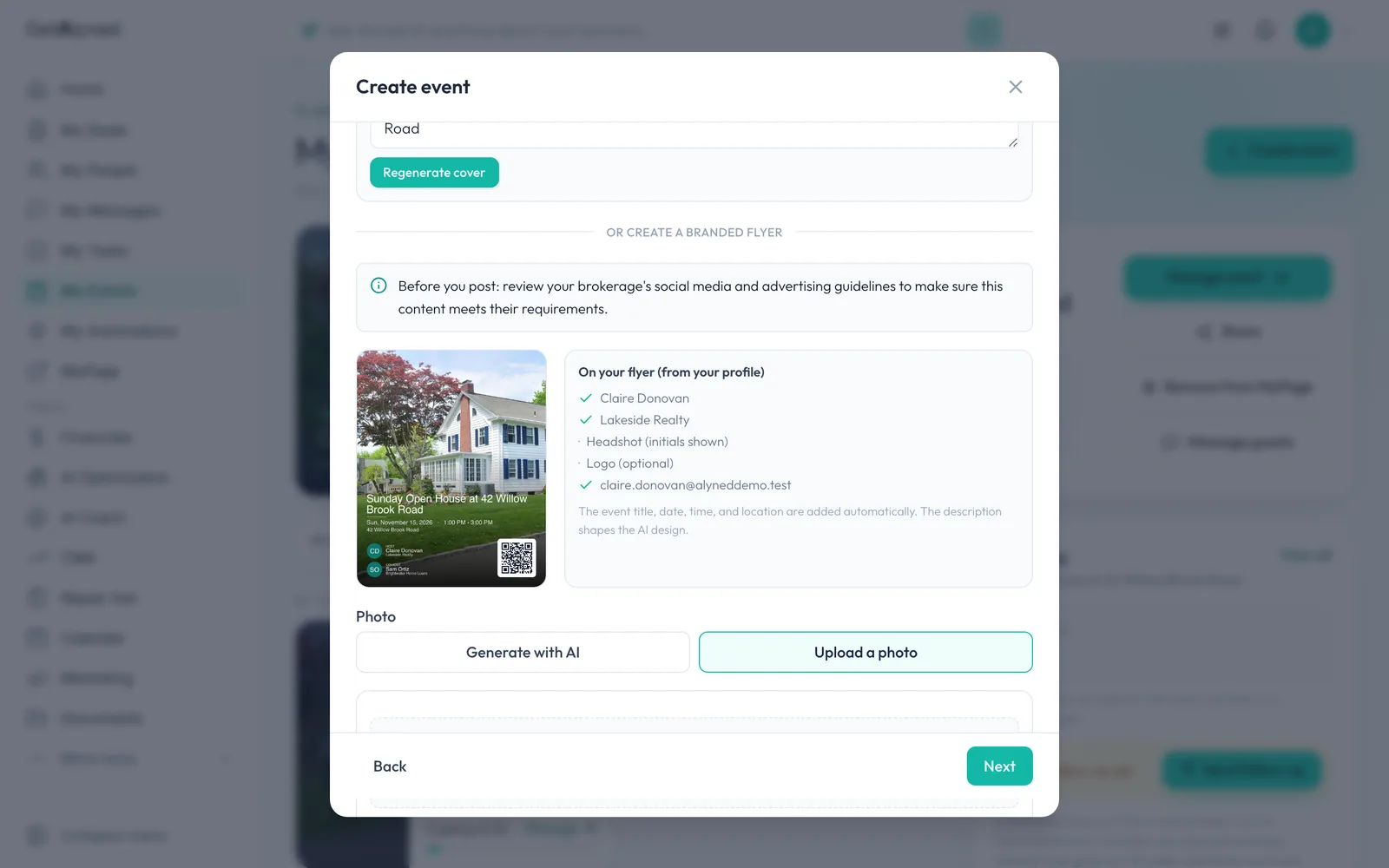
Choose Upload a photo
On the Image step, click Upload a photo to use your own photo of the home, or Generate with AI to have a background designed for you.
-
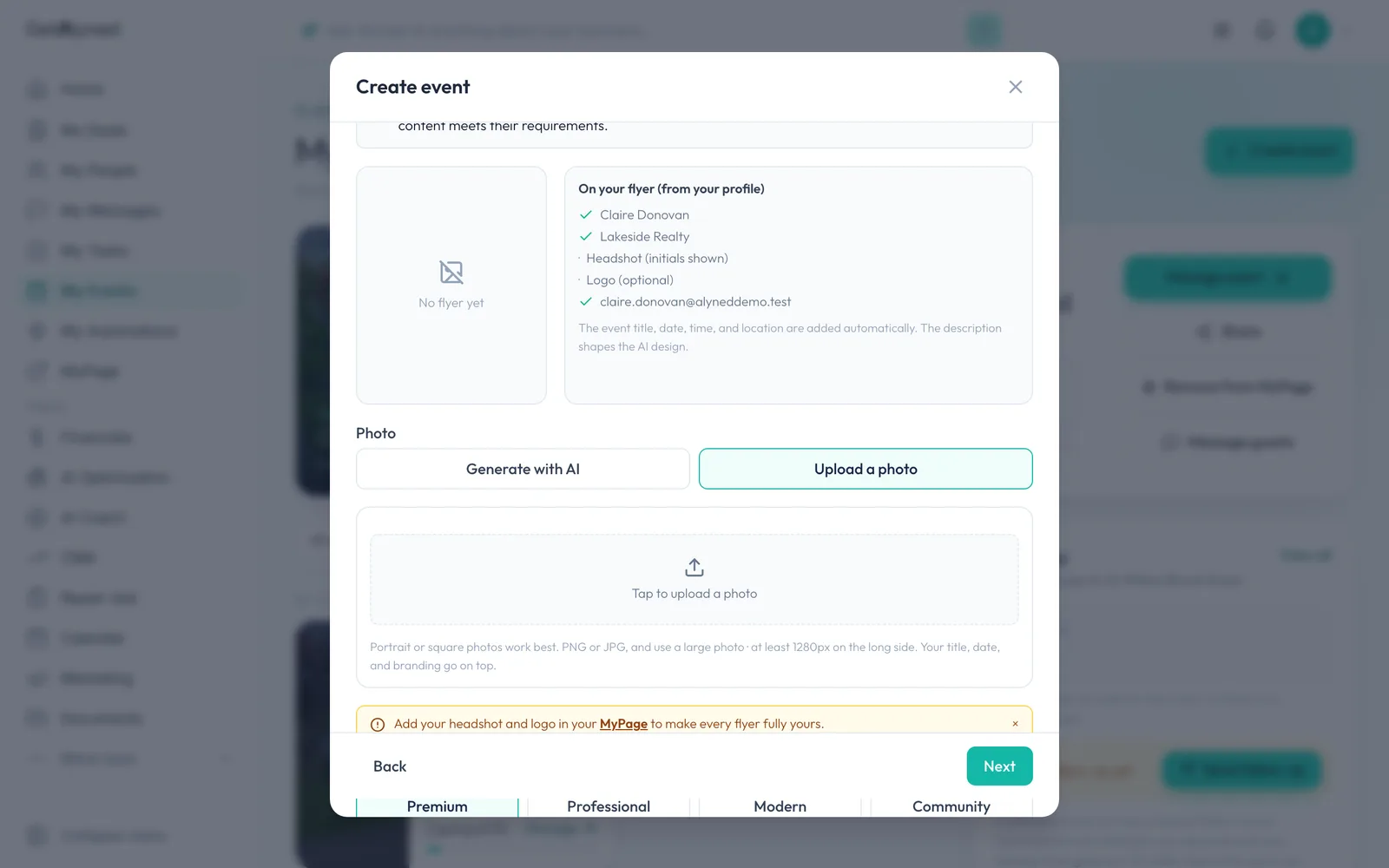
Pick your photo
Click the upload box and choose a photo of the home.
-
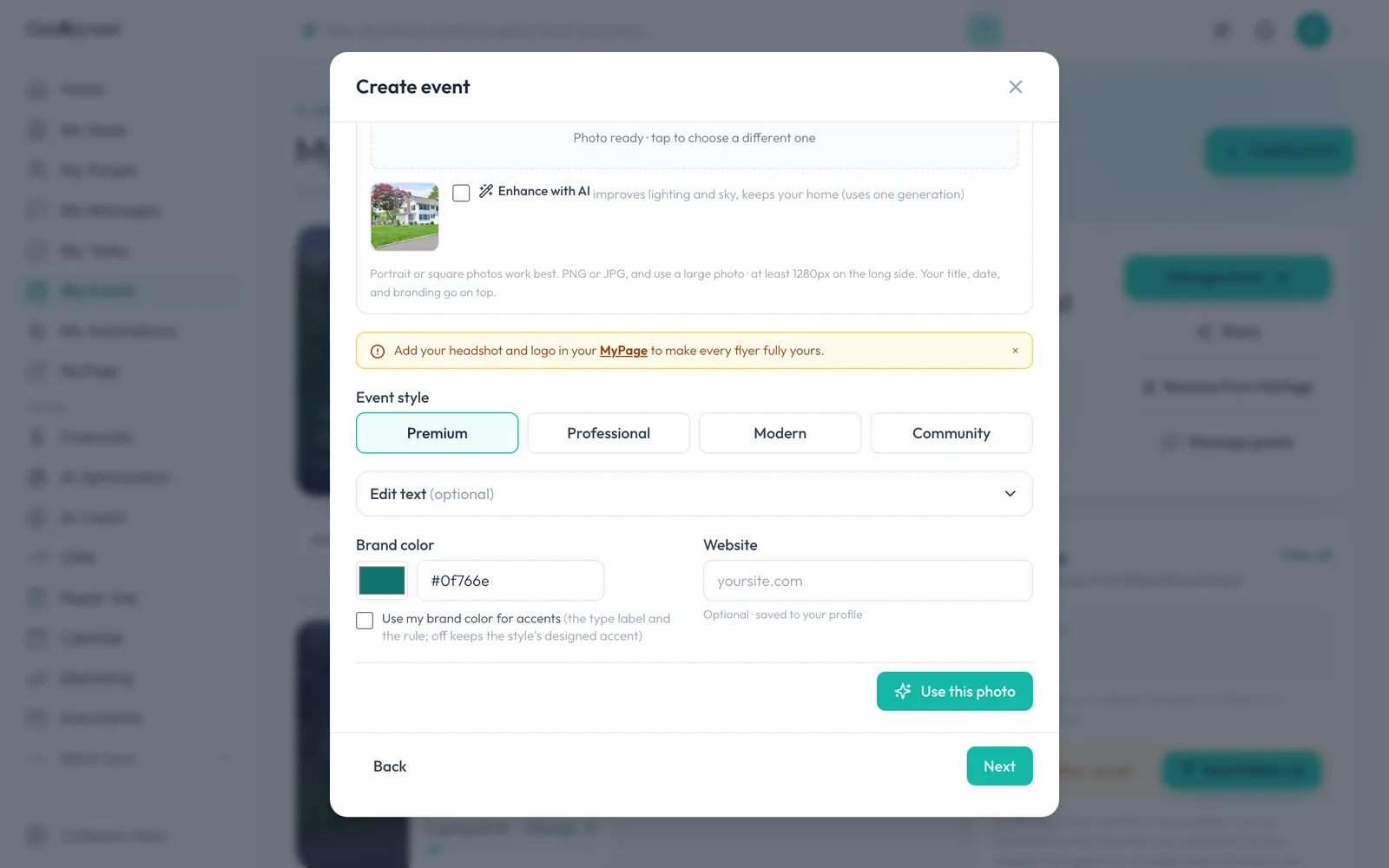
Use this photo
Click Use this photo. Enhance with AI is there if you want it, but it's optional.
-
Your flyer is ready
Your photo becomes a branded flyer with the event details, your name and contact info, and a QR code. It's saved with the event. You can pick a different style or edit the text below.
-
Click Next
Click Next.
-
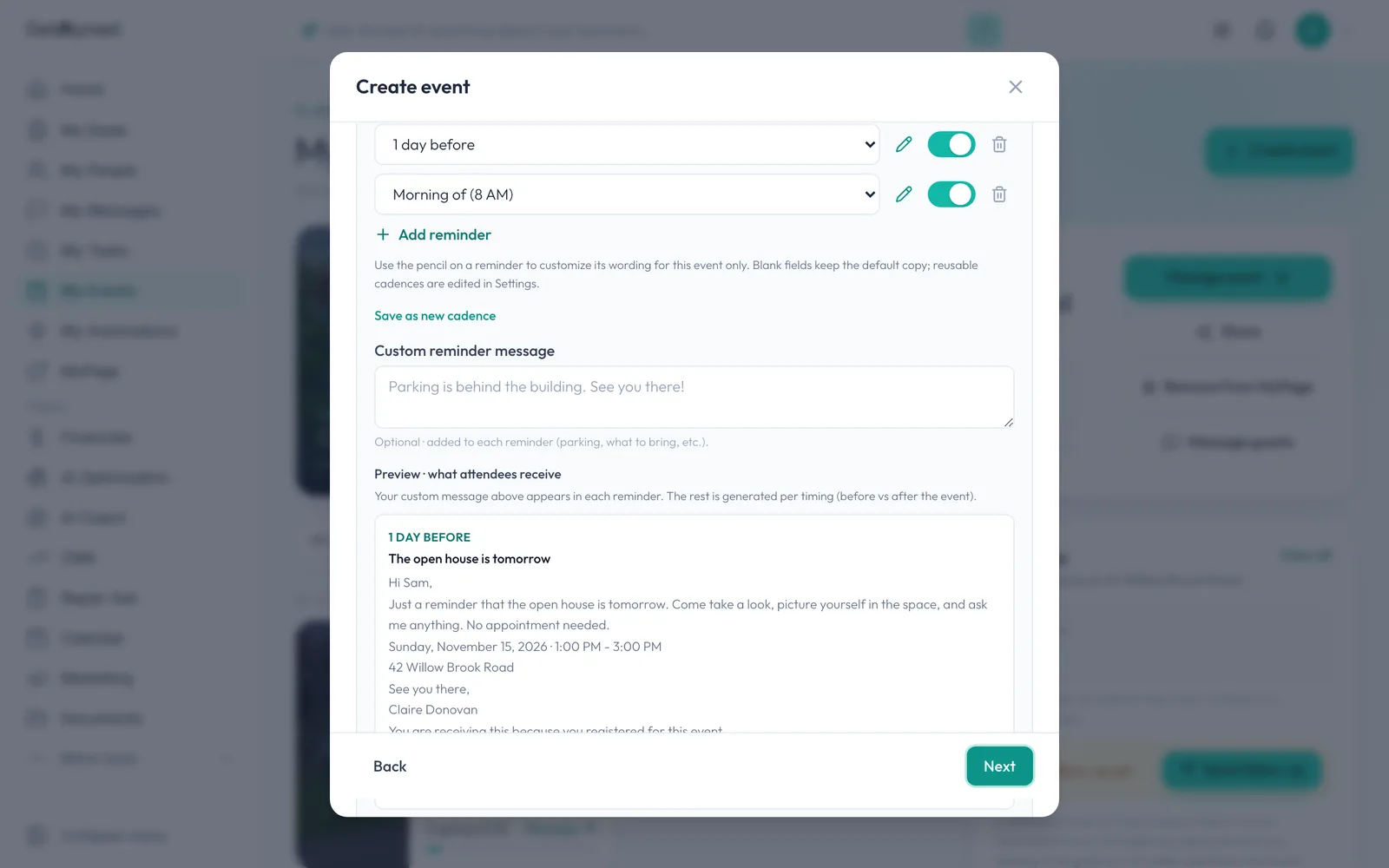
Reminders are set for you
People who RSVP get a reminder the day before and the morning of. Change them if you like, then click Next.
-
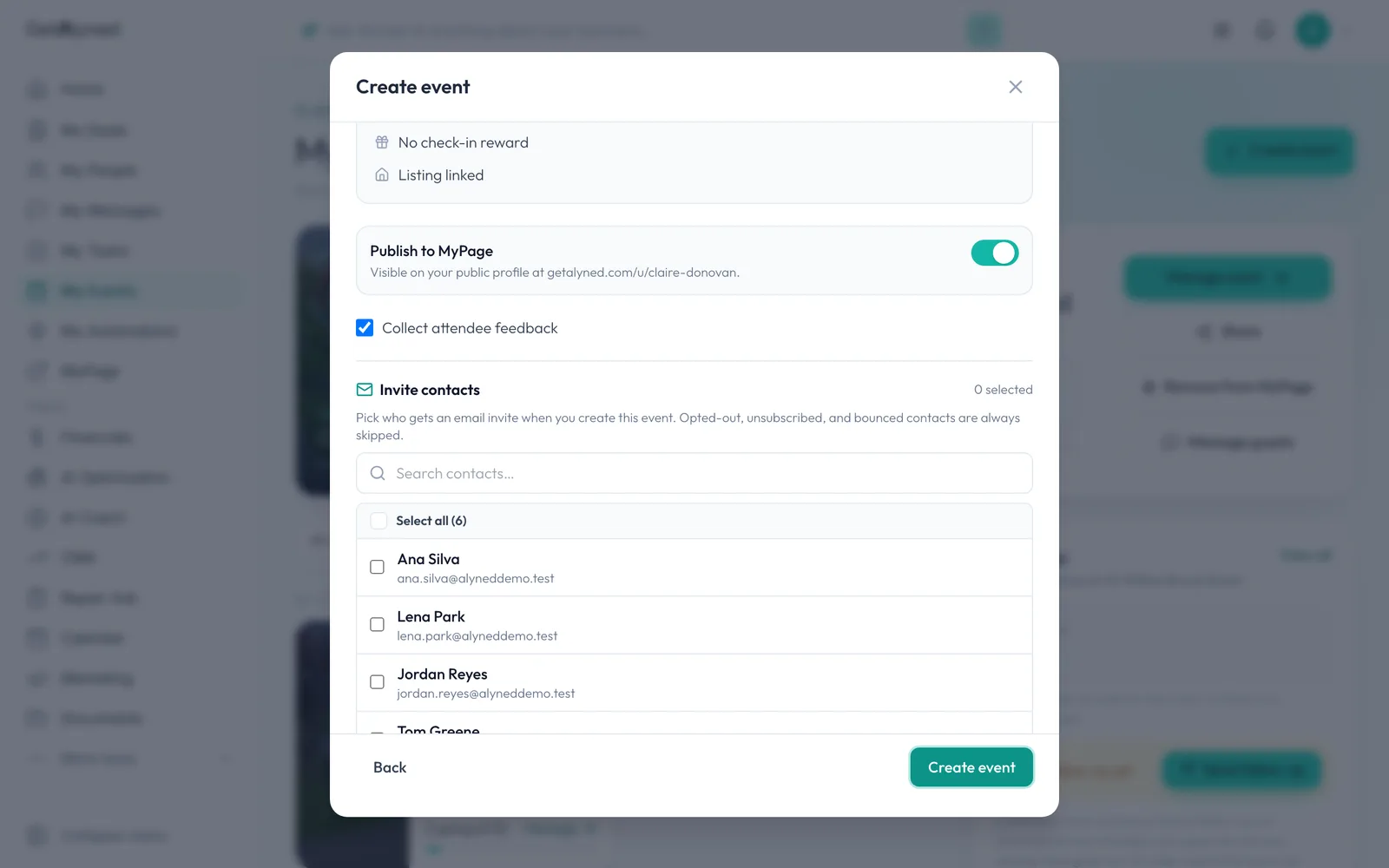
Publish to MyPage is on
Publish to MyPage is on, so the event appears on your public page as soon as you create it.
-
Create the event
Tick contacts above to email them an invitation, or click Create event and invite people later.
-
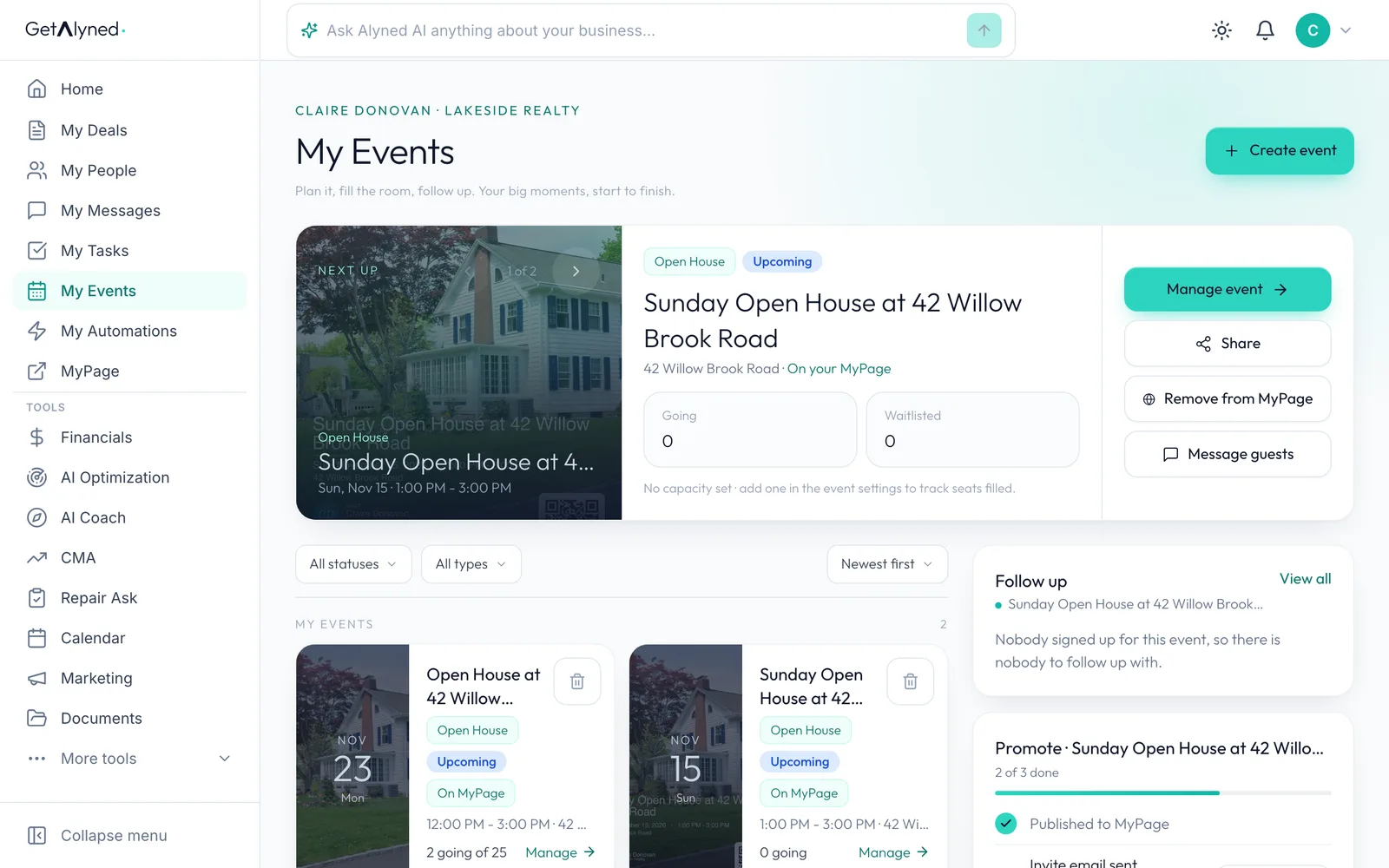
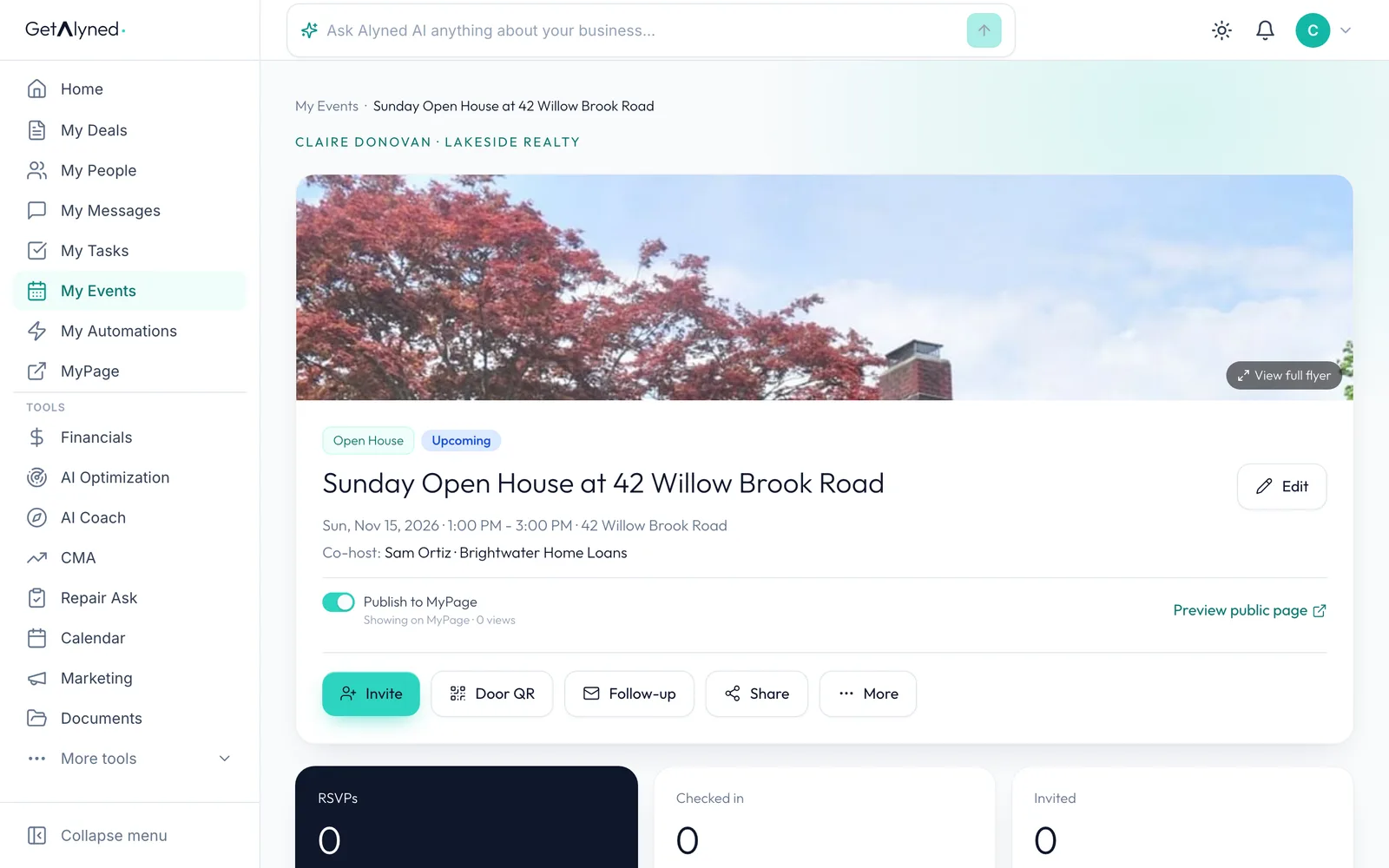
Open your event
Your event is at the top of My Events, marked On MyPage. Click Manage event.
-
View the full flyer
The event page keeps your flyer. Click it to open it full size.
-
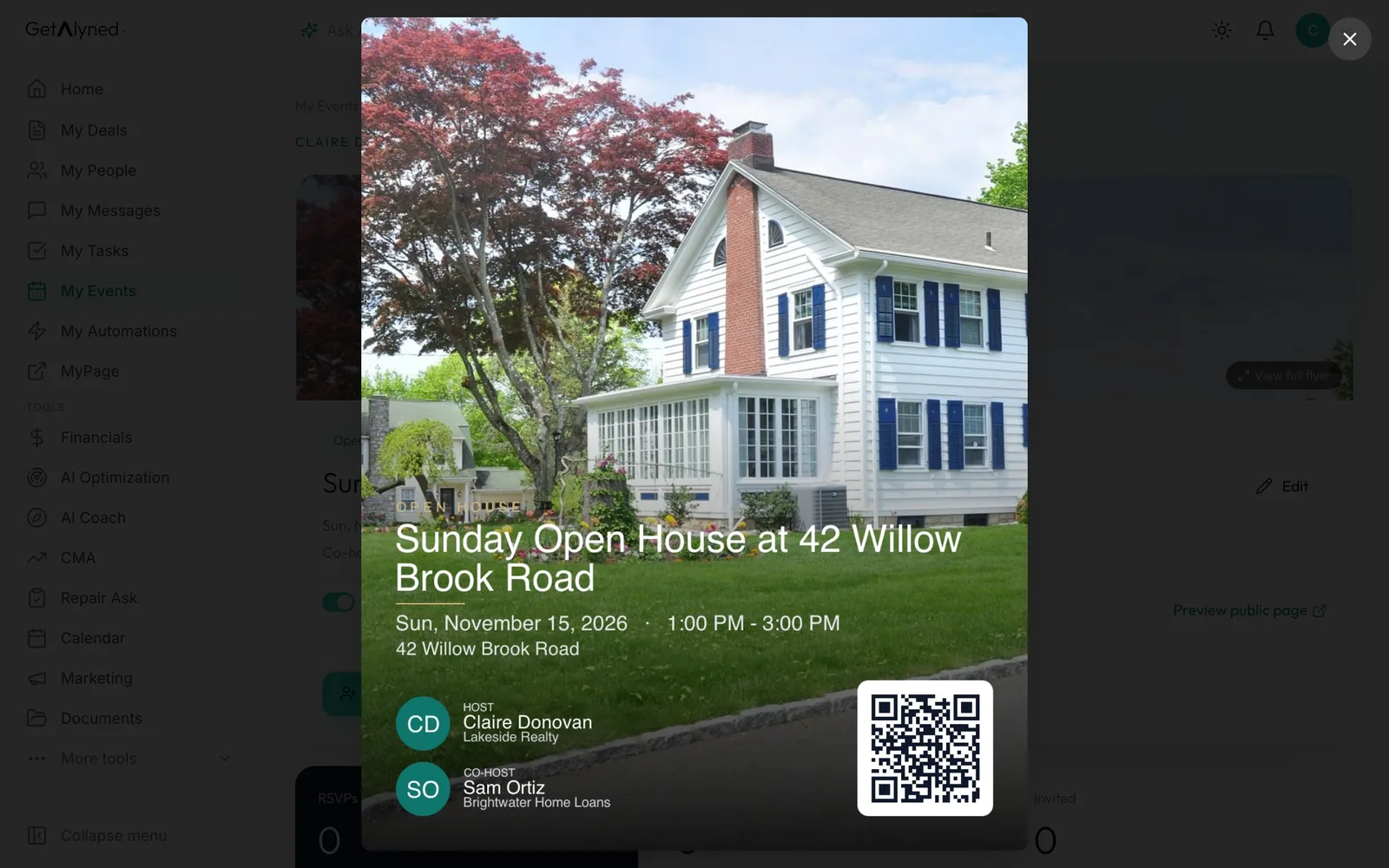
Print it or share it
The QR code on the flyer opens the event page, where visitors RSVP. Print it for the door or share it online.
-
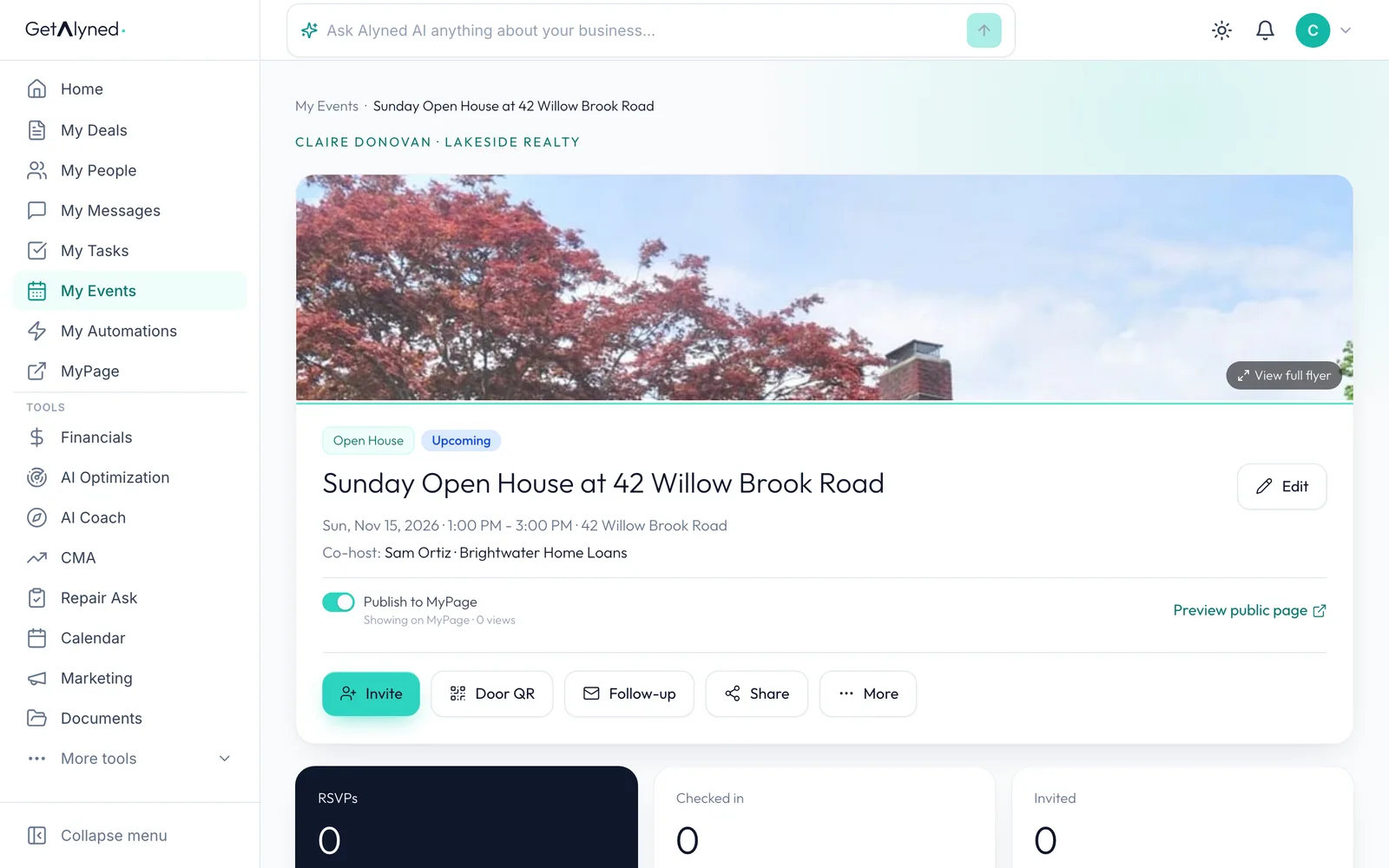
Preview your public page
Back on the event page, click Preview public page to see it the way visitors do.
-
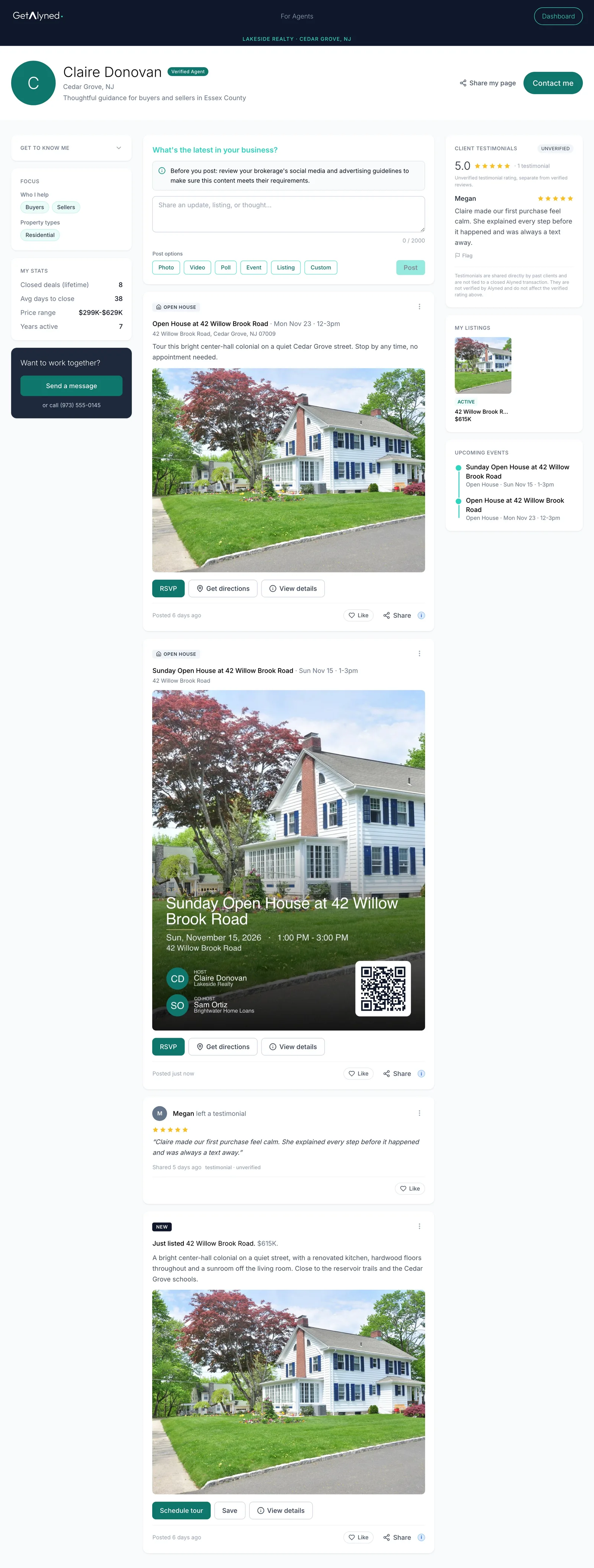
It's on your MyPage
Your event is posted to your MyPage feed with its flyer, so visitors can RSVP or get directions.
-
Listed under Upcoming events
It's also listed under Upcoming events until the day passes.
-
Your listings show up too
Published listings appear under My listings on their own. Each listing's deal page has an On MyPage switch if you want to hide one.
Related guides
- Invite contacts and track RSVPs · Email your contacts an invitation to your event, then watch the RSVPs, guest list and waitlist fill in.
- Make a property flyer and social images · Turn an address and a photo into a print-ready flyer, plus matching images sized for Instagram, Facebook and LinkedIn.
- Sign visitors in at the door · Turn a QR code or a tablet into your open house sign-in sheet, so every visitor becomes a contact you can follow up with.
- Co-host an event with your loan officer · Add your loan officer as co-host on an event so you share one guest list and can both promote it.