Make a property flyer and social images
For agents · 3 min
Turn an address and a photo into a print-ready flyer, plus matching images sized for Instagram, Facebook and LinkedIn.
Watch
Or read it step by step
-
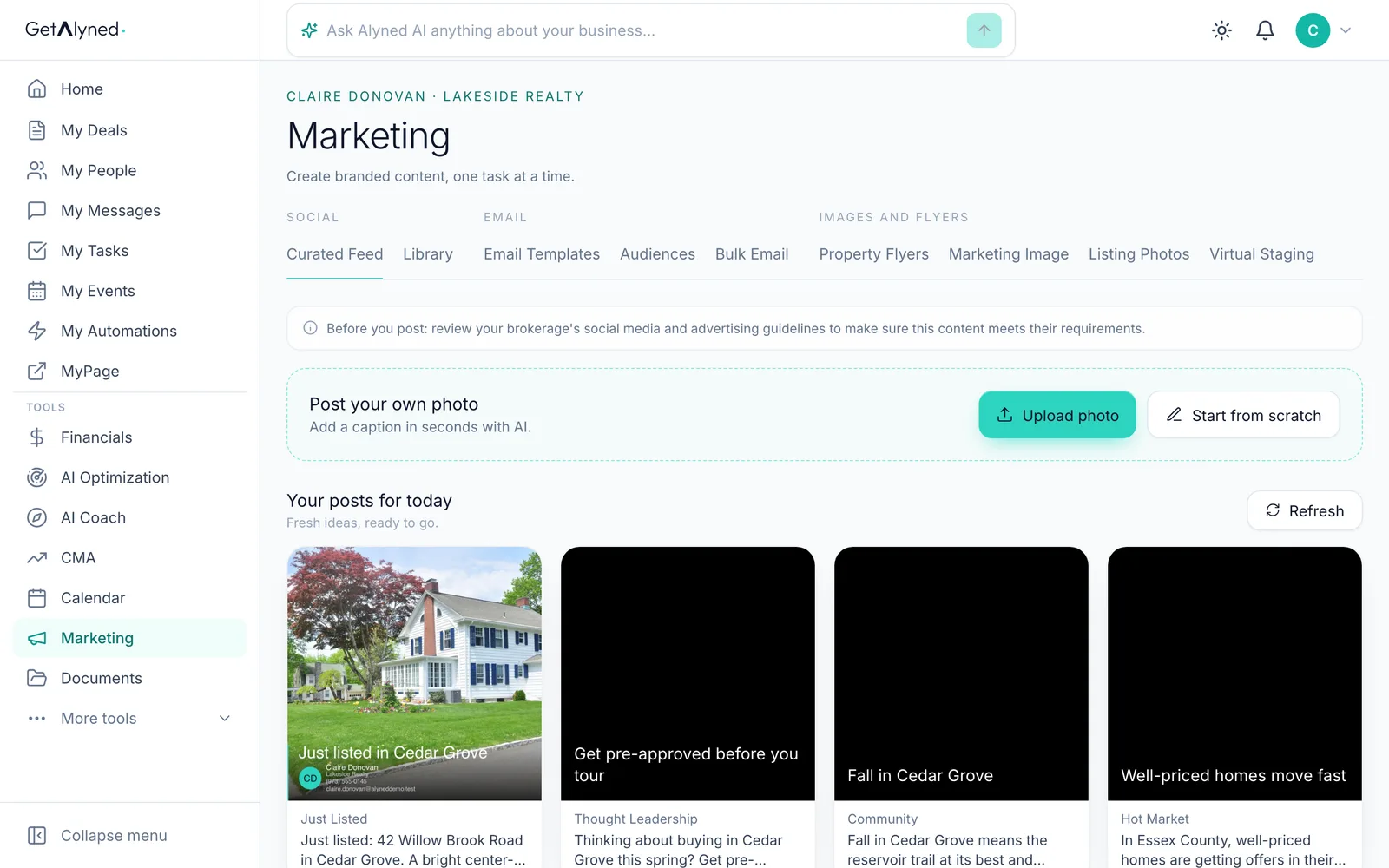
Open Property Flyers
In Marketing, click Property Flyers.
-
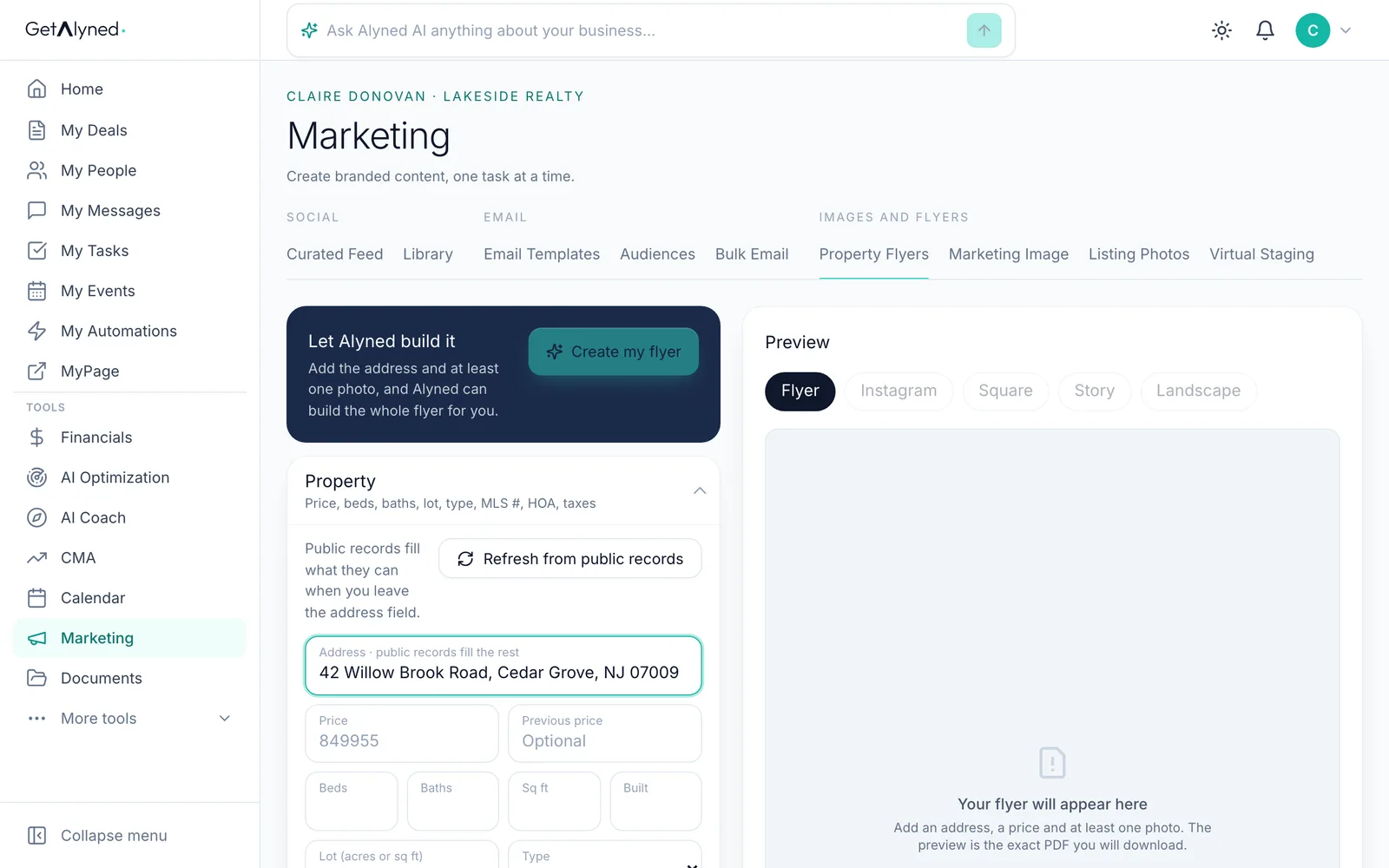
Enter the address
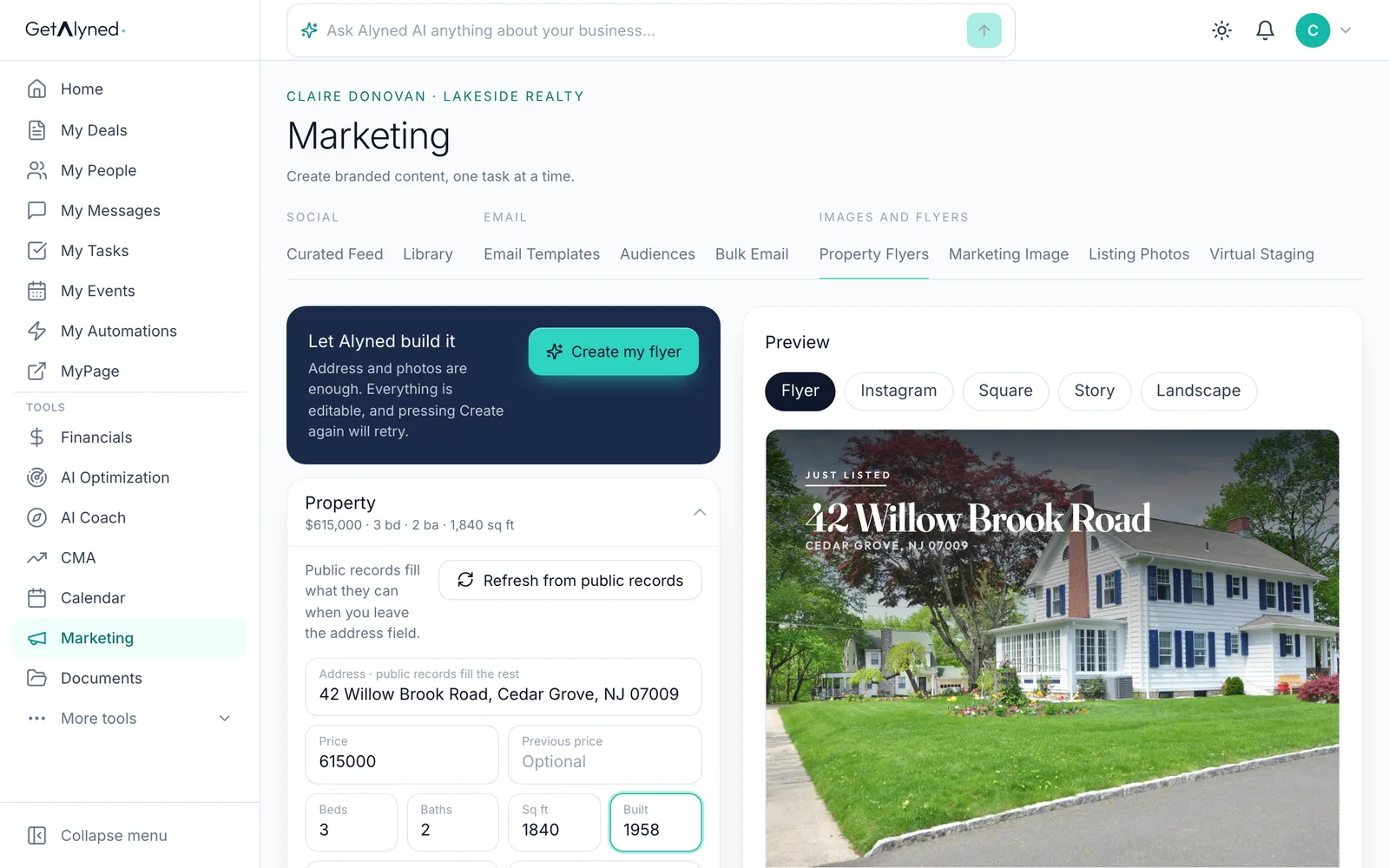
In the Property card, start with the address. When you leave the field, public records fill in what they can.
-
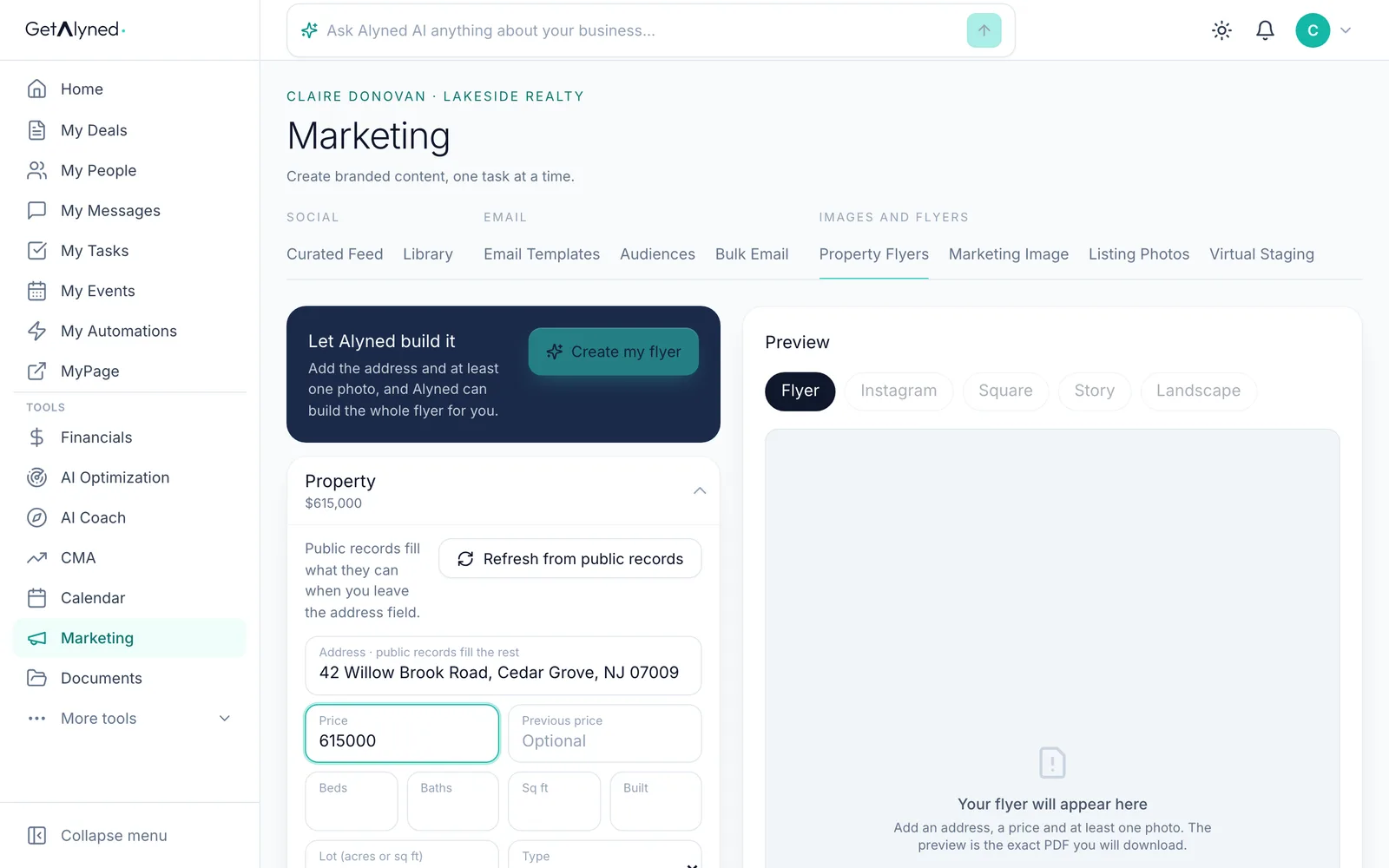
Add the price
Add the list price.
-
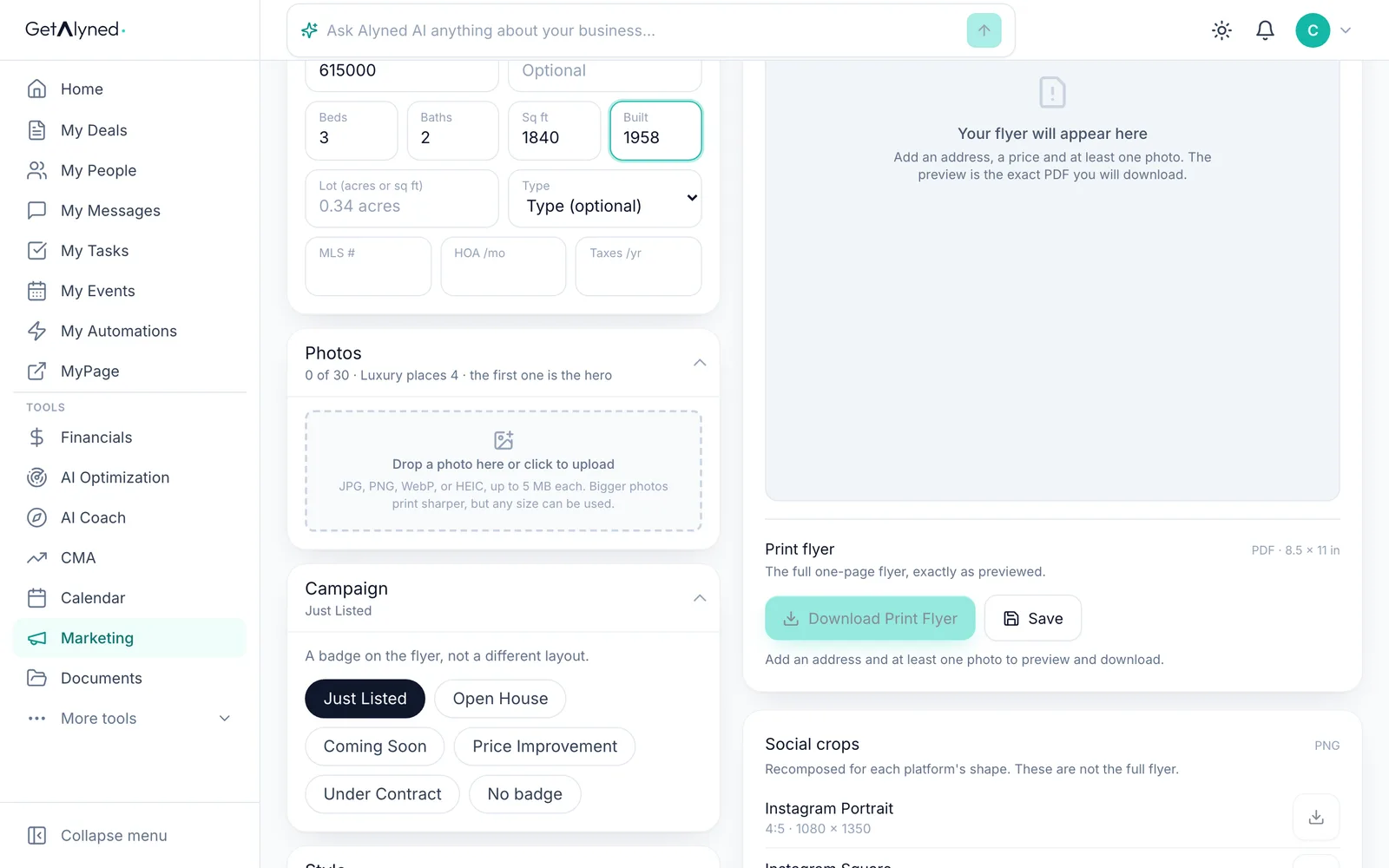
Add a photo
In the Photos card, add at least one photo. The first one is the hero, and more photos give the flyer more to work with.
-
Create my flyer
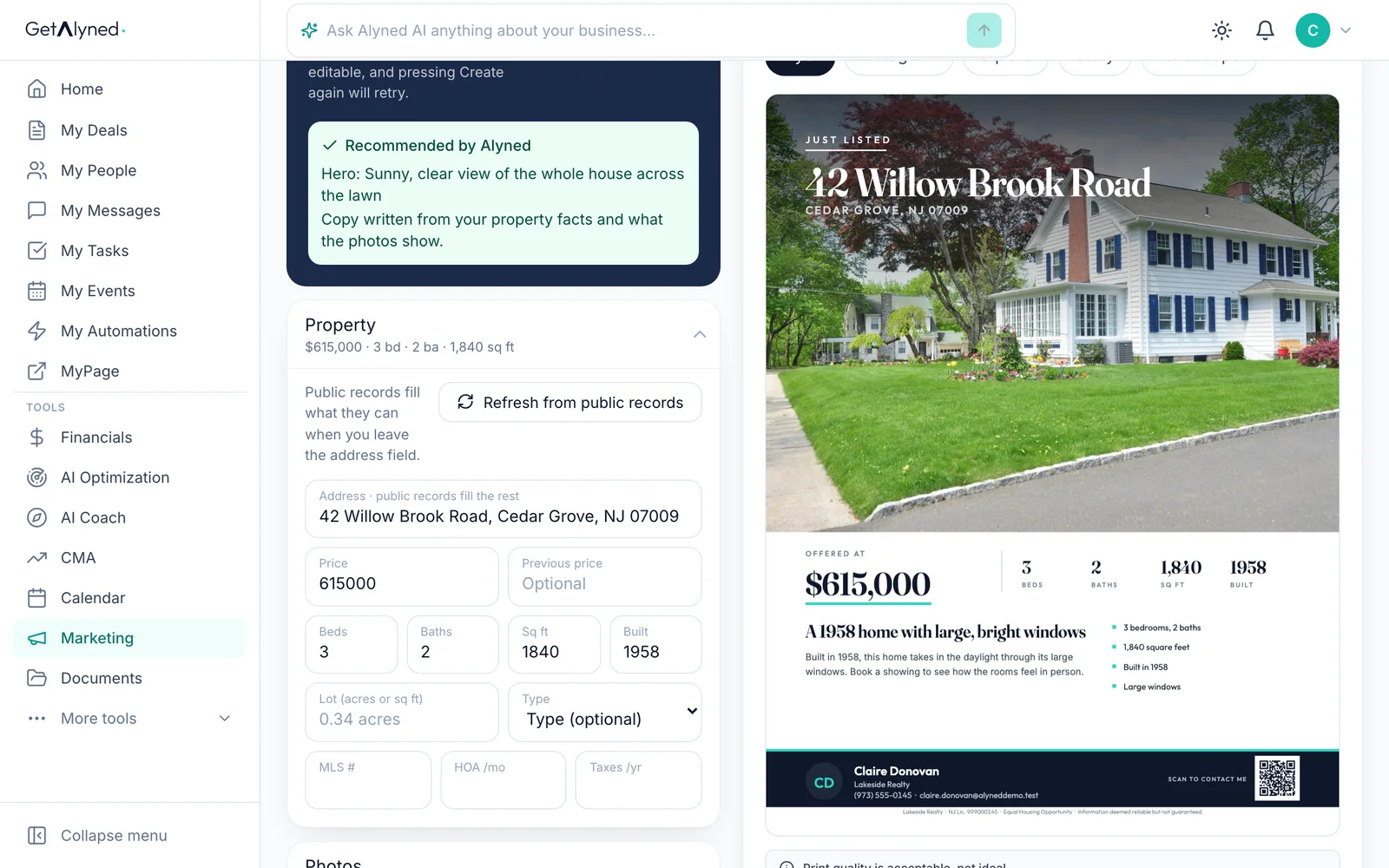
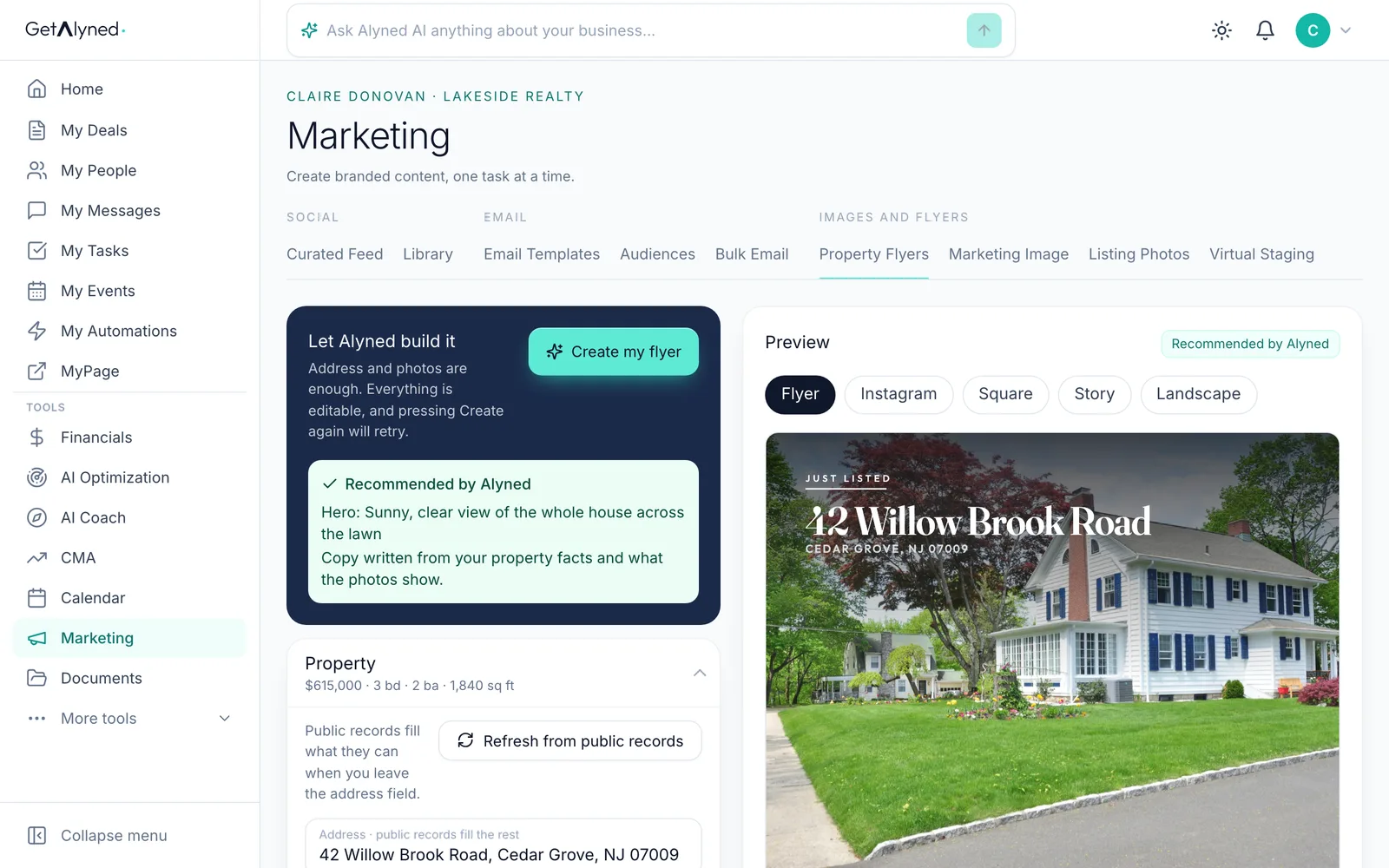
In the navy Let Alyned build it card at the top, click Create my flyer. Alyned picks the hero photo, lays out the facts and writes the copy.
-
Your flyer is built
It shows in the Preview card. To change anything, open a card on the left: Property, Photos and Campaign start open, and Style, Copy, QR code, Agent and Brand colors open with a click.
-
Switch to Instagram
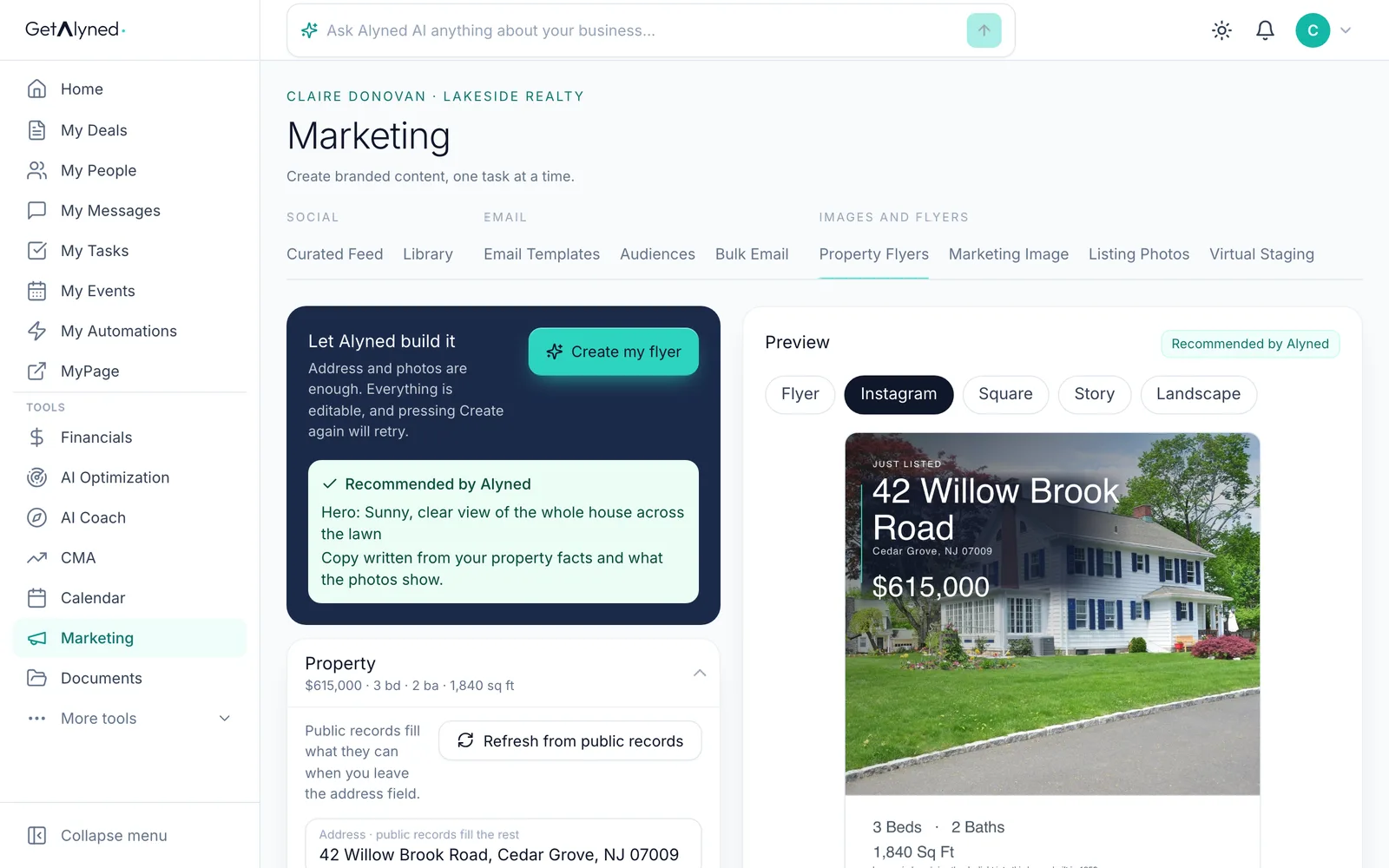
The format buttons at the top of the preview show the same design five ways. Flyer is the printable page. Click Instagram for social.
-
Square
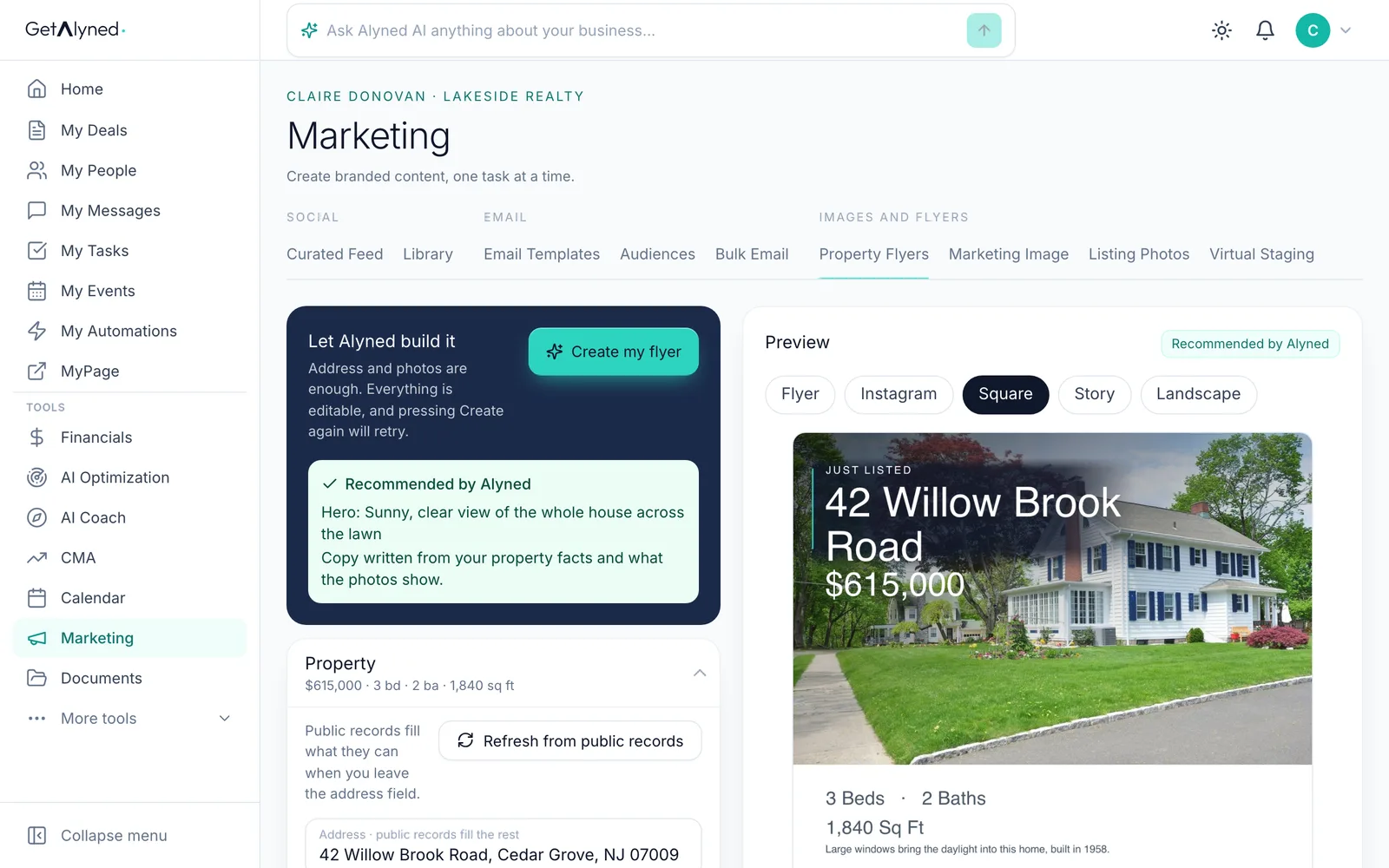
Instagram is a 4:5 portrait post. Click Square.
-
Story
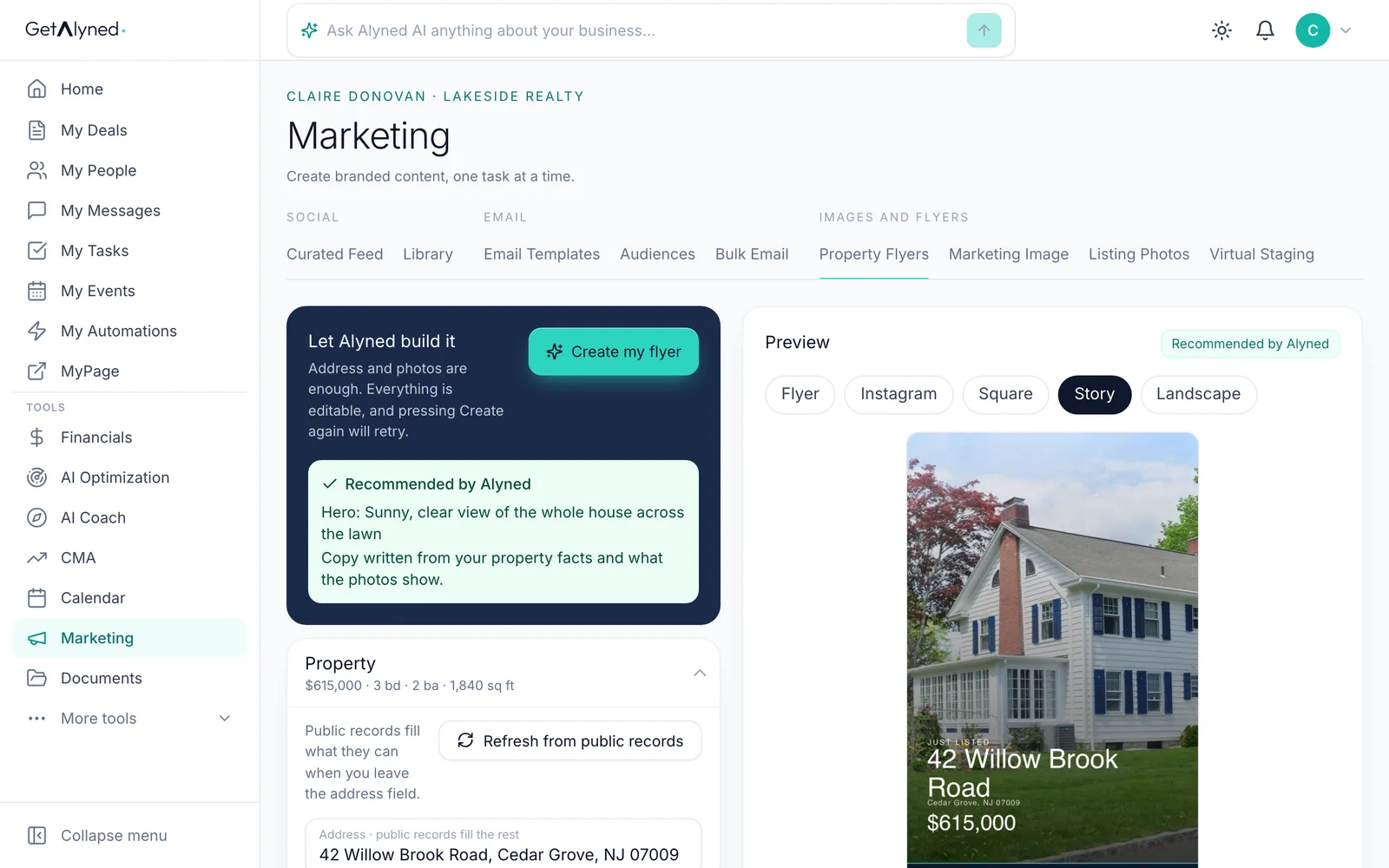
Square is 1:1, for Instagram and Facebook feeds. Click Story.
-
Landscape
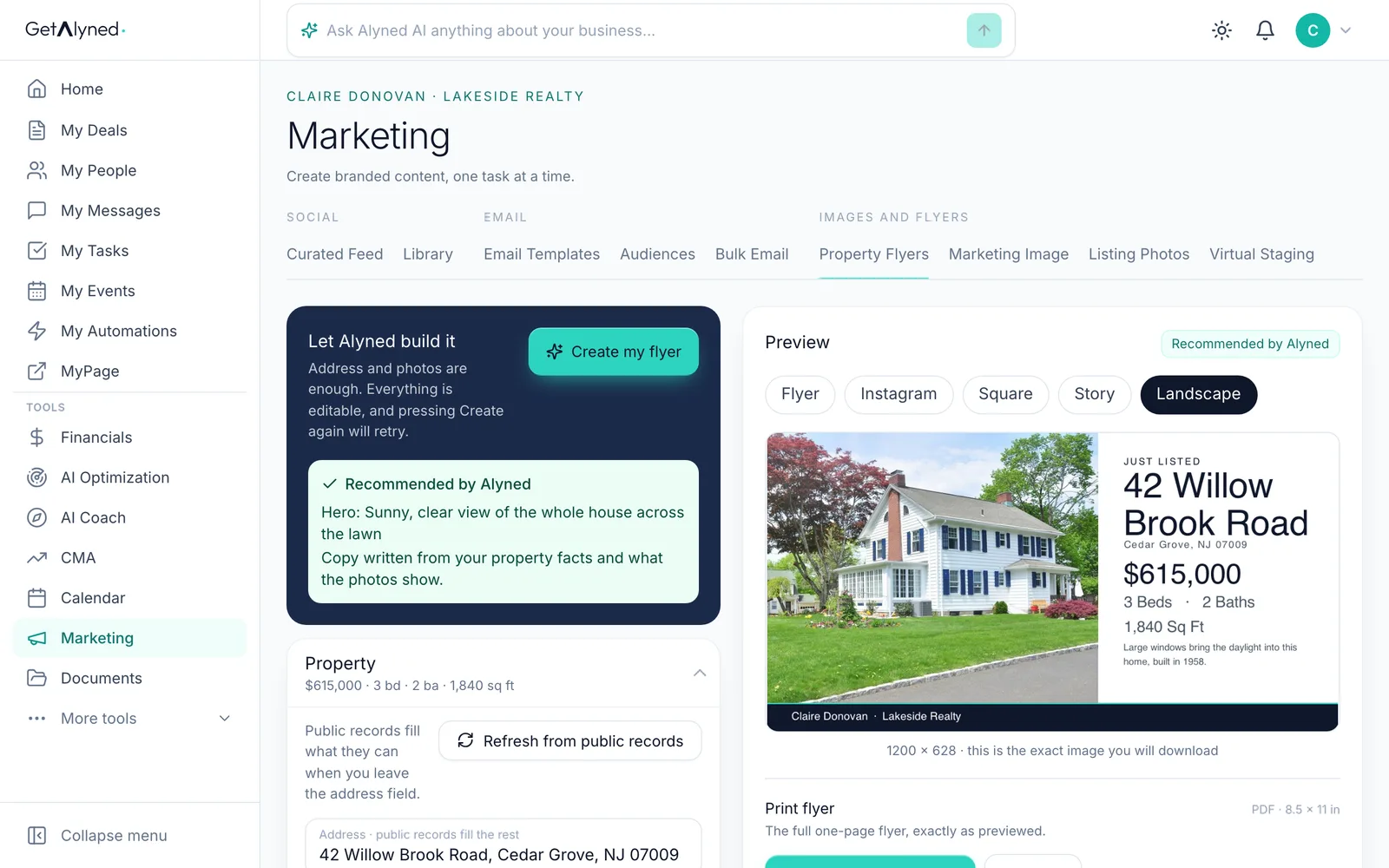
Story is 9:16, for stories and reels. Click Landscape.
-
The landscape image
Landscape is 1.91:1, for Facebook and LinkedIn links.
-
Download and save
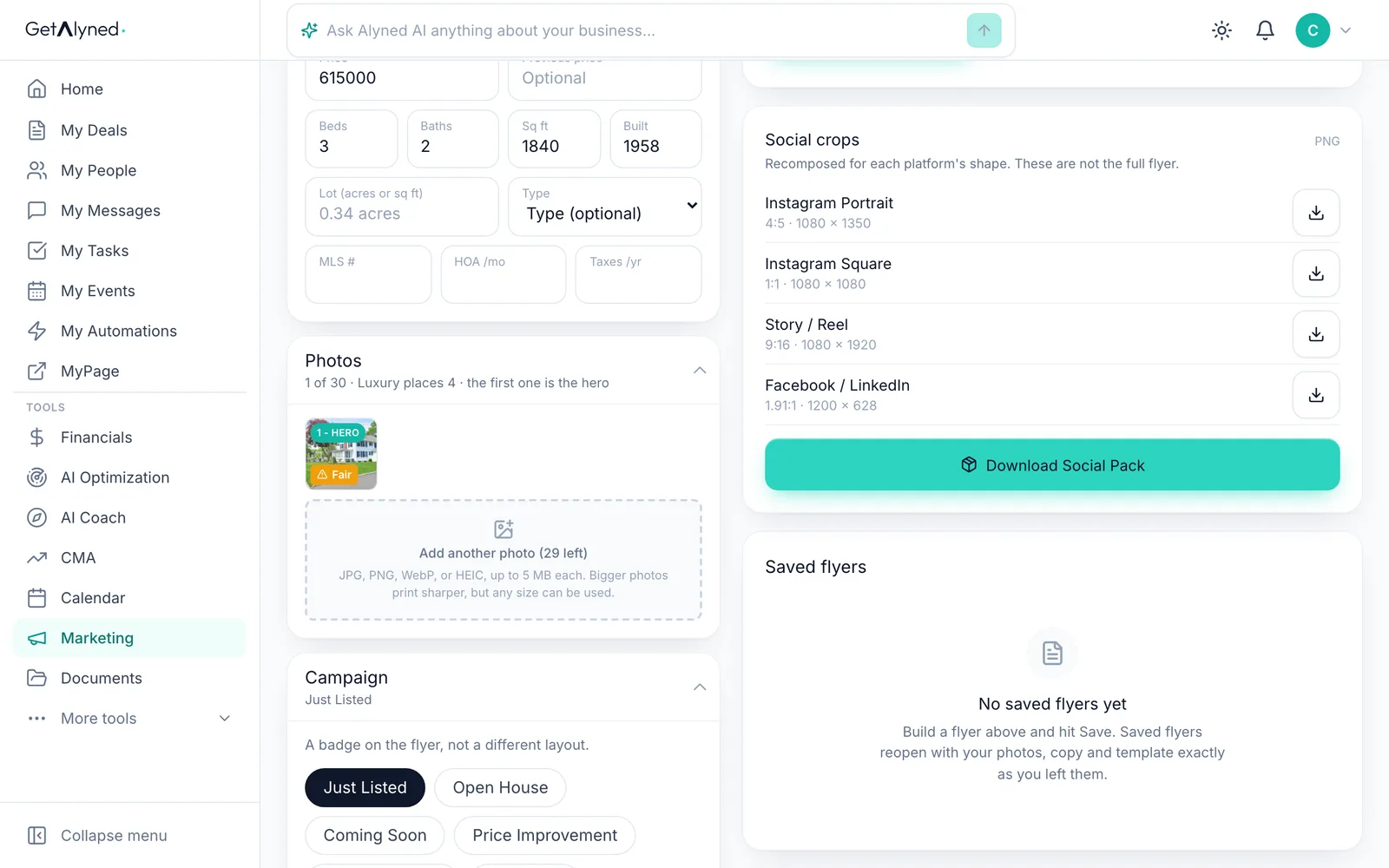
Under the preview, Download Print Flyer saves the PDF and Save keeps the flyer. The Social crops card has a download for each size, and Download Social Pack saves them all at once. Saved flyers are listed below it, with Open, Duplicate, PDF and Delete.
Related guides
- Start a listing deal and publish it to MyPage · Set up a new listing, add the facts, a description and a cover photo, and publish it to your MyPage so buyers can see it right away.
- Create an event, make its flyer, and get it on your MyPage · Plan an open house, turn your photo into a branded flyer with a QR code, and publish it to your MyPage so people can RSVP, all in one flow.
- Post from the Curated Feed · Pick a ready-made post written for your market, make it yours, and copy it to social or publish it straight to your MyPage.