Set up your MyPage
For agents · 5 min
Fill in the parts of your public page that make it yours: your handle, photo, bio and the areas you cover. Then see it the way visitors do.
Watch
Or read it step by step
-
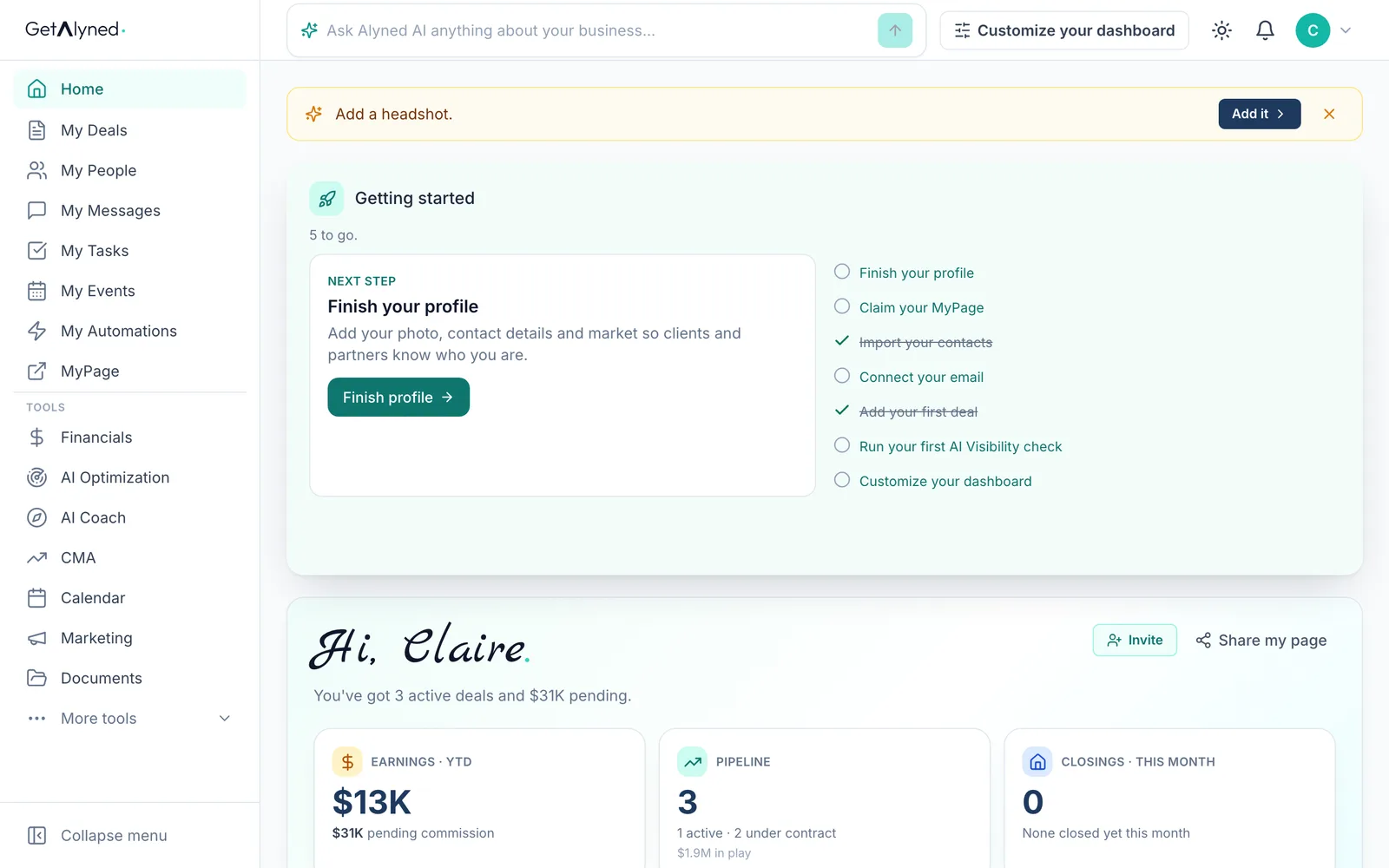
Open your account menu
Click your initial or photo at the top right to open the account menu.
-
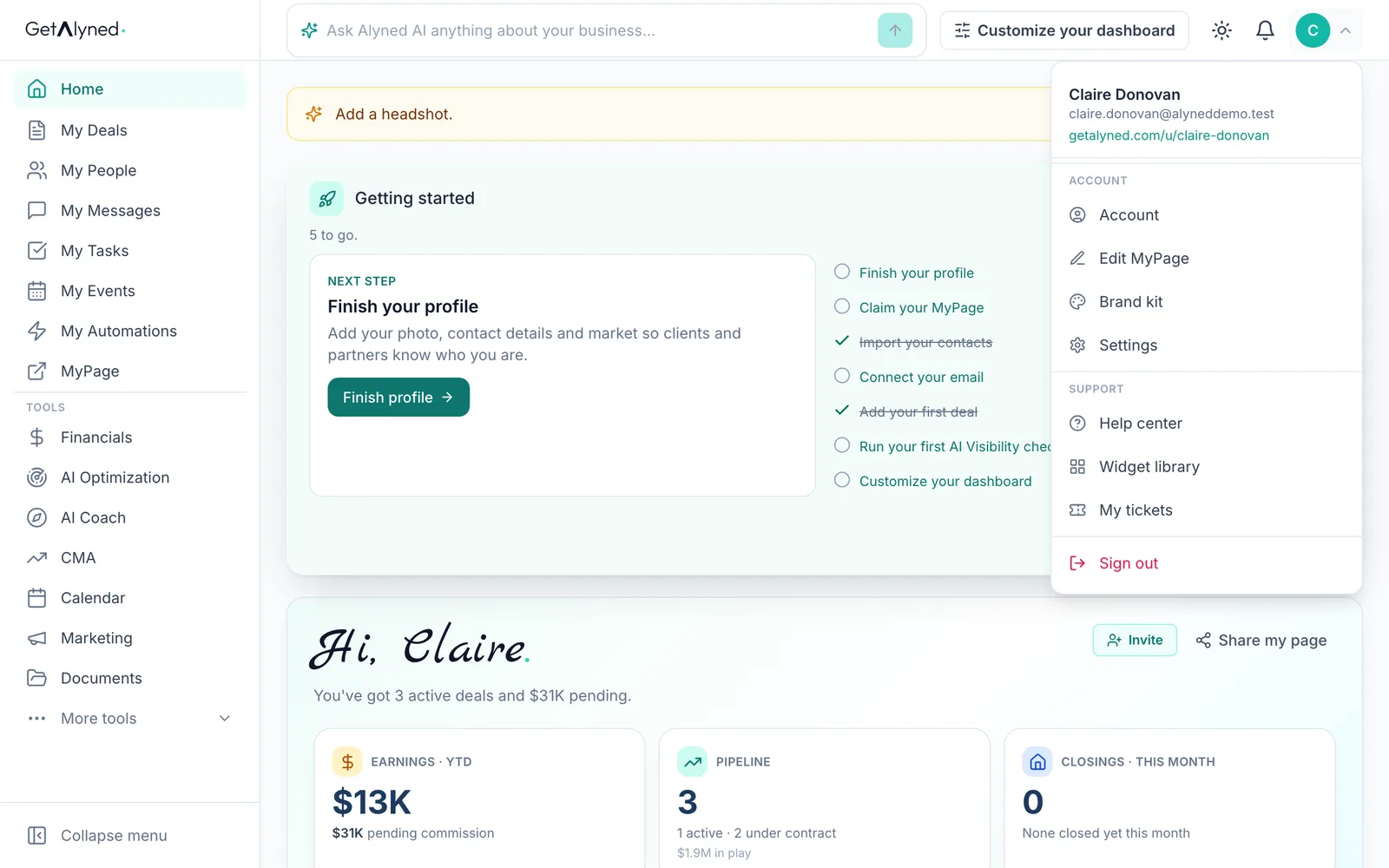
Click Edit MyPage
Choose Edit MyPage.
-
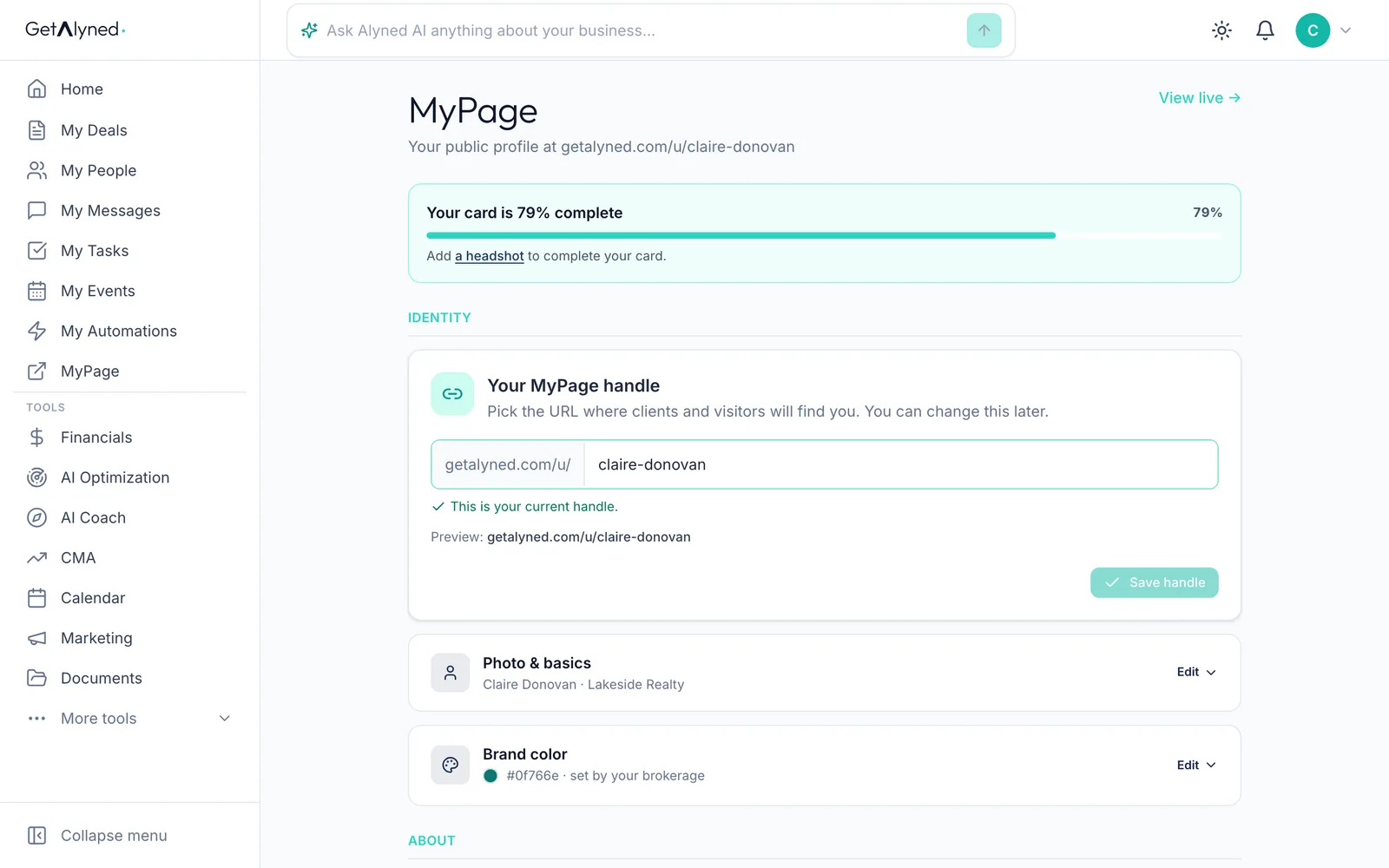
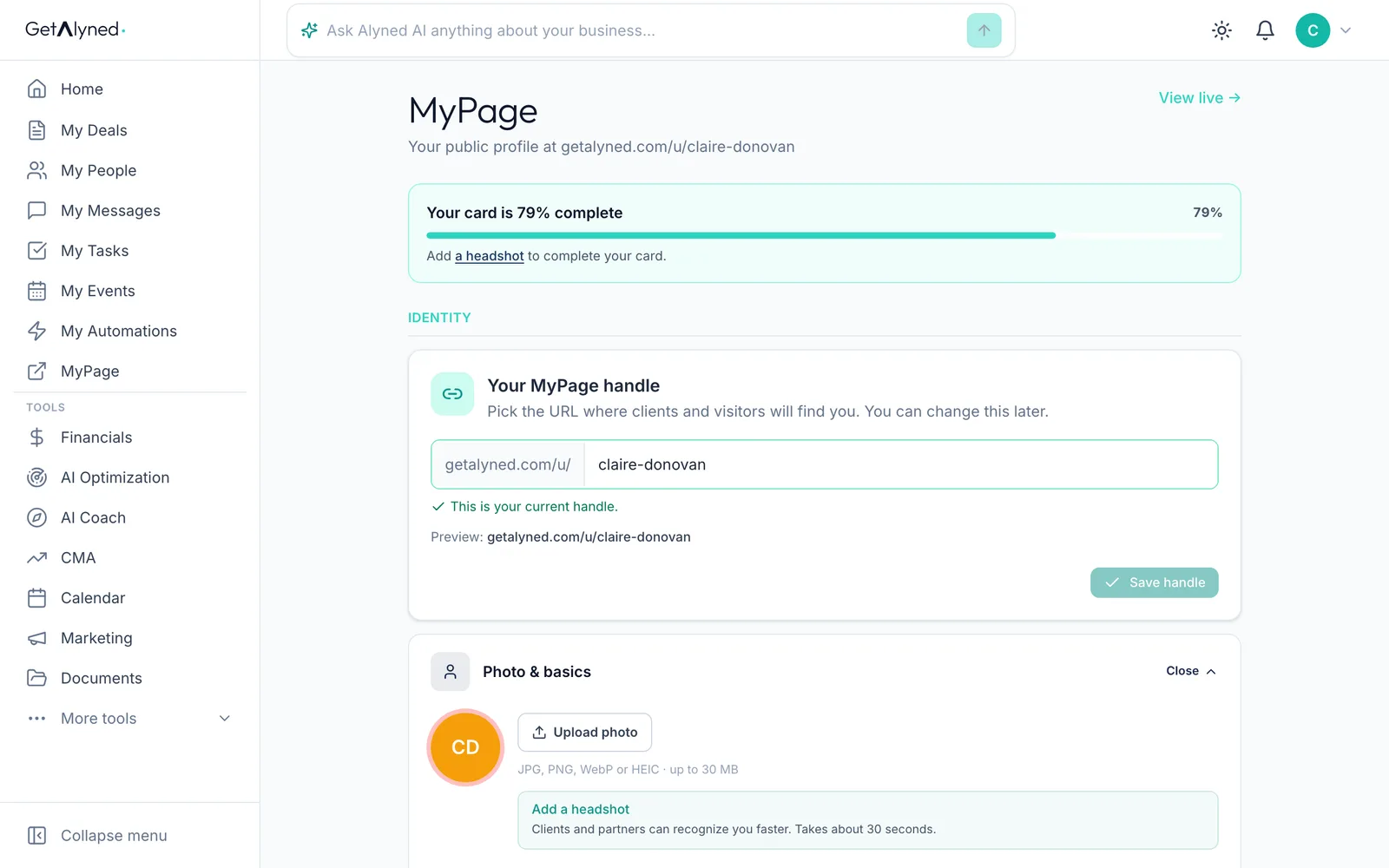
Your MyPage handle
Your handle is your page's web address. Change it here if you like.
-
Open Photo & basics
Each part of the page opens with Edit. Start with Photo & basics.
-
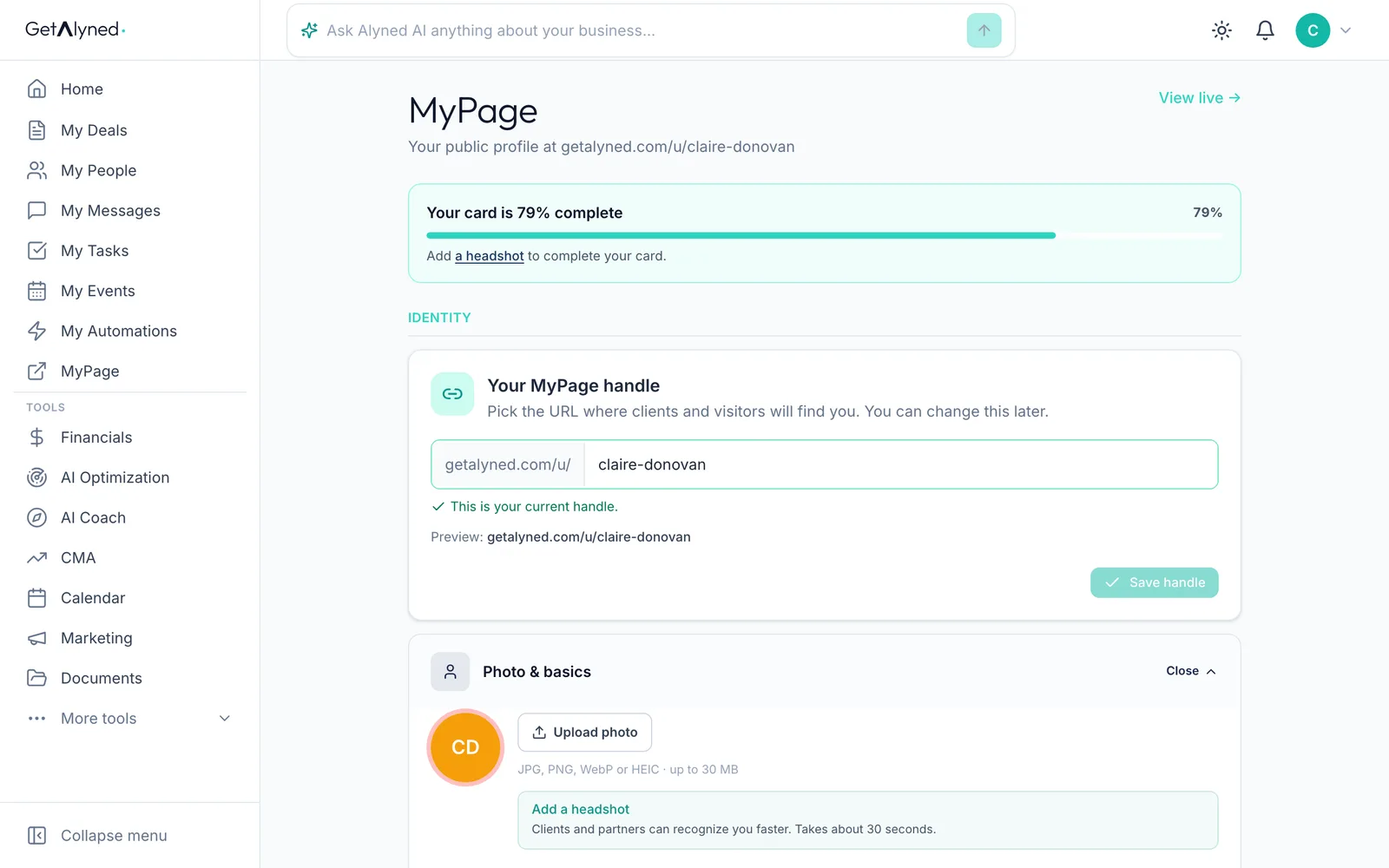
Add your headshot
Click Upload photo to add a headshot. Your name, title and brokerage sit below it.
-
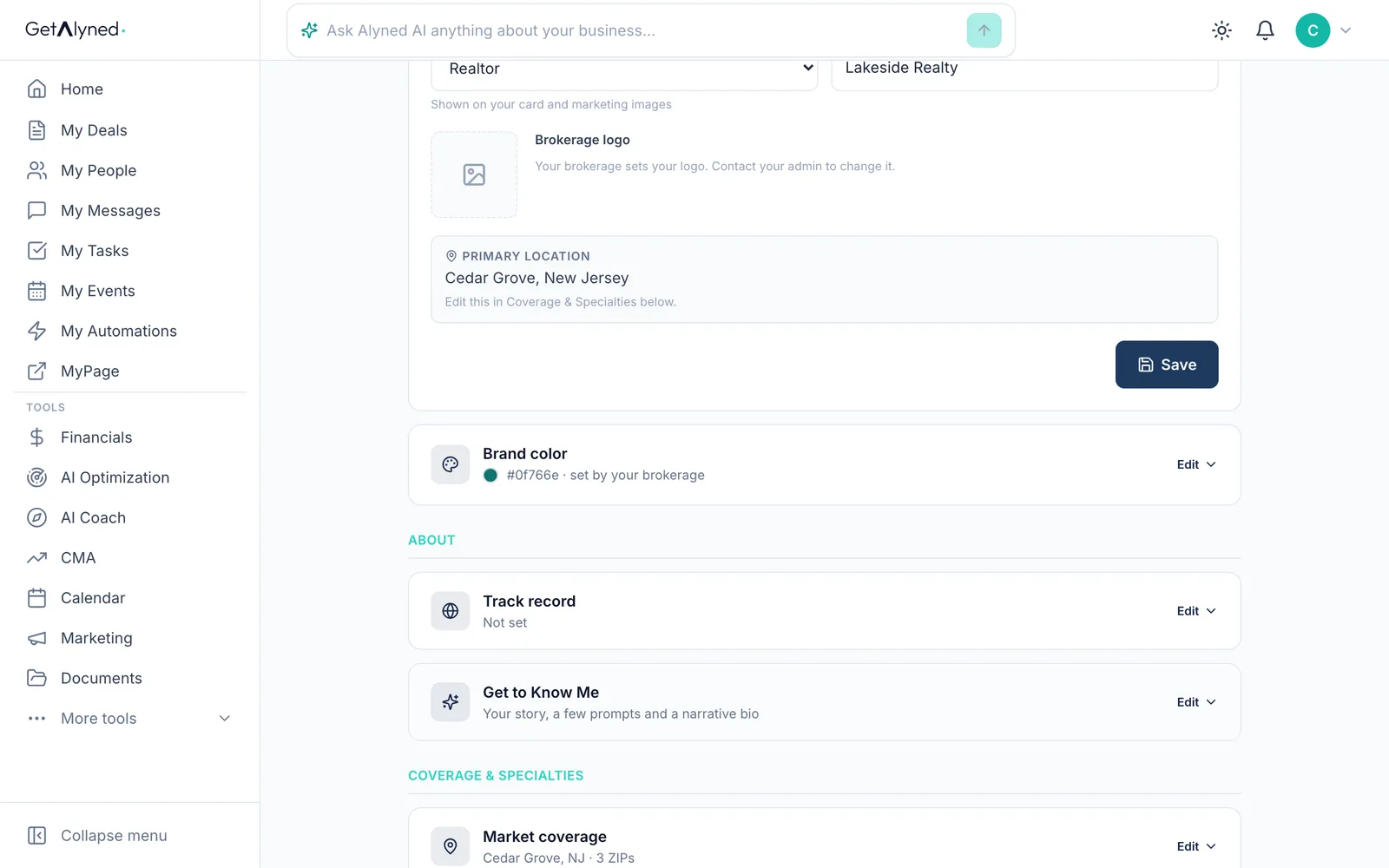
Check your brand color
Open Brand color. It's used across your page and your marketing.
-
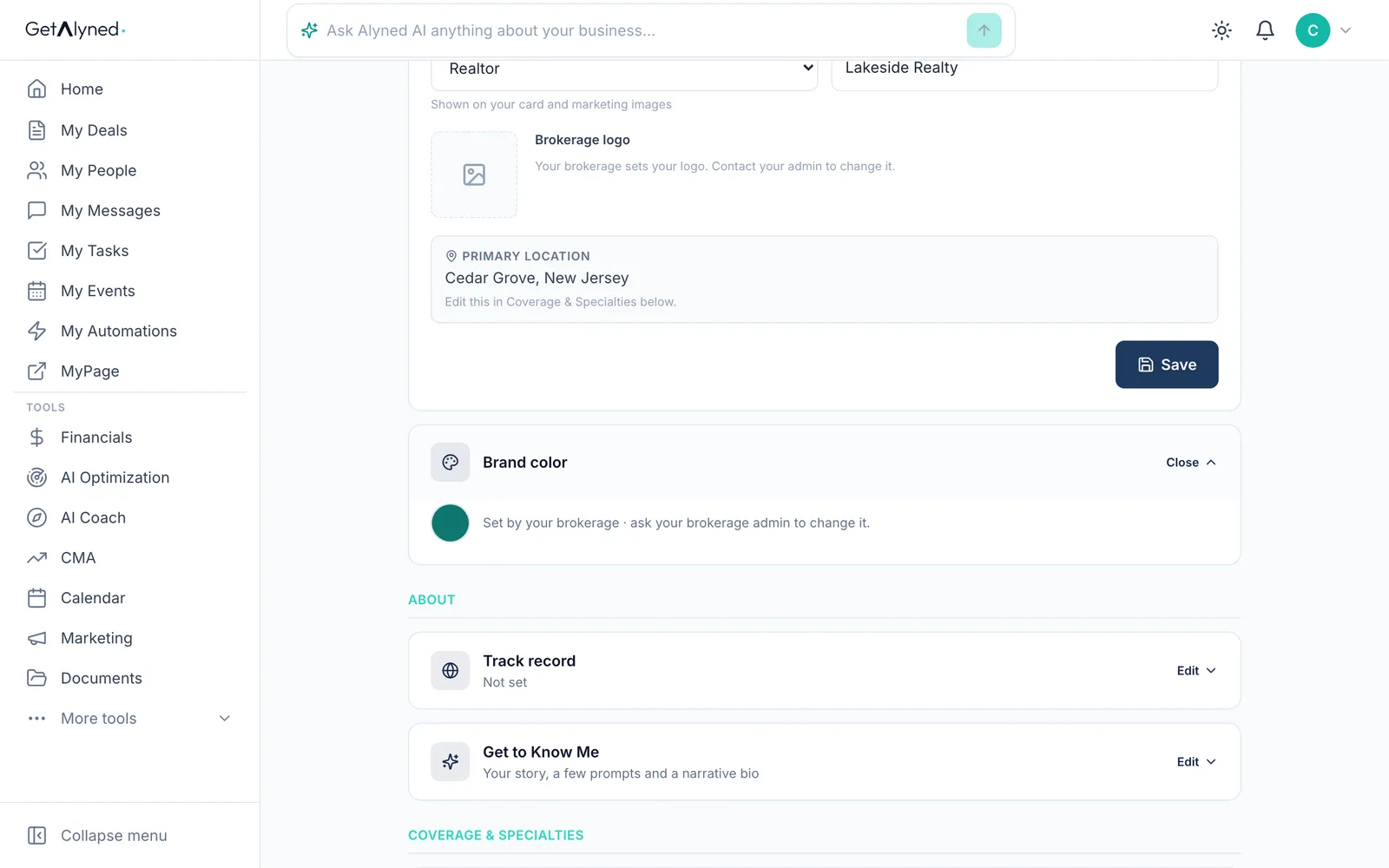
Set by your brokerage
When you're part of a brokerage, the brokerage sets the brand color. Ask your brokerage admin if it needs to change.
-
Open Get to Know Me
Get to Know Me is your story: a few prompts and a bio.
-
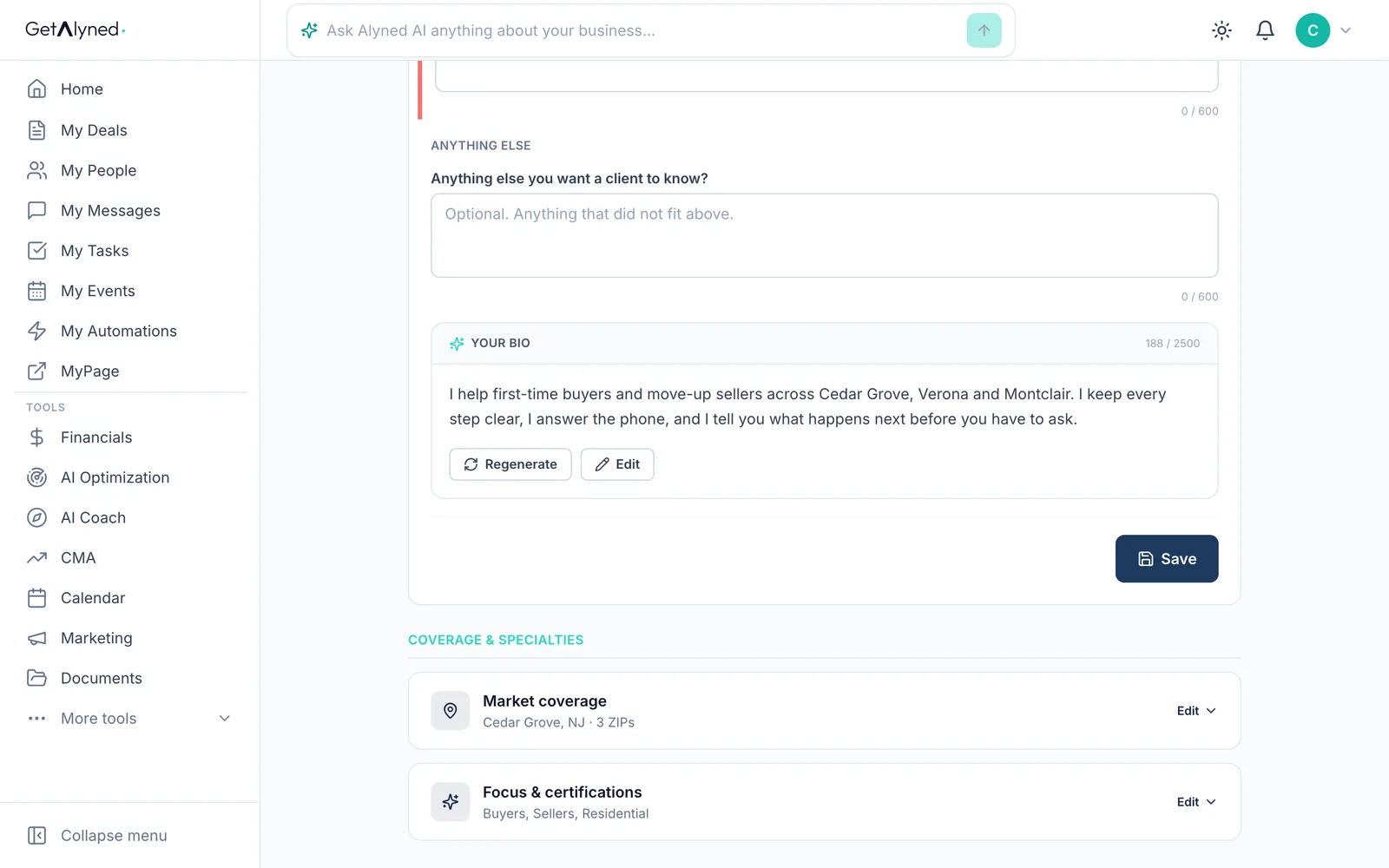
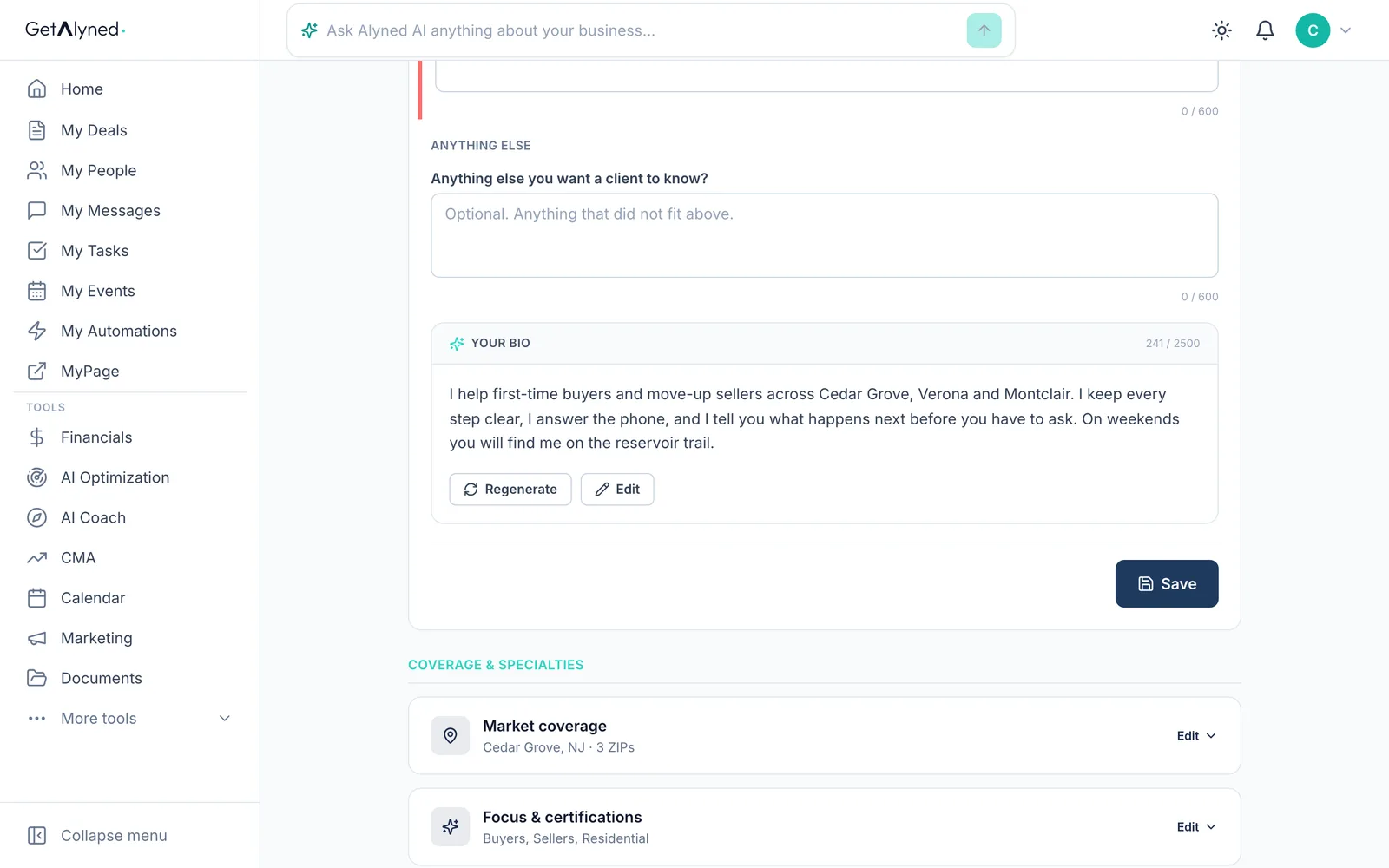
Edit your bio
Answer the prompts and Regenerate writes a bio for you, or click Edit to write it yourself.
-
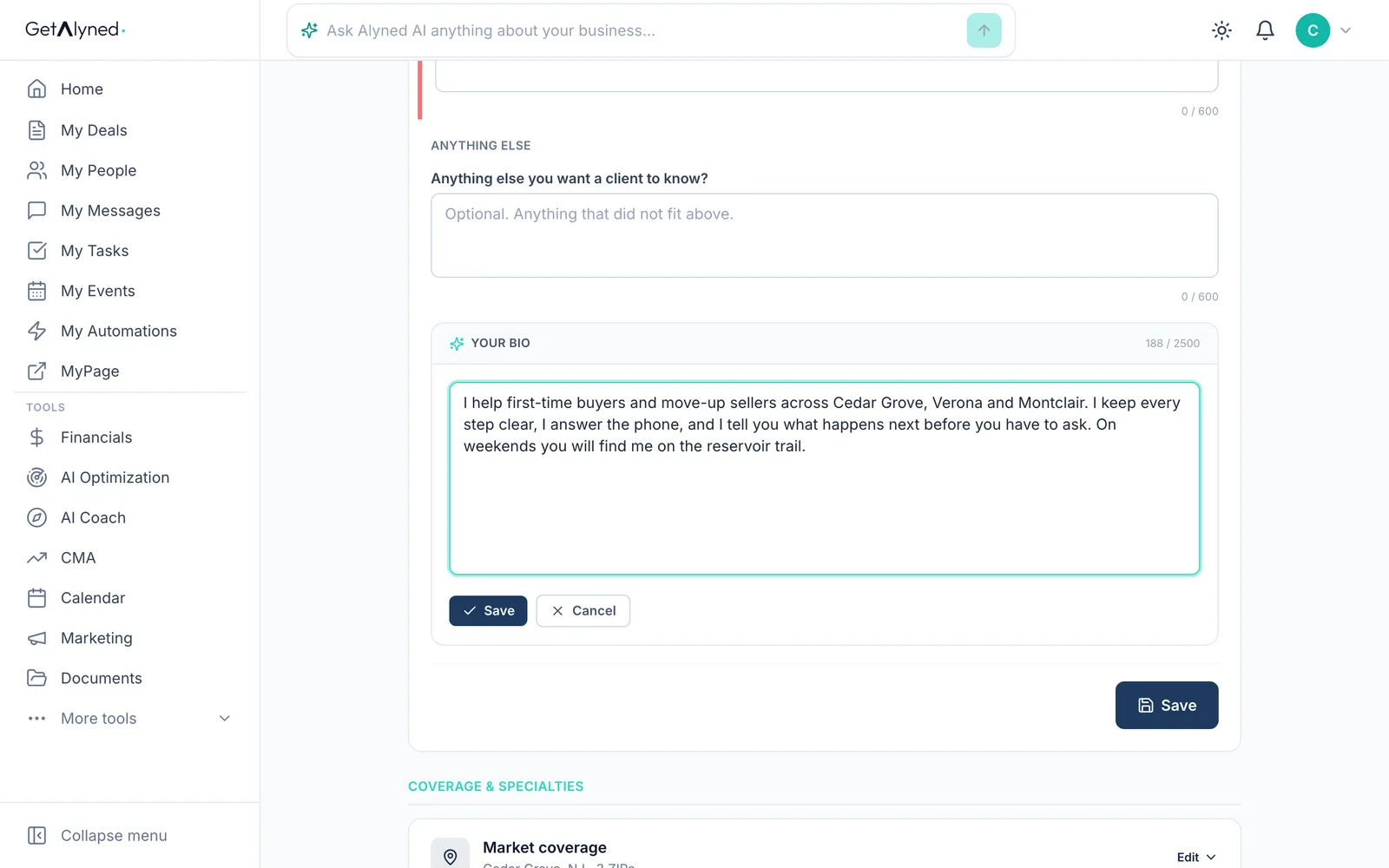
Write it in your own words
Type or tidy up your bio so it sounds like you.
-
Save your bio
Click Save to keep your bio.
-
Save the section
Then click Save for the whole section.
-
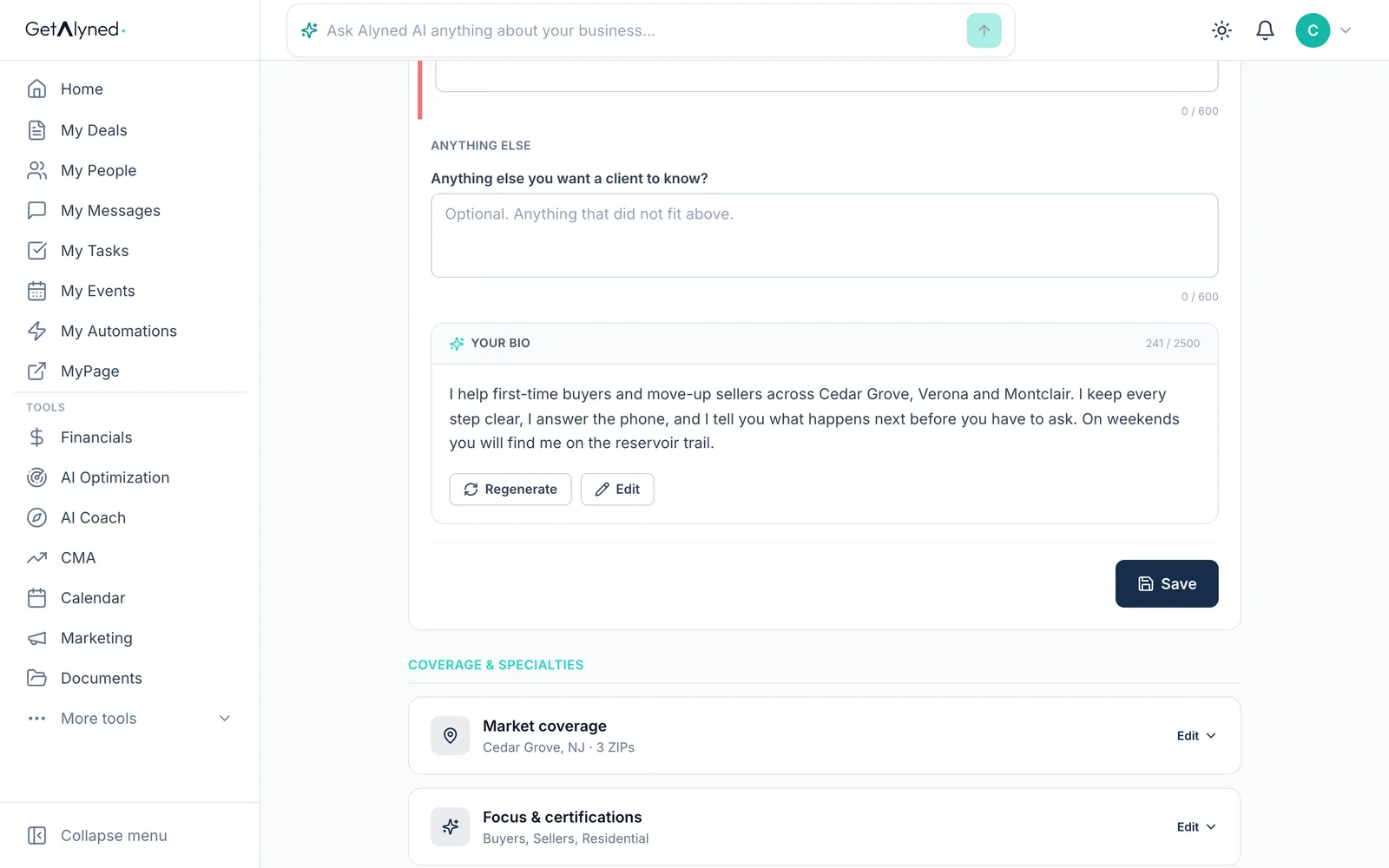
Open Market coverage
Market coverage is where you work. Click Edit.
-
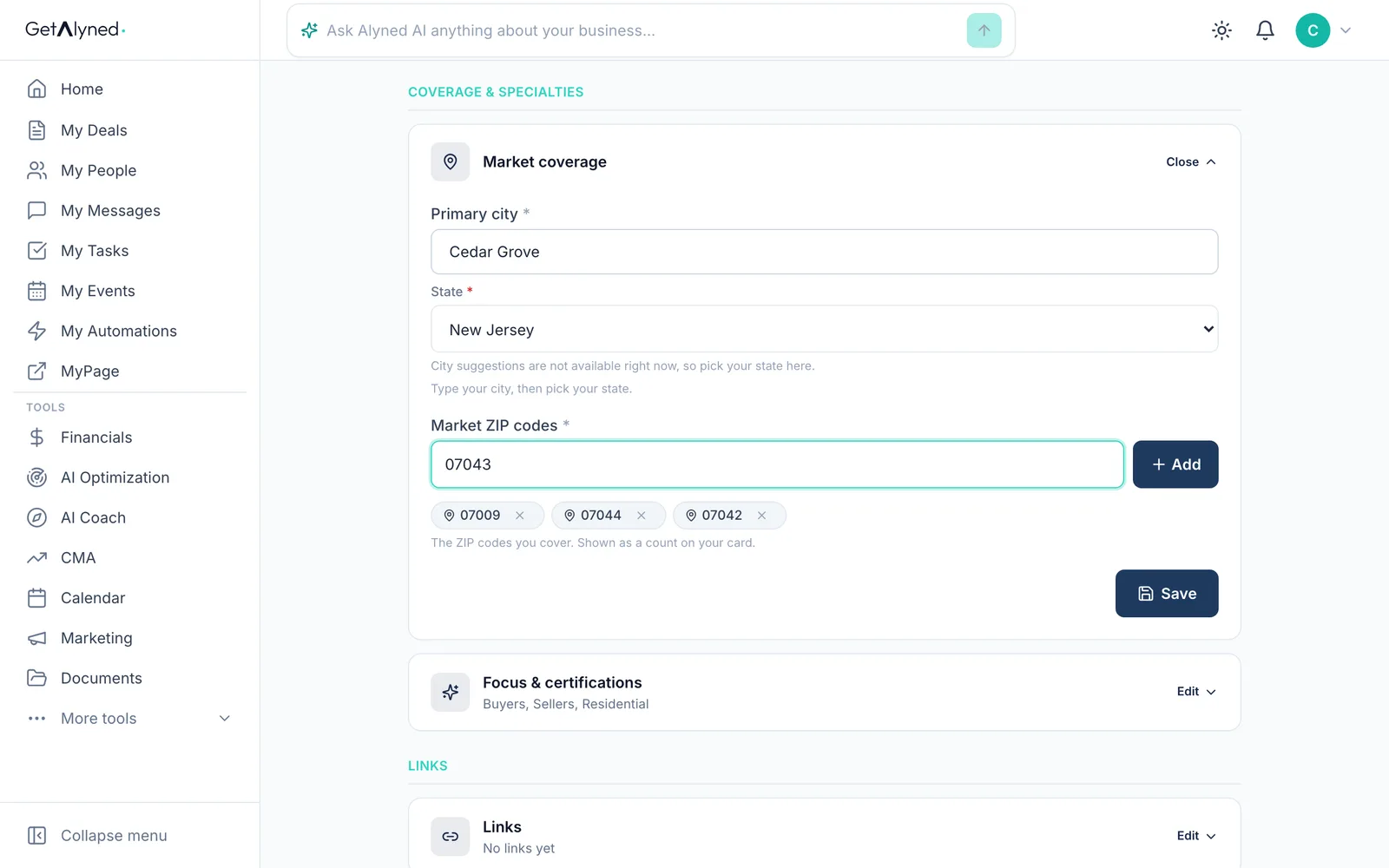
Add a ZIP code
Type a ZIP code you cover.
-
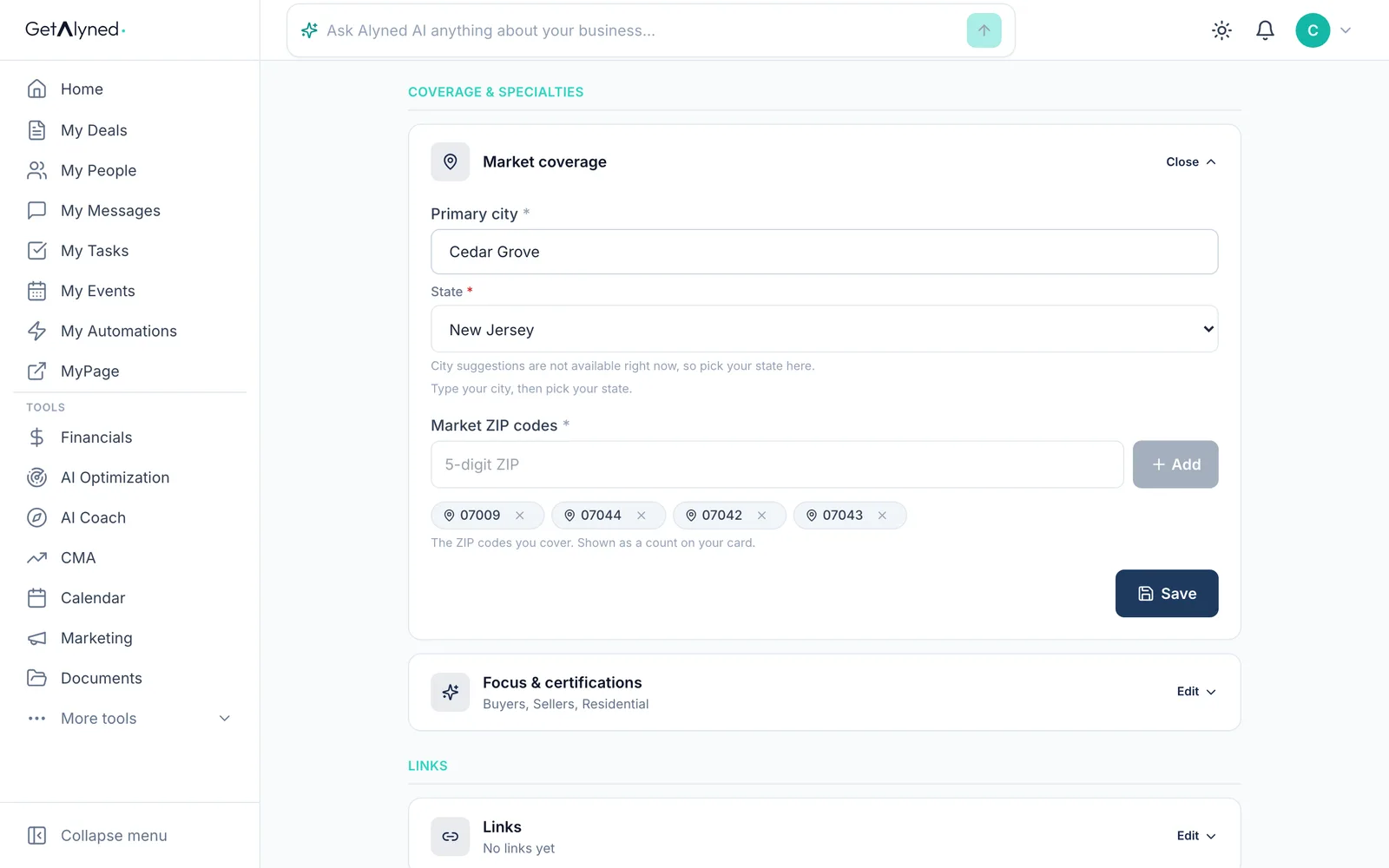
Click Add
Click Add. Repeat for each ZIP code.
-
Save your changes
Click Save. Save each part whenever you change it.
-
View your live page
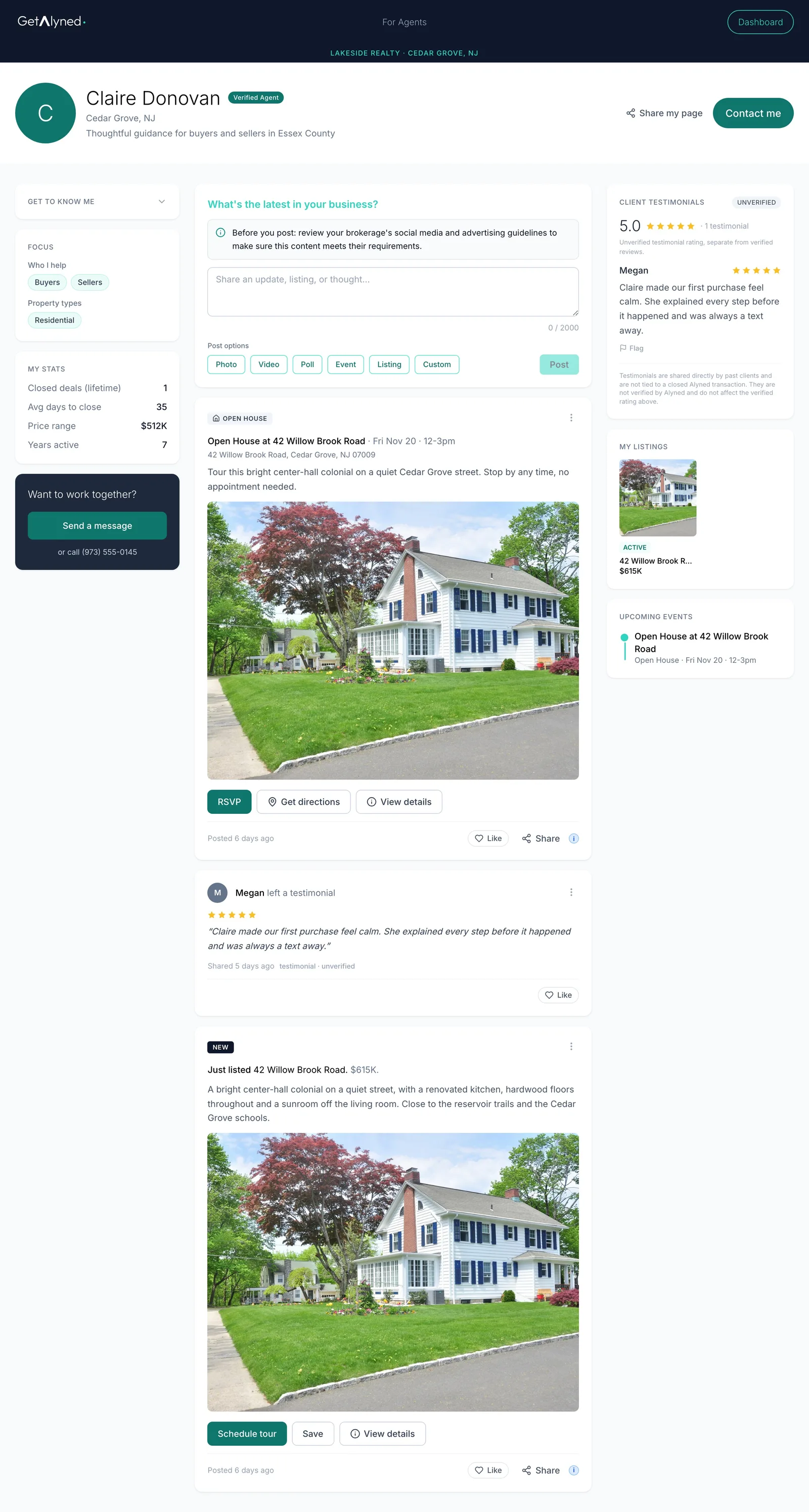
Click View live to open your page the way visitors see it.
-
Your MyPage
Here's your page: your details, bio and areas, plus your listings, events and posts.
Related guides
- Share your MyPage · Send your page out by link or QR code, and see what visitors can do when they open it on their phone.
- Collect reviews and testimonials · Ask past clients for a review, share a testimonial link with anyone else you've helped, and see both show up on your MyPage on their own.
- Post from the Curated Feed · Pick a ready-made post written for your market, make it yours, and copy it to social or publish it straight to your MyPage.
- Start a listing deal and publish it to MyPage · Set up a new listing, add the facts, a description and a cover photo, and publish it to your MyPage so buyers can see it right away.