Build a repair request from an inspection report
For agents · 5 min
Turn the inspector's report into a clear repair request in minutes: a plain-words summary for your buyer, every finding sorted by priority, and one link for the other side to answer. Start it from the deal, or from Repair Ask in the menu.
Watch
Or read it step by step
-
Start from the deal
There are two ways to start: from Repair Ask in the menu, or from your buyer's deal. Starting from the deal keeps the request tracked with it. Here, open My Deals.
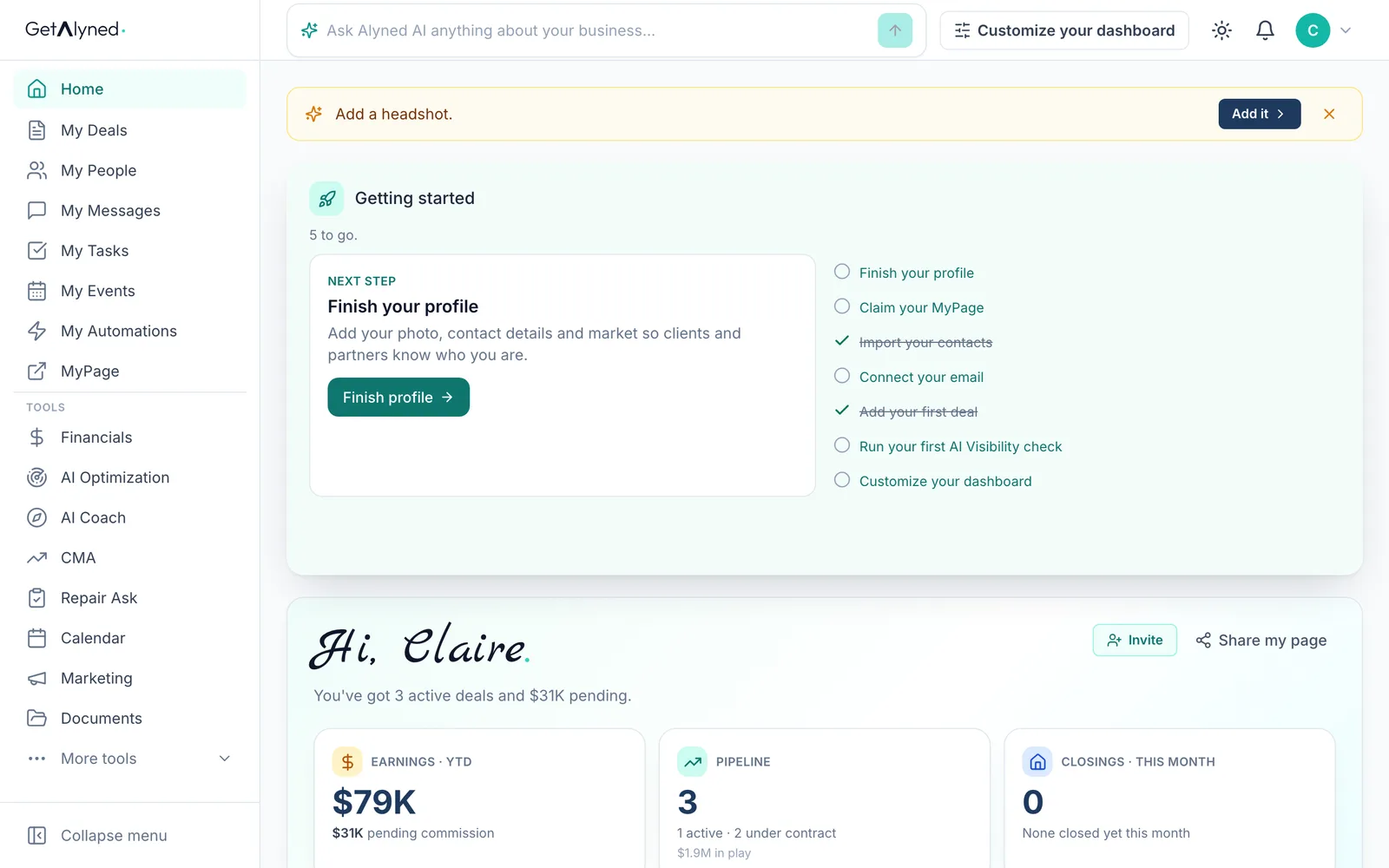
-
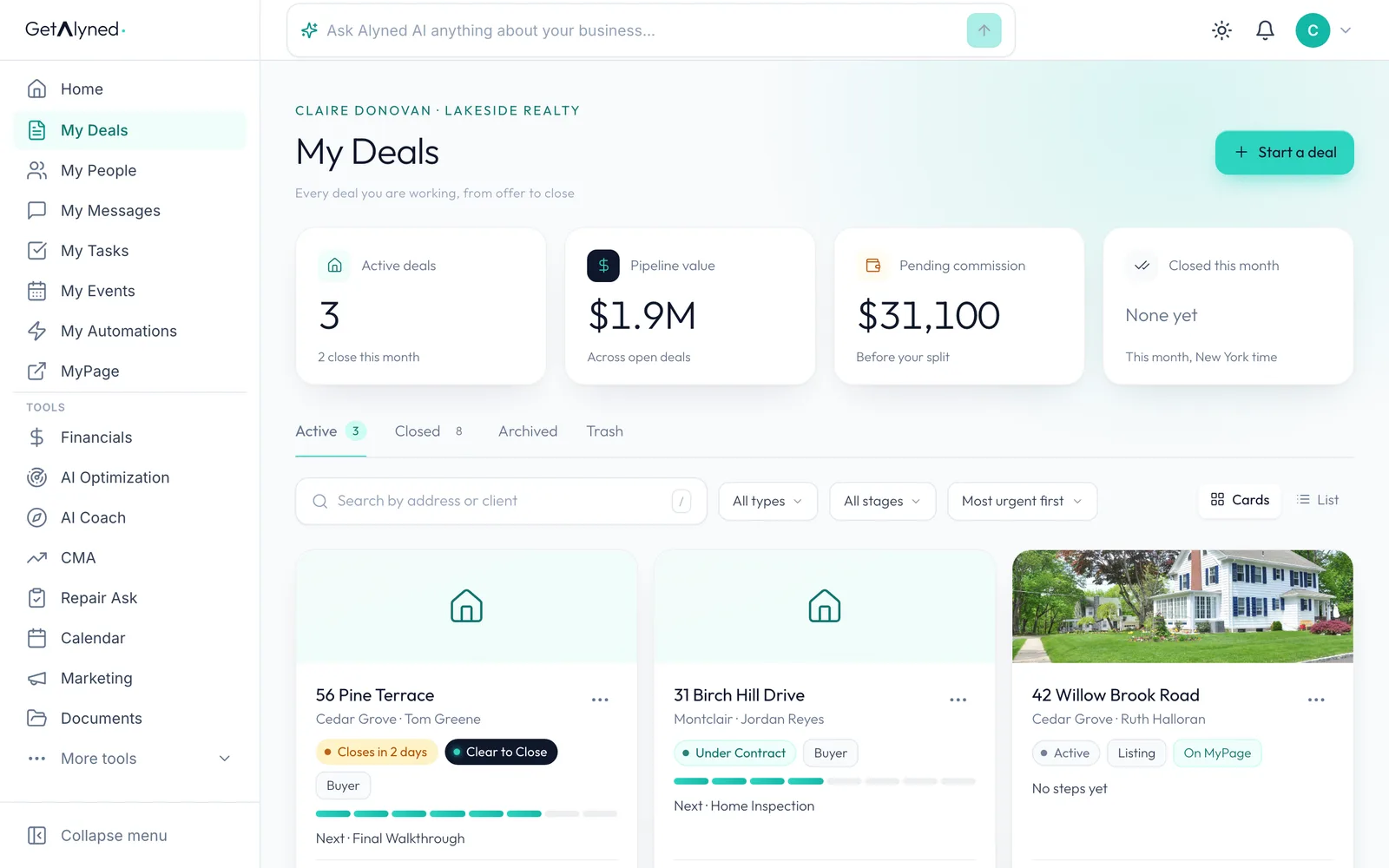
Open the deal
Open the deal. Here it's 31 Birch Hill Drive, with Jordan Reyes as the buyer.
-
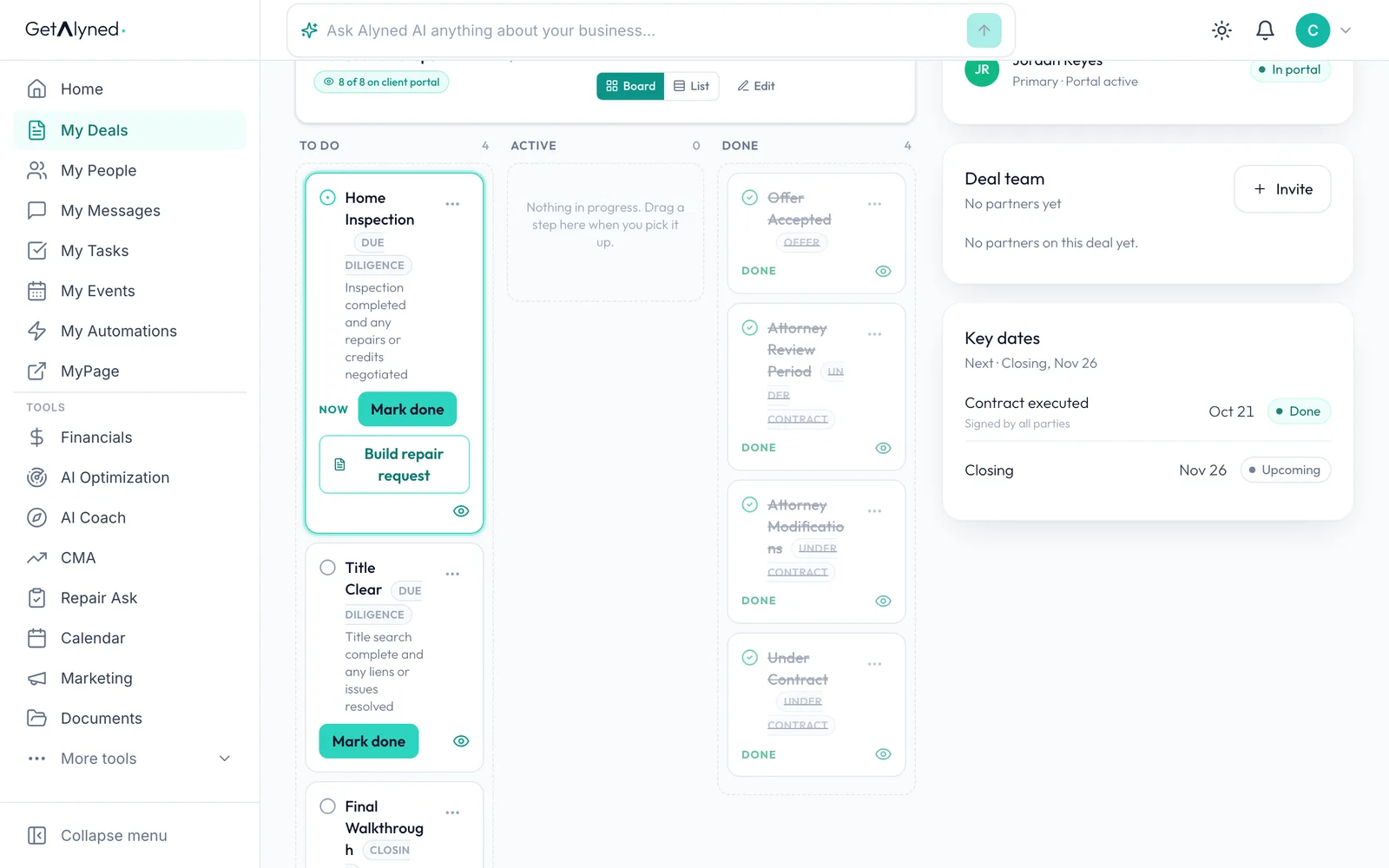
Find Build repair request
On the deal, Build repair request is on the Home Inspection step. You can also open Repair Ask from the menu any time.
-
Start the request
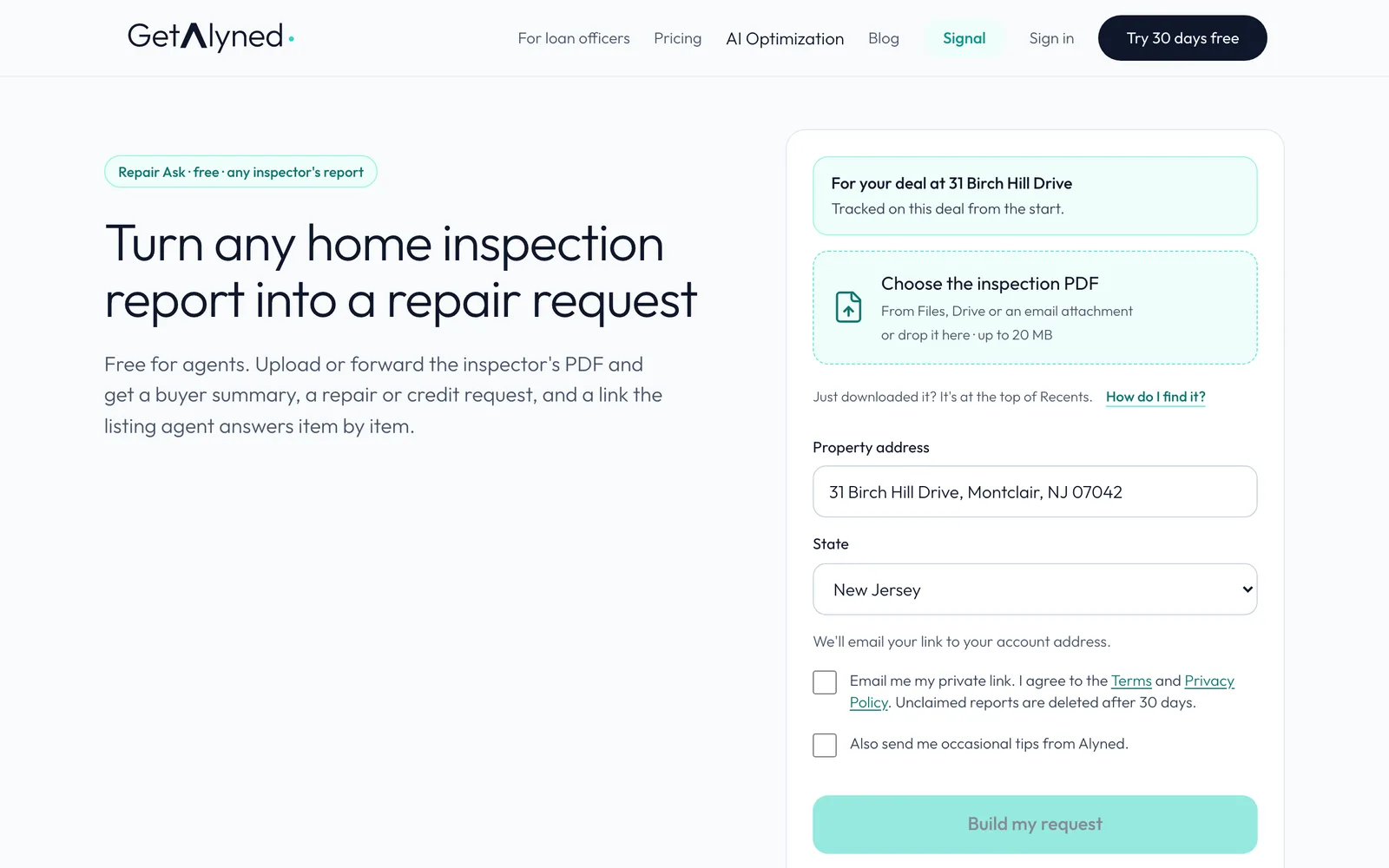
Click Build repair request. Repair Ask opens with the address filled in.
-
Tracked on the deal
Started from the deal, the request is tracked on it from the start. Started from the menu, you can link it to a deal later.
-
Add the report
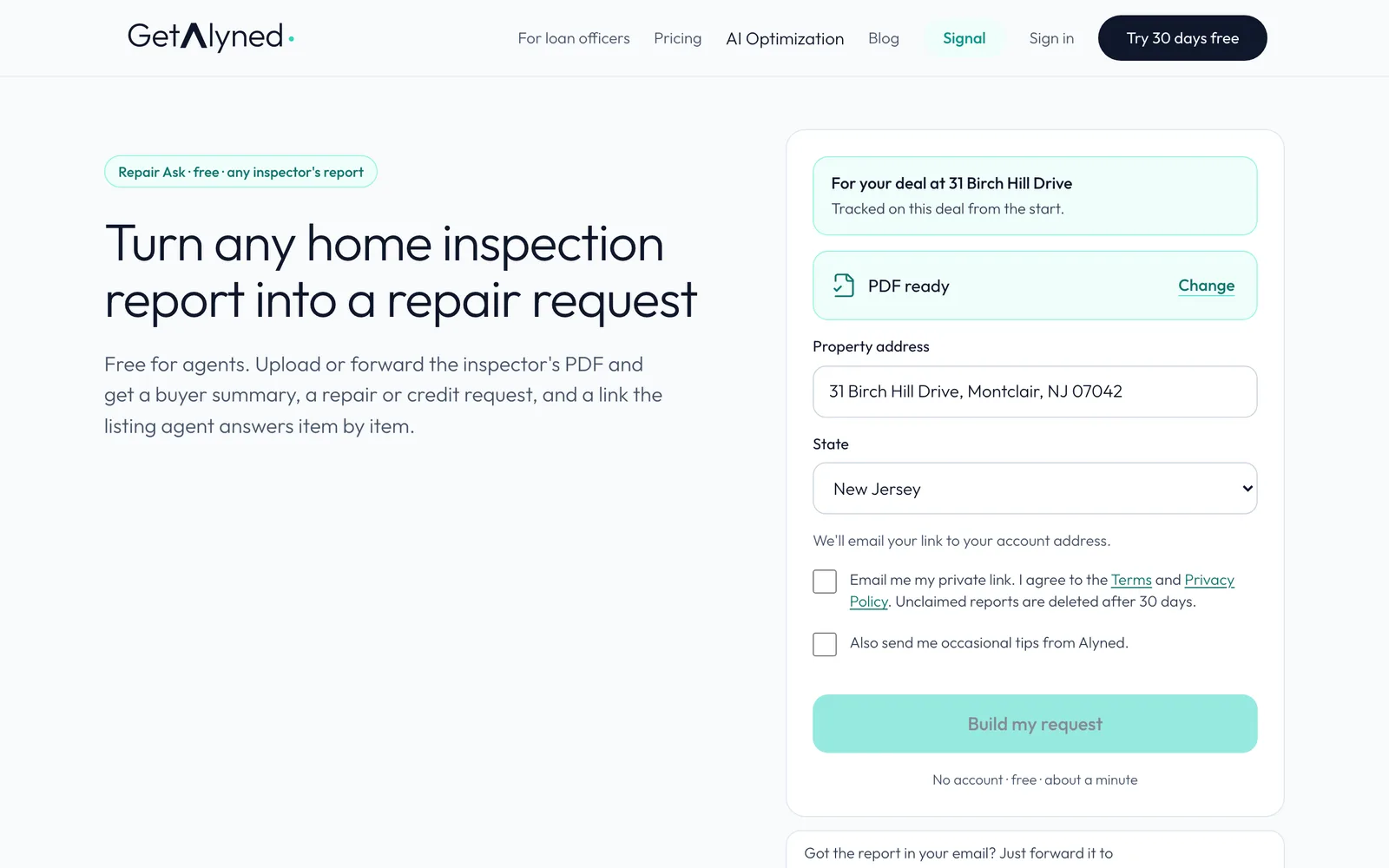
Click Choose the inspection PDF and pick the inspector's report, up to 20 MB. Any inspector's report works. If the PDF is already in the deal's Documents, you can use that.
-
Agree to the terms
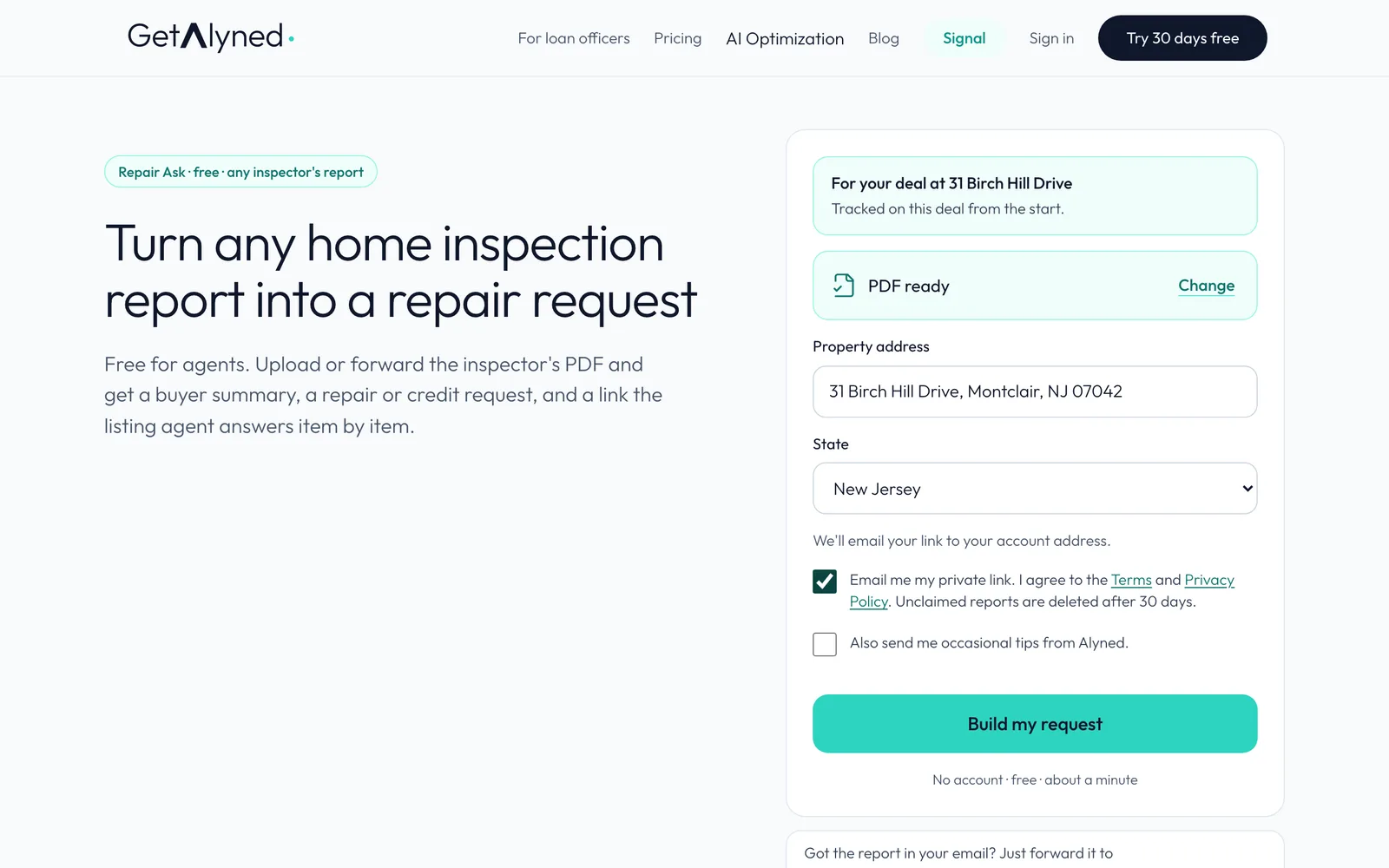
Tick the box to agree to the terms. Your private link to this request also reaches you by email.
-
Build it
Click Build my request. Alyned reads the whole report in about a minute, and checks every finding against the inspector's own words.
-
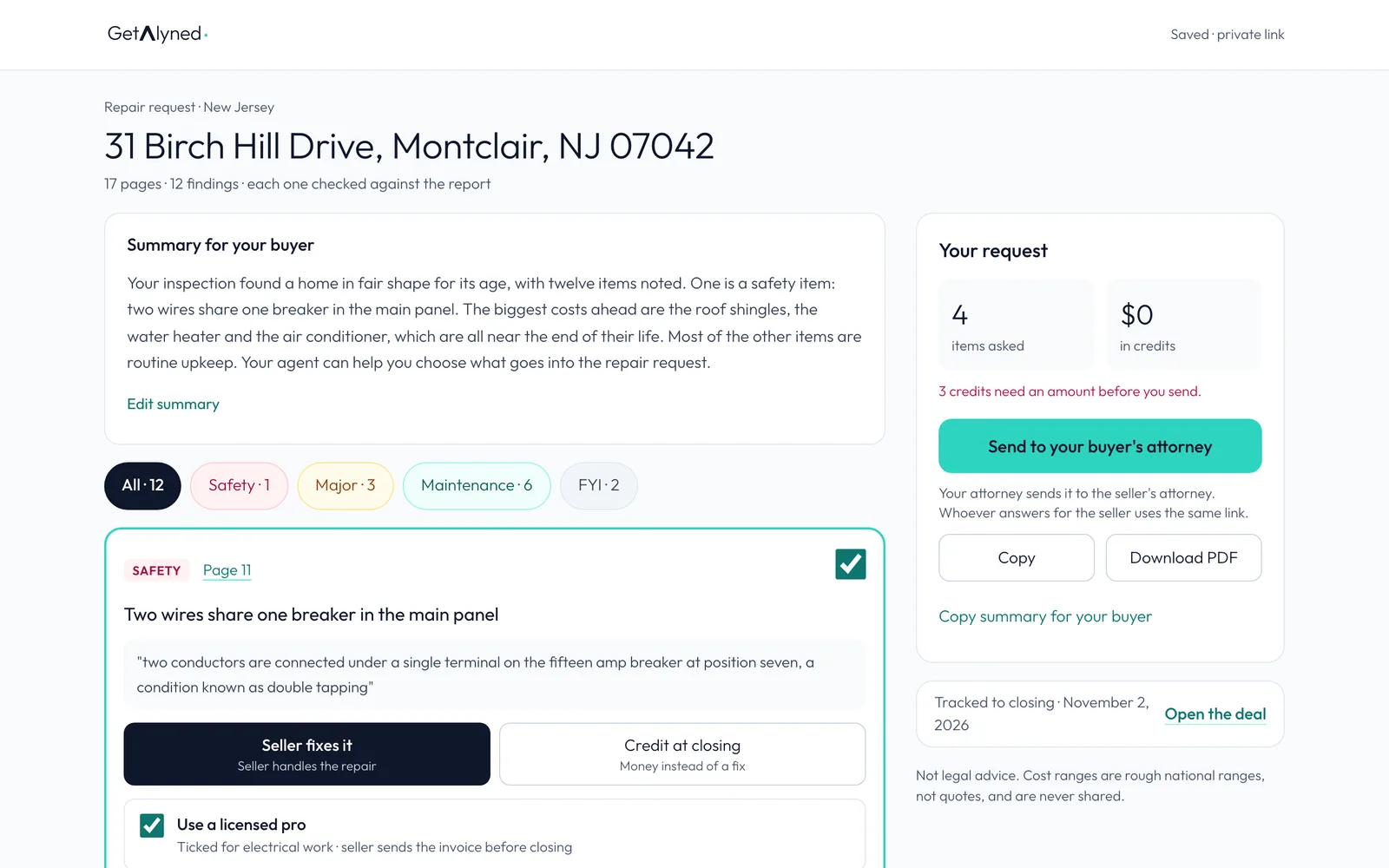
A summary for your buyer
The summary is written for your buyer, in plain words and with no dollar figures. Edit it if you like, and copy it to send to them.
-
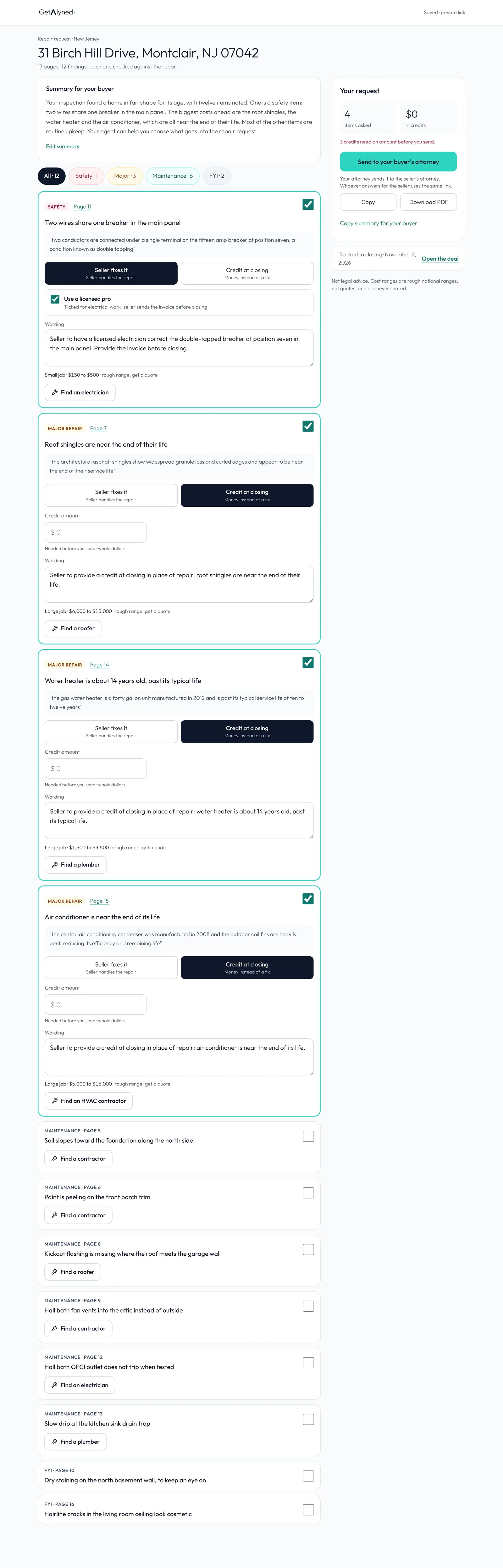
Every finding, by priority
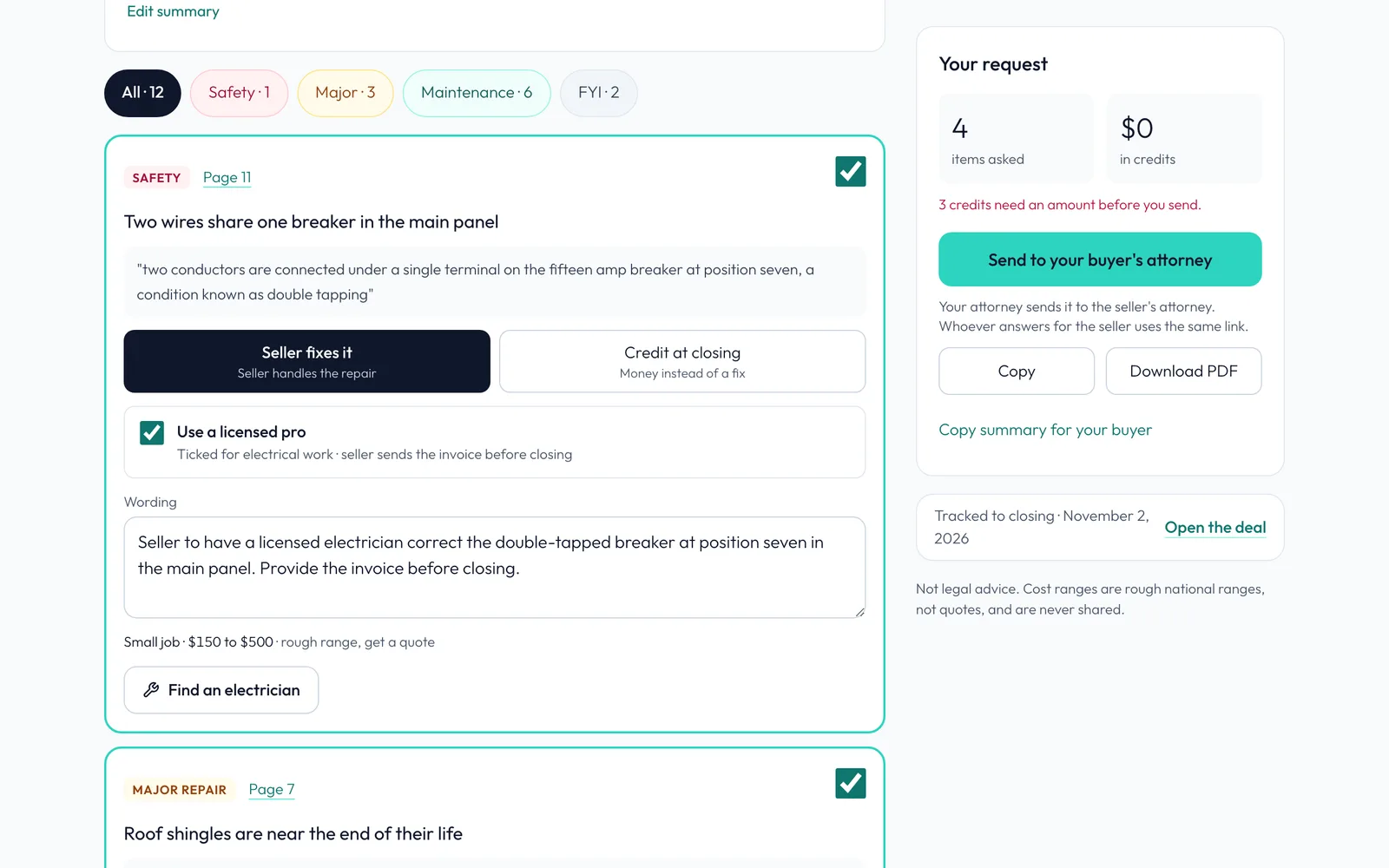
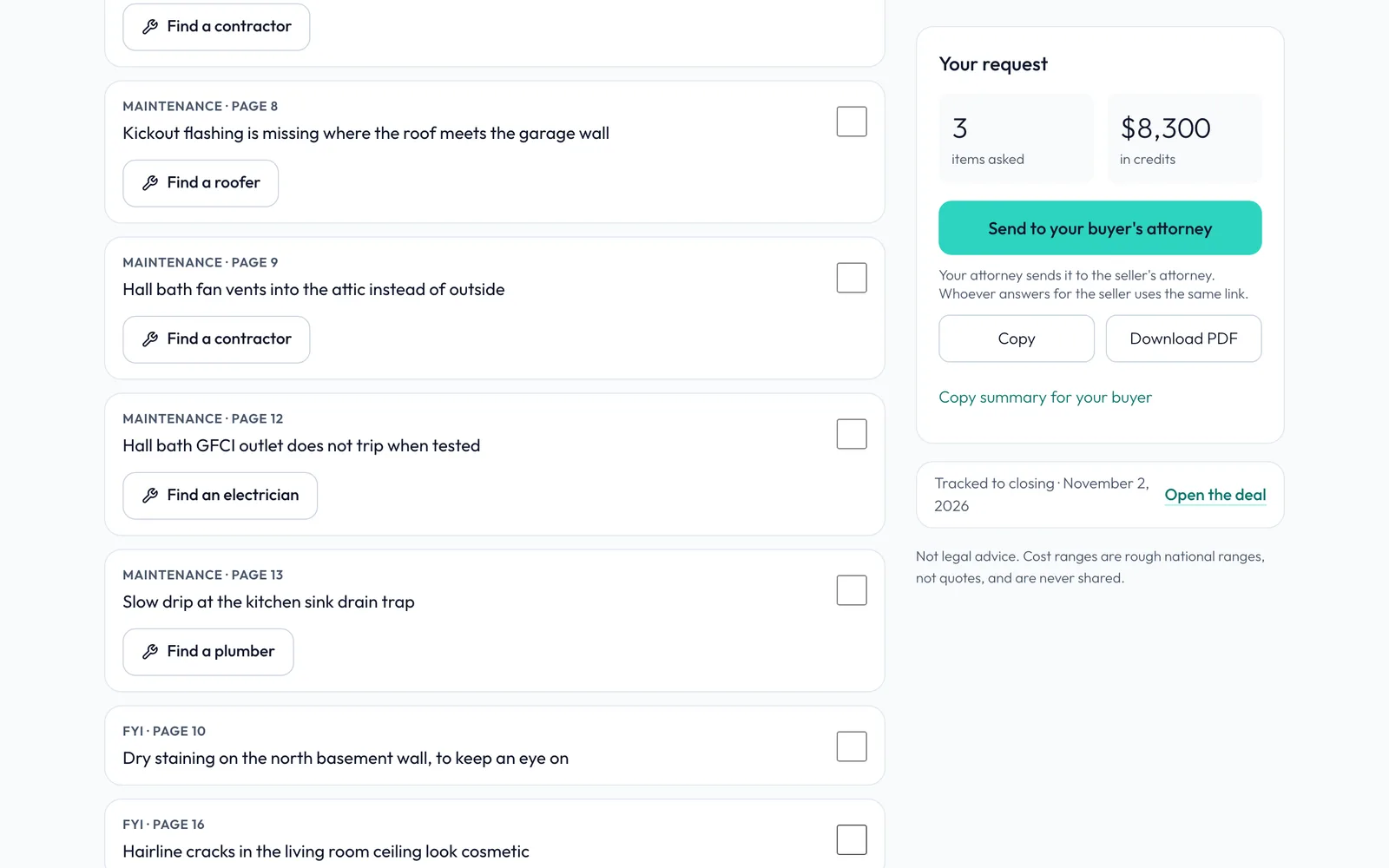
Every finding, sorted by priority: Safety, Major, Maintenance and FYI. Safety items and large major items start ticked, so nothing important is missed. Major items start as credits with no amount yet.
-
The inspector's own words
Each item has the finding in plain words, the inspector's own quote and the report page. Click the page number to open the report right there. Safety items stay repairs.
-
Rough cost ranges
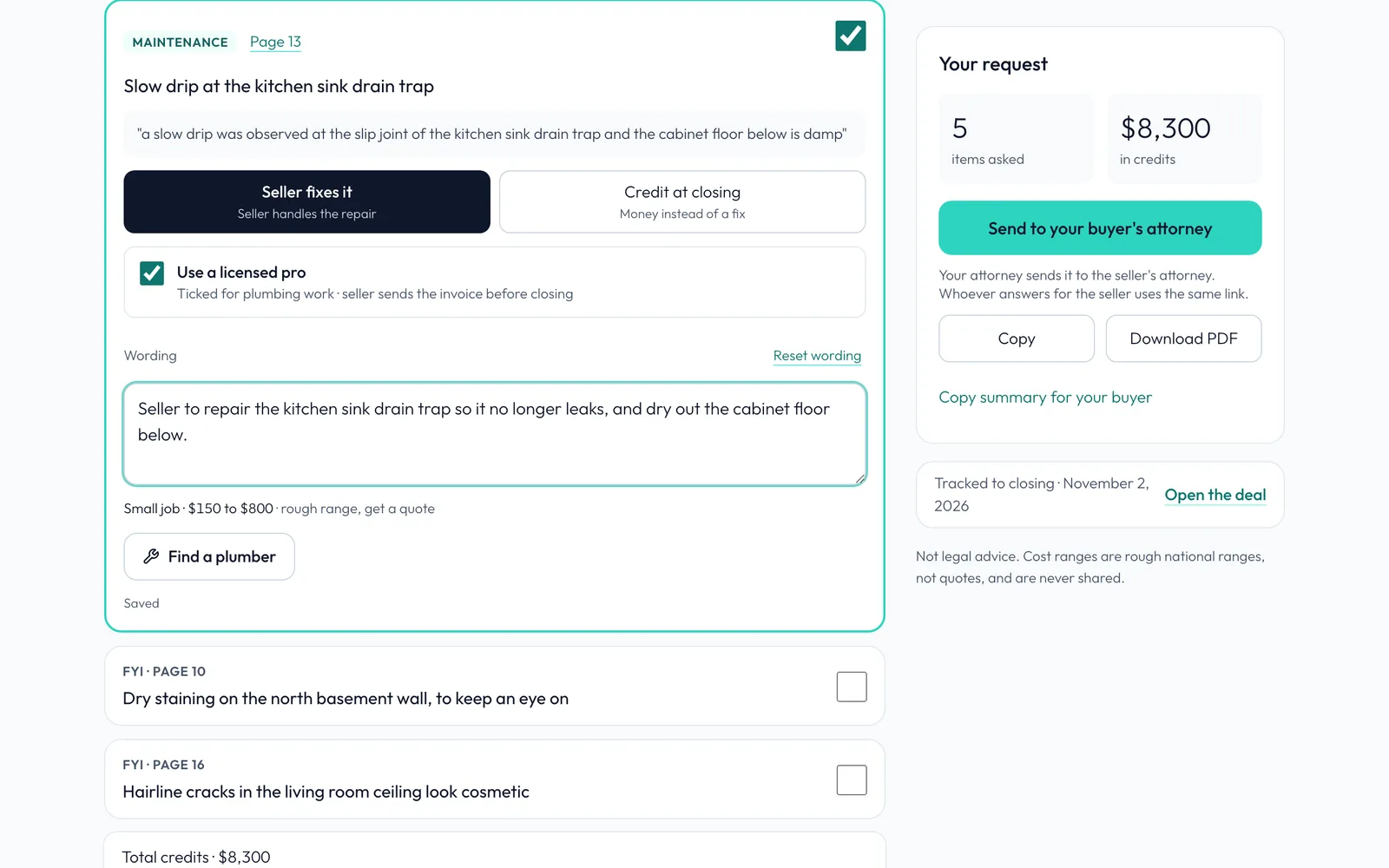
The rough cost range, like $150 to $500 for a small job, is there to help you decide what to ask for. It's not a quote.
-
Only you see them
Cost ranges are only ever shown to you. They're never on the listing agent's link, the request PDF, or anything the buyer or seller sees.
-
Repair with a licensed pro
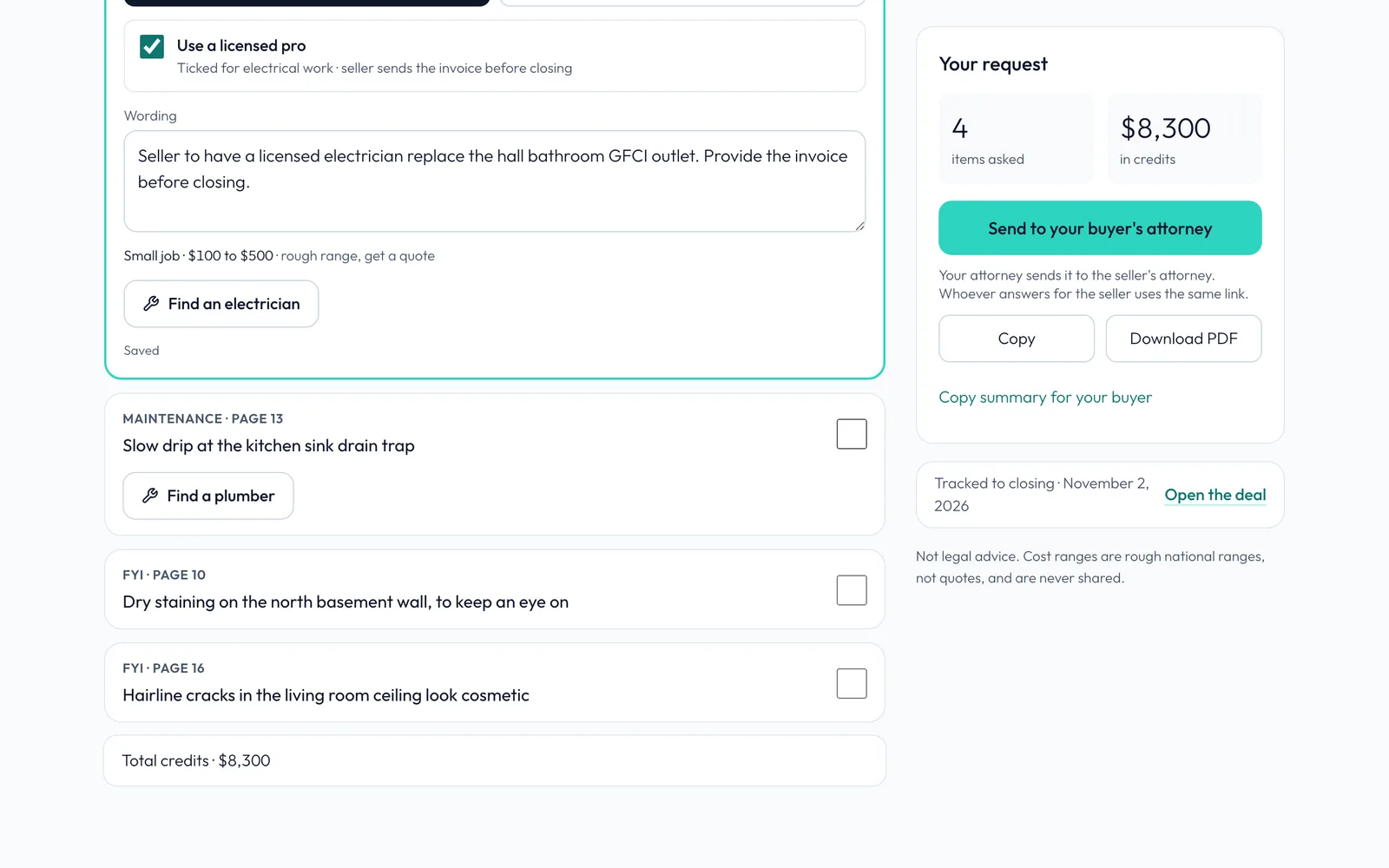
Seller fixes it asks for a repair. Use a licensed pro is ticked for electrical work, so the seller sends the invoice before closing.
-
Or ask for a credit
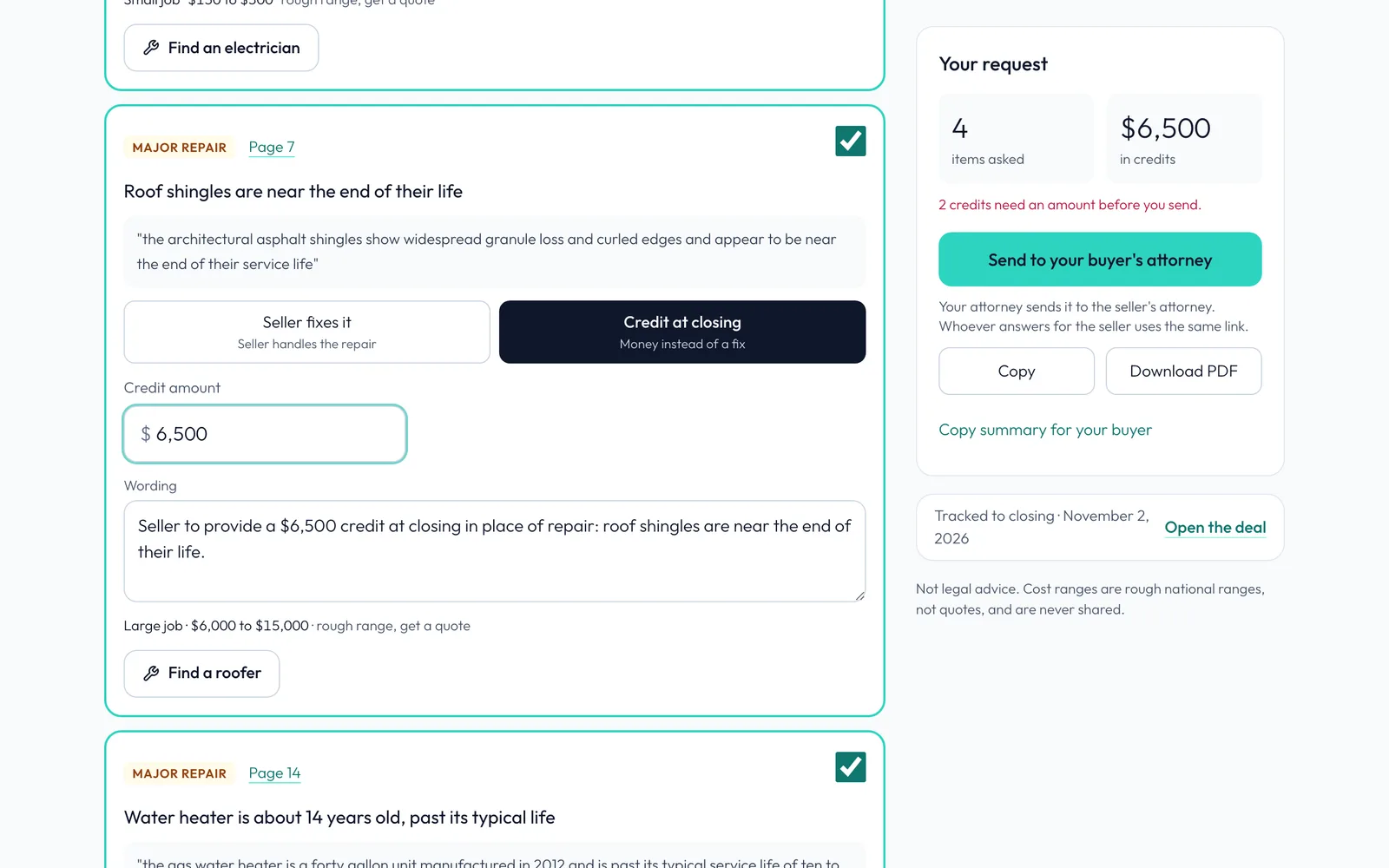
Credit at closing is money instead of a fix. The amount starts empty, and the request can't go out until every credit has an amount you typed. The range never fills it in for you. Here, $6,500 for the roof.
-
Another credit
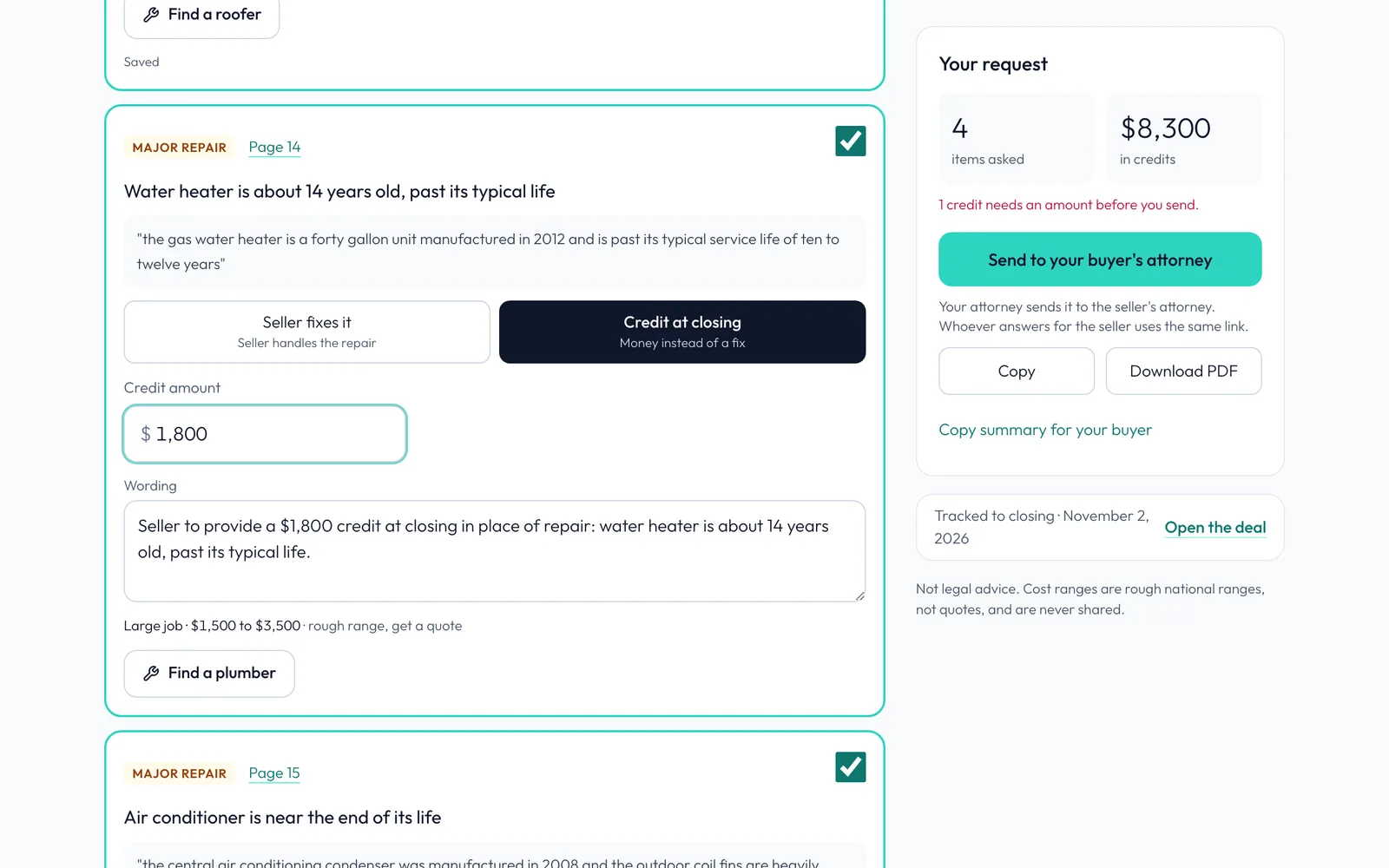
The water heater is a credit too: $1,800.
-
Leave one off
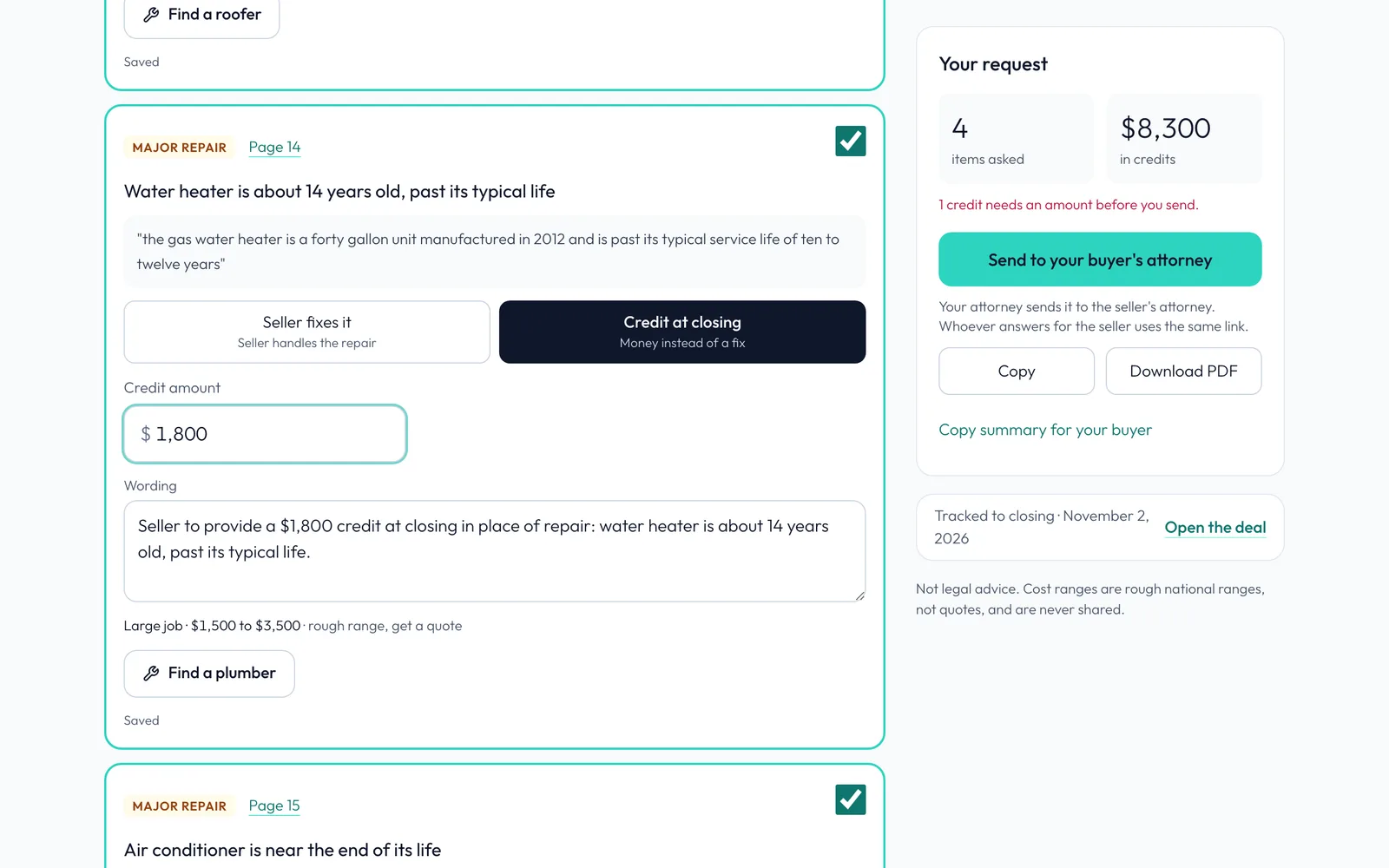
Untick an item to leave it off. Here the buyer will handle the air conditioner themselves. It still shows on the buyer's list later.
-
Add an item
Tick an item to add it. The hall bath GFCI outlet goes in as a repair.
-
Add another
The kitchen sink drip goes in as a repair too.
-
Edit the wording
The wording is what the other side reads. Change it if you like. Here it also asks the seller to dry out the cabinet floor. Reset wording brings the suggestion back.
-
Review your request
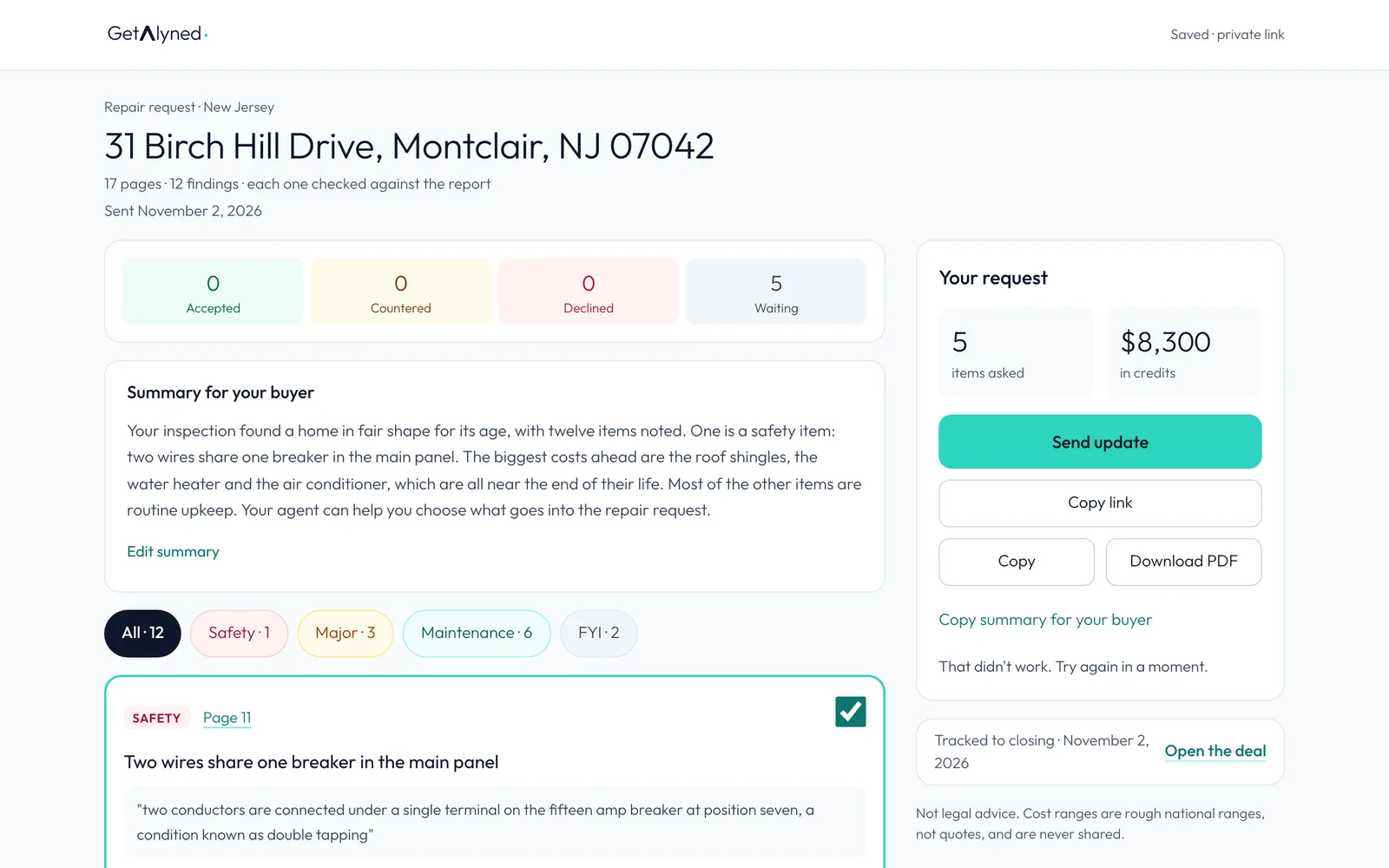
Review it: 5 items and $8,300 in credits, every amount typed by you. In New Jersey the request goes to your buyer's attorney. Elsewhere the button reads Send to listing agent.
-
Send it
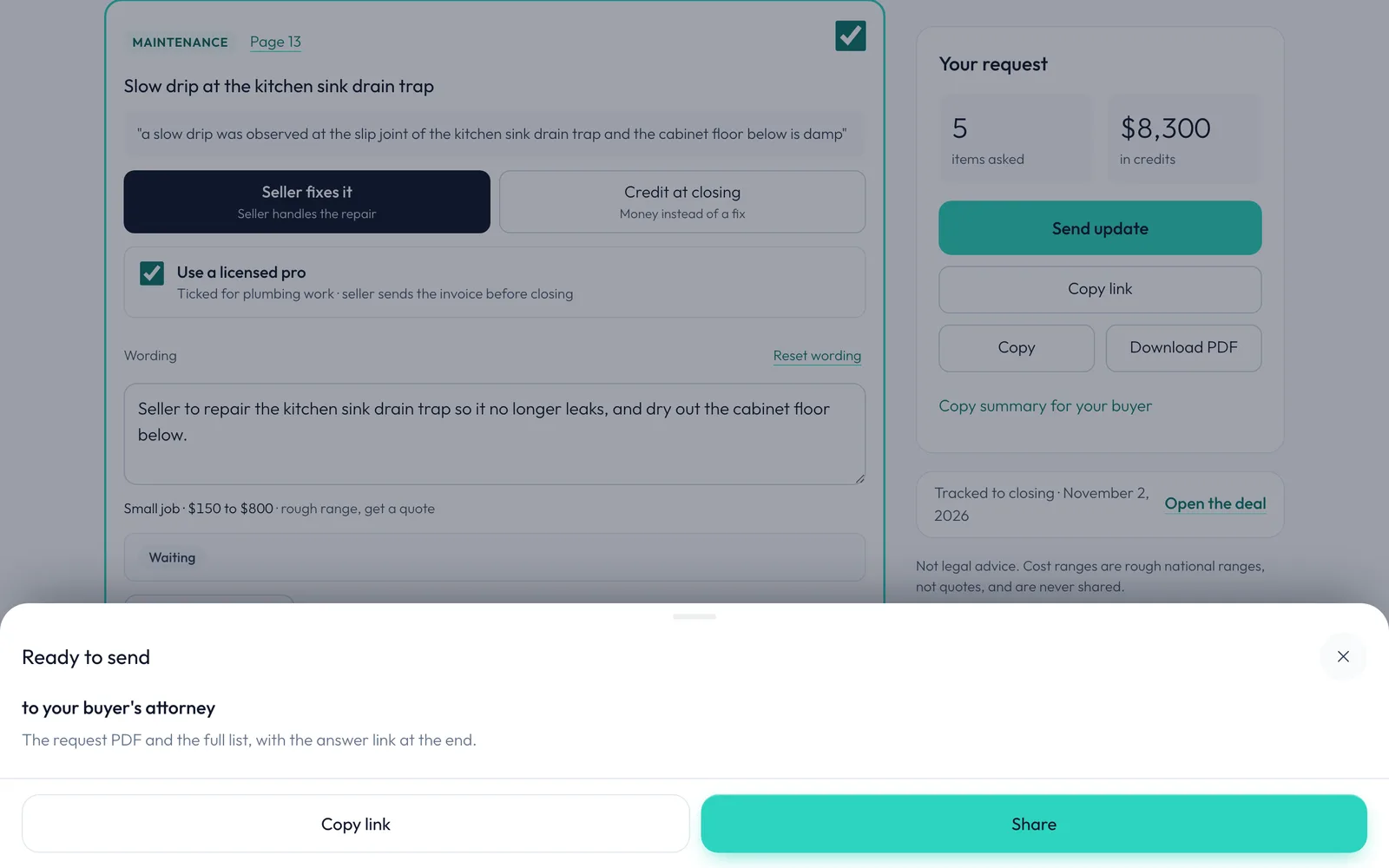
Click Send to your buyer's attorney. Alyned gets one link ready. It doesn't send it for you.
-
Ready to send
You get the request PDF and the full list, with the answer link at the end. Share opens your own email or share sheet.
-
Or copy the link
Copy link copies just the answer link, to paste into your own email or text. It's one link, and whoever answers for the seller uses it.
-
Sent
It shows Sent, with the date. Each item reads Waiting until the other side answers. Come back to it from the deal any time.
Related guides
- Agree on repairs and lock the list · See how the seller's side answered, settle any counters, lock the final list, and send it to your buyer.
- Start a Repair Ask from your phone · Build a repair request right from your phone, from the inspector's PDF or by forwarding their email, and send it from your own phone.
- Move a deal forward · Change a deal's stage, check off steps as they're done, and see how your client is told right away in their portal.