Start a Repair Ask from your phone
For agents · 3 min
Build a repair request right from your phone, from the inspector's PDF or by forwarding their email, and send it from your own phone.
Watch
Or read it step by step
-
Open the menu
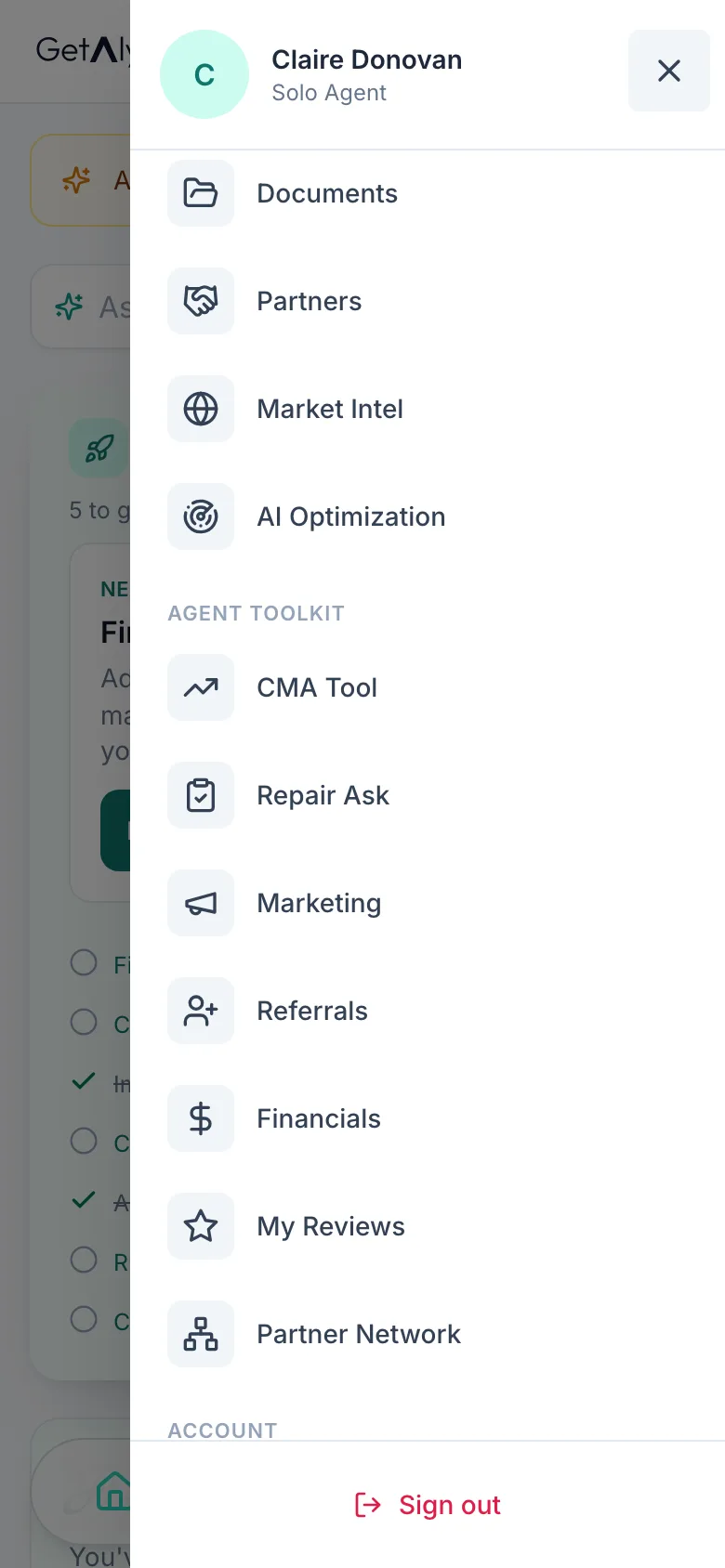
Tap the menu.

-
Open Repair Ask
Repair Ask is in the menu with your tools. You can also start from a deal's Home Inspection step.
-
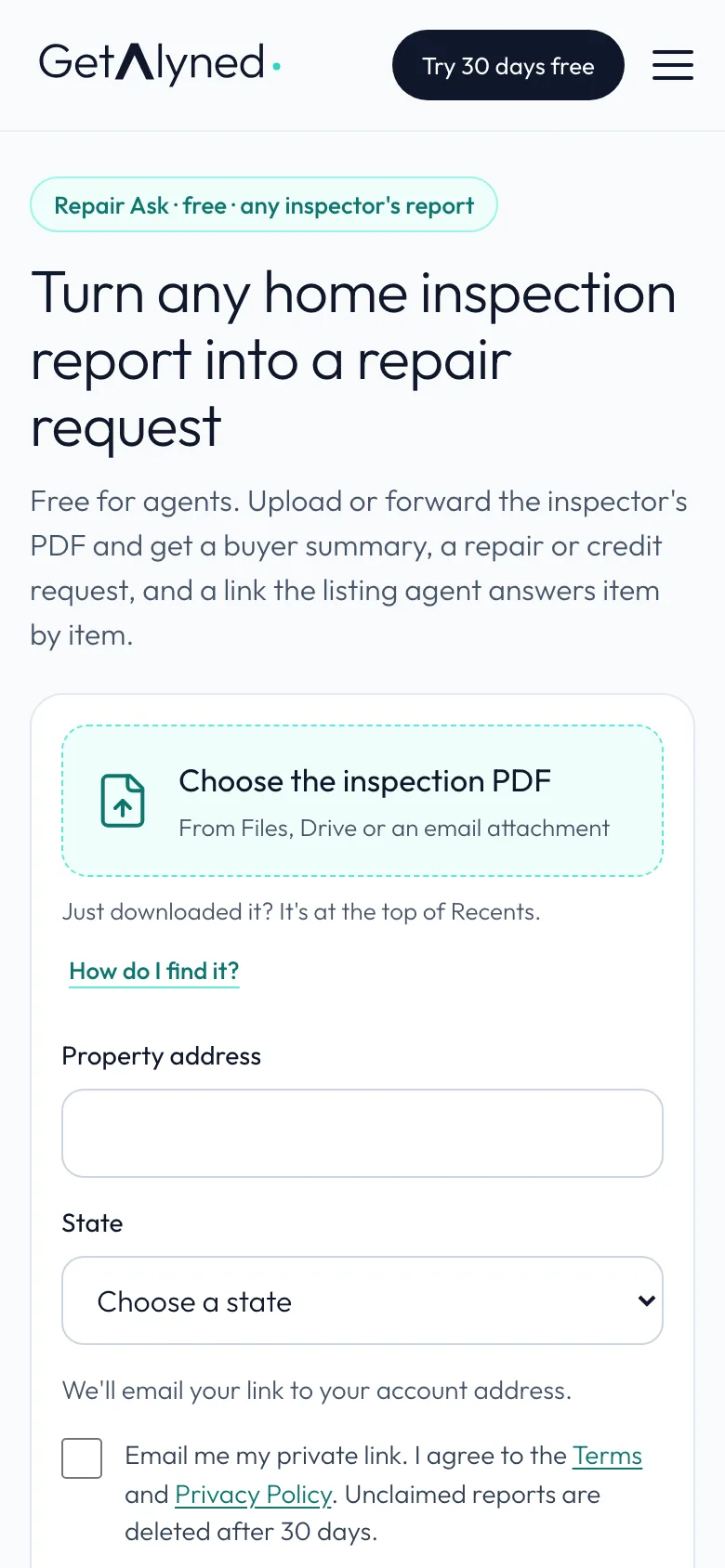
Choose the PDF
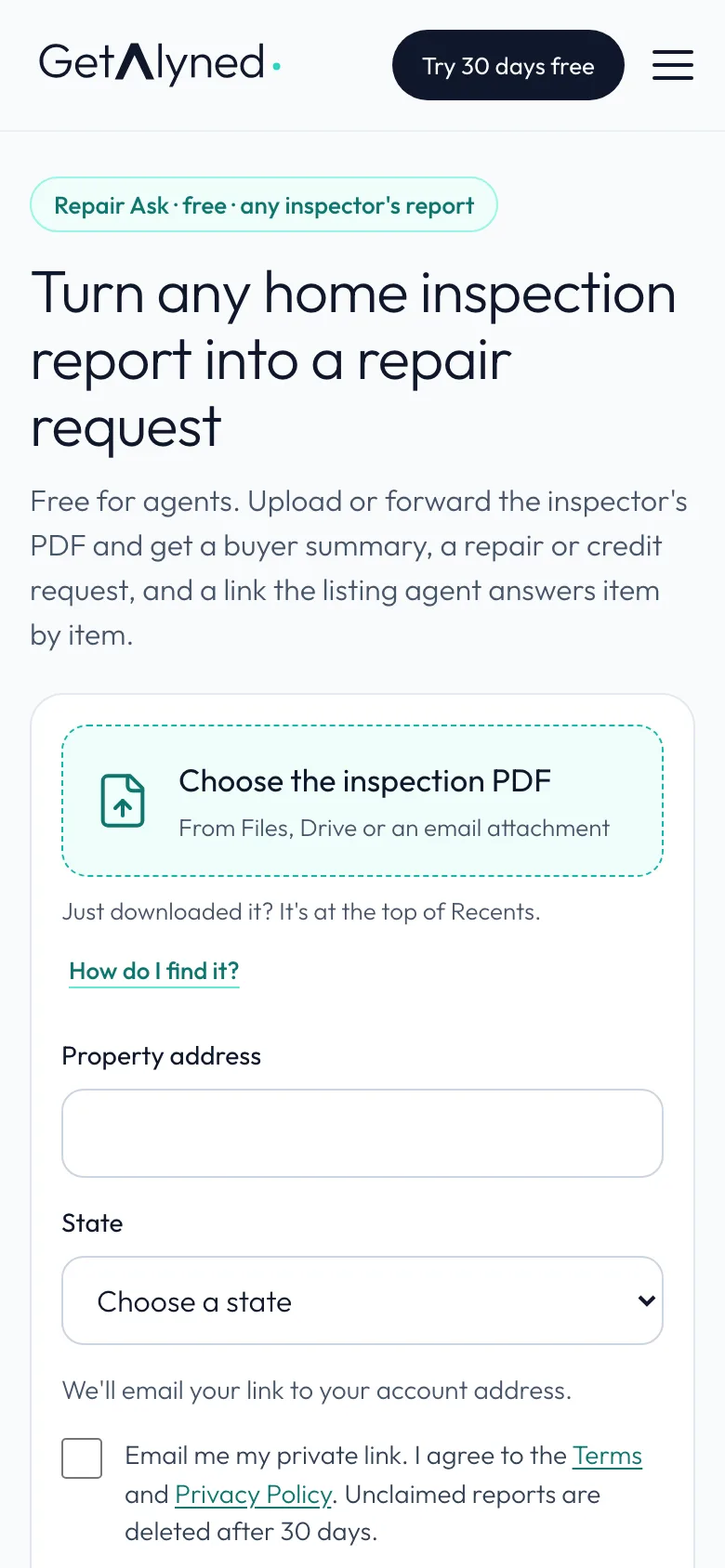
Choose the inspection PDF opens your phone's Files, Drive or an email attachment.
-
Just downloaded it?
Just downloaded the report? It's at the top of Recents.
-
Can't find it?
How do I find it? explains where the file went.
-
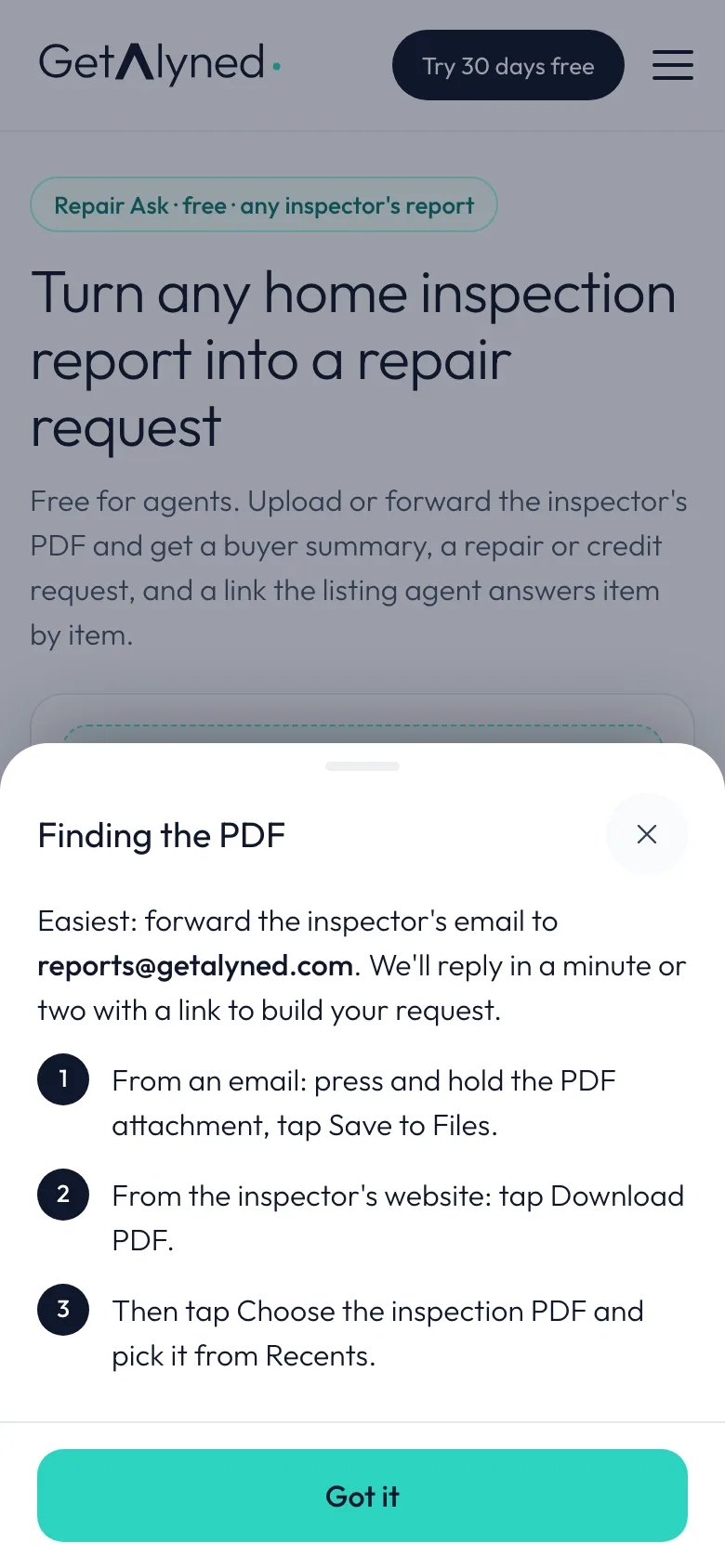
Finding the PDF
From an email, press and hold the attachment and tap Save to Files. From the inspector's website, tap Download PDF. Then pick it from Recents.
-
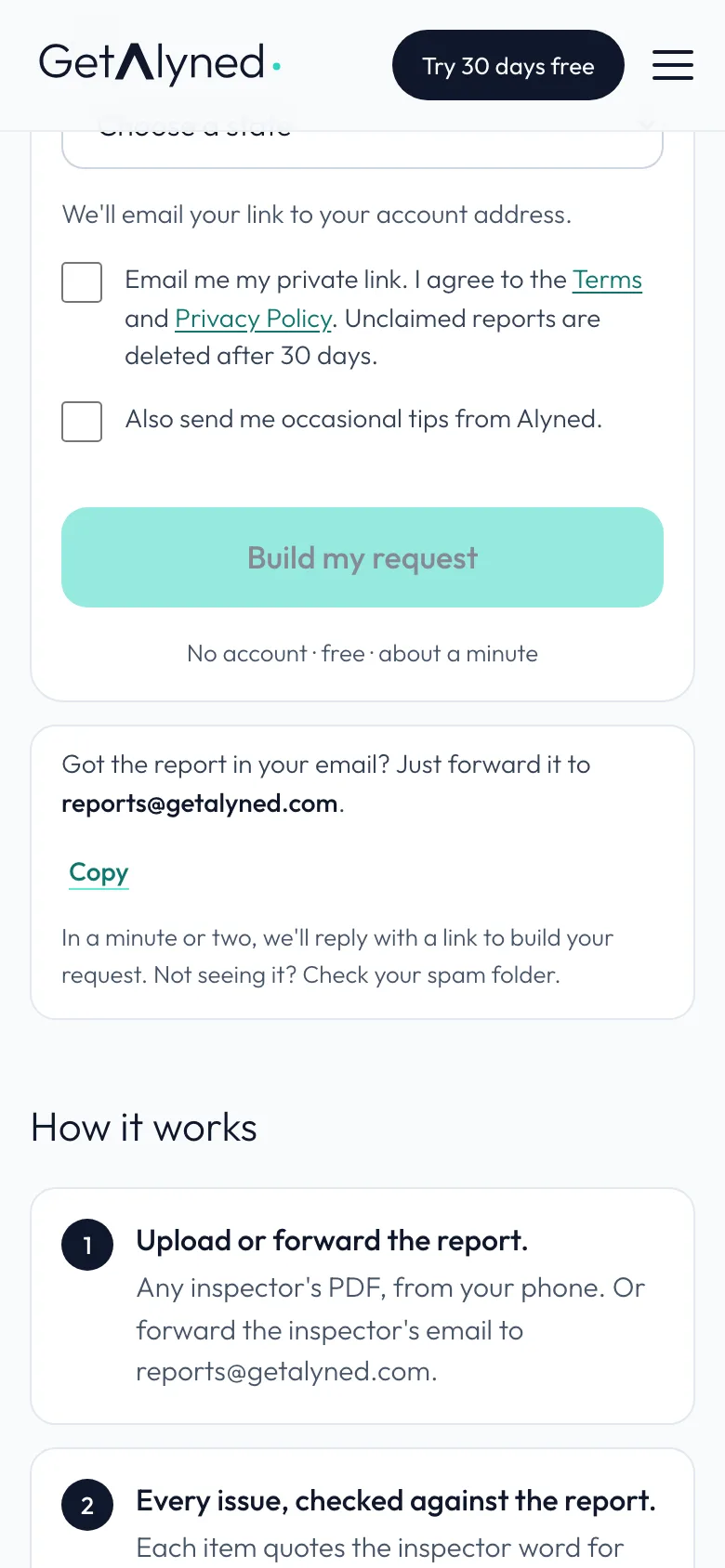
Or just forward the email
Got the report by email? Forward it to reports@getalyned.com. You get a reply in a minute or two with a link to build your request. Check spam if you don't see it.
-
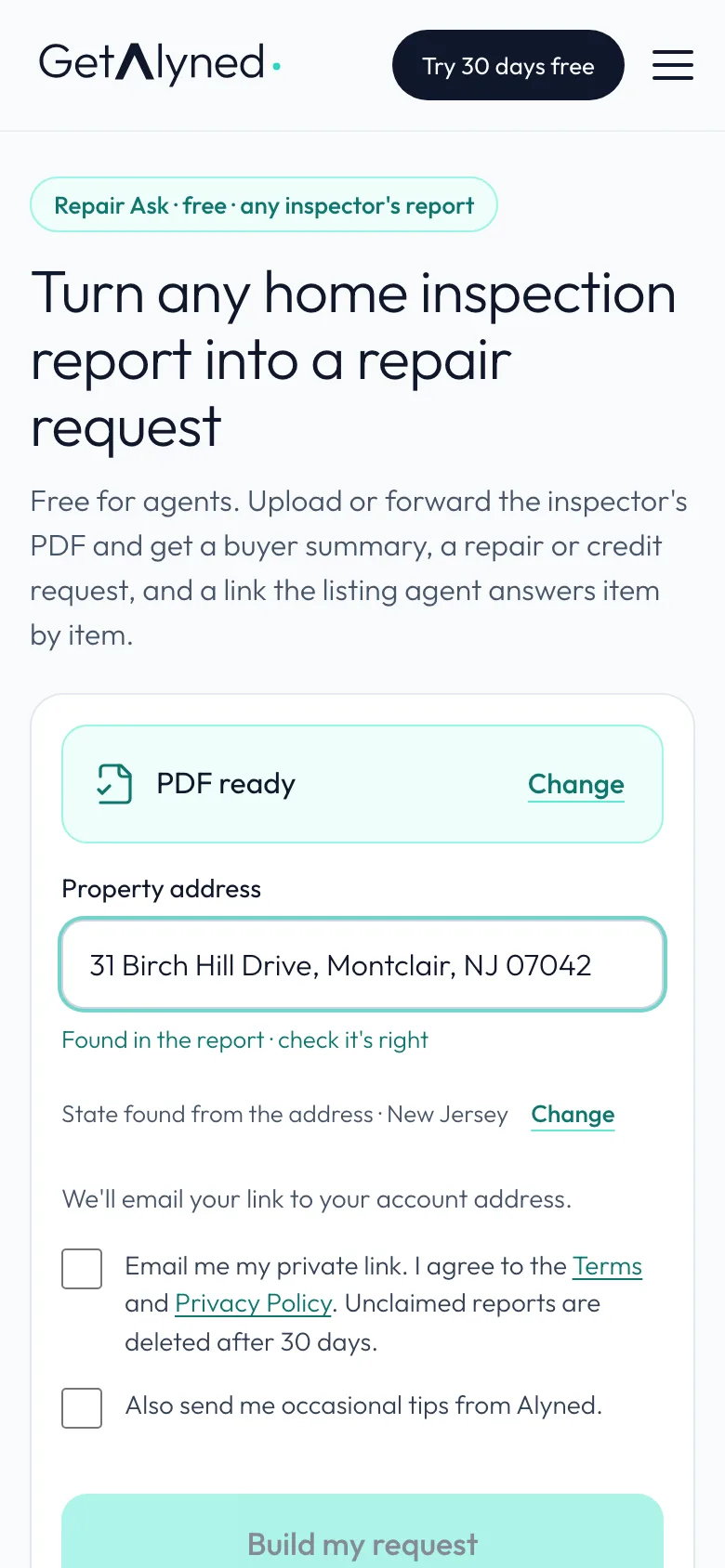
Pick the PDF
Pick the PDF. A green line reads PDF ready.
-
Check the address
Check the address. The state fills in from it, and sets the right wording for your state.
-
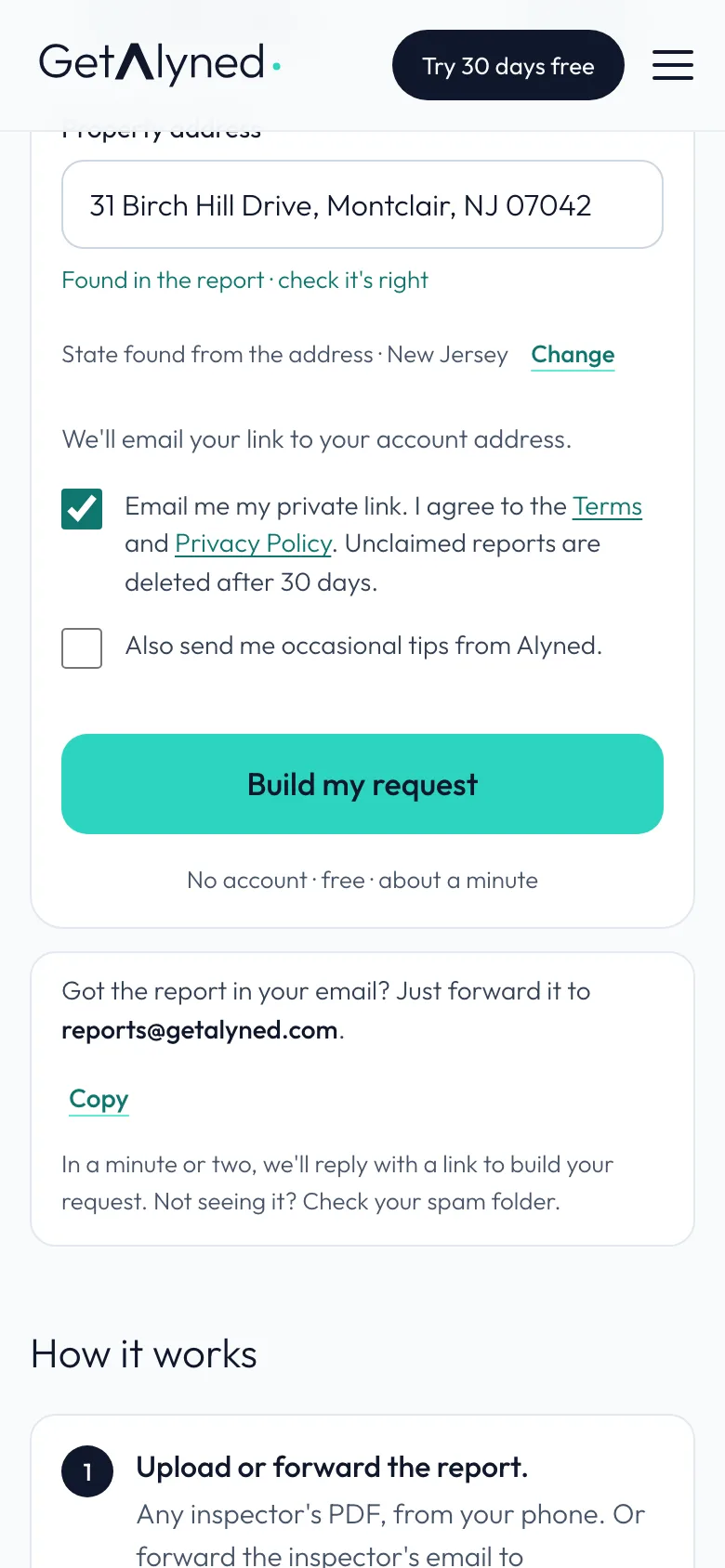
Agree to the terms
Tick the box to agree to the terms. Your private link reaches you by email too.
-
Build it
Tap Build my request. It takes about a minute, and you can keep using your phone.
-
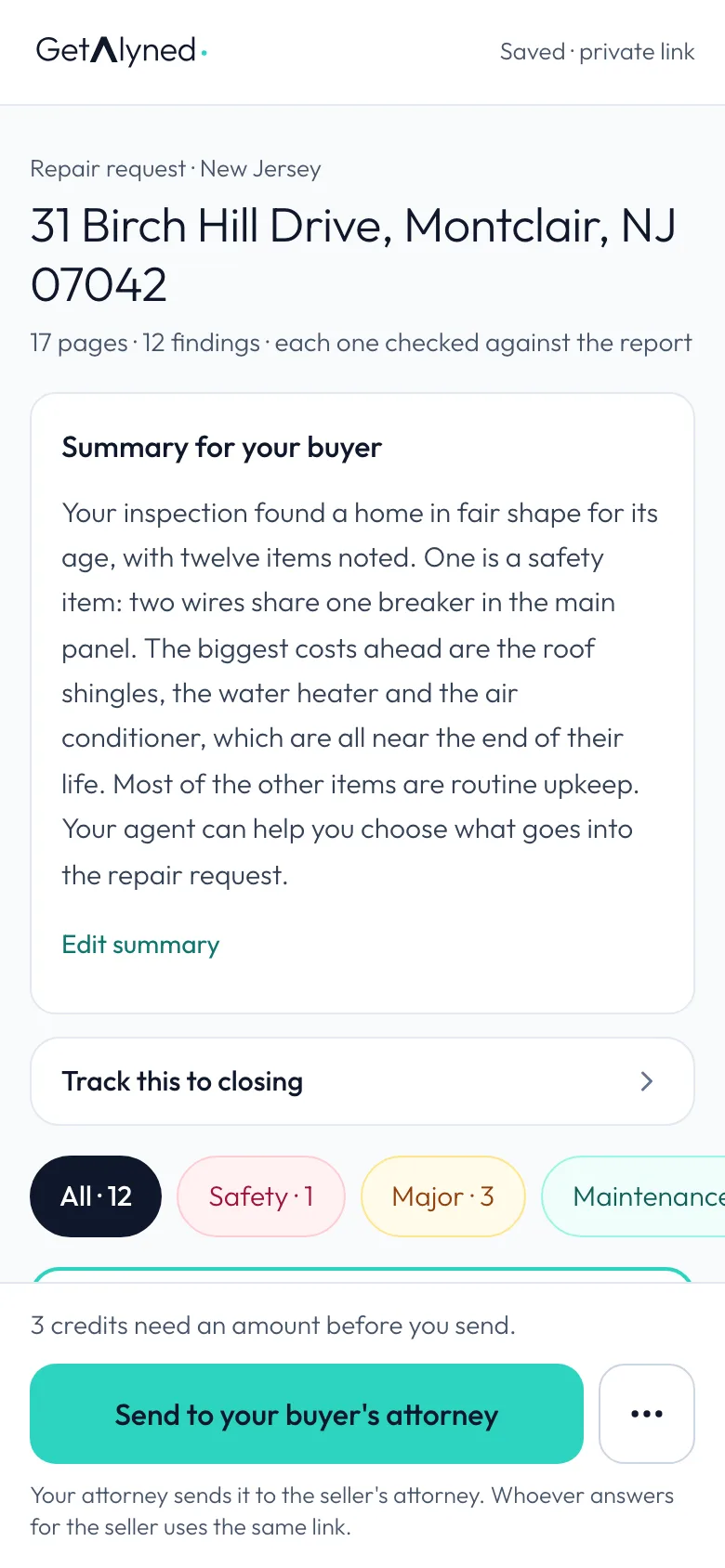
The same review
The same review as on a computer, in one column. The summary for your buyer comes first.
-
Choose for each item
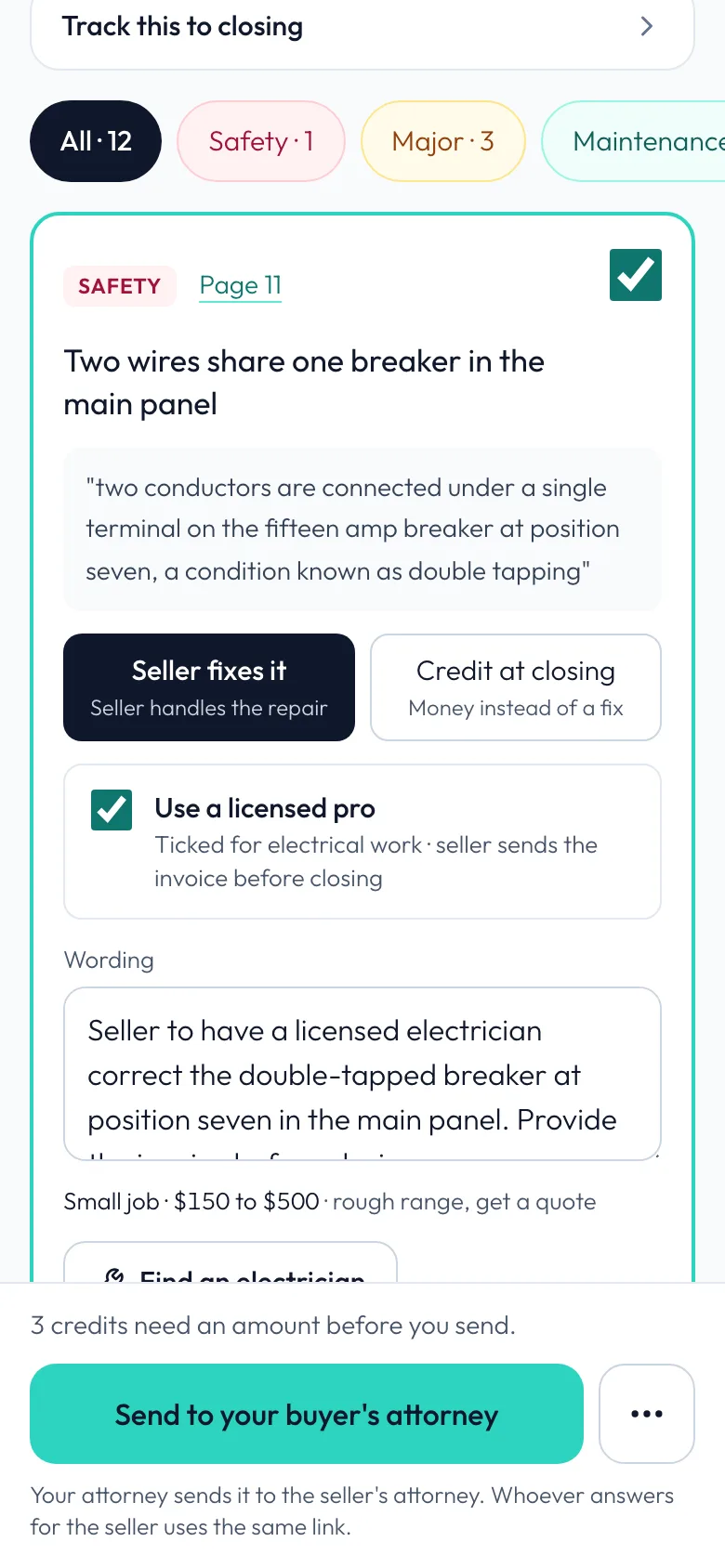
Each item has Seller fixes it or Credit at closing. The safety item starts ticked. Rough cost ranges are here for you only.
-
Tap Send
The bar at the bottom shows what you're asking for. Tap Send to your buyer's attorney. Outside attorney states it reads Send to listing agent.
-
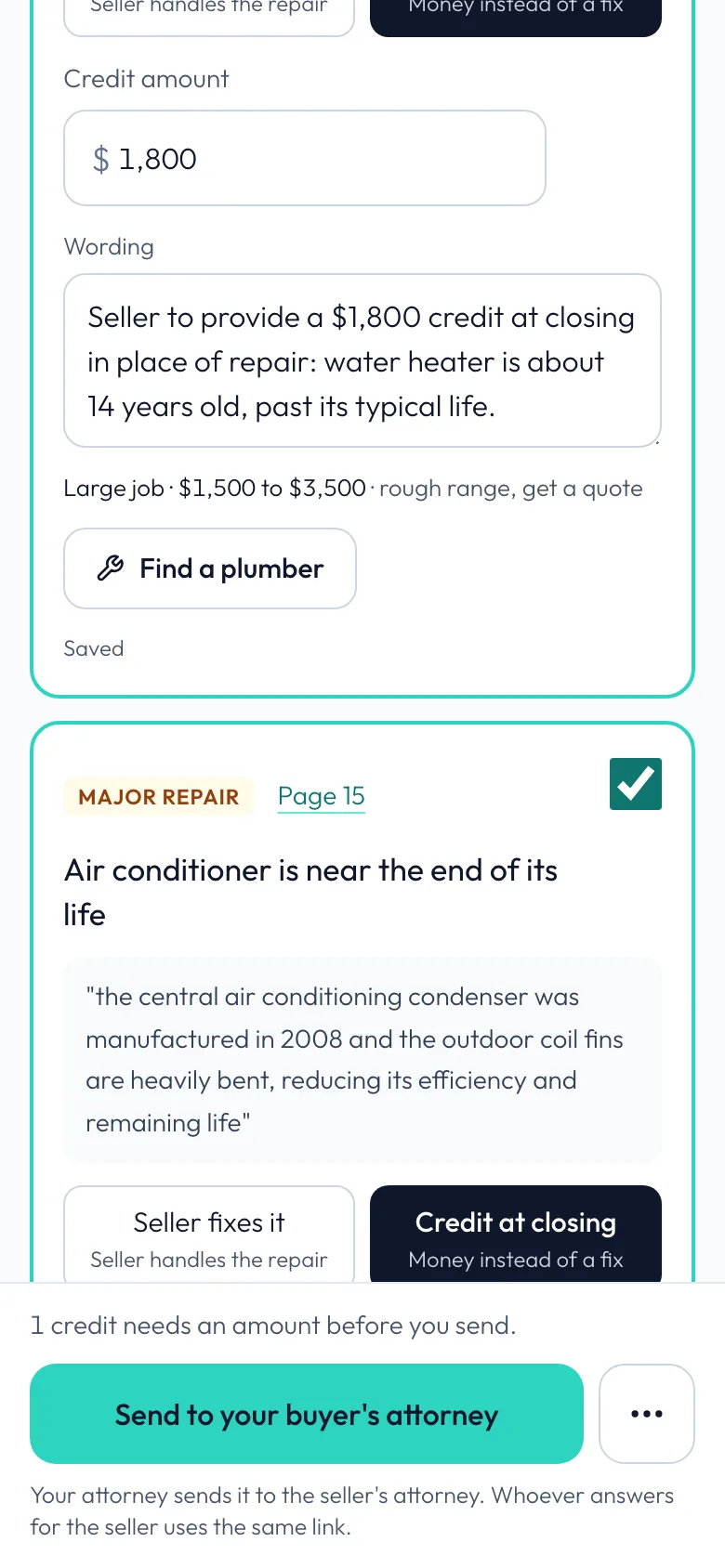
Every credit needs an amount
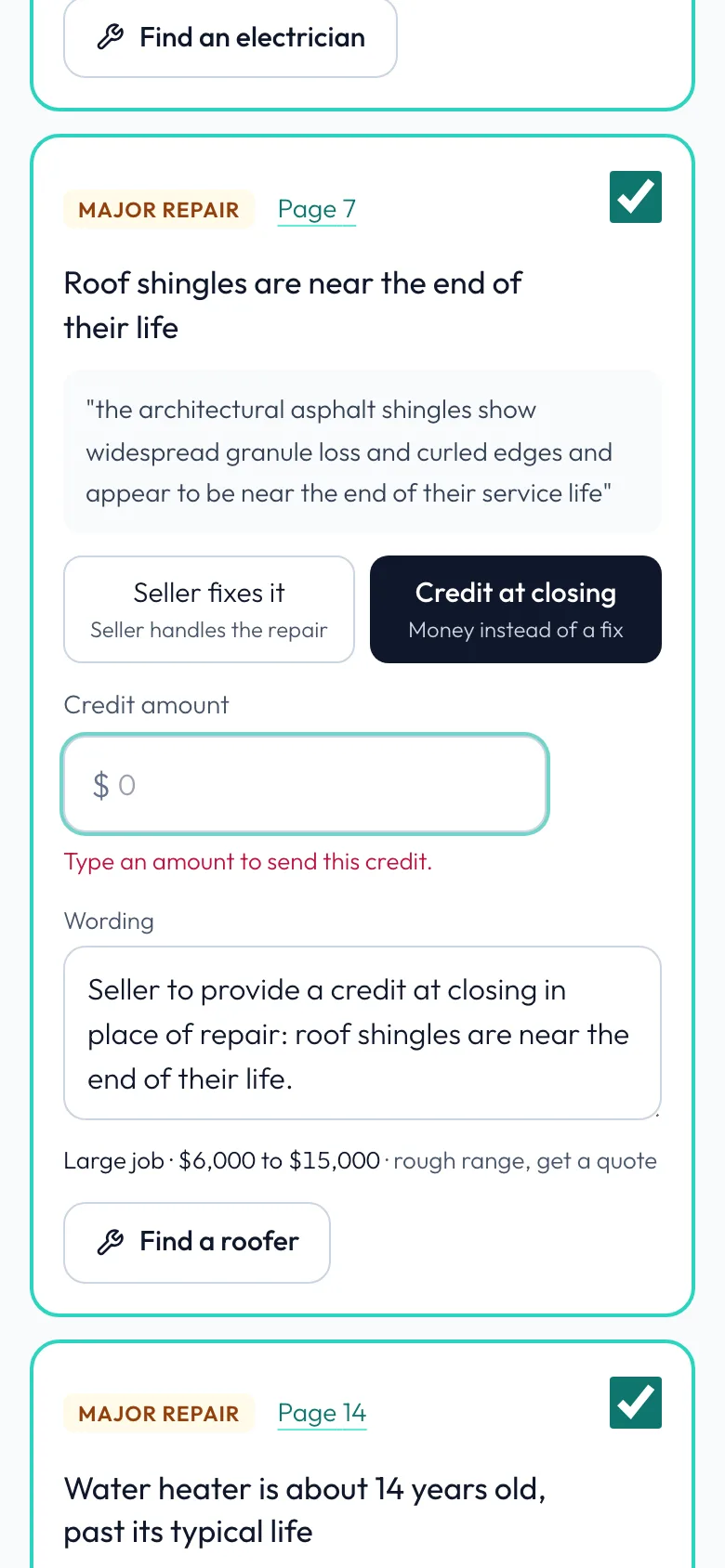
A credit starts with no amount, so Send stops at the first empty one. Nothing goes out until every credit has an amount you typed: Send, Copy and Download PDF all wait.
-
Type the roof credit
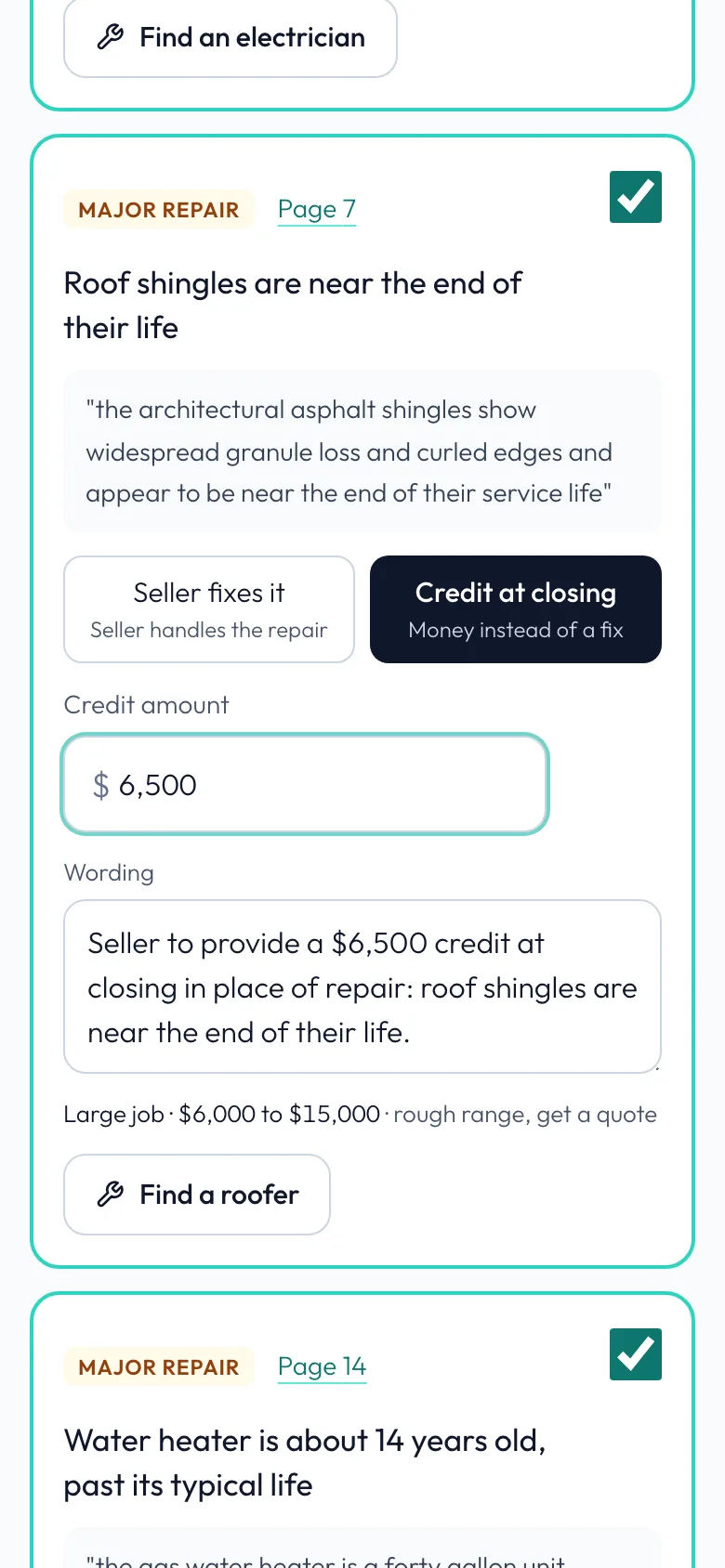
Type the roof credit: $6,500.
-
Type the water heater credit
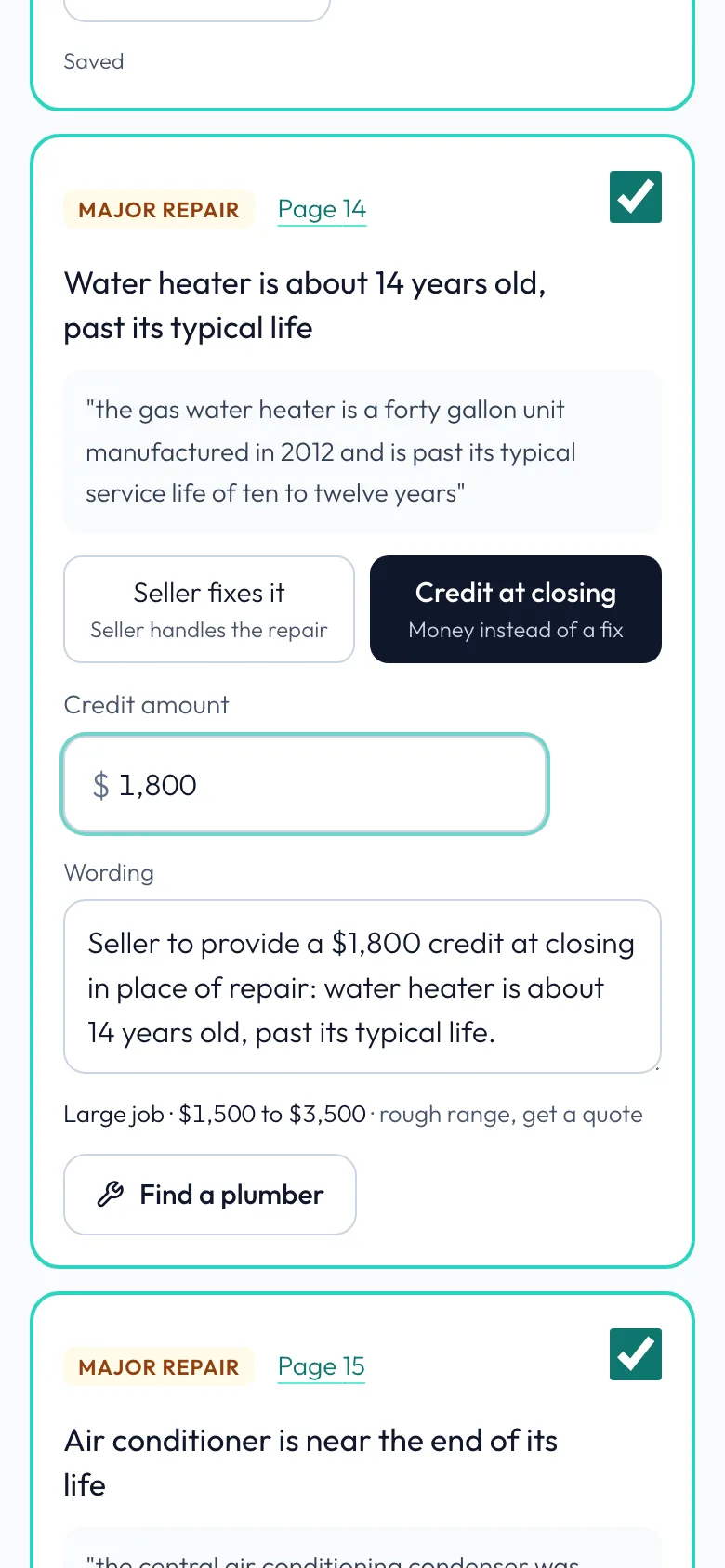
And the water heater credit: $1,800.
-
Or leave it off
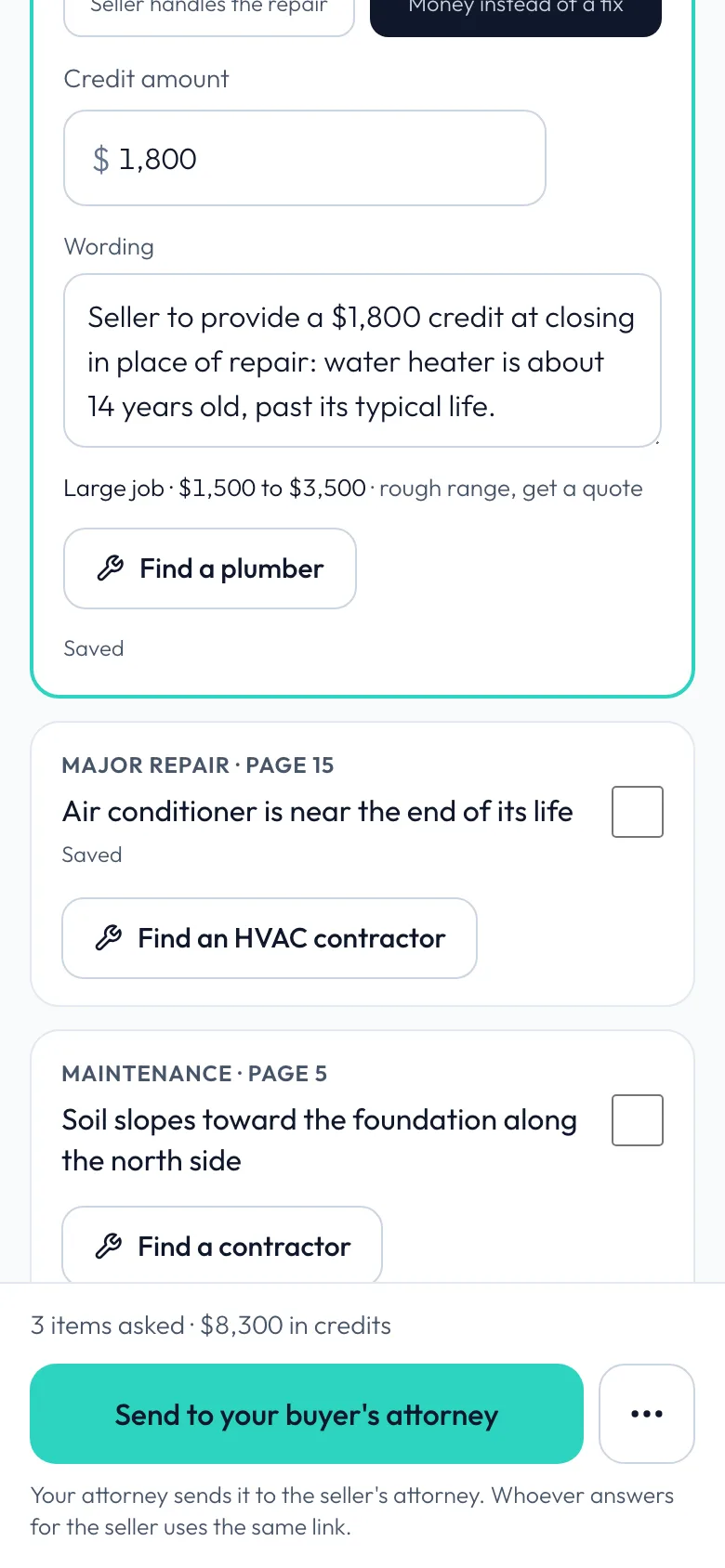
Or untick a credit to leave it off. Your buyer will handle the air conditioner.
-
Send it
Every credit has an amount now, so tap Send again.
-
Share from your phone
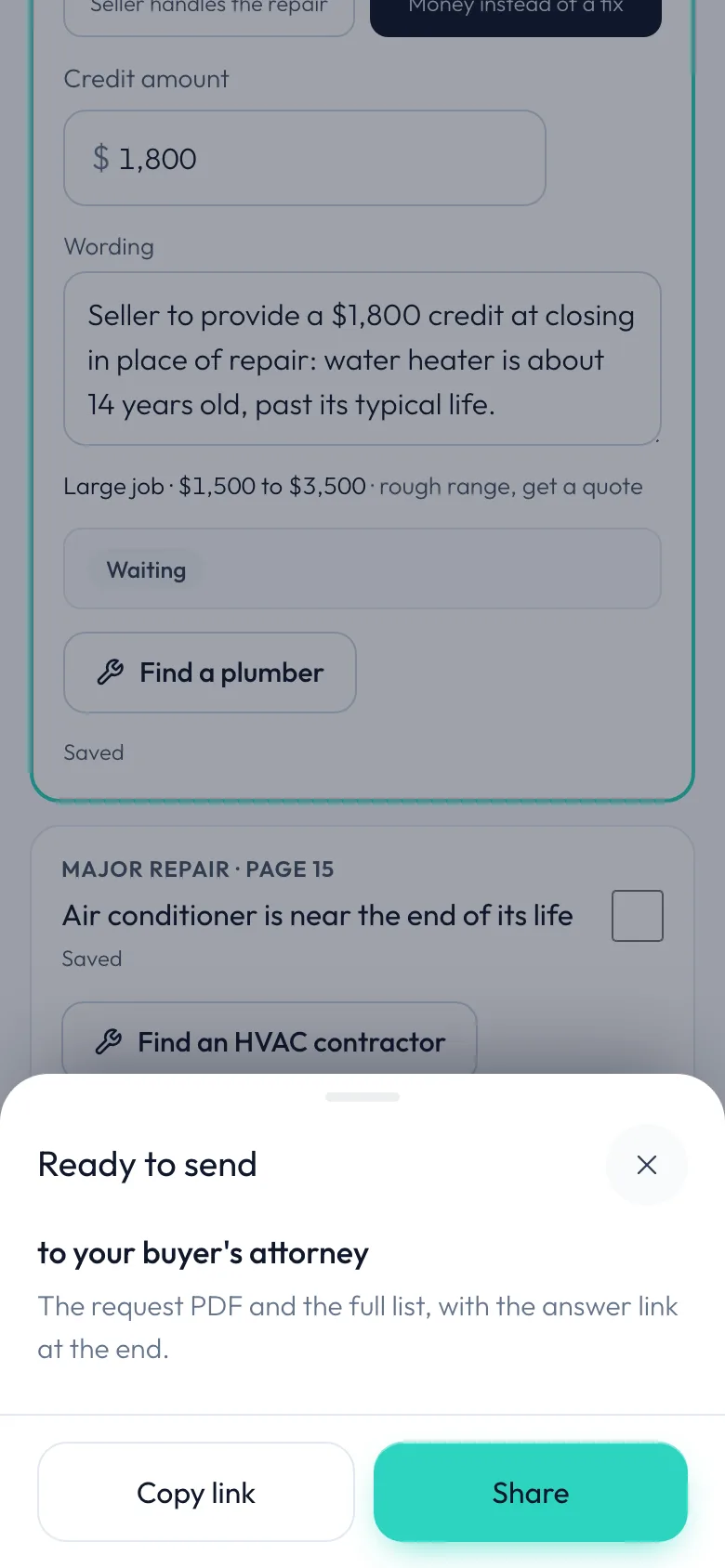
Share opens your phone's own share sheet, so it goes from your own email or texts, with the PDF attached and the answer link at the end.
-
Free for anyone
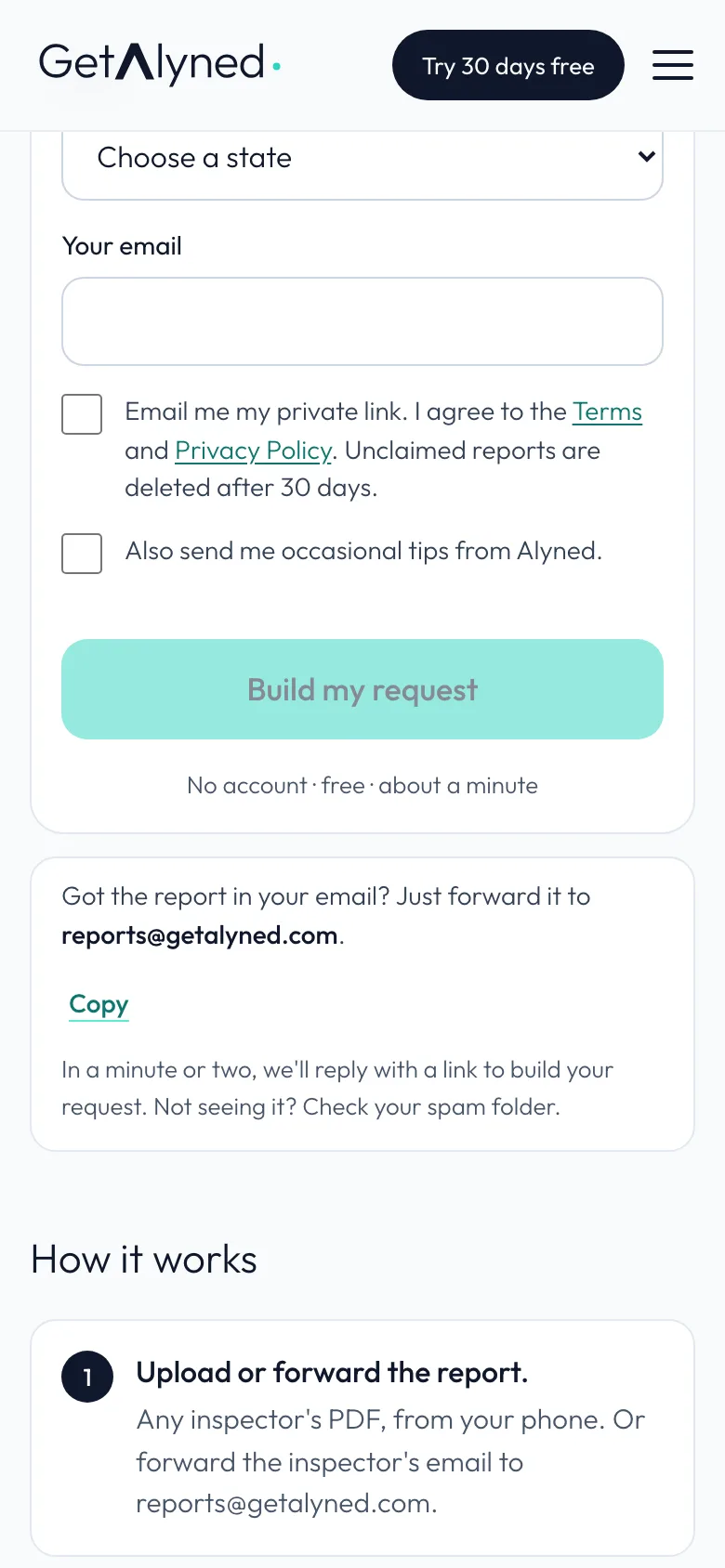
The same tool is free on getalyned.com/tools/repair-request, with no account. It asks Are you the buyer's agent? before showing any cost ranges.
Related guides
- Build a repair request from an inspection report · Turn the inspector's report into a clear repair request in minutes: a plain-words summary for your buyer, every finding sorted by priority, and one link for the other side to answer. Start it from the deal, or from Repair Ask in the menu.
- Agree on repairs and lock the list · See how the seller's side answered, settle any counters, lock the final list, and send it to your buyer.
- Answer a repair request · For the listing agent or seller's attorney: open the link you were sent, answer each item, and send your answers back. No account needed.