Customize your dashboard
For agents · 3 min
Make your dashboard yours: move cards, make them wider, remove the ones you don't use and add new ones from the widget library.
Watch
Or read it step by step
-
Open Customize
Customize your dashboard is at the top of Home.
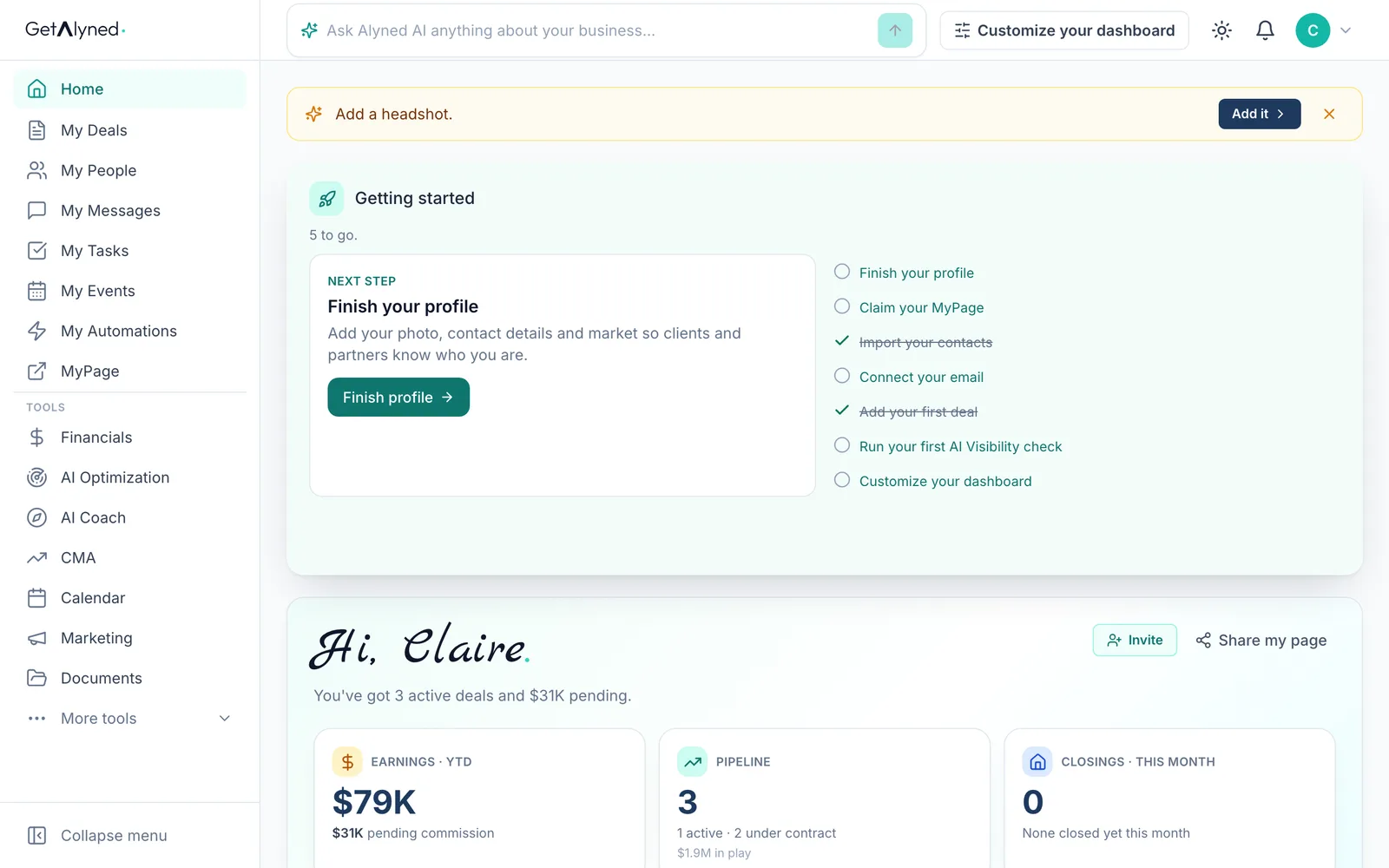
-
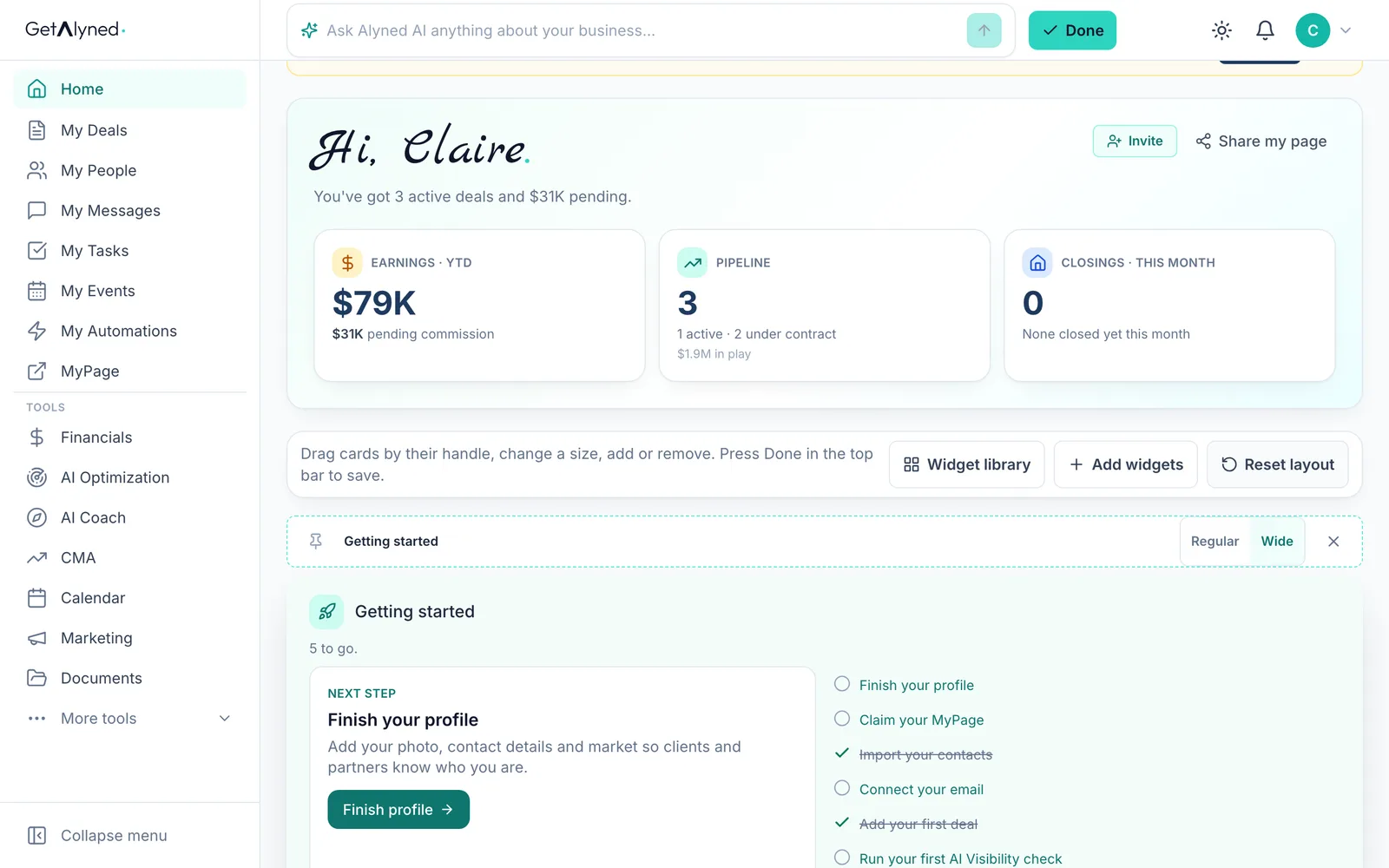
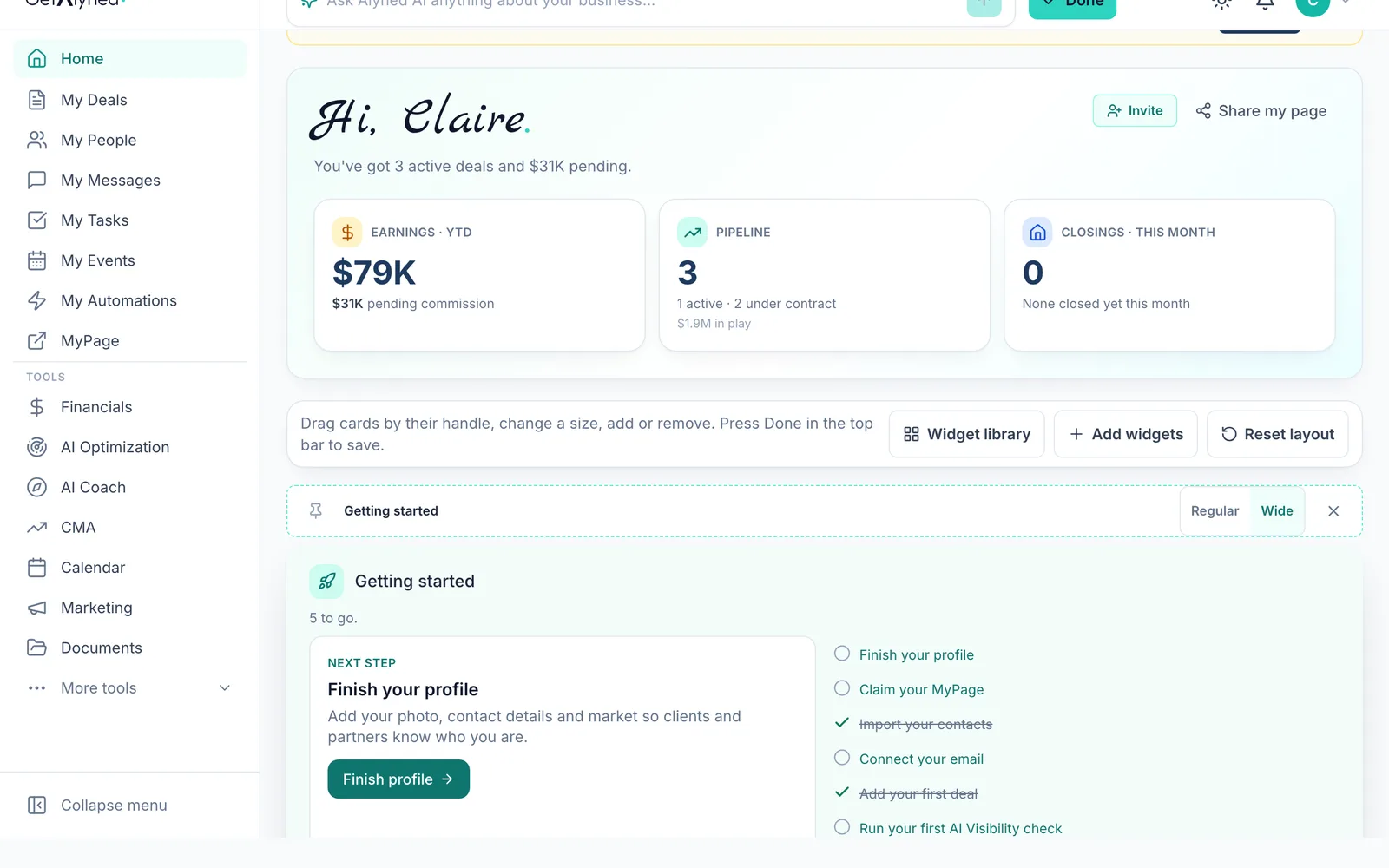
Your tools
Add widgets, Reset layout and the Widget library are here. Getting started stays first until it's finished.
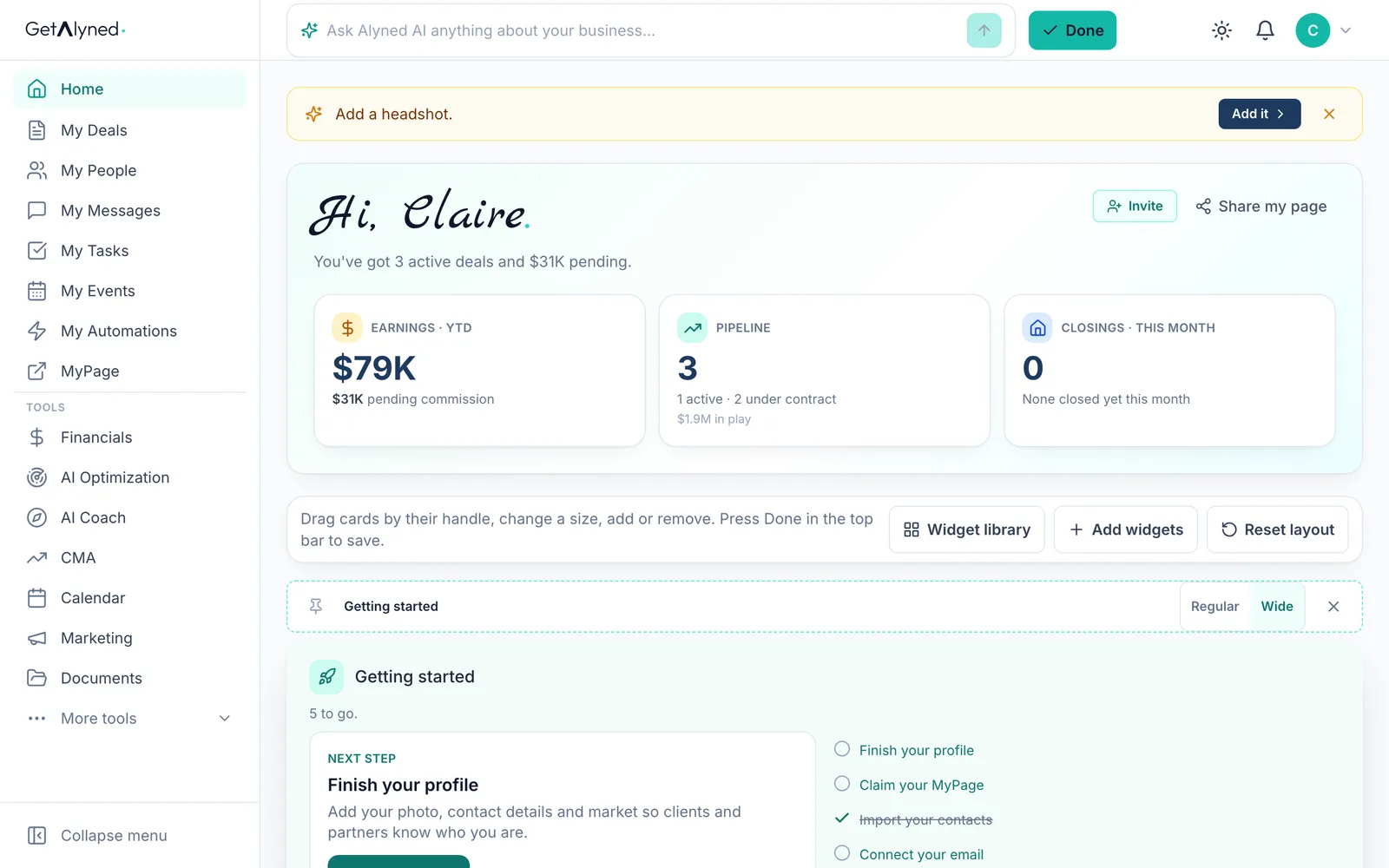
-
Drag to move
Drag a card by its handle to move it.
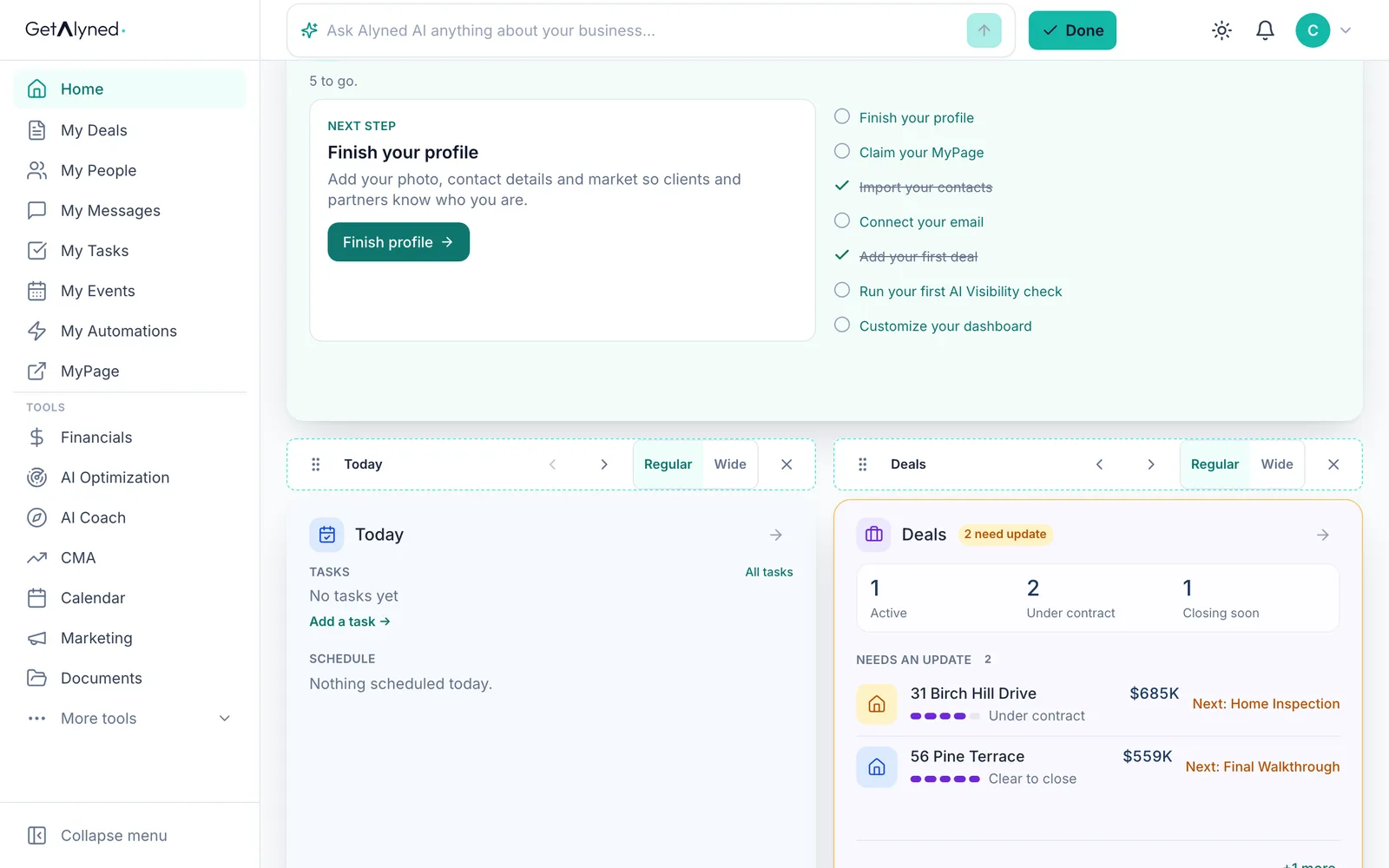
-
Or use the arrows
Or use the arrows. Here, Deals moves ahead of Today.
-
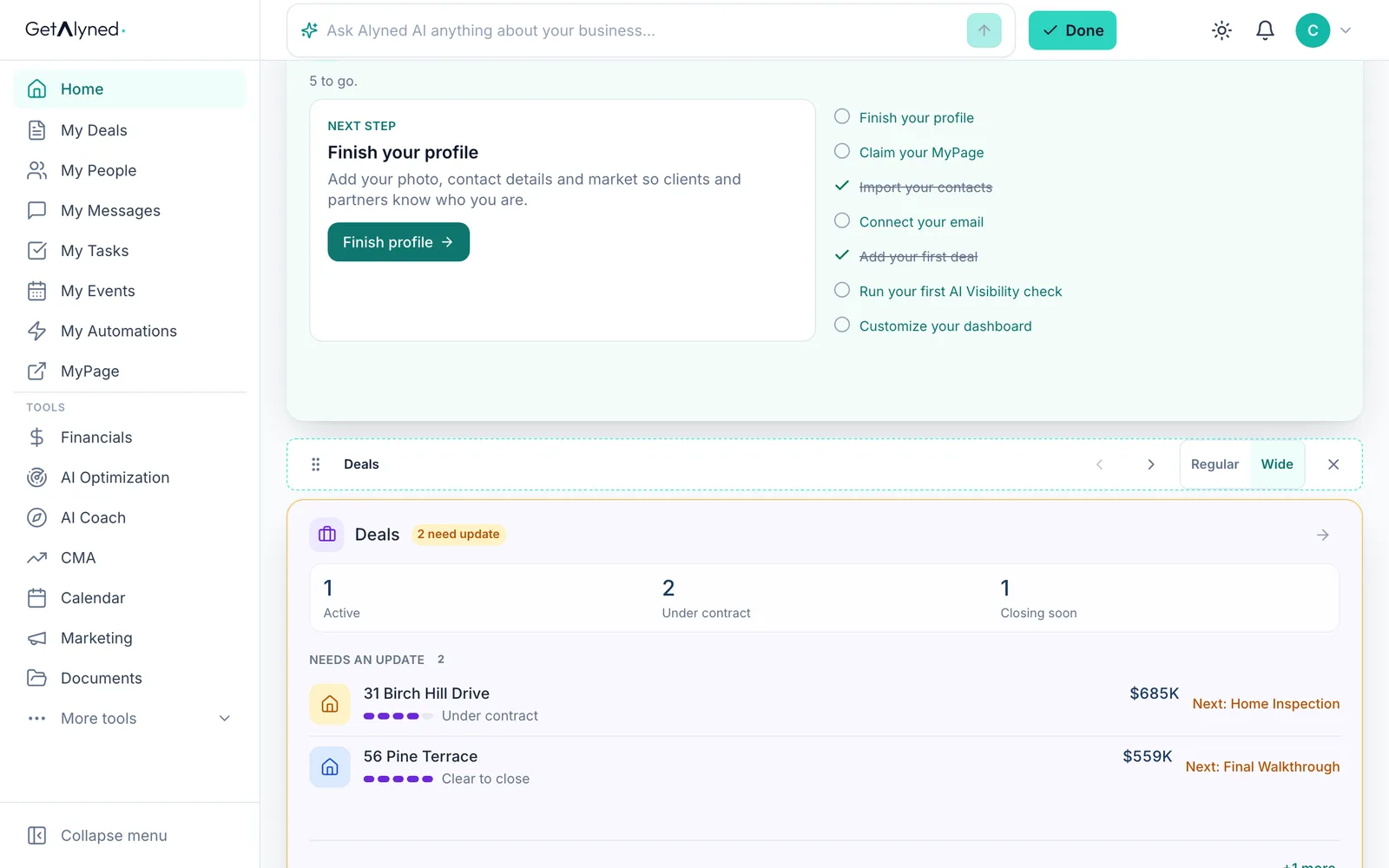
Make it wider
Regular or Wide sets how much room a card takes.
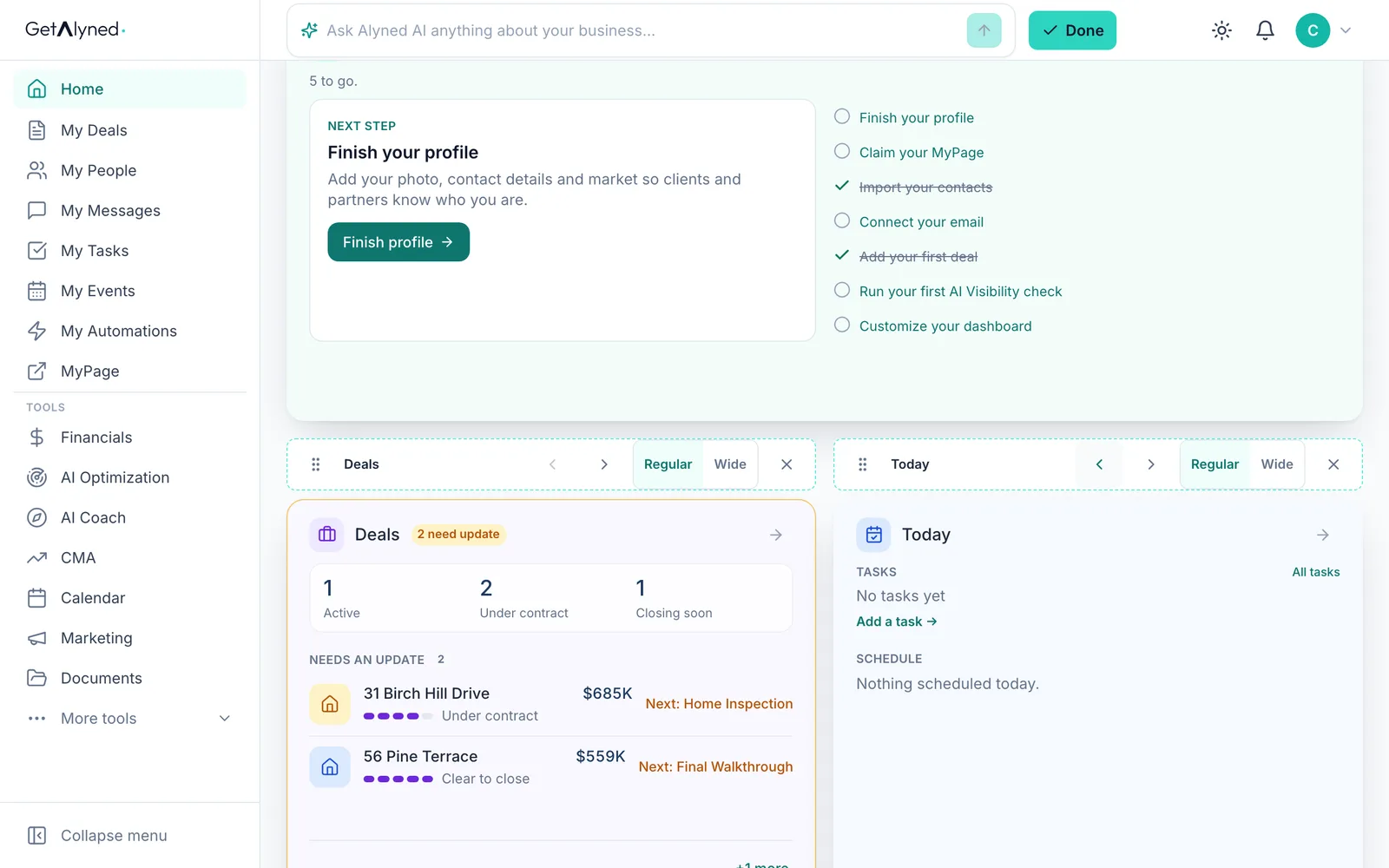
-
It's wider now
Deals now takes two columns.
-
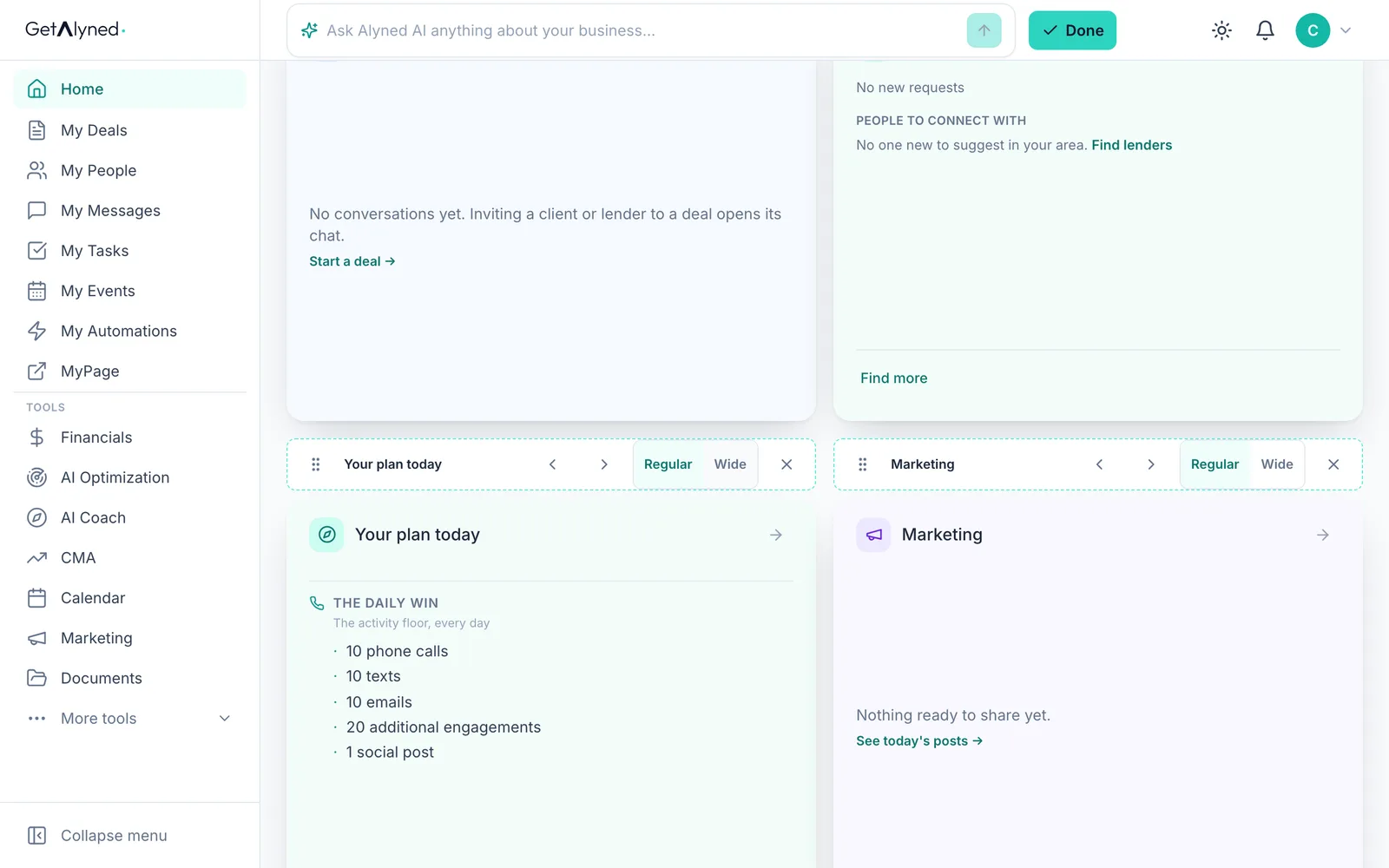
Remove a card
The X takes a card off your dashboard. You can add it back any time.
-
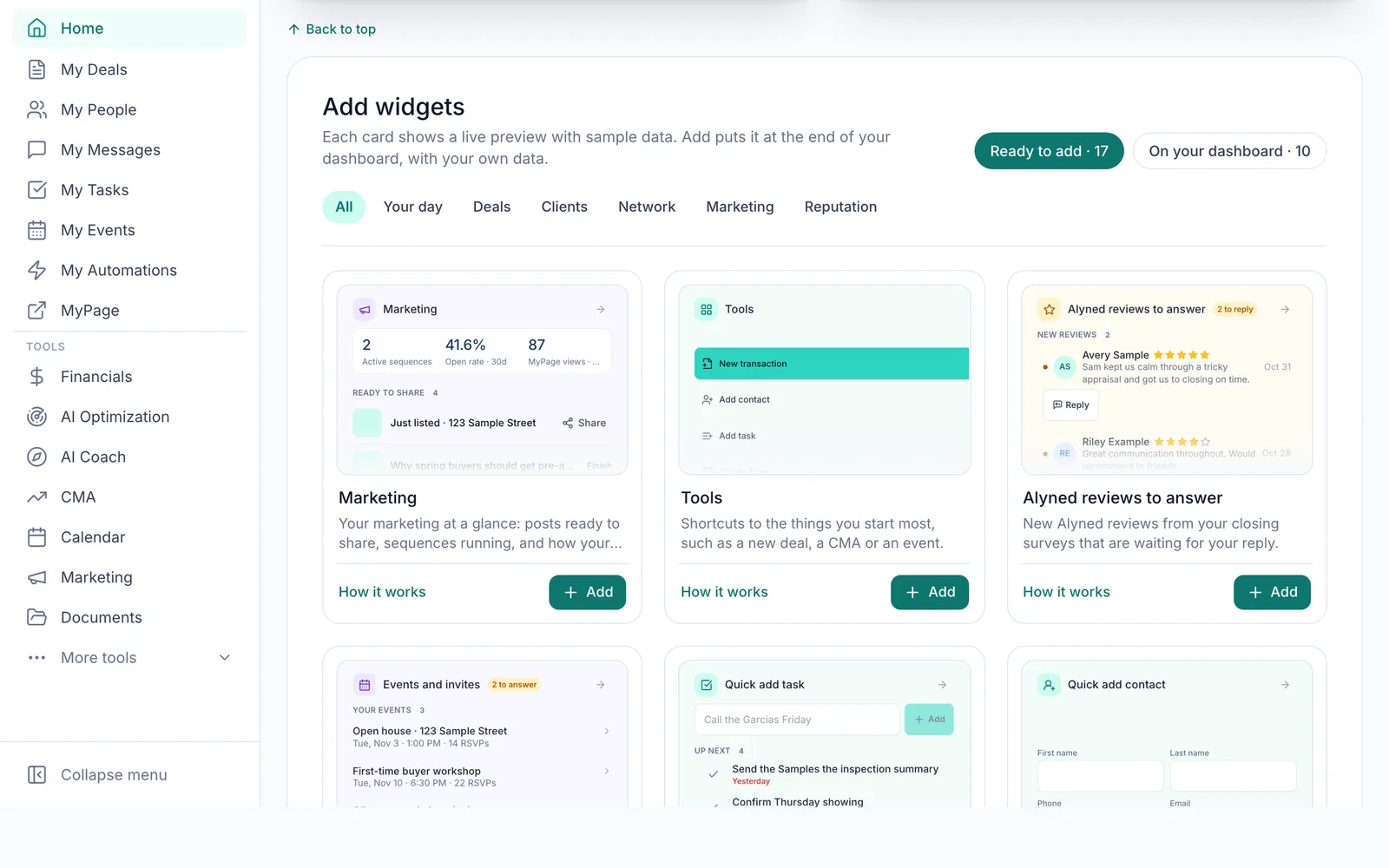
Add widgets
Click Add widgets to see every card you can add.
-
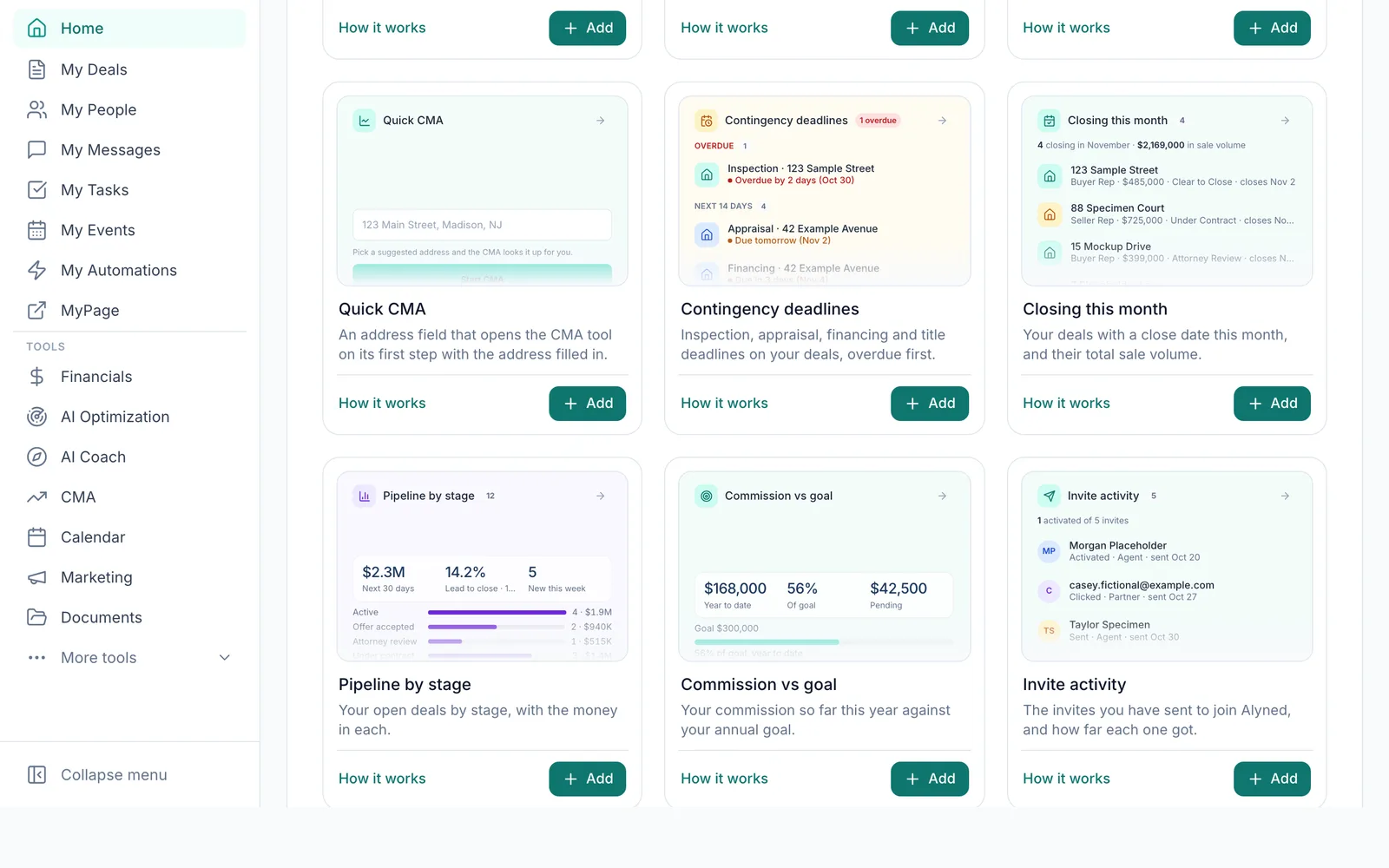
Live previews
Each card shows a live preview with sample data. Ready to add and On your dashboard keep them apart.
-
Add one
Add puts a card at the end of your dashboard, with your own data.
-
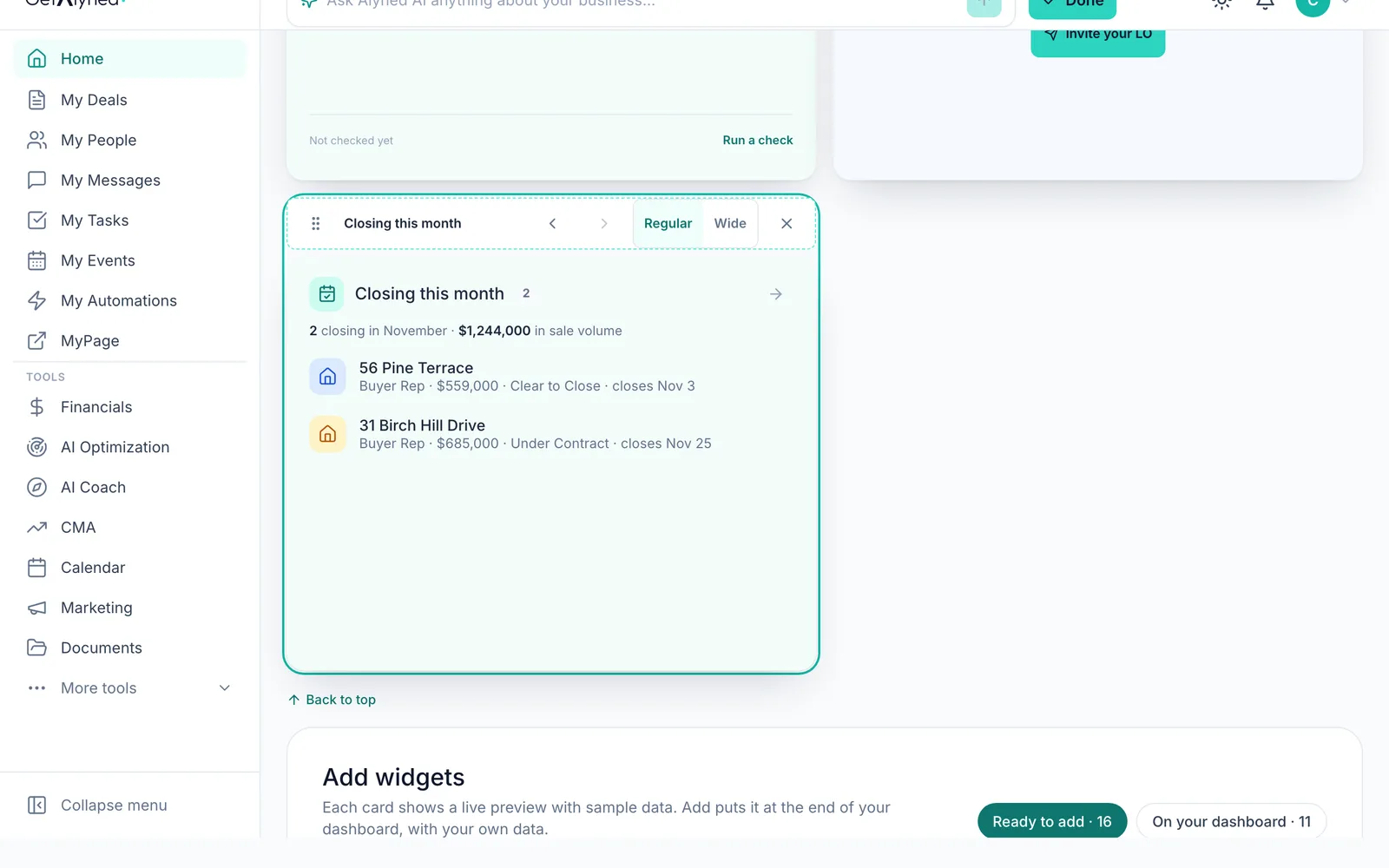
What you already have
On your dashboard lists the cards you already have.
-
The widget library
The Widget library explains every card. It opens in a new tab, so nothing you've changed is lost.
-
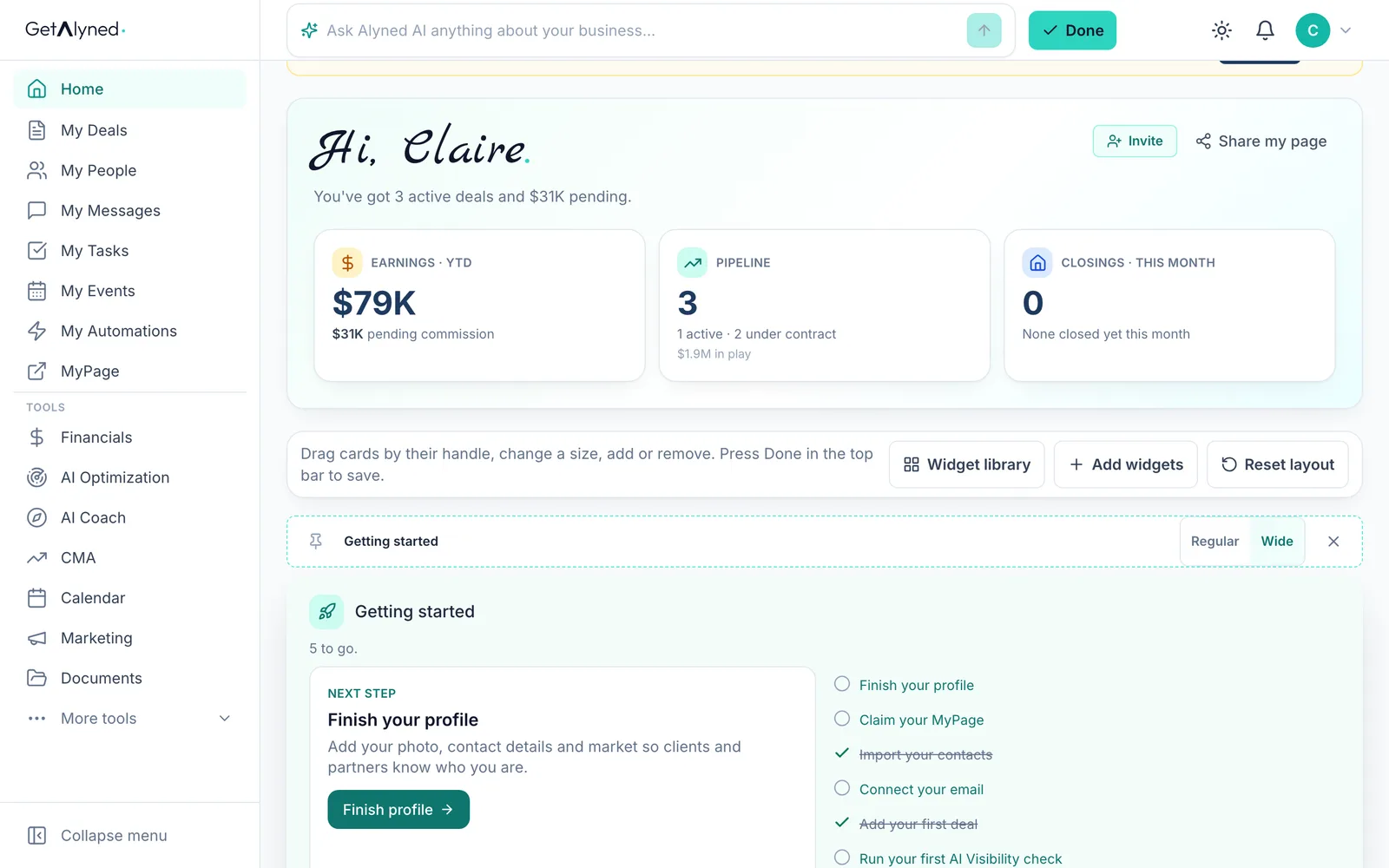
Save it
Done saves your layout. Escape does the same.
-
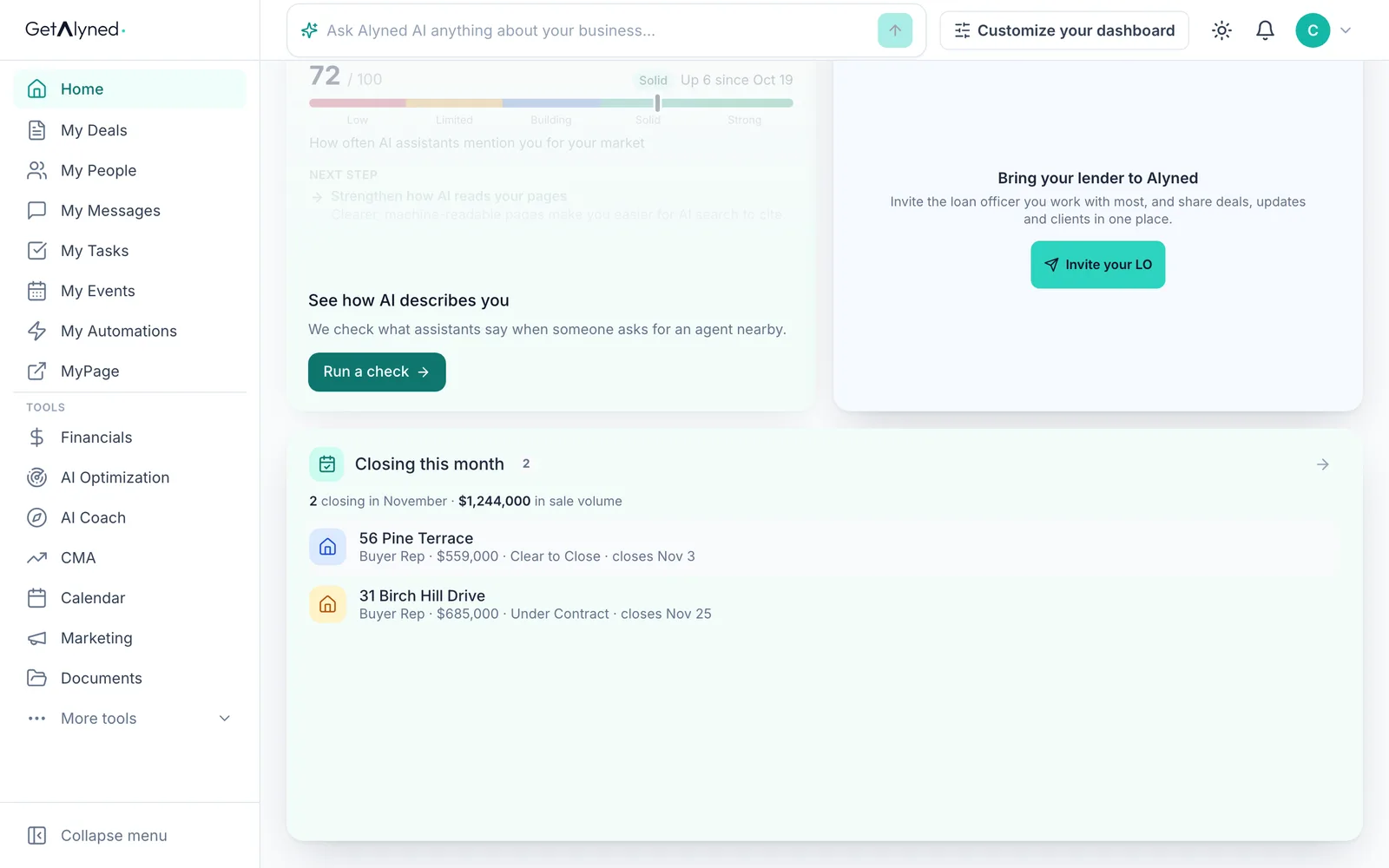
Your new card
Your new card is at the end of your dashboard.
-
Change it any time
Open Customize your dashboard again any time.
-
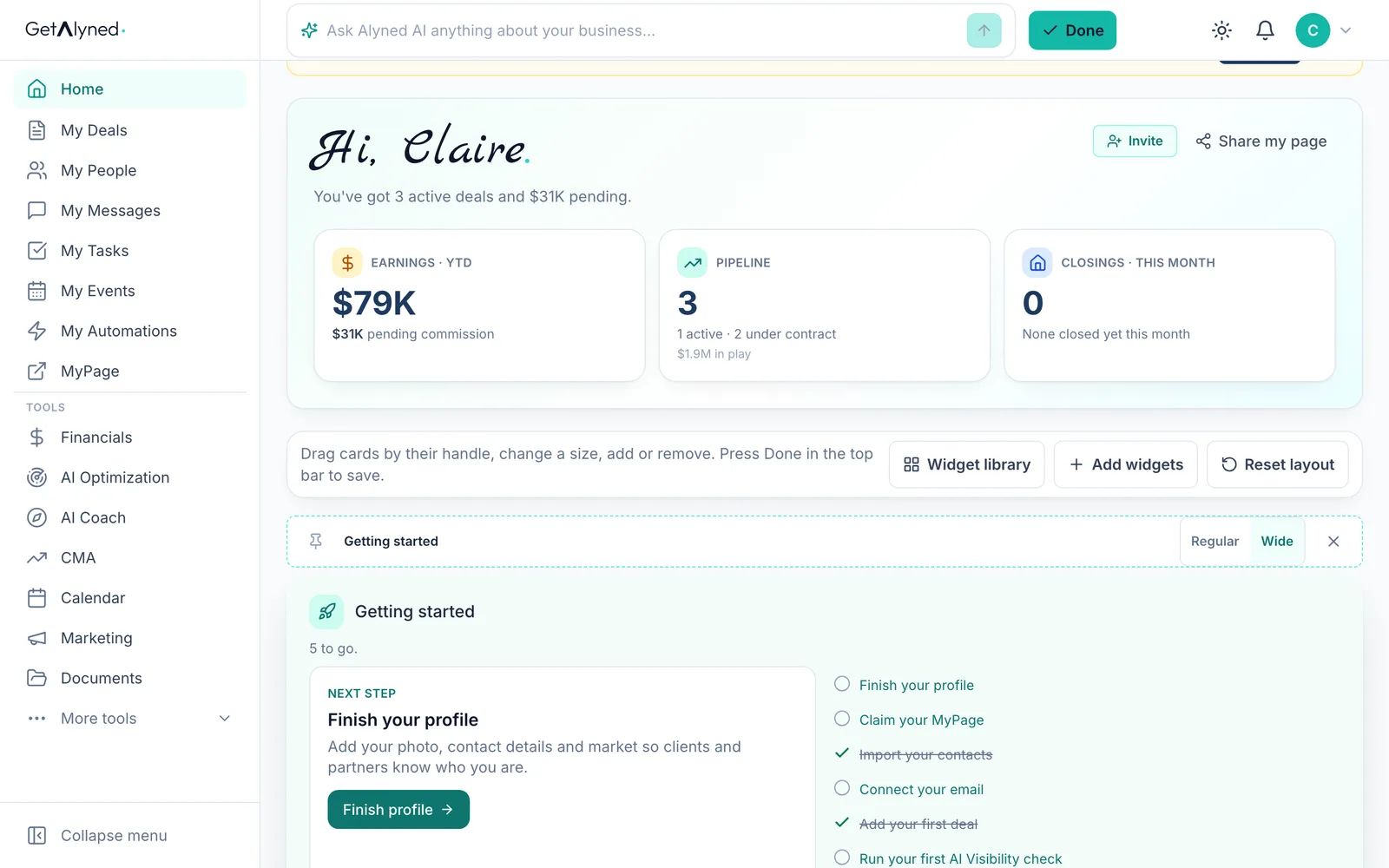
Start over
Reset layout puts the default cards back.
-
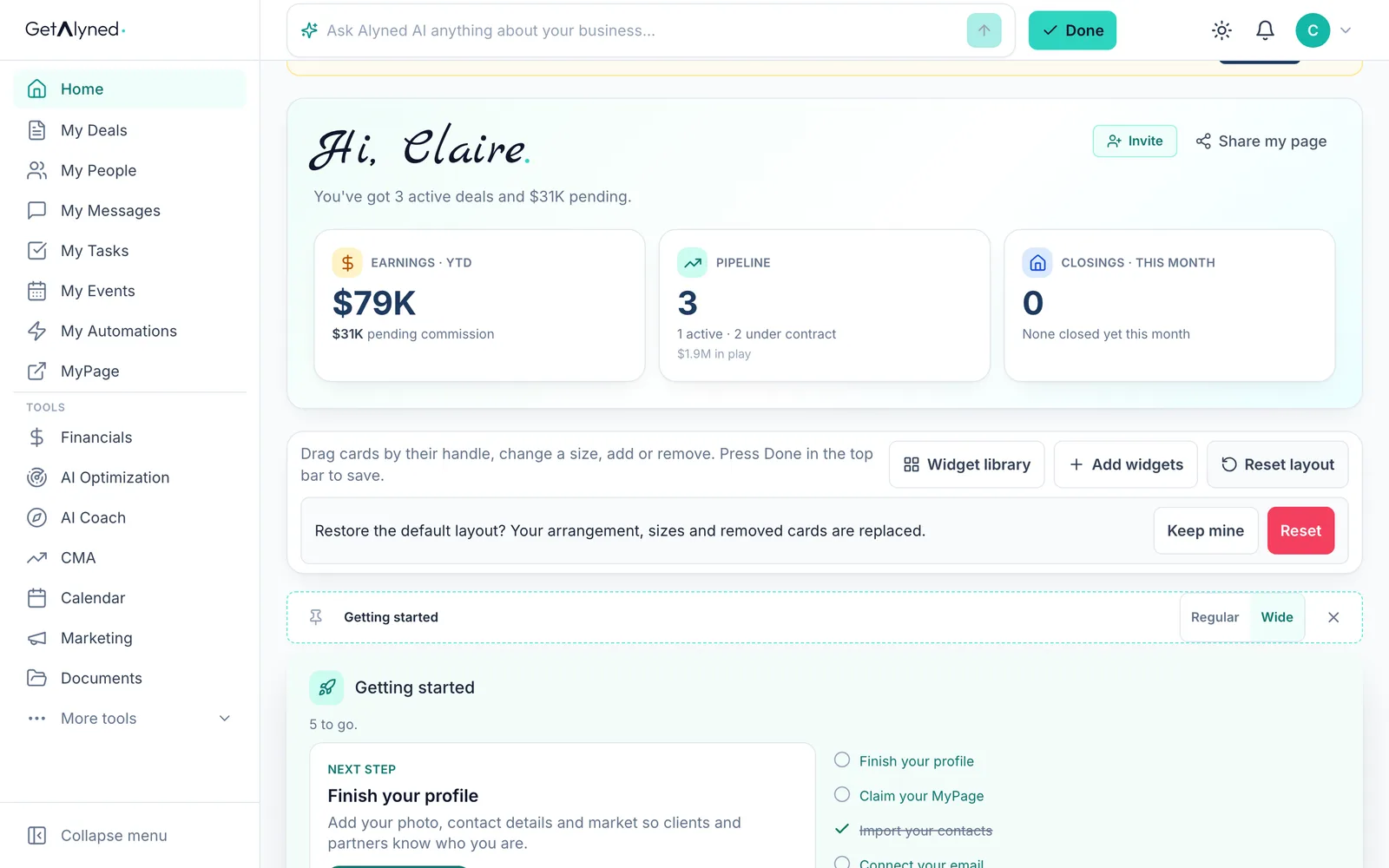
It asks first
It asks first. Keep mine leaves your layout as it is.
-
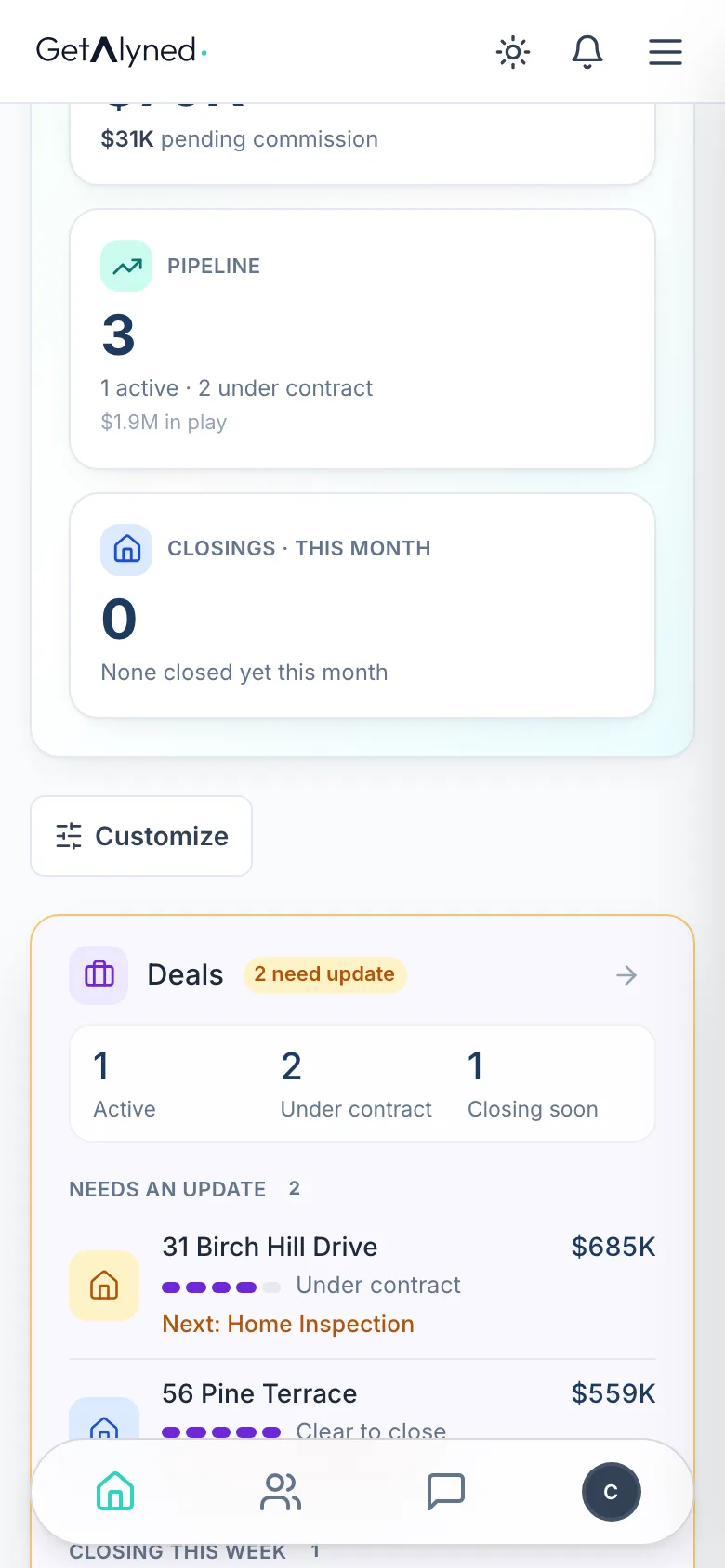
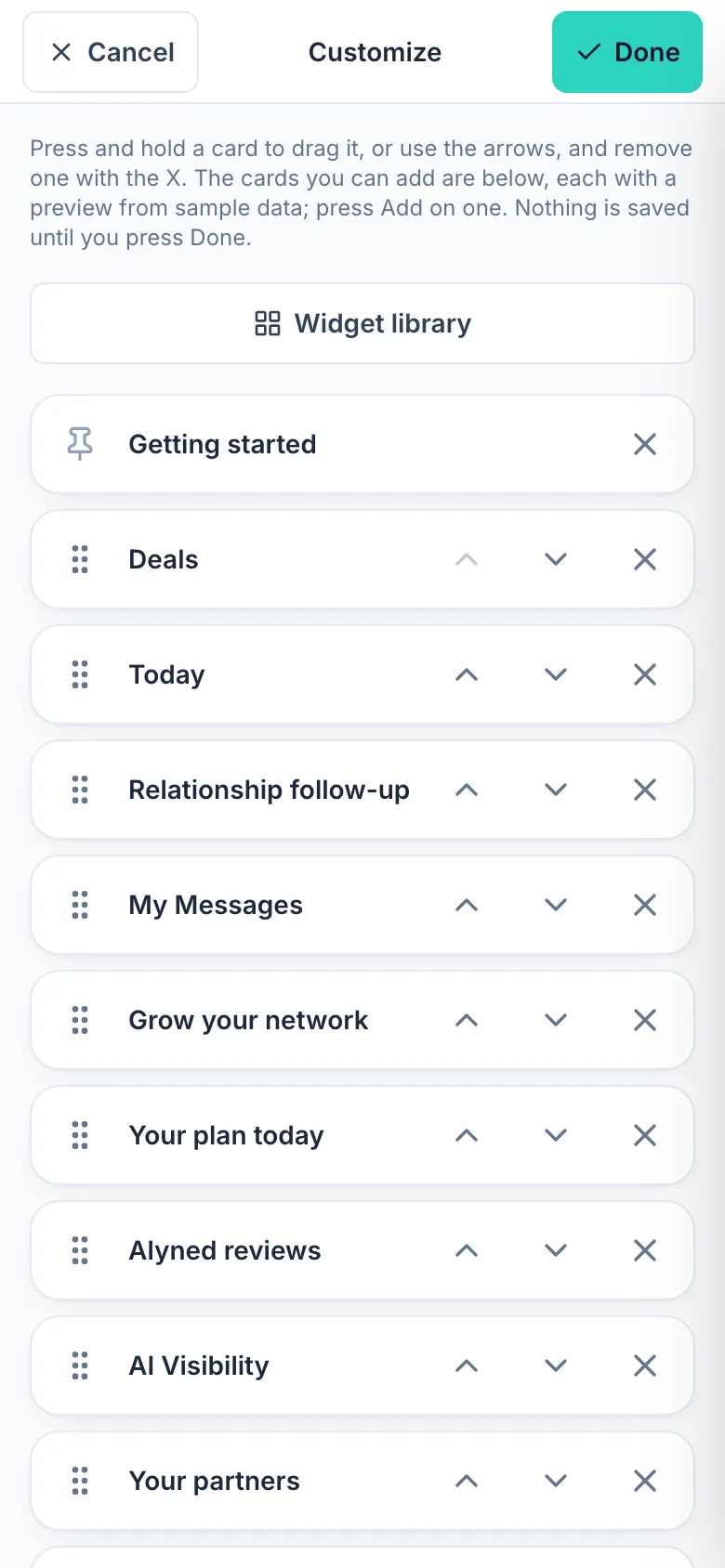
On your phone
On a phone, Customize opens a list instead. Reorder, remove or add cards there.
-
Save on your phone
Done saves it, the same as on a computer.
Related guides
- Your dashboard at a glance · Your dashboard is the first thing you see when you sign in. Here's what each card tells you, and where it takes you.
- Ask Alyned AI anything · Ask Alyned AI how to do something in Alyned, or ask about your own deals, contacts and tasks. It answers in plain words, from your own data.
- Run a CMA · Price a home with a comparative market analysis: check the facts, pick the right comparable sales, adjust them, and send your client a polished report.