Customize your loan officer dashboard
For loan officers · 3 min
Browse the widget library, add the cards you use most, remove the ones you don't, and arrange your dashboard the way you work.
Watch
Or read it step by step
-
Customize
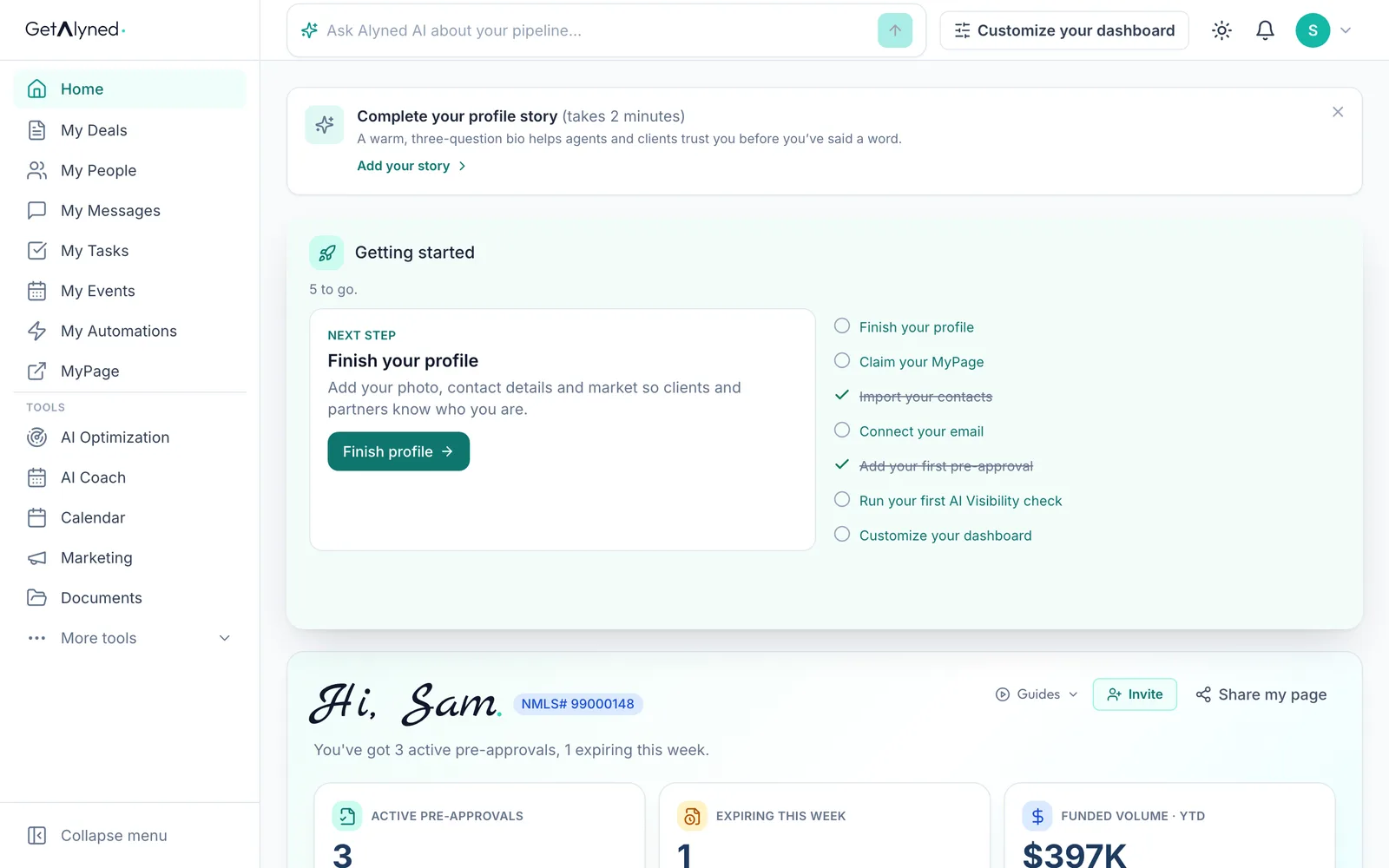
Customize your dashboard is at the top of Home.
-
Your tools
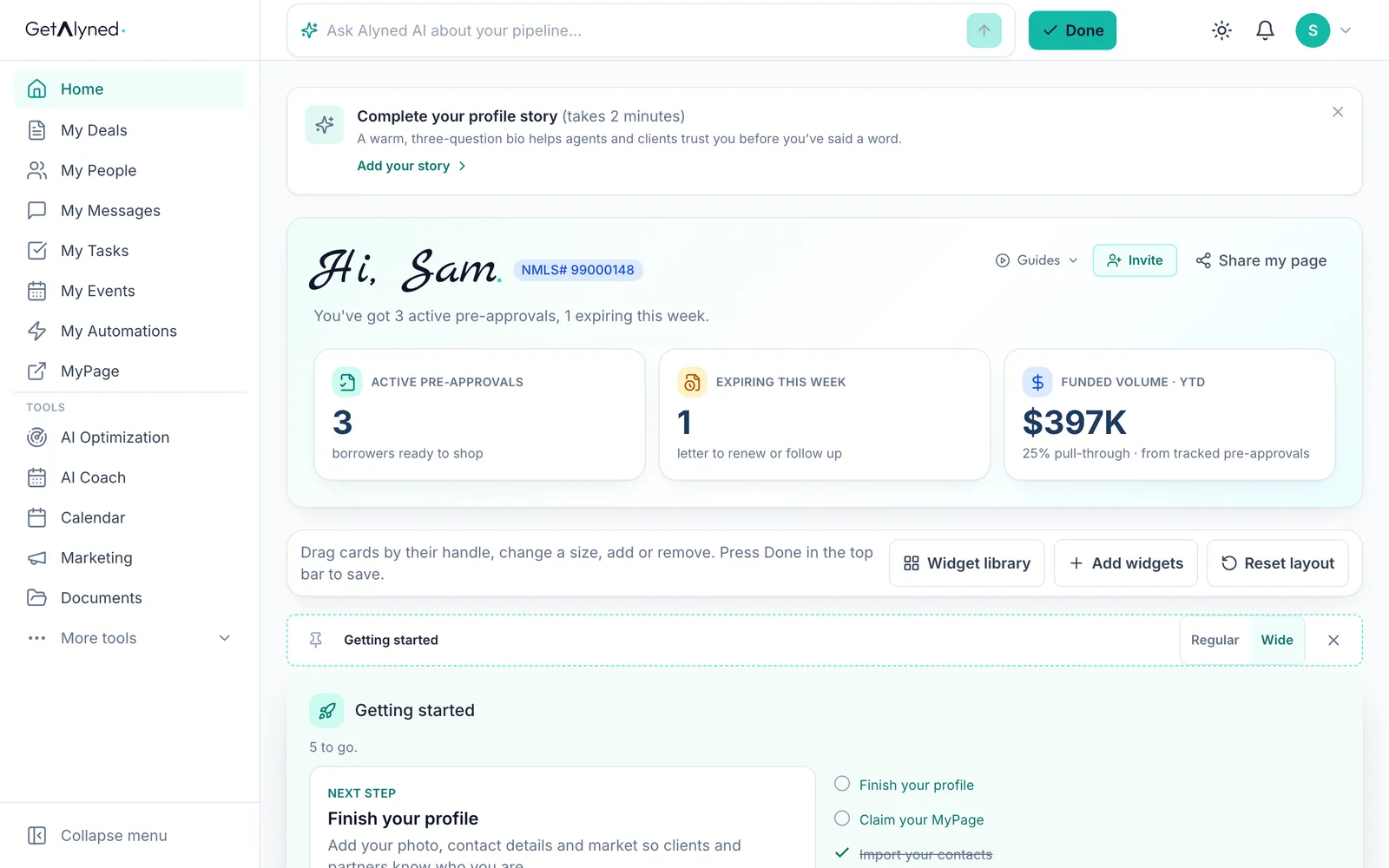
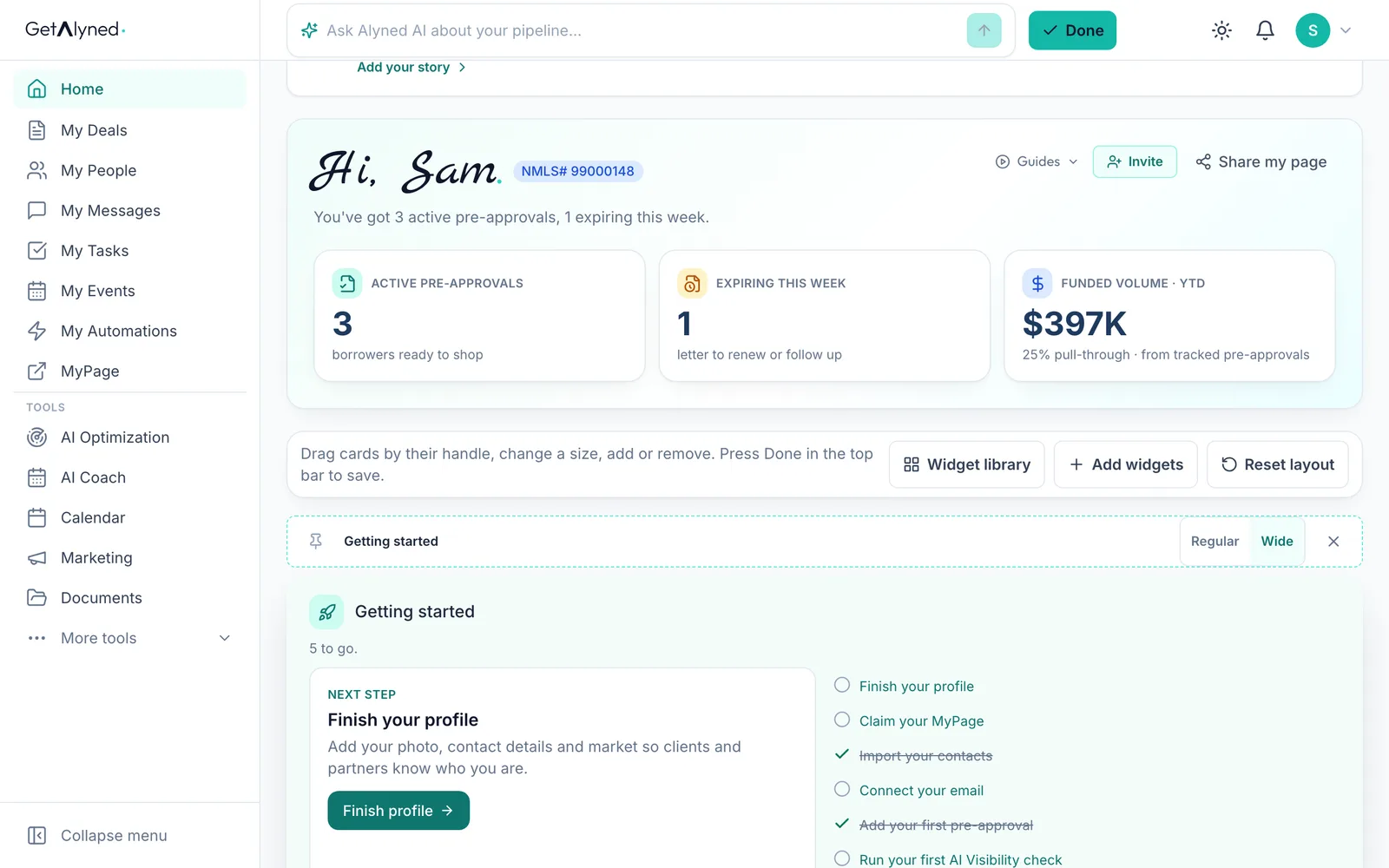
Widget library, Add widgets and Reset layout are here. Getting started stays first until it's finished, and nothing is saved until you press Done.
-
Widget library
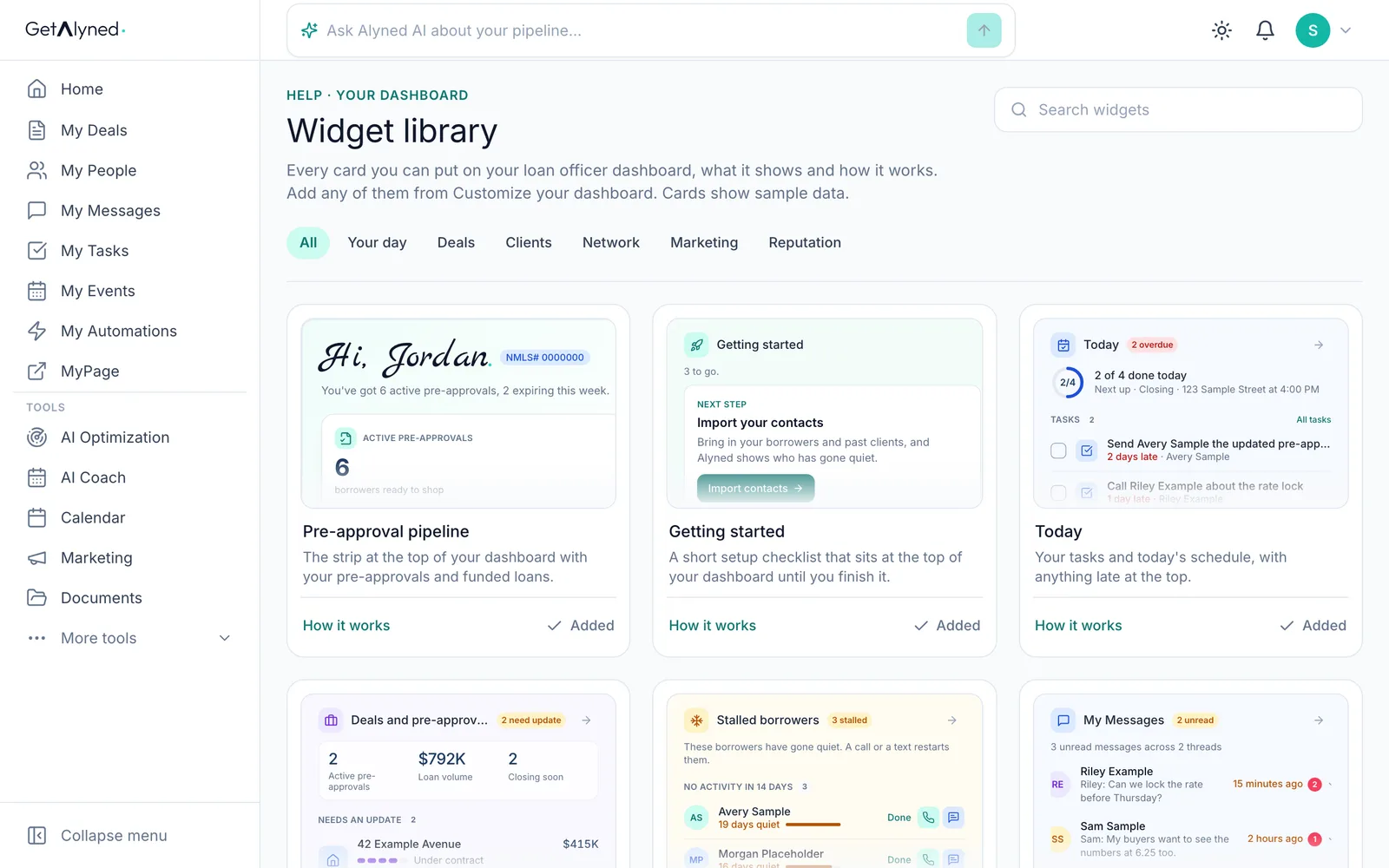
Start with the Widget library to see what's out there. It opens in a new tab, so nothing you've changed is lost.
-
Every card
This is every card you can put on a loan officer dashboard: what it shows and how it works. The cards show sample data.
-
Topics
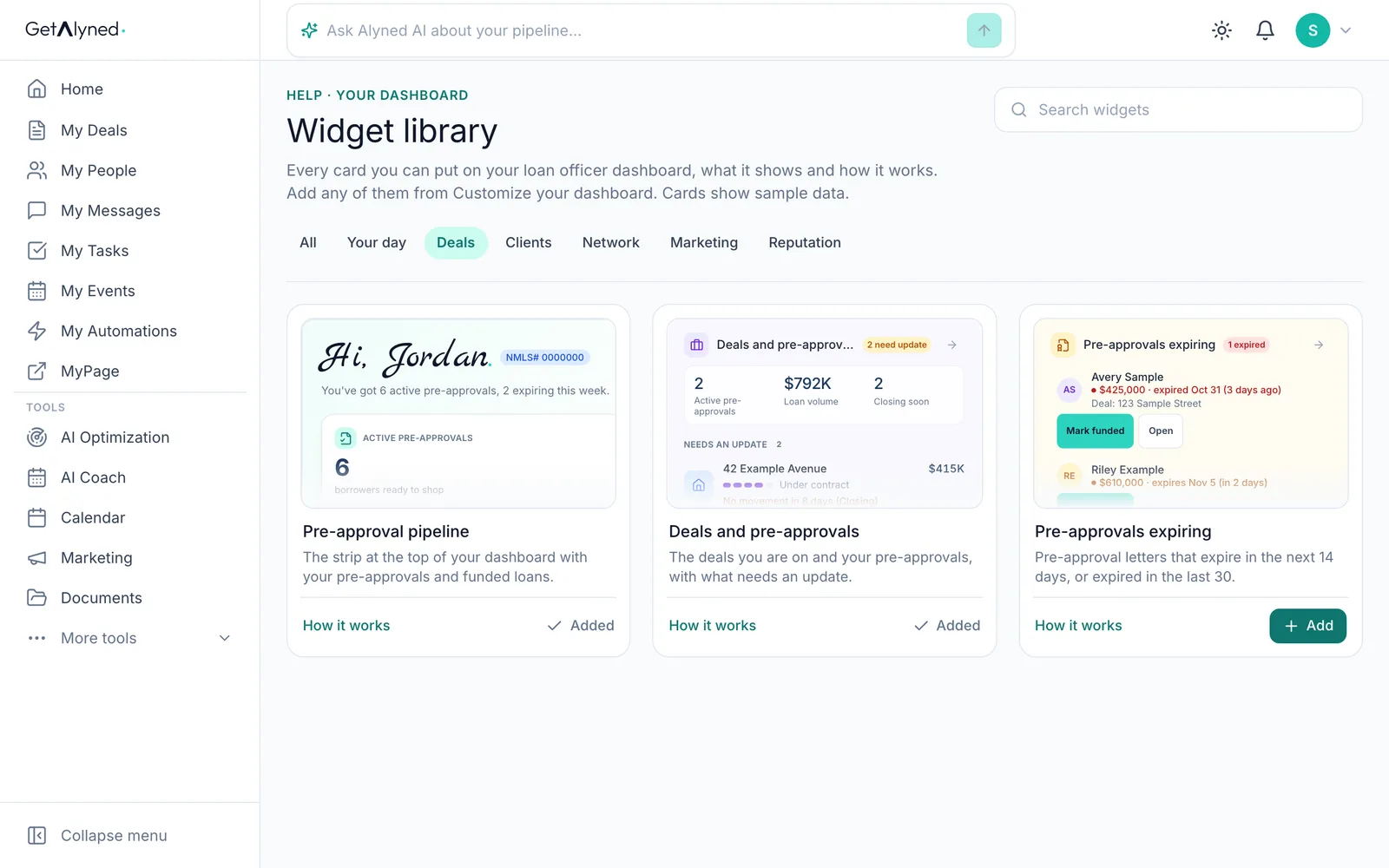
Topics narrow the list. Deals holds the cards about your pre-approvals and the deals you're on.
-
How it works
How it works explains a card before you add it.
-
The preview
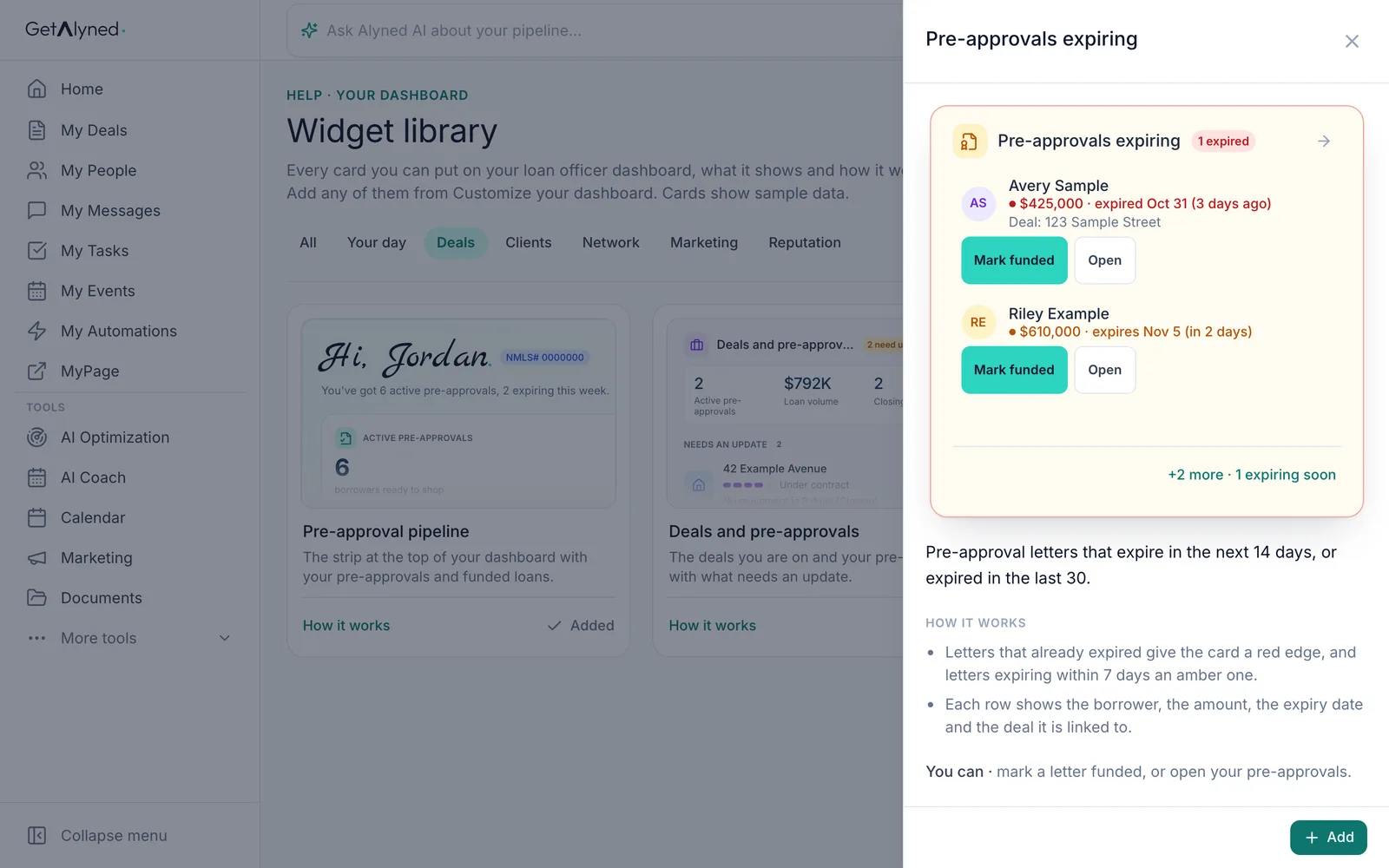
The preview shows the card with sample borrowers: letters that expired or are running out, with Mark funded right on the card, so you can renew a letter before a buyer is caught short.
-
Back to Customize
Back on Home, open Customize.
-
Add widgets
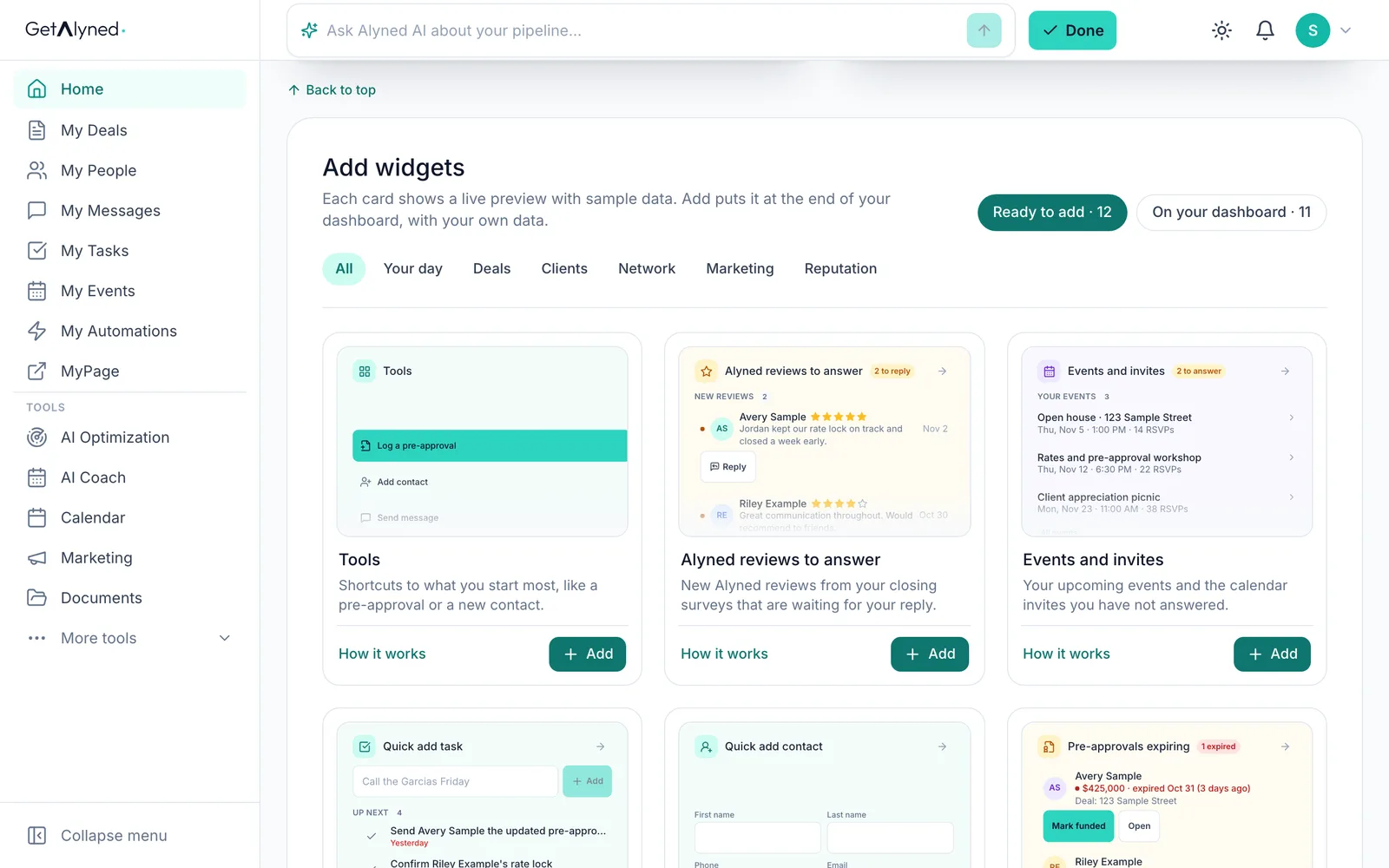
Add widgets lists the cards you can still add, with the same previews.
-
Ready to add
Each card shows a live preview with sample data. Ready to add and On your dashboard keep them apart.
-
Add a card
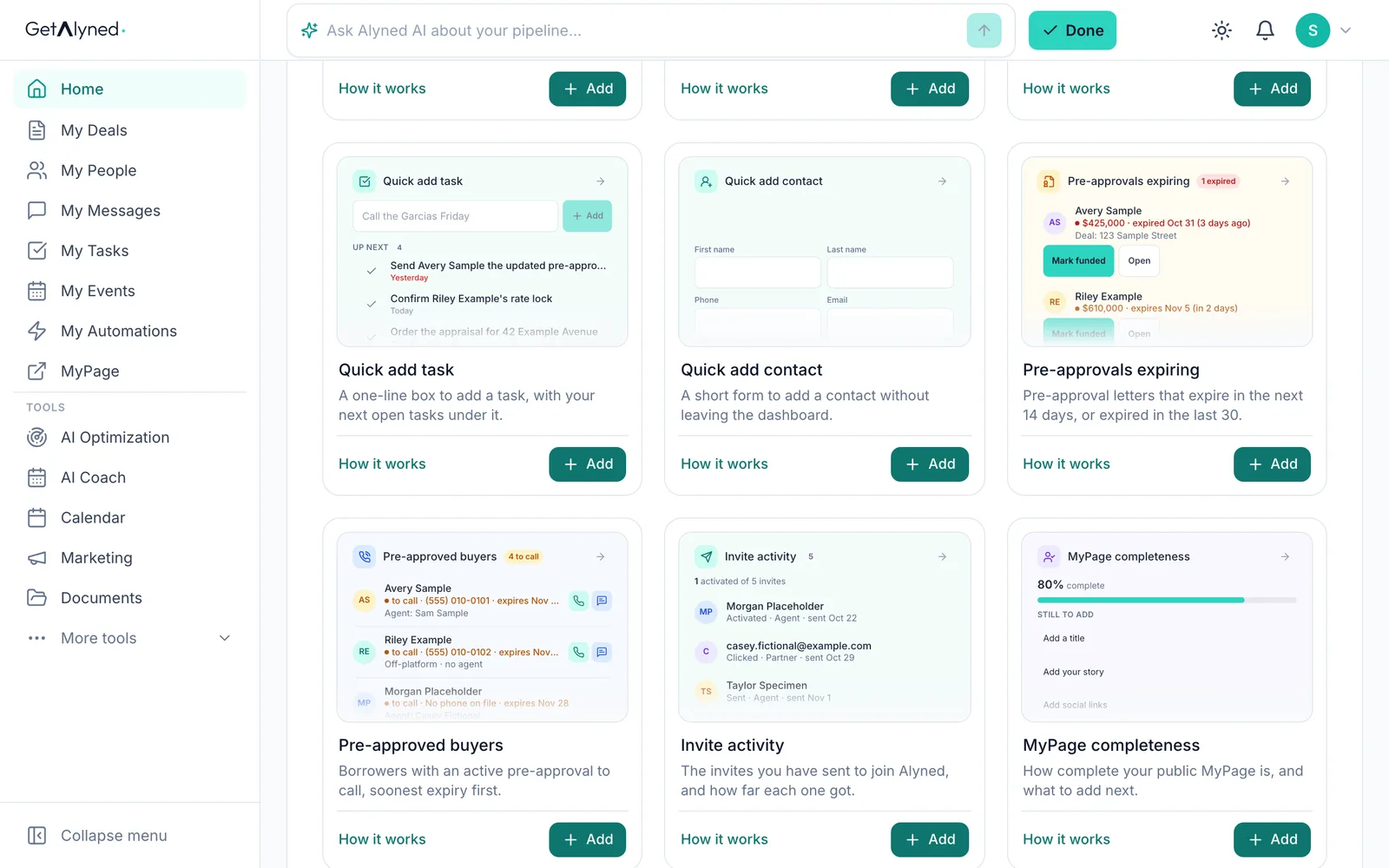
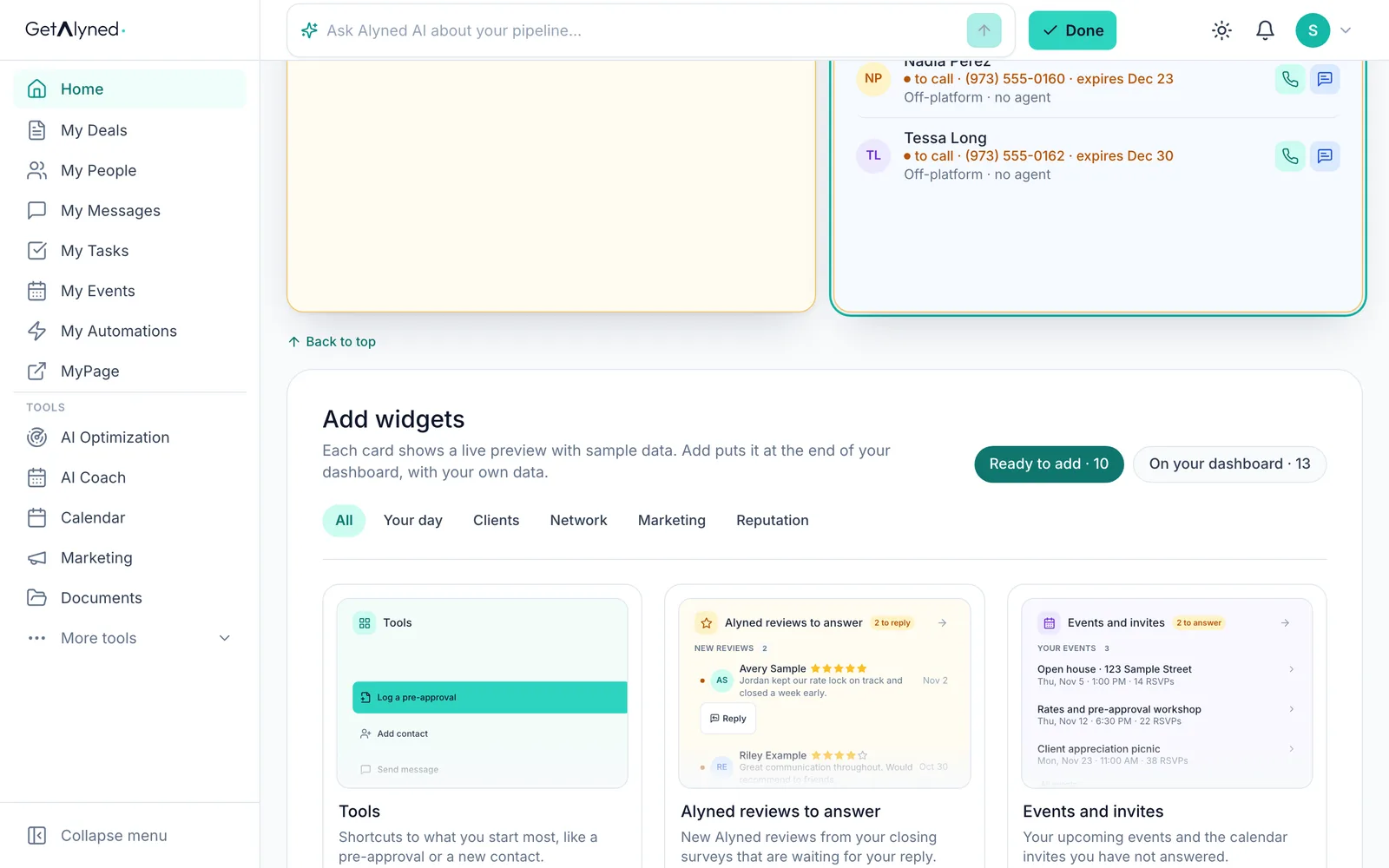
Add puts a card at the end of your dashboard, with your own data.
-
Add another
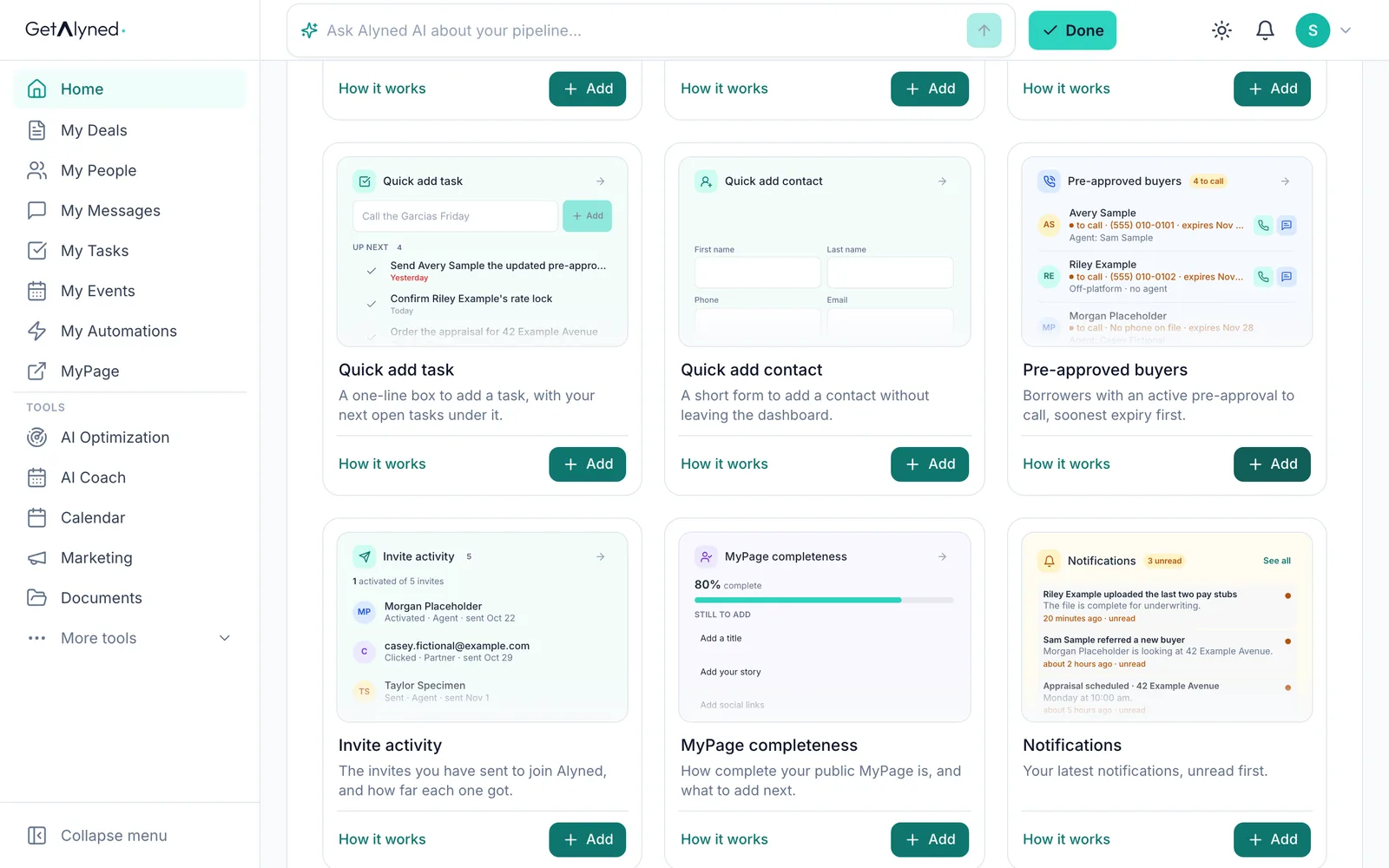
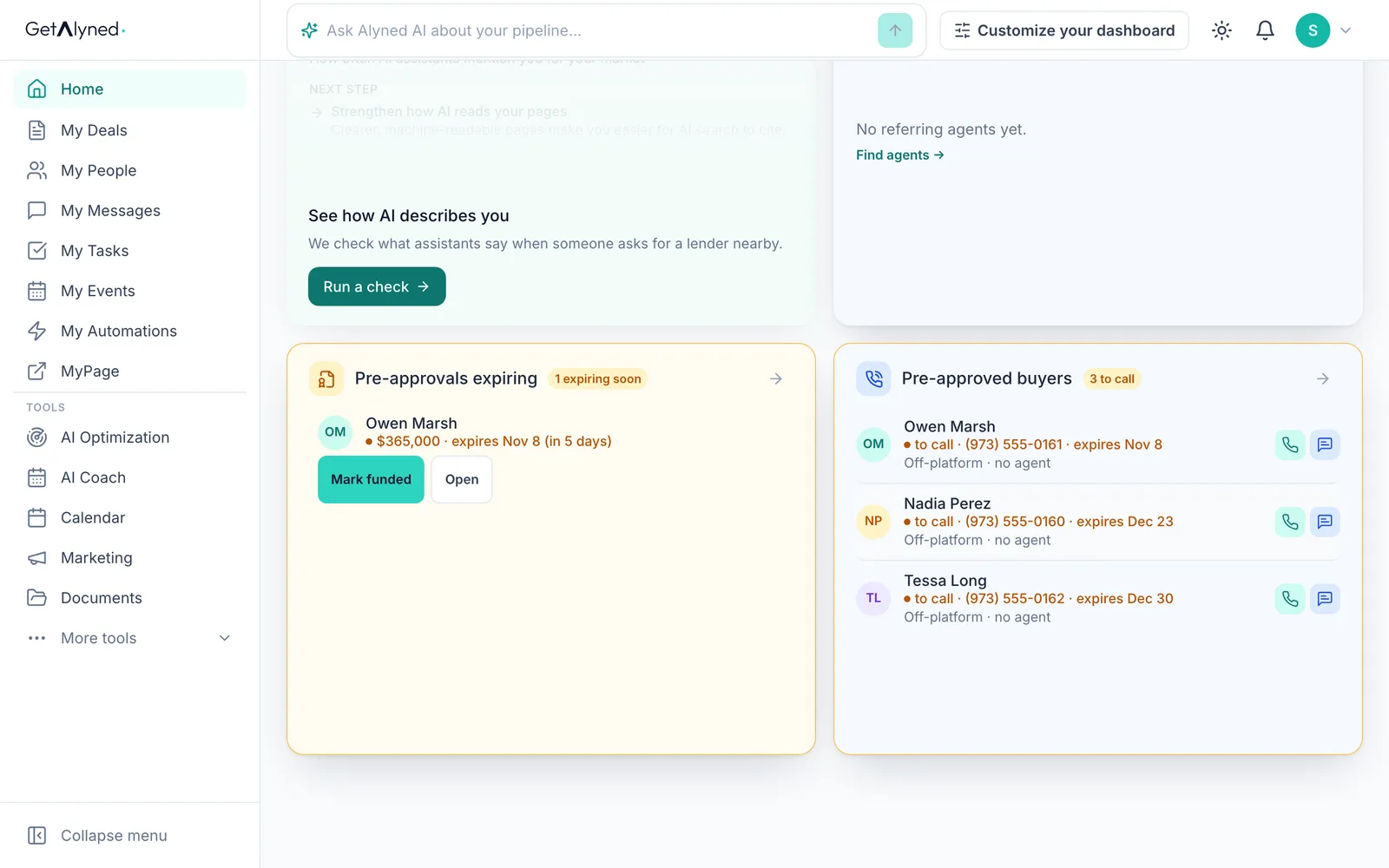
Pre-approved buyers is your call list: the borrowers holding a letter, with their number and expiry date.
-
On your dashboard
On your dashboard lists the cards you have, so you can see what's already there. It went up by two.
-
Remove a card
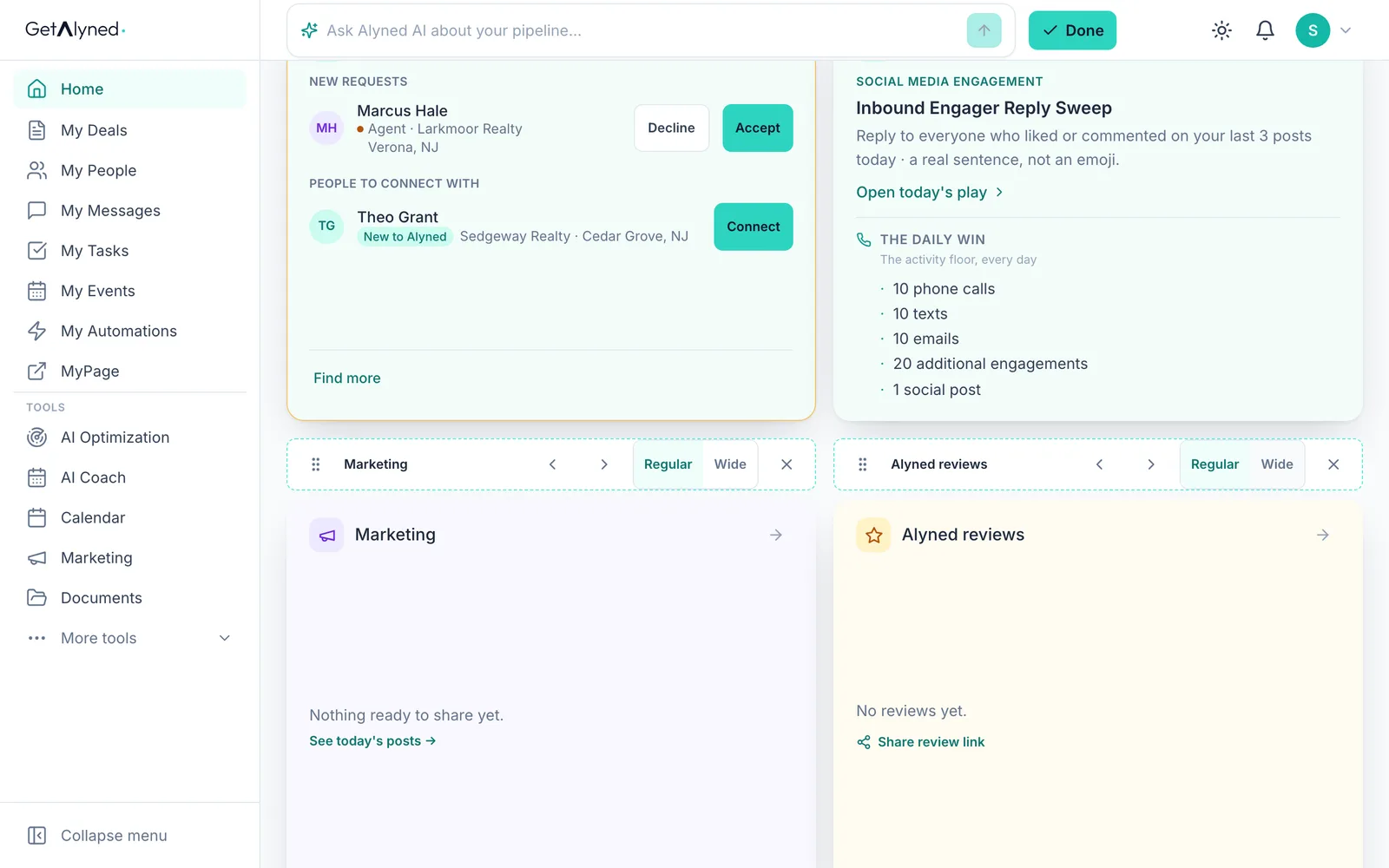
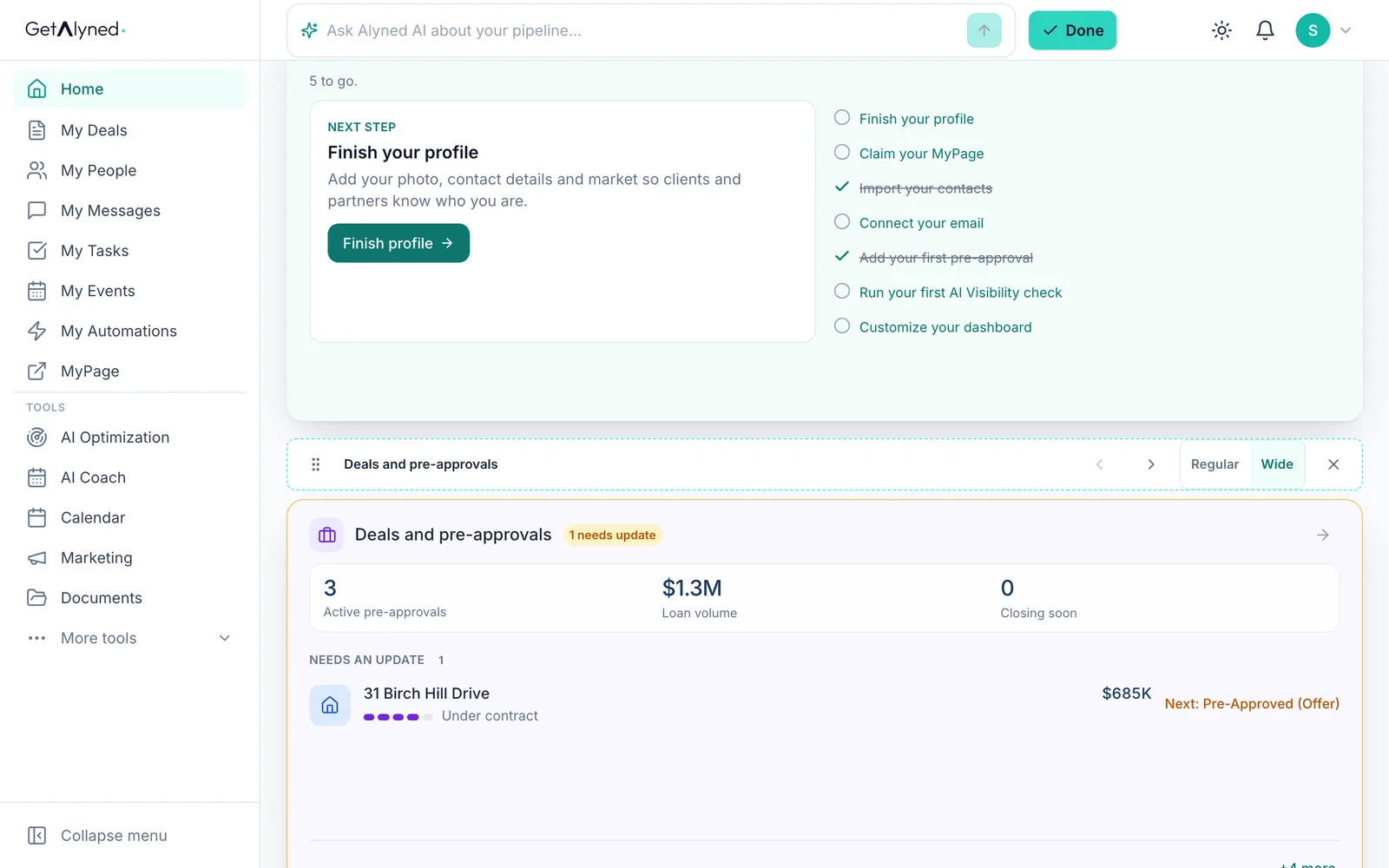
The X takes a card off your dashboard. You can add it back any time.
-
Move a card
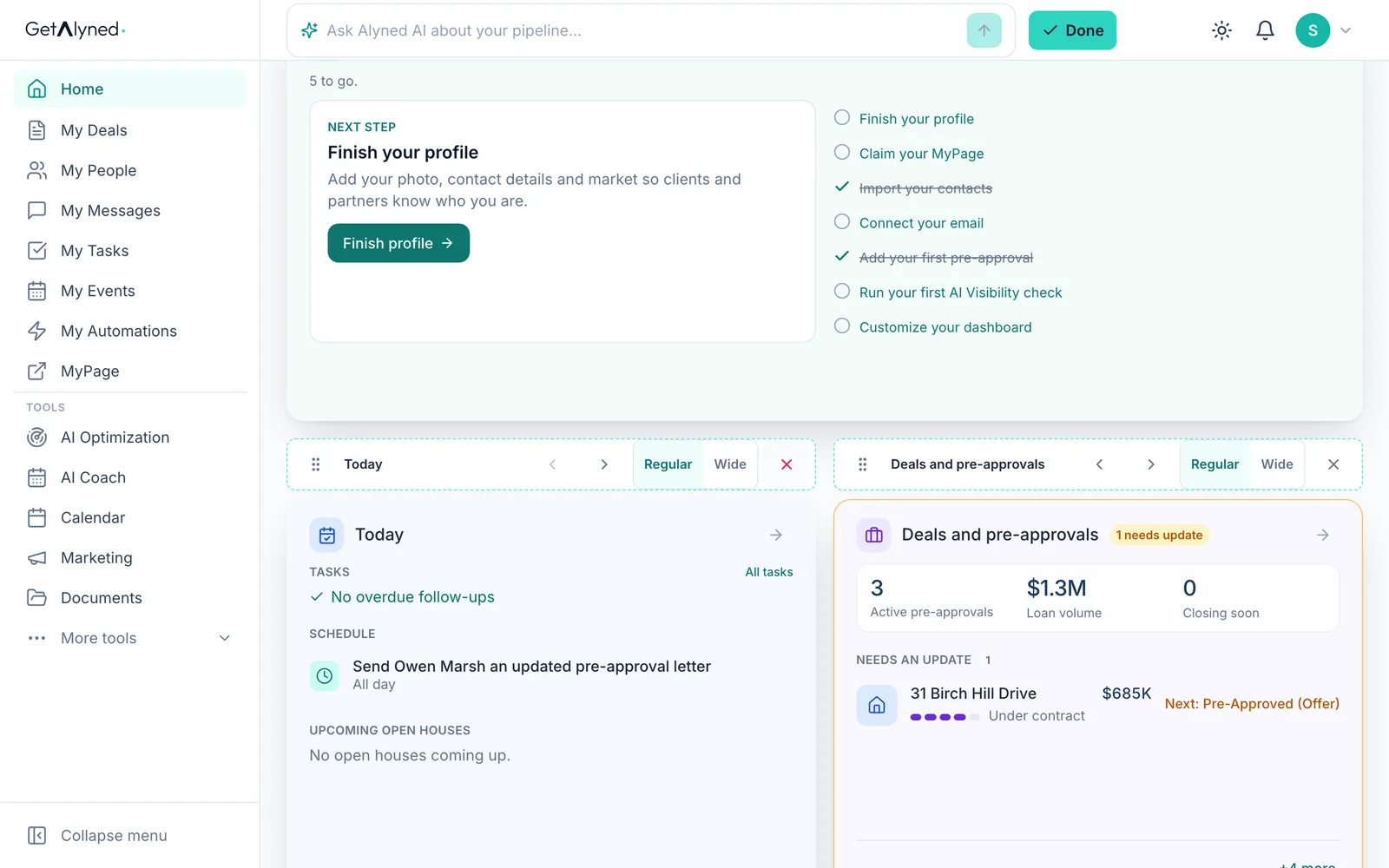
Drag a card by its handle to move it, or use the arrows.
-
Size
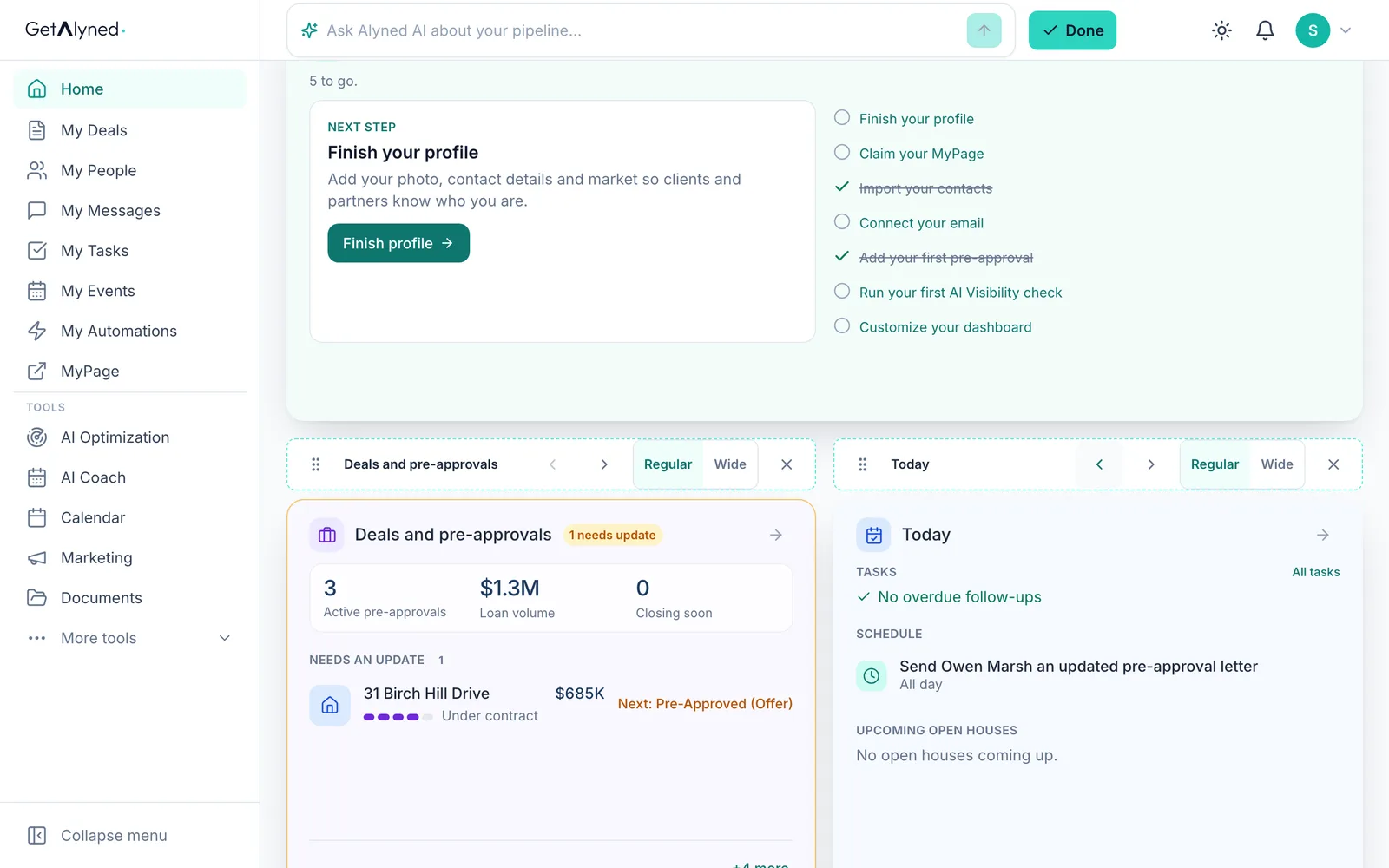
Regular or Wide sets how much room a card takes.
-
Done
Done saves your layout.
-
Your new cards
Your new cards are at the end of your dashboard, now with your own letters and borrowers.
-
Change it any time
Open Customize again any time.
-
Reset layout
Reset layout puts the default cards back. It asks first, so nothing changes by accident.
-
On a phone
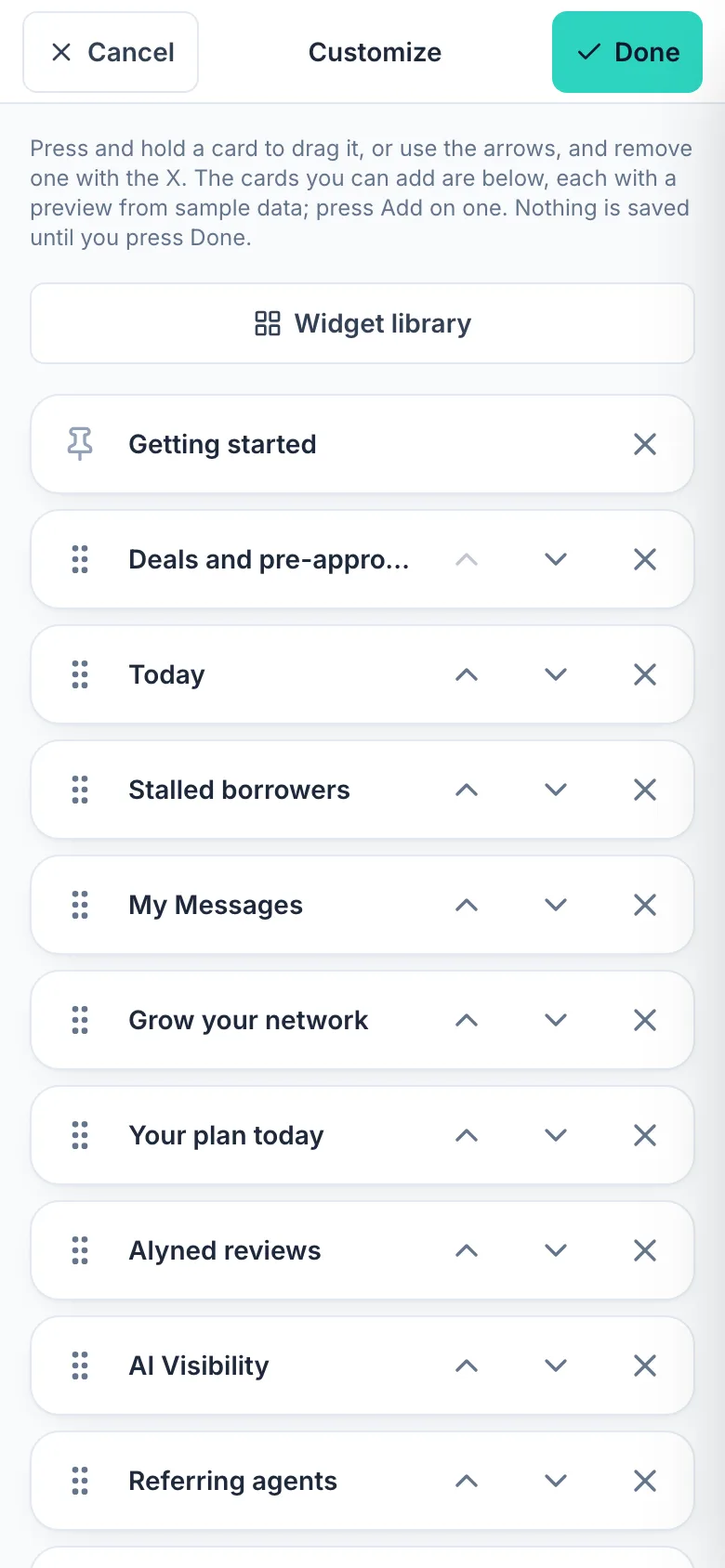
On a phone, Customize opens a list instead: reorder, remove or add cards there. Done saves it, the same as on a computer.
Related guides
- Your loan officer dashboard at a glance · Your dashboard is the first thing you see when you sign in. Here's what each card tells you, and the one thing to click on each.
- Log a pre-approval · Log each pre-approval letter so Alyned tracks it, warns you before it expires, and counts it when the loan funds.
- Work an agent's deal · When an agent adds you to a deal, mark your lender steps done, choose whether the client hears about it, and keep everyone in the deal chat.