Work an agent's deal
For loan officers · 3 min
When an agent adds you to a deal, mark your lender steps done, choose whether the client hears about it, and keep everyone in the deal chat.
Watch
Or read it step by step
-
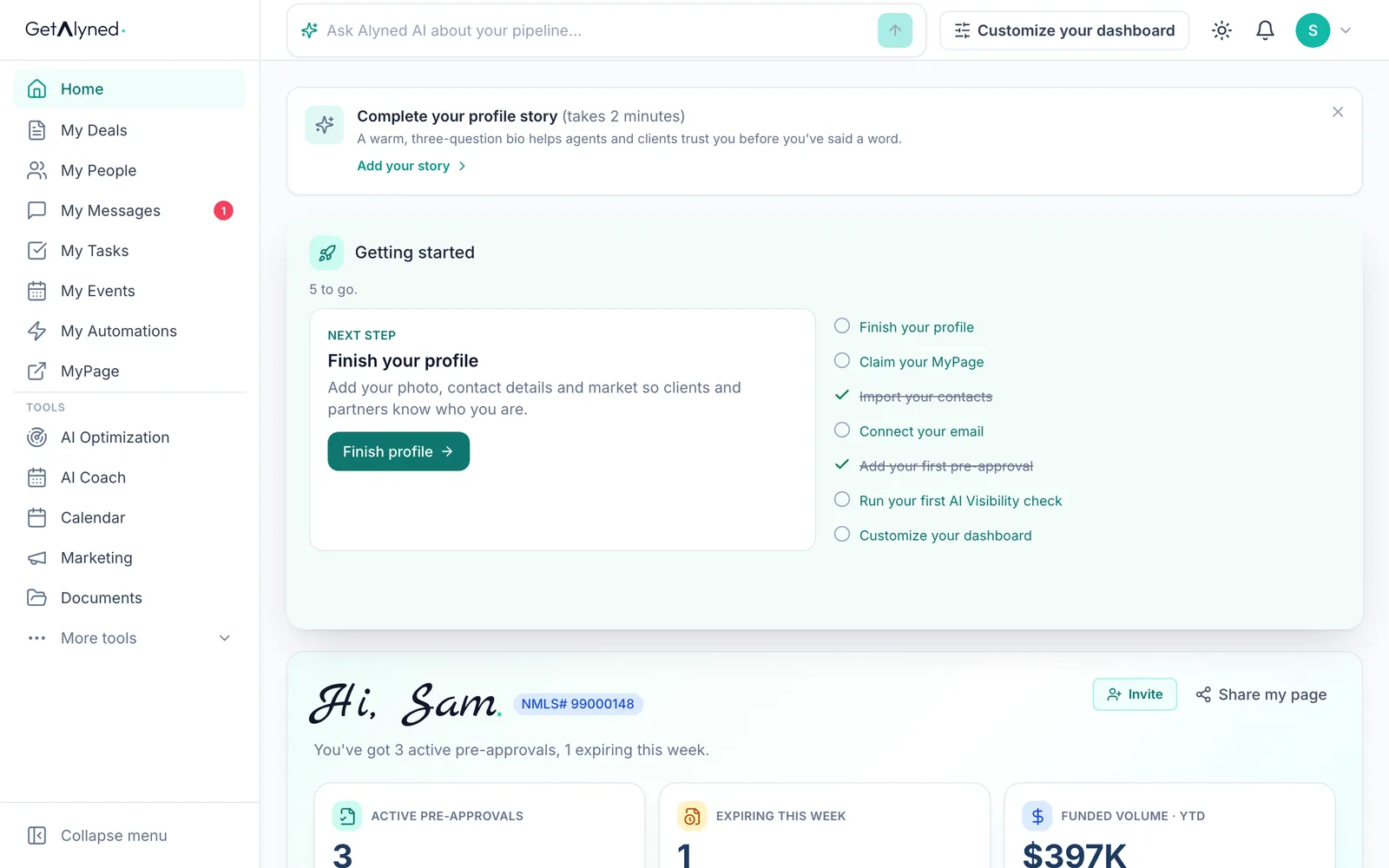
Open My Deals
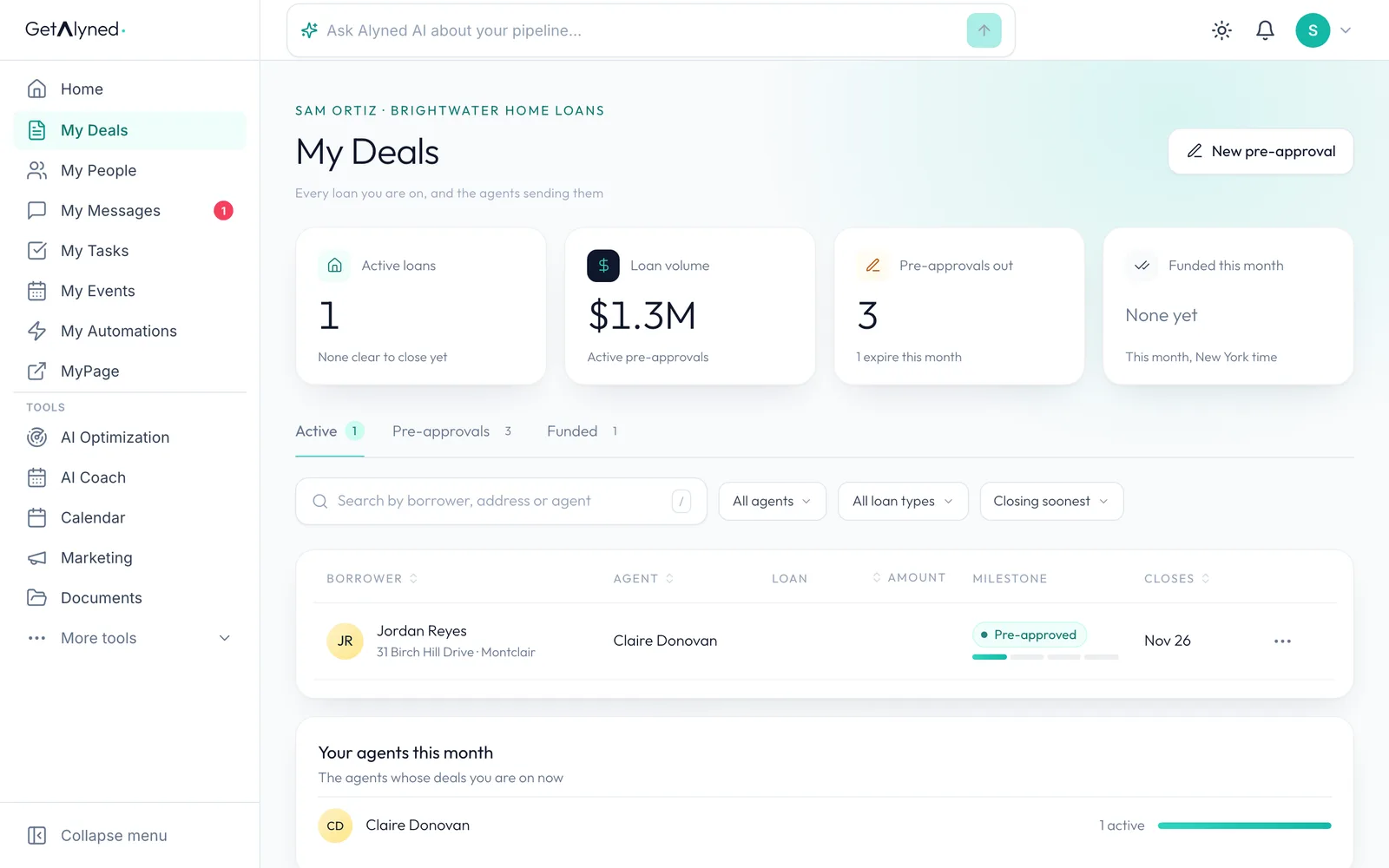
A deal an agent adds you to shows up in My Deals, under Active.
-
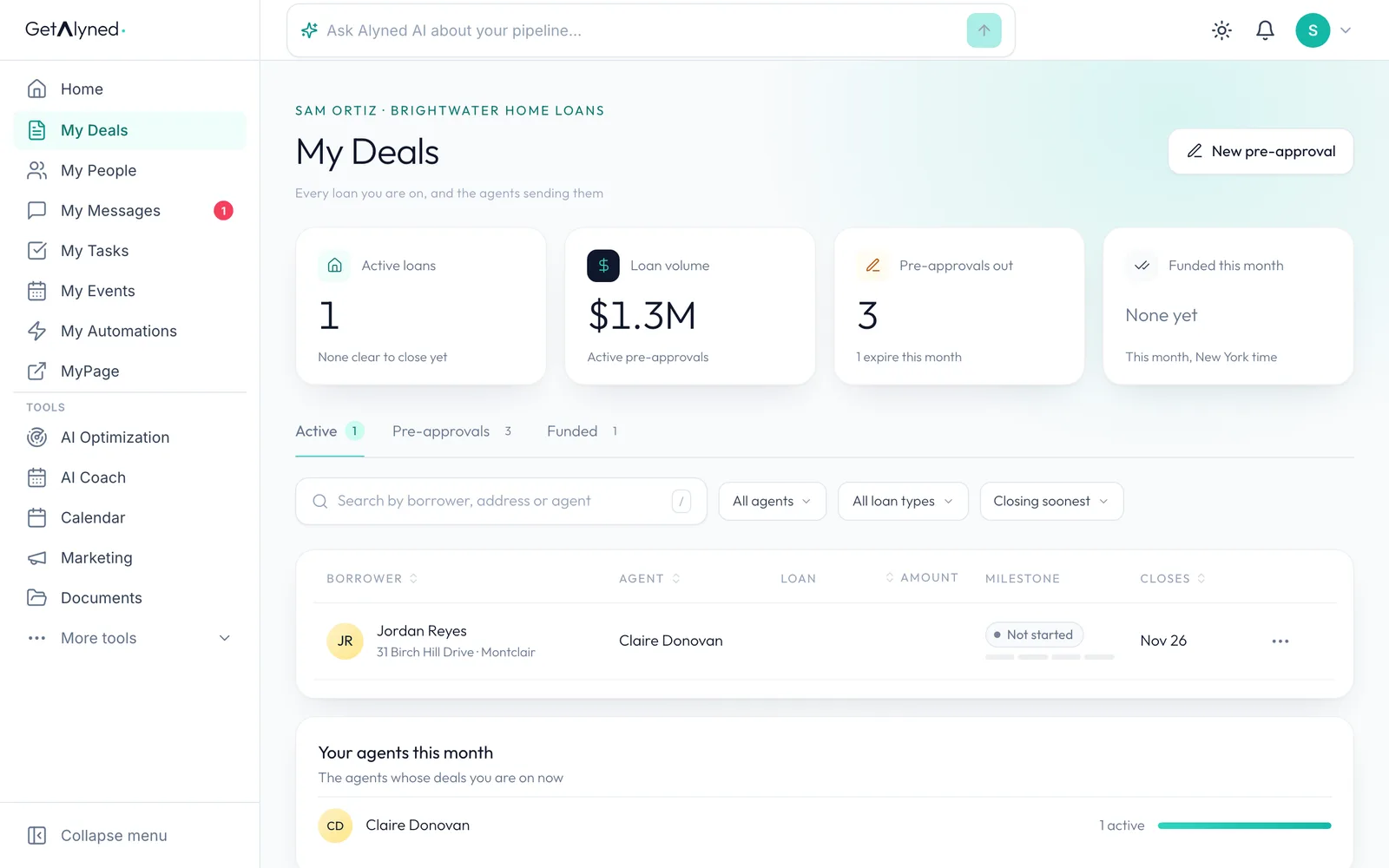
One row per loan
Each row is one loan: the borrower, the agent, the amount and the closing date.
-
Open the deal
Click the row to open the deal.
-
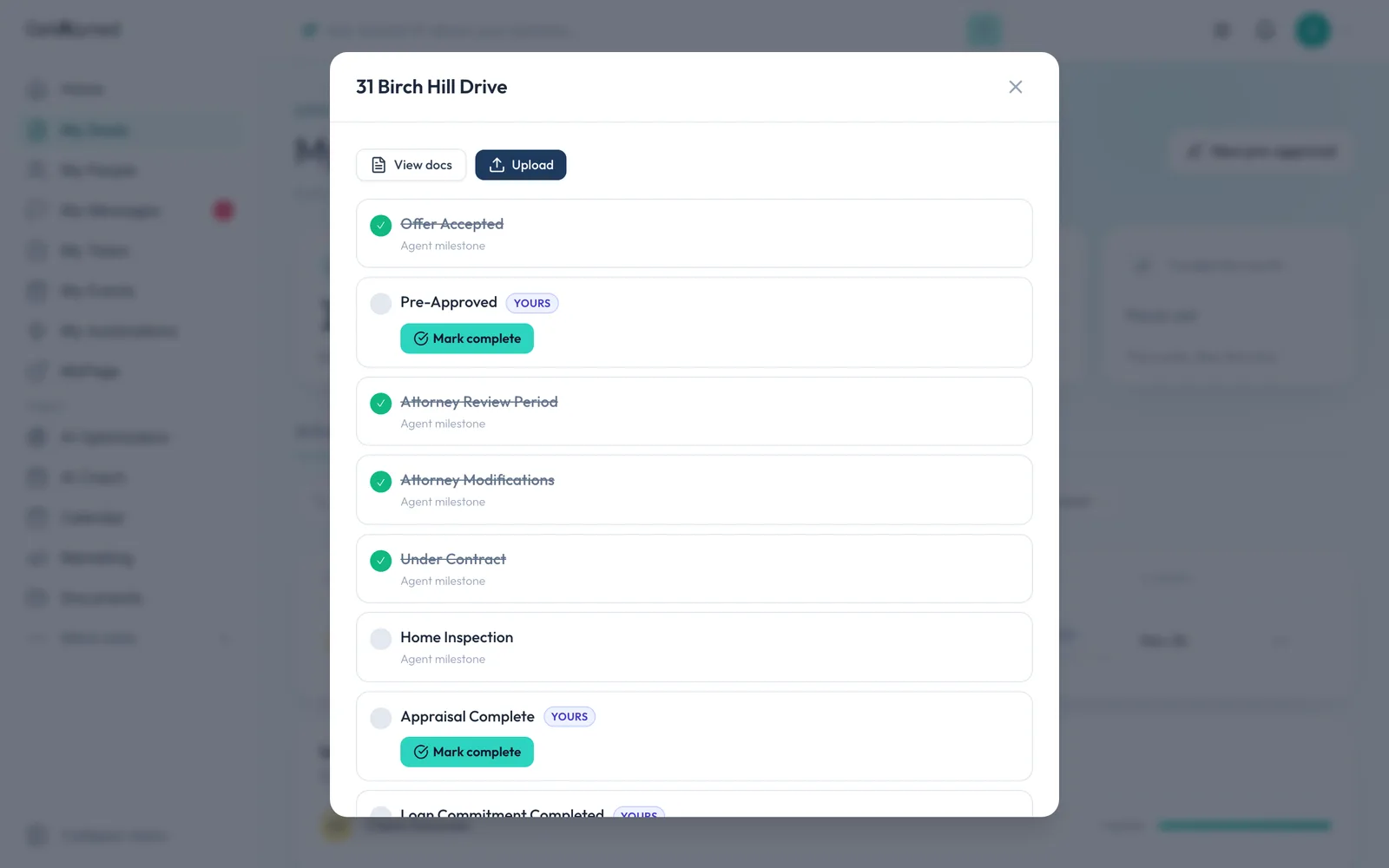
The deal's steps
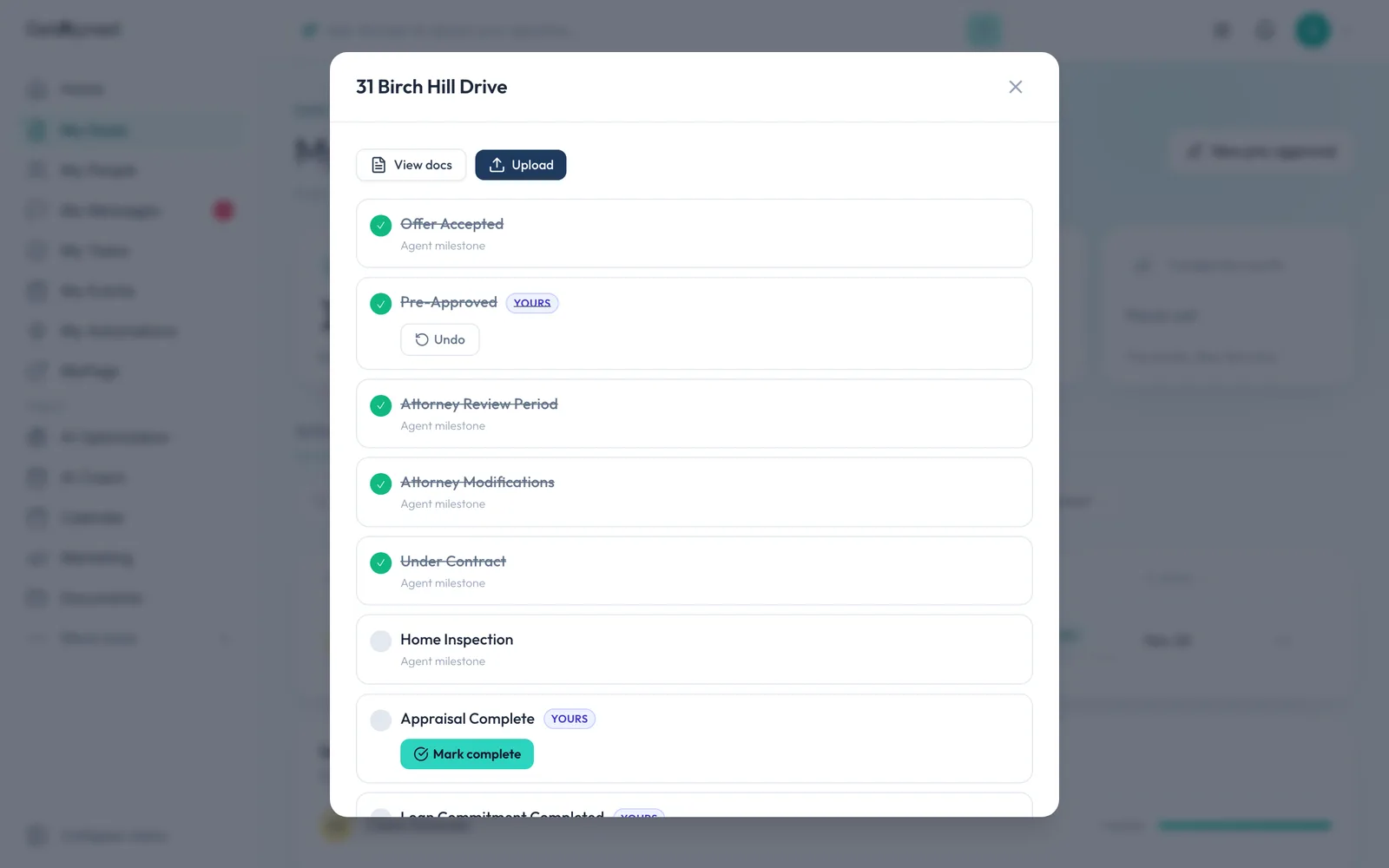
You see the deal's steps in order. The agent's are for reading, and yours are marked YOURS.
-
Agent milestones
Agent milestones show where the deal stands. Only the agent can change them.
-
Your lender steps
Your steps are Pre-Approved, Appraisal Complete, Loan Commitment Completed and Clear to Close.
-
Mark one done
When one's done, click Mark complete.
-
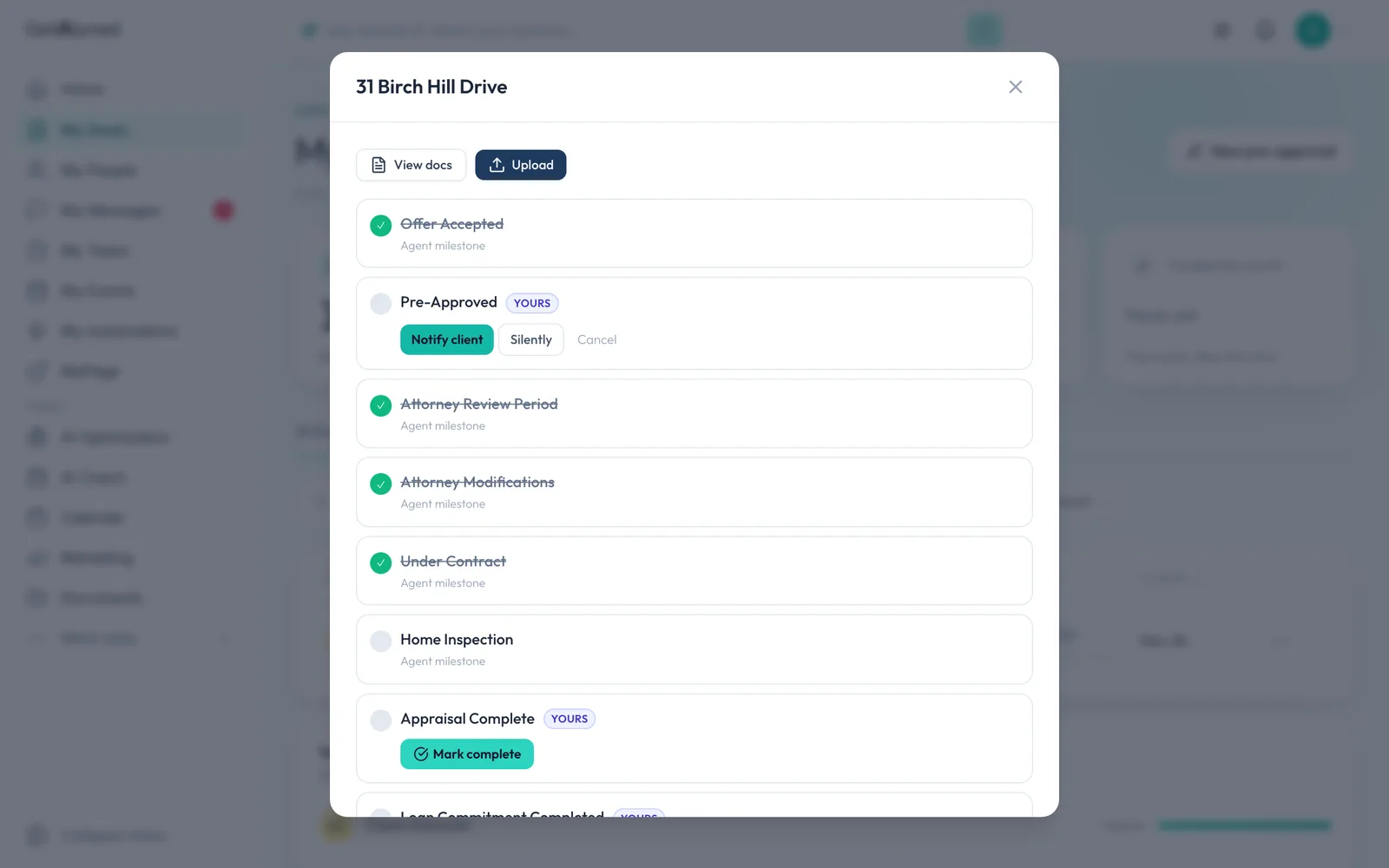
Notify or not
You choose each time. Notify client tells the client by email and in their portal. Silently updates the deal and tells no one.
-
Tell them
This one is good news, so click Notify client.
-
Undo
The step is crossed off, and the window stays open so you can carry on. Undo takes it back if you clicked by mistake.
-
Documents
View docs shows what's shared with you on this deal. Upload sends the agent a file, like the appraisal.
-
Close it
Close the window when you're done.
-
Progress updates
Back on My Deals, the row shows how far the loan has come. The agent sees it too.
-
Deal chat
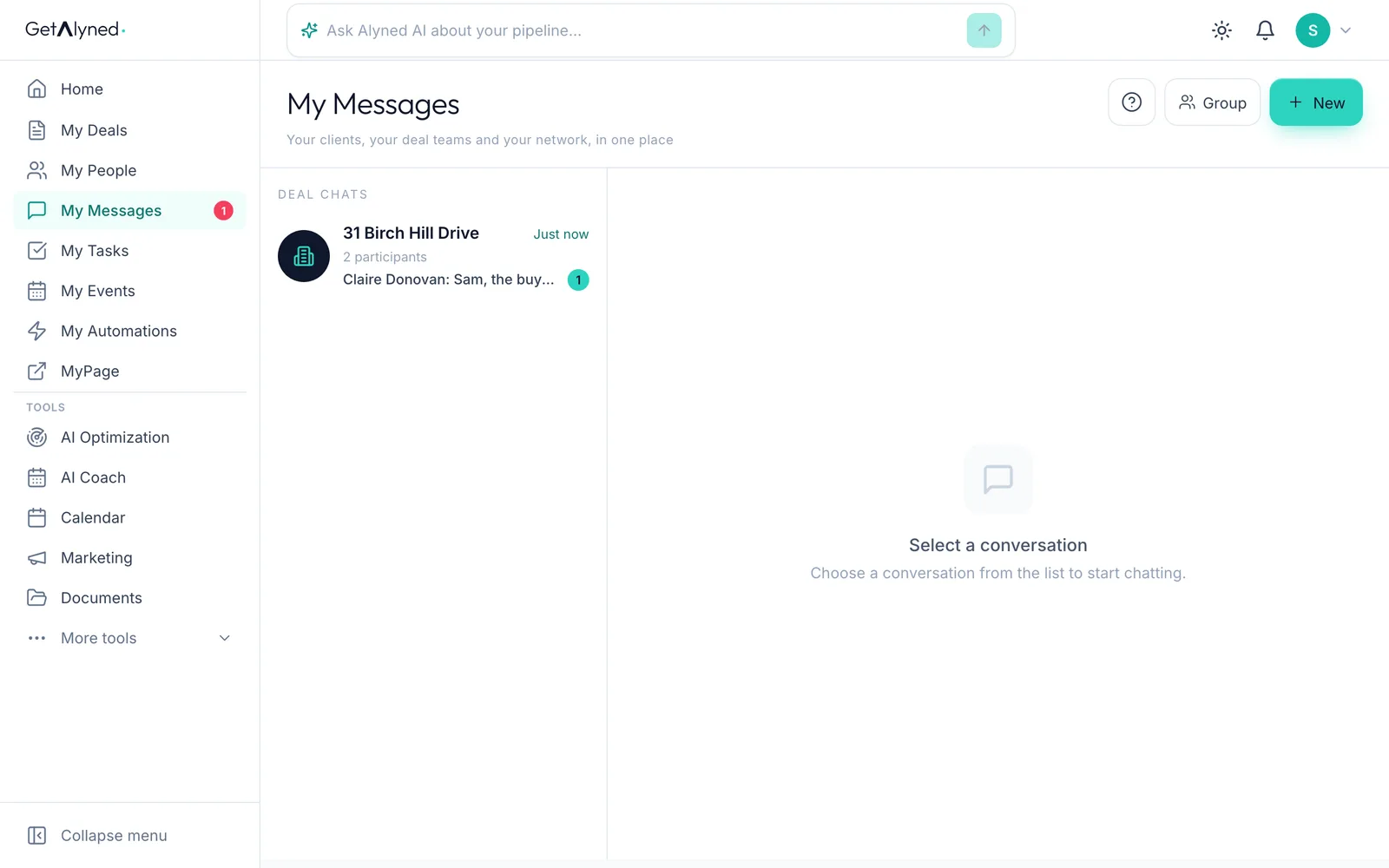
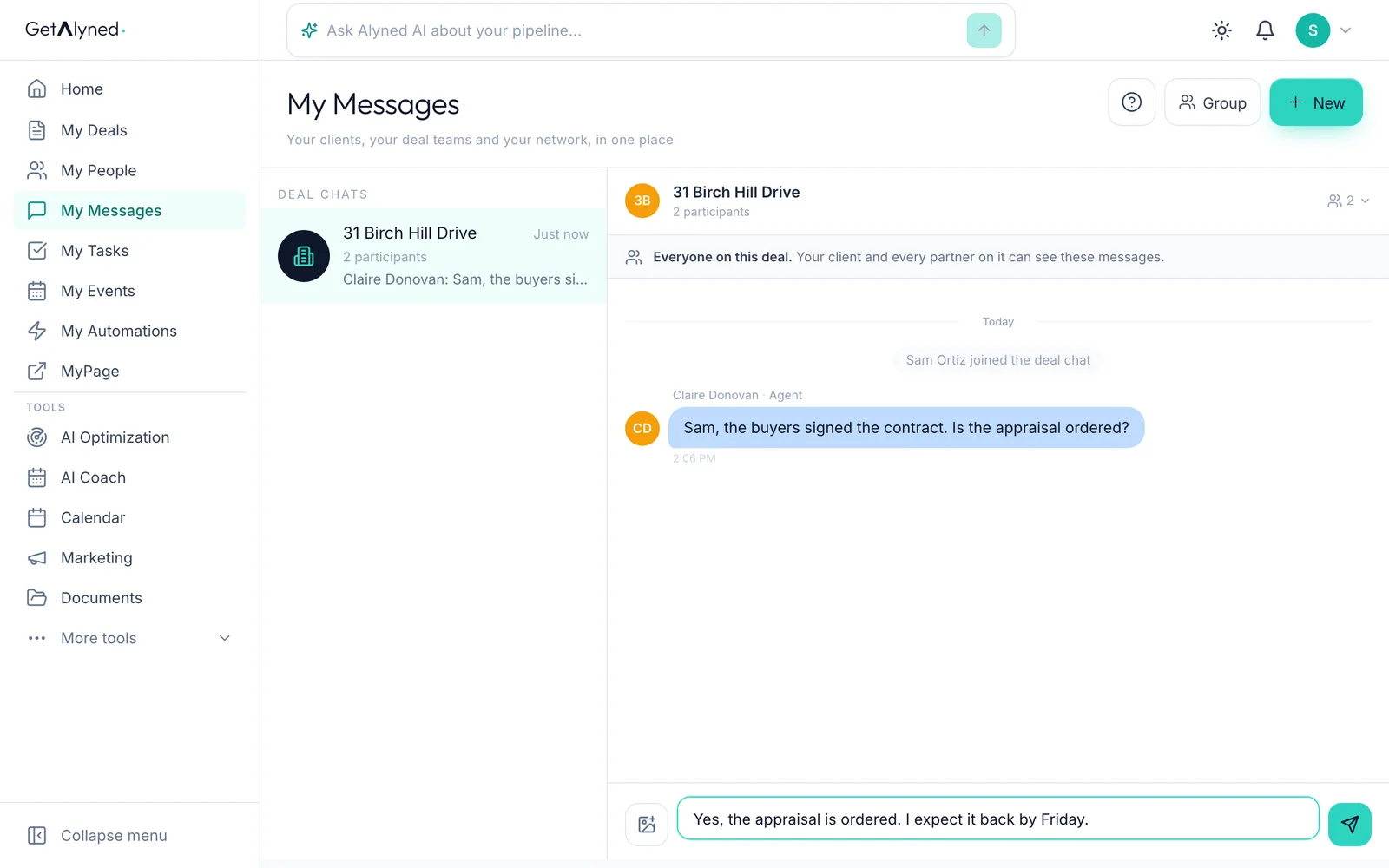
The deal chat is in My Messages.
-
One chat per deal
Each deal has one chat, named for its address.
-
Everyone reads it
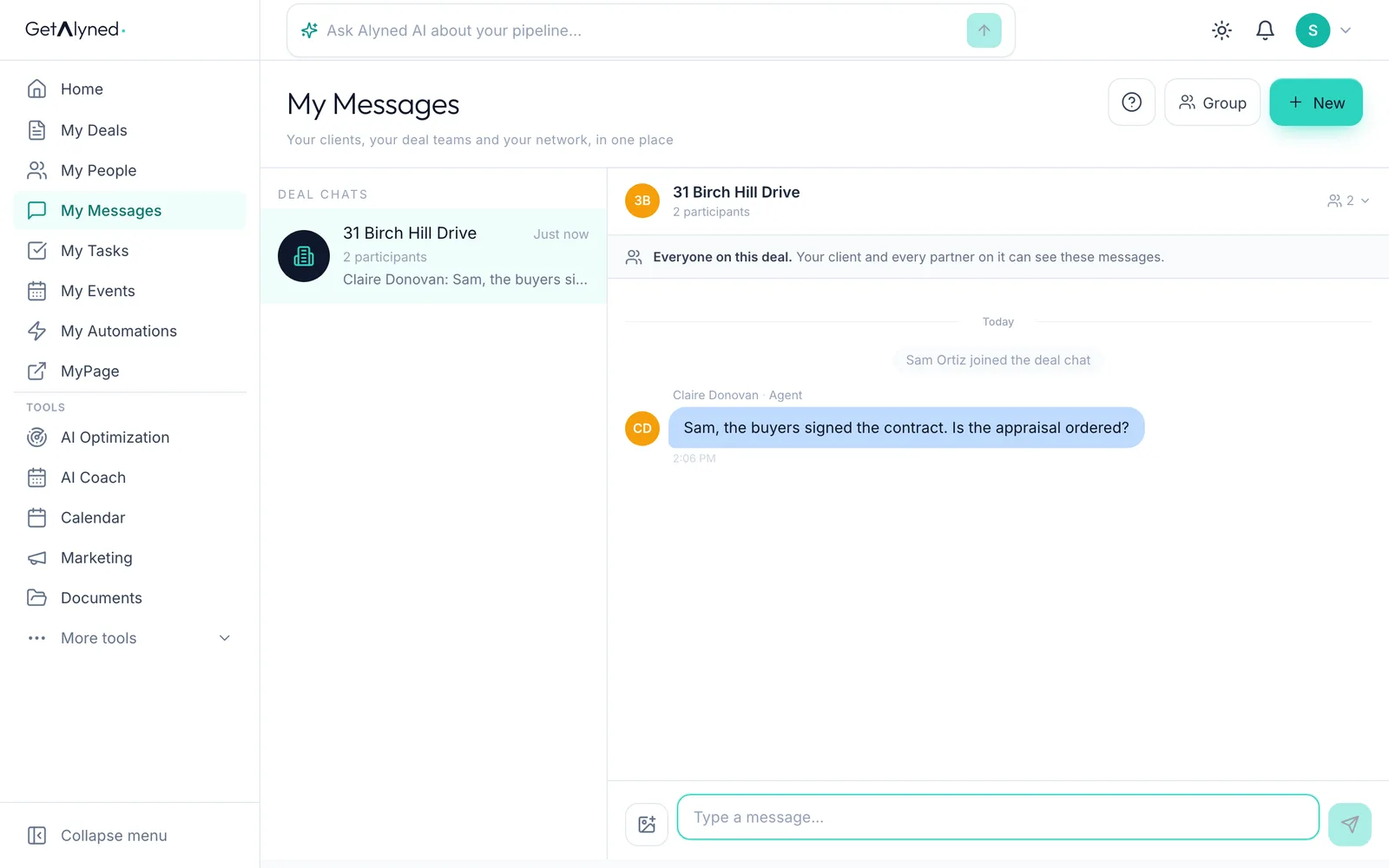
The agent, you and the client once they're invited all read the same chat. Keep it to what all of them should see.
-
Reply
Type your answer.
-
Send
Click Send.
-
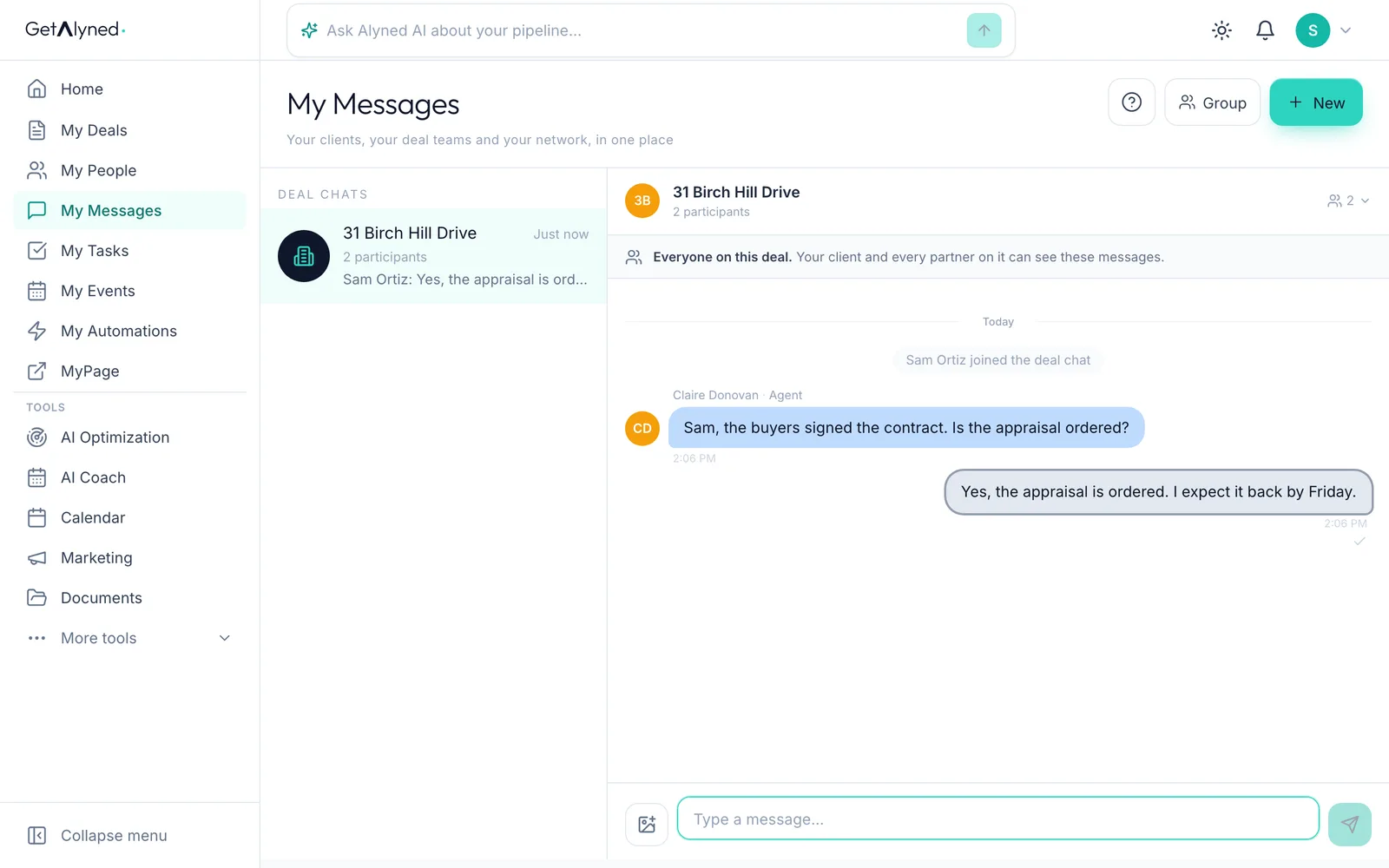
Sent
Your answer is in the chat, and the agent is told.
Related guides
- Your loan officer dashboard at a glance · Your dashboard is the first thing you see when you sign in. Here's what each card tells you, and the one thing to click on each.
- Log a pre-approval · Log each pre-approval letter so Alyned tracks it, warns you before it expires, and counts it when the loan funds.
- Connect with agents · Find agents near you, send connection requests, and accept the ones who reach out, so they can add you to their deals.