Log a pre-approval
For loan officers · 3 min
Log each pre-approval letter so Alyned tracks it, warns you before it expires, and counts it when the loan funds.
Watch
Or read it step by step
-
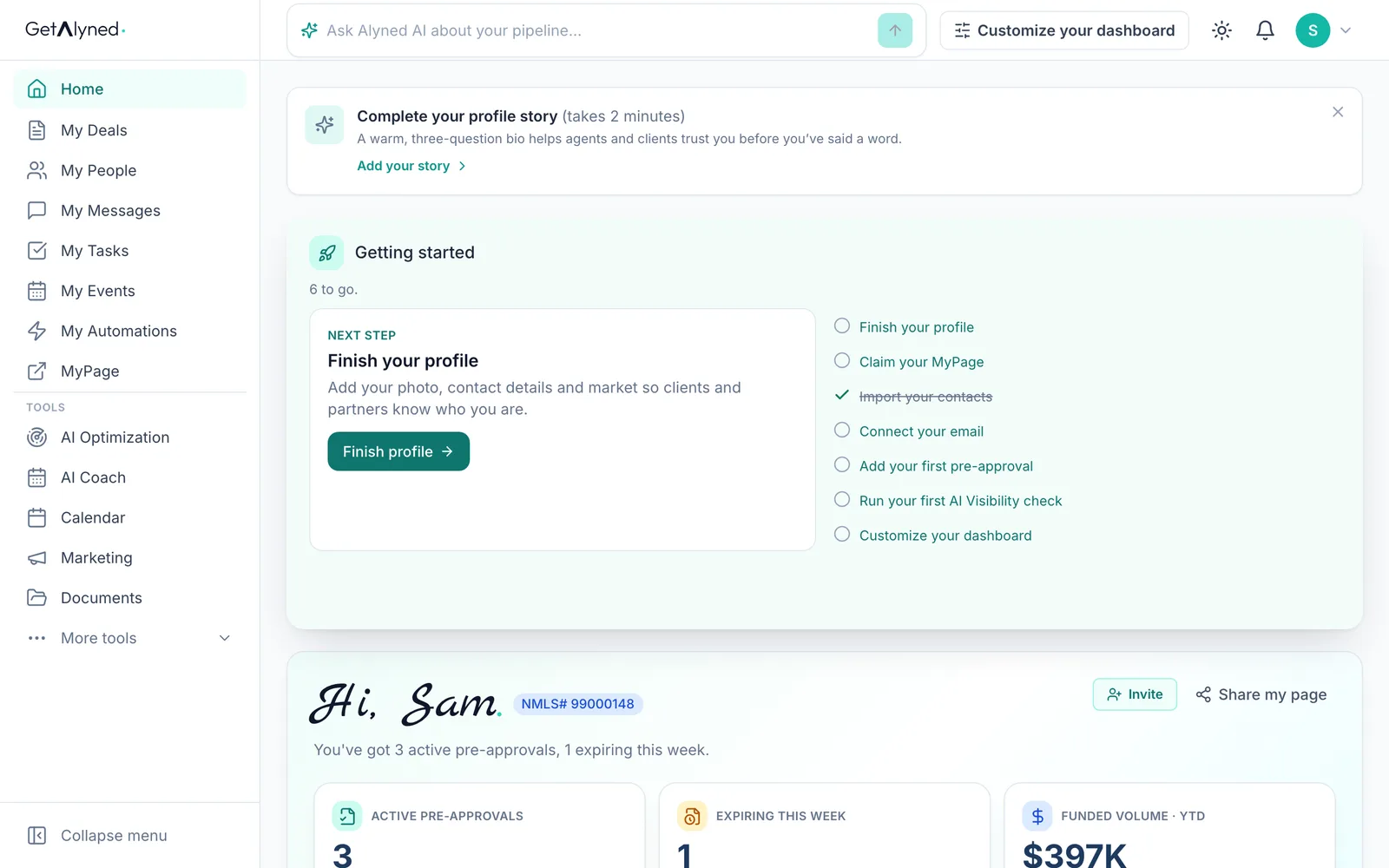
Open My Deals
My Deals is where your loans and letters live.
-
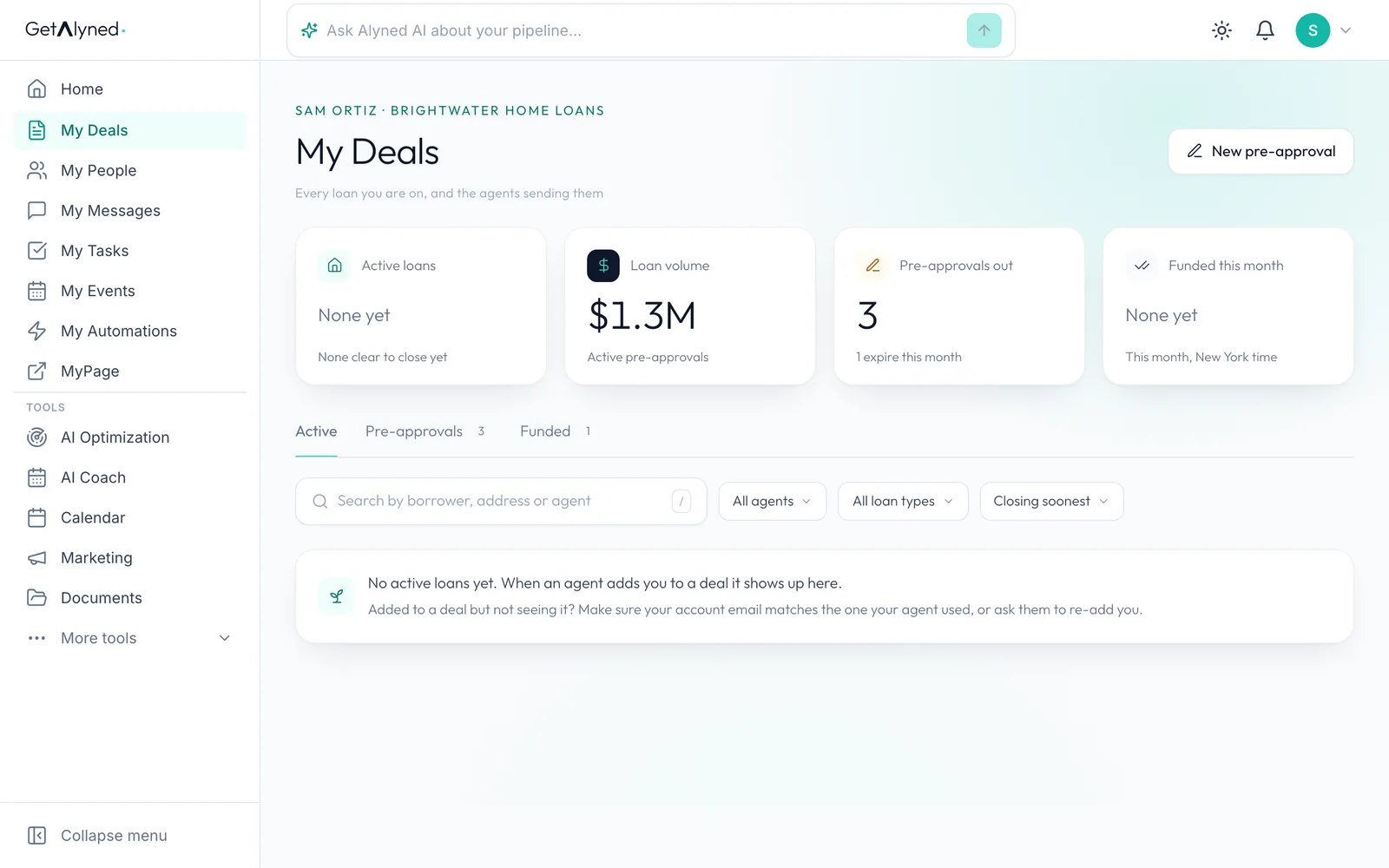
New pre-approval
Click New pre-approval, at the top right.
-
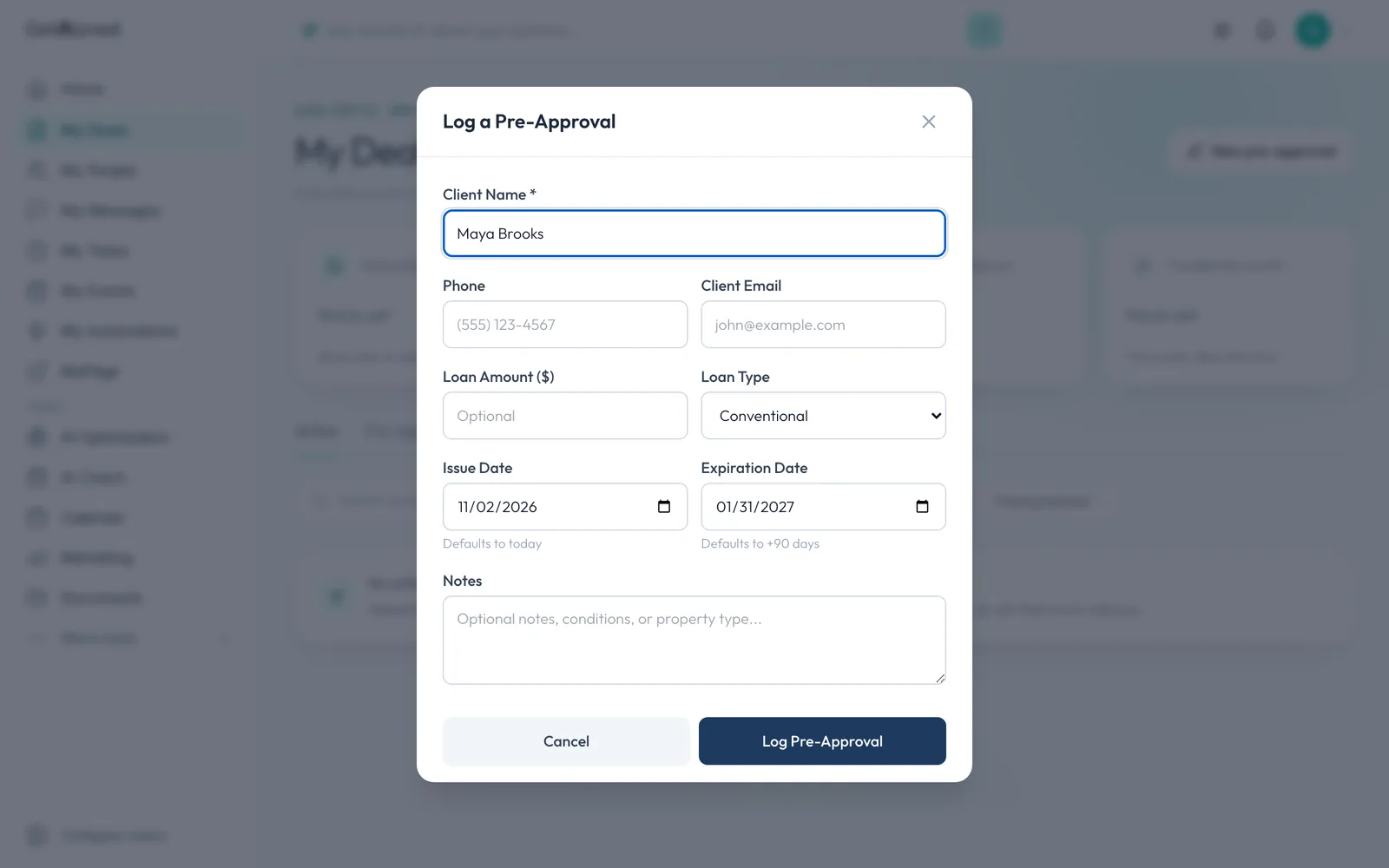
Borrower's name
Type the borrower's name. It's the only required field.
-
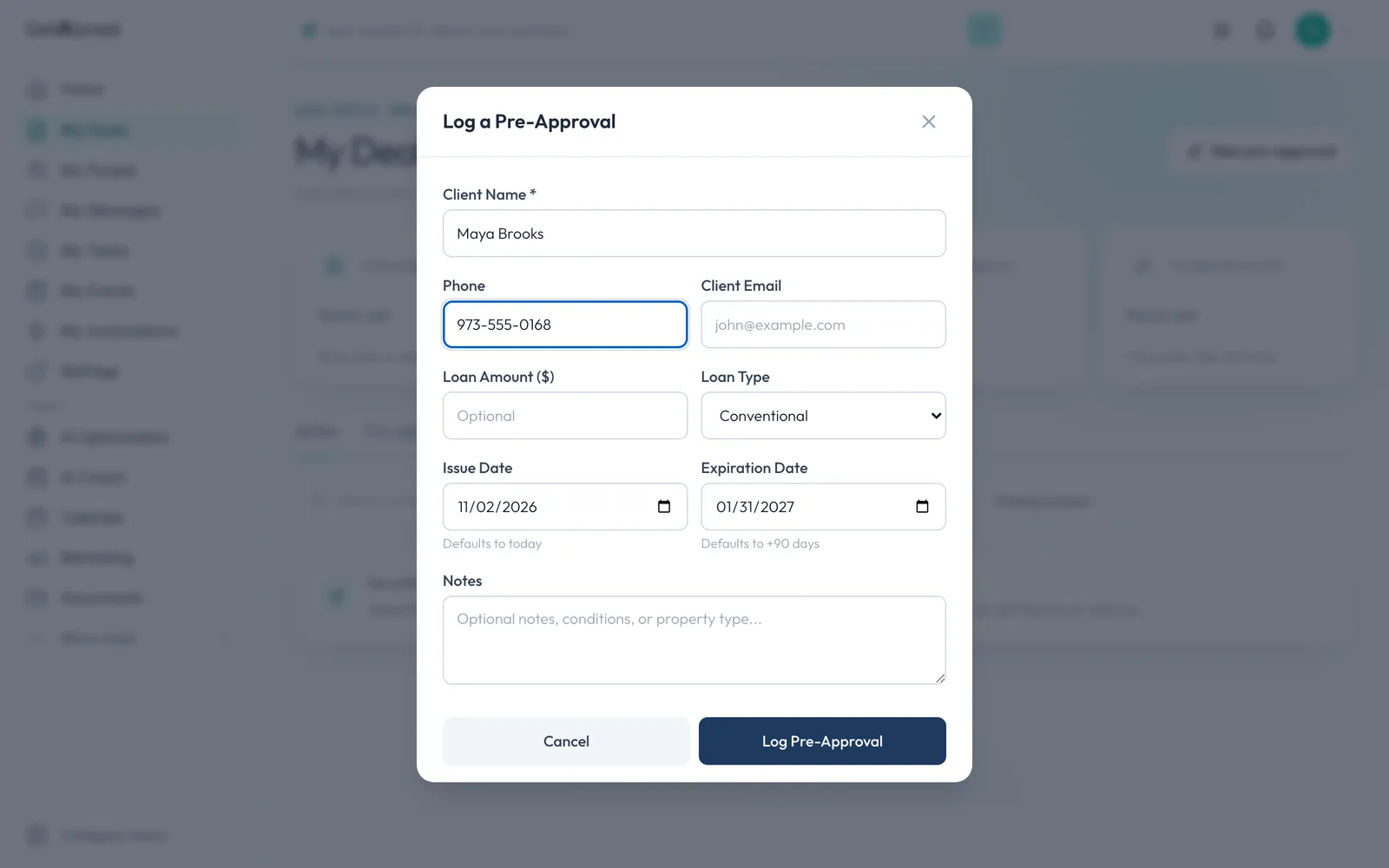
Phone
Add a phone number, so you can text them from your own phone later.
-
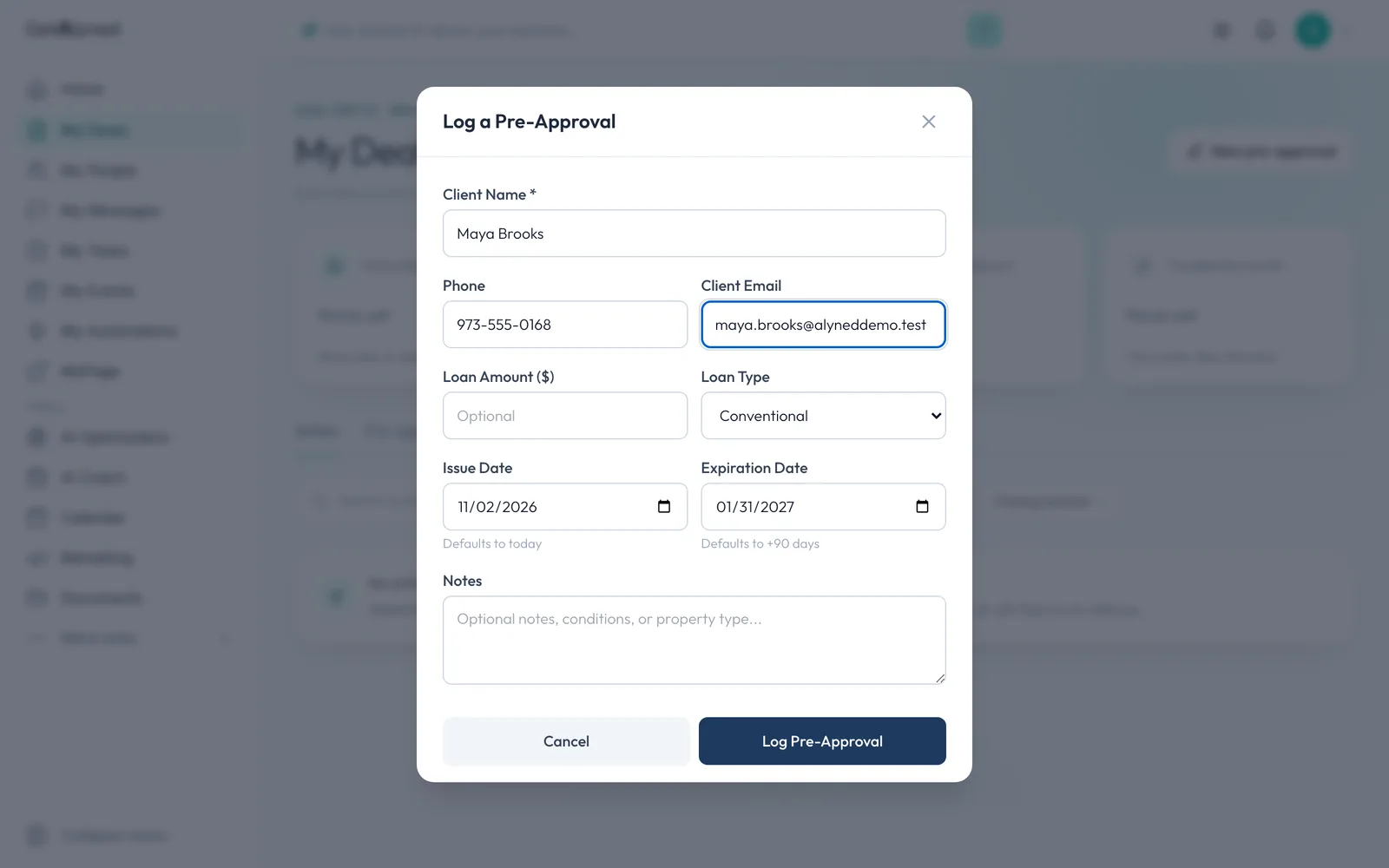
Email
Add their email too, so it's on file with the letter.
-
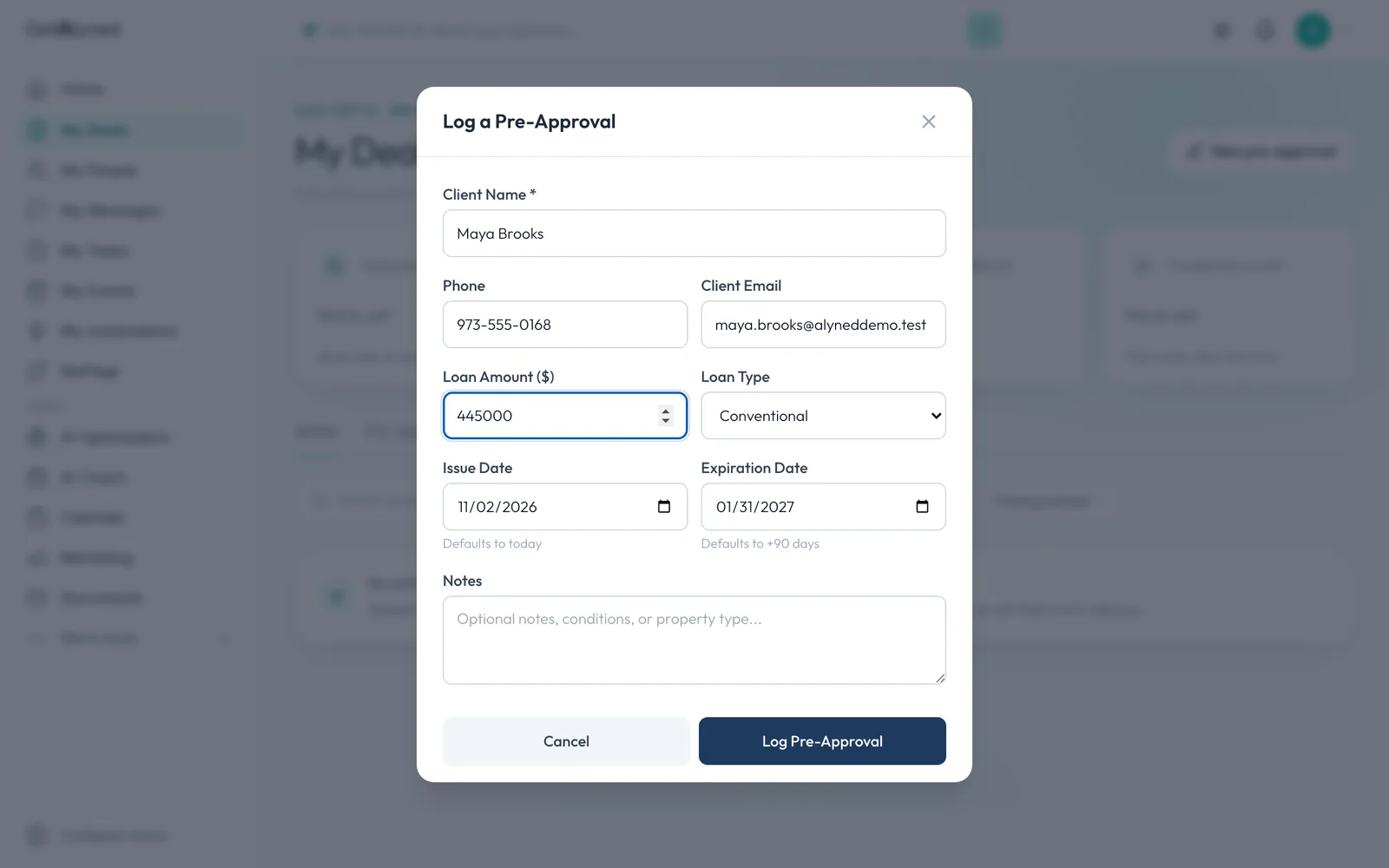
Loan amount
The amount you approved them for.
-
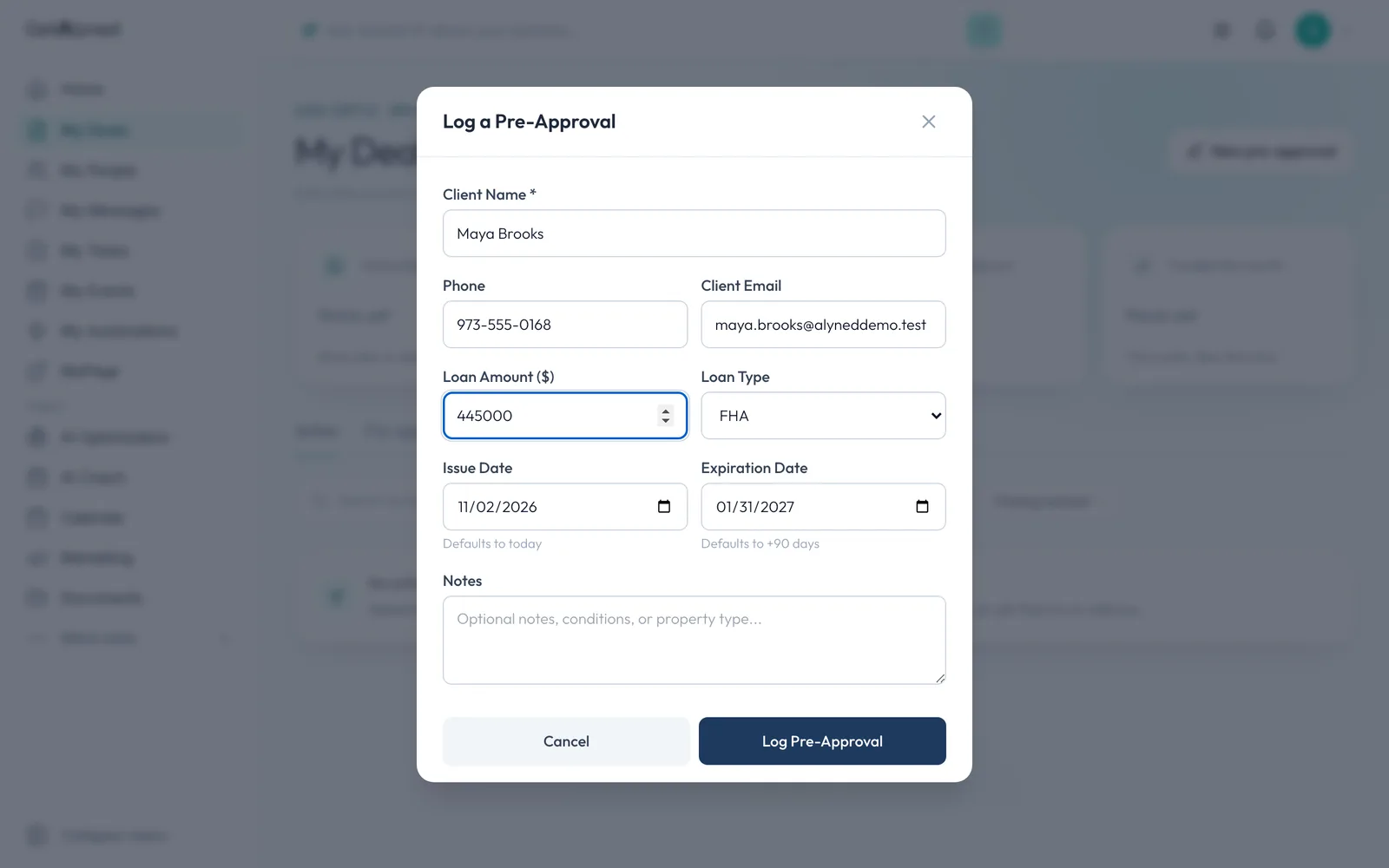
Loan type
Pick the loan type.
-
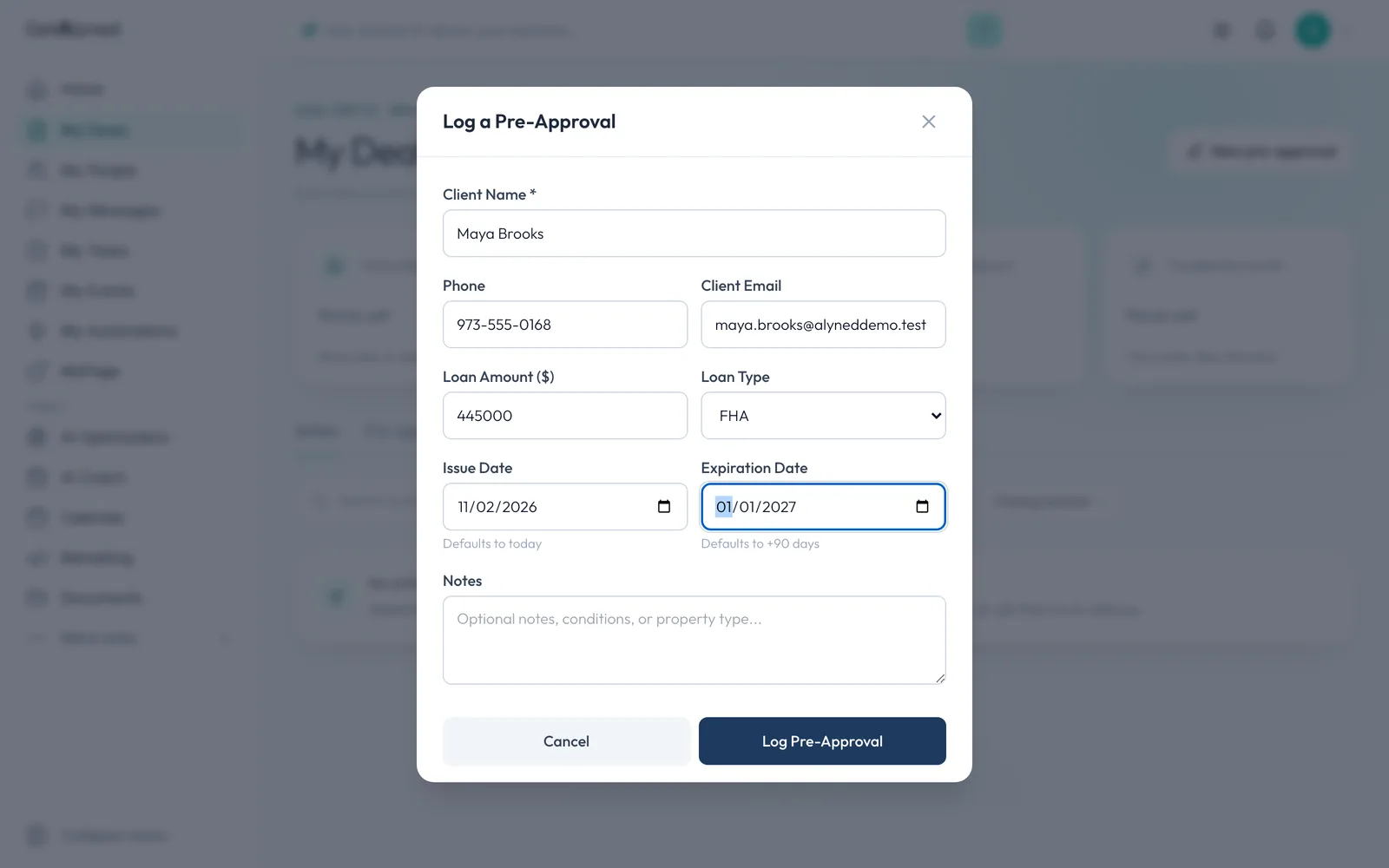
Expiration date
The expiry starts 90 days out. Change it to match your letter. Alyned warns you before it runs out.
-
Log it
Click Log Pre-Approval. This logs the facts of the letter. Keep the letter itself in your own system.
-
Your pre-approvals
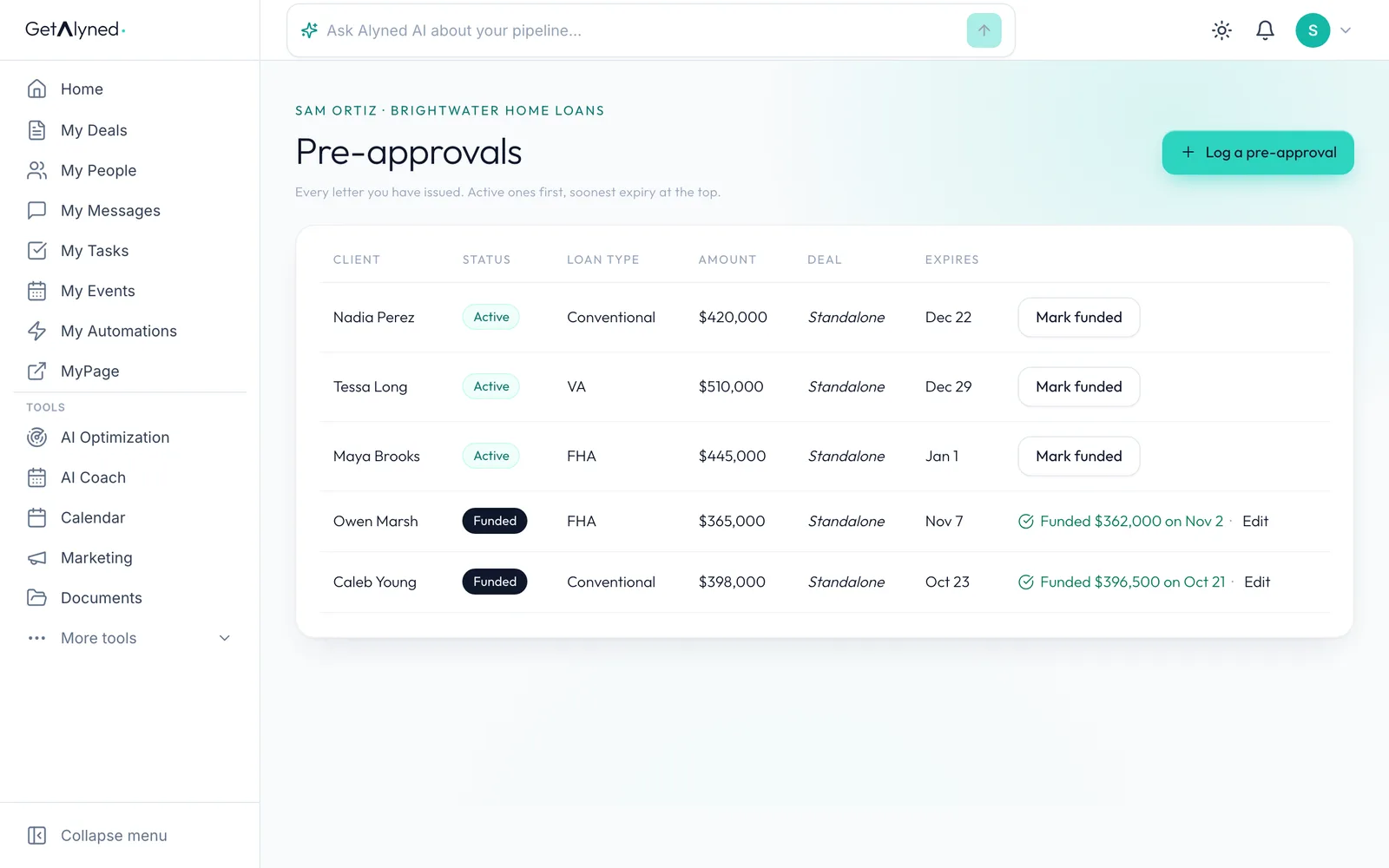
Pre-approvals lists every letter you've logged.
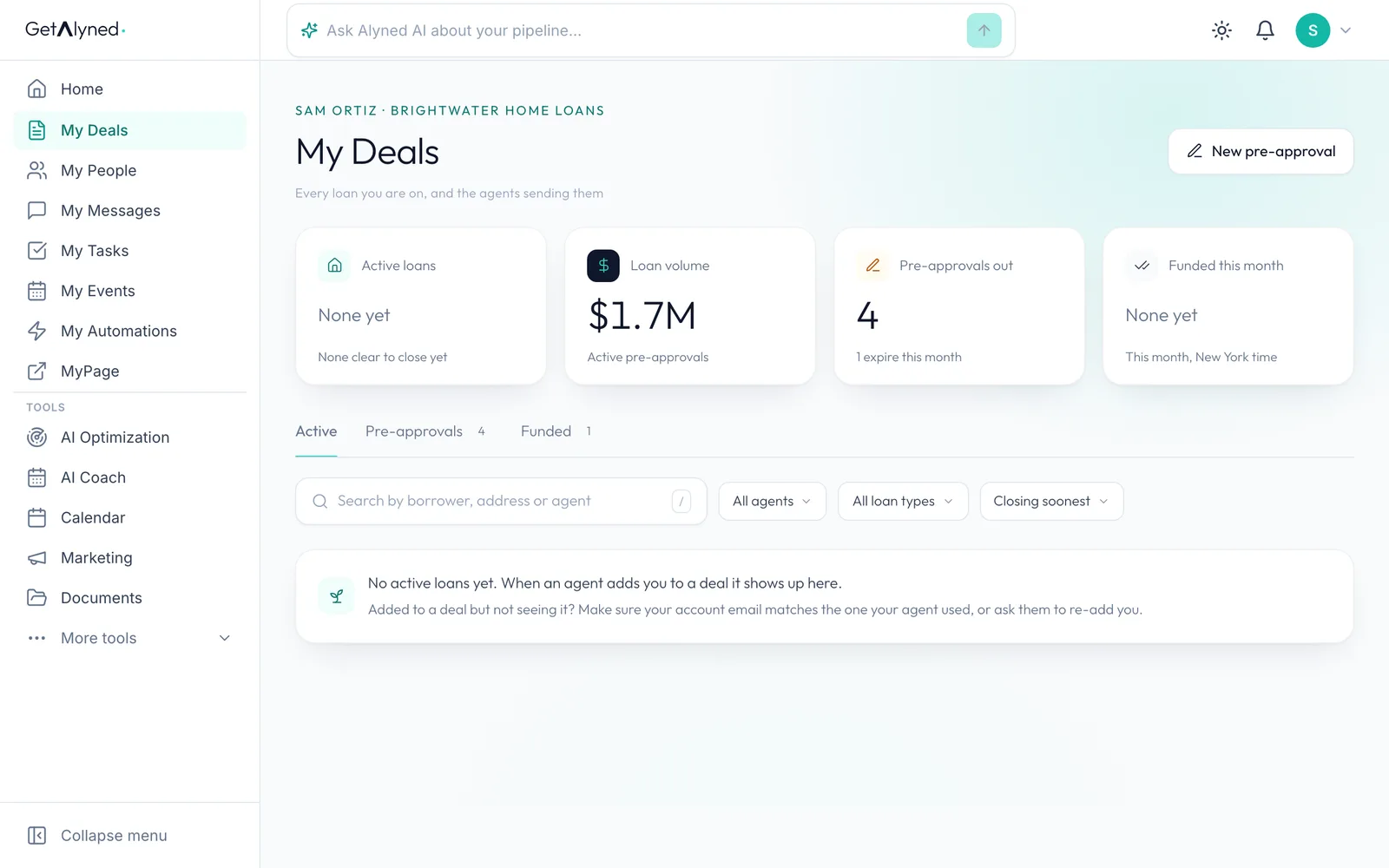
-
It's on the list
Your new borrower is in the list.
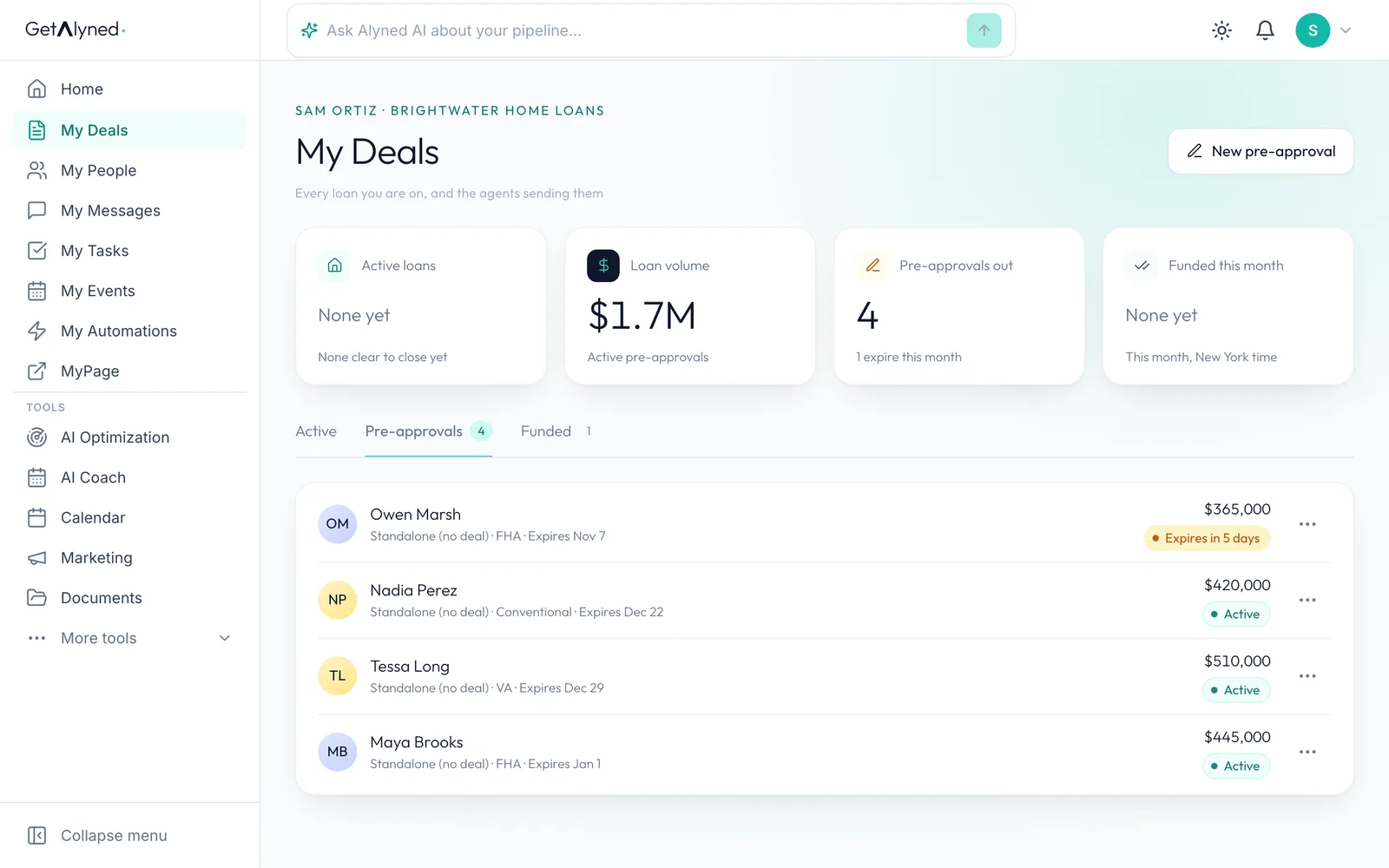
-
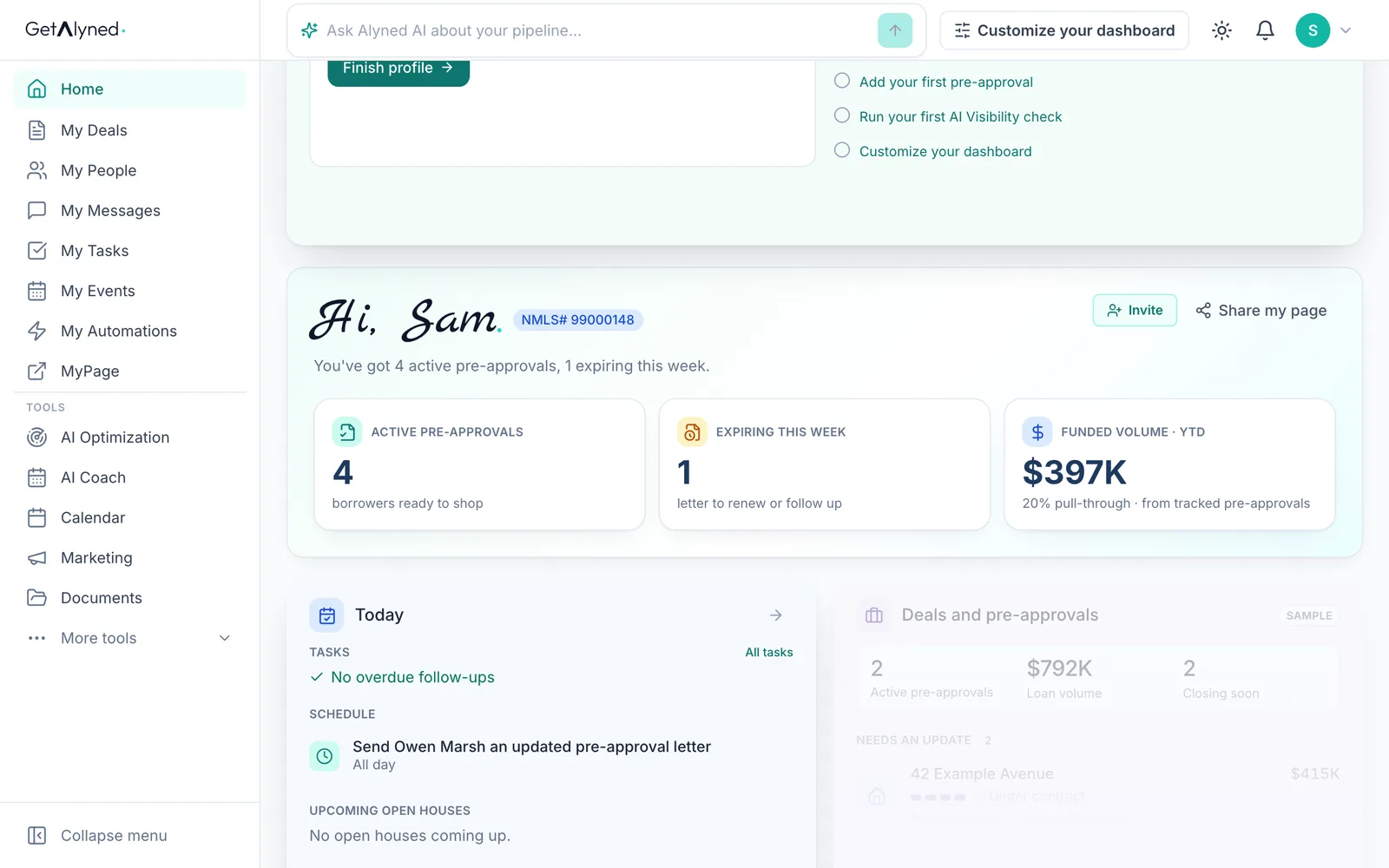
Back to Home
Click Home. Your dashboard counts it too.
-
Active pre-approvals
Active pre-approvals now includes this borrower. Click it for the full page.
-
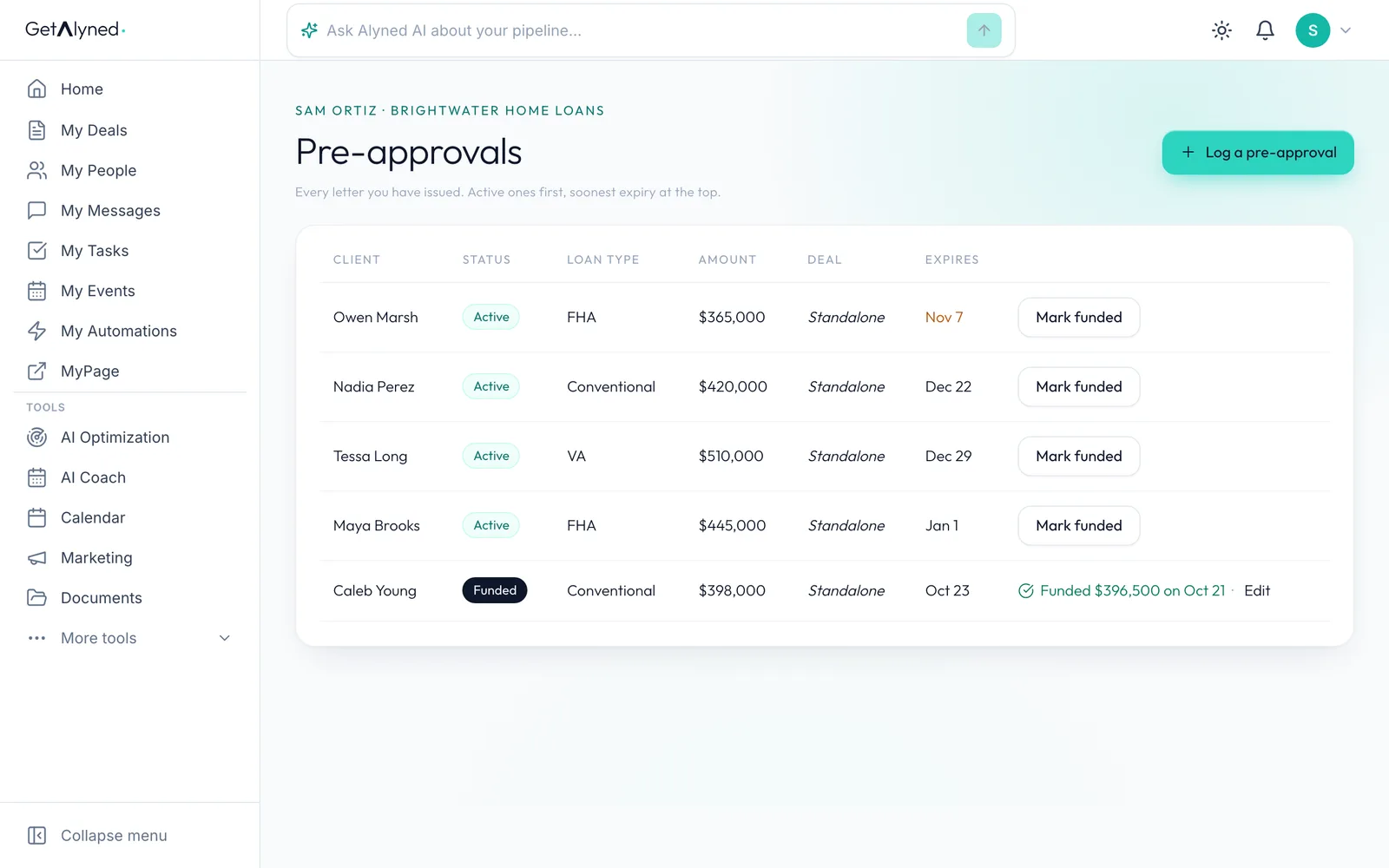
Soonest first
Active letters come first, with the soonest expiry at the top. A date in amber runs out within 14 days.
-
Standalone letters
Standalone means the letter isn't on a deal yet. When an agent adds you to this buyer's deal, it shows in My Deals with your own steps.
-
When the loan funds
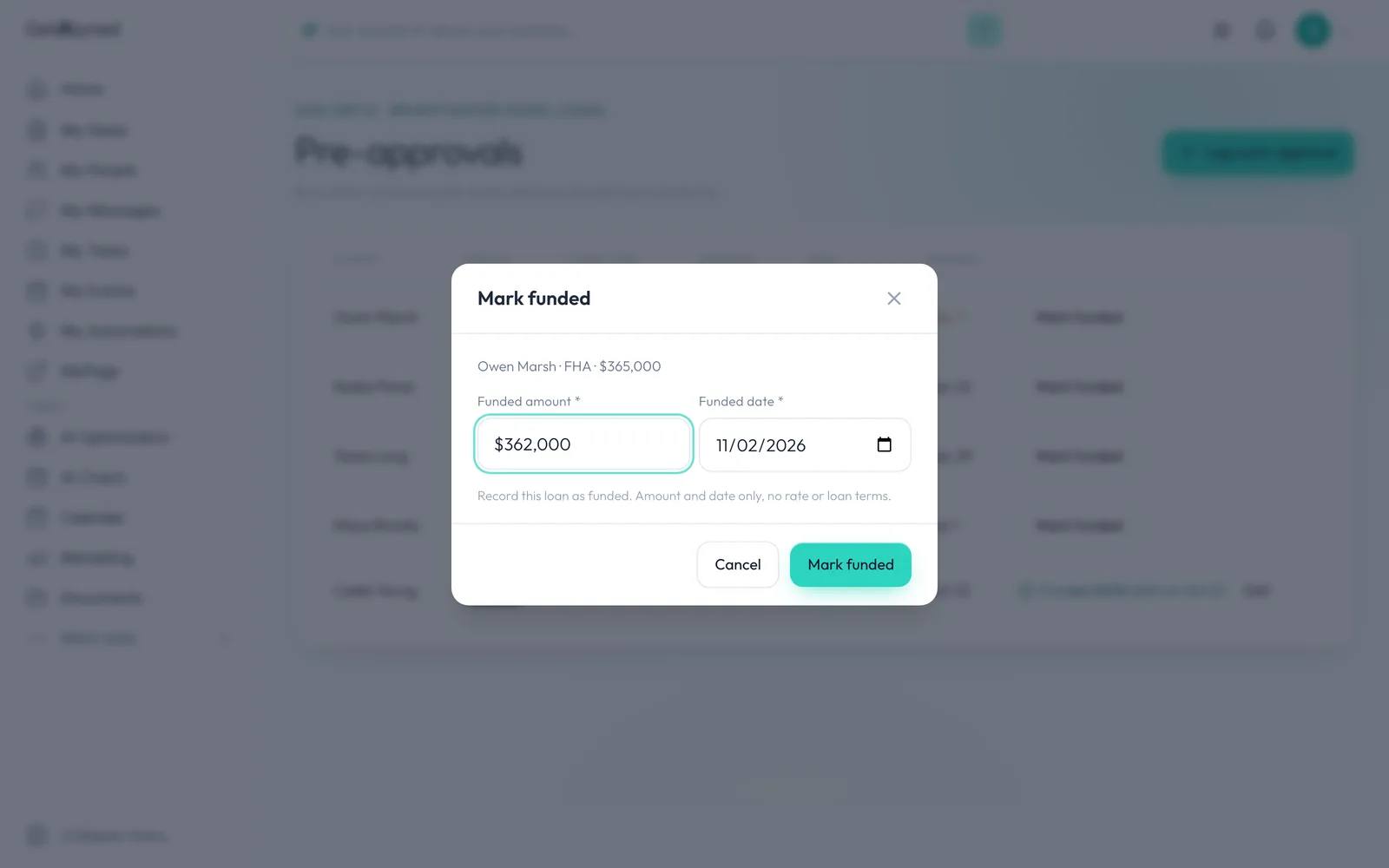
When the loan funds, click Mark funded.
-
Funded amount
Type the amount that funded. The date starts at today.
-
Save it
Click Mark funded. Only the amount and date are kept, no rate or loan terms.
-
Funded
It now reads Funded, moves below your active letters, and adds to Funded volume on your dashboard. Edit fixes the amount or date.
Related guides
- Your loan officer dashboard at a glance · Your dashboard is the first thing you see when you sign in. Here's what each card tells you, and the one thing to click on each.
- Work an agent's deal · When an agent adds you to a deal, mark your lender steps done, choose whether the client hears about it, and keep everyone in the deal chat.
- Connect with agents · Find agents near you, send connection requests, and accept the ones who reach out, so they can add you to their deals.