Invite agents and place them on teams
For brokerages · 4 min
Invite one agent or a whole list, place them on a team or keep them independent, and move people later. Their own contacts and deals stay theirs.
Watch
Or read it step by step
-
People
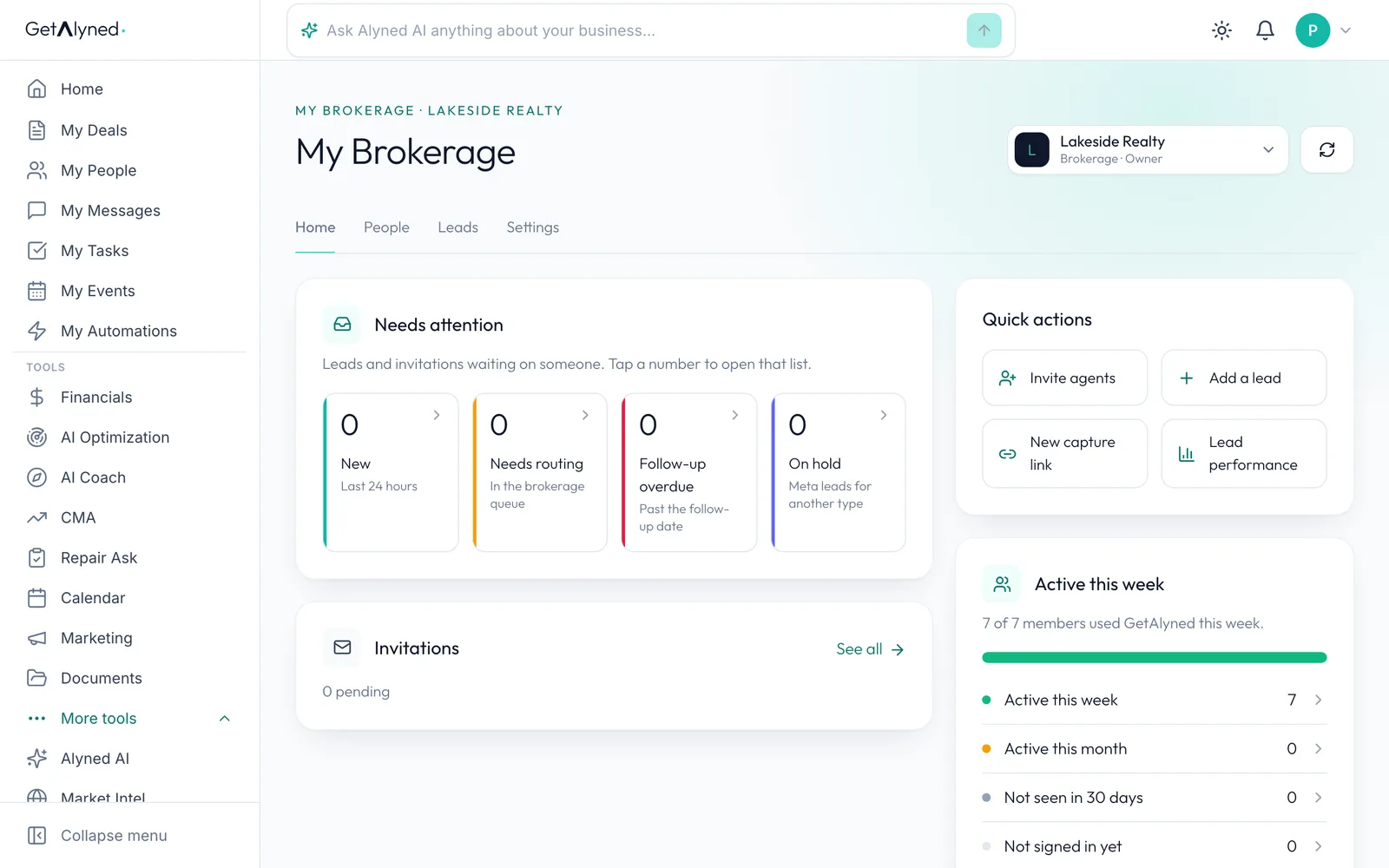
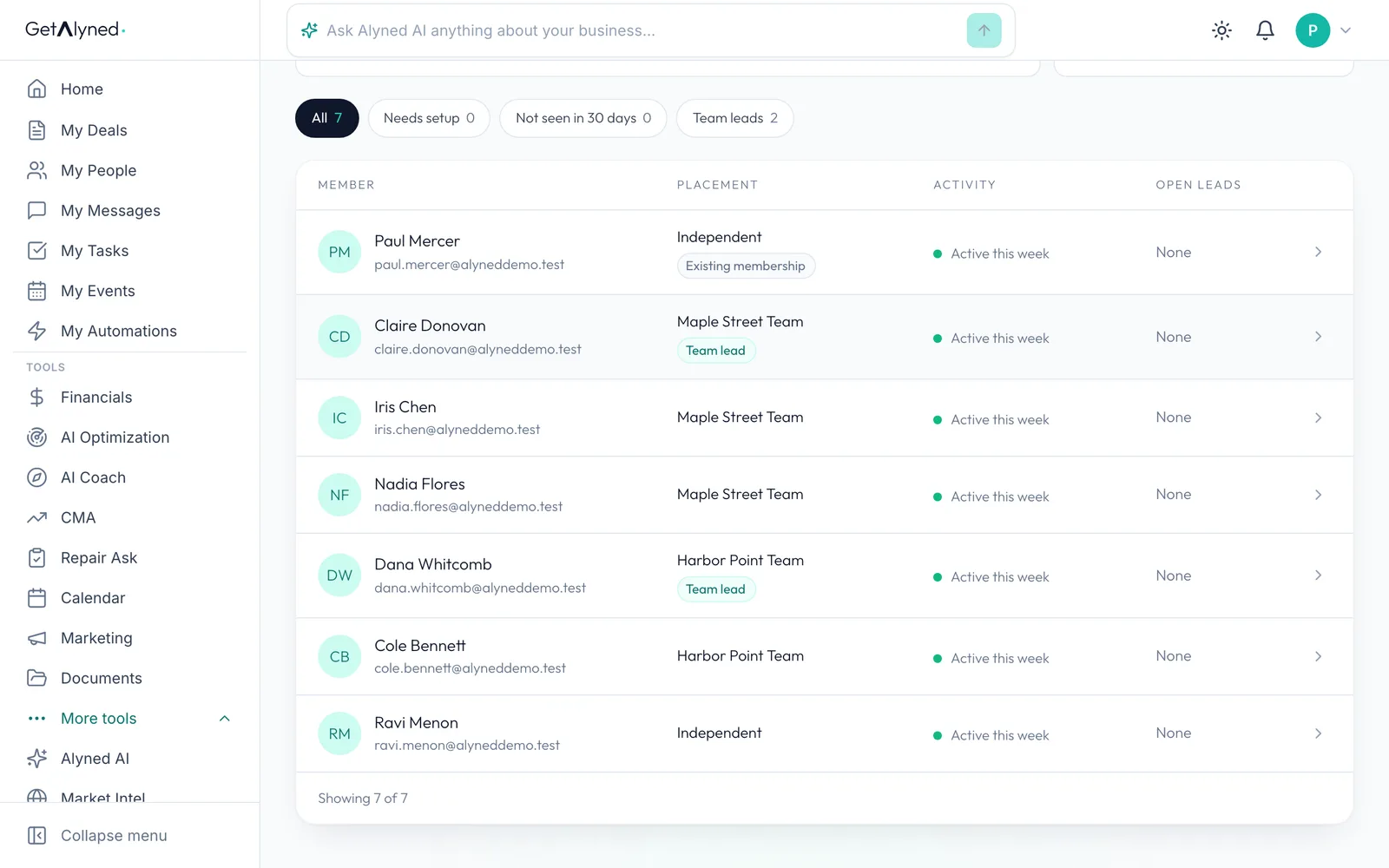
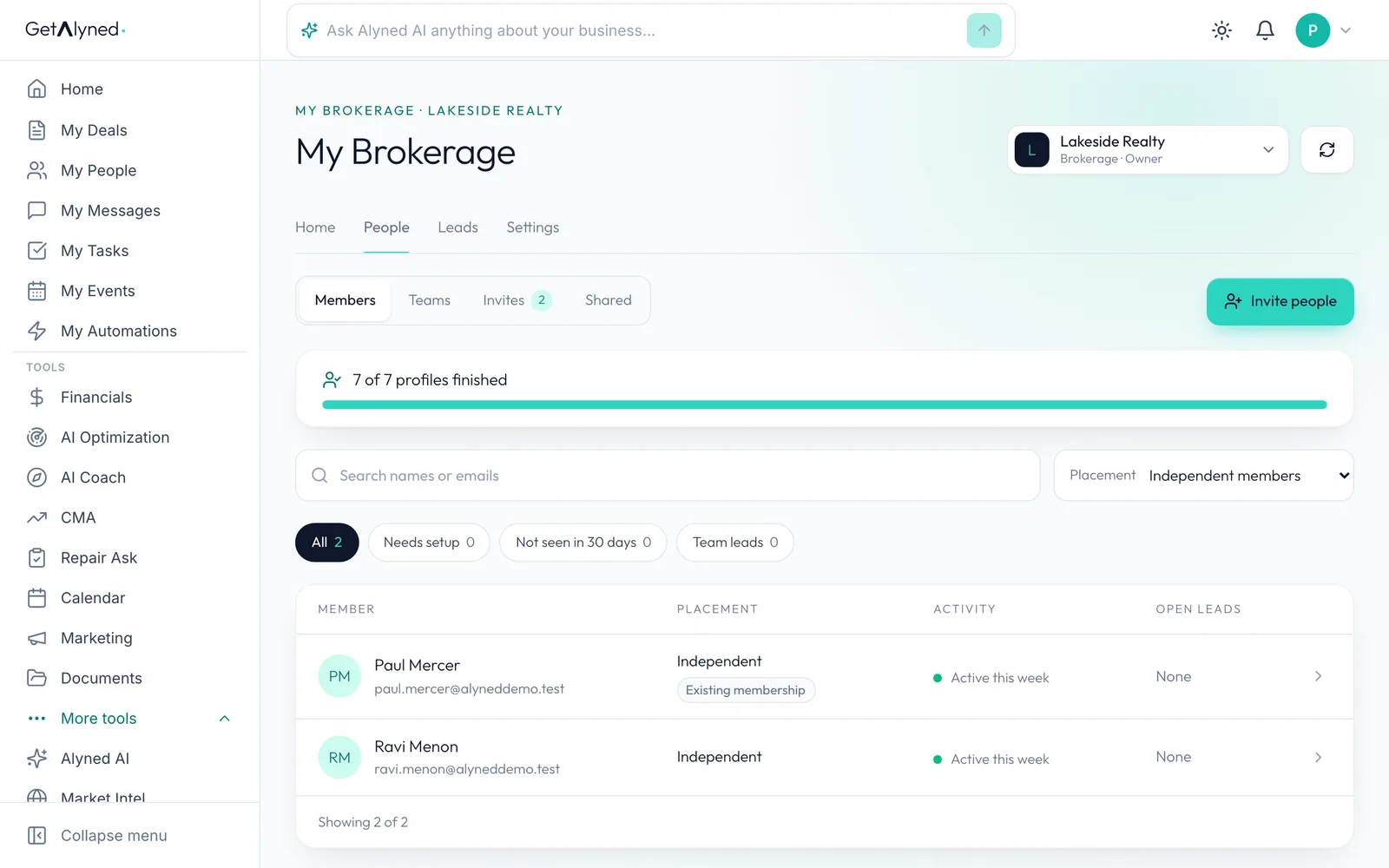
My Brokerage, then People, is your whole roster, with quick filters: Needs setup, Not seen in 30 days and Team leads. Activity shows in rough labels, never exact times.
-
Teams
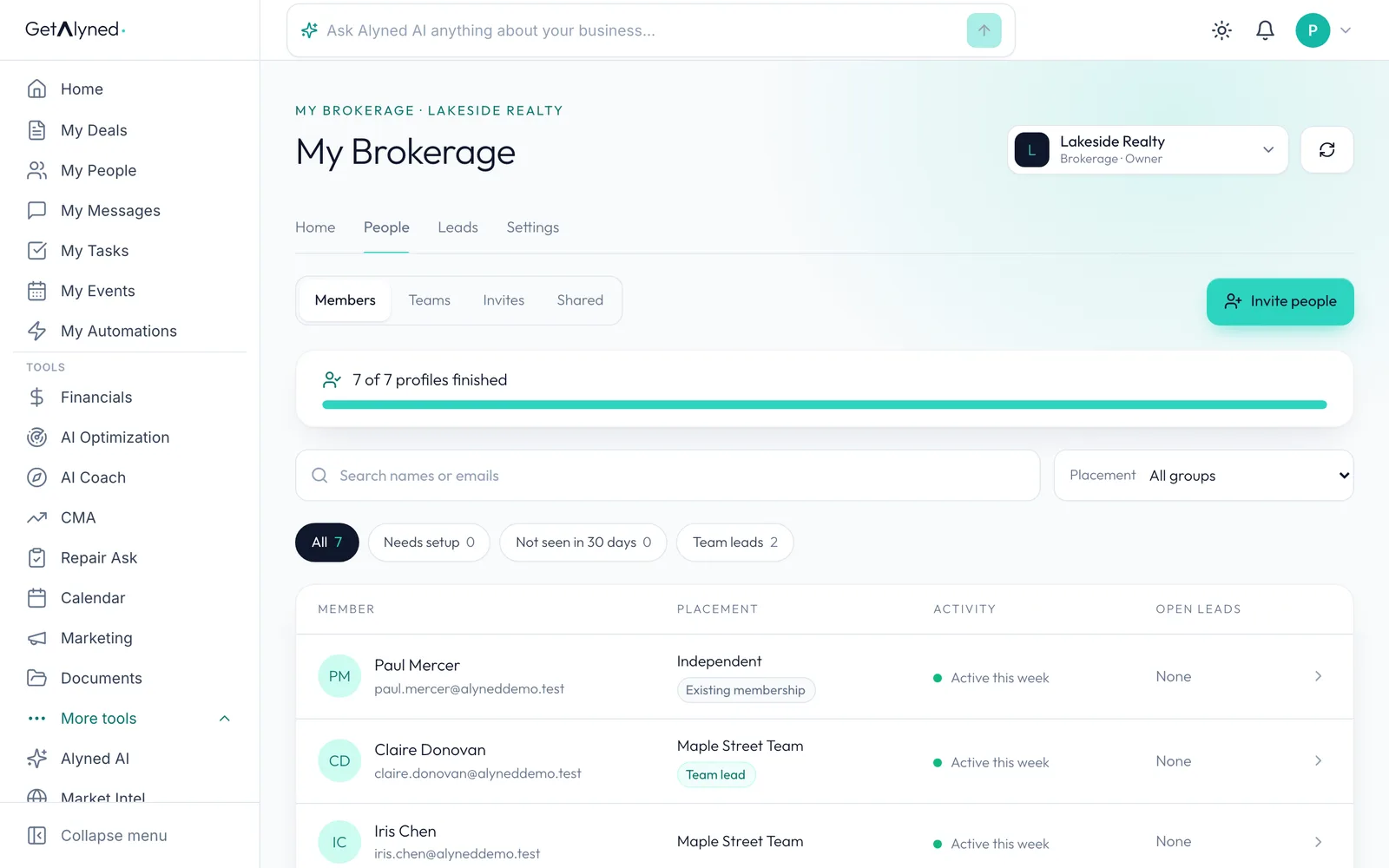
Teams shows your named teams.
-
A team
Each team shows its lead and its members. Create team is at the bottom of this page.
-
Independent members
Agents on no team are independent members. That's a real place to be, not a gap to fix.
-
Invites
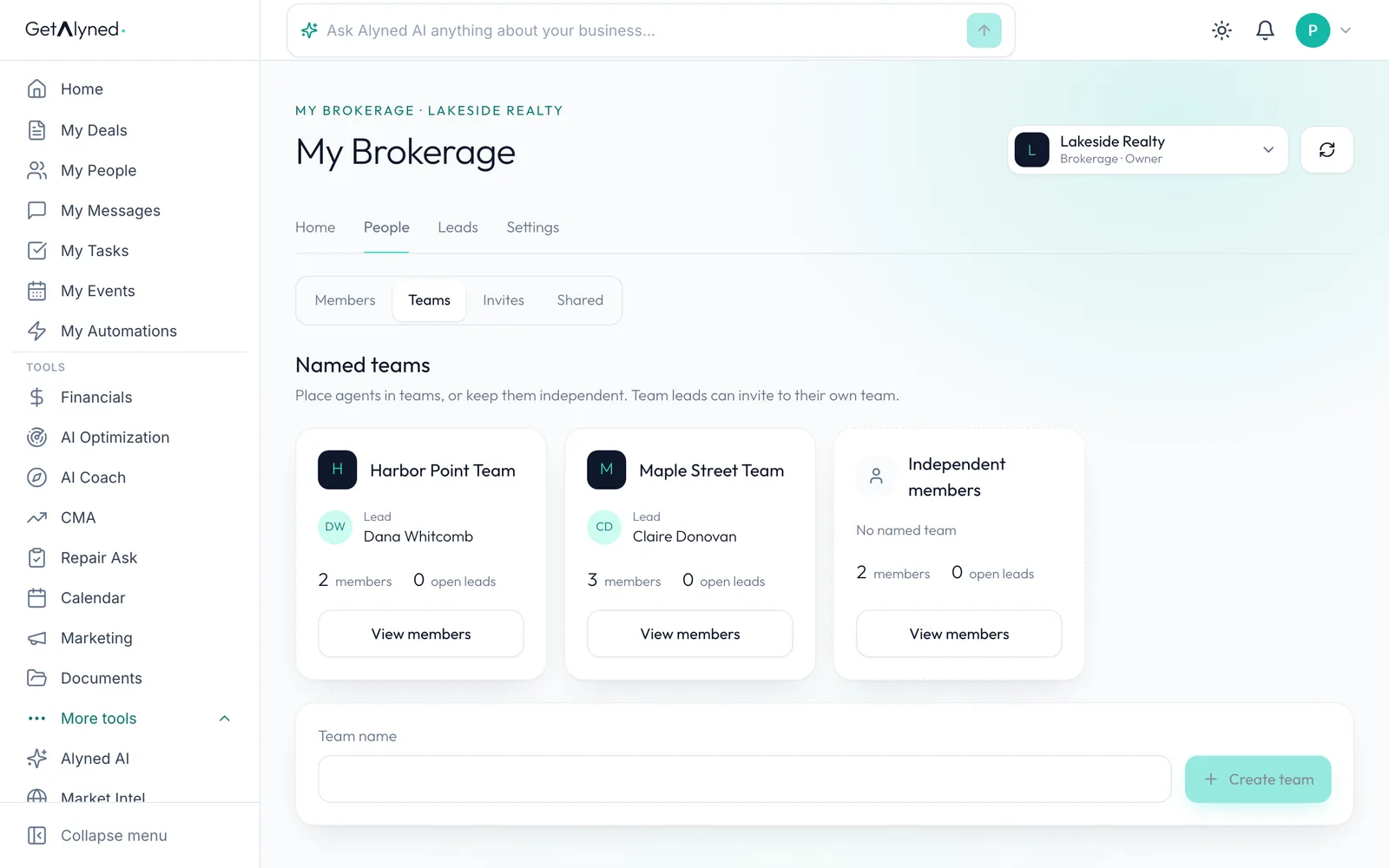
Invites holds every invitation for the brokerage.
-
Invite people
Invite one agent or a whole list. It's the same window.
-
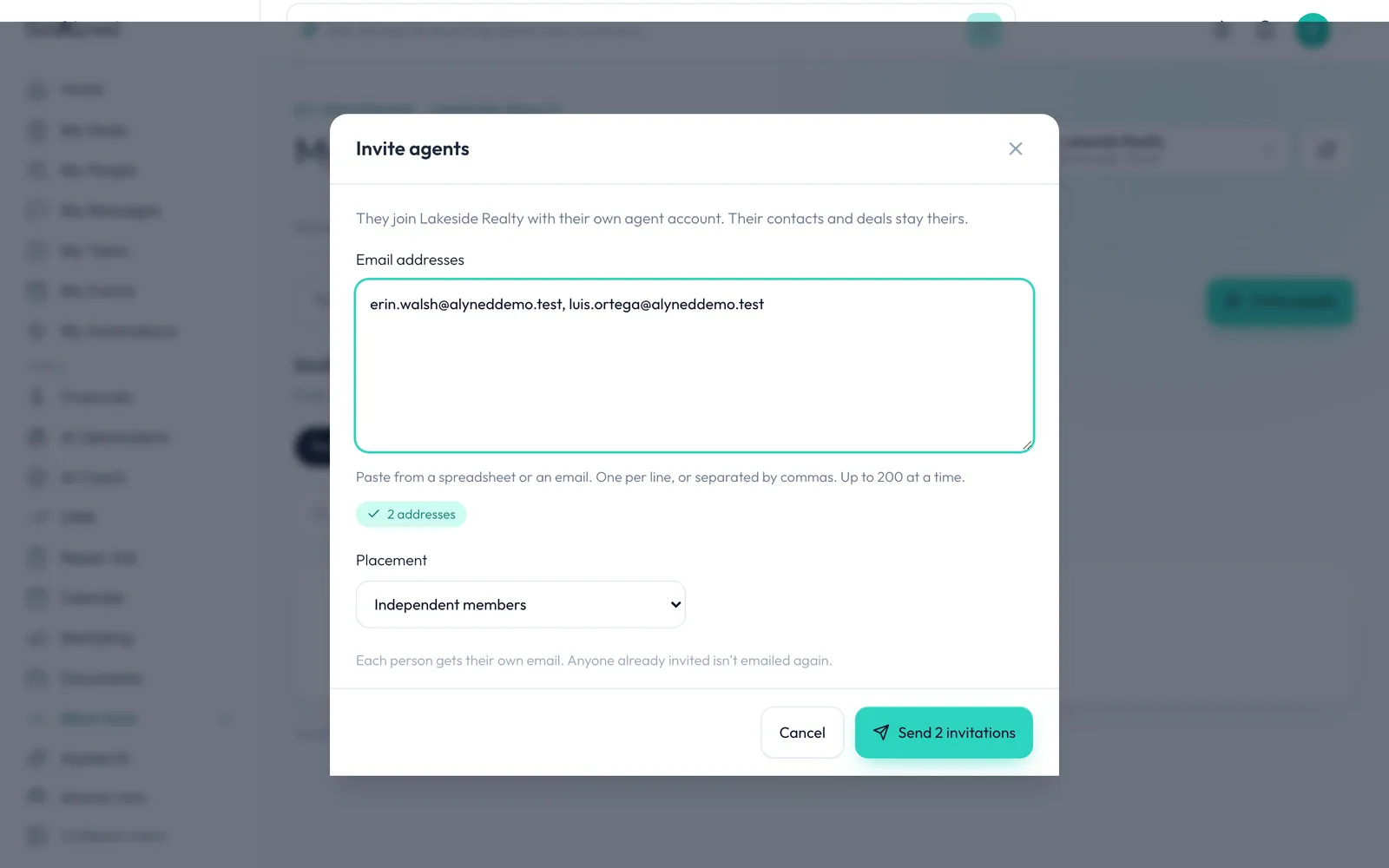
Email addresses
Paste up to 200, one per line or separated by commas. Each person joins with their own agent account, and their contacts and deals stay theirs.
-
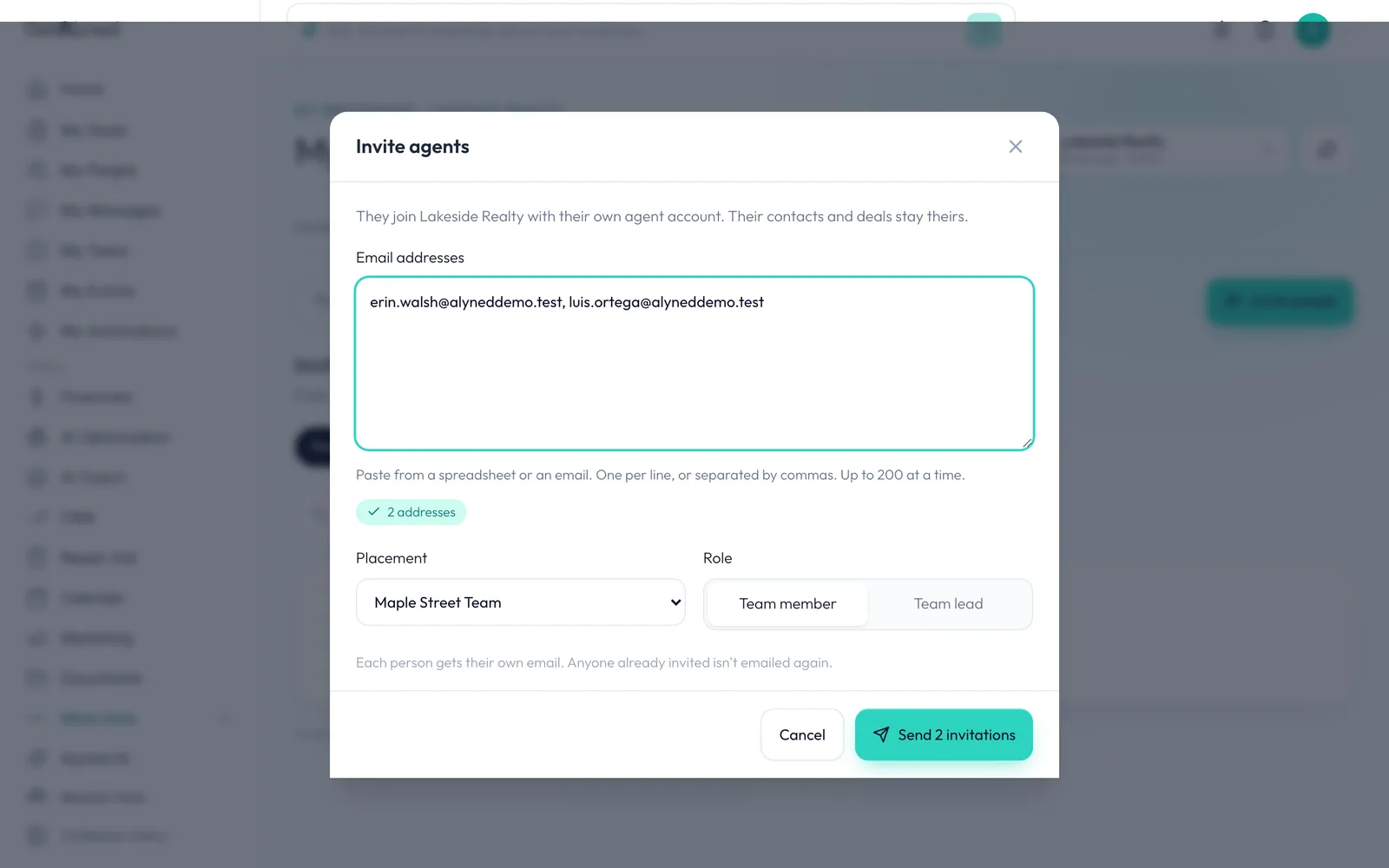
Placement
Placement puts them on a team when they join. Leave it on Independent members to keep them on no team.
-
Their role
A team takes a Team member or a Team lead.
-
Send
Click Send. Everyone gets their own email, and anyone already invited isn't emailed again.
-
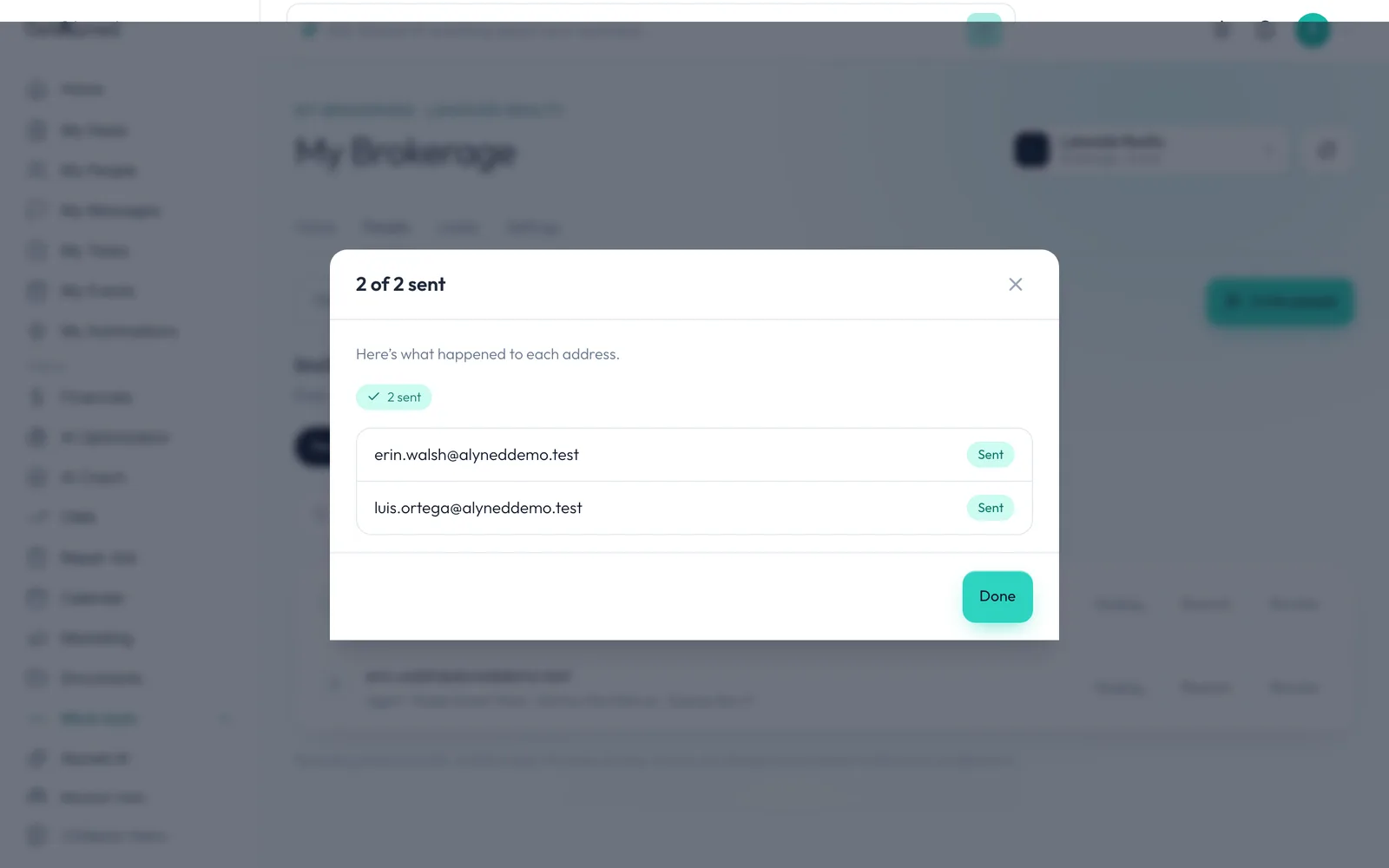
What happened
You see what happened to each address. One that can't be invited says only that, never why.
-
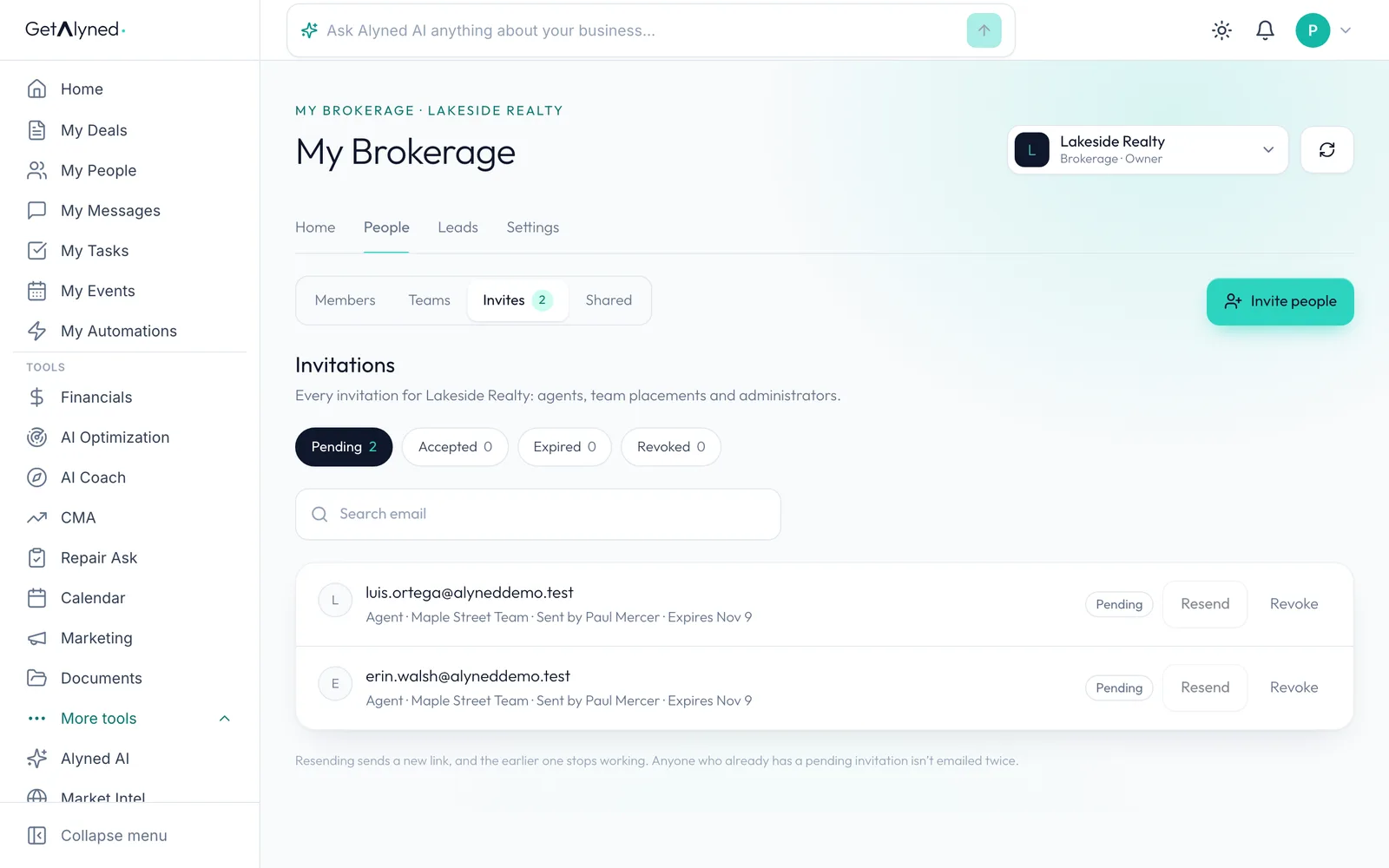
Pending
Pending invitations wait here, with who sent them and when they expire. Each has Resend and Revoke.
-
Members
To move someone who has already joined, go back to Members.
-
Open their row
Open their row.
-
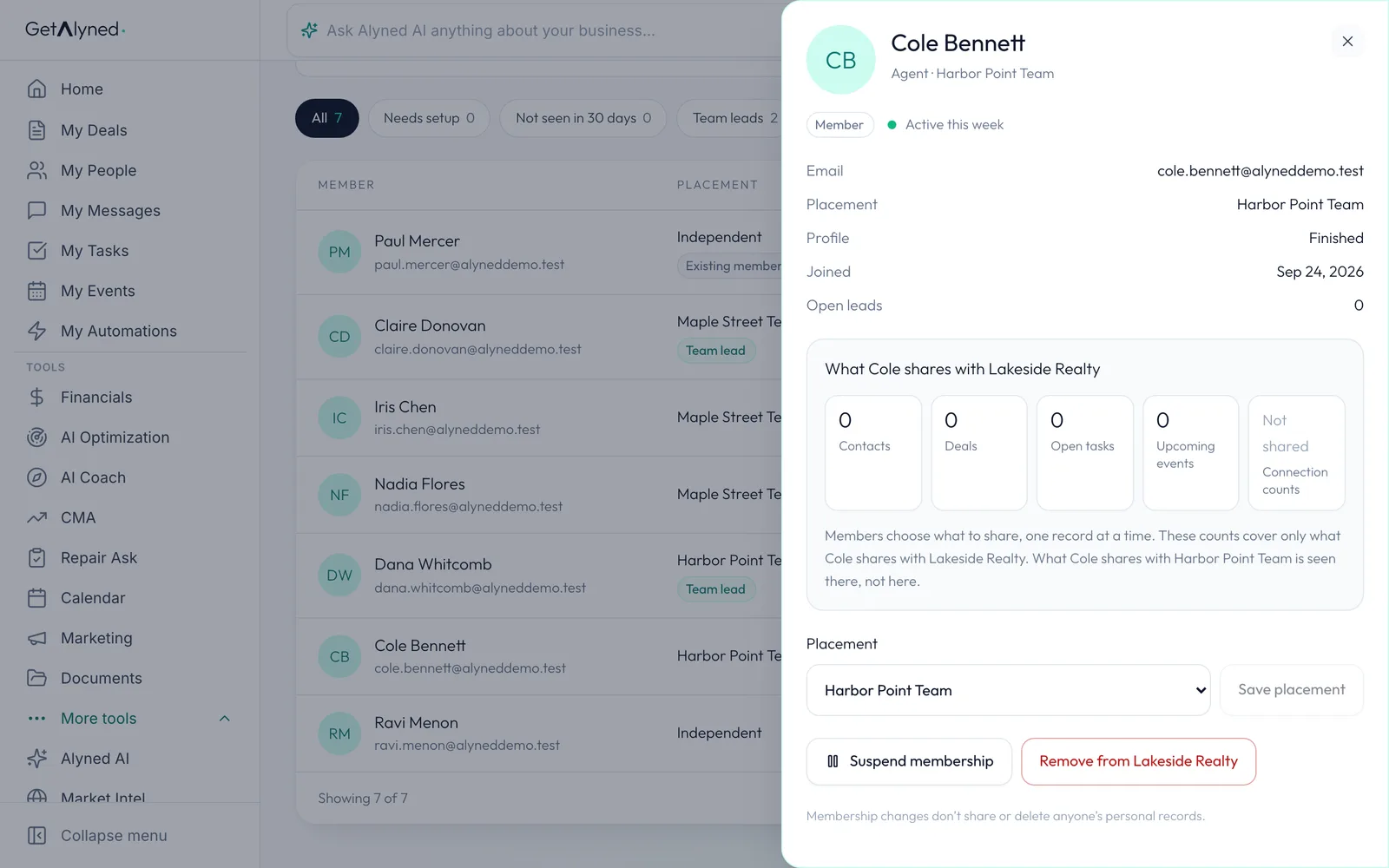
What you see
This is all a brokerage sees of an agent's own work: counts of what they choose to share. Nothing is shared until they share it, and what they share with their team stays on that team.
-
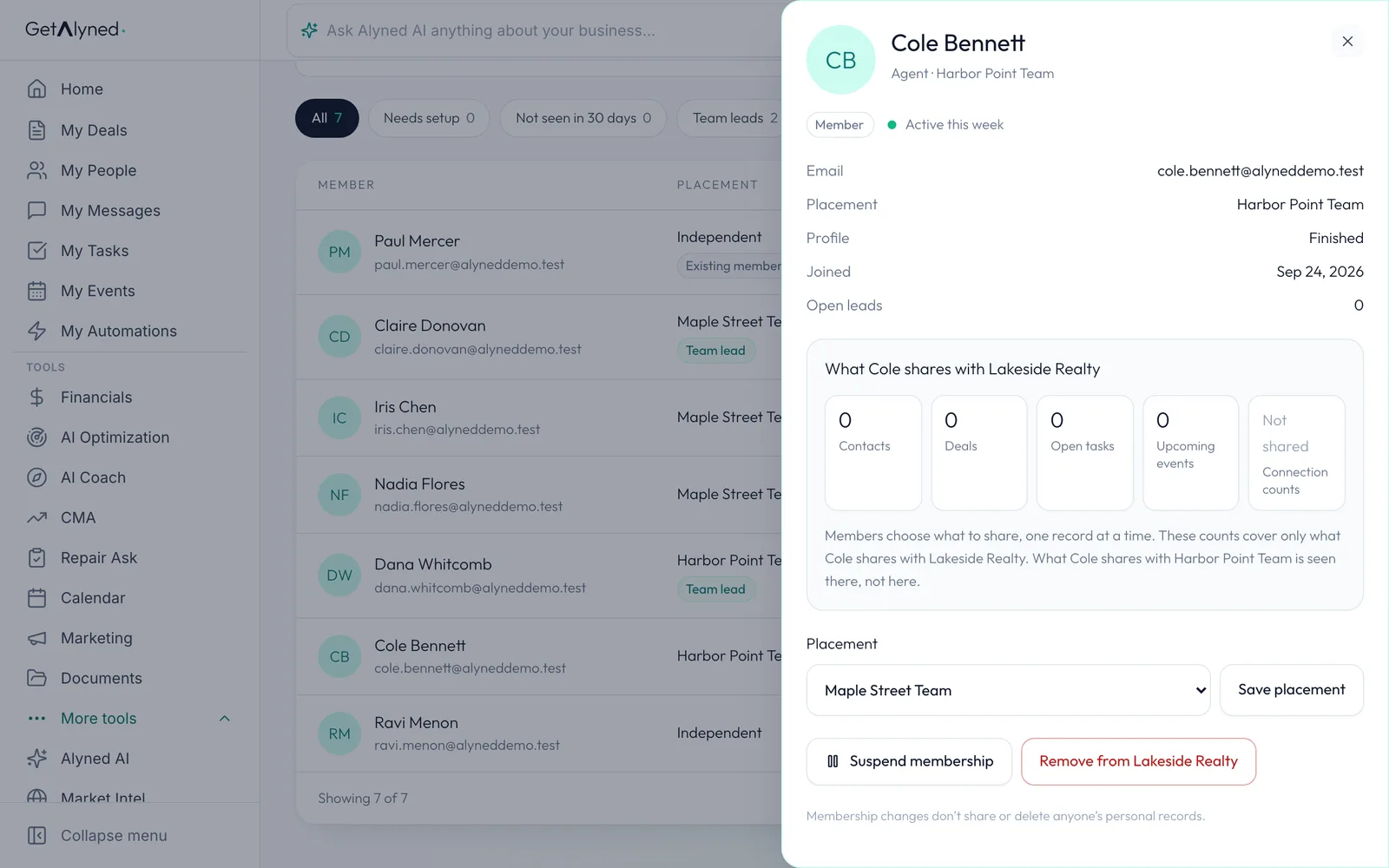
Move them
Placement moves them. A team lead moves only after another lead takes their team.
-
Save placement
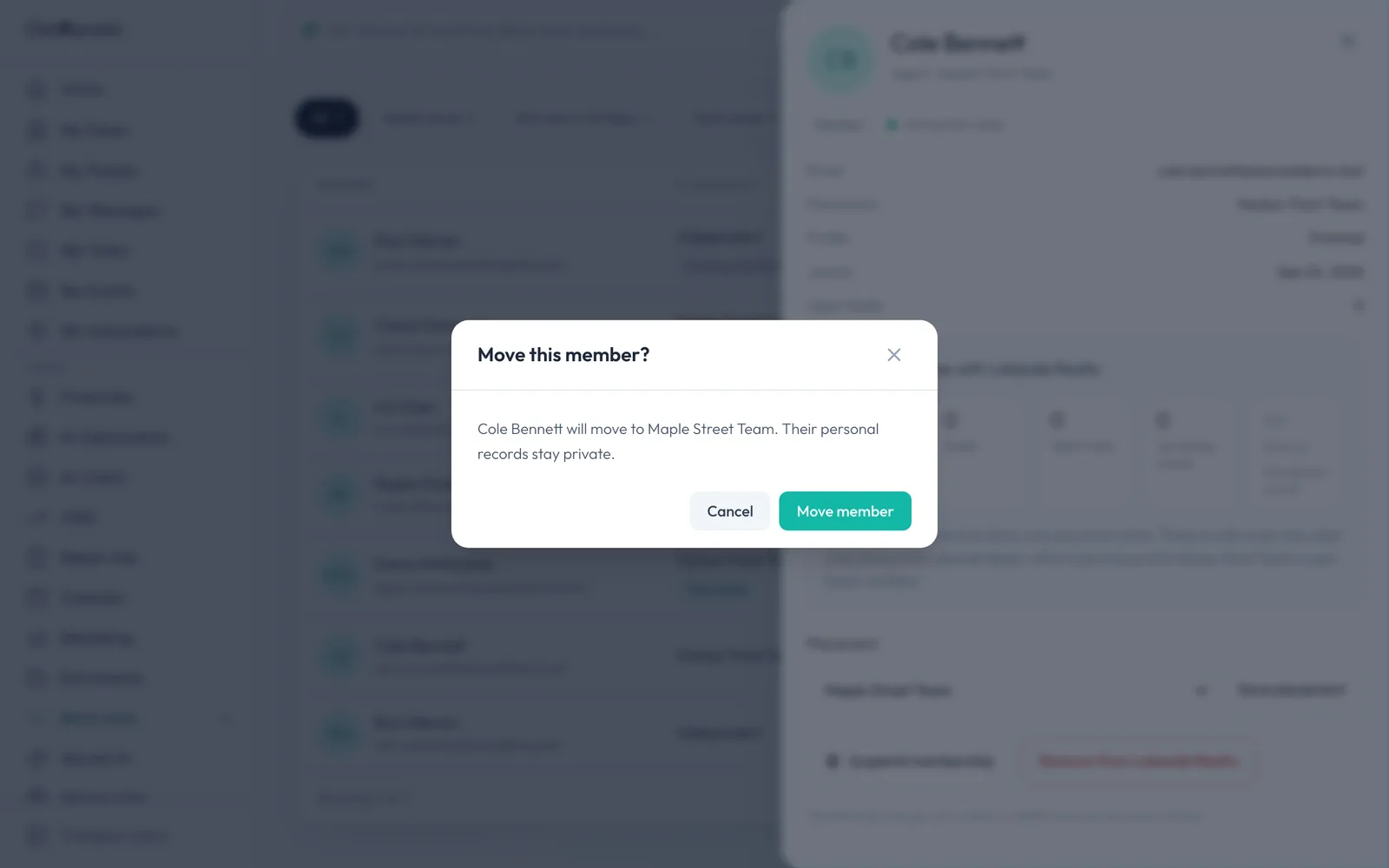
Click Save placement. It asks first.
-
Move member
Their open leads go with them, unless you tick the box to return those to the queue. Their own records stay private.
-
Filter by team
The Placement filter shows one team, or the agents on no team.
-
Shared
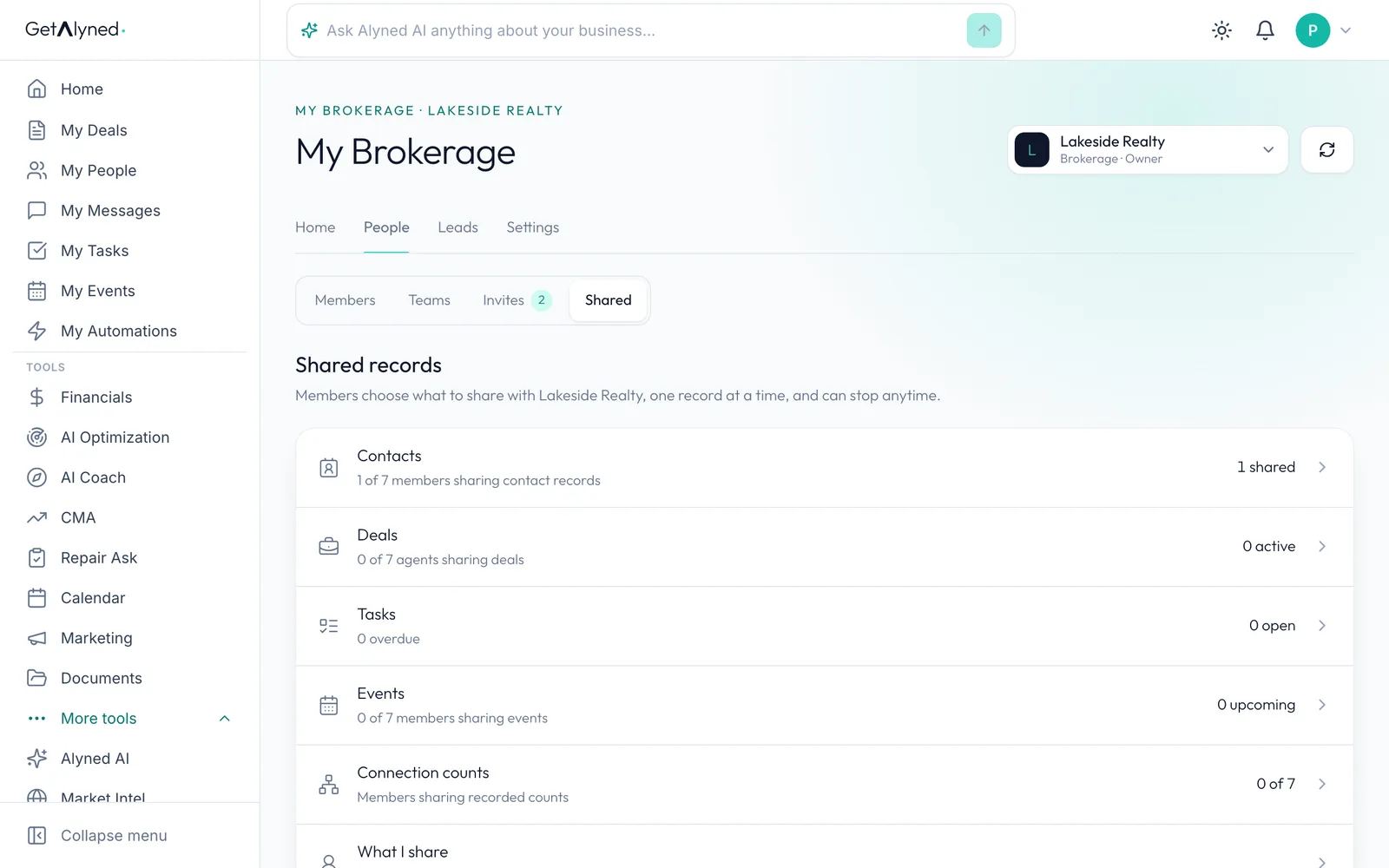
Last, what agents choose to share. Shared lists it by kind.
-
Contacts
Here, one independent member has shared one contact.
-
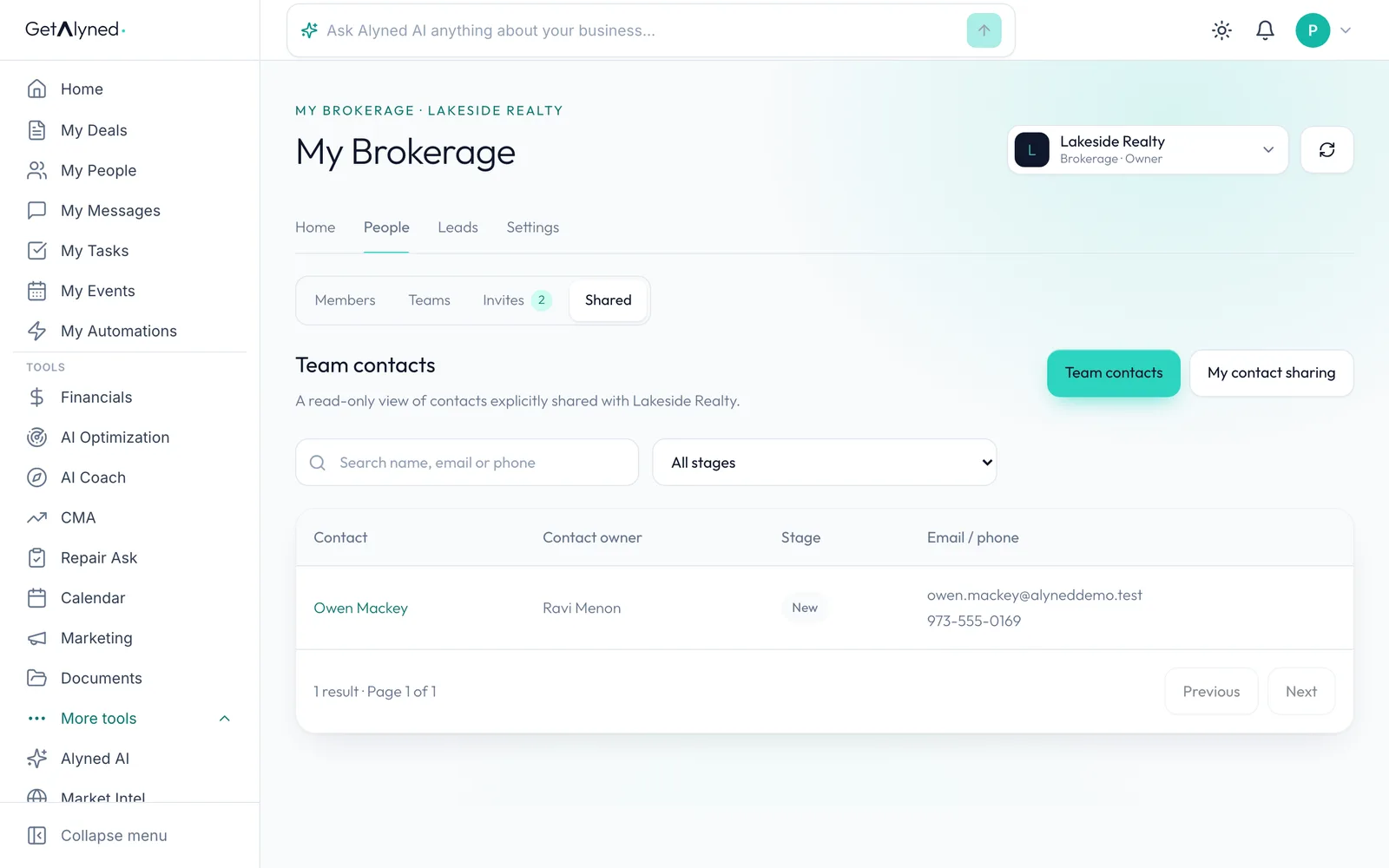
Read-only
A brokerage sees only contacts an agent chose to share, read-only: name, stage, email and phone. Every other contact, note and document stays private.
Related guides
- Set up a brokerage · Create your brokerage, add your branding and details, confirm your email and get verified, so you can invite agents and bring in leads.
- Route and assign leads · Send each new lead to a team or an agent, assign it with a follow-up date, and reassign it if plans change. Every turn stays in the lead's history.
- Create a team · Start a team, invite your teammates, and set who can do what. Each person keeps their own account, contacts and deals.