Route and assign leads
For brokerages · 4 min
Send each new lead to a team or an agent, assign it with a follow-up date, and reassign it if plans change. Every turn stays in the lead's history.
Watch
Or read it step by step
-
New leads
New leads show on your Home the moment they arrive, and whoever routes leads gets an alert.
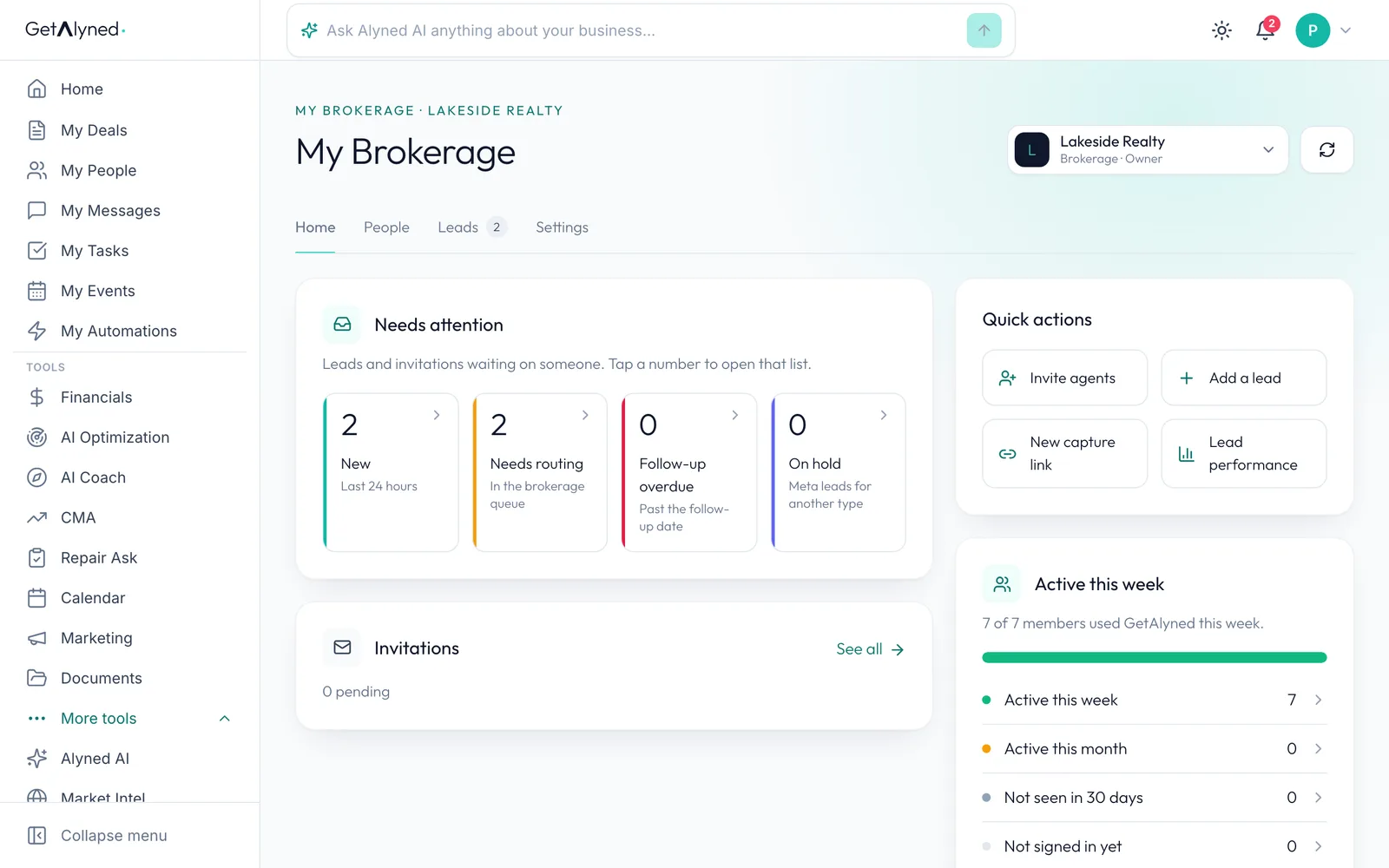
-
The queue
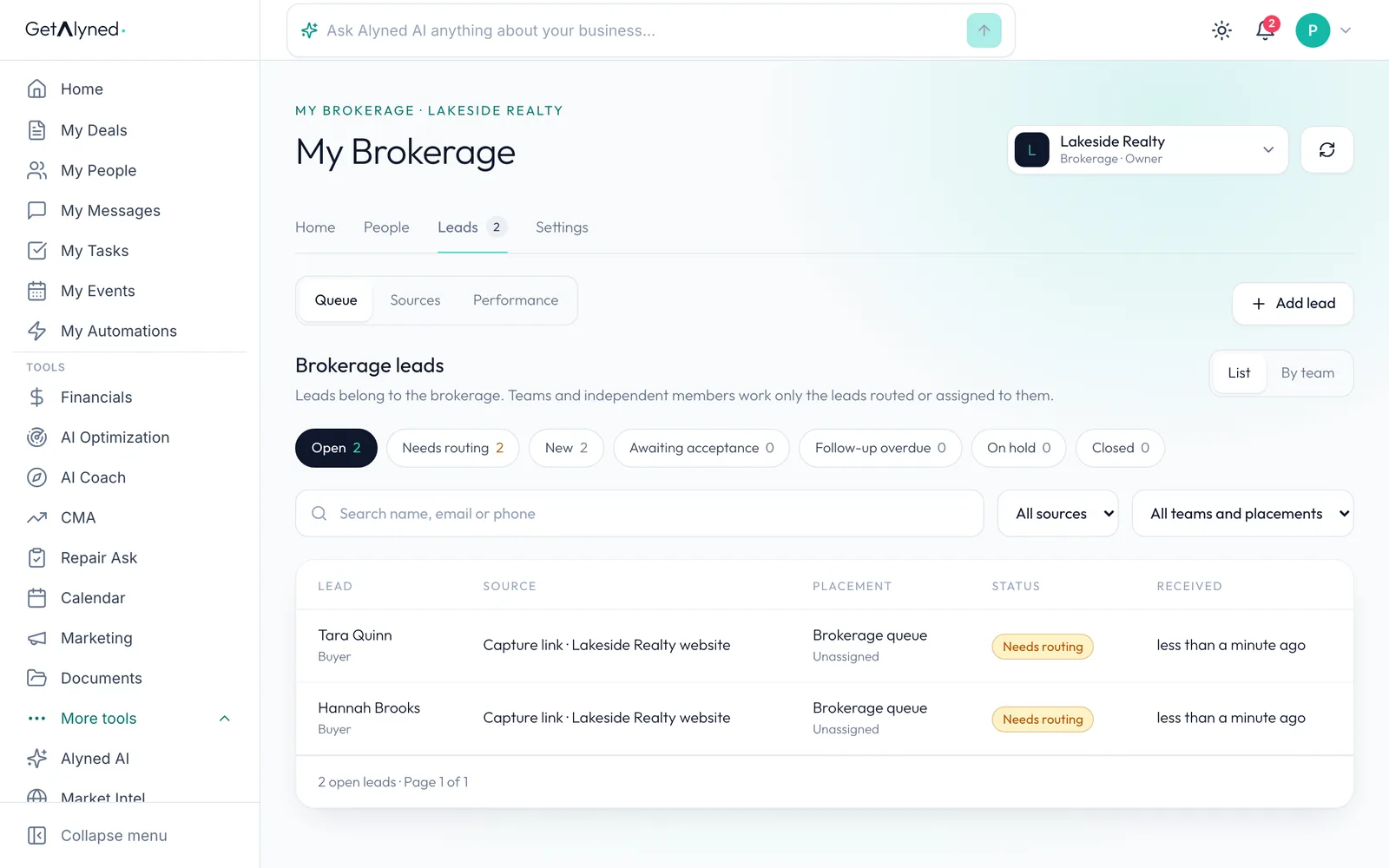
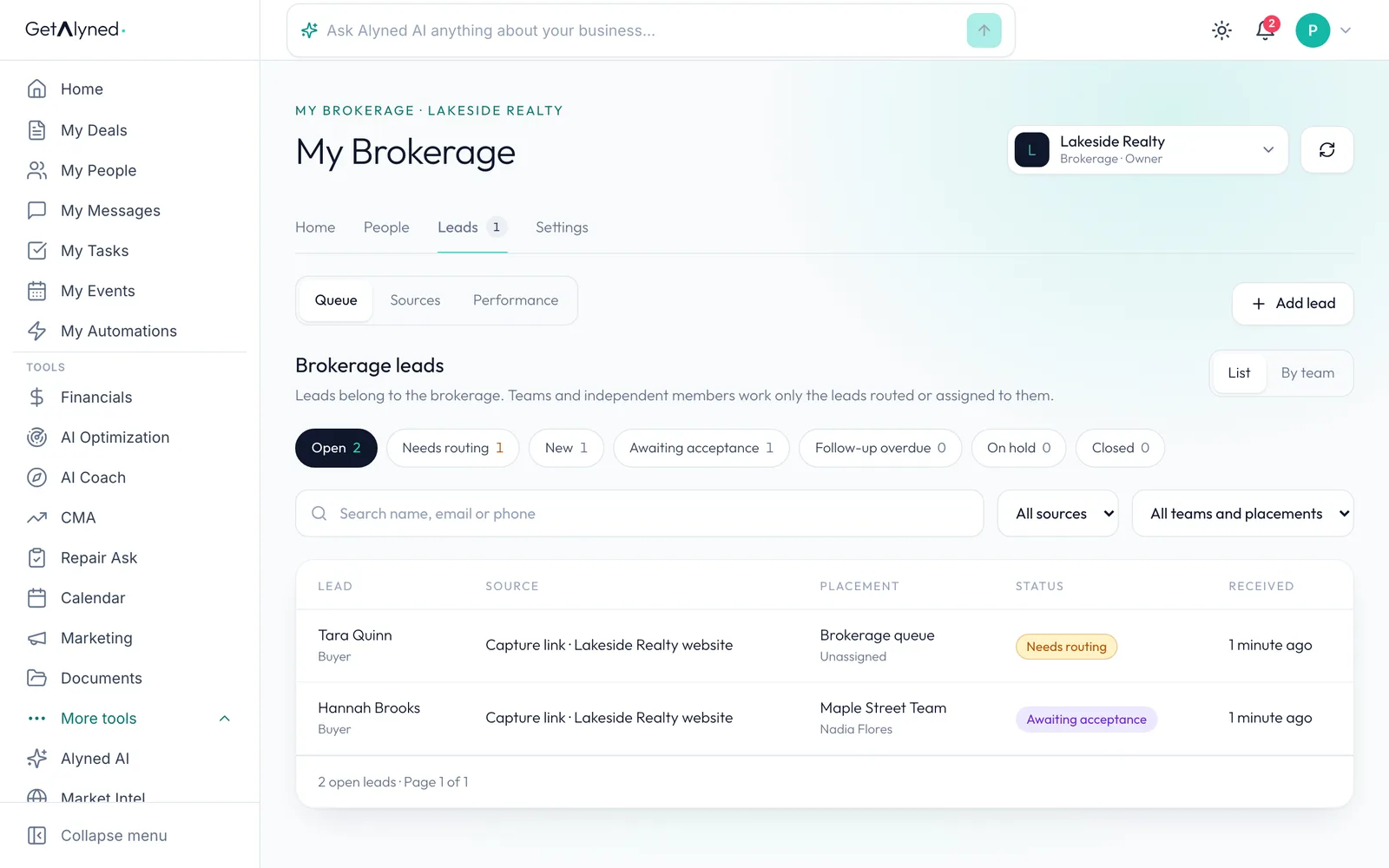
Leads holds the queue. The number on the tab is how many are waiting on someone. A lead with no team yet needs routing.
-
Open a lead
Open a lead.
-
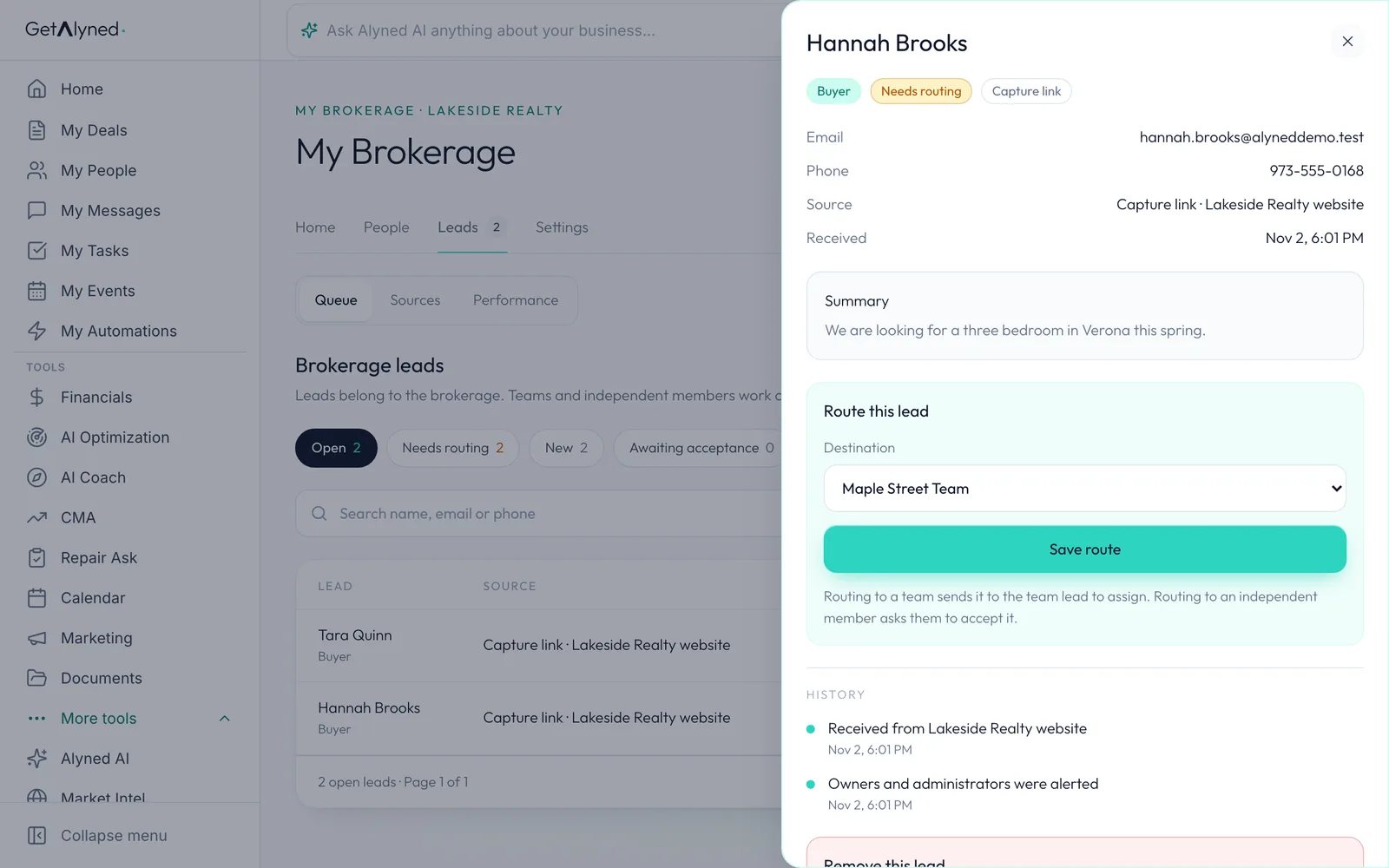
Destination
Route it: pick a team, an independent member, or leave it in the brokerage queue. There's no automatic rule. You decide, lead by lead.
-
Save route
Click Save route. Routing to a team hands it to that team's lead to assign.
-
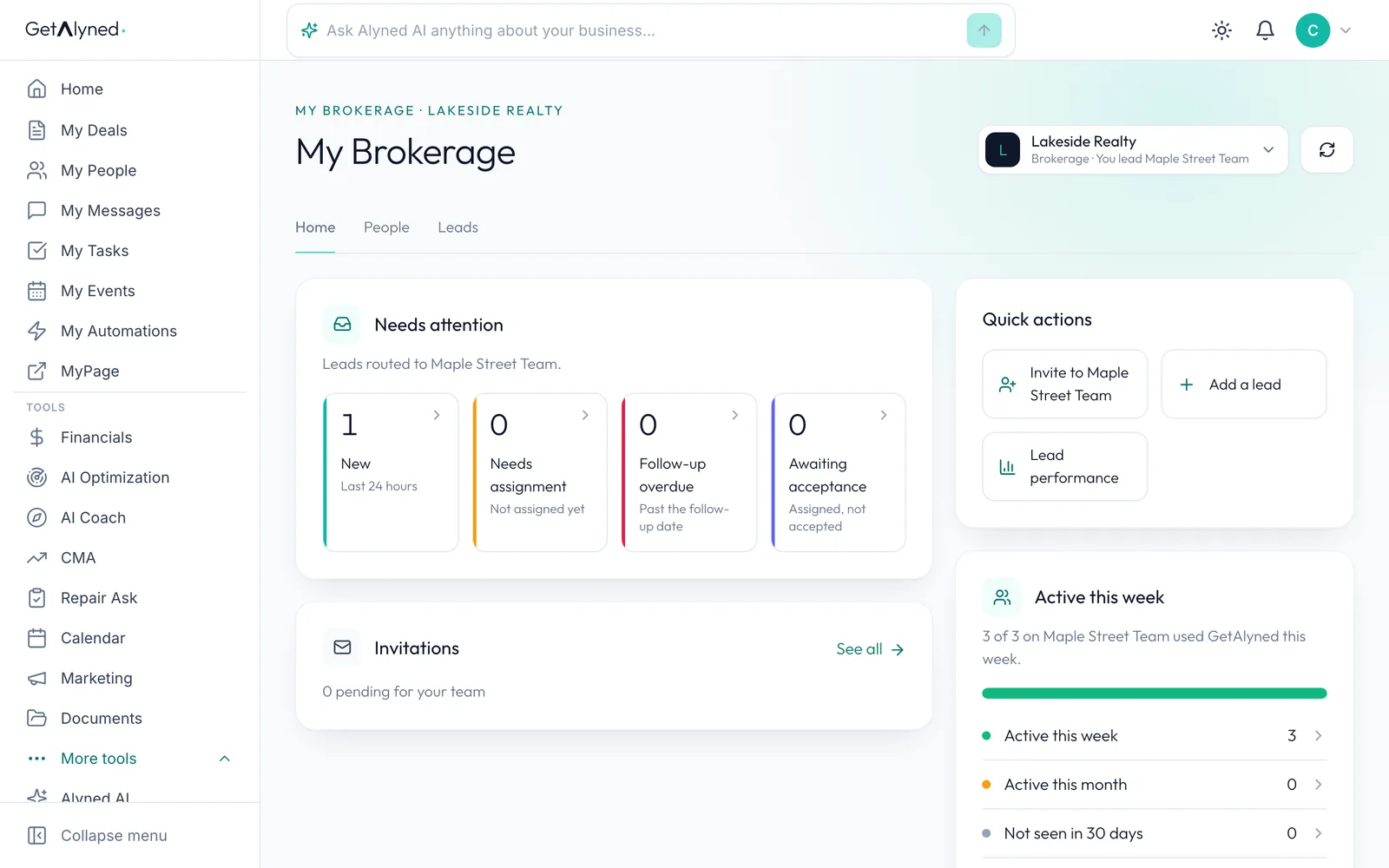
On the team lead's Home
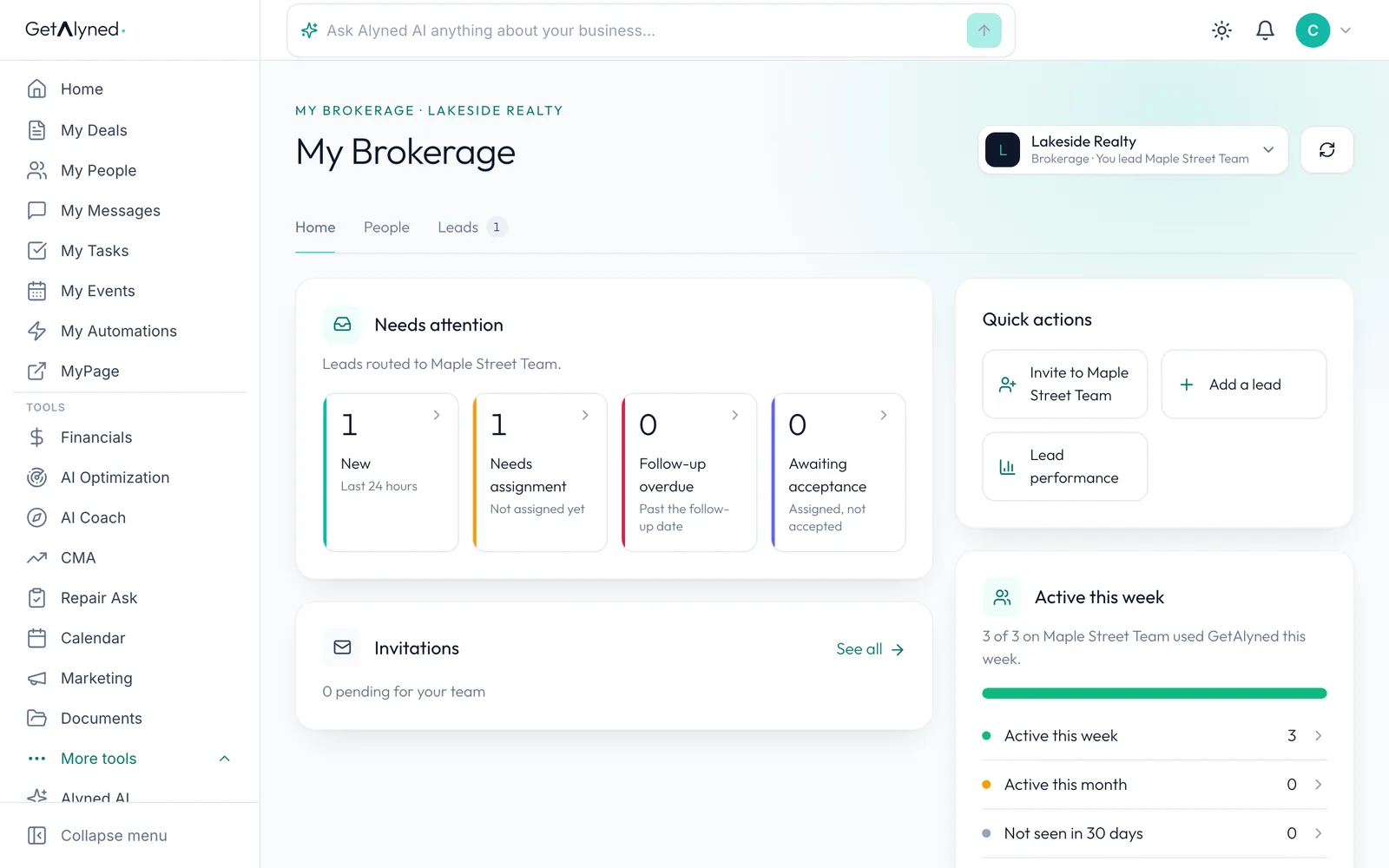
The team lead sees it on their Home as needing assignment.
-
Their team's leads
A team lead sees their own team's leads, not the whole brokerage's.
-
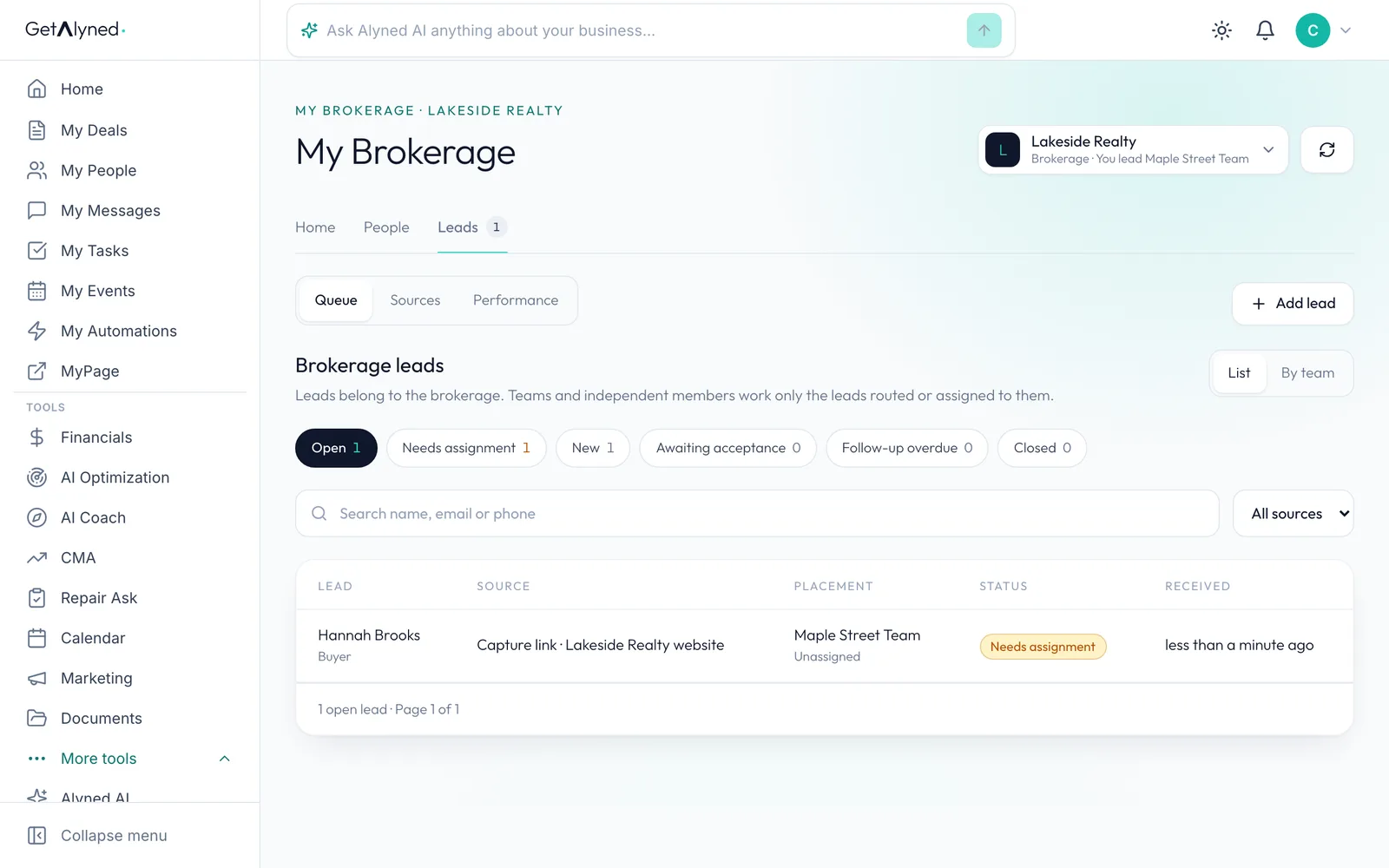
Open it
Open it.
-
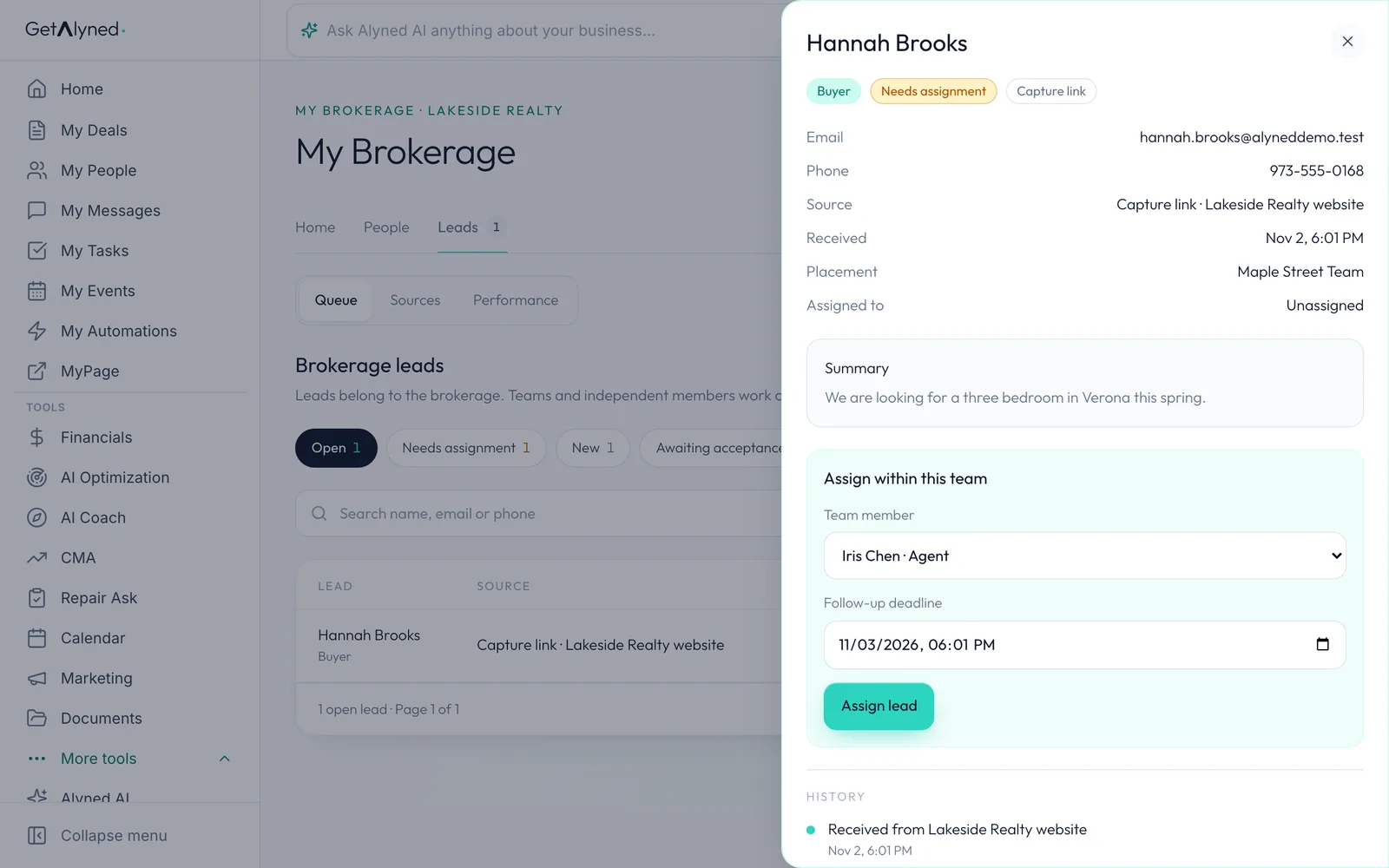
Pick the agent
Assign within the team: choose the person.
-
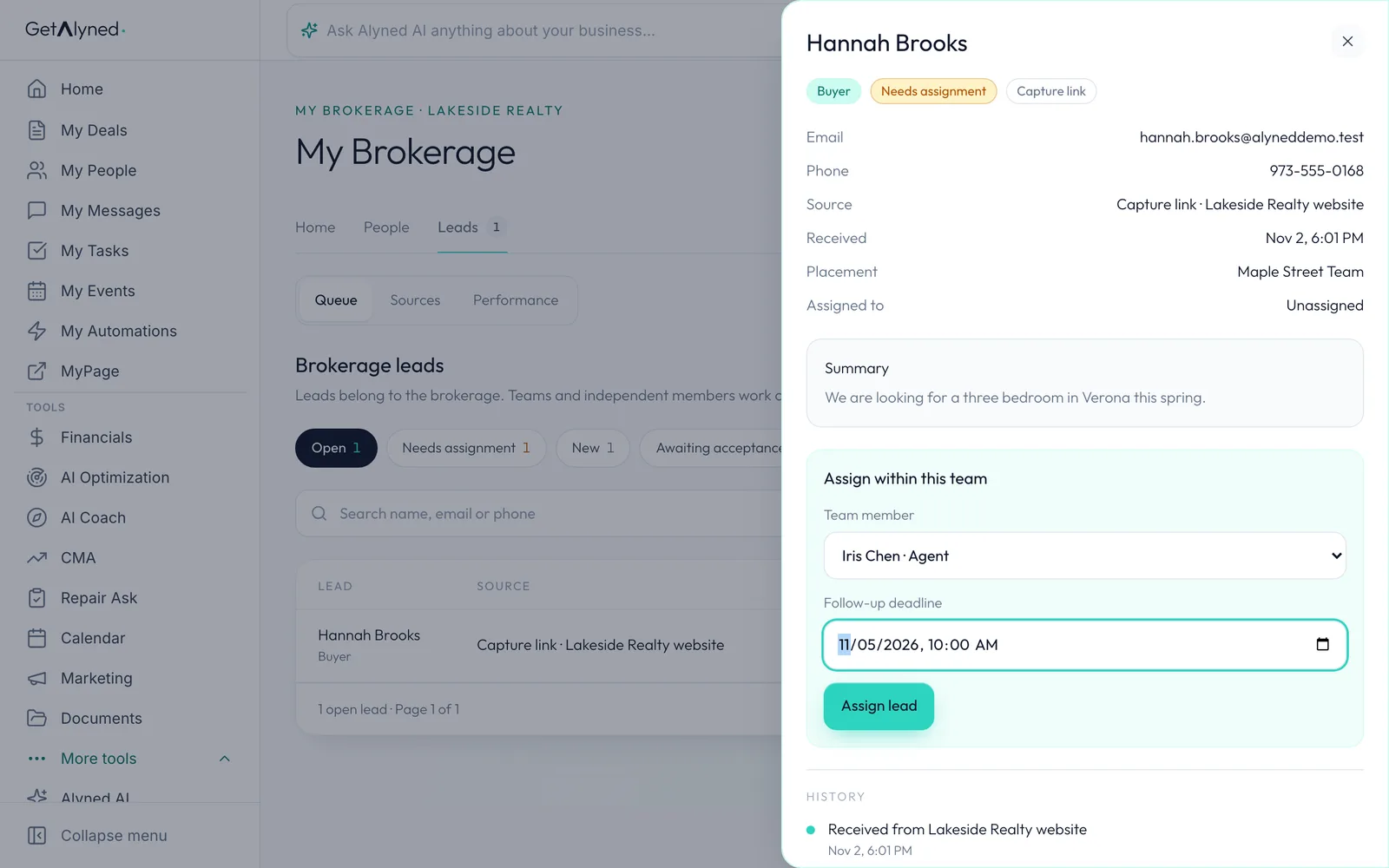
Follow-up deadline
Set the date they need to follow up by.
-
Assign lead
Click Assign lead. The agent gets a notification and has to accept it.
-
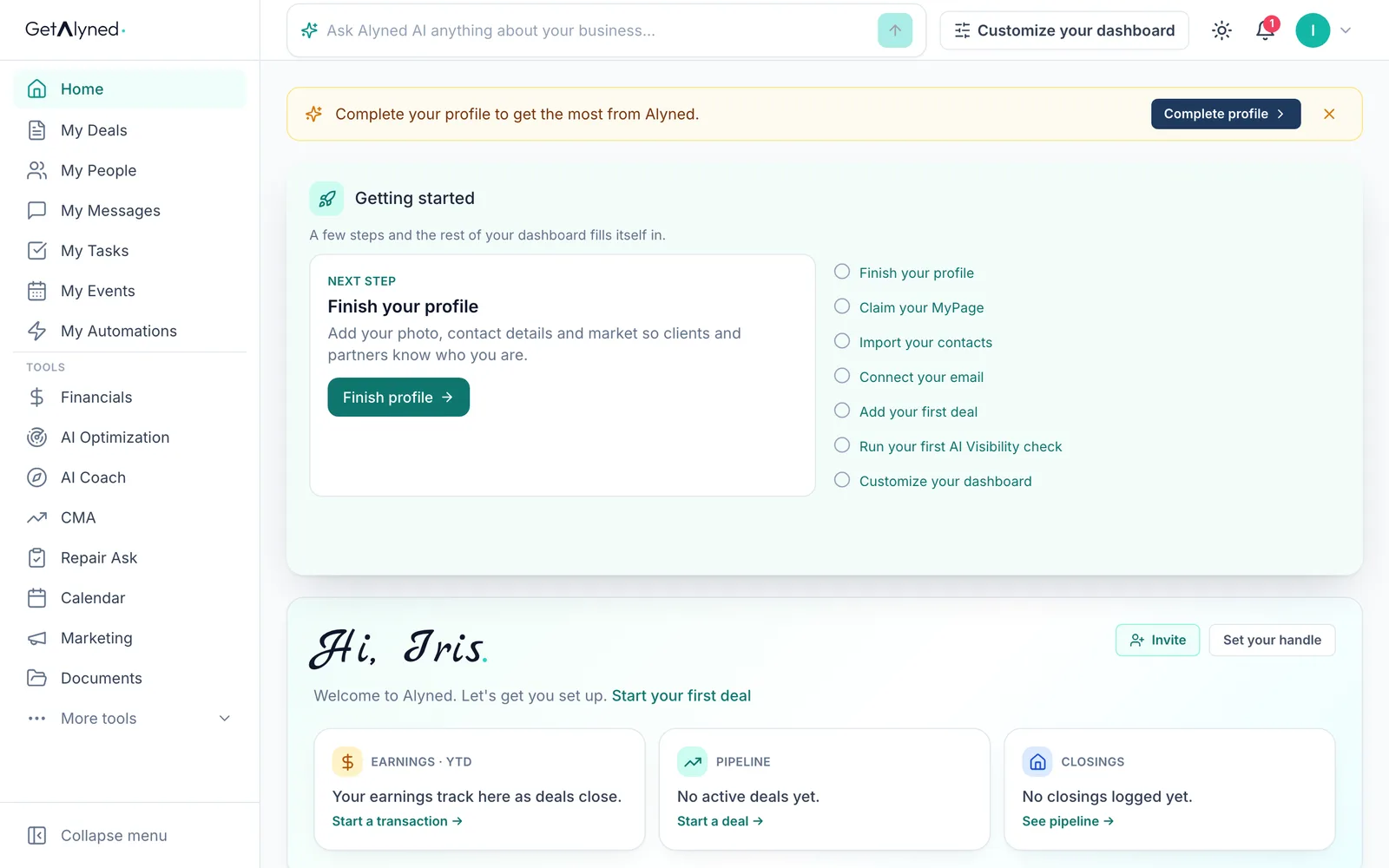
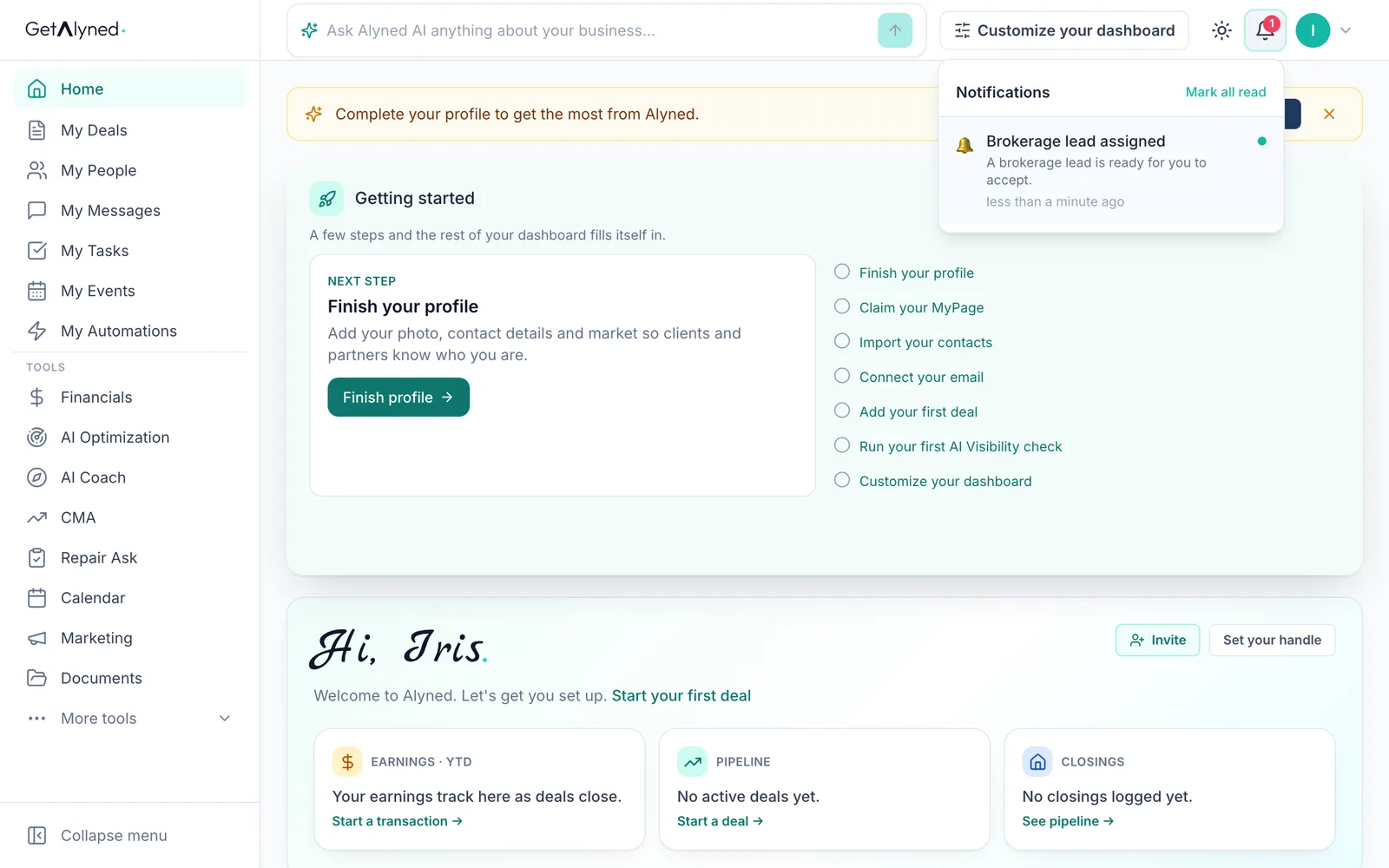
The agent's bell
The agent sees it on their bell.
-
The notification
The notification names no details. The lead itself is under My Team, then Leads.
-
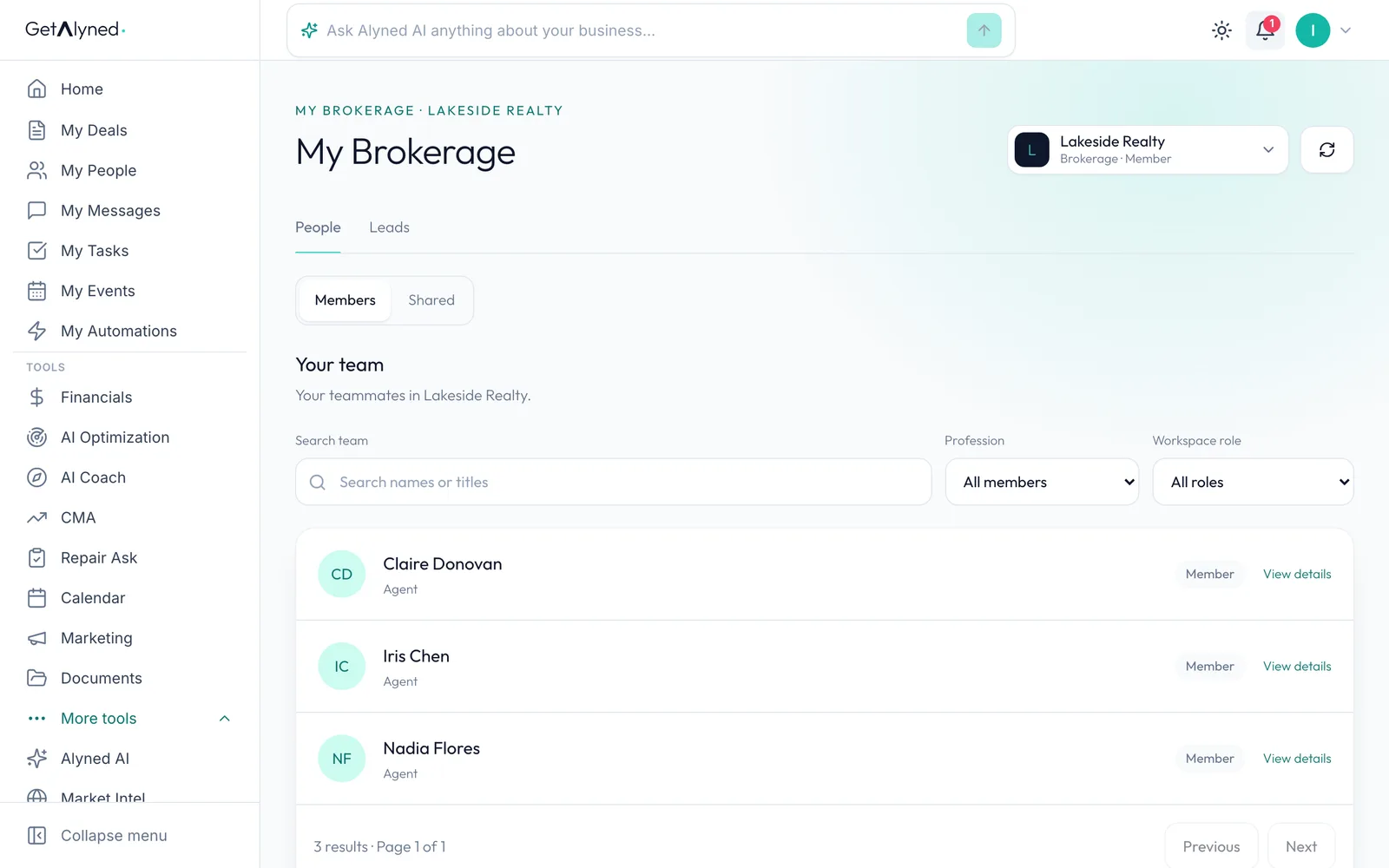
My assigned leads
A member sees My assigned leads: only their own, never anyone else's.
-
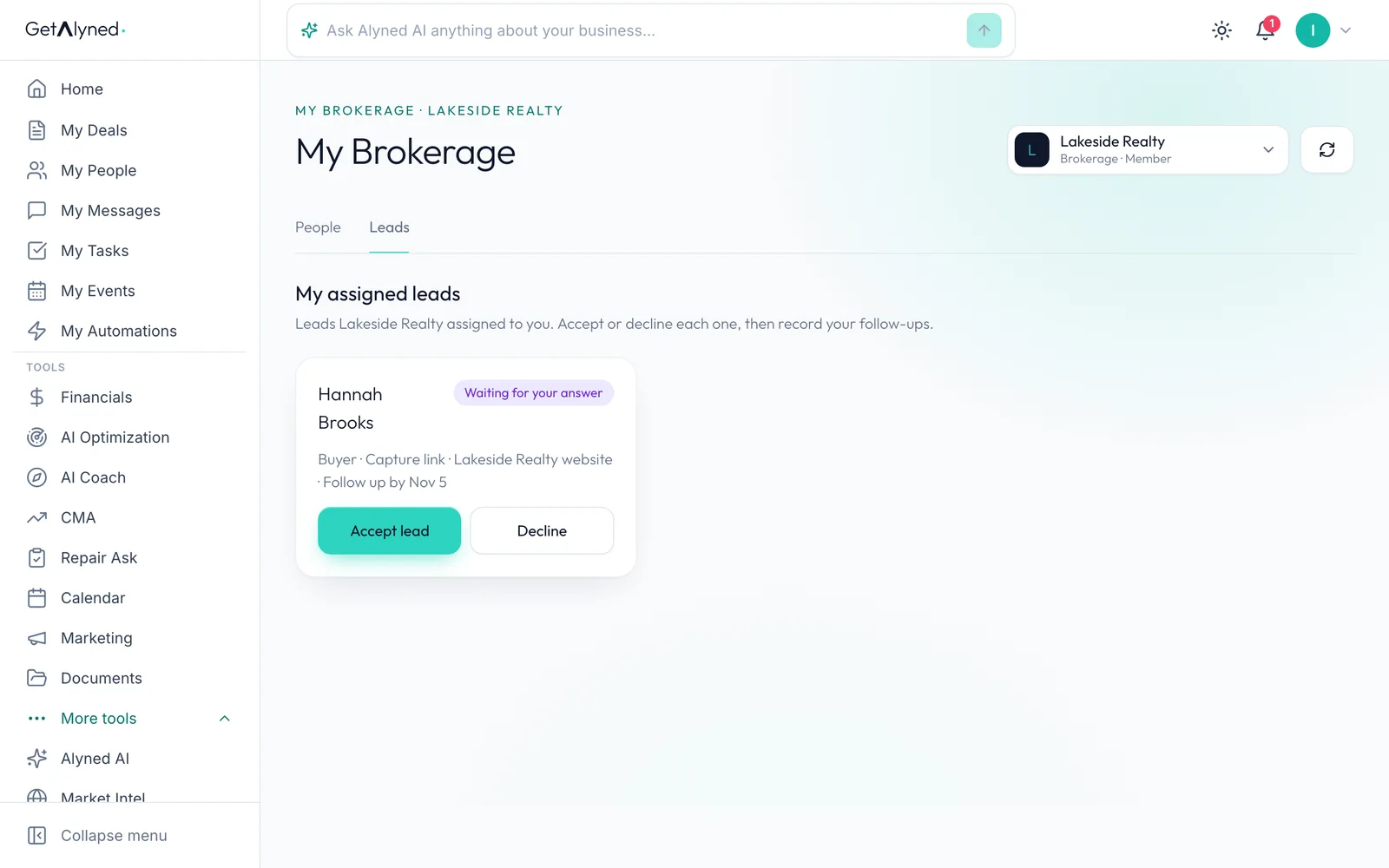
Accept lead
Accept lead, or Decline with a reason.
-
Plans change
Plans change. Back with the team lead.
-
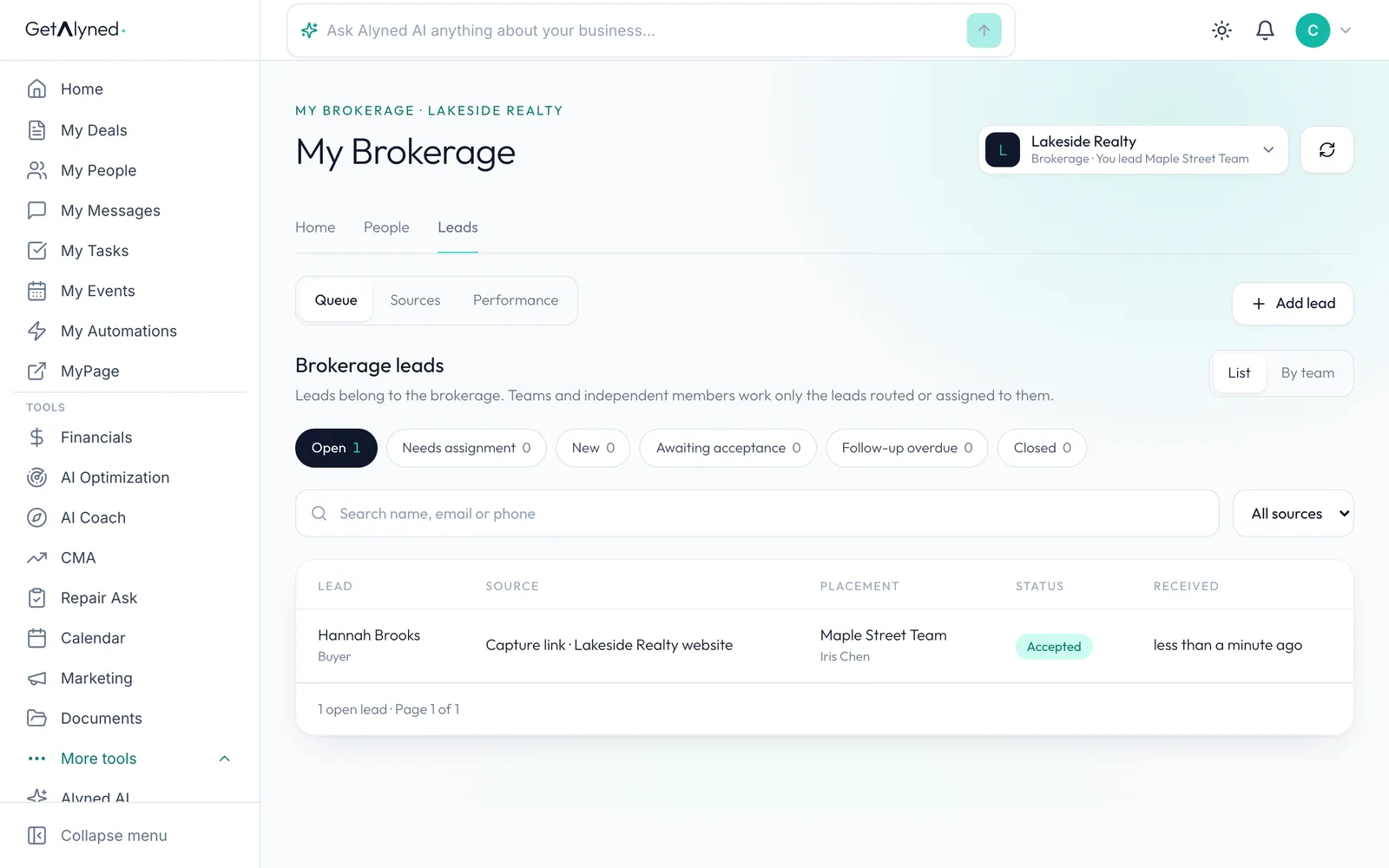
Open it again
To reassign by hand, open the lead again.
-
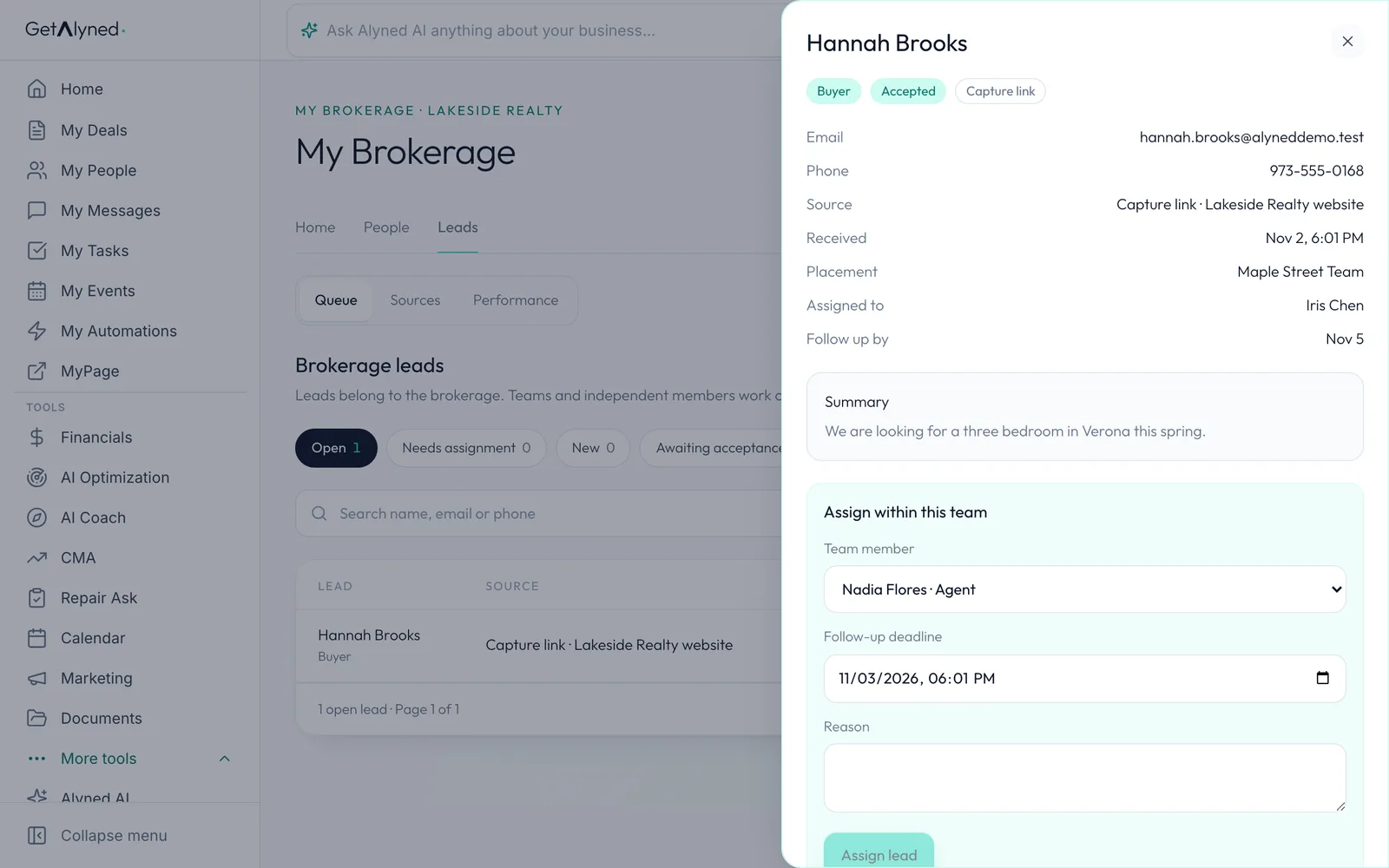
New person
Choose the new person.
-
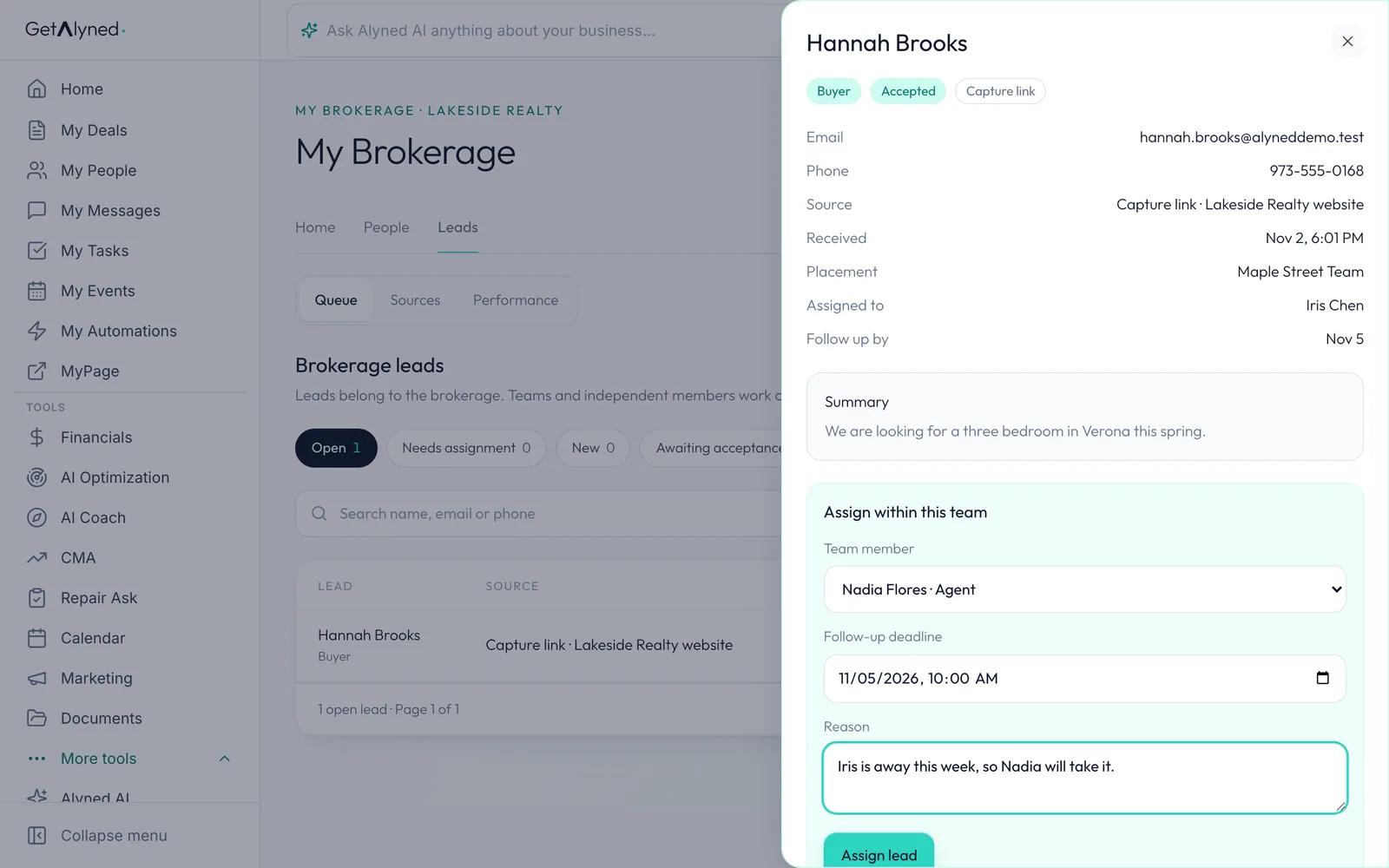
Reason
Give a reason. It stays in the lead's history.
-
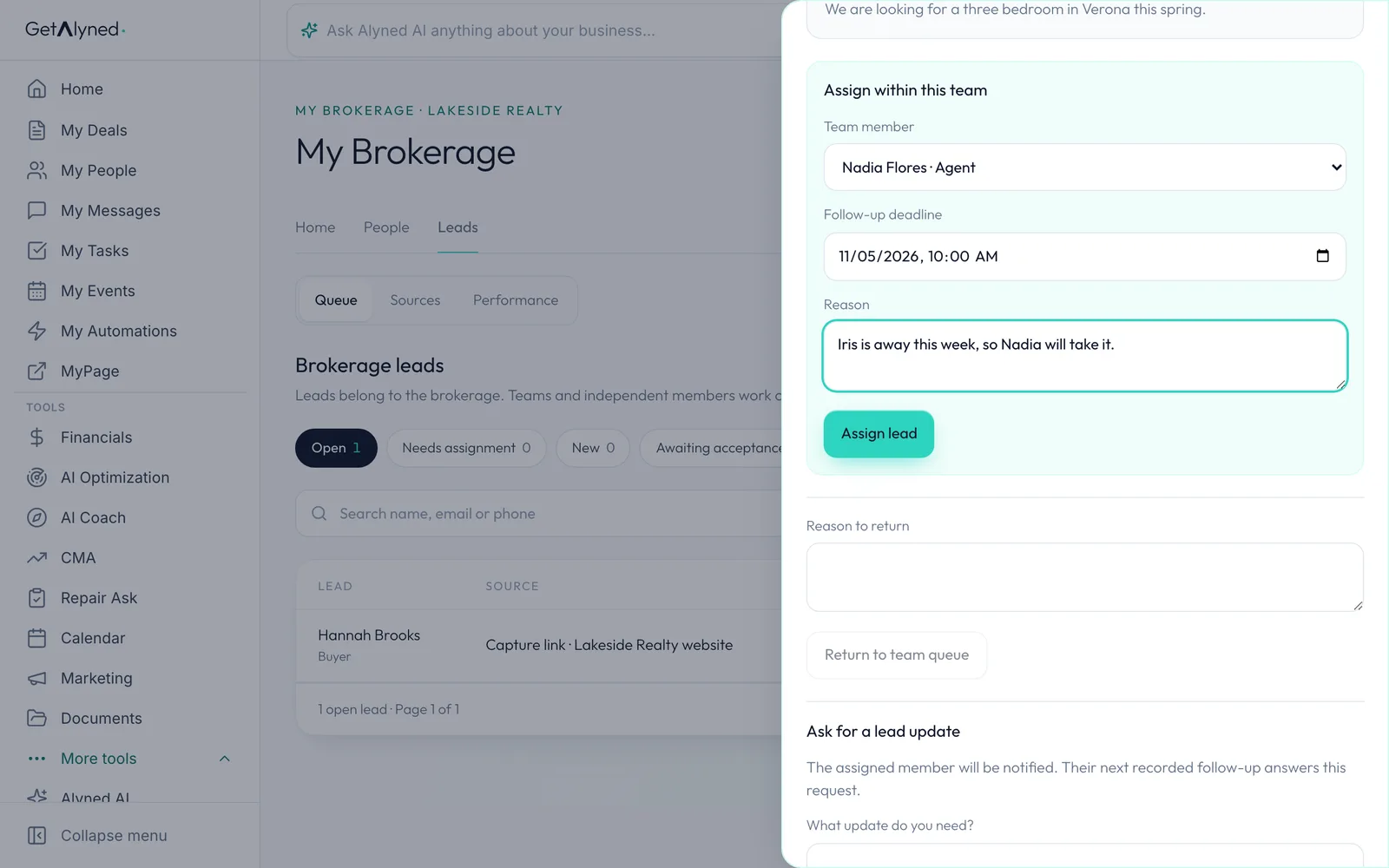
Reassigned
Click Assign lead. The new agent is told, and the history shows every turn. Each agent sees only their own part of it.
-
Performance
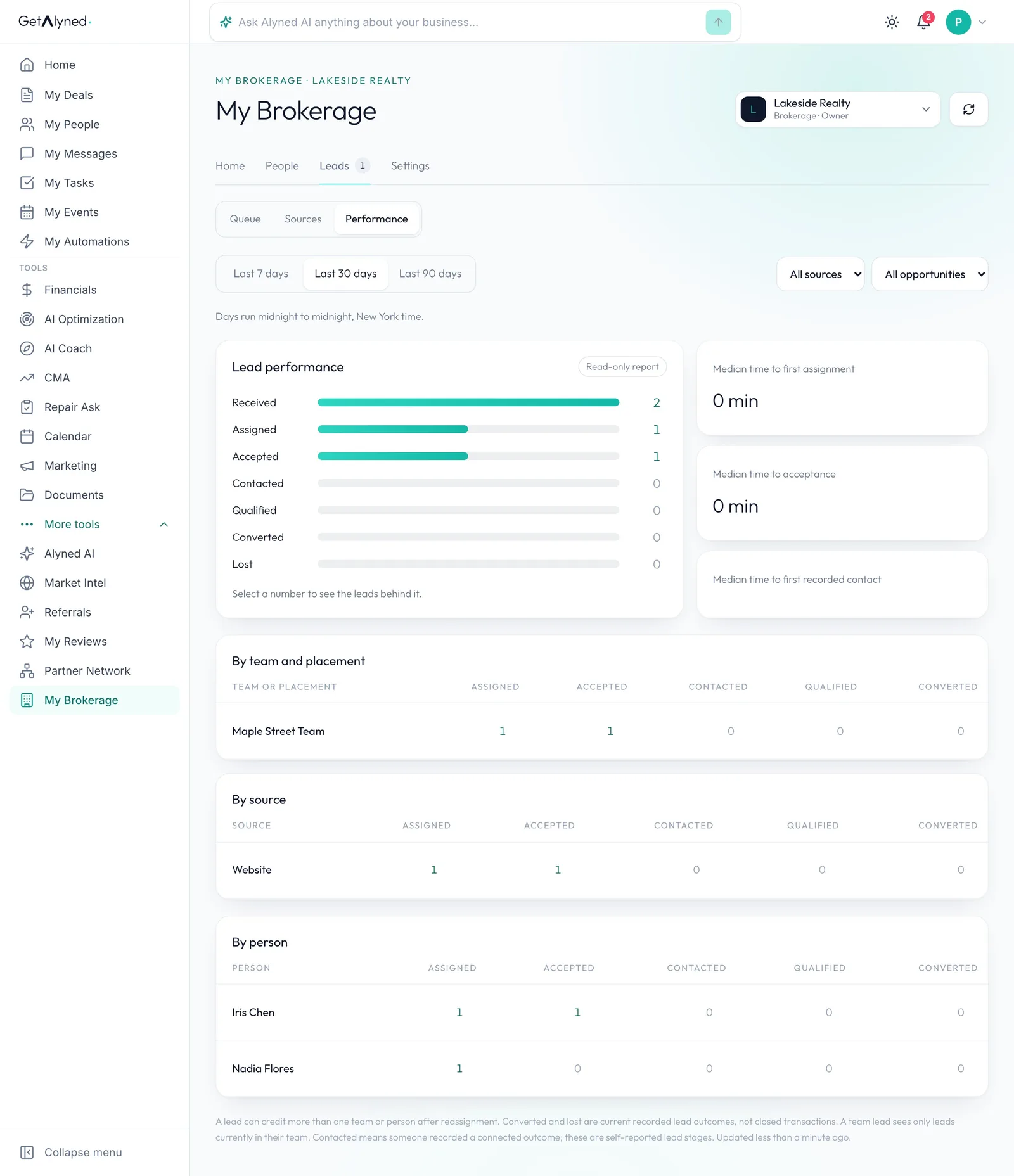
Back with the broker. Performance shows how leads are moving.
-
By team and source
Over the last 7, 30 or 90 days: received, assigned, accepted, contacted and converted, by team, source and person.
Related guides
- Your lead capture link and QR code · Make a lead capture link and QR code for your website, an event or a sign, and send its leads straight to a team or your brokerage queue.
- Invite agents and place them on teams · Invite one agent or a whole list, place them on a team or keep them independent, and move people later. Their own contacts and deals stay theirs.
- Create a team · Start a team, invite your teammates, and set who can do what. Each person keeps their own account, contacts and deals.