Your lead capture link and QR code
For brokerages · 4 min
Make a lead capture link and QR code for your website, an event or a sign, and send its leads straight to a team or your brokerage queue.
Watch
Or read it step by step
-
Leads
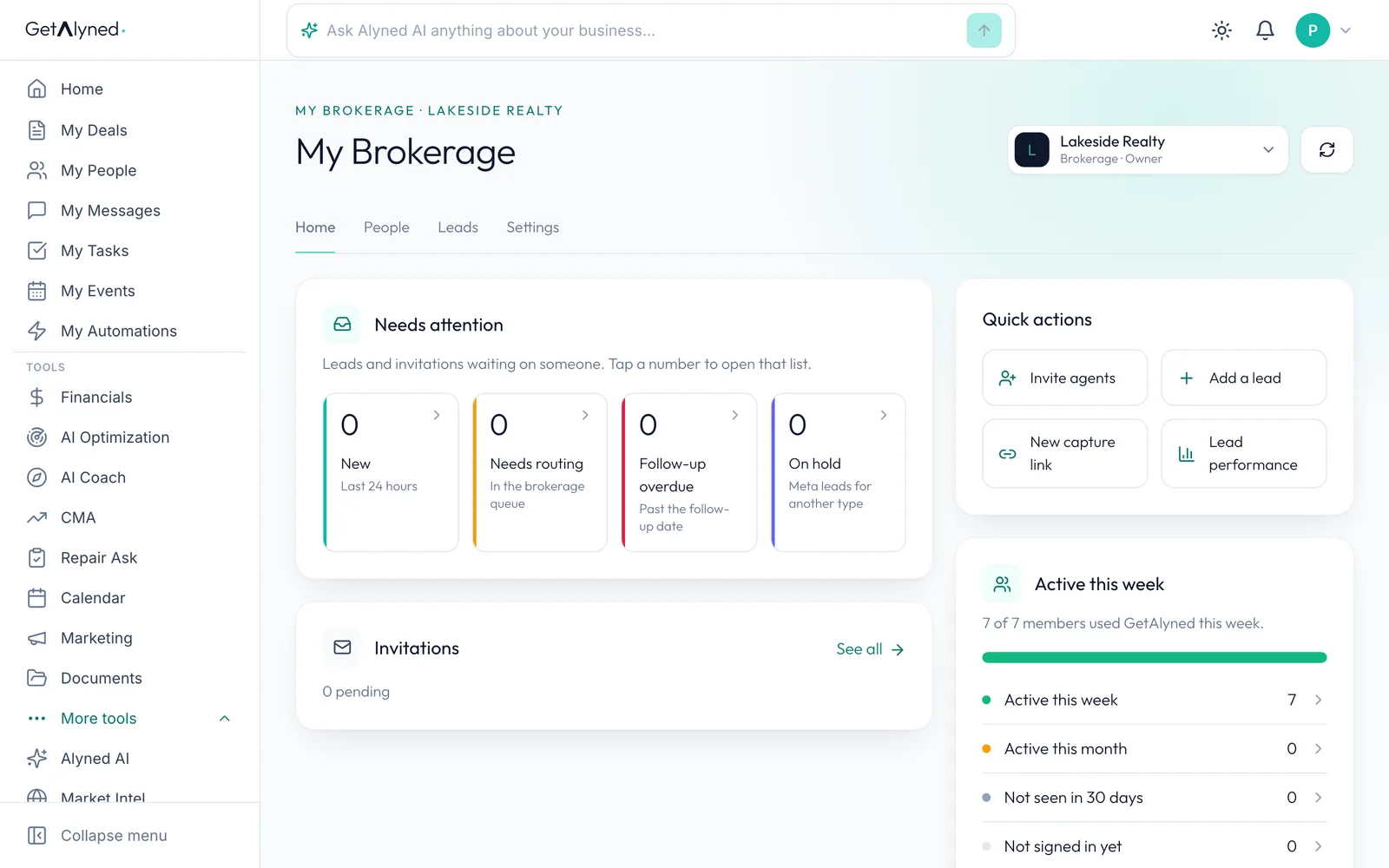
Capture links are under My Brokerage, then Leads.
-
Sources
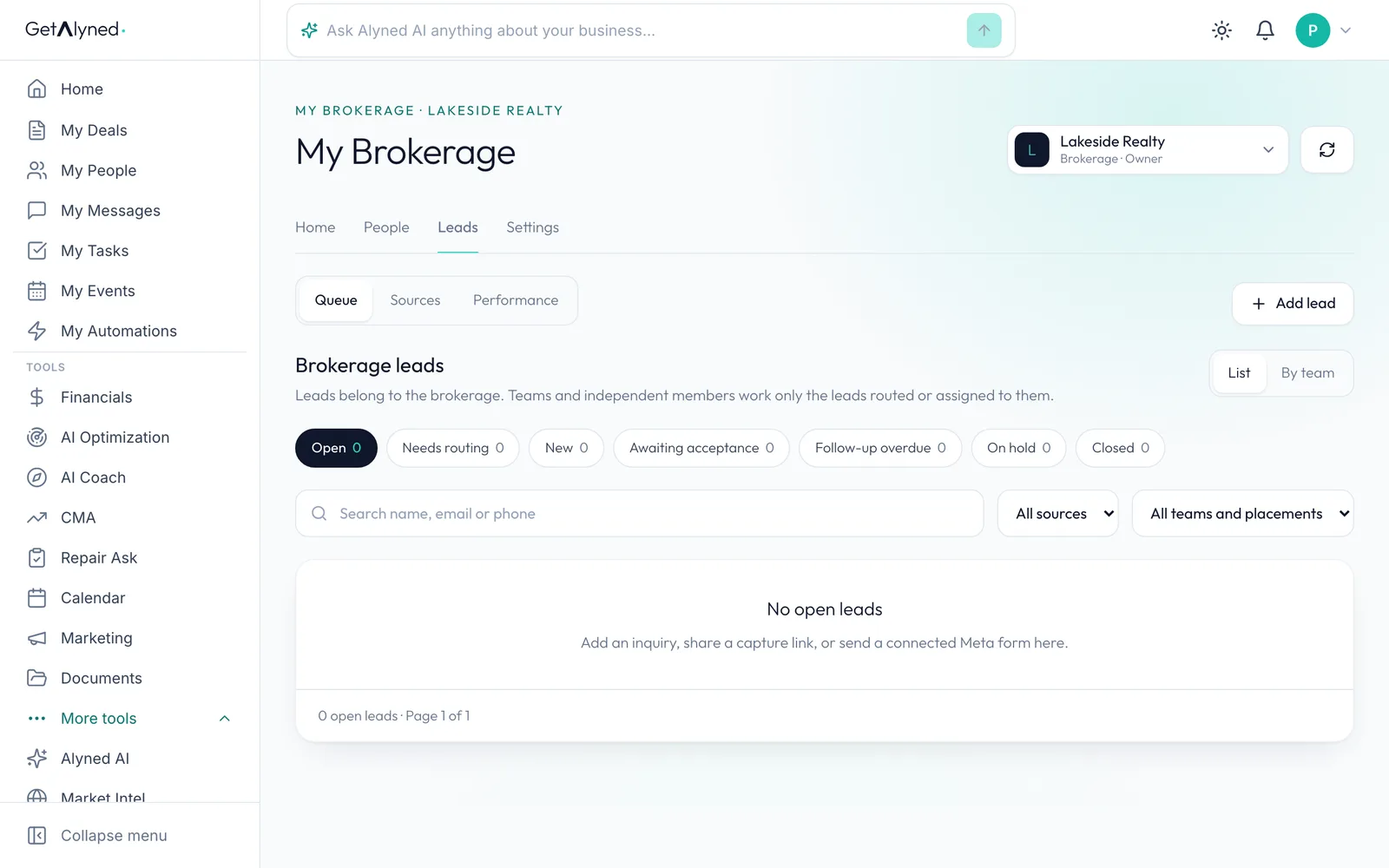
Sources lists every link.
-
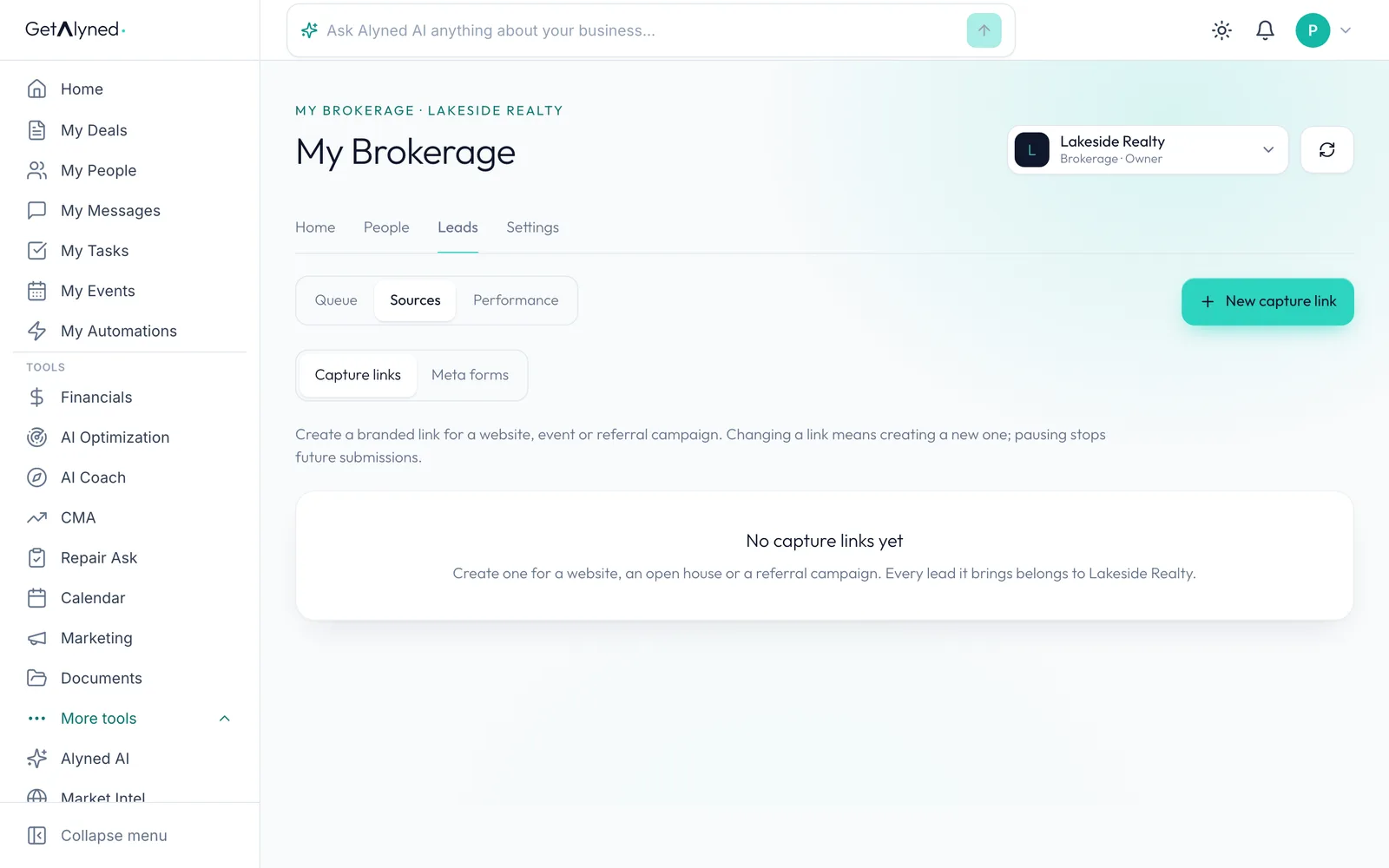
New capture link
Make one link for each place you use it, so you can see which one works.
-
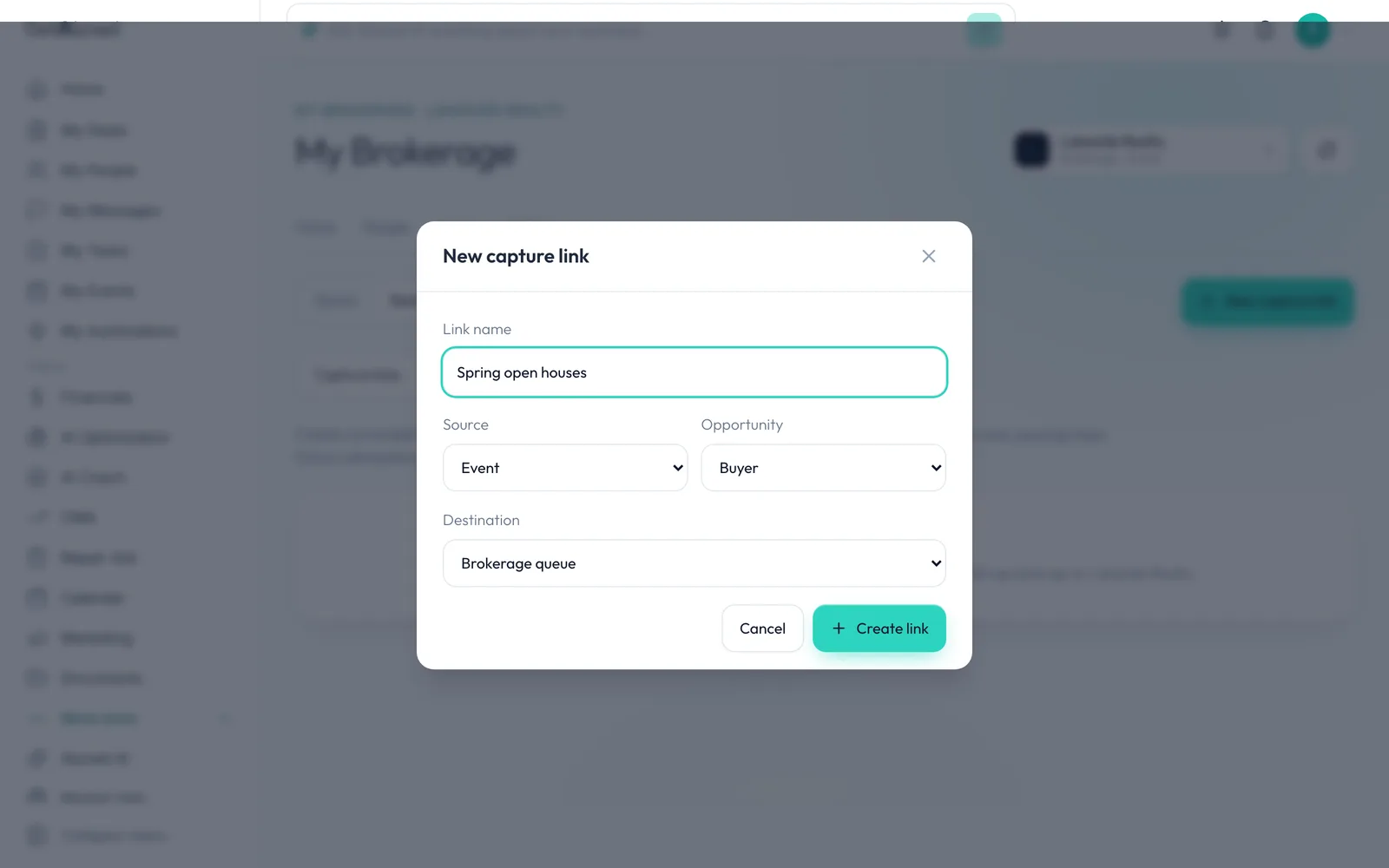
Link name
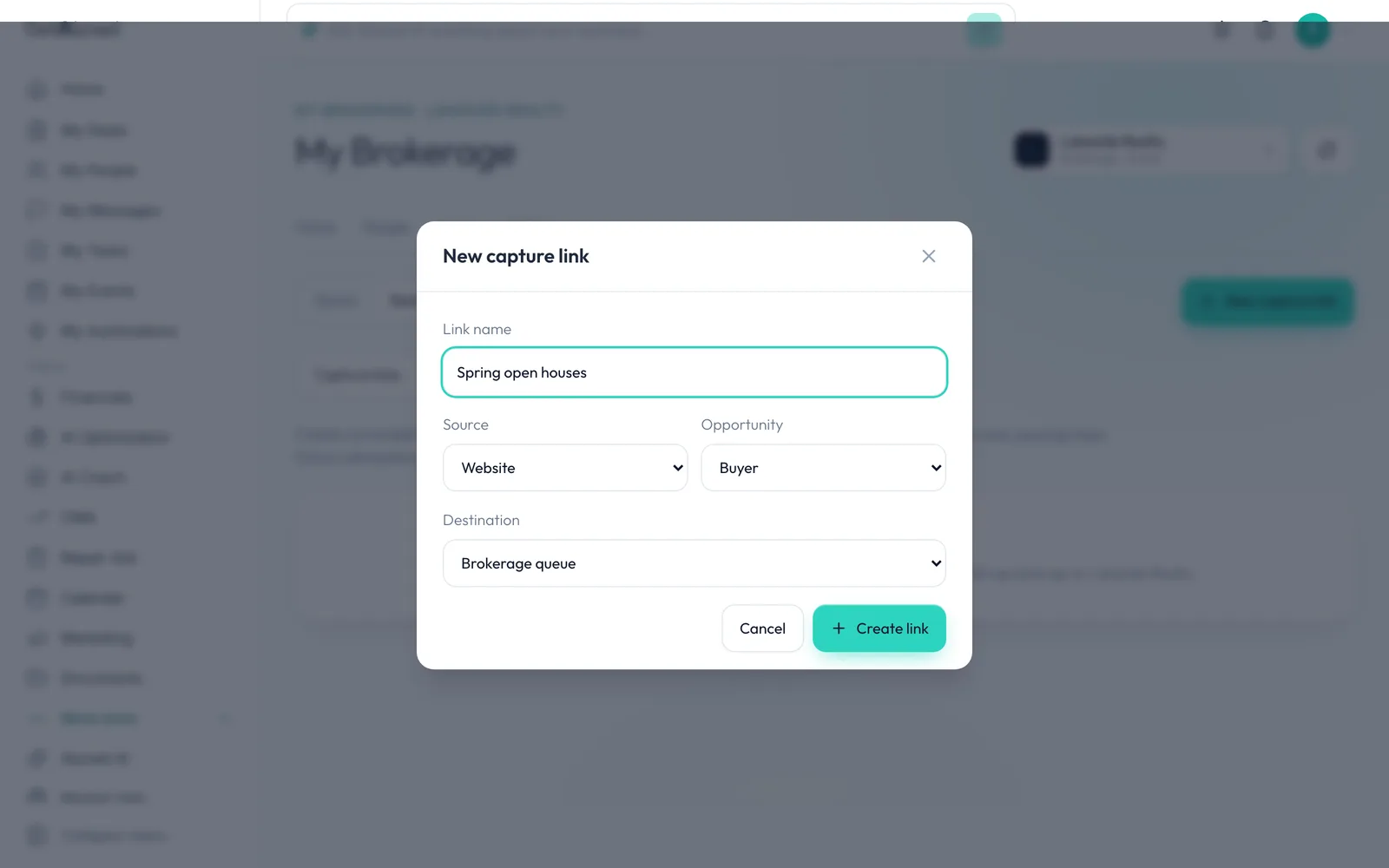
The name shows on the form, so leads read it too.
-
Source
Source says where these leads came from: Website, Event, Referral or Other.
-
Opportunity
Opportunity is Buyer or Seller. A link takes one kind, so make one of each if you want both.
-
Destination
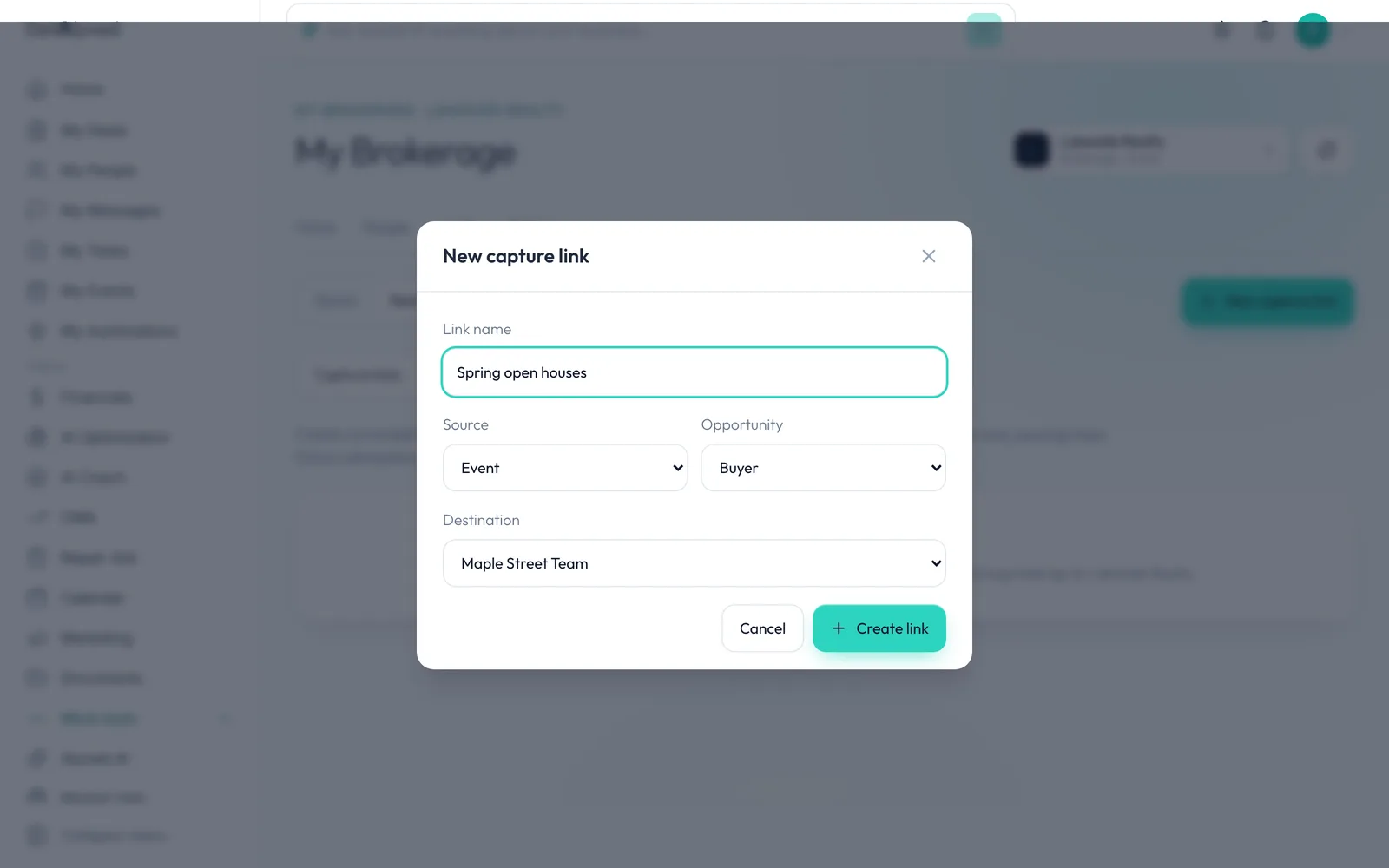
Destination is where its leads go: the brokerage queue for you to route, or straight to a team.
-
Create link
Click Create link. Changing a link means making a new one, and pausing stops new submissions.
-
Your link
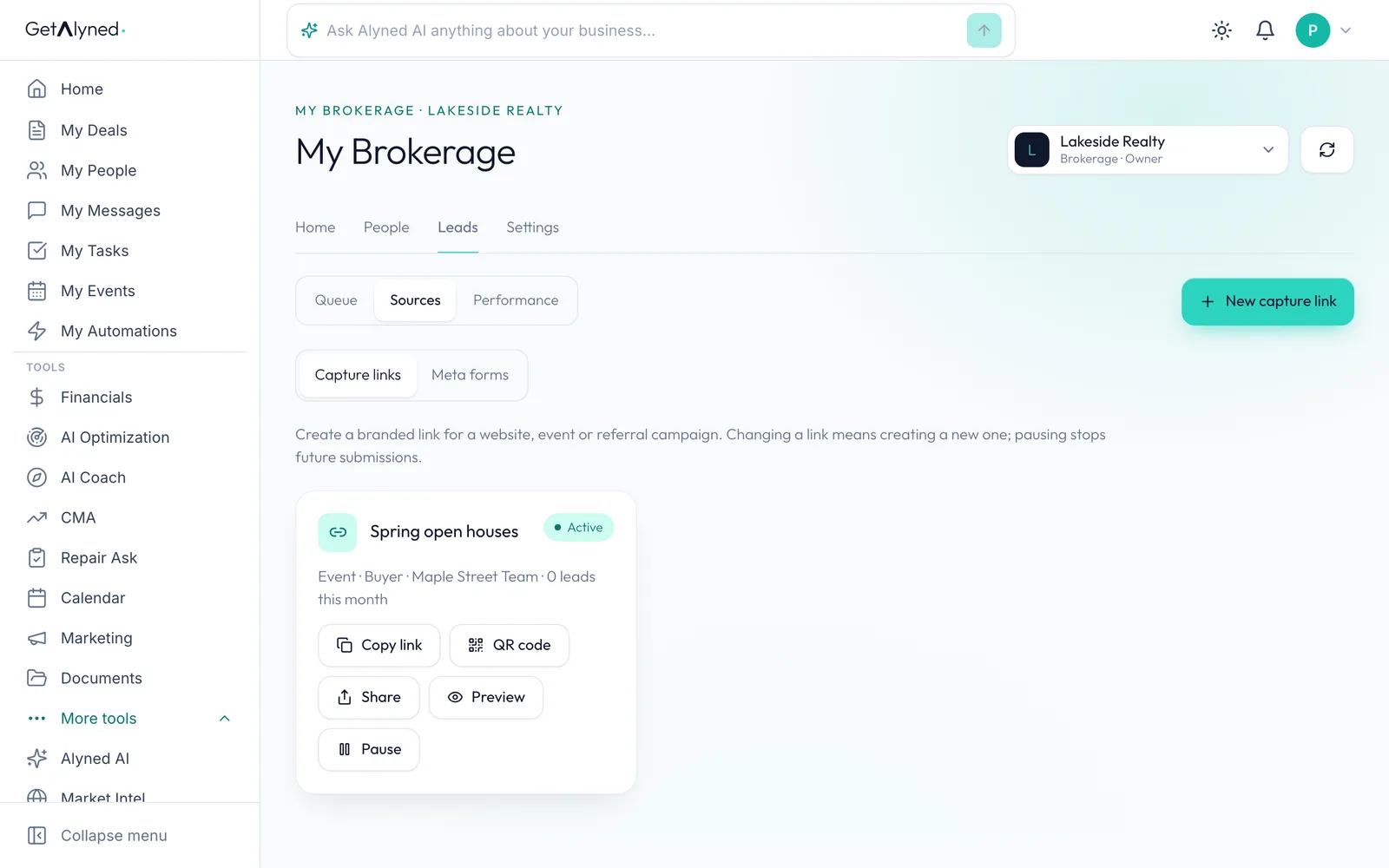
Each link names its team and how many leads it brought in this month.
-
Copy link
Copy link gives you the address to put on your website or send anywhere.
-
QR code
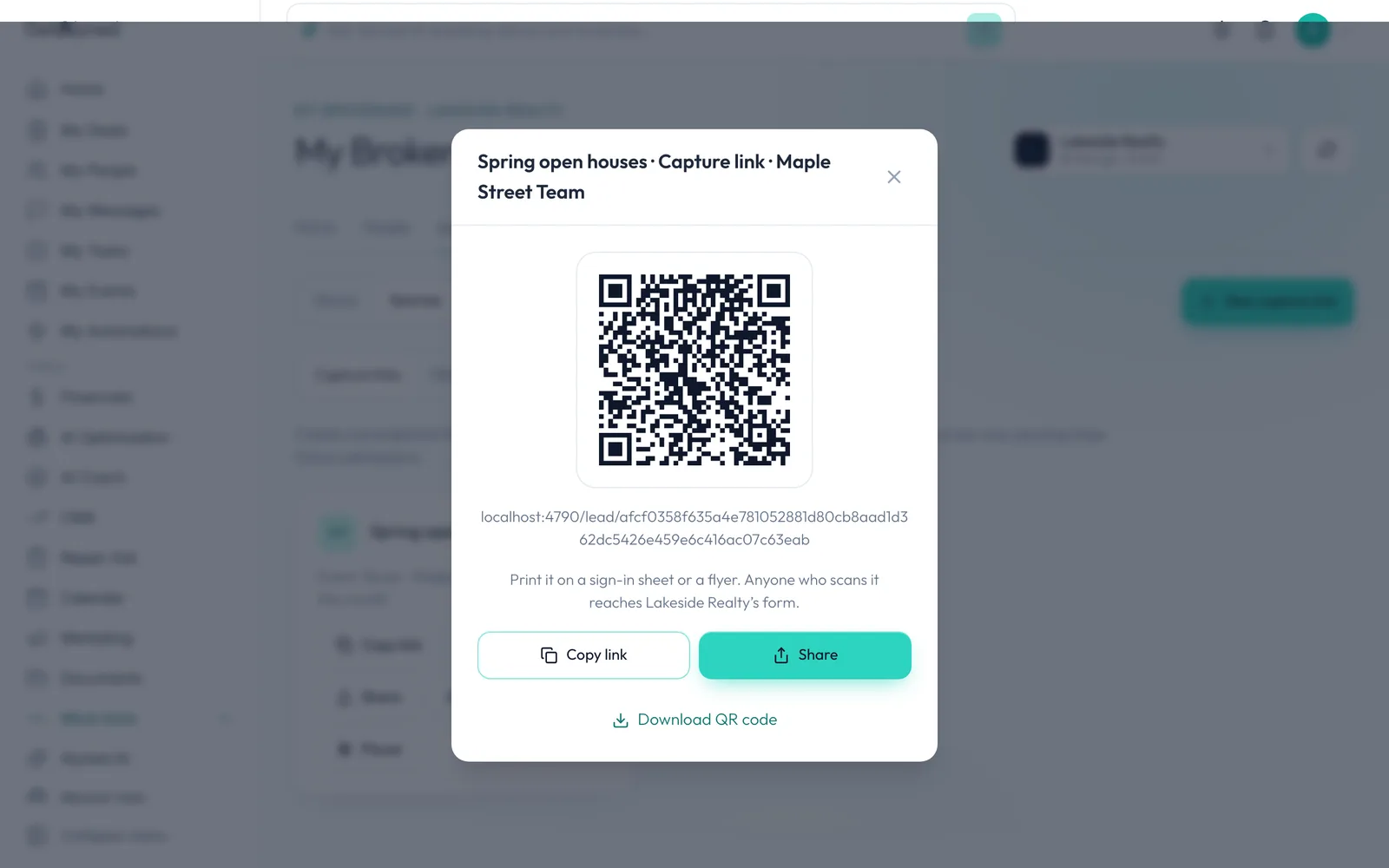
QR code is for a sign-in sheet, a flyer or a door sign.
-
Download it
Download QR code to print it. Copy link and Share are here too.
-
The form
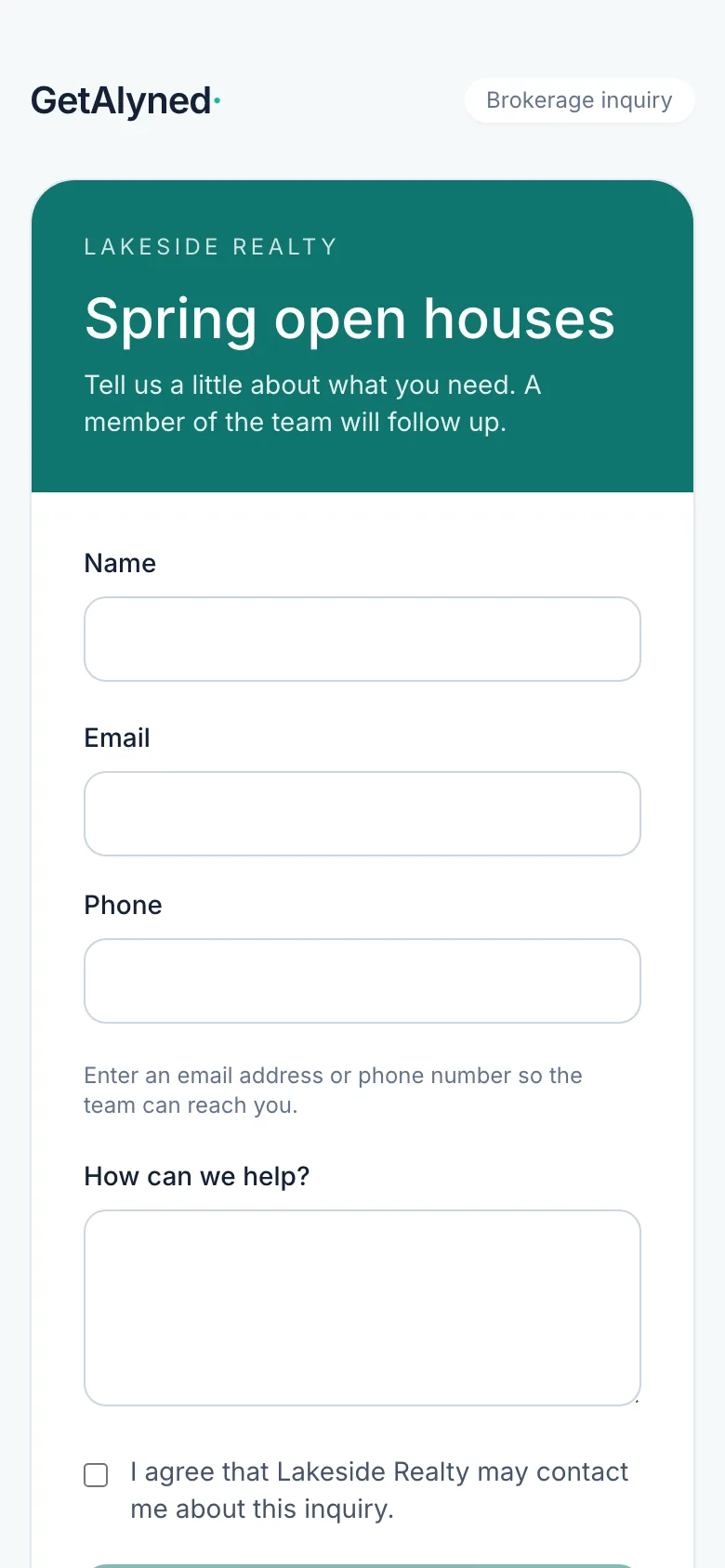
A lead scans it and lands here, with your brokerage's name and color. No app and no account.
-
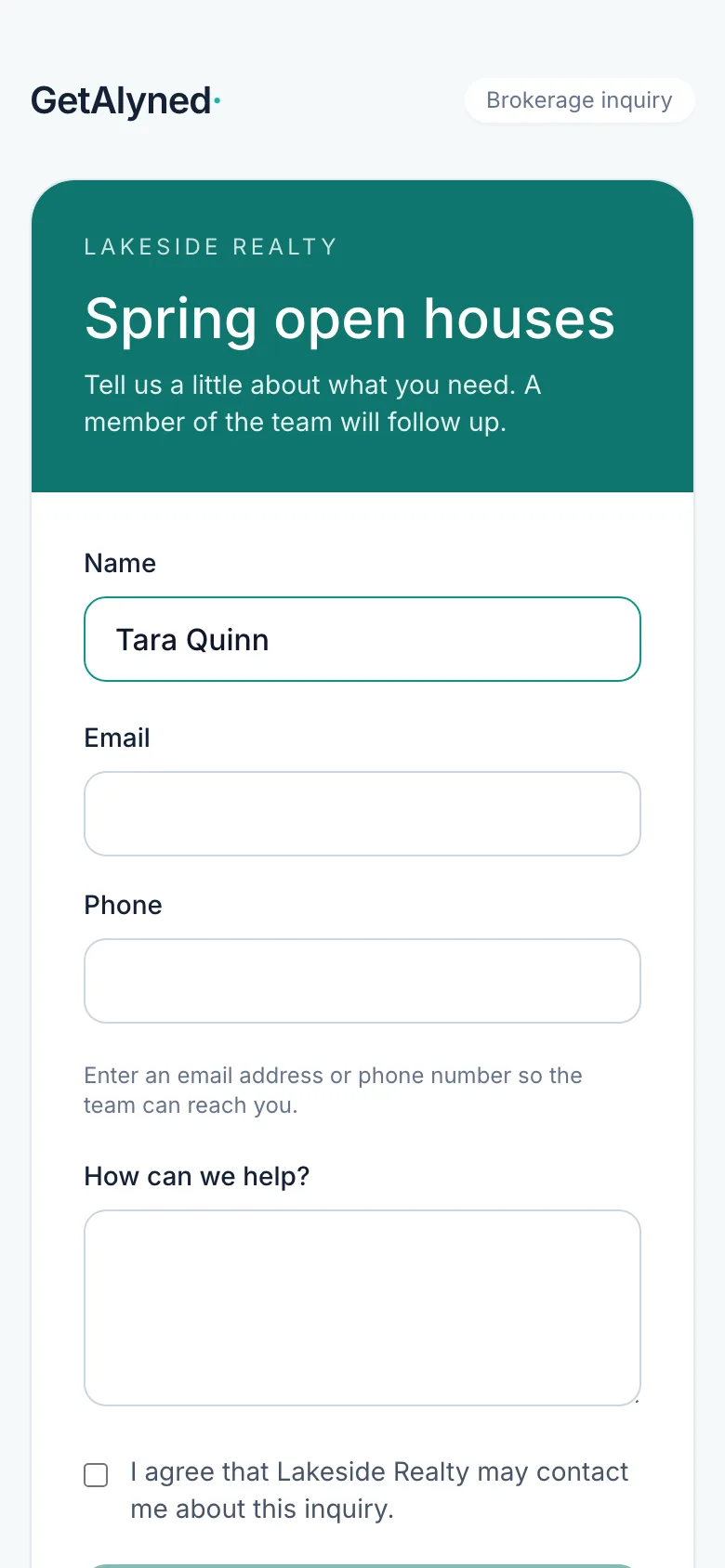
Their details
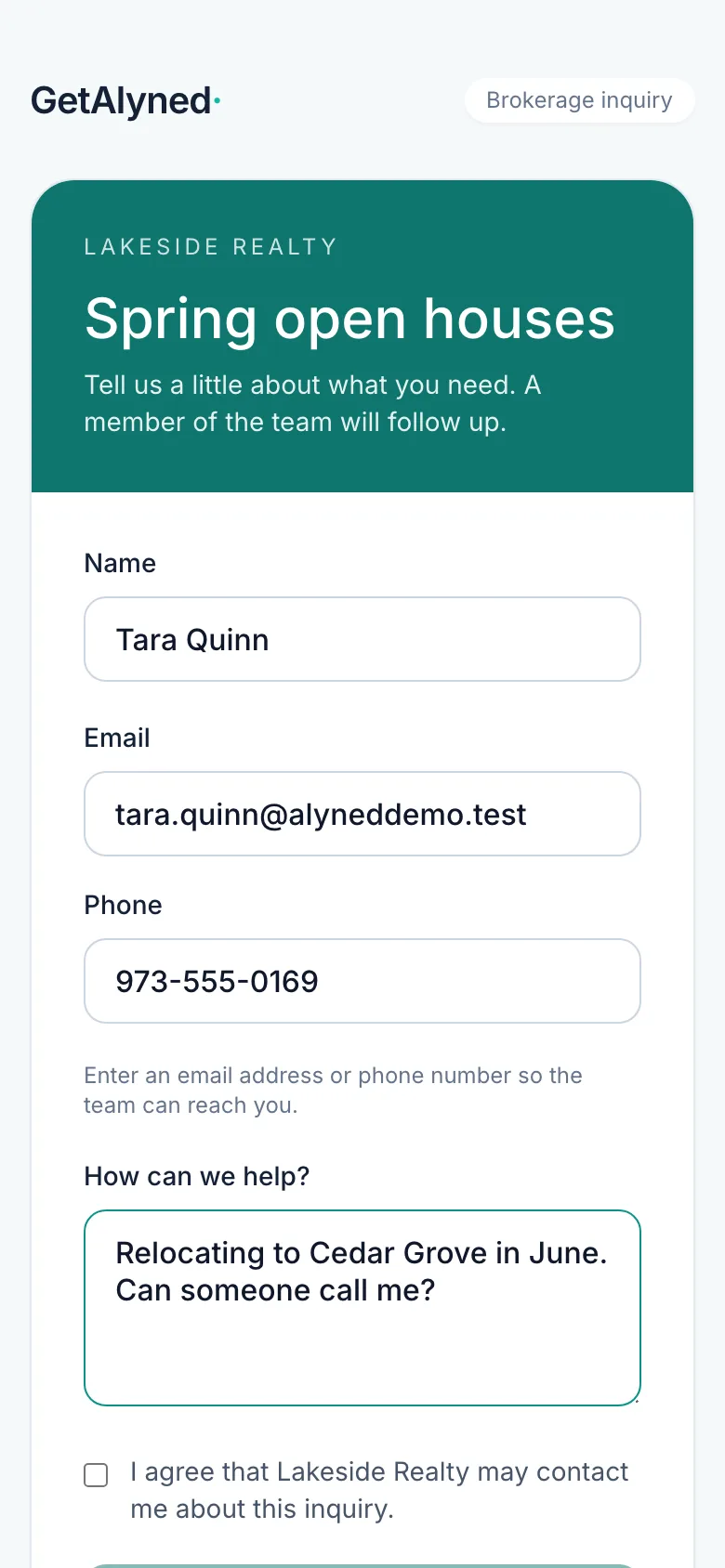
They add a name, and an email or phone number.
-
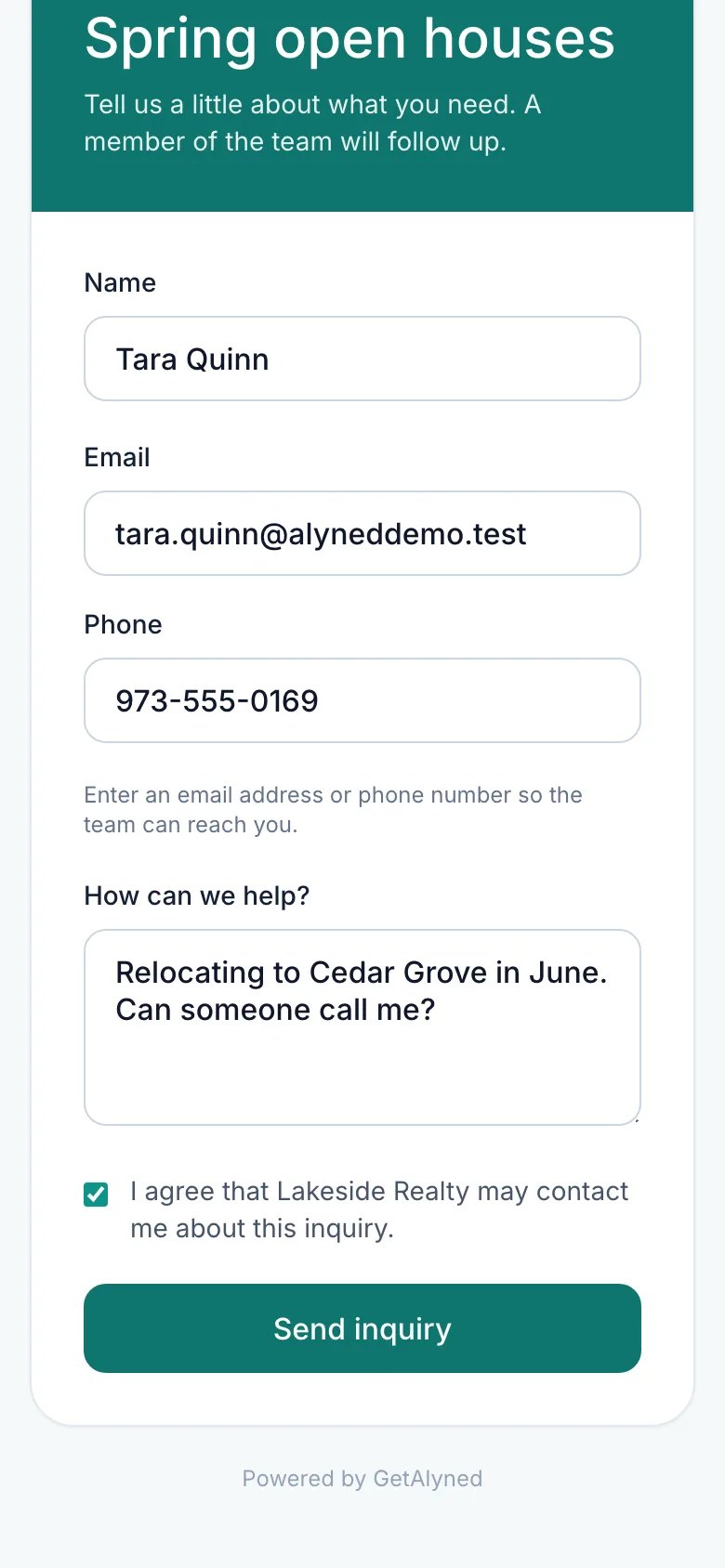
Consent
They agree to be contacted about this inquiry.
-
Send inquiry
They tap Send inquiry. A link takes up to 200 leads a day.
-
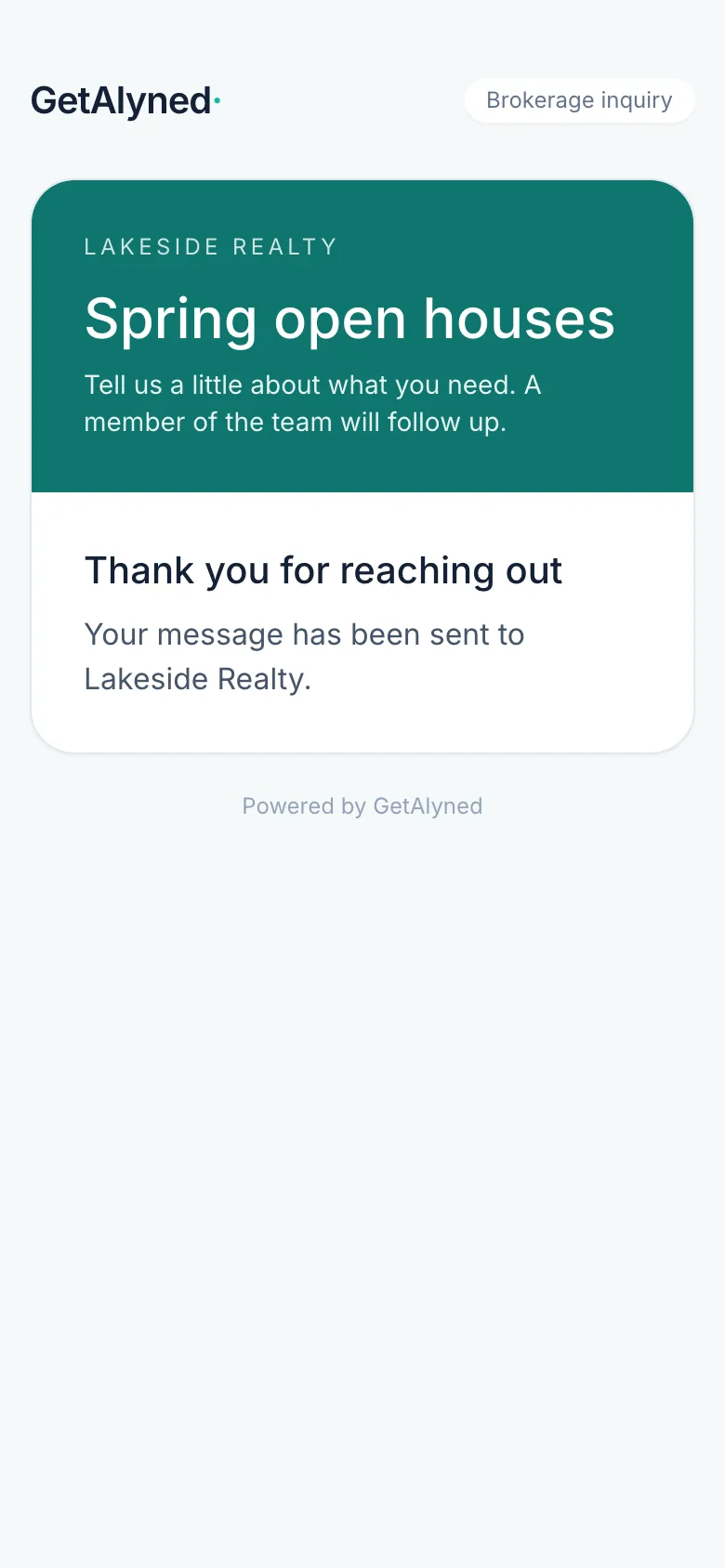
Done
That's all a lead does.
-
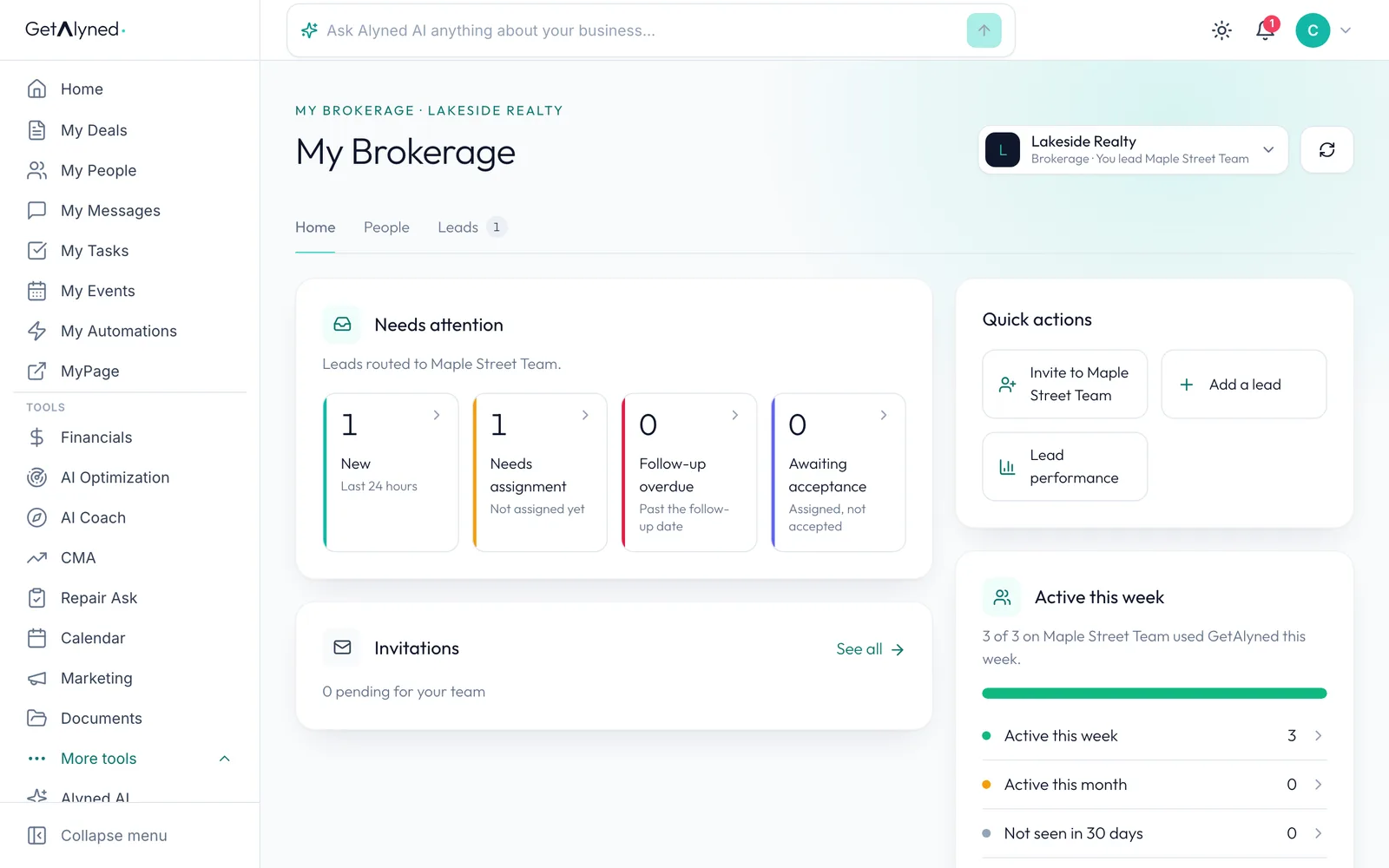
It arrives
This link goes to a team, so it lands with that team's lead, who gets an alert.
-
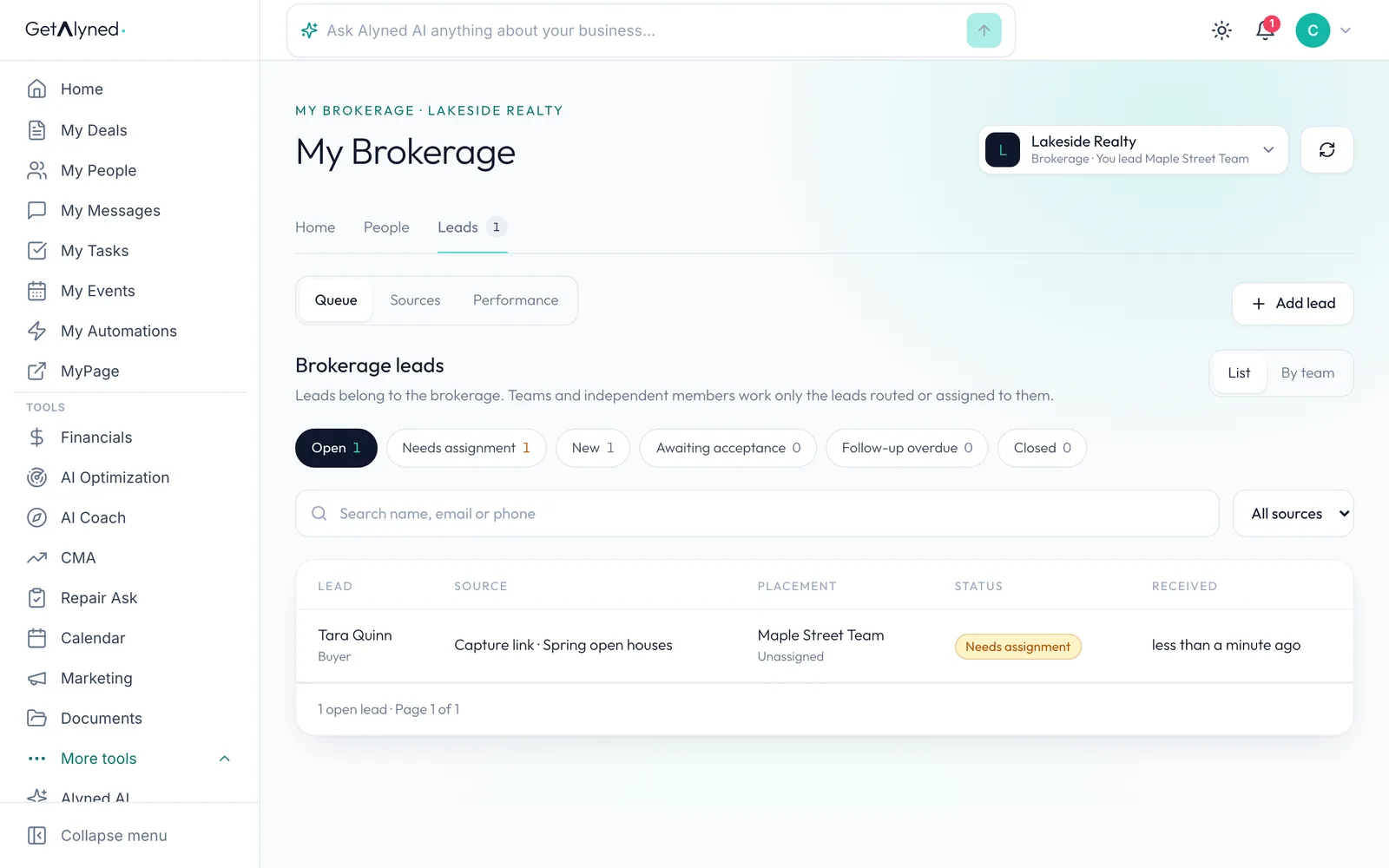
In the queue
It's in the team's queue, ready to assign.
-
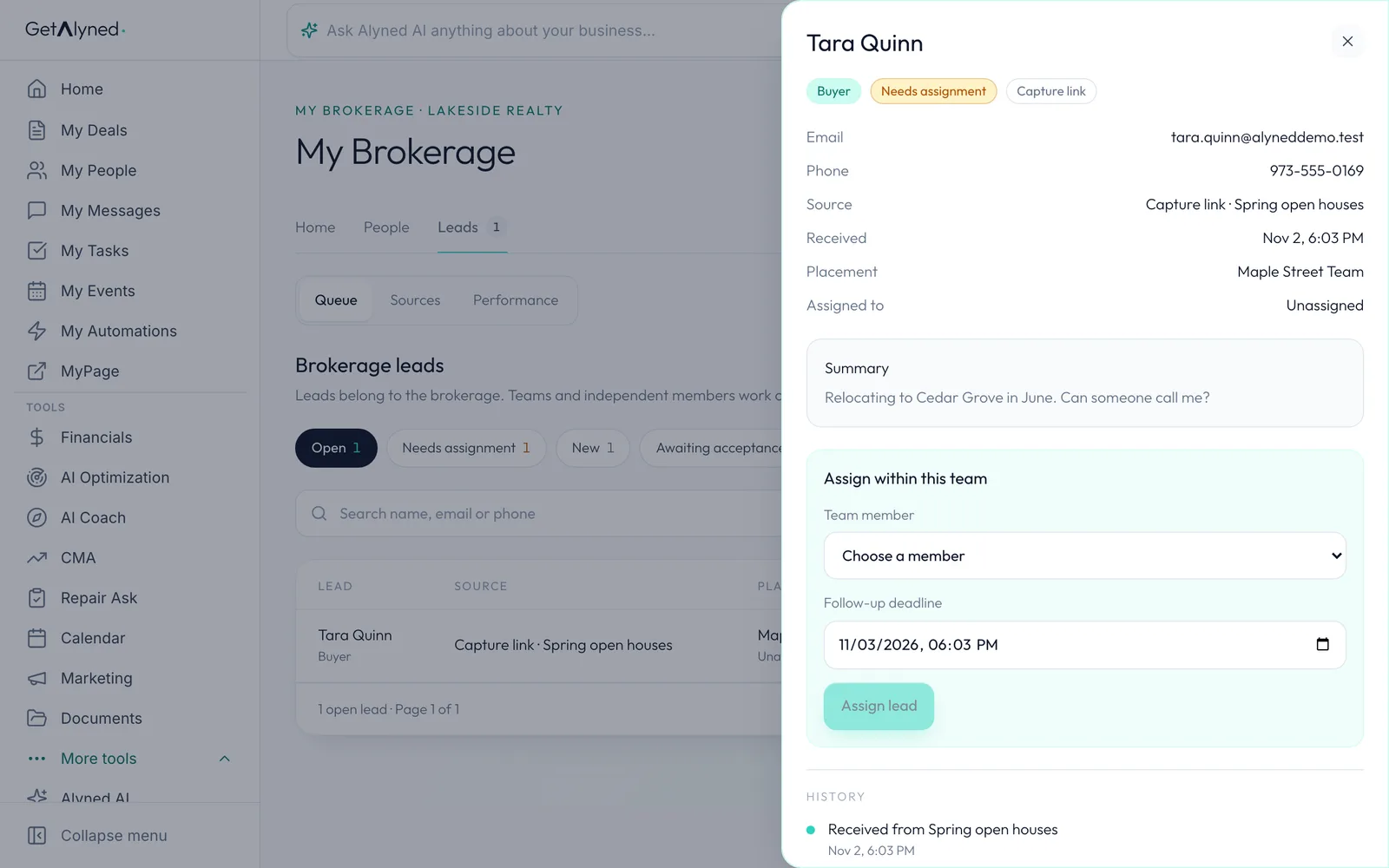
The lead
The lead shows its details, its message and its source.
-
Assign it
From here it works like any other lead. The Route and assign leads guide picks it up.
Related guides
- Route and assign leads · Send each new lead to a team or an agent, assign it with a follow-up date, and reassign it if plans change. Every turn stays in the lead's history.
- Set up a brokerage · Create your brokerage, add your branding and details, confirm your email and get verified, so you can invite agents and bring in leads.
- Invite agents and place them on teams · Invite one agent or a whole list, place them on a team or keep them independent, and move people later. Their own contacts and deals stay theirs.