Log an expense
For agents · 2 min
Log a business expense in seconds, with its receipt. Type it in, or snap a photo and let Alyned fill in the details.
Watch
Or read it step by step
-
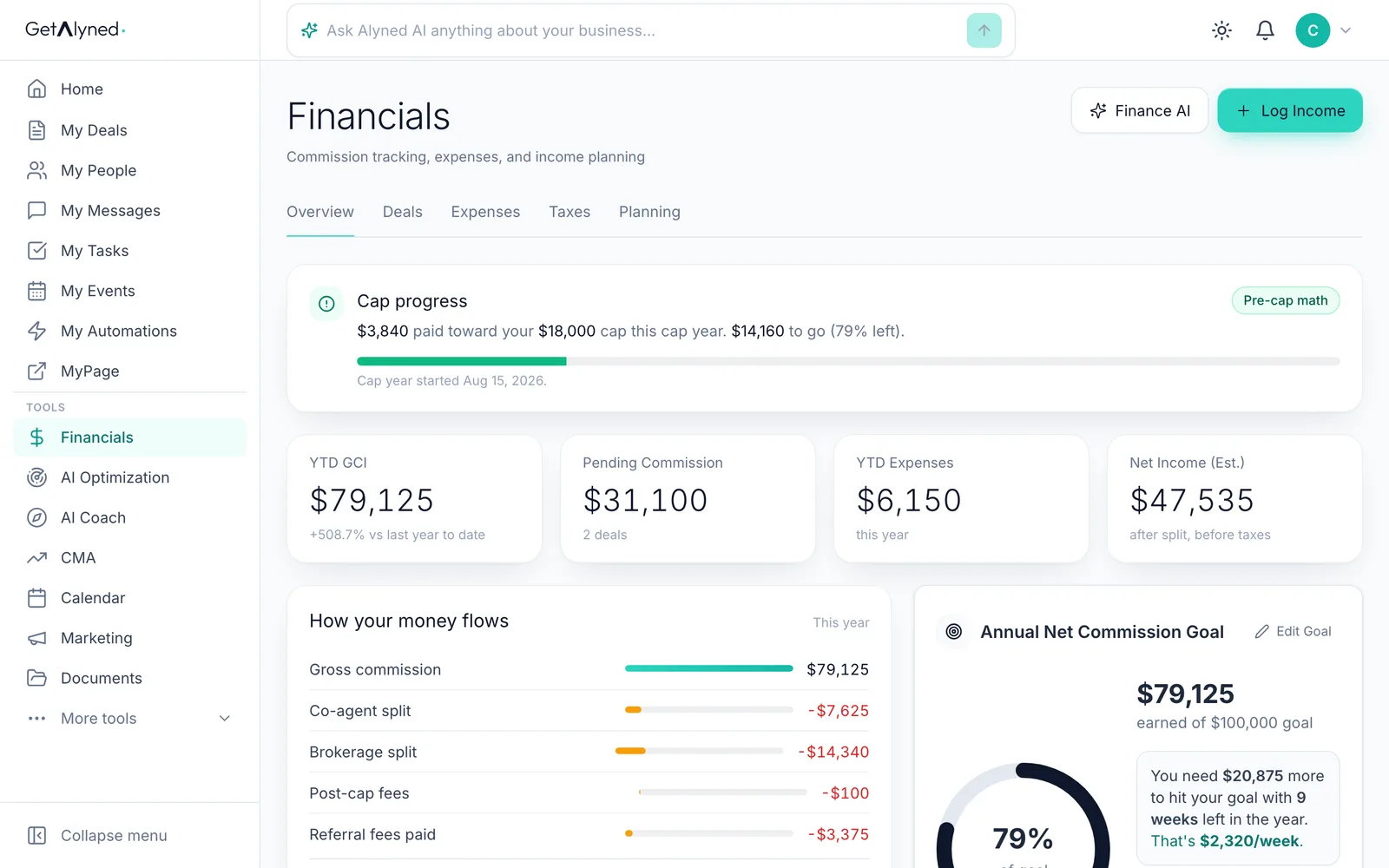
Open Expenses
In Financials, click the Expenses tab.
-
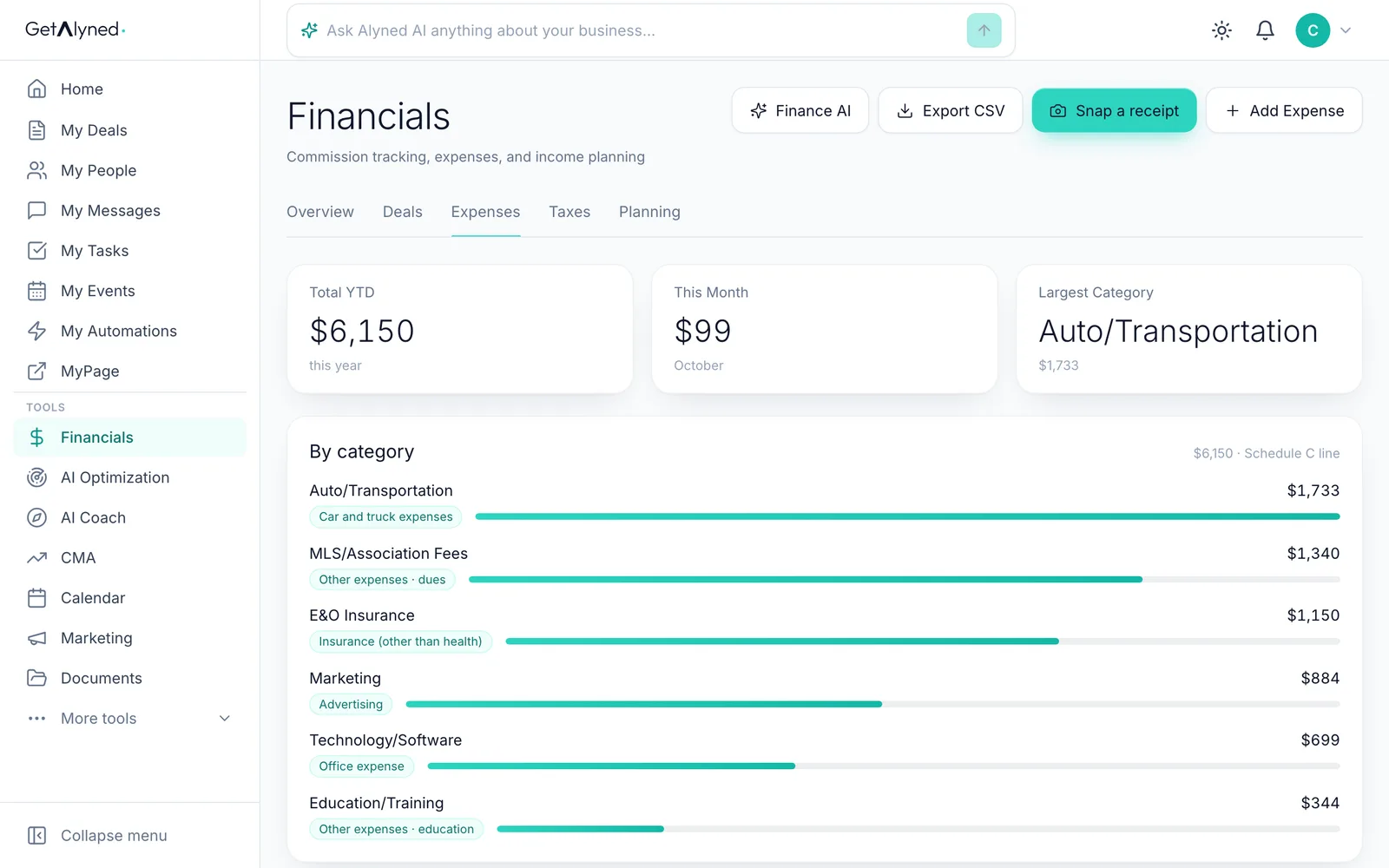
Click Add Expense
Add Expense is for an expense you enter yourself.
-
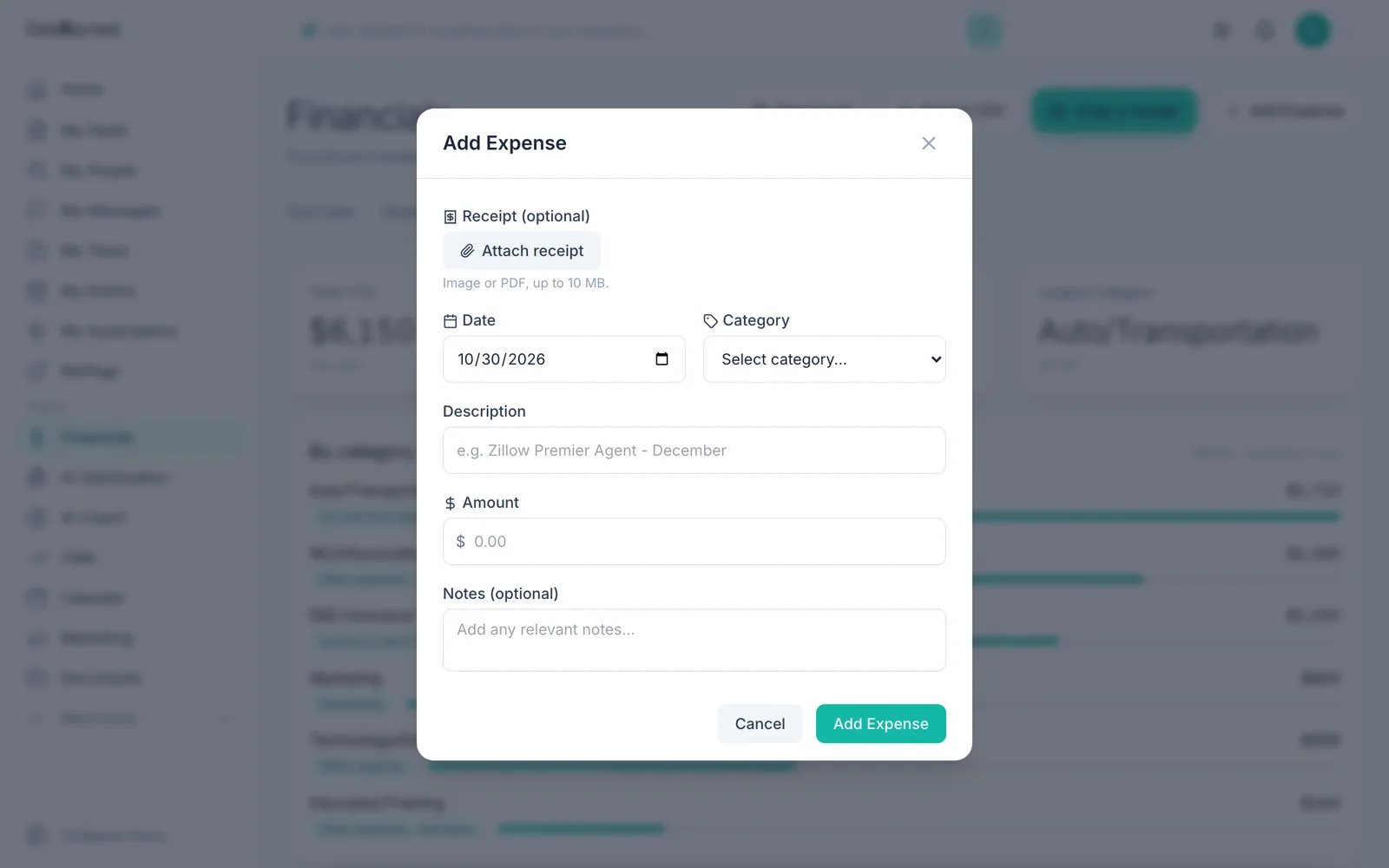
Attach the receipt
Click Attach receipt and pick a photo or a PDF. It stays with the expense.
-
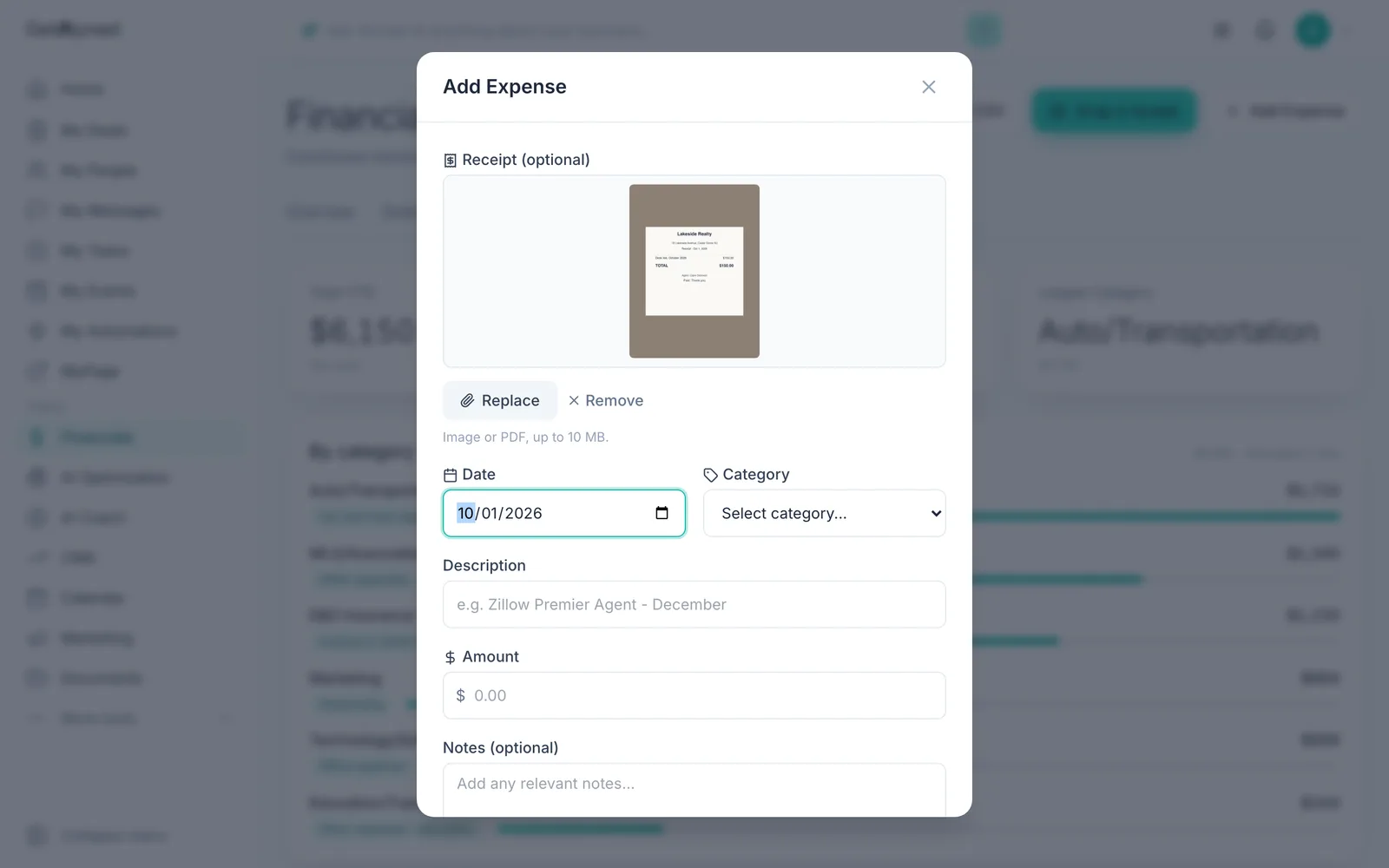
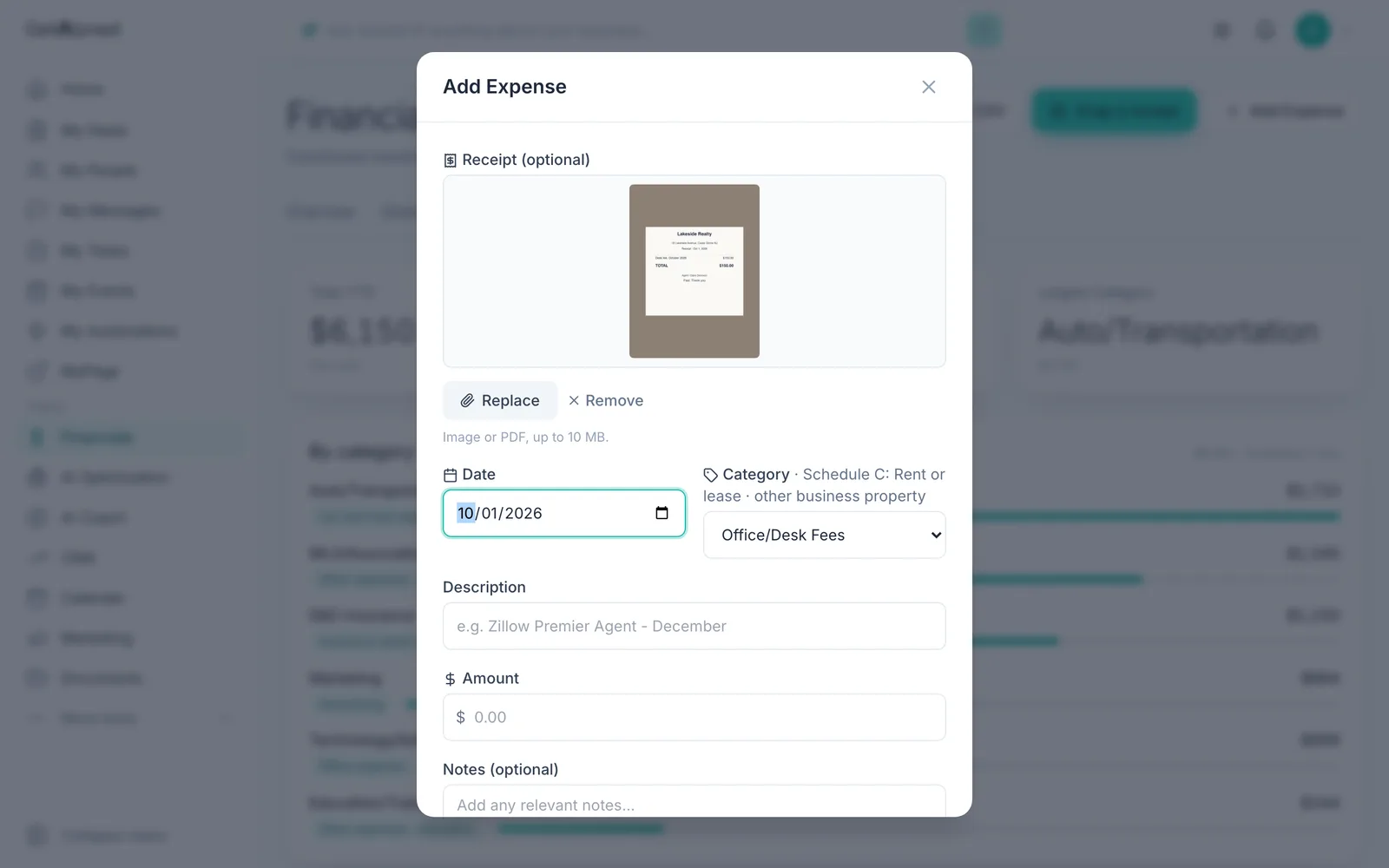
Enter the date
The day you paid it.
-
Pick a category
Pick a Category. The tax form line it goes on shows with it.
-
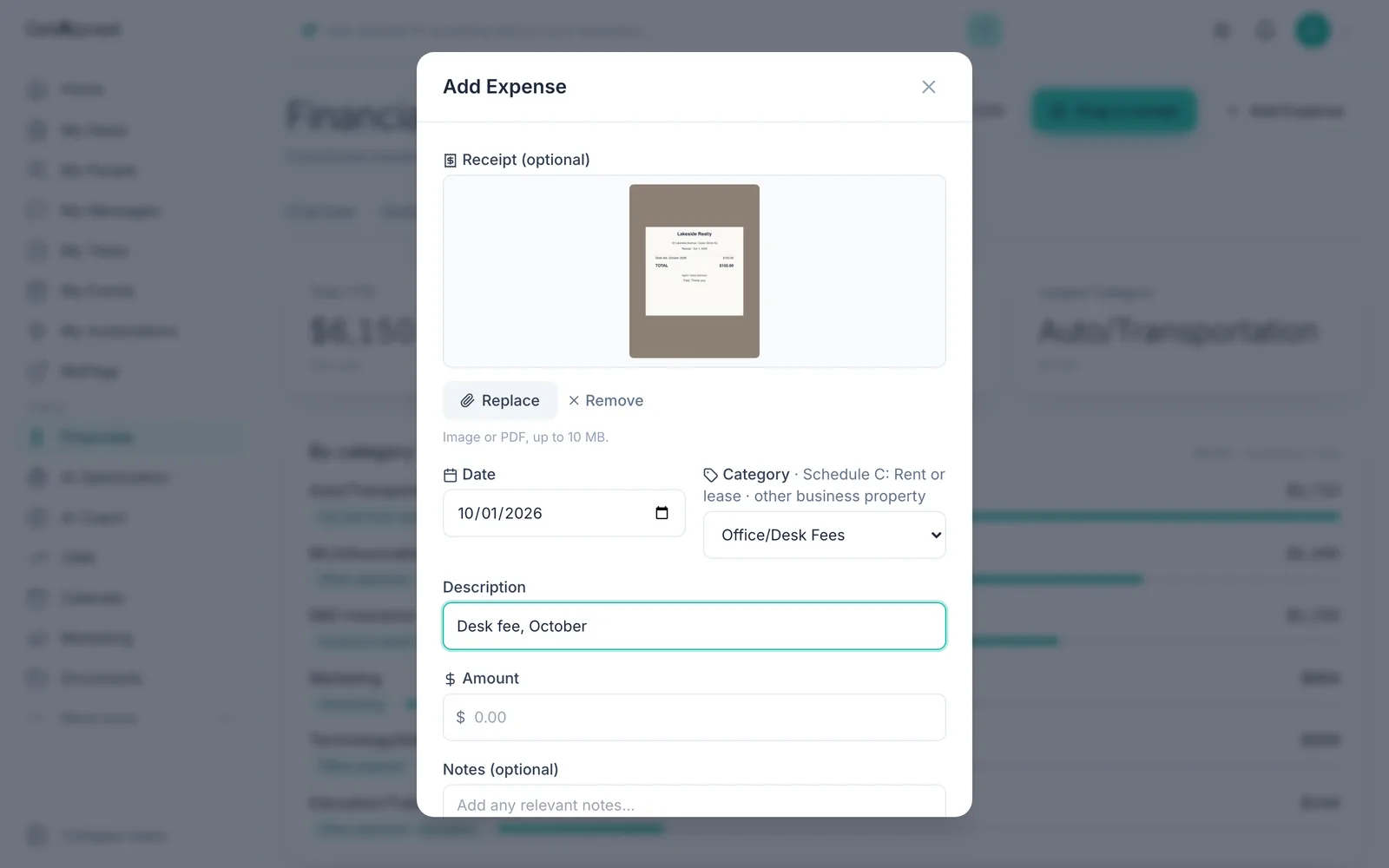
Describe it
Add a short Description.
-
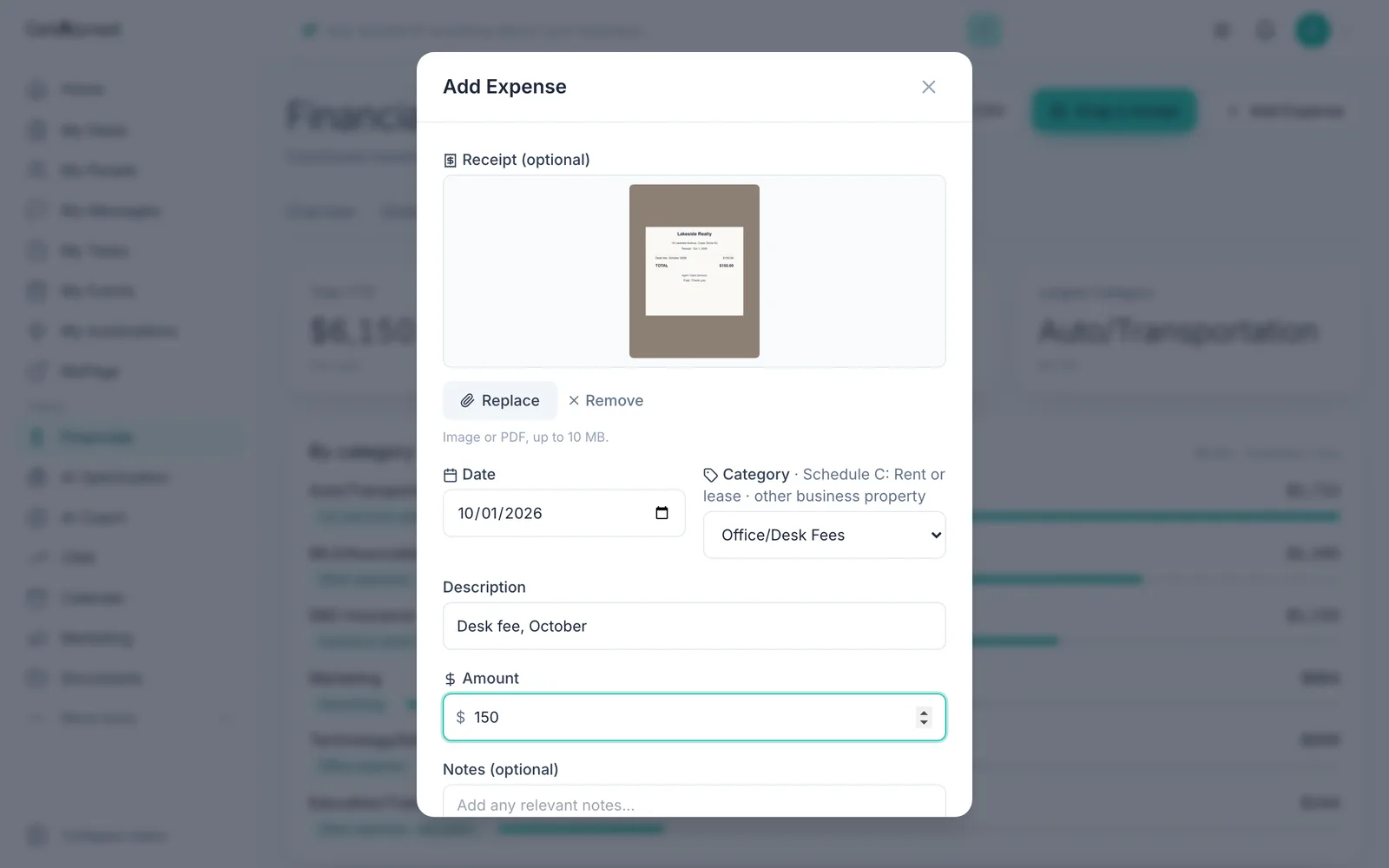
Enter the amount
Type the Amount.
-
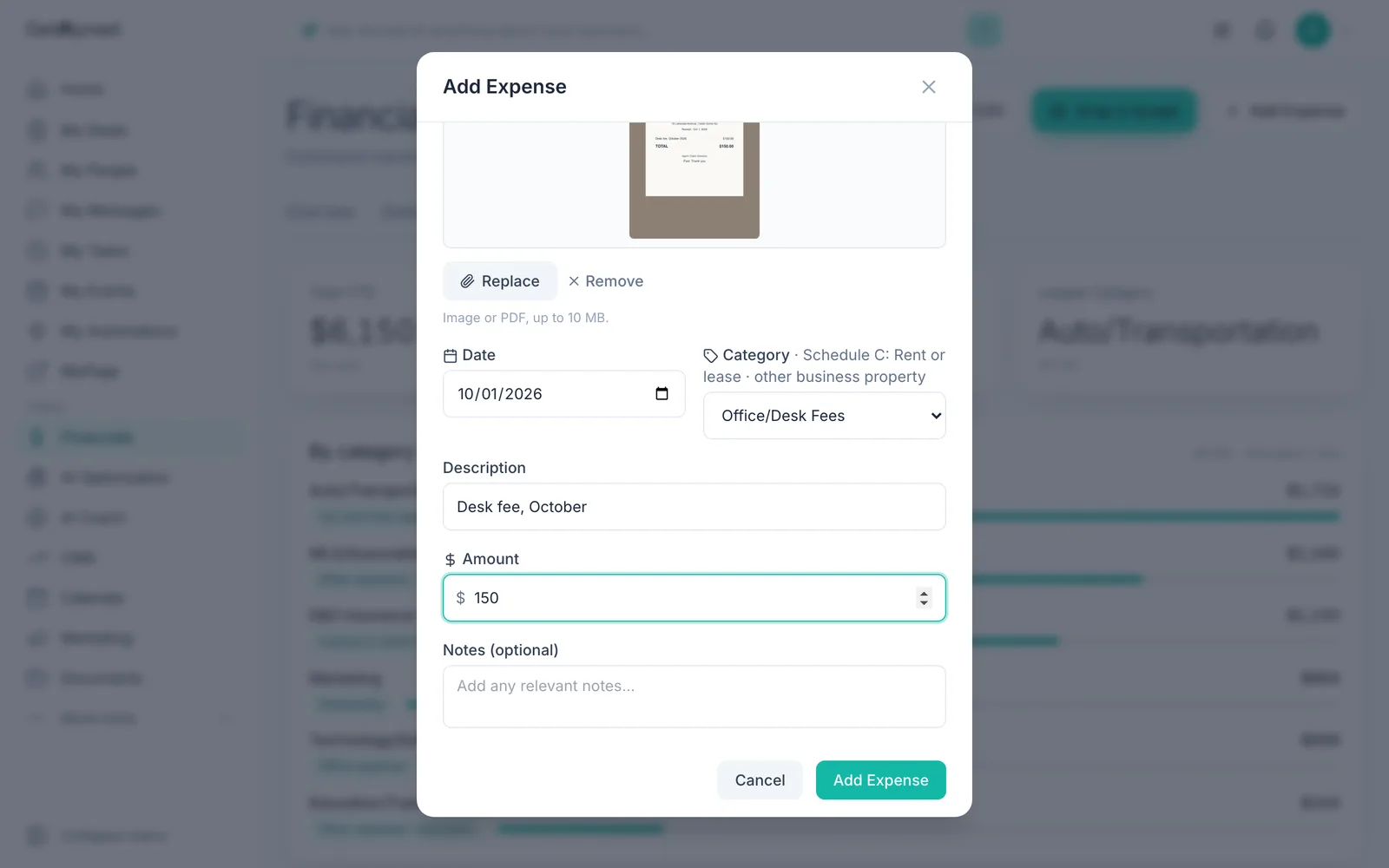
Save it
Click Add Expense.
-
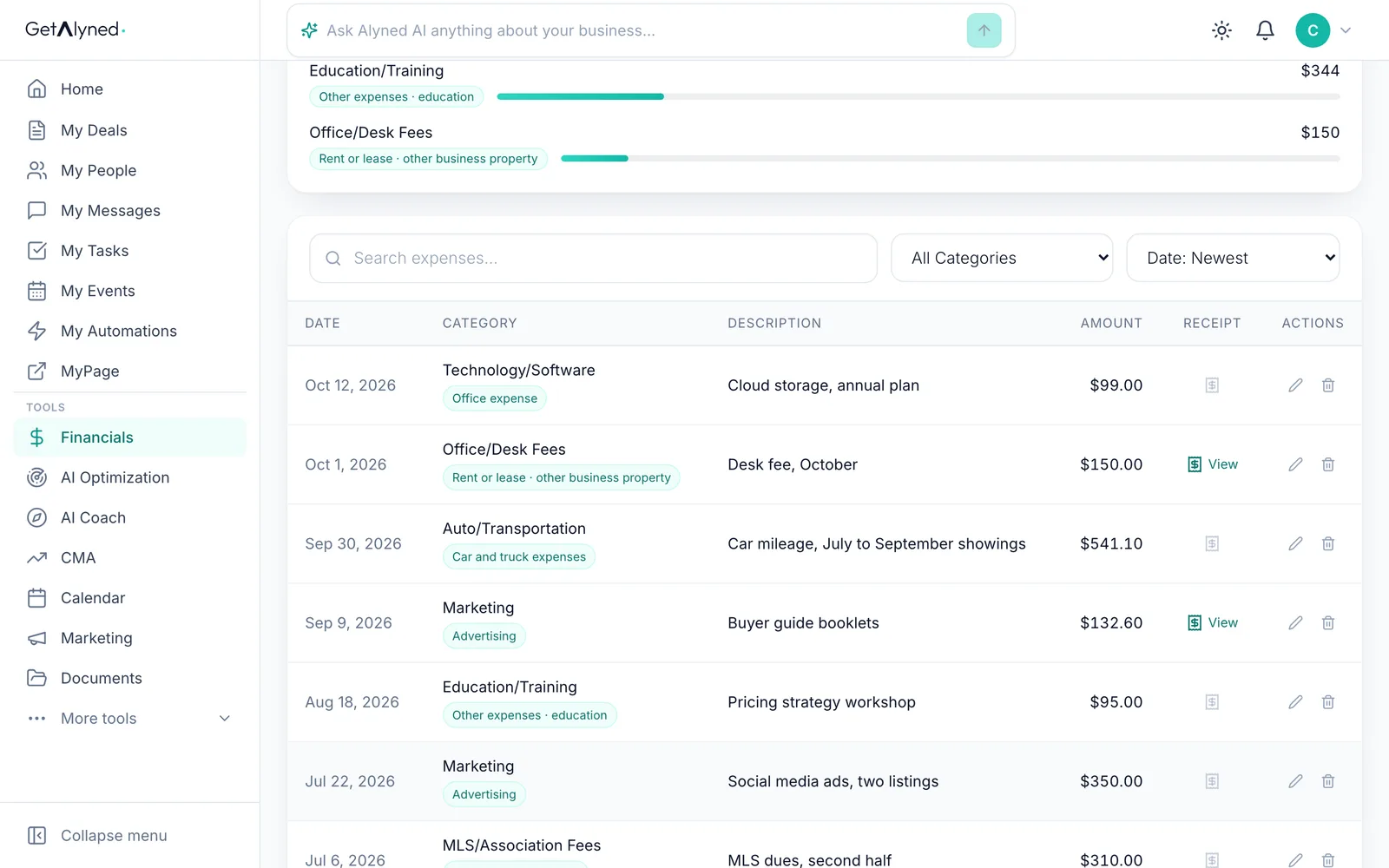
It's in your list
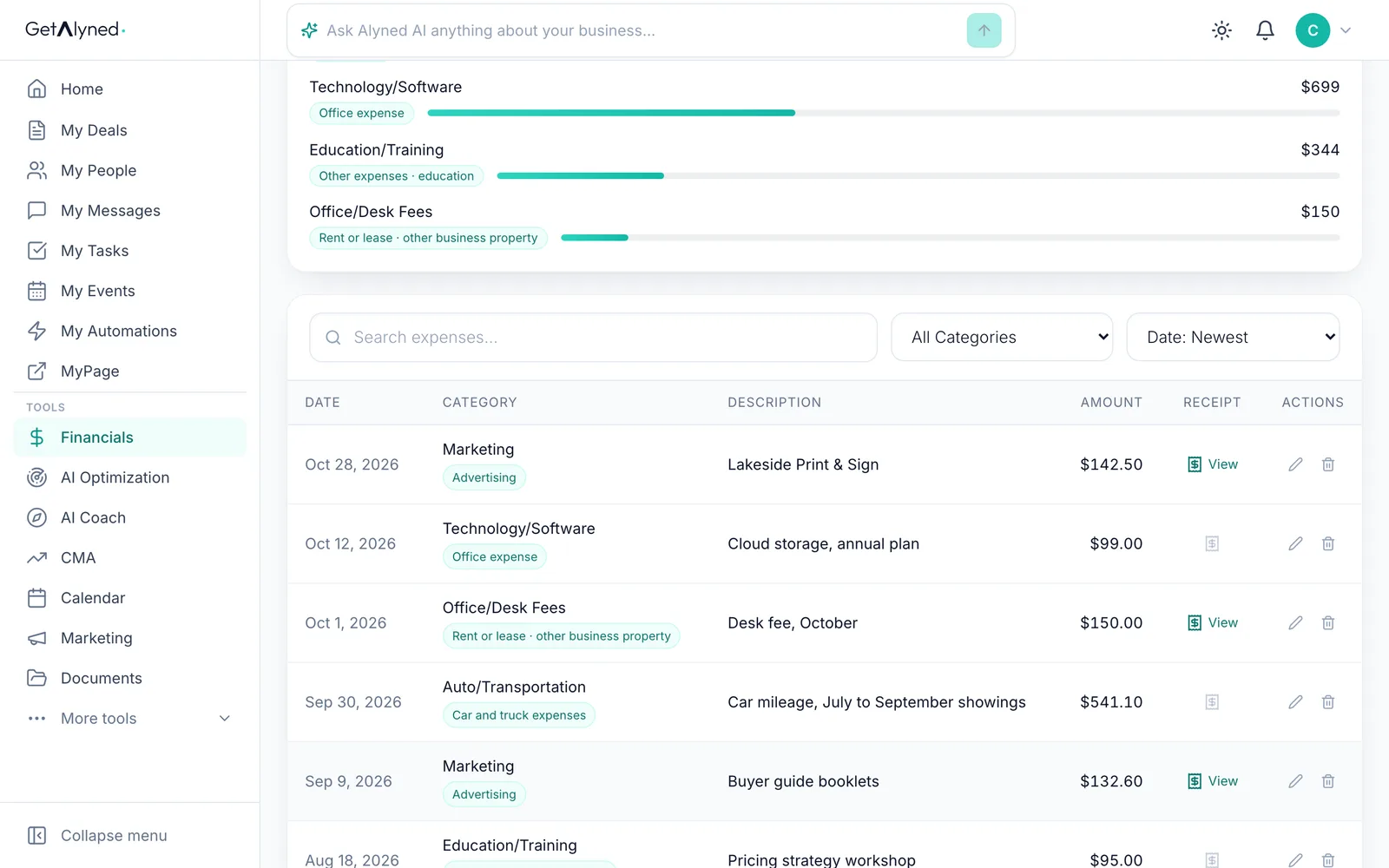
The expense is in your list, with its receipt.
-
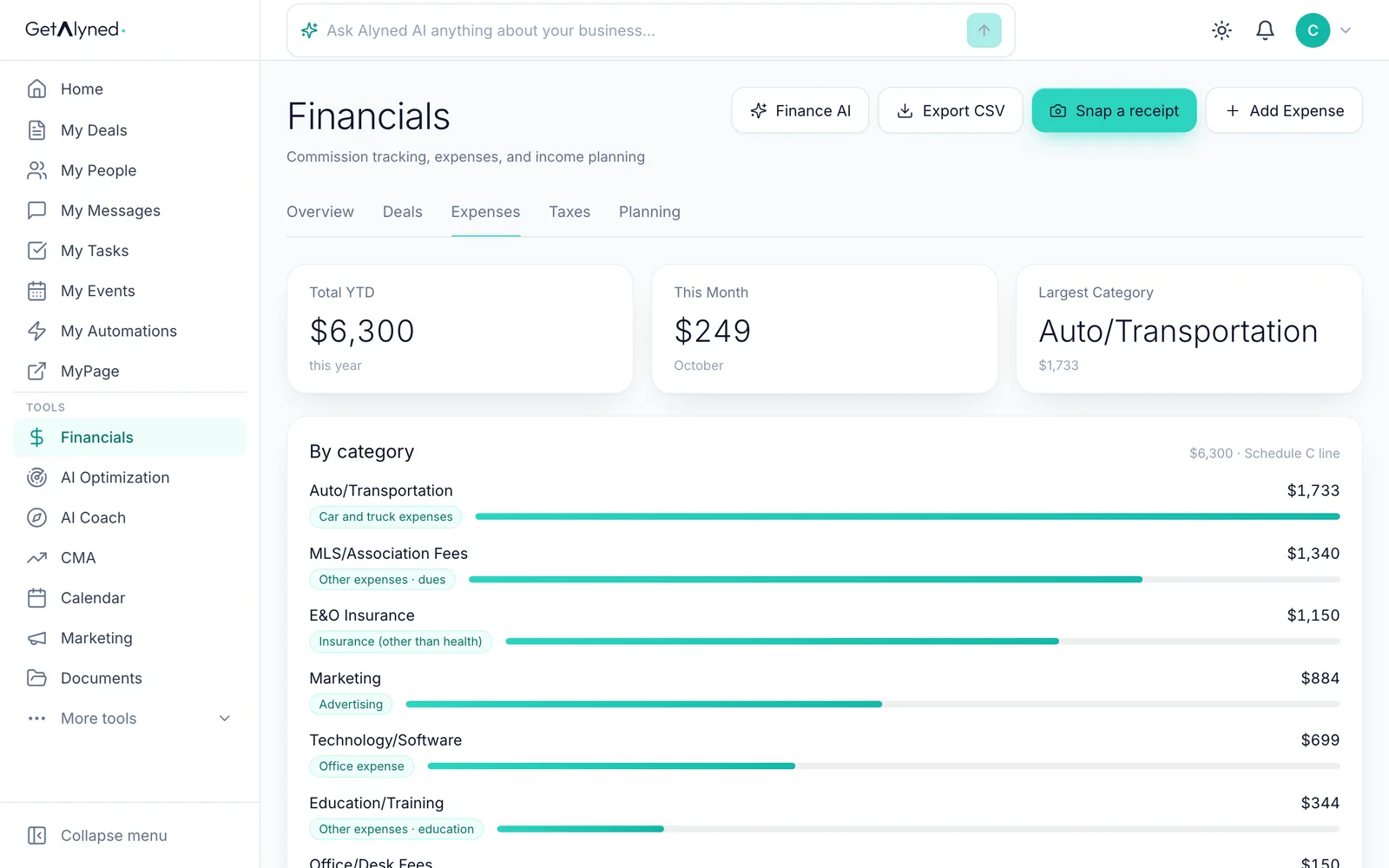
Or snap a receipt
Let Alyned do the typing. Click Snap a receipt, then take a photo or pick one.
-
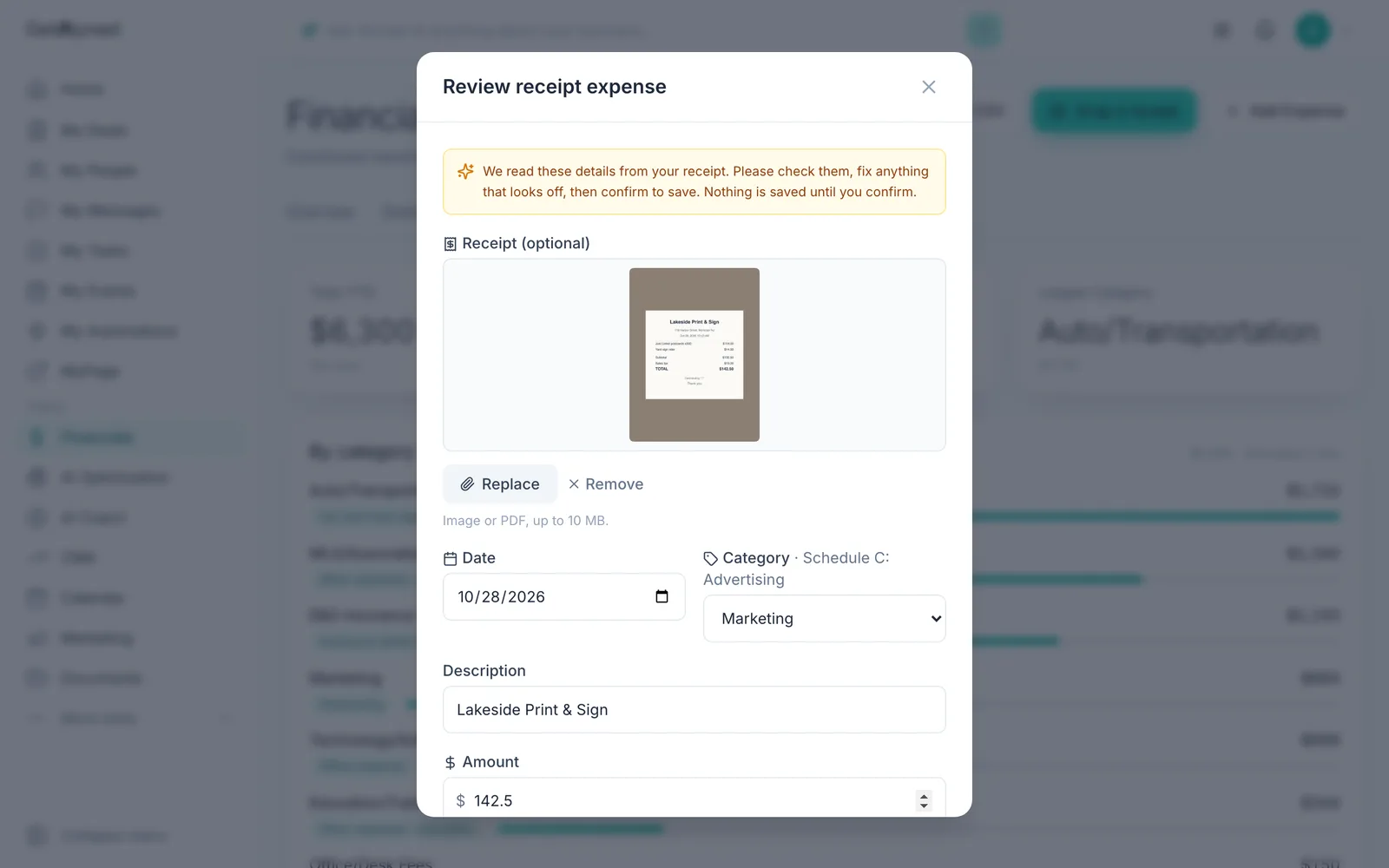
Alyned reads it for you
Alyned reads the date, amount, business and category. Nothing is saved until you confirm.
-
Check the details
Check each field, and fix anything that looks off.
-
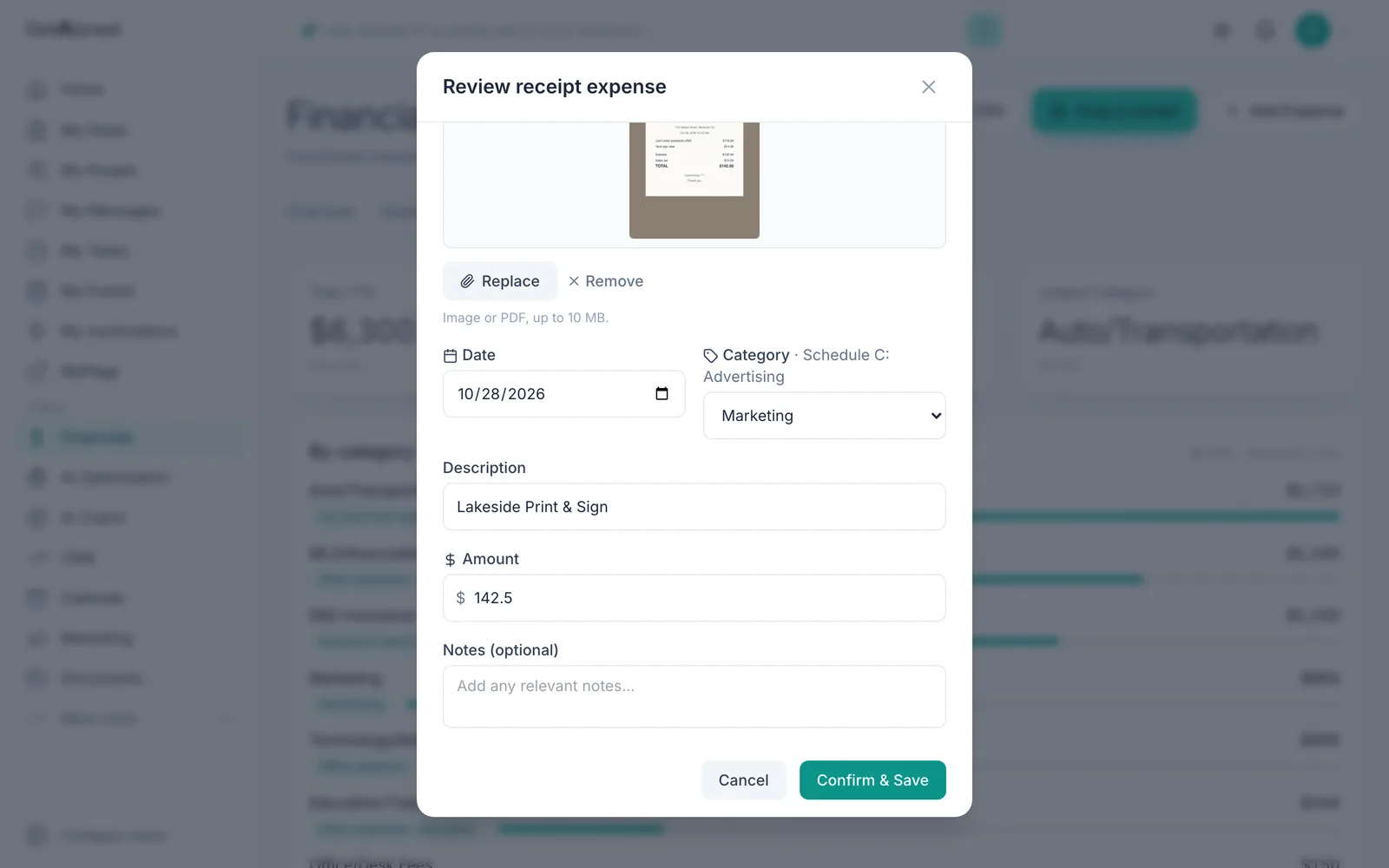
Confirm and save
Click Confirm & Save.
-
Saved with its receipt
It's saved, with the receipt attached.
-
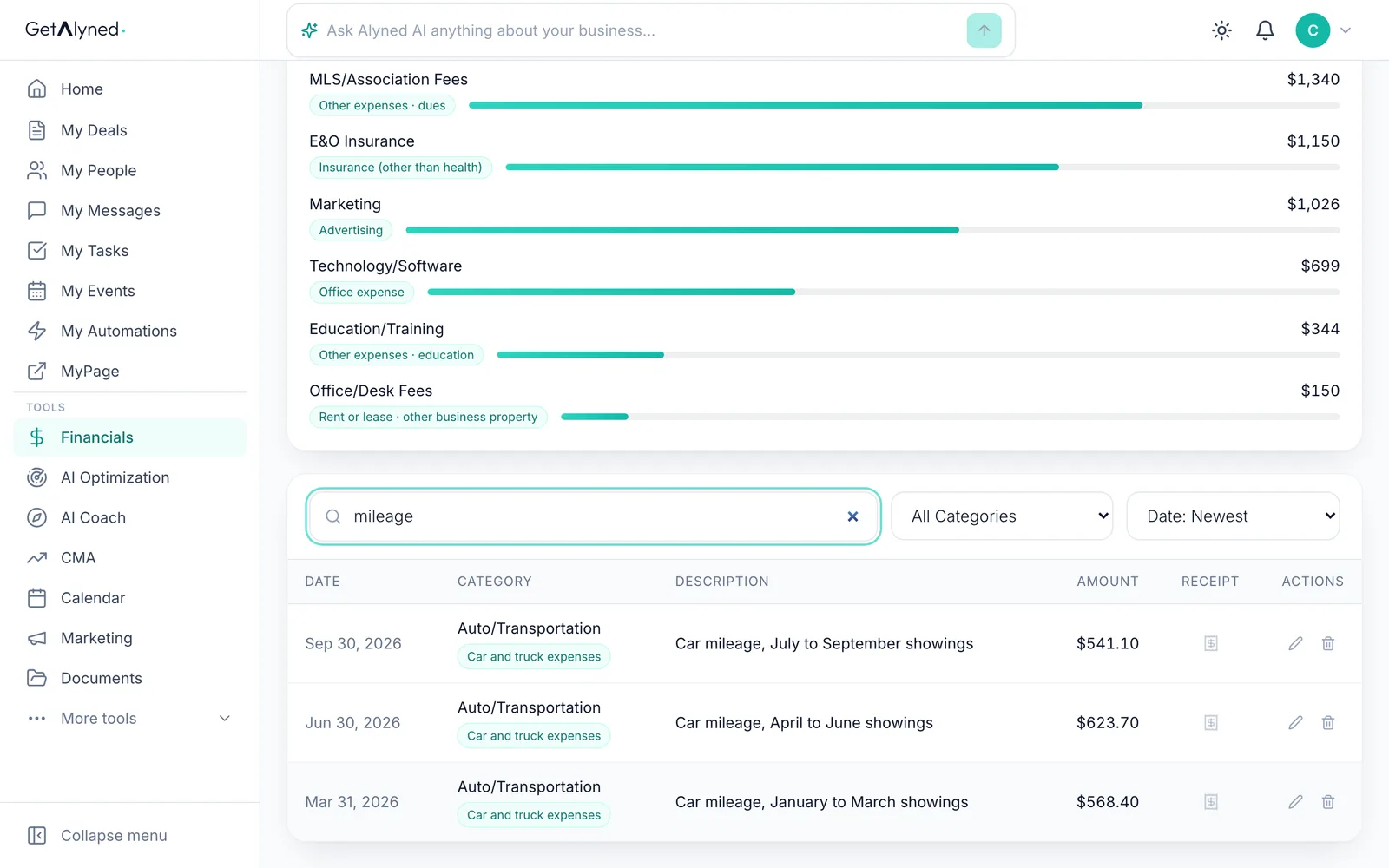
Search your expenses
Search finds an expense by its description or category.
-
Narrow it down
Use the category filter and the sort beside the search to narrow the list further.
Related guides
- Get ready for taxes · See your whole tax year in one place, and hand your accountant one file with your income, expenses and receipts.
- How the money flows from a deal · See where every dollar of a deal goes: your brokerage split, referral fees and co-agents, and how it all adds up in Financials.
- Set your split and commission structure · Tell Alyned your split, your usual commission and your brokerage cap once. Every new deal then shows what you'll make, and Financials tracks your cap for you.