Set your split and commission structure
For agents · 3 min
Tell Alyned your split, your usual commission and your brokerage cap once. Every new deal then shows what you'll make, and Financials tracks your cap for you.
Watch
Or read it step by step
-
Open Planning
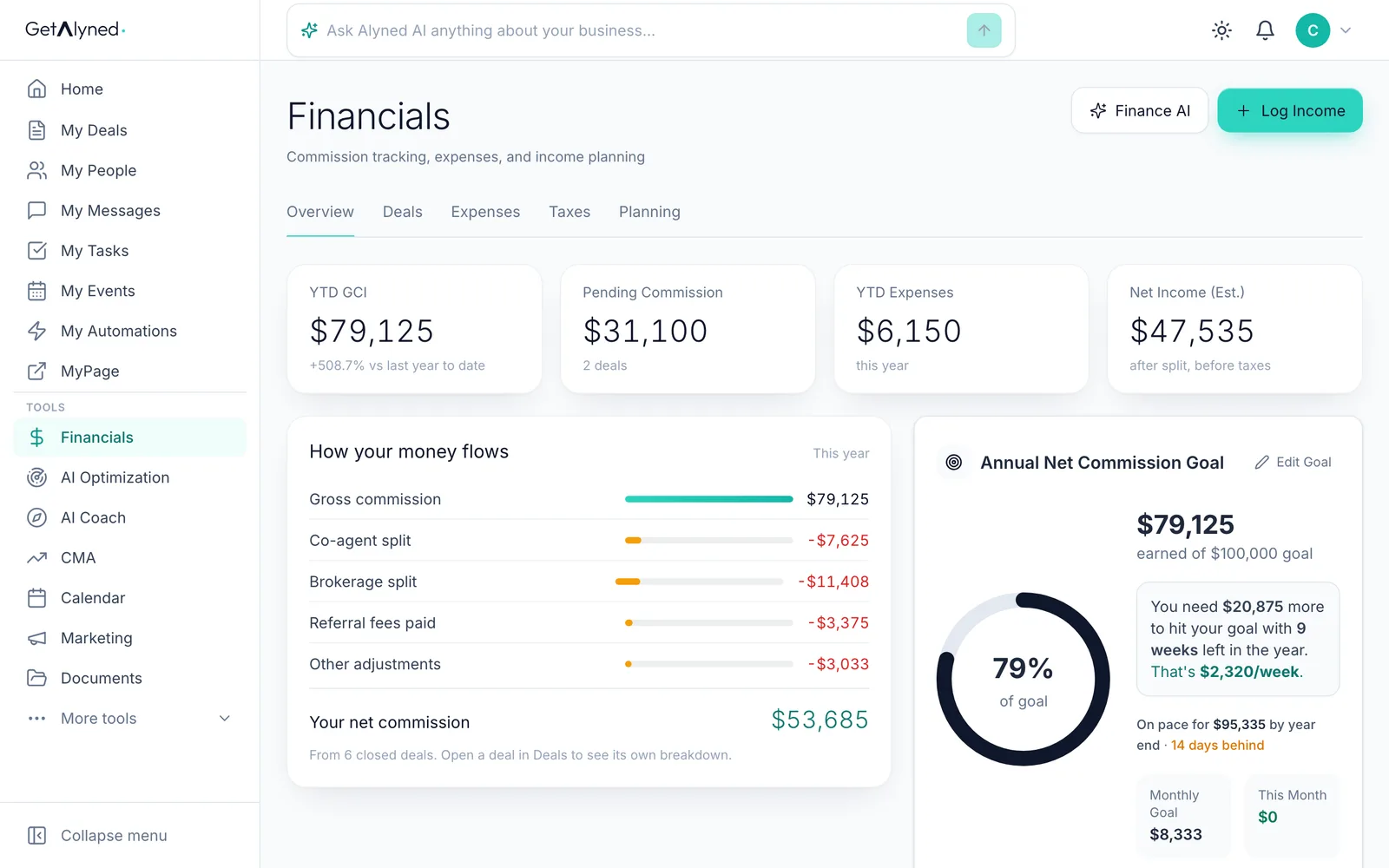
In Financials, click the Planning tab.
-
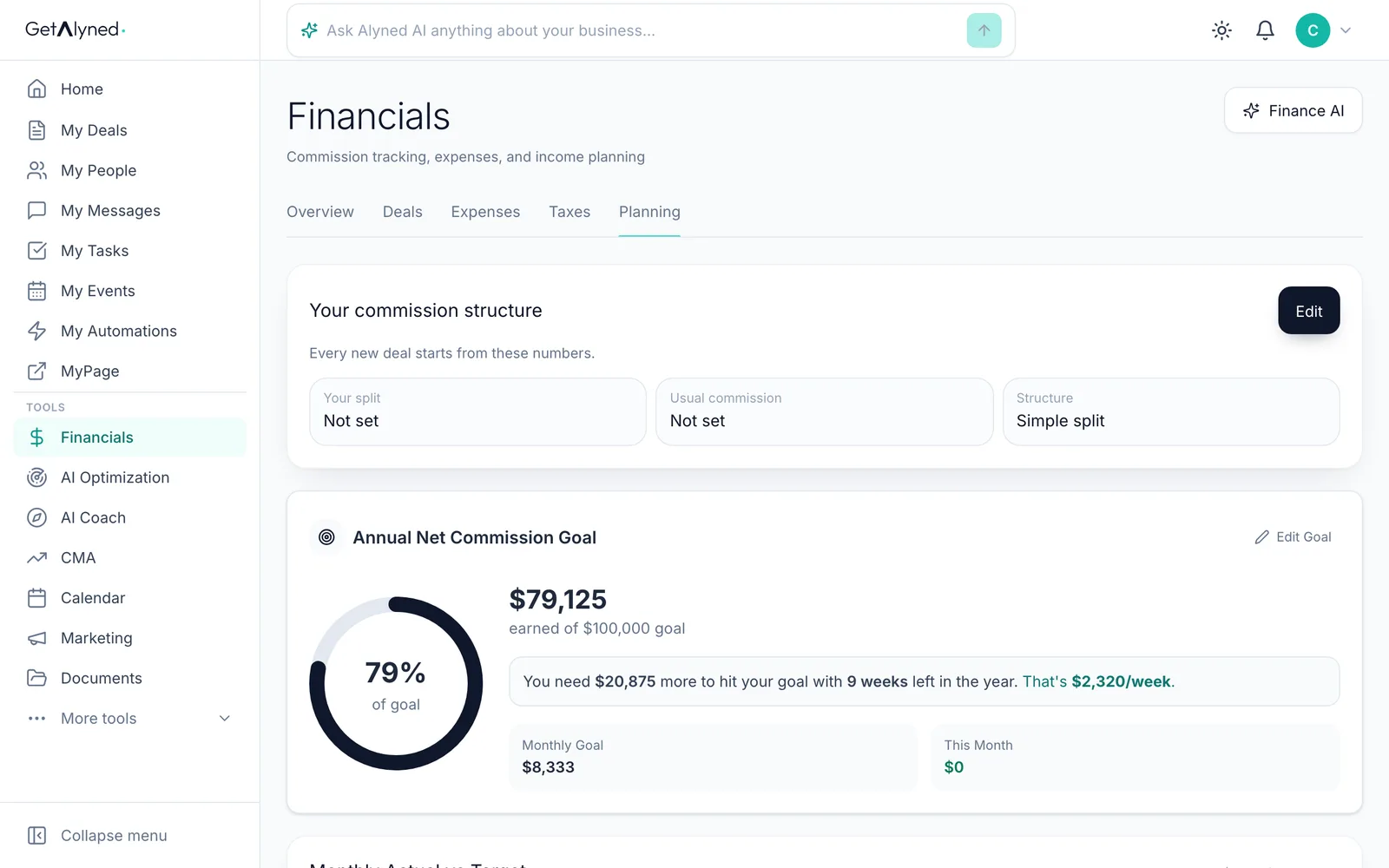
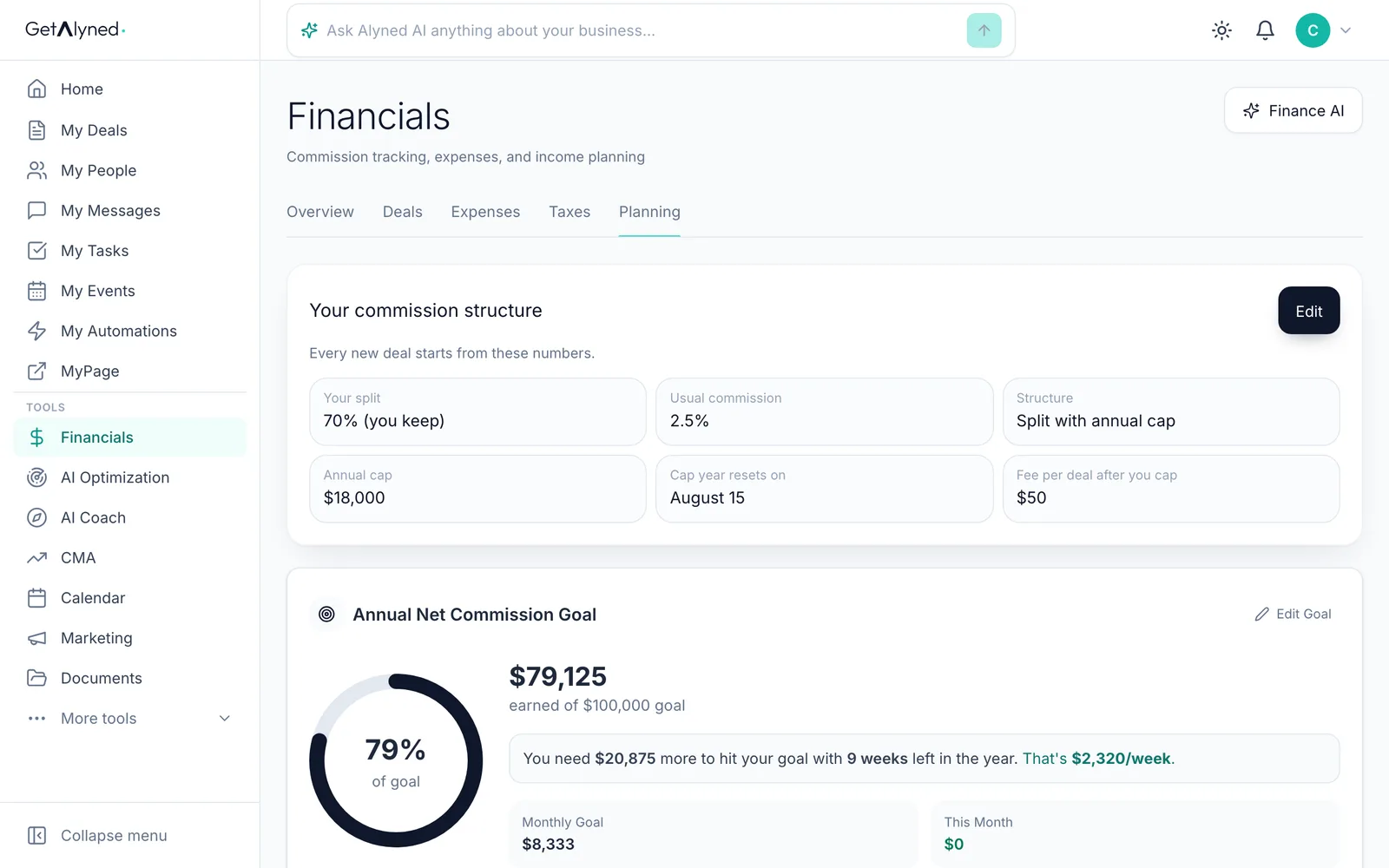
Your commission structure
It's the first card on Planning. Every new deal starts from these numbers.
-
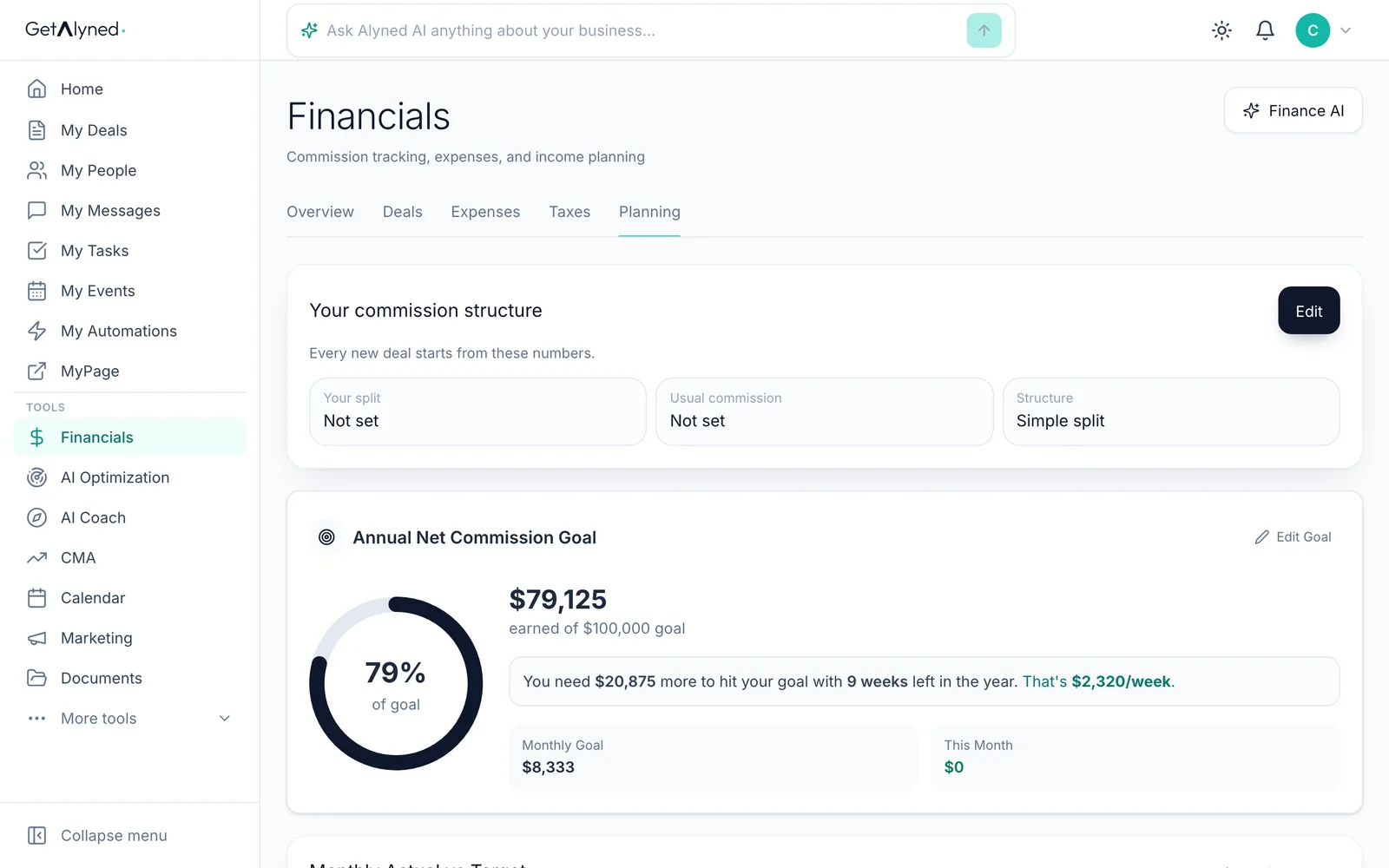
Click Edit
Click Edit to change it.
-
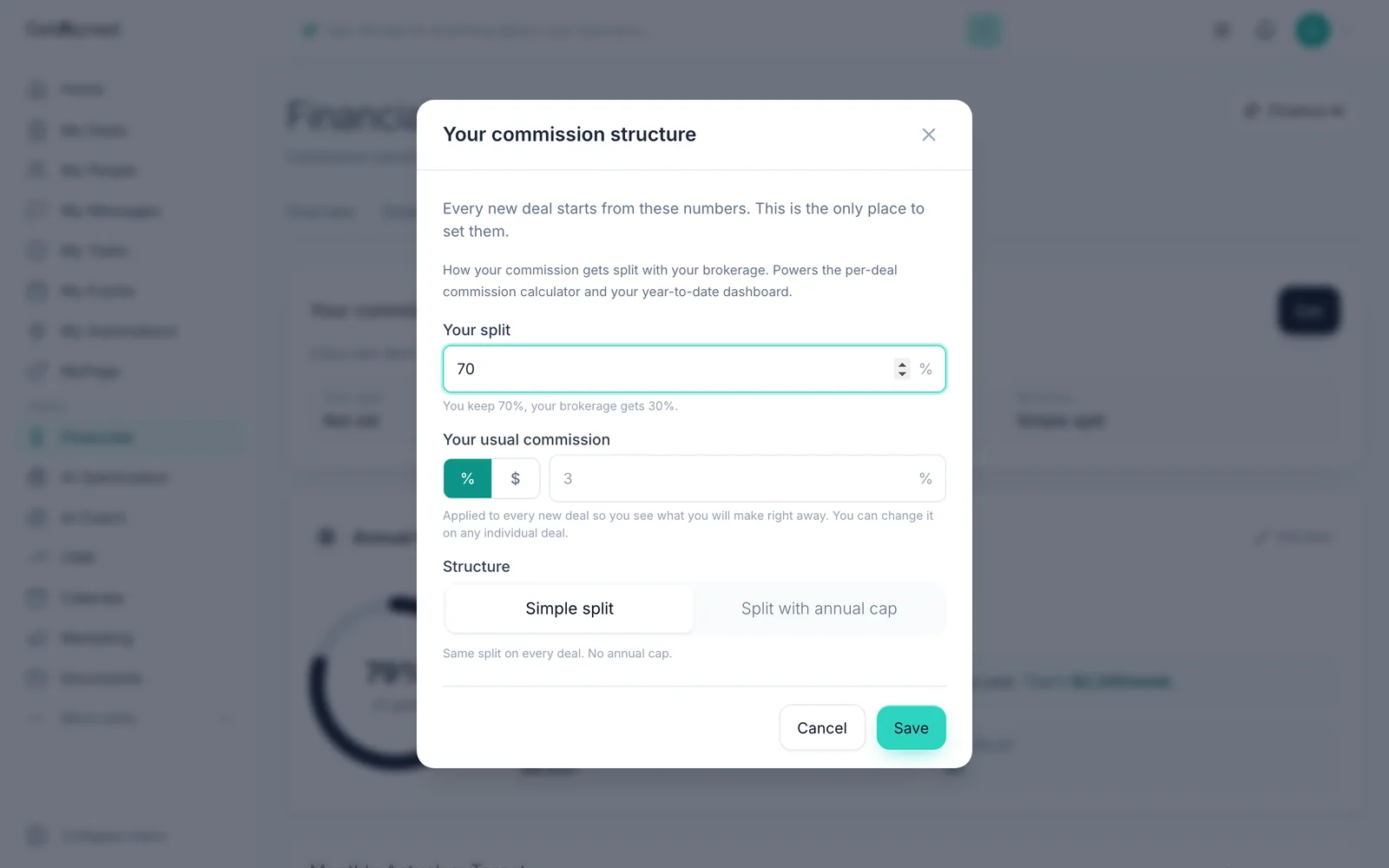
Set your split
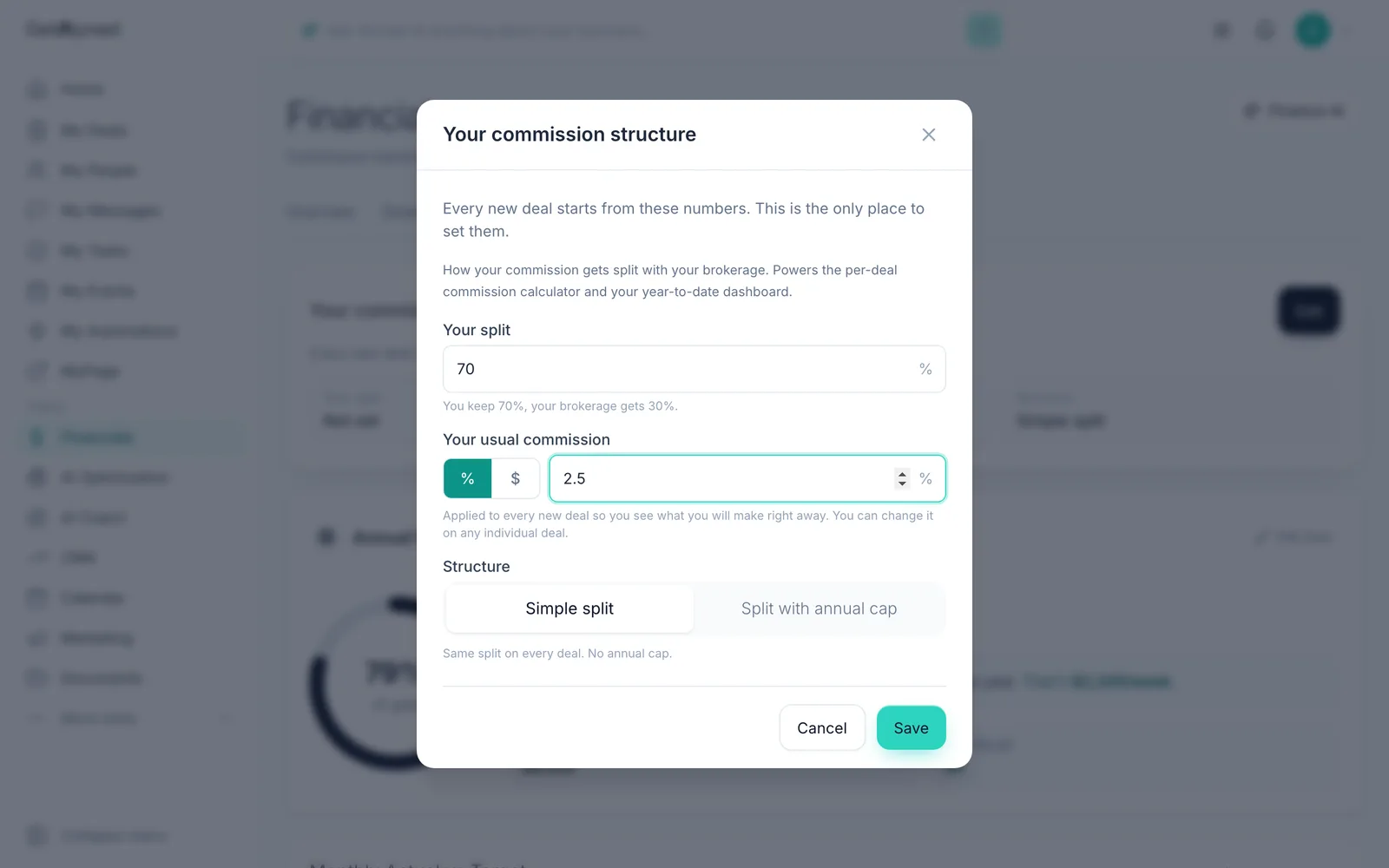
Your split is the share you keep. 70 means you keep 70% and your brokerage gets 30%.
-
Add your usual commission
Your usual commission is applied to every new deal. Use % for a rate, or $ for a flat amount.
-
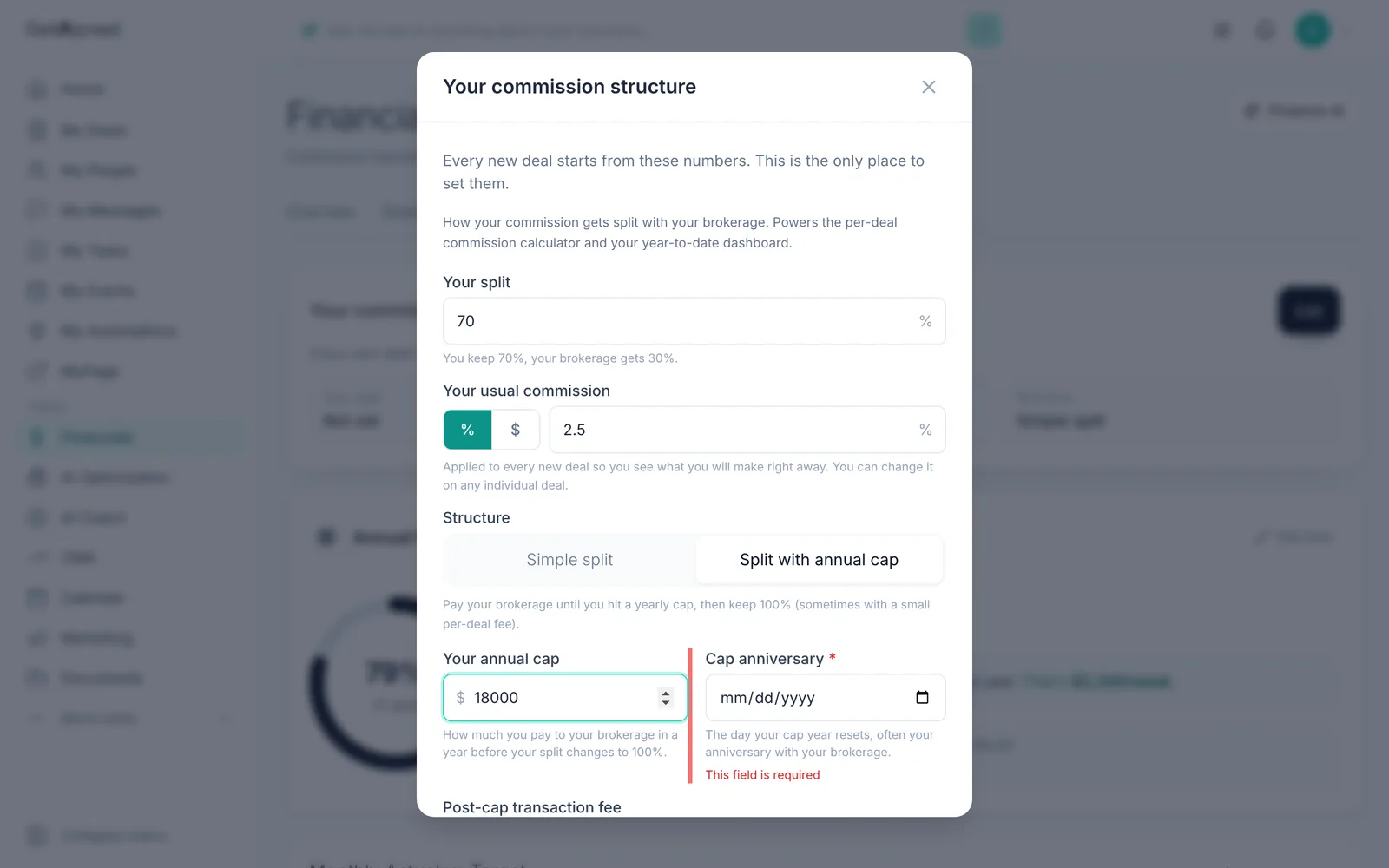
Pick Split with annual cap
If your brokerage caps what you pay each year, pick Split with annual cap.
-
Enter your annual cap
Your annual cap is the most you pay your brokerage in a year. After that, you keep 100%.
-
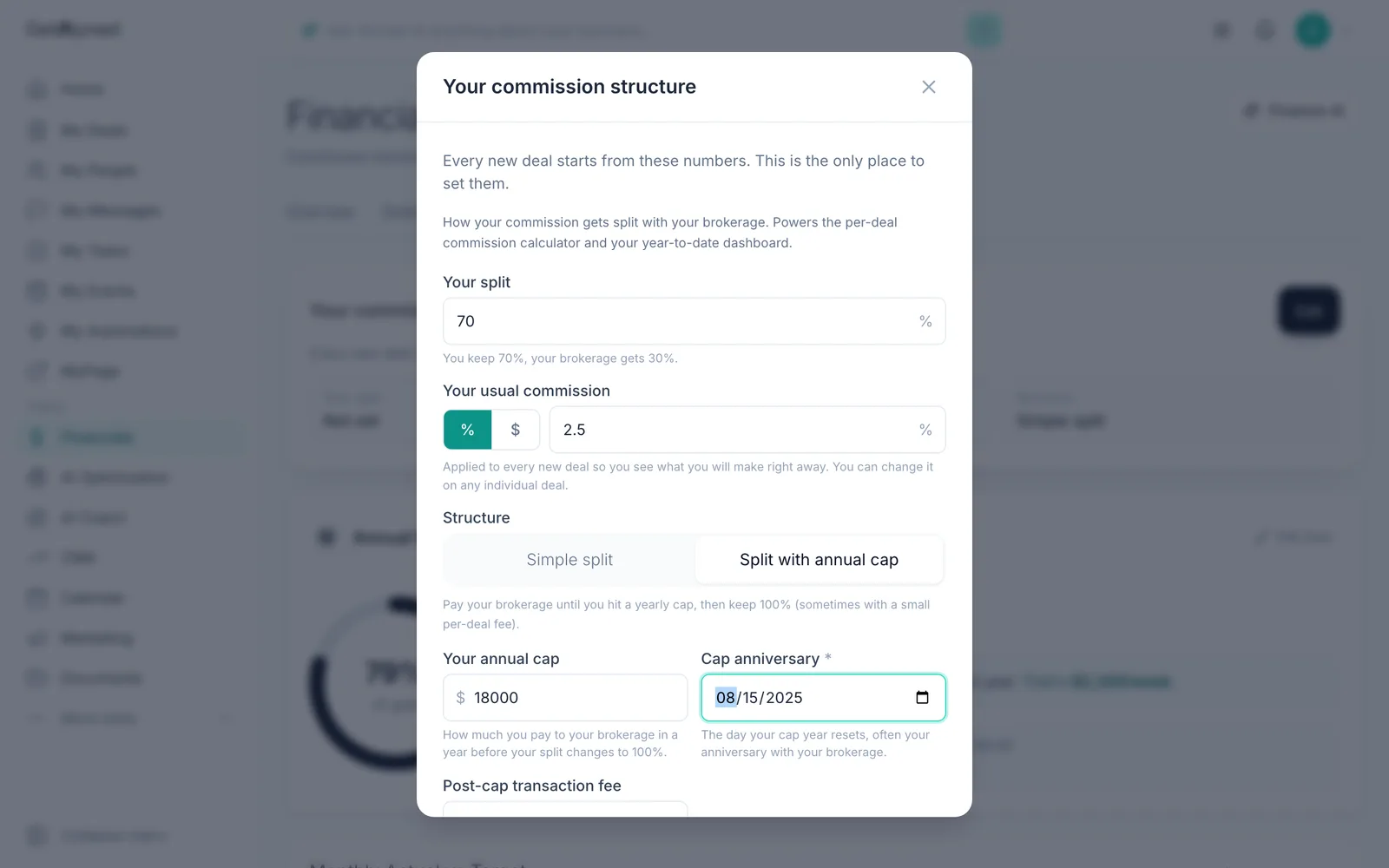
Set the cap anniversary
The Cap anniversary is the day your cap year resets, often the day you joined your brokerage. Only the month and day count.
-
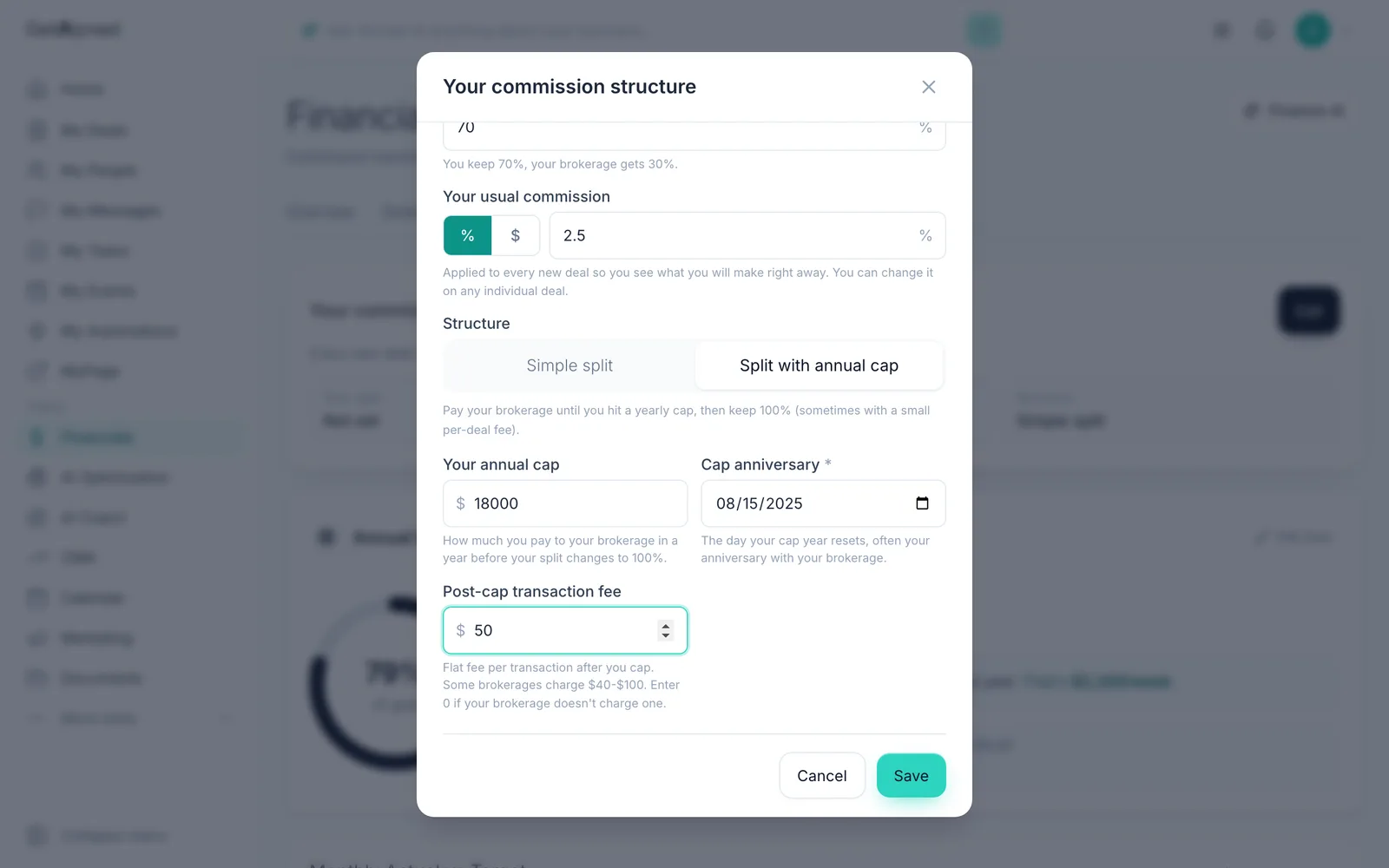
Add any post-cap fee
Some brokerages charge a small fee per deal after you cap. Enter it in Post-cap transaction fee, or 0 if yours doesn't.
-
Click Save
Click Save.
-
Your plan is set
Planning shows your plan: your split, your usual commission, the cap, the day it resets and the fee after the cap.
-
Open Overview
Click the Overview tab.
-
Watch your cap progress
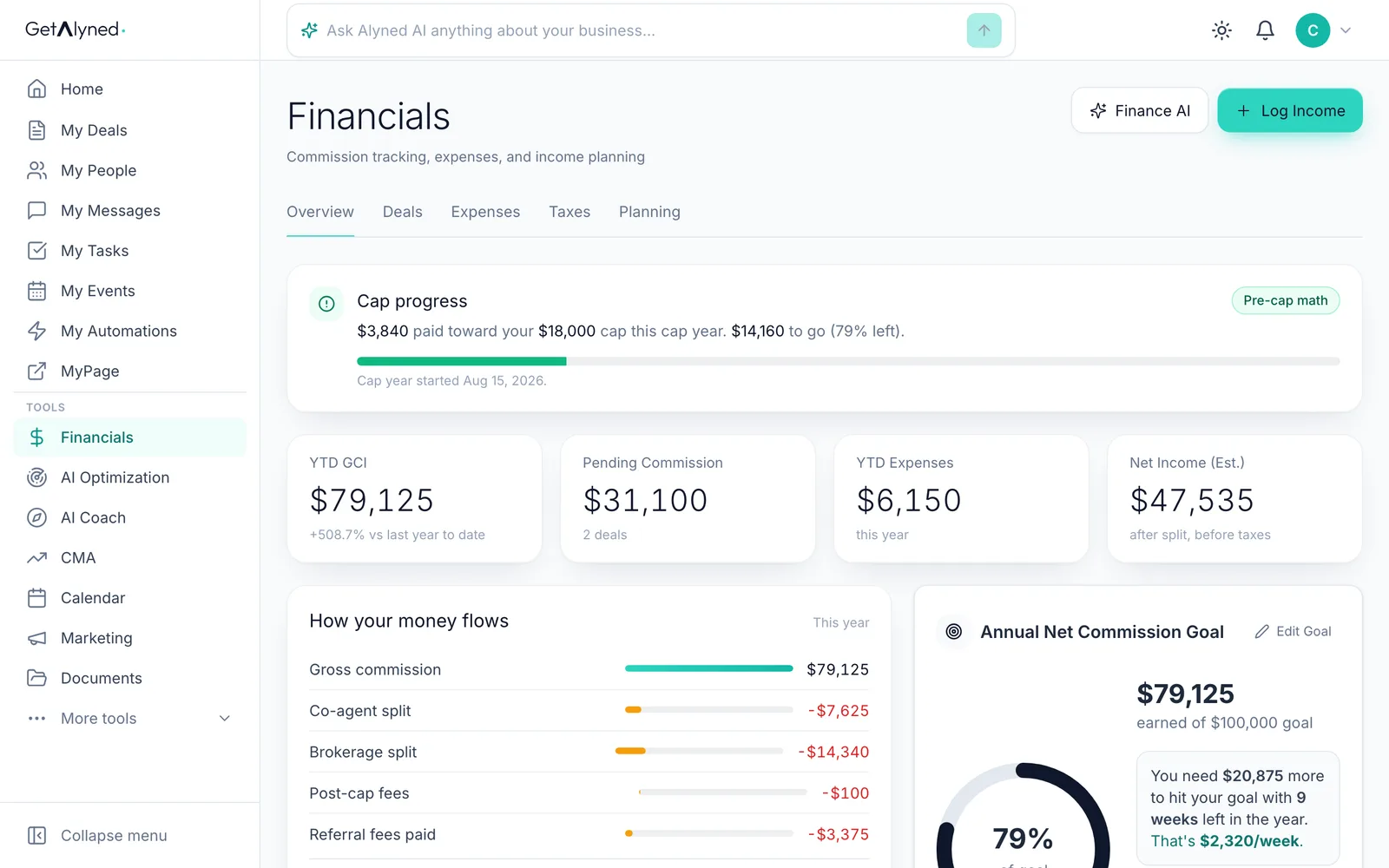
At the top of Overview, Cap progress shows what you've paid your brokerage toward the cap this cap year, and what's left.
-
Go to My Deals
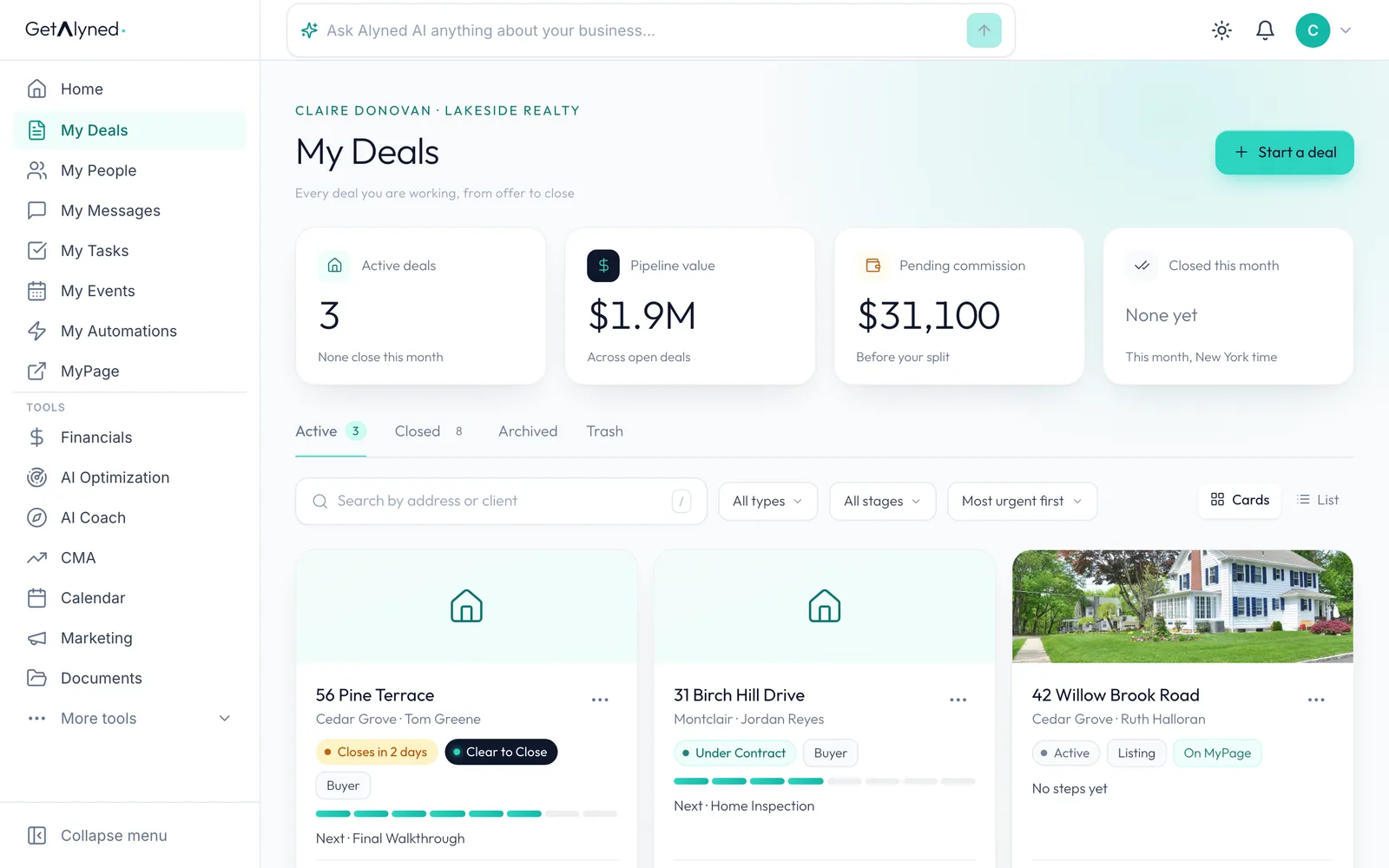
Click My Deals in the menu.
-
Start a deal
Click Start a deal and set it up the usual way.
-
Your commission is already there
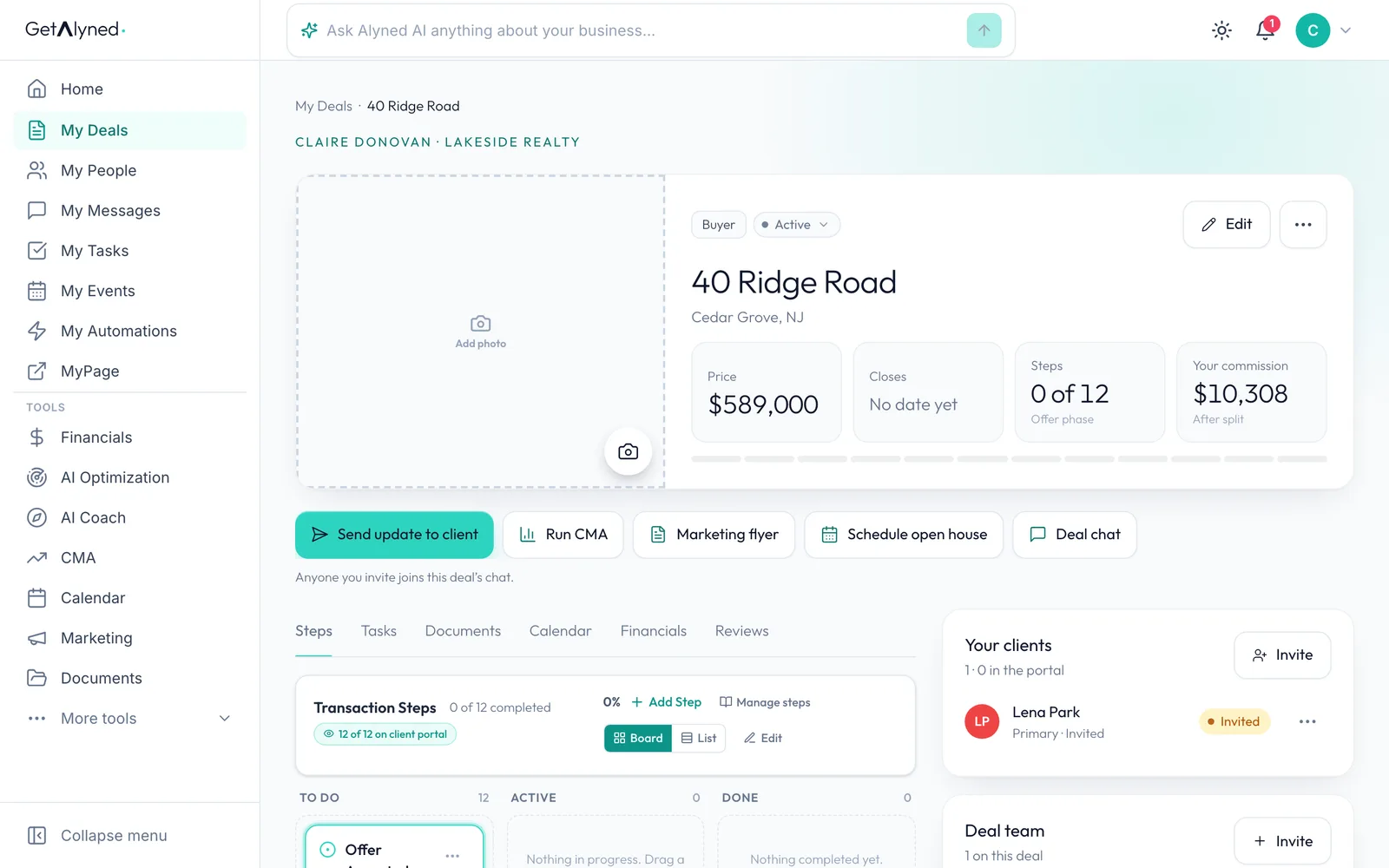
The new deal shows Your commission right away: the price times your usual commission, after your split.
-
Open the deal's Financials
Click the deal's Financials tab.
-
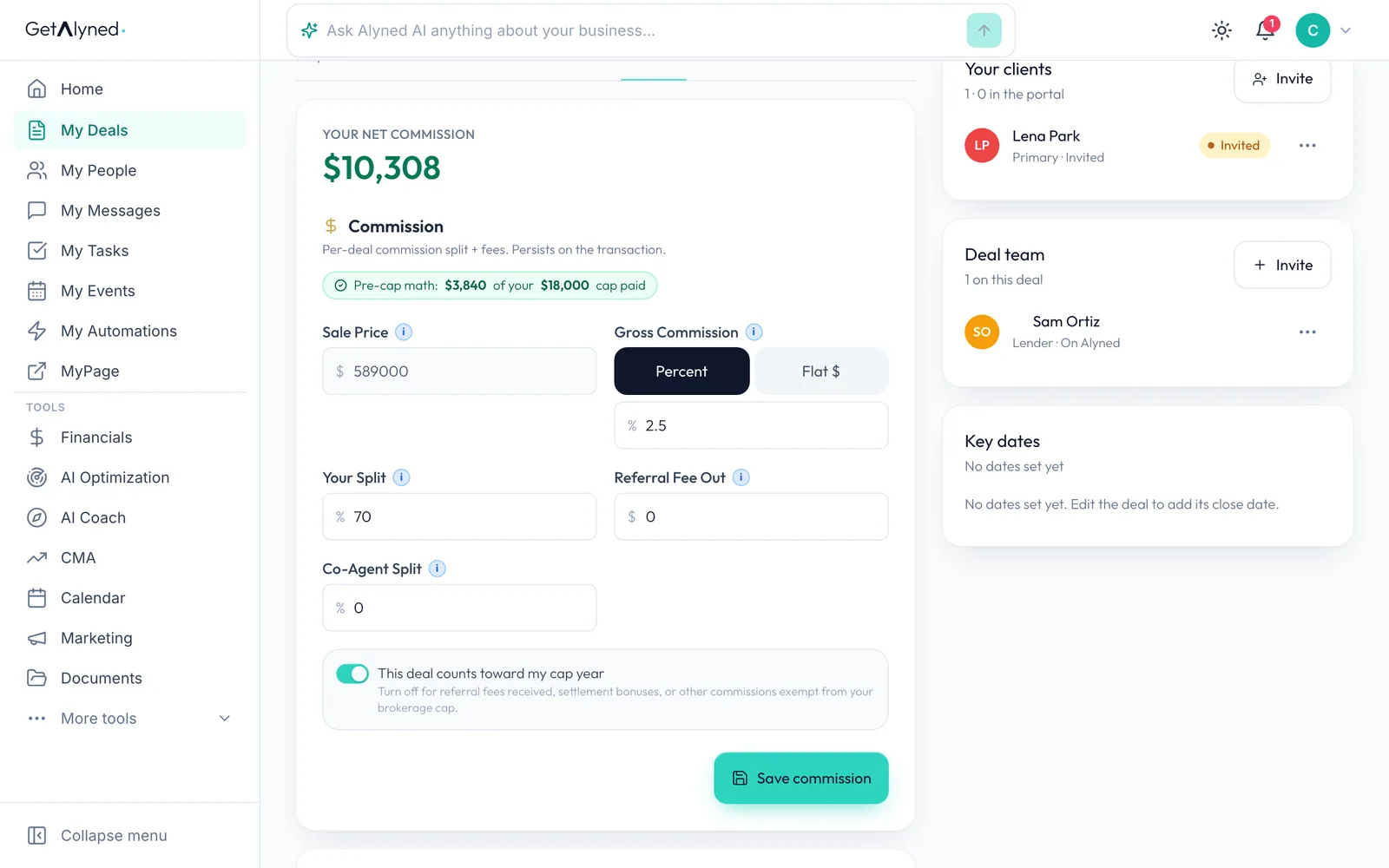
Change it for one deal
The rate and your split are filled in from your commission structure. If this deal is different, change them here, just for this deal.
Related guides
- How the money flows from a deal · See where every dollar of a deal goes: your brokerage split, referral fees and co-agents, and how it all adds up in Financials.
- Get ready for taxes · See your whole tax year in one place, and hand your accountant one file with your income, expenses and receipts.
- Close a deal · Finish the last steps on a deal, close it out, and see the commission show up in Financials.