Set up your lender MyPage and compliant marketing
For loan officers · 4 min
Set up your public MyPage, and see where your NMLS number and the Equal Housing line appear on your page and your marketing.
Watch
Or read it step by step
-
Open the menu
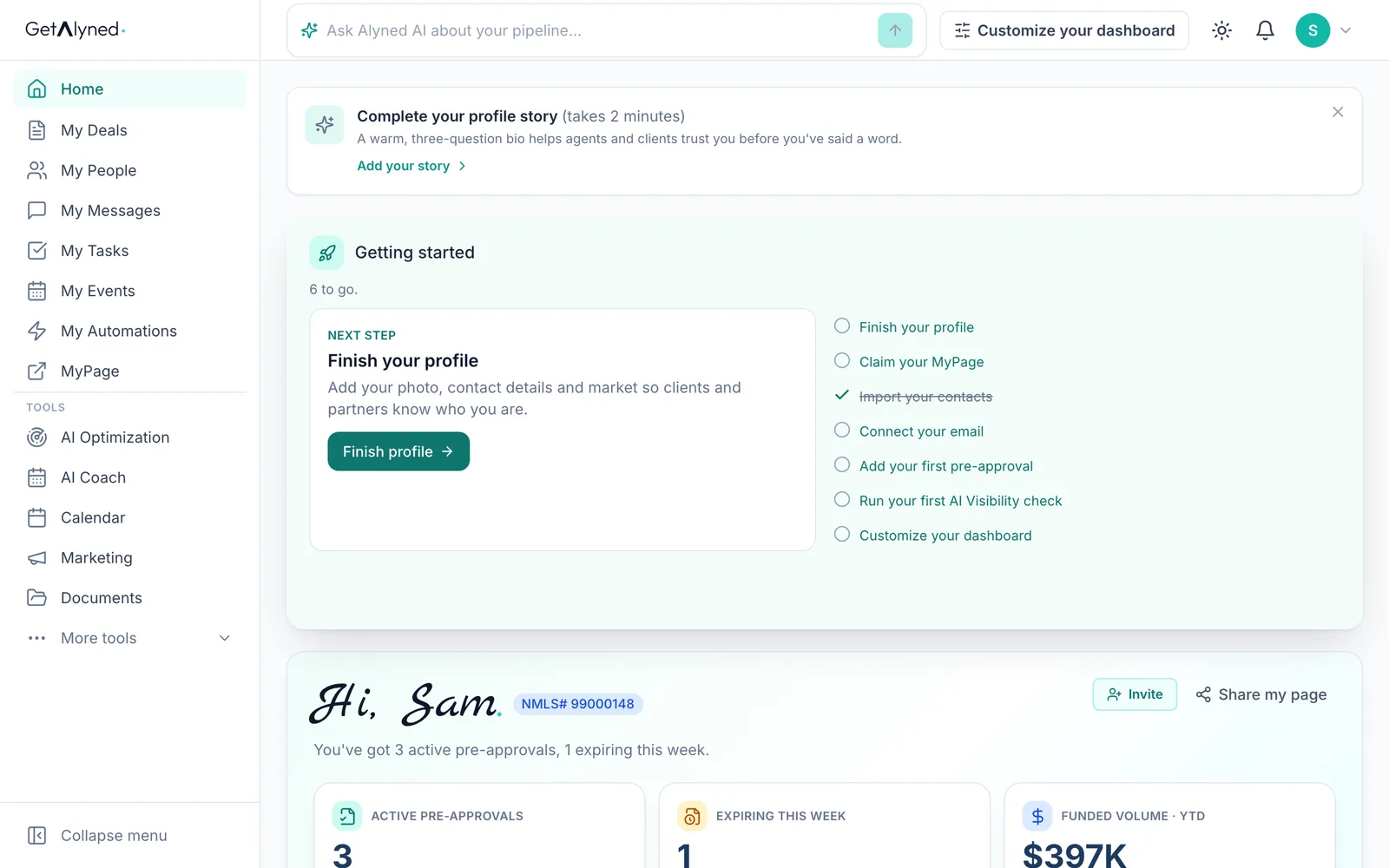
Open the menu under your initial or photo.
-
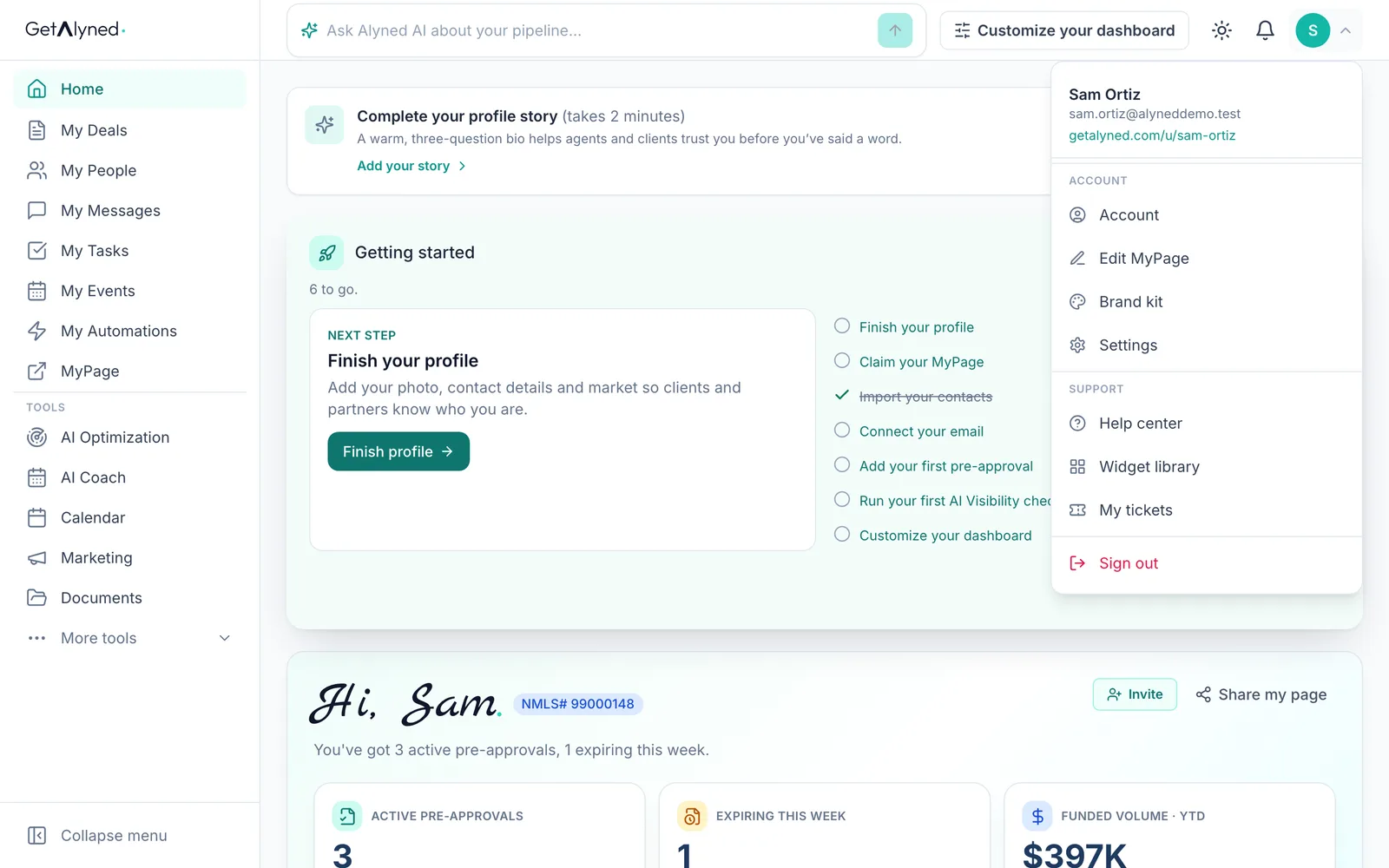
Edit MyPage
Edit MyPage is where everything on your public page is set.
-
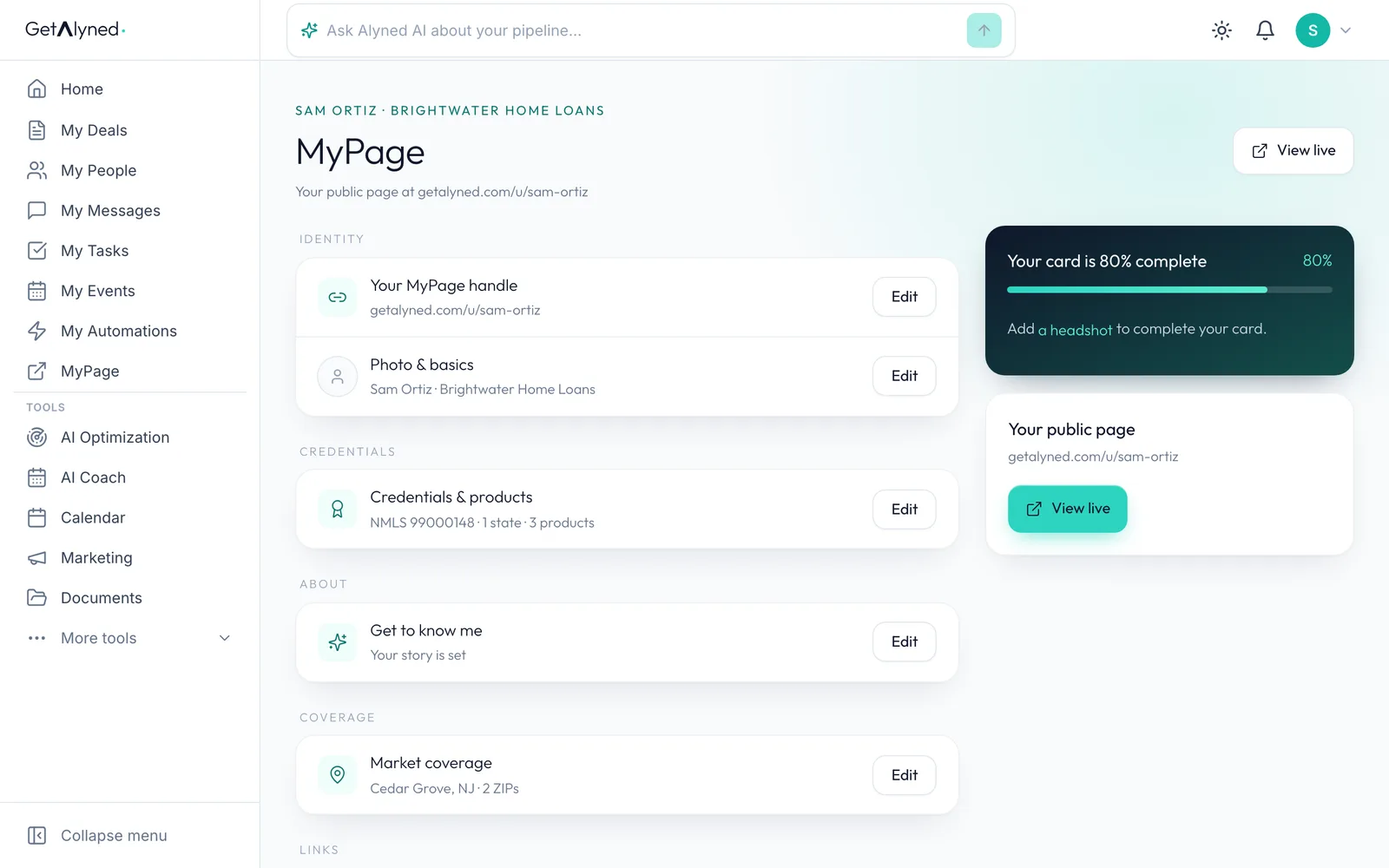
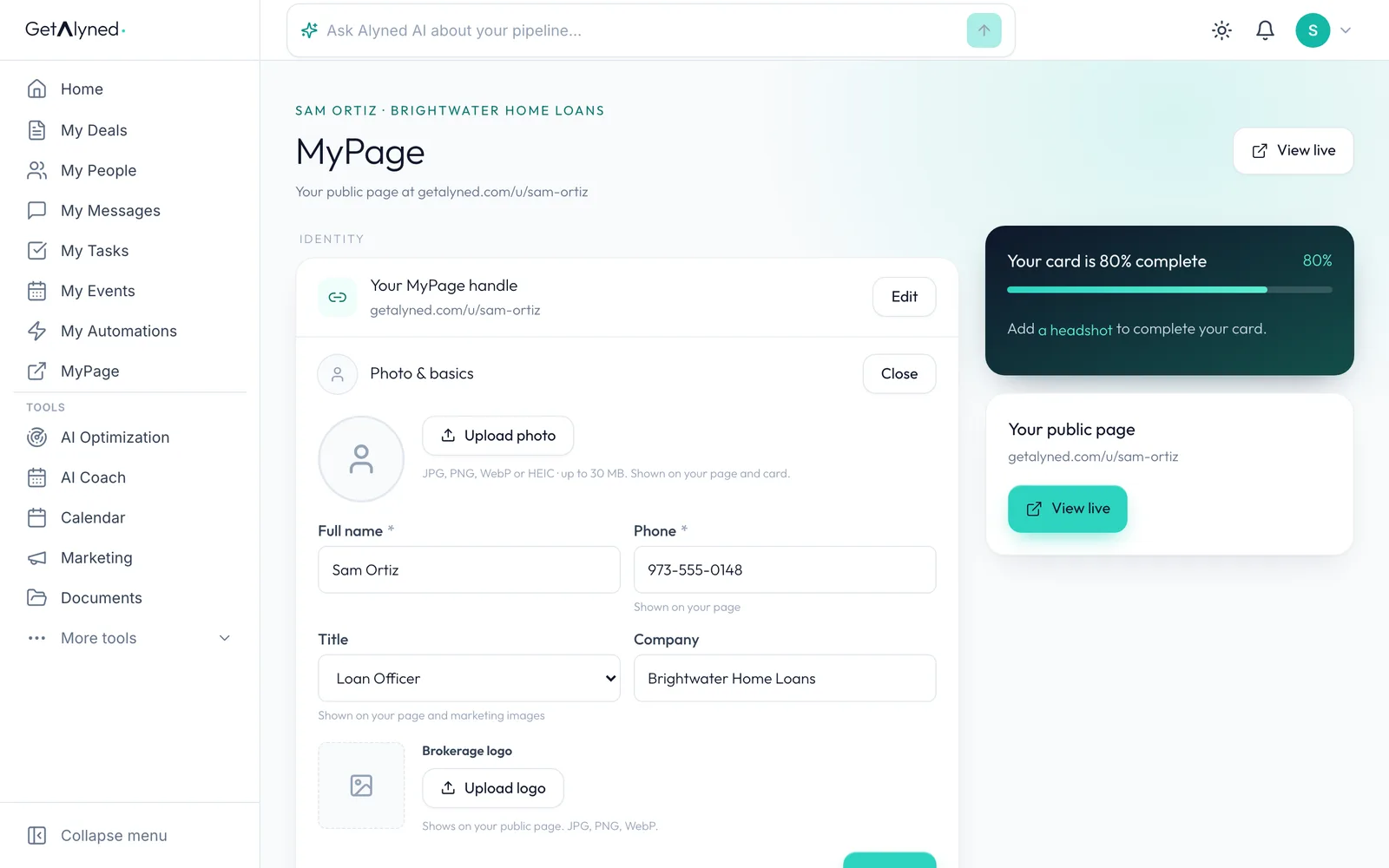
Photo and basics
Each part of the page opens with Edit.
-
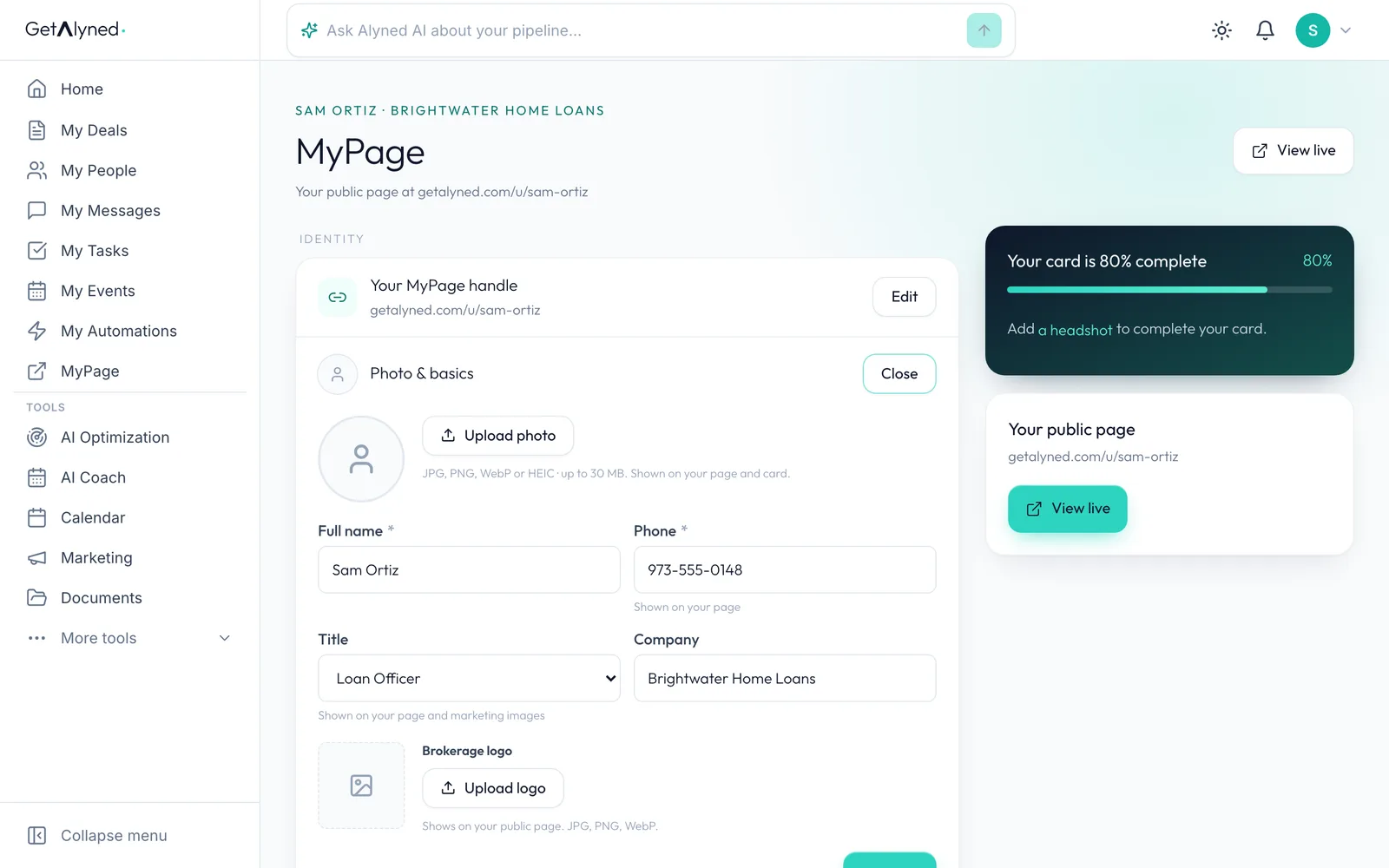
Add a headshot
Add a headshot so agents and clients recognize you.
-
Credentials
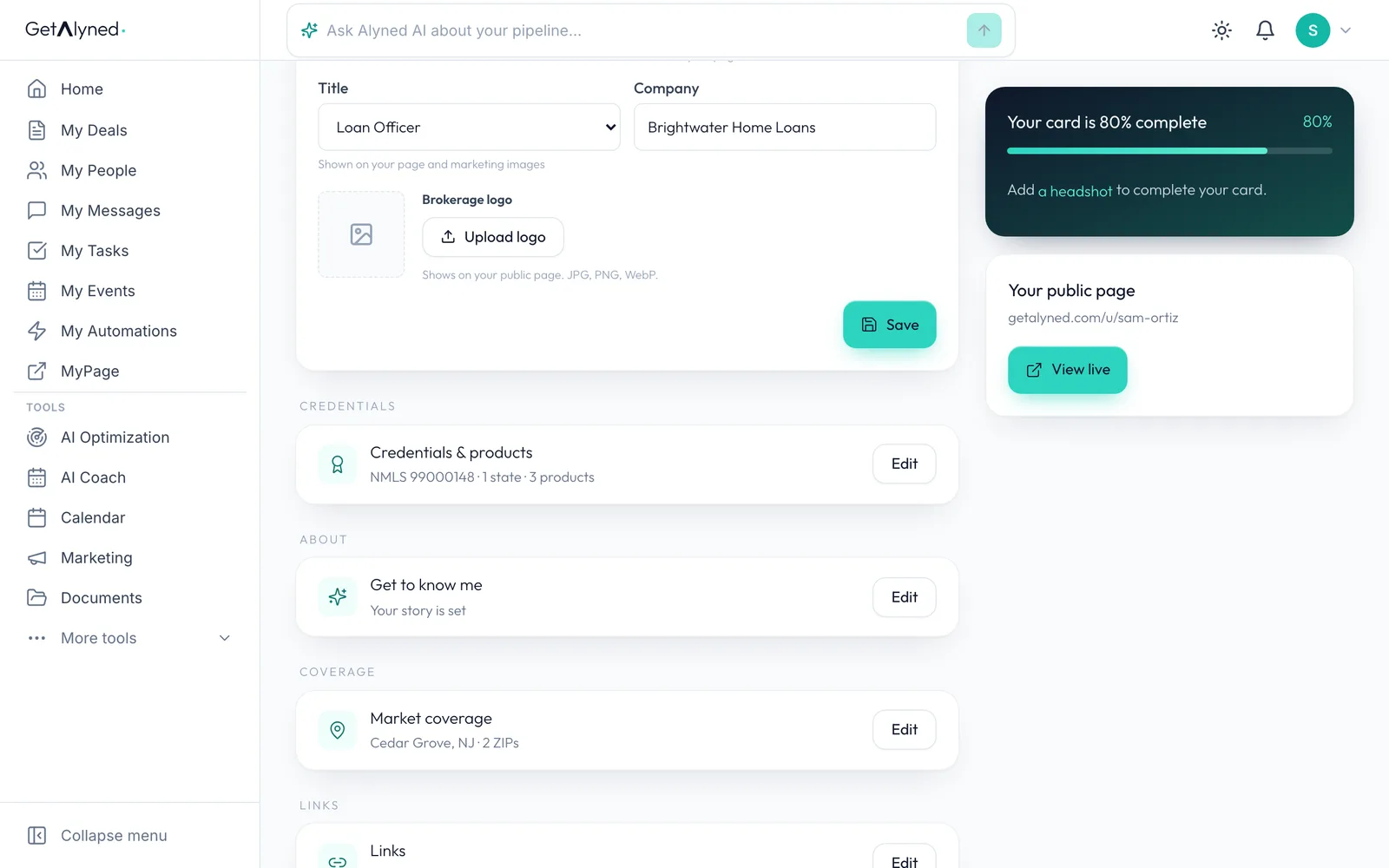
Credentials & products holds what the law asks you to show.
-
NMLS number
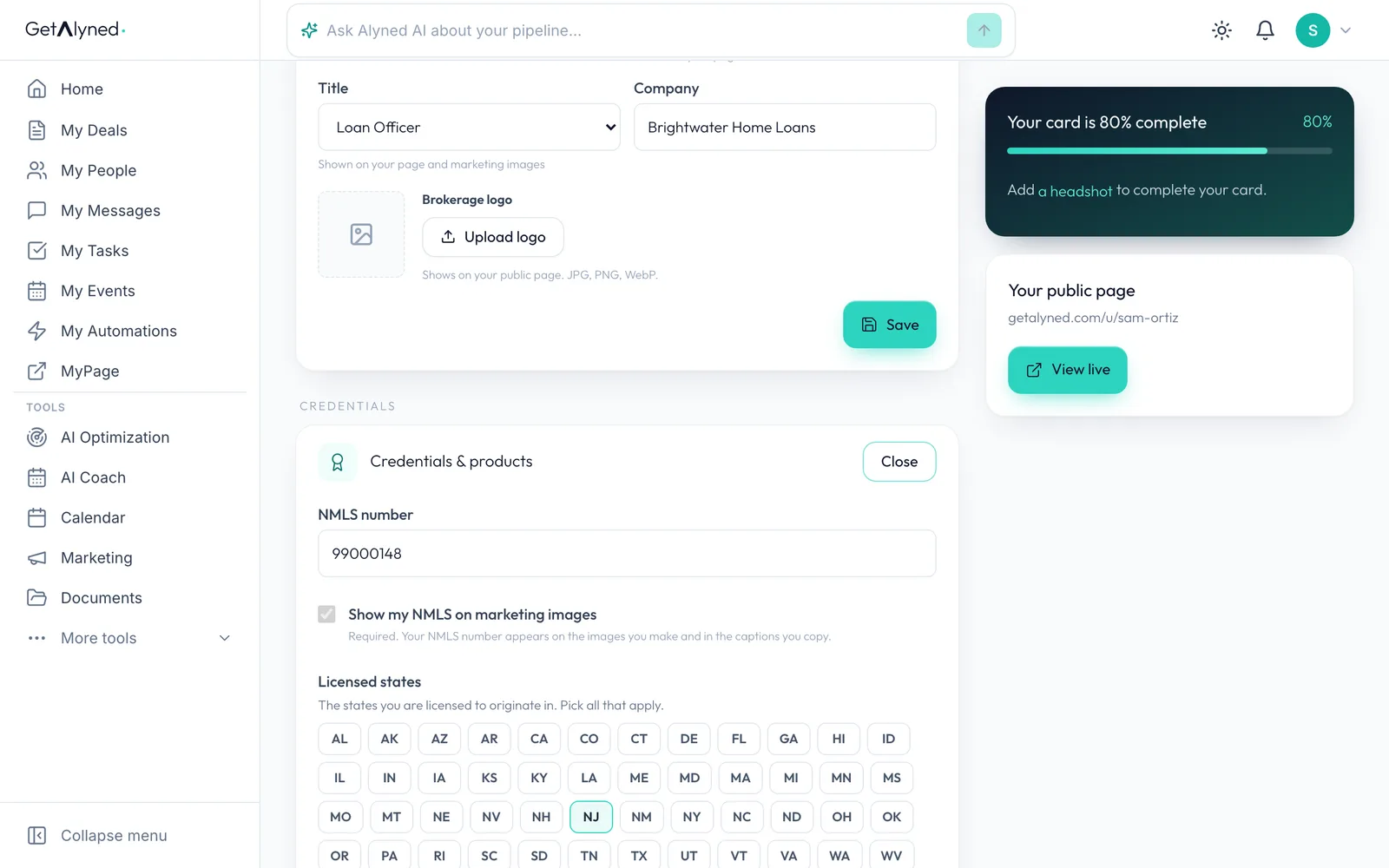
Your NMLS number is here. It shows on your page and your marketing, so check it's right.
-
Always on
Show my NMLS on marketing images stays on. A loan officer's marketing always carries the number, so it can't be turned off.
-
Your bio
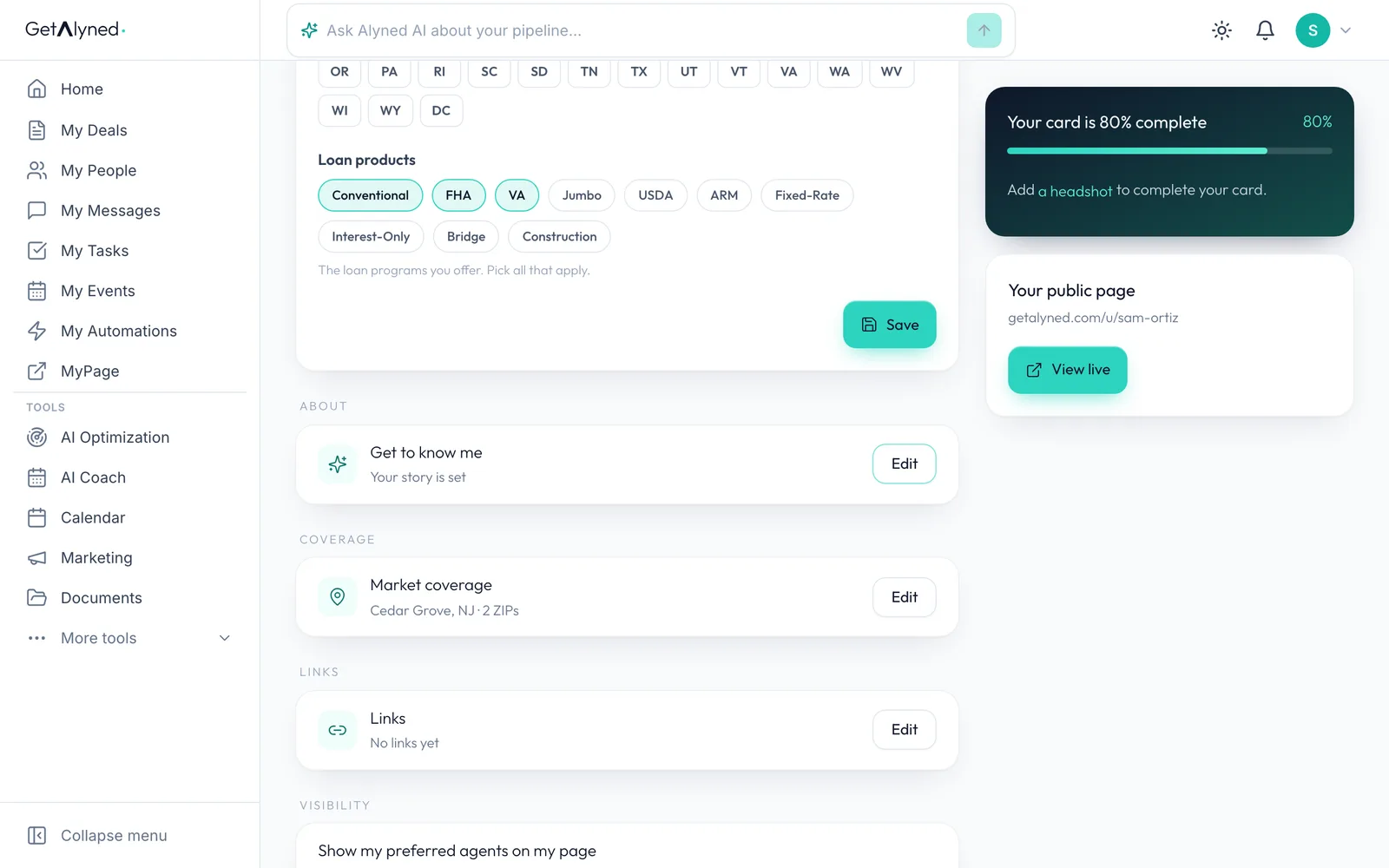
Get to know me is your bio: a few prompts, in your own words.
-
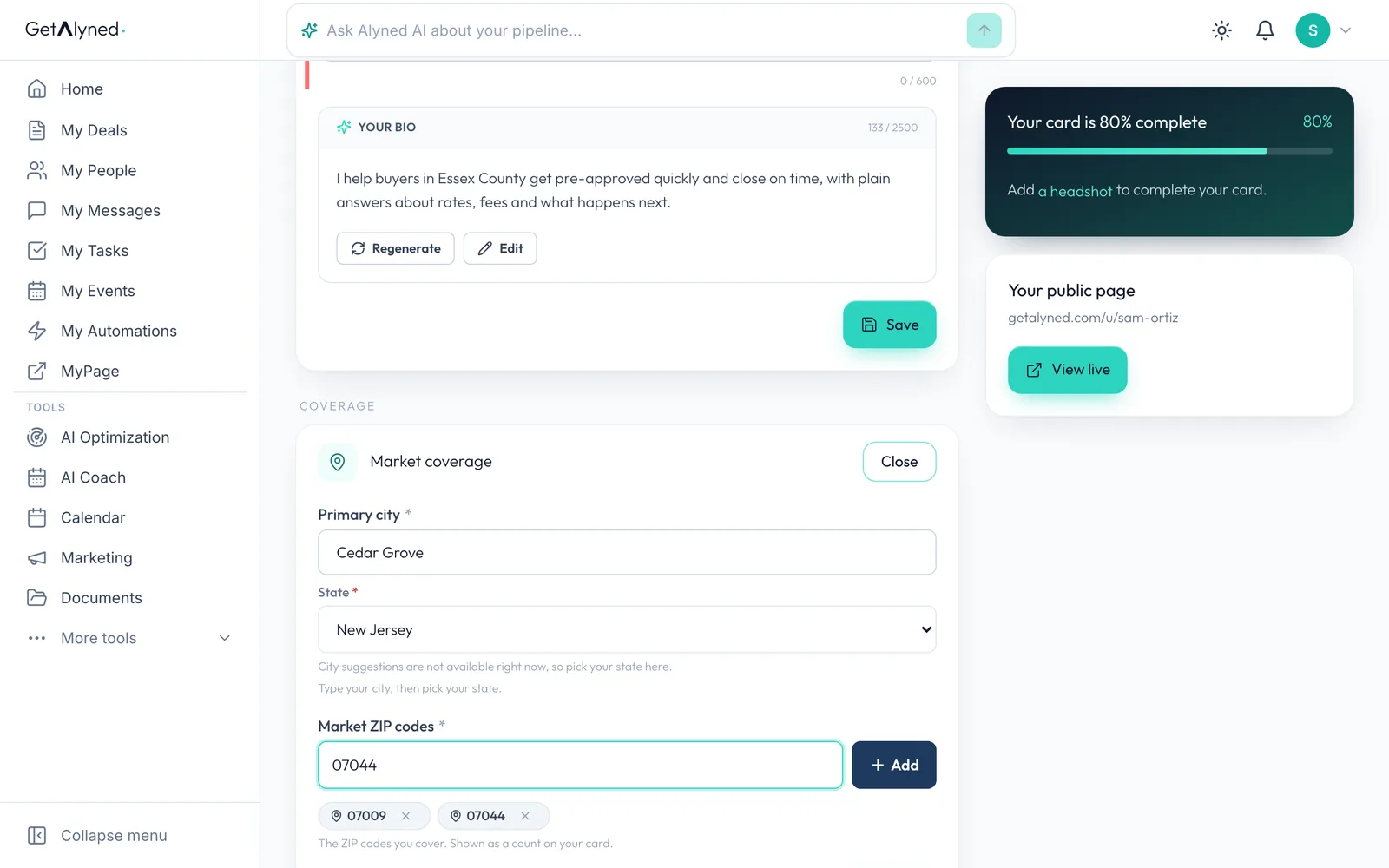
Market coverage
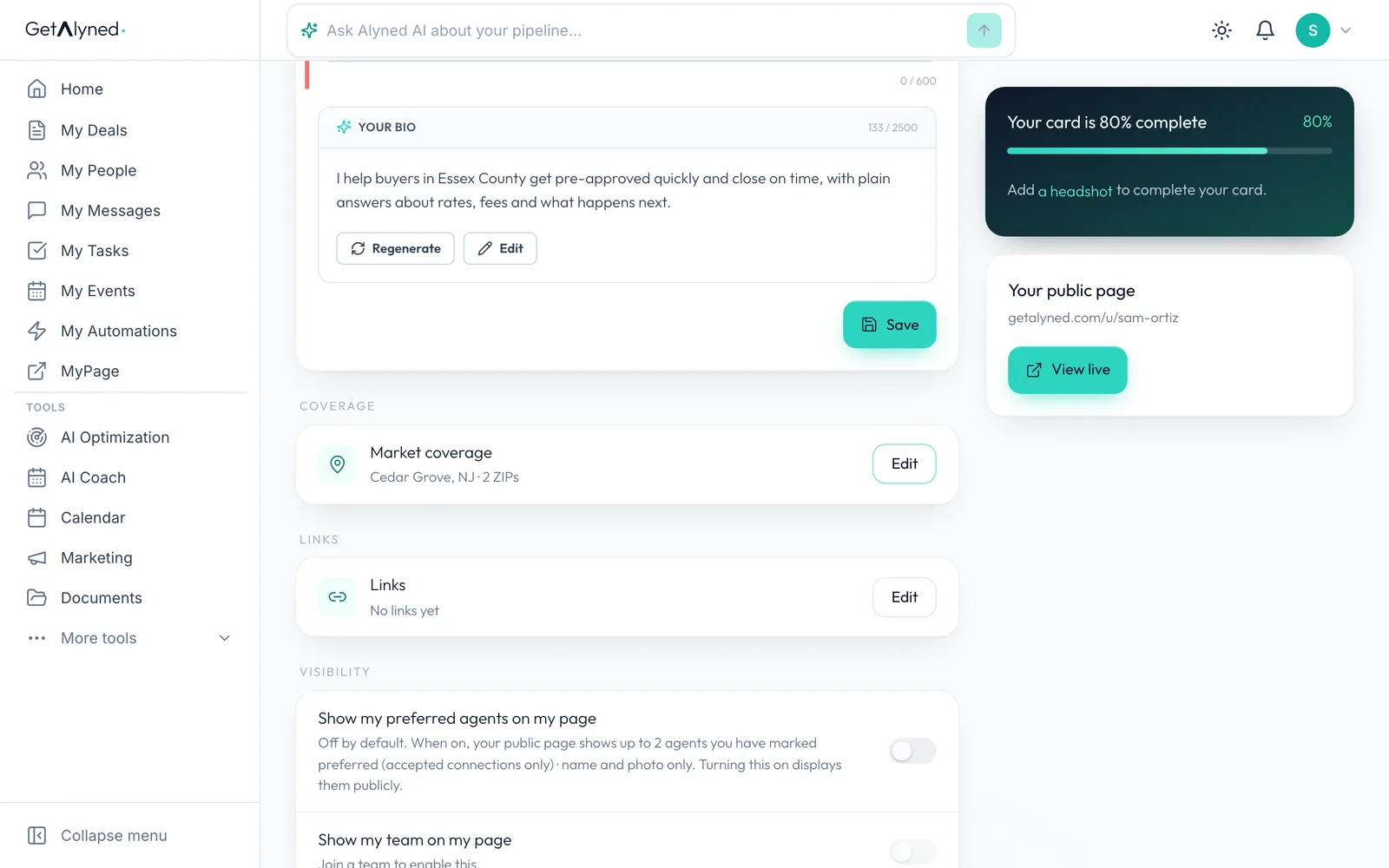
Market coverage is where you lend. Agents searching there find you.
-
ZIP codes
Add the ZIP codes you cover.
-
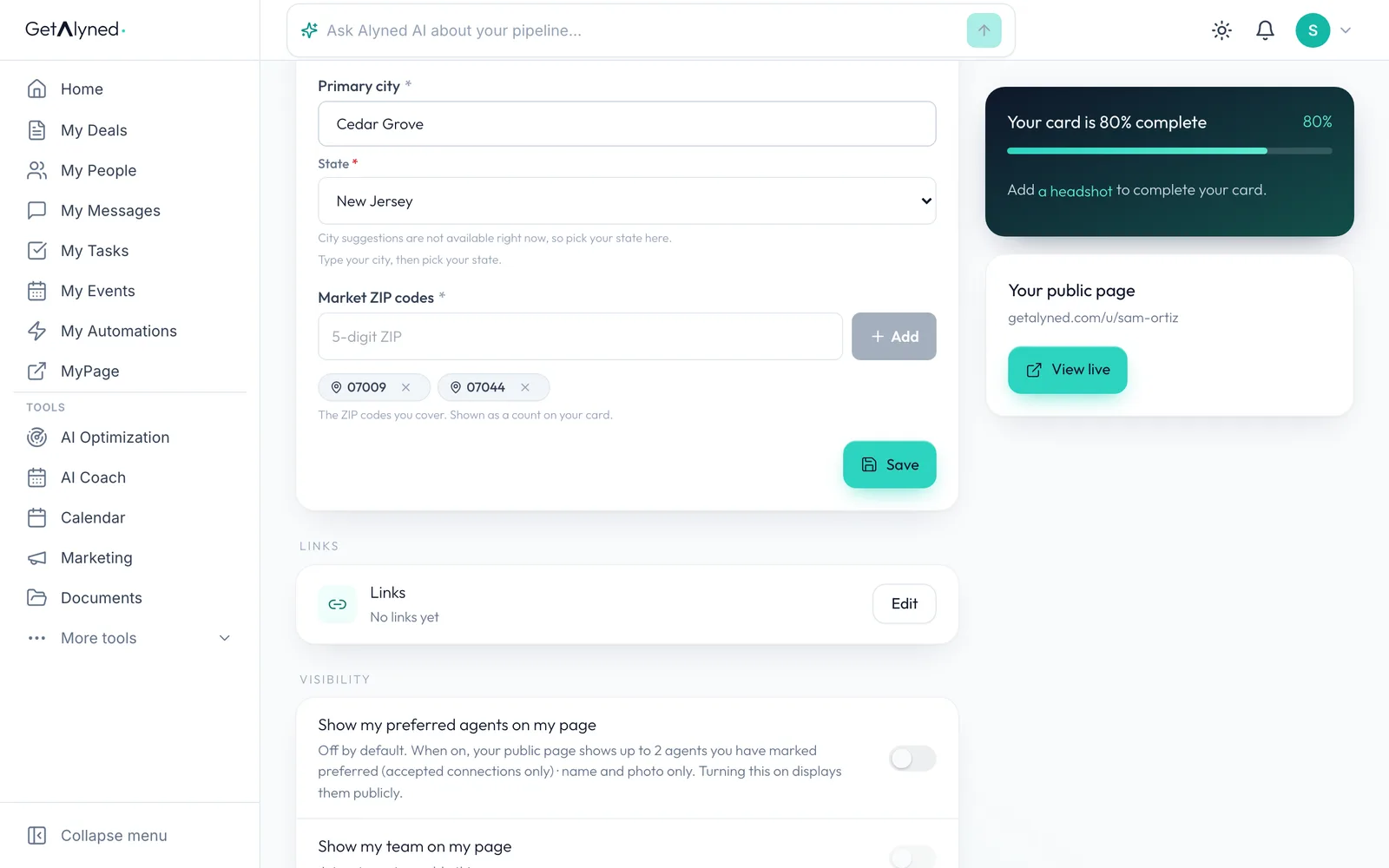
Save
Click Add, then Save. Save each part when you change it.
-
View live
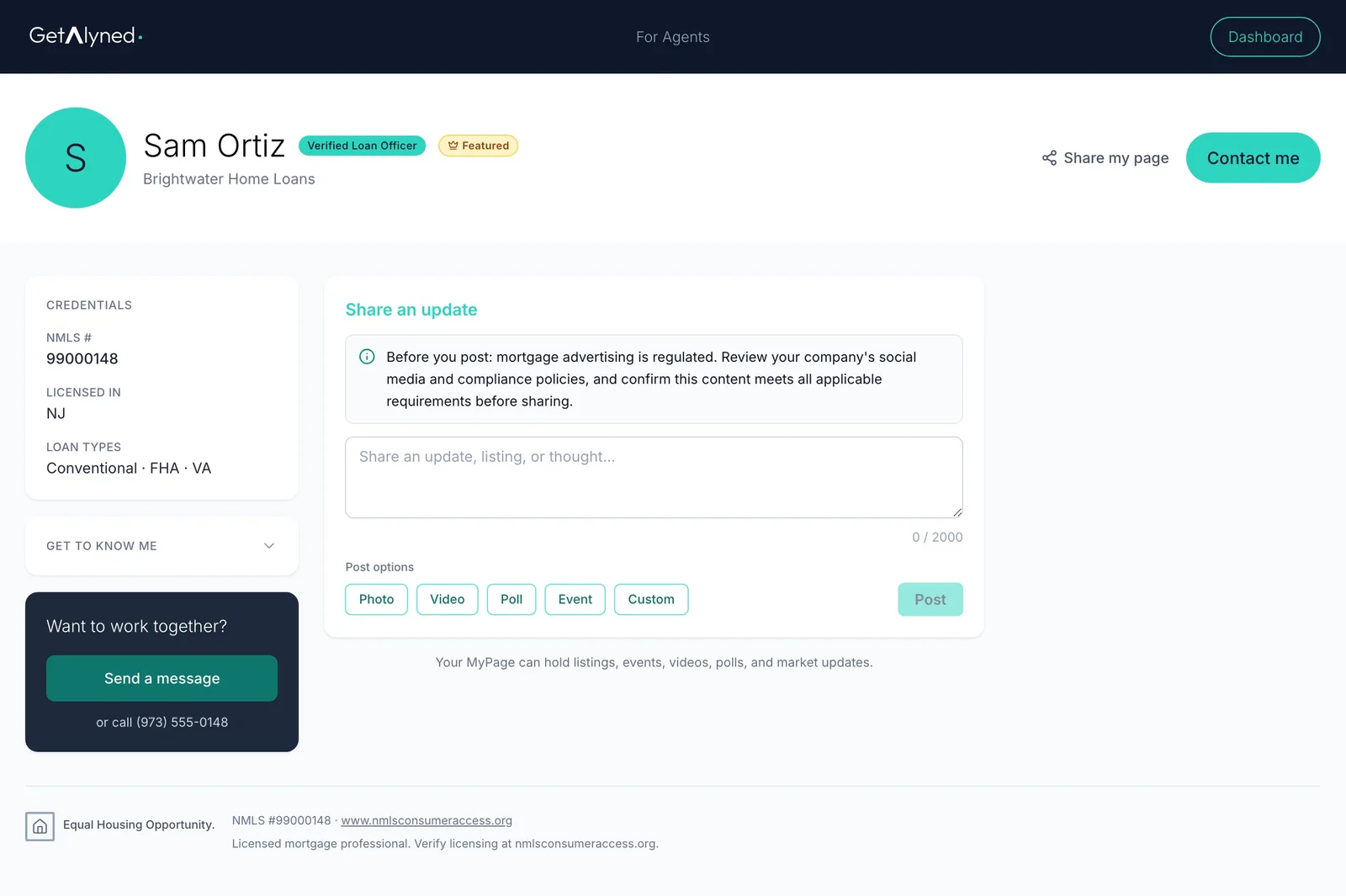
View live opens your page the way visitors see it.
-
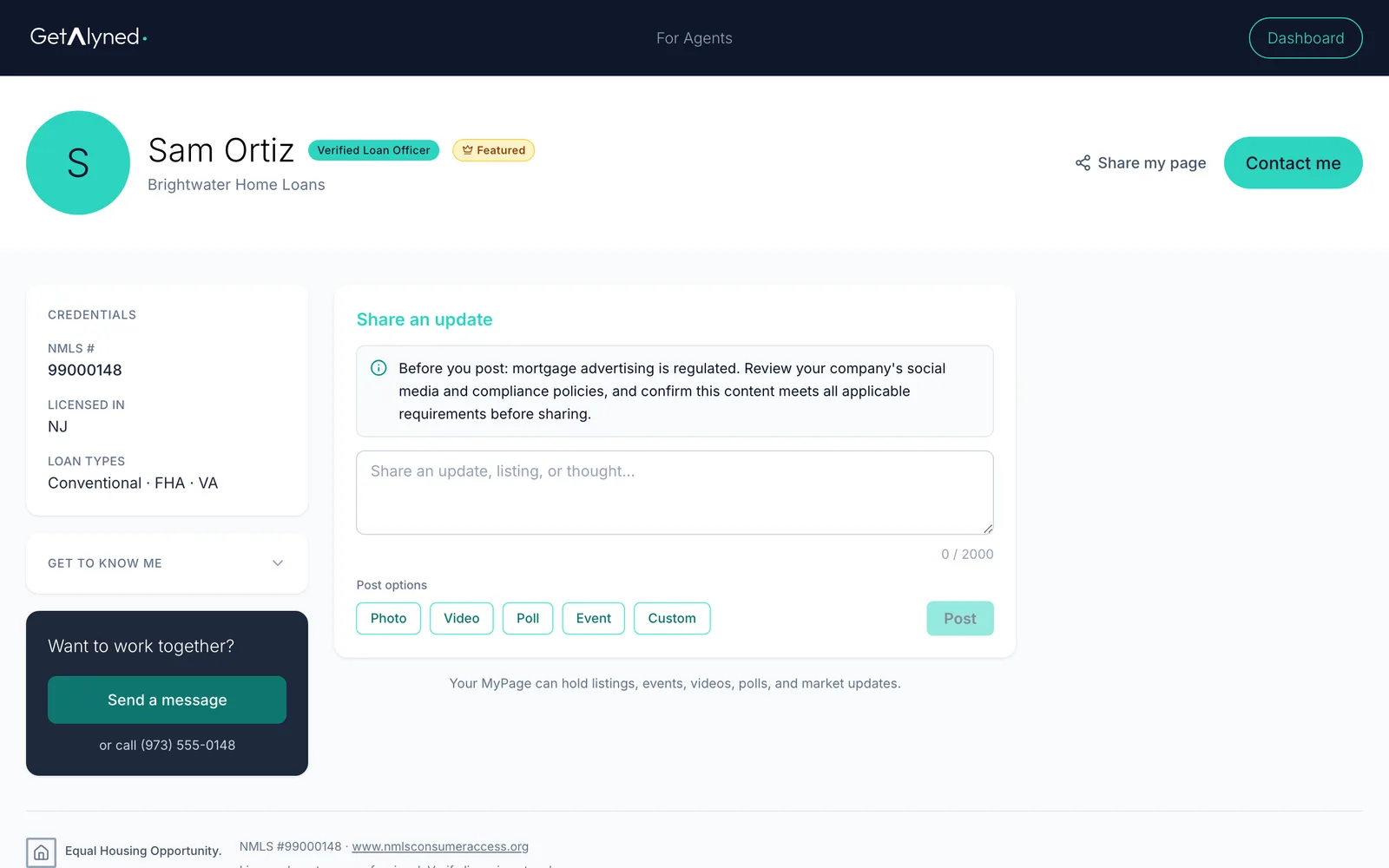
Your public MyPage
Your public MyPage: your name and company, credentials, bio, updates and how to reach you.
-
NMLS shown
Your NMLS number is in Credentials, near the top.
-
Equal Housing
The foot of the page carries the Equal Housing Opportunity line, your NMLS number and a license lookup link. These are always on.
-
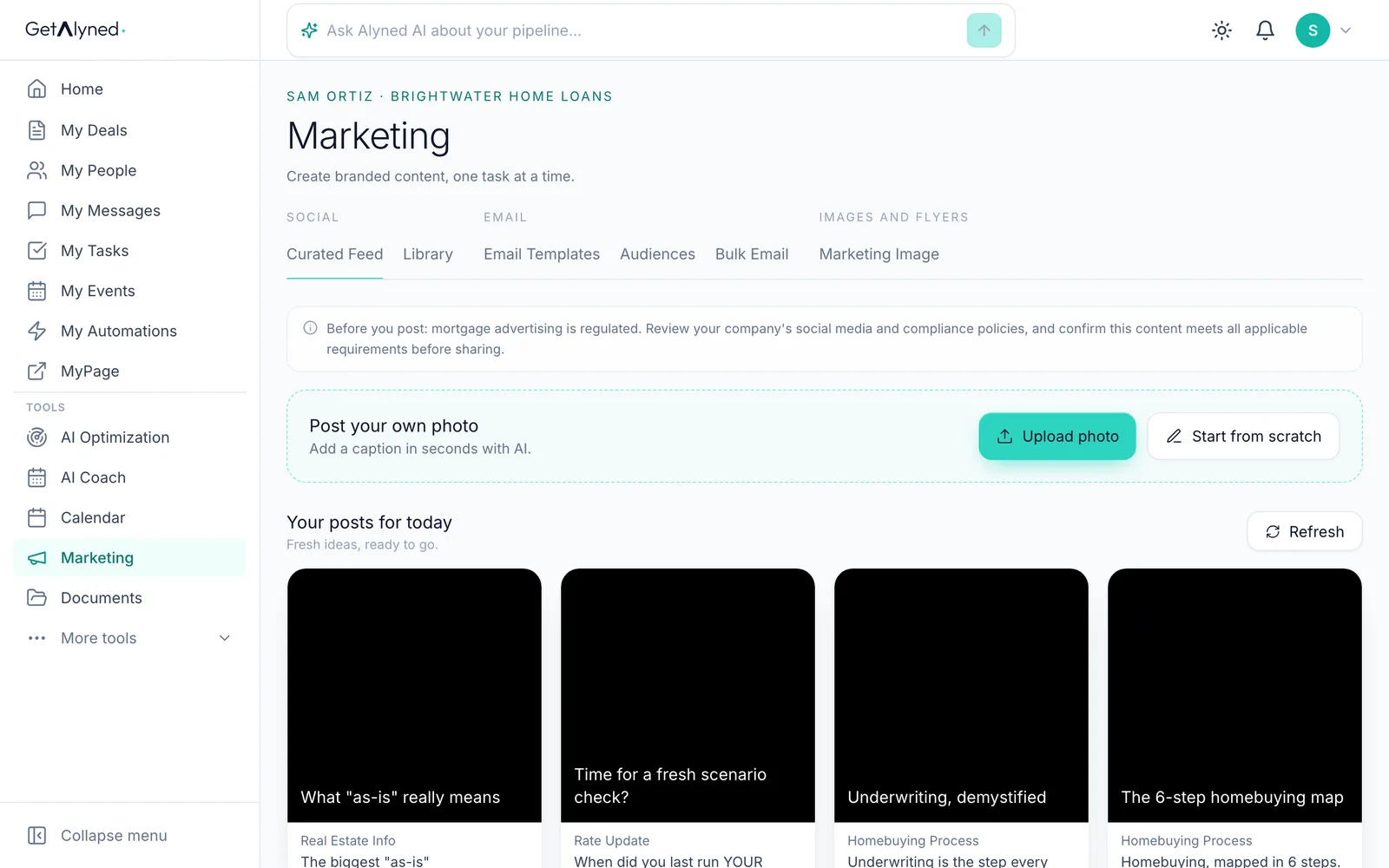
Marketing Image
Now your marketing. Marketing Image makes a post with your details on it.
-
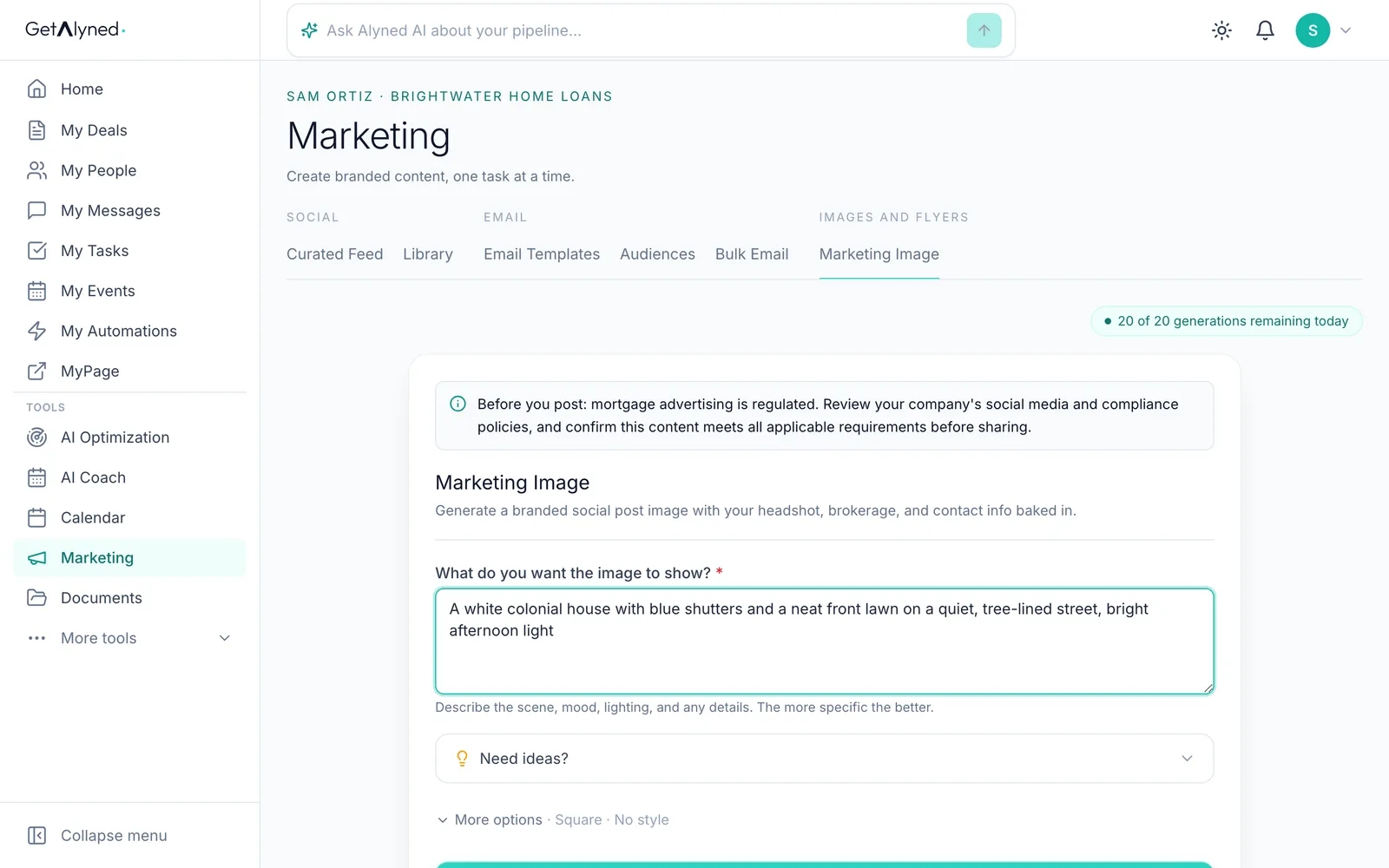
Describe it
Say what the image should show.
-
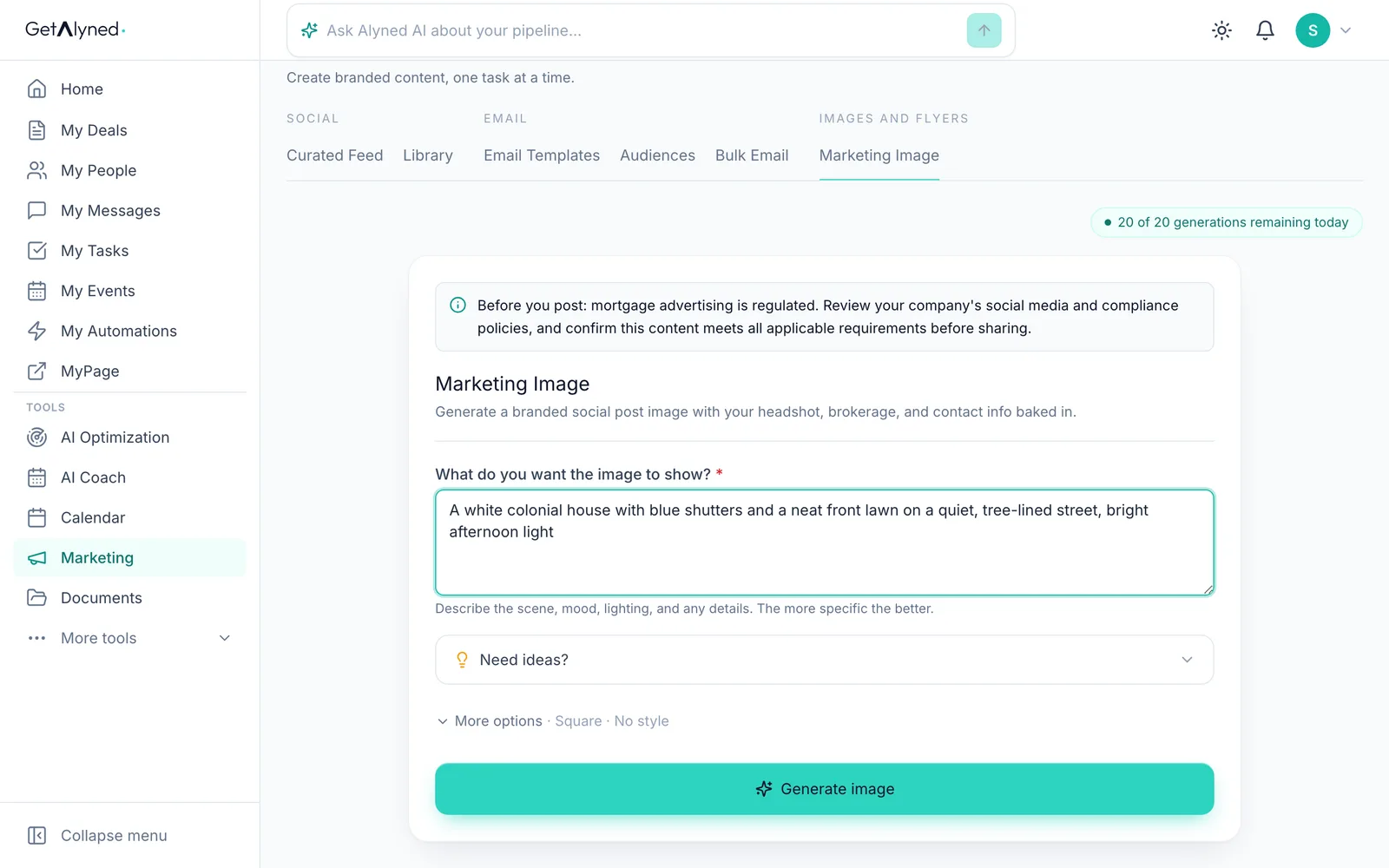
Generate
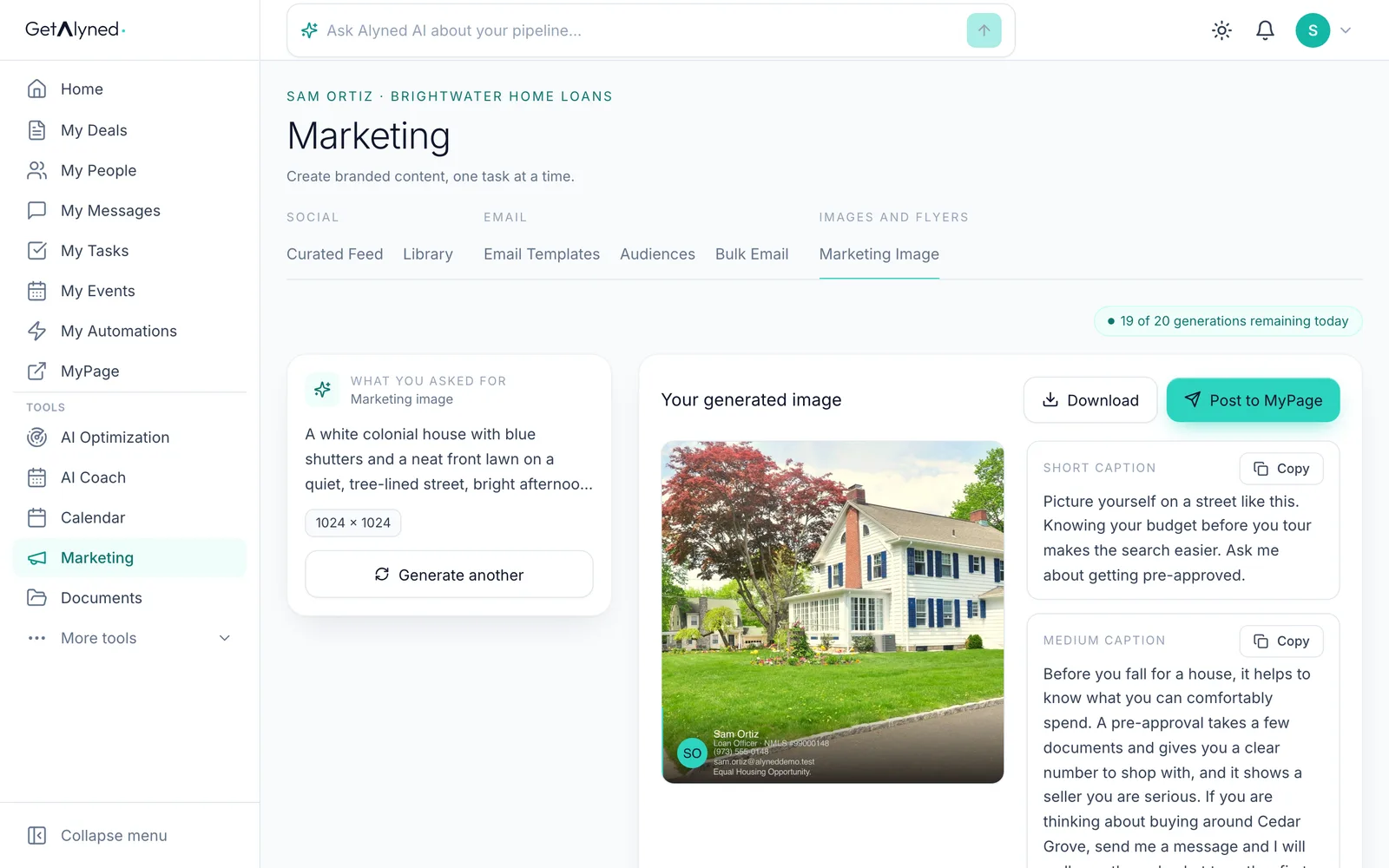
Generate image makes it with your name, NMLS number, phone, email and the Equal Housing line on it.
-
Your details on it
Your NMLS number and the Equal Housing line are on the picture, so they go wherever the picture goes.
-
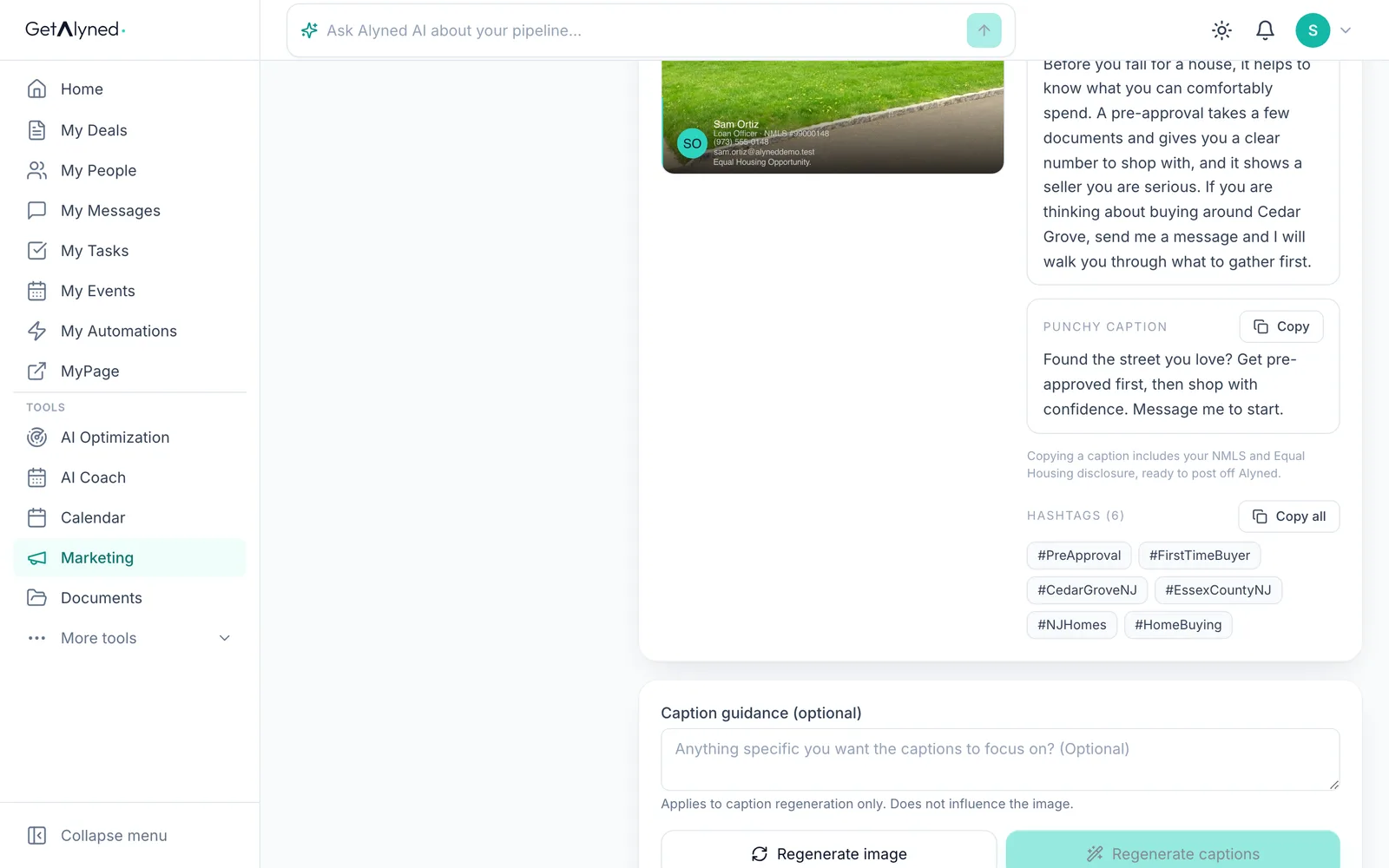
Copy the caption
Copying a caption adds your NMLS number and the Equal Housing line to the text too, so they go with it to Instagram or Facebook.
-
Curated Feed
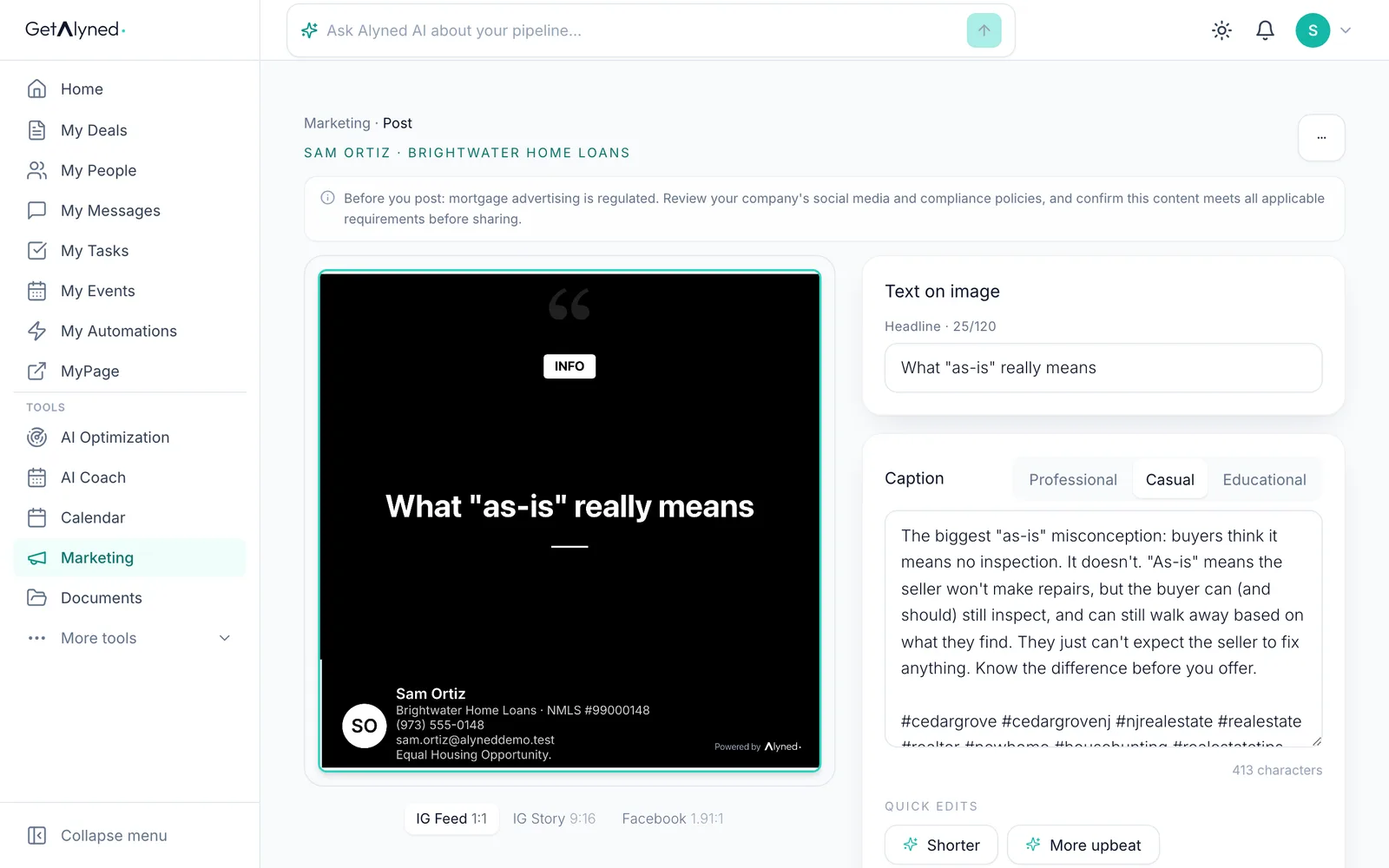
Curated Feed works the same way. Your NMLS number and the Equal Housing line are on the picture and in any caption you copy.
-
Open a post
Open a post to see both lines on its picture. Copying its caption adds them too. The reminder at the top is on every marketing page: check anything you post against your company's rules.
Related guides
- Your loan officer dashboard at a glance · Your dashboard is the first thing you see when you sign in. Here's what each card tells you, and the one thing to click on each.
- Log a pre-approval · Log each pre-approval letter so Alyned tracks it, warns you before it expires, and counts it when the loan funds.
- Work an agent's deal · When an agent adds you to a deal, mark your lender steps done, choose whether the client hears about it, and keep everyone in the deal chat.