Stage an empty room with Virtual Staging
For agents · 2 min
Turn a photo of an empty room into a furnished one in about a minute. The room stays as it is, and every staged photo is clearly marked.
Watch
Or read it step by step
-
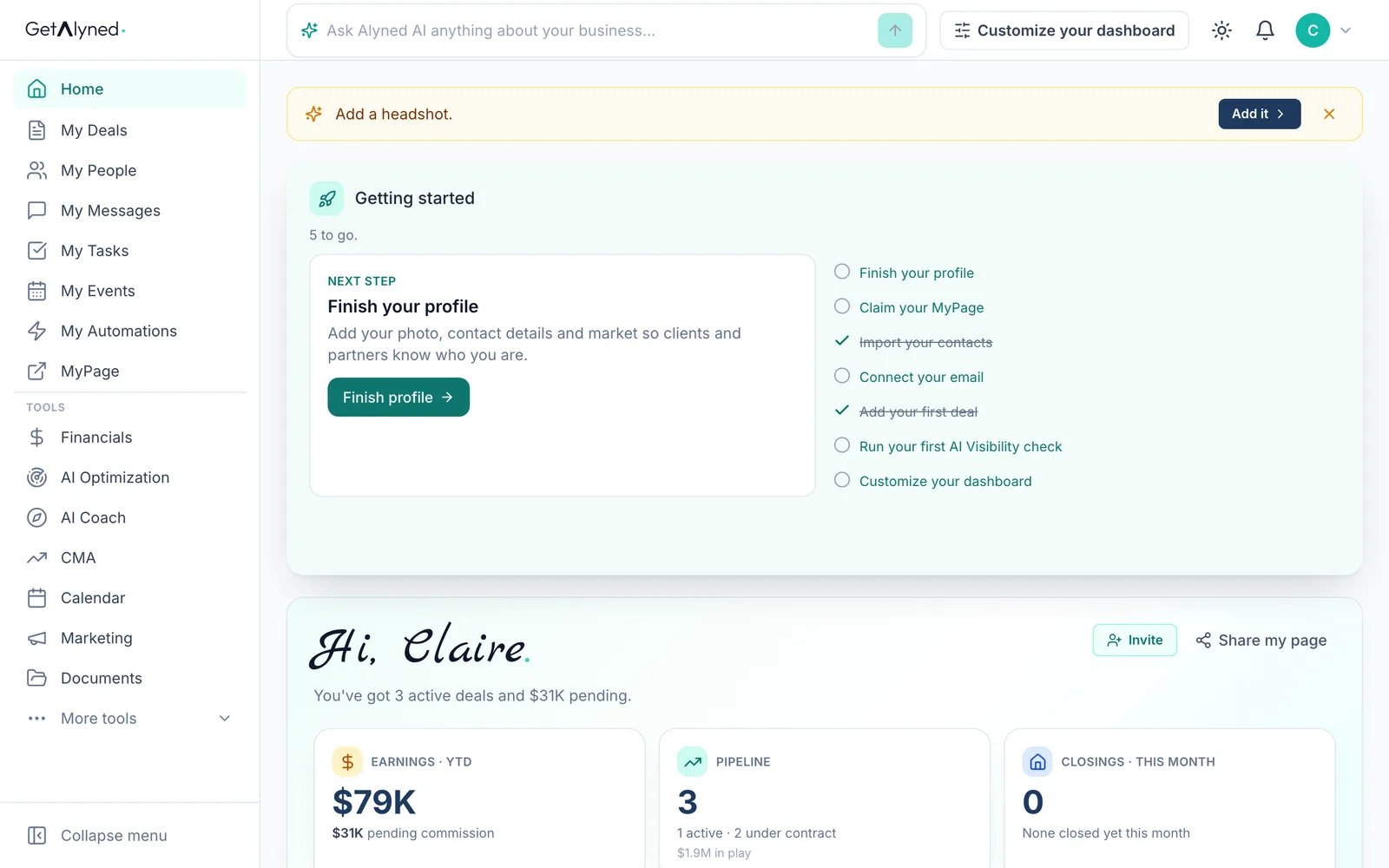
Open Marketing
Marketing is in the menu.
-
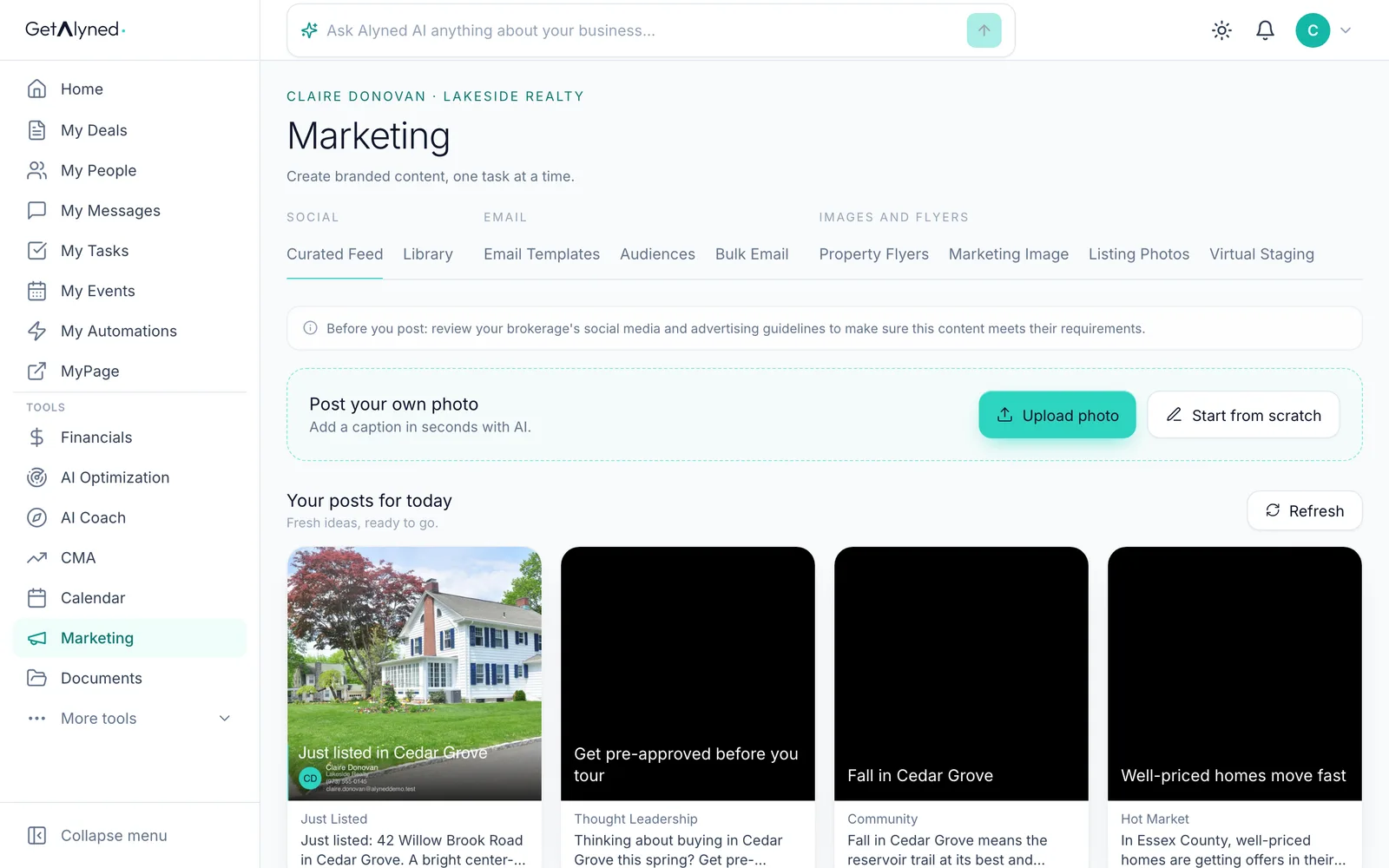
Open Virtual Staging
Under Images and flyers, click Virtual Staging.
-
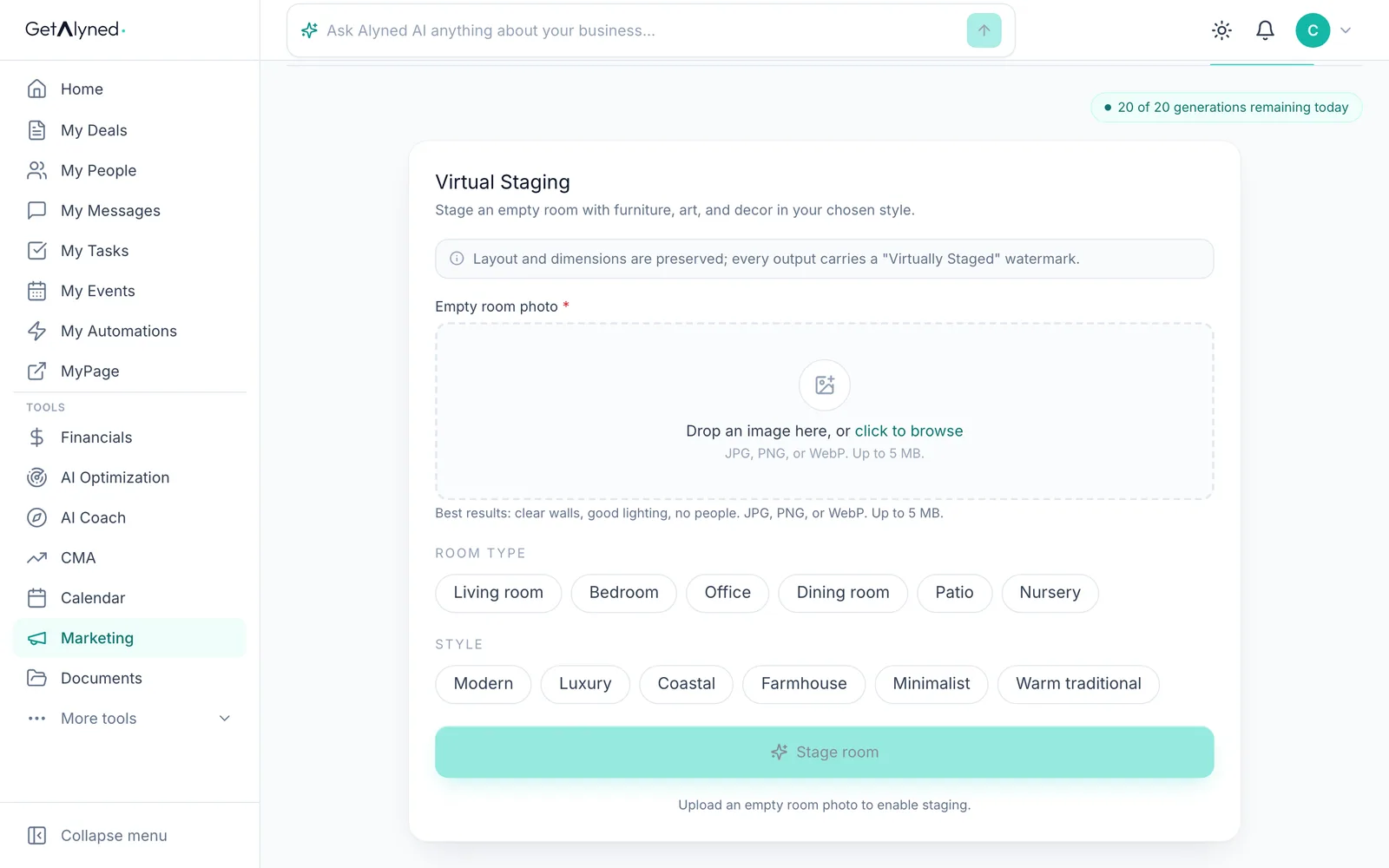
What it does
Virtual Staging adds furniture, art and decor to a photo of an empty room. The room itself stays as it is.
-
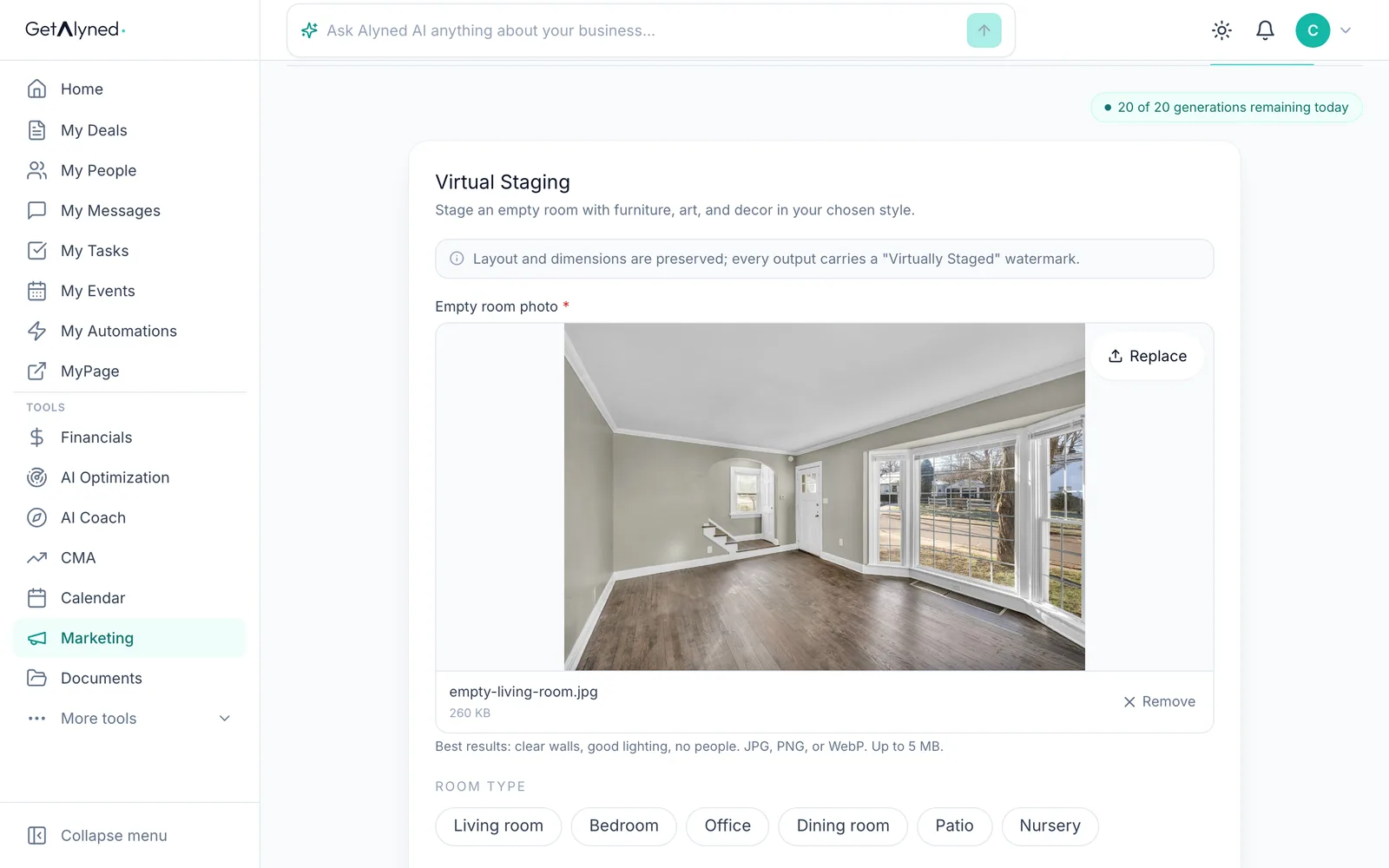
Add the photo
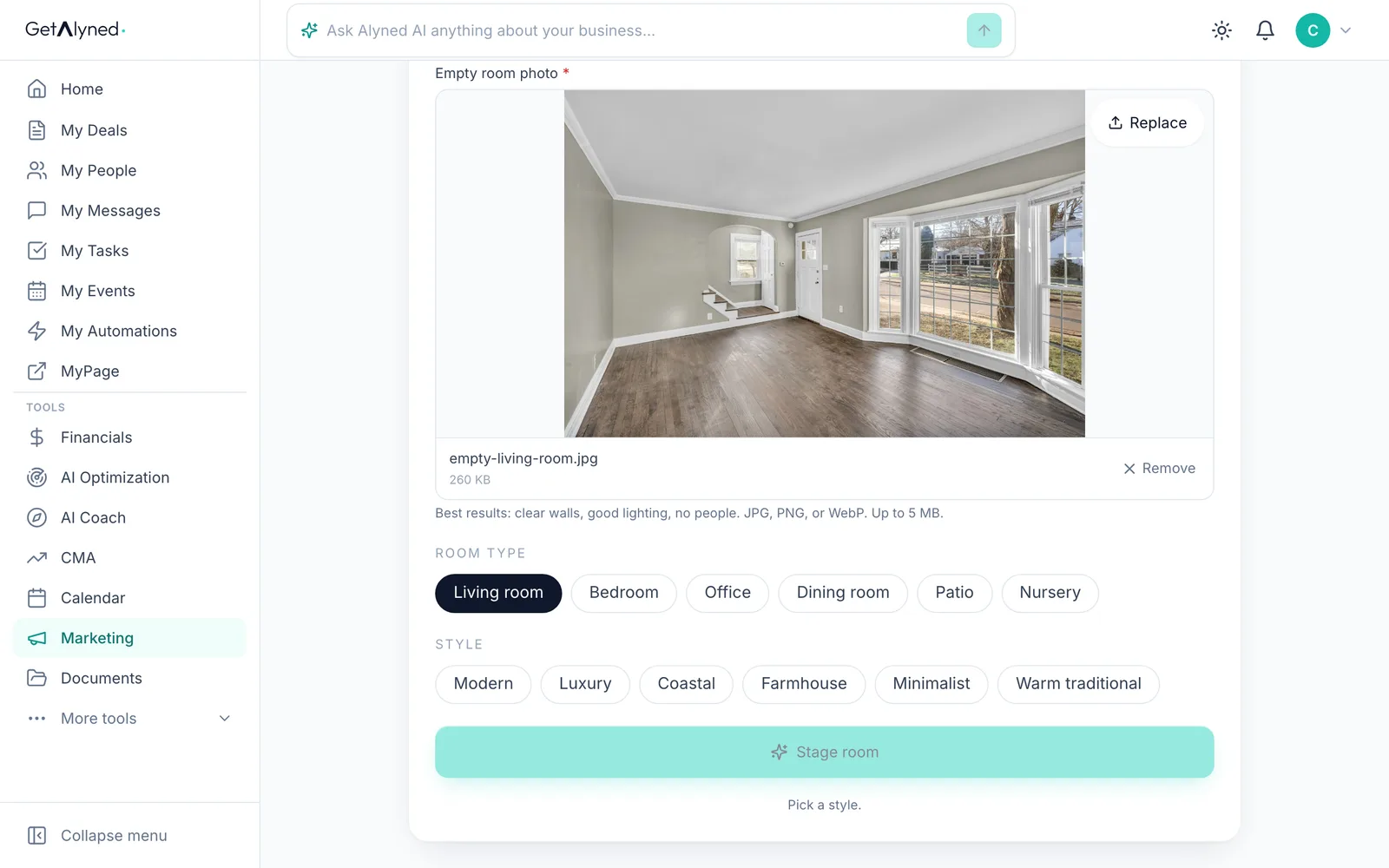
Add a photo of the empty room. Clear walls, good light and no people work best.
-
Pick the room
Pick the room type.
-
Pick a style
Pick a style.
-
Stage it
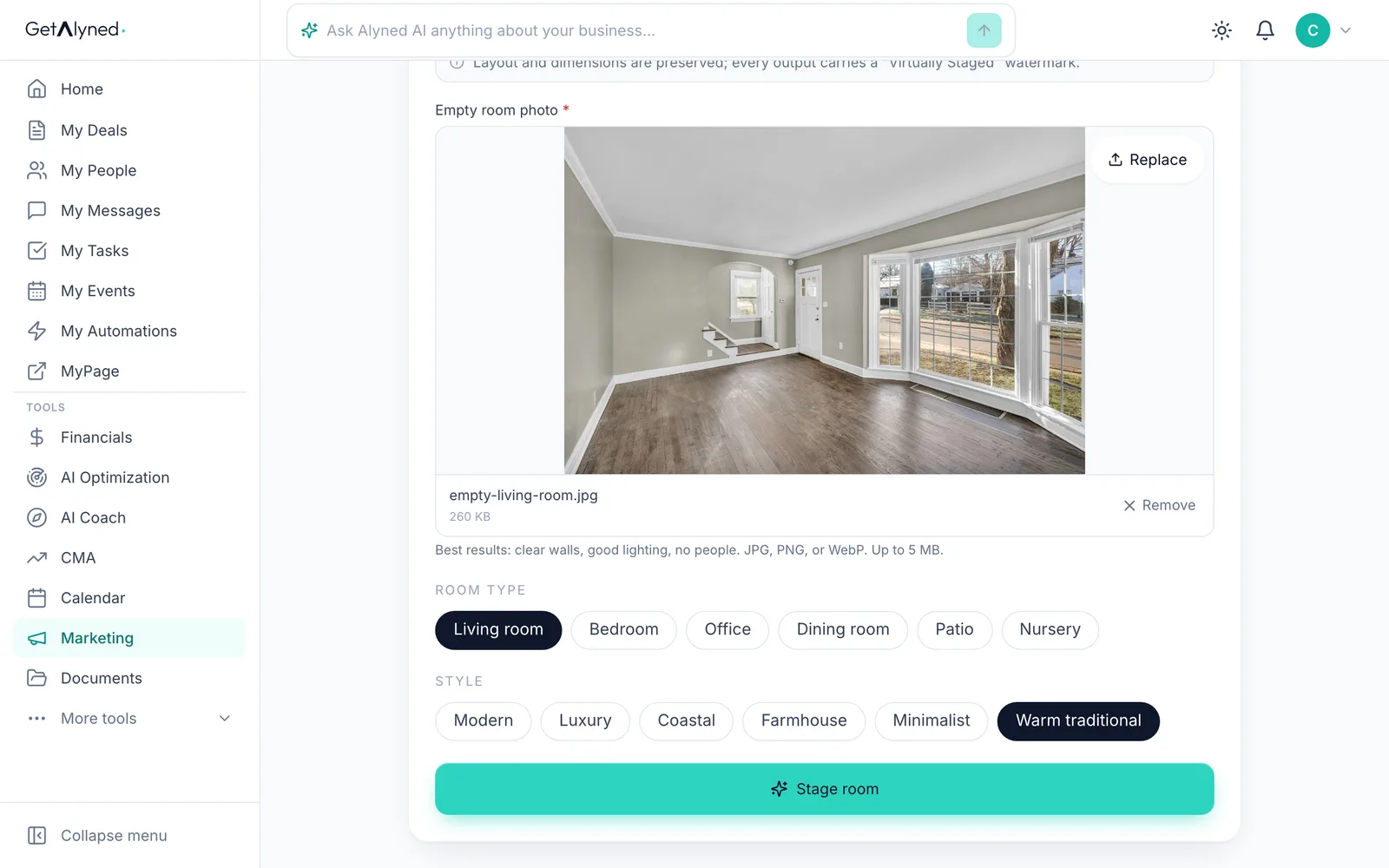
Click Stage room. It usually takes 30 to 60 seconds.
-
Before and after
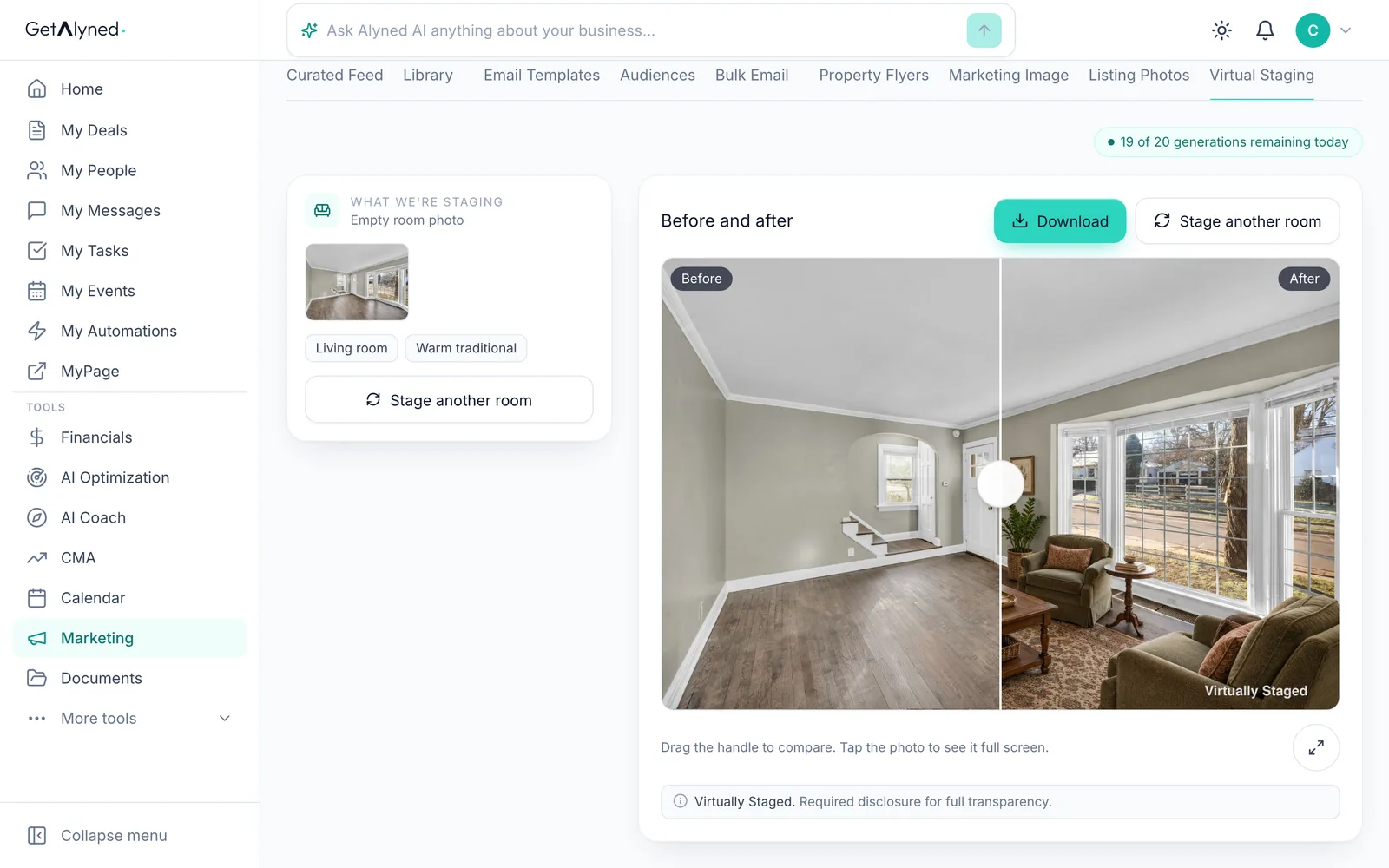
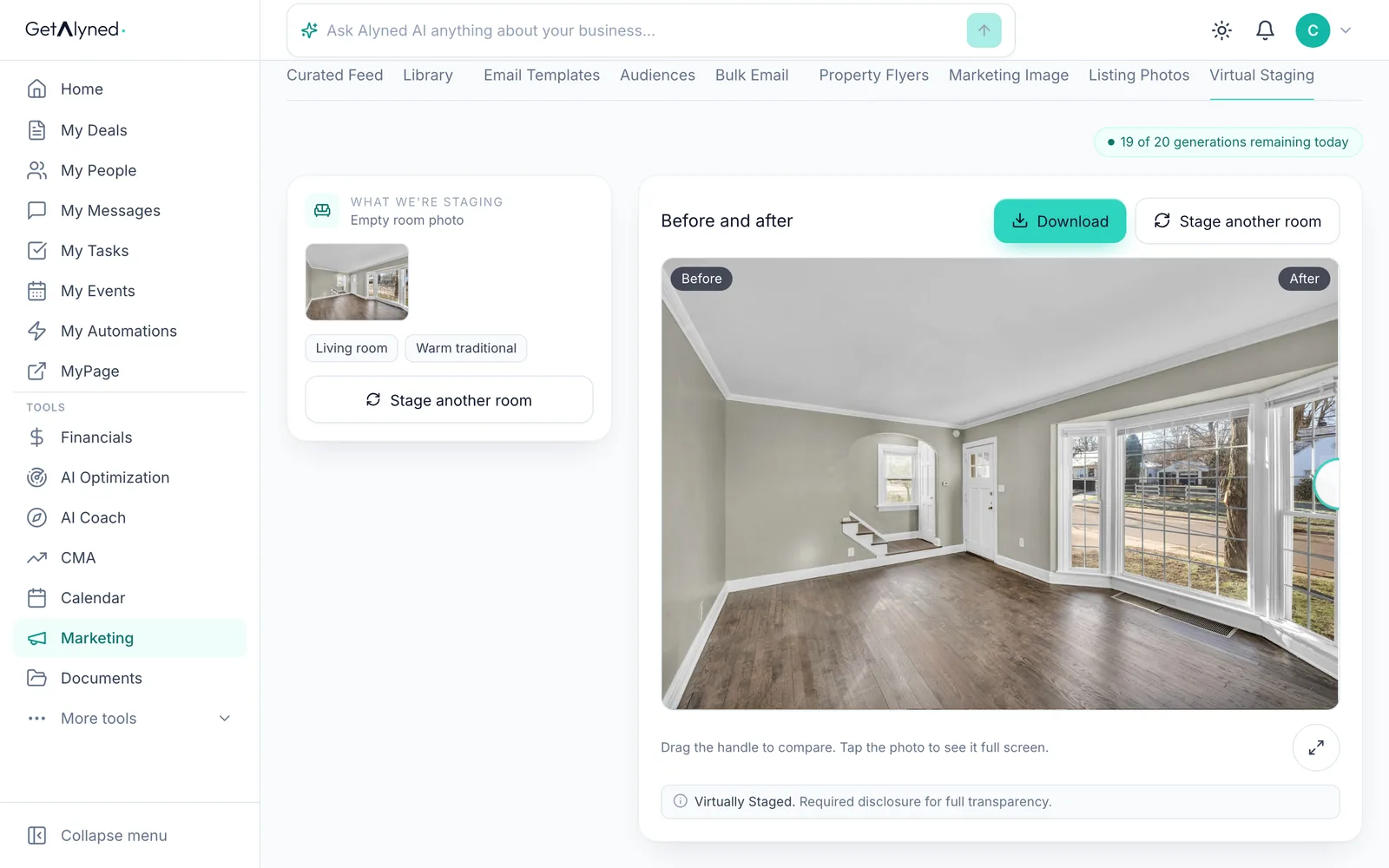
Before and after, side by side on one photo.
-
Check it
Drag the handle to see the staged room. Check that the walls, windows and floors match your photo before you use it.
-
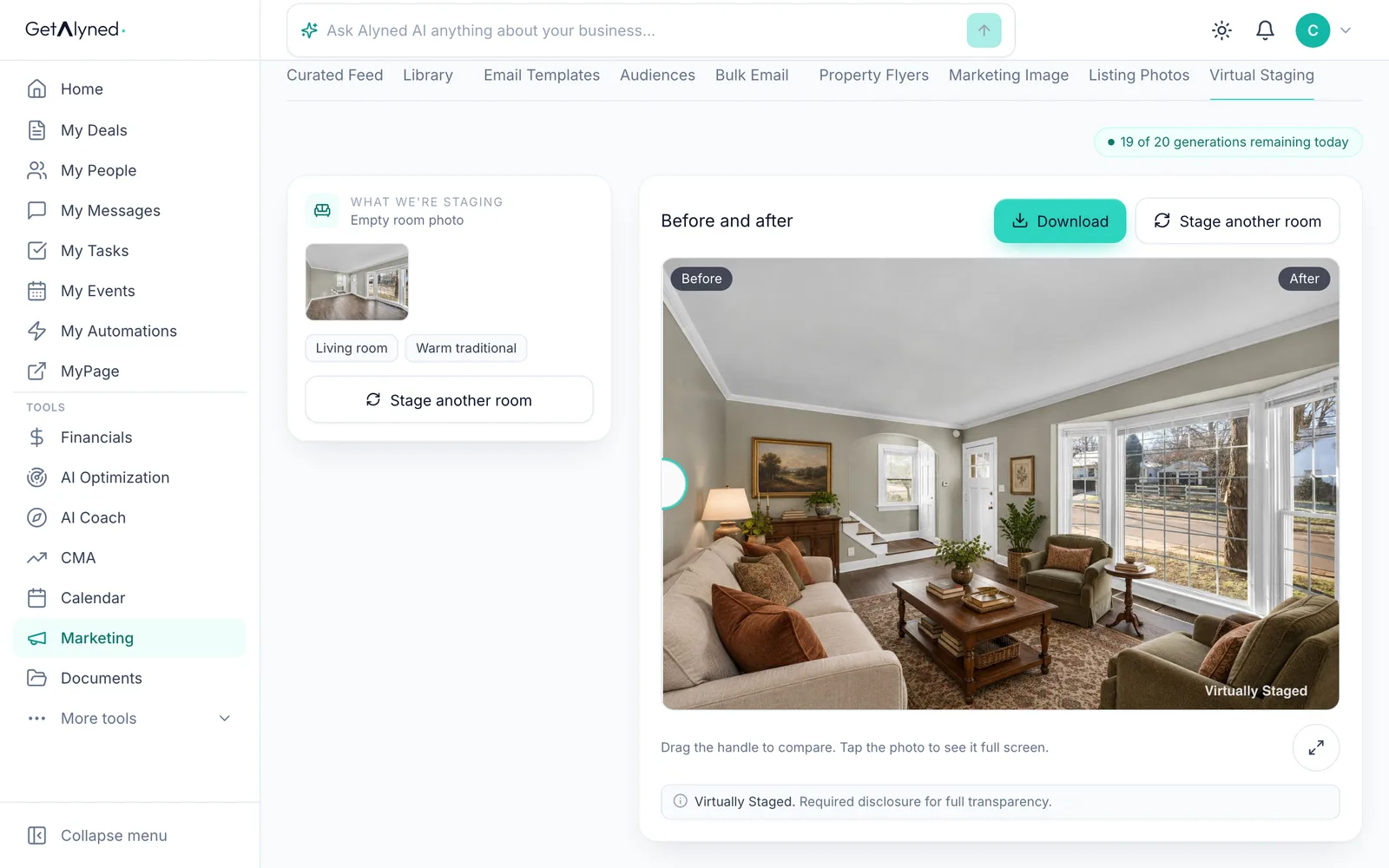
The room as it is
Drag it the other way to see the room as it is.
-
Always marked
Every staged photo carries a Virtually Staged mark. It's always on, so buyers know the furniture isn't really there.
-
Download it
Click Download when you're happy with it.
-
Stage another
Stage another room starts over with a new photo.
Related guides
- Make a marketing image and improve a listing photo · Make a branded post image from a fresh idea, with captions written for it, and brighten up a listing photo in seconds.
- Make a property flyer and social images · Turn an address and a photo into a print-ready flyer, plus matching images sized for Instagram, Facebook and LinkedIn.
- Start a listing deal and publish it to MyPage · Set up a new listing, add the facts, a description and a cover photo, and publish it to your MyPage so buyers can see it right away.