Use the free Content Optimizer
For agents · 3 min
Paste something you wrote and get a version shaped for every place you post, in your own words, with no made-up facts.
Watch
Or read it step by step
-
Open AI Optimization
The Content Optimizer is in AI Optimization, under Tools.
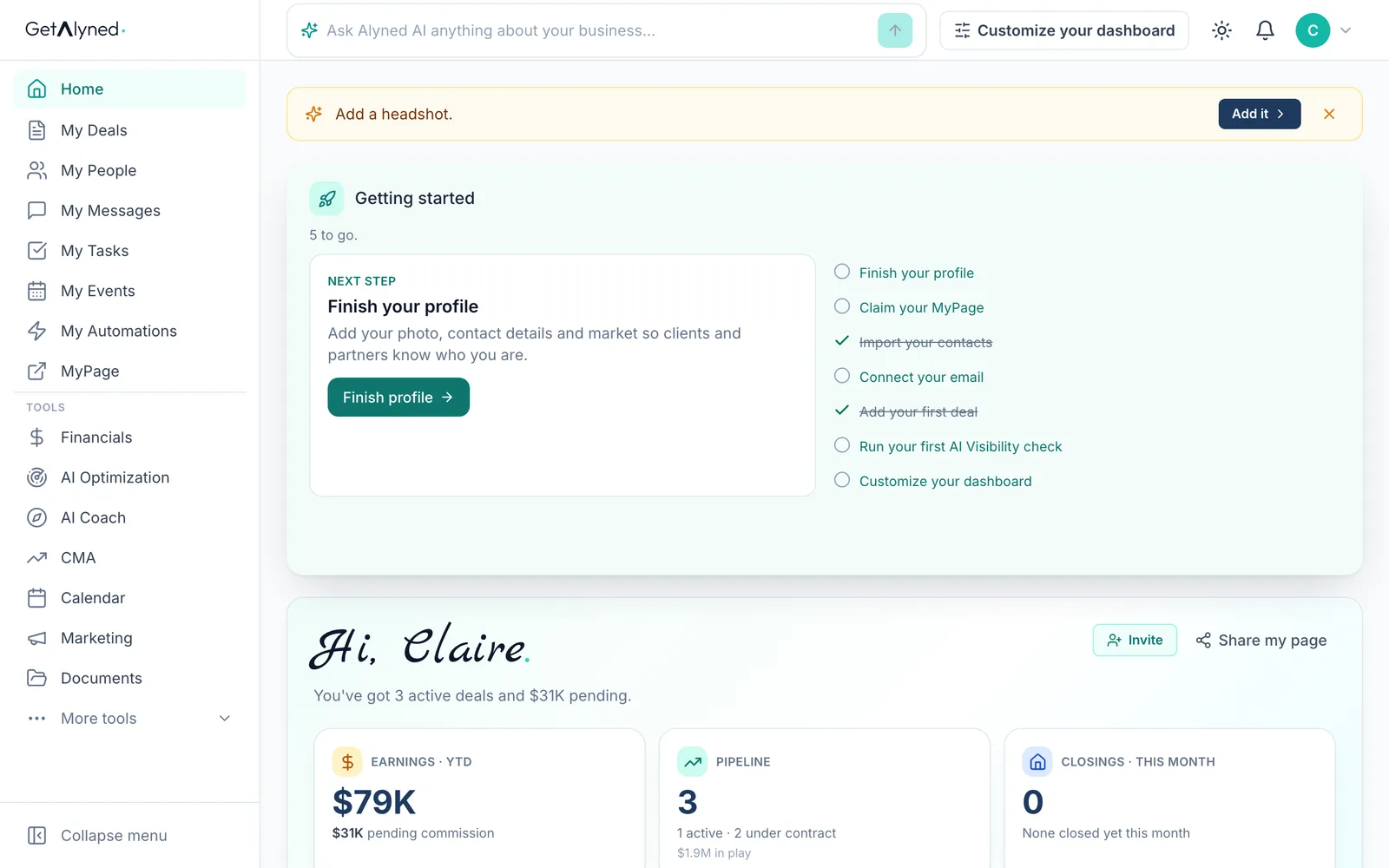
-
Open Content Optimizer
Click Content Optimizer. It's free, with 20 runs a day.
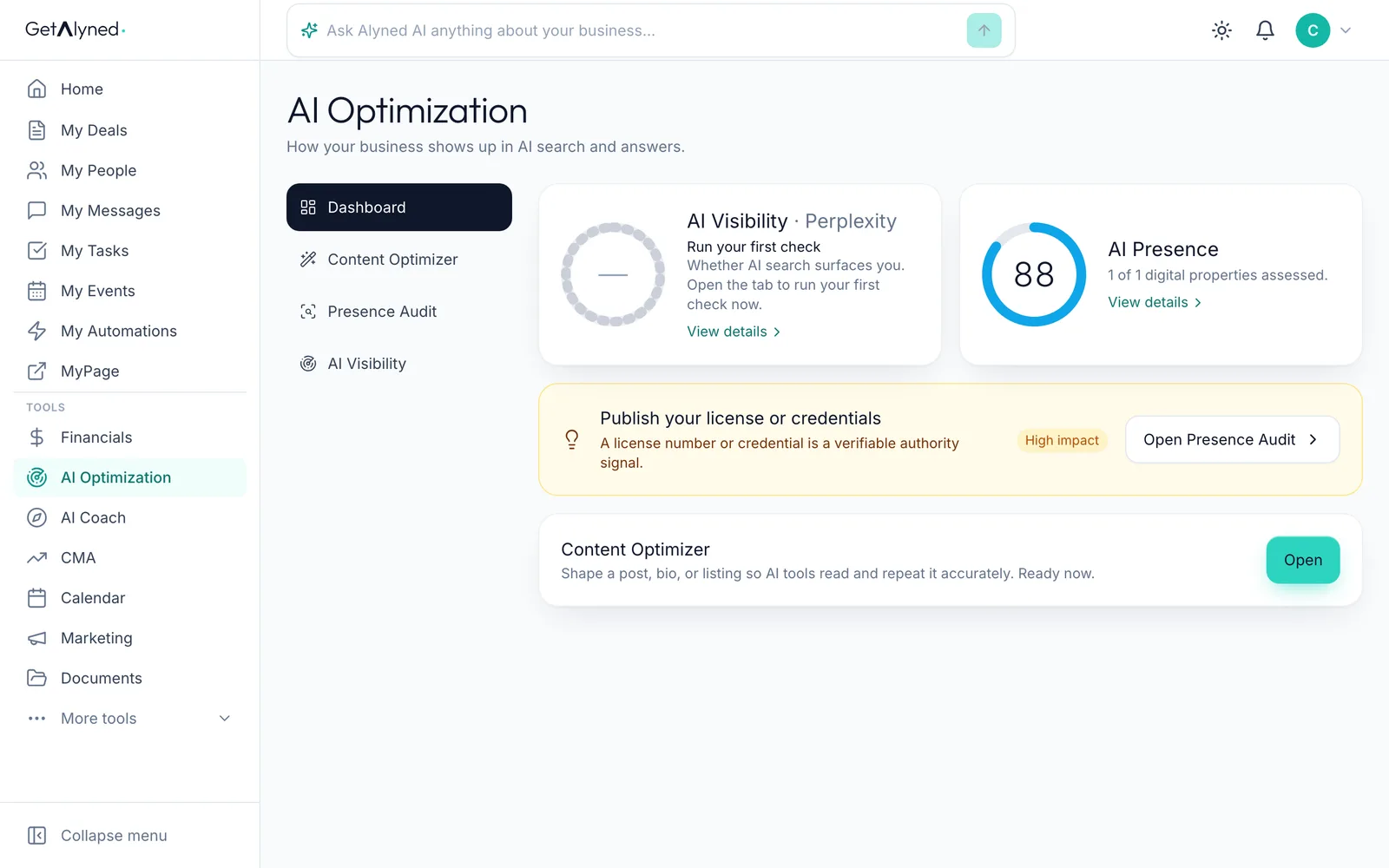
-
Your details are filled in
Your name, market and brokerage come from your profile. They go at the end of every version, so you read as the same person everywhere.
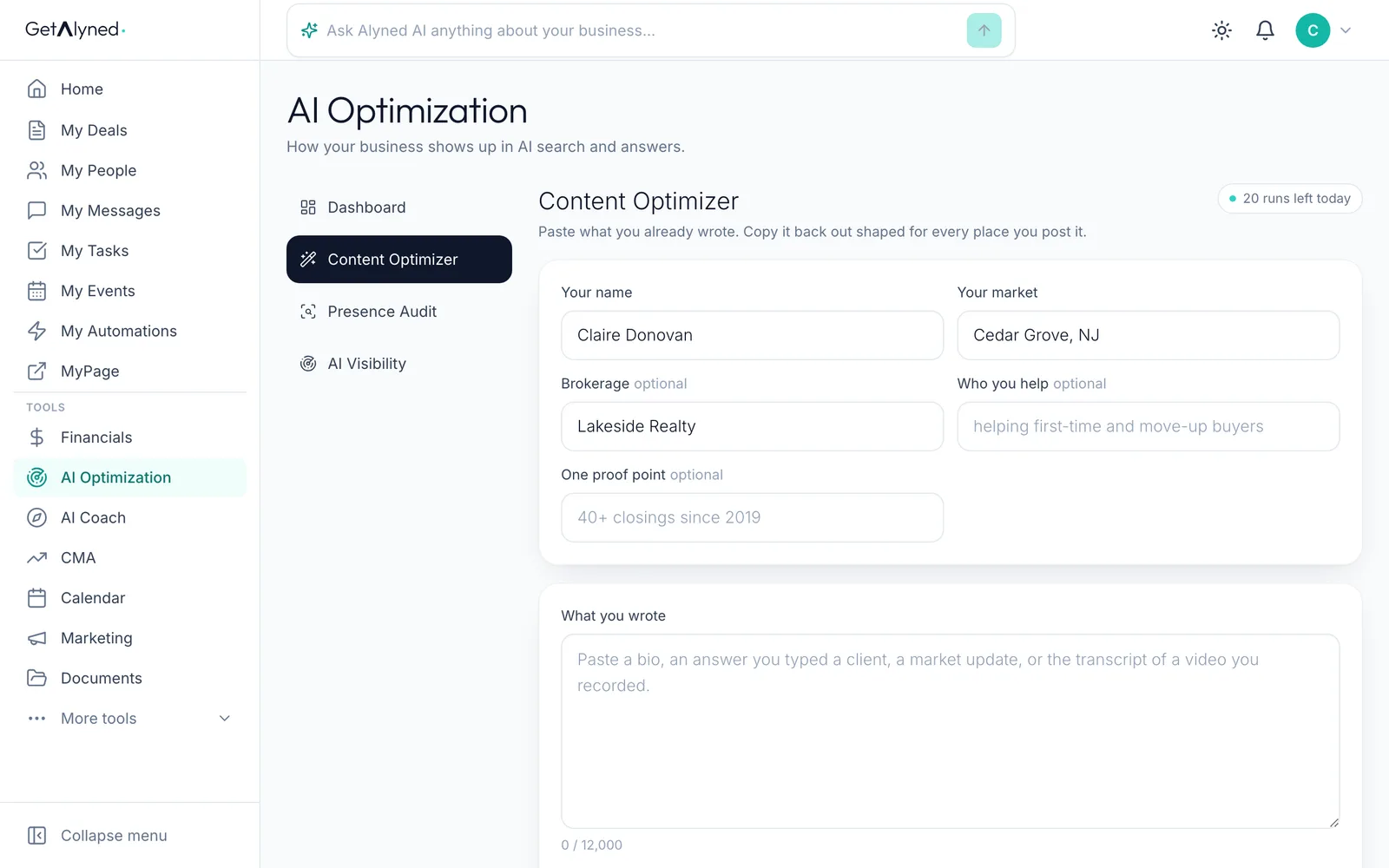
-
Add who you help
Who you help and one proof point are optional. Each one you add makes your signature stronger.
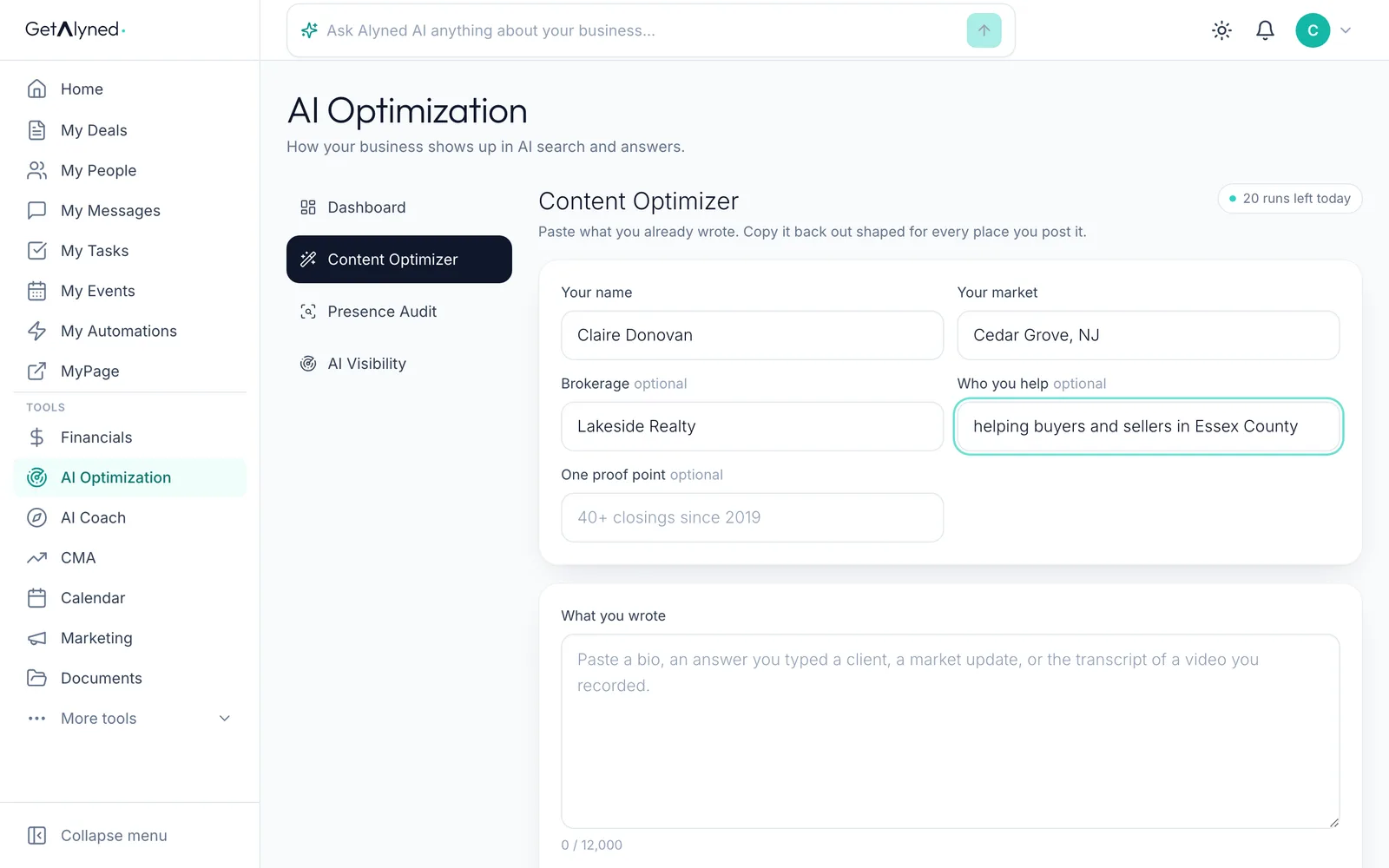
-
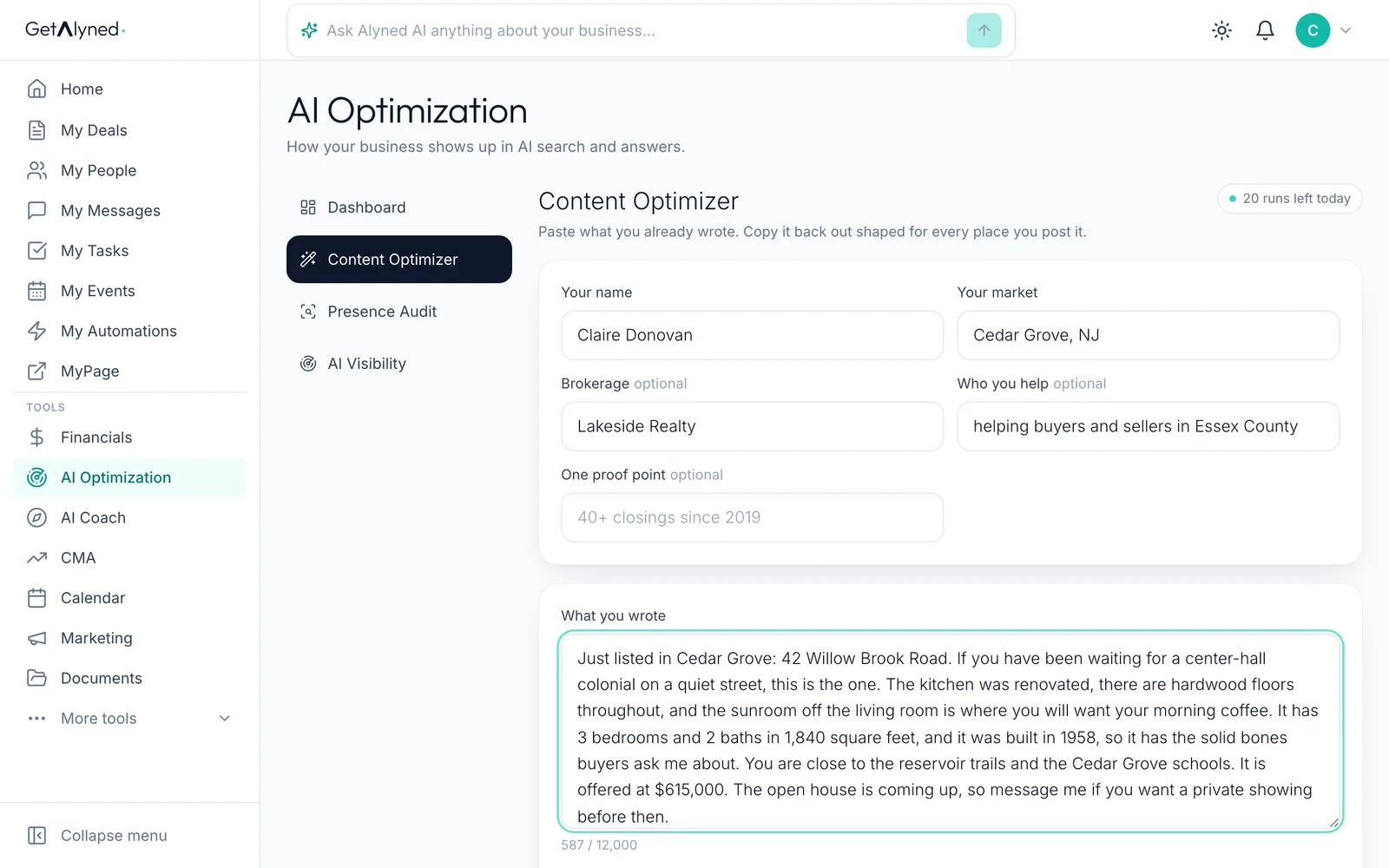
Paste what you wrote
Paste what you already wrote: a listing post, a bio, an answer you typed a client, a market update.
-
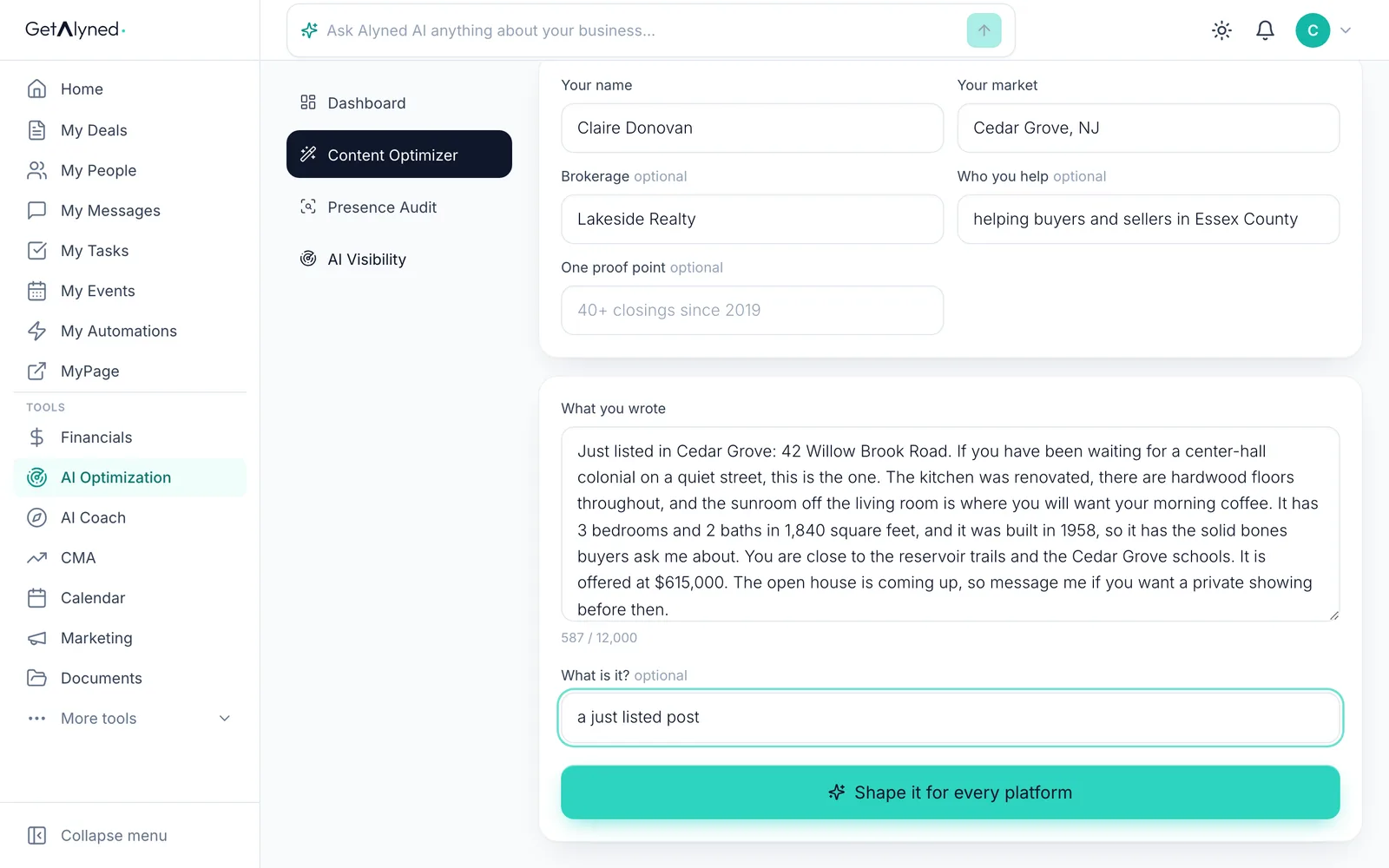
Say what it is
Optional: say what it is, like a just listed post.
-
Shape it
Click Shape it for every platform. Alyned reshapes your own words. It adds no facts, numbers or links you didn't write.
-
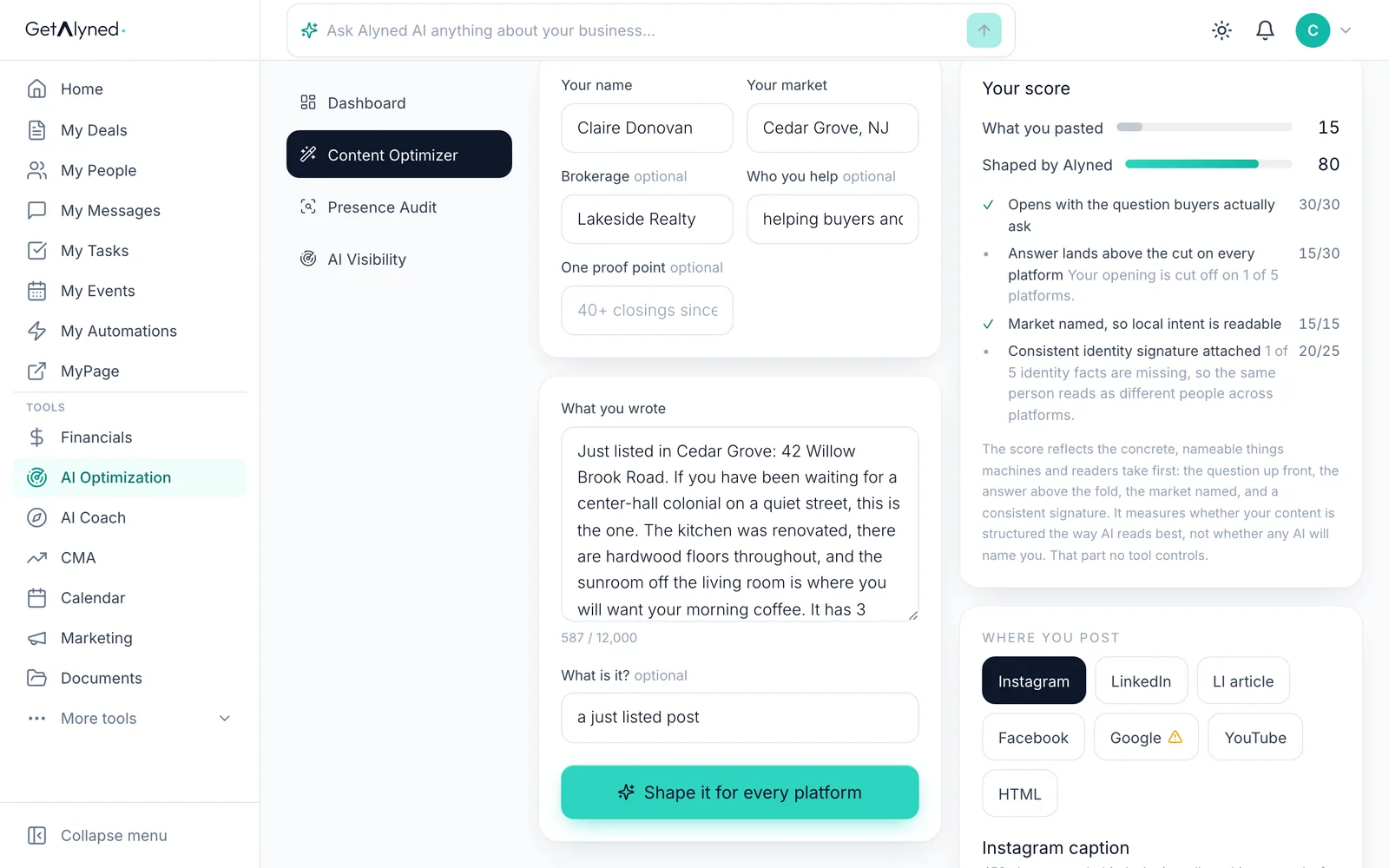
See your score
Your score compares what you pasted with the shaped version, with a checklist of what made the difference.
-
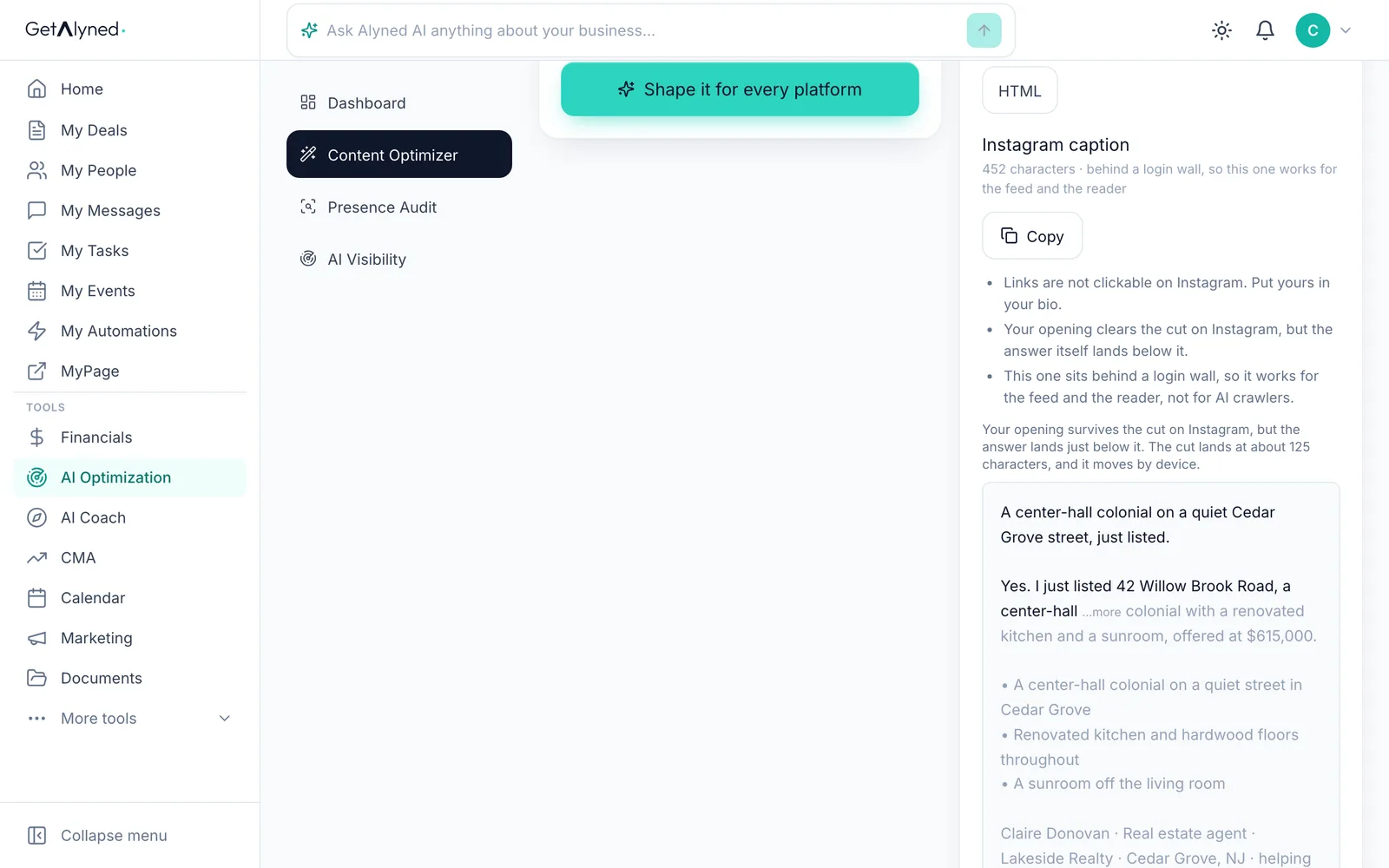
One version per platform
One version for each place you post: Instagram, LinkedIn, a LinkedIn article, Facebook, Google, YouTube and your own website.
-
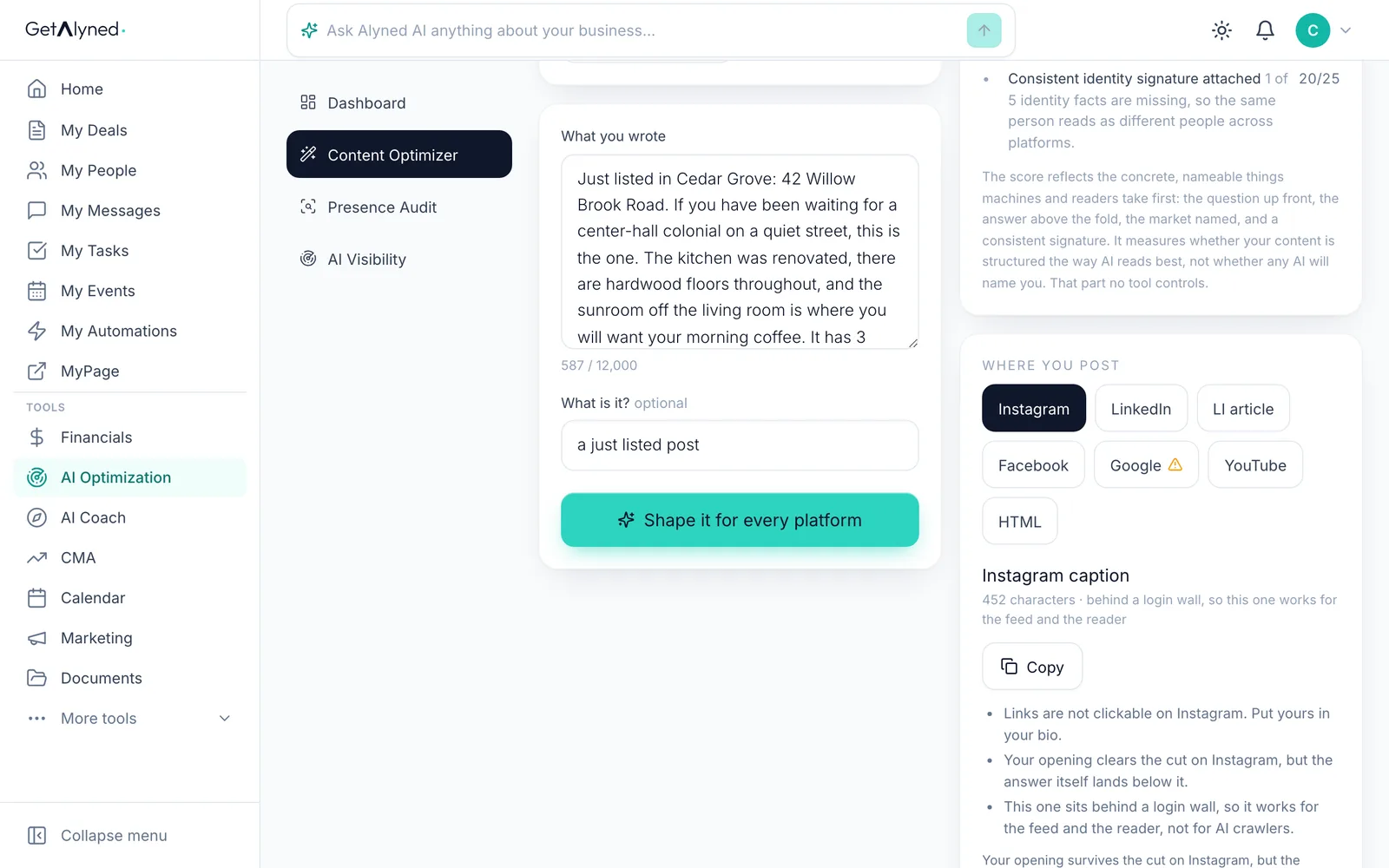
Pick a platform
Pick a platform to see its version.
-
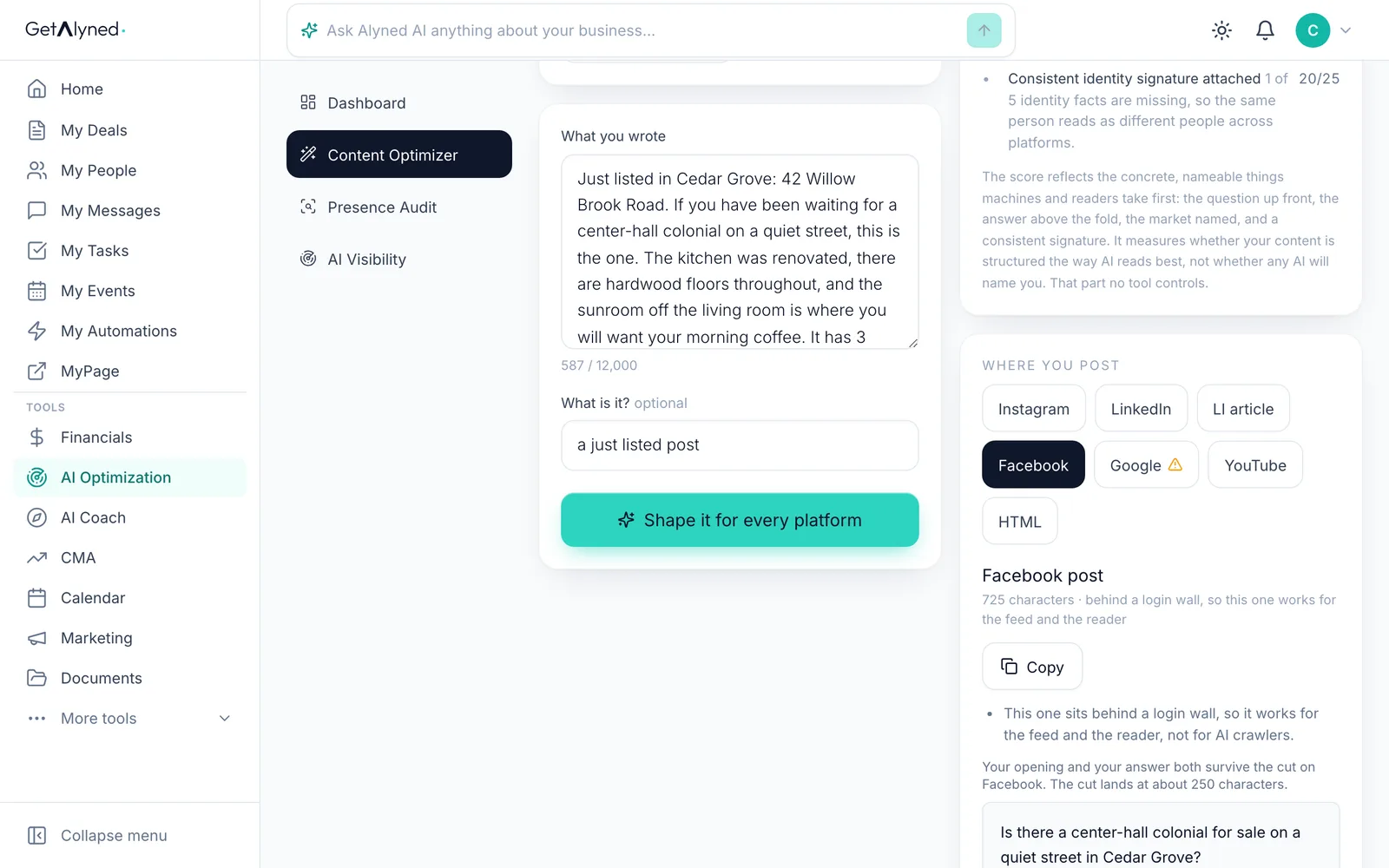
Copy it
Click Copy, then paste it where you post.
-
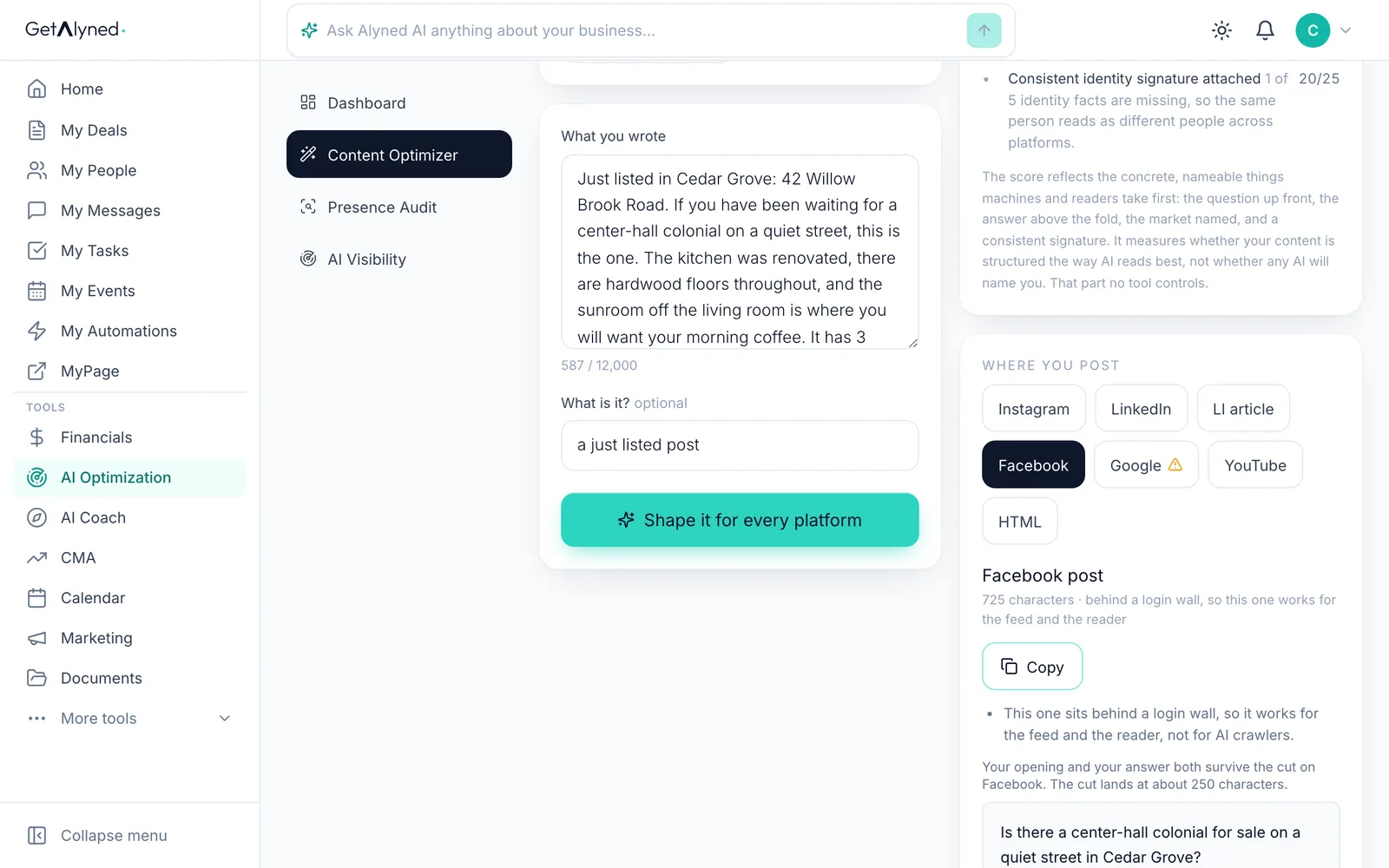
Check the warnings
A warning sign marks a platform where your opening gets cut off. Open it to see where the cut lands.
-
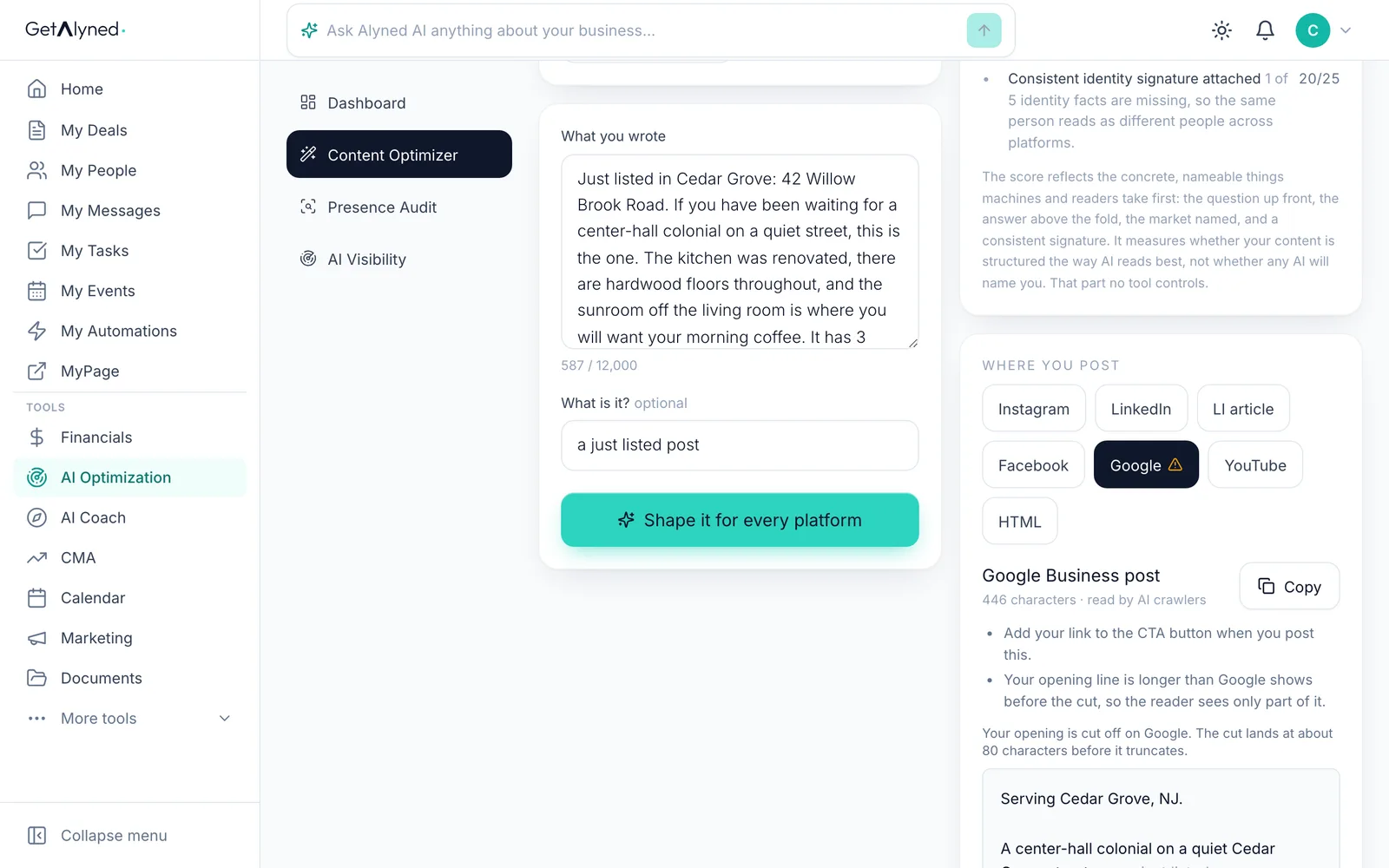
Try the article
Open LI article for a longer LinkedIn article.
-
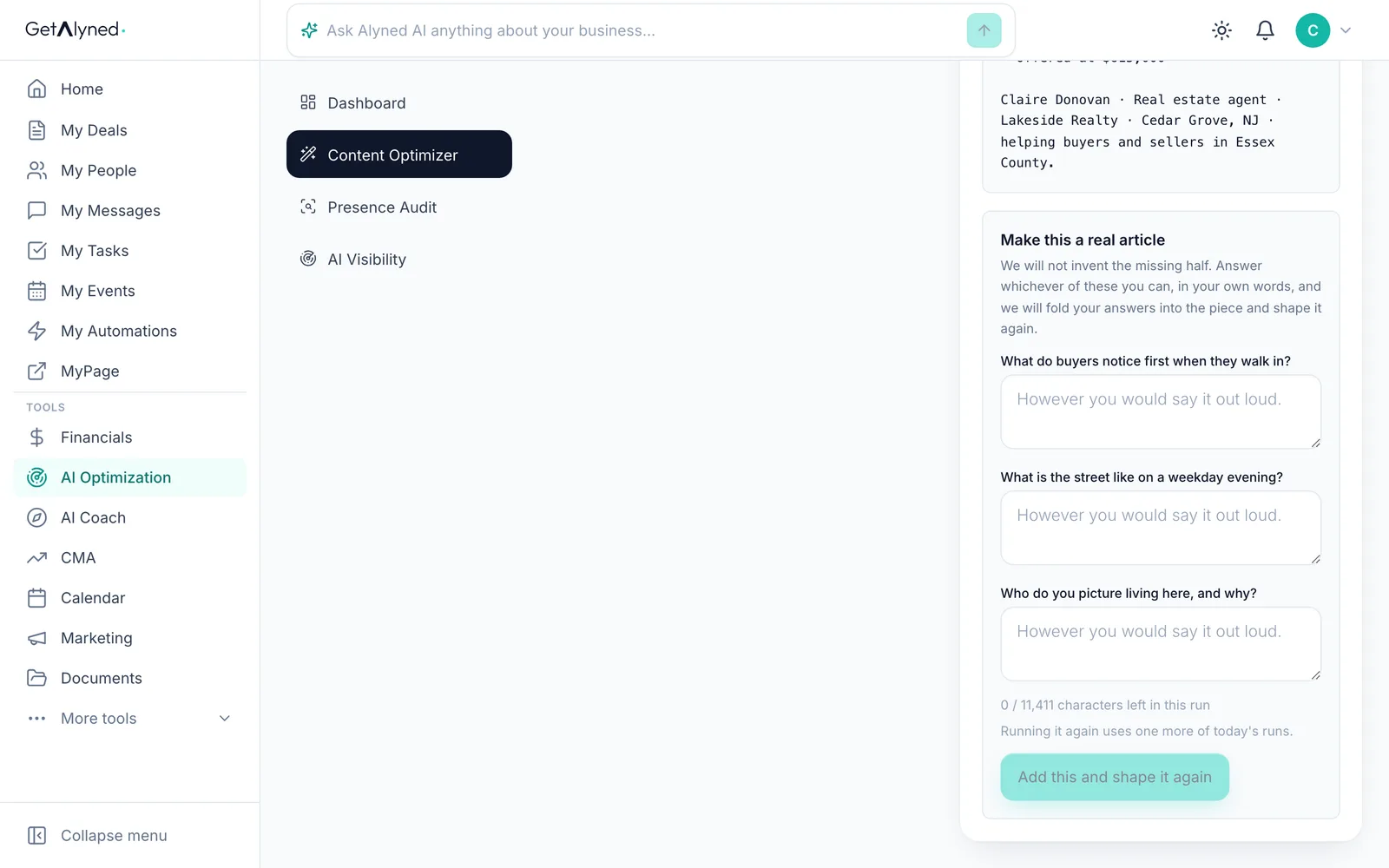
Make it a real article
For a longer article, answer a question or two in your own words, then shape it again. Alyned won't invent what's missing.
Related guides
- Check your AI Visibility and Presence Audit · See whether AI answers recommend you when buyers and sellers ask about your market, and what to fix so AI tools read your pages well.
- Post from the Curated Feed · Pick a ready-made post written for your market, make it yours, and copy it to social or publish it straight to your MyPage.
- Make a marketing image and improve a listing photo · Make a branded post image from a fresh idea, with captions written for it, and brighten up a listing photo in seconds.